You’ve successfully logged into your Jotform account through the app—great job! Now, you’re ready to explore all the powerful features that Jotform Mobile Forms has to offer. Whether you’re collecting data in the field, managing submissions, or editing forms on the go, this app is designed to streamline your workflow and make it more efficient.
If you haven’t yet downloaded, installed, and synced the app, don’t worry— check out our guide on How to Download and Start Using Jotform Mobile Forms to learn more.


Viewing Your Forms
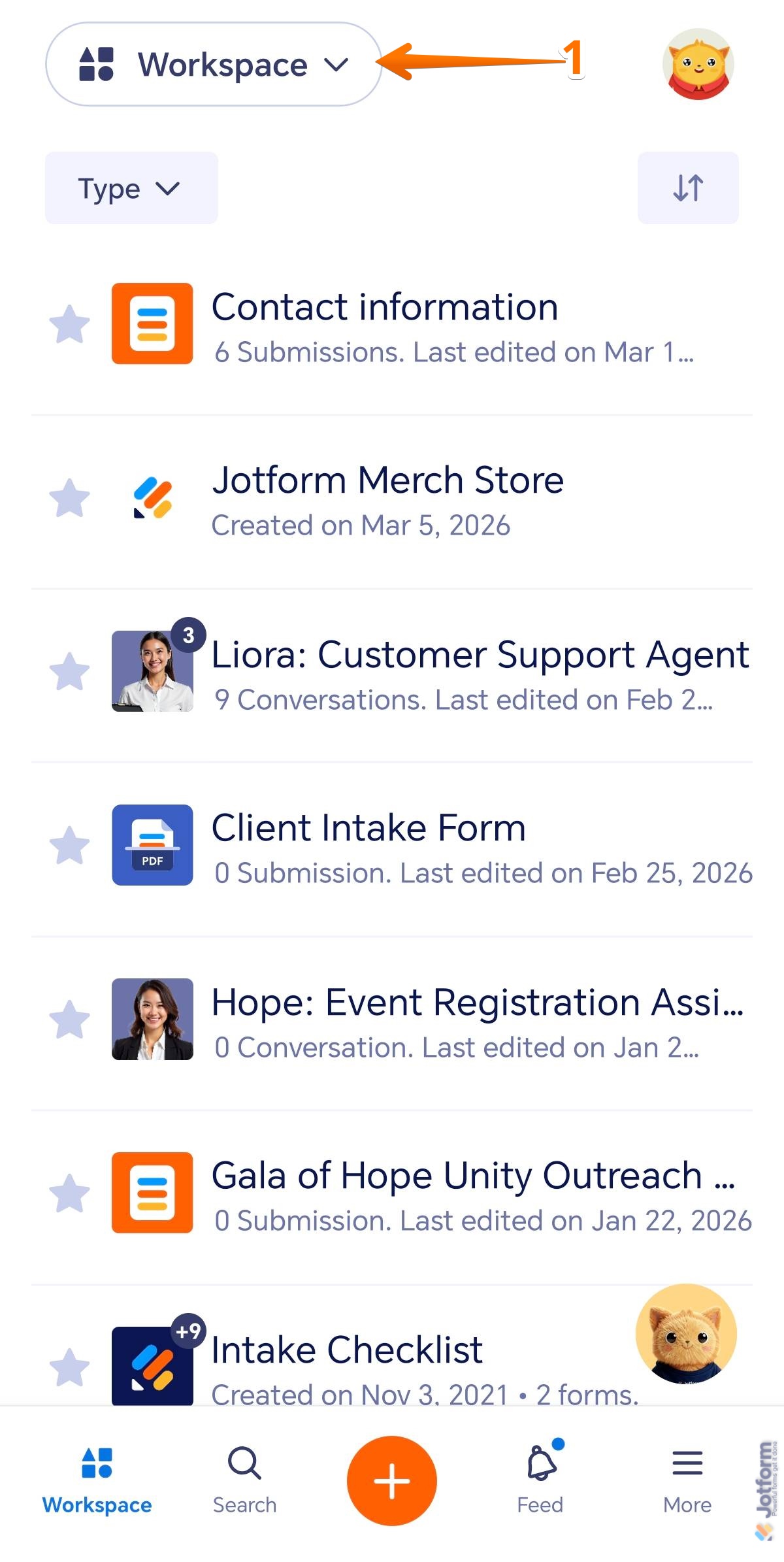
Once you are logged in to the app, you will see your Workspace, where all your assets are listed. You can filter forms to view them. You can do it in just a few steps:
- In the Jotform Mobile App, tap on Workspace at the top-left side of the screen.
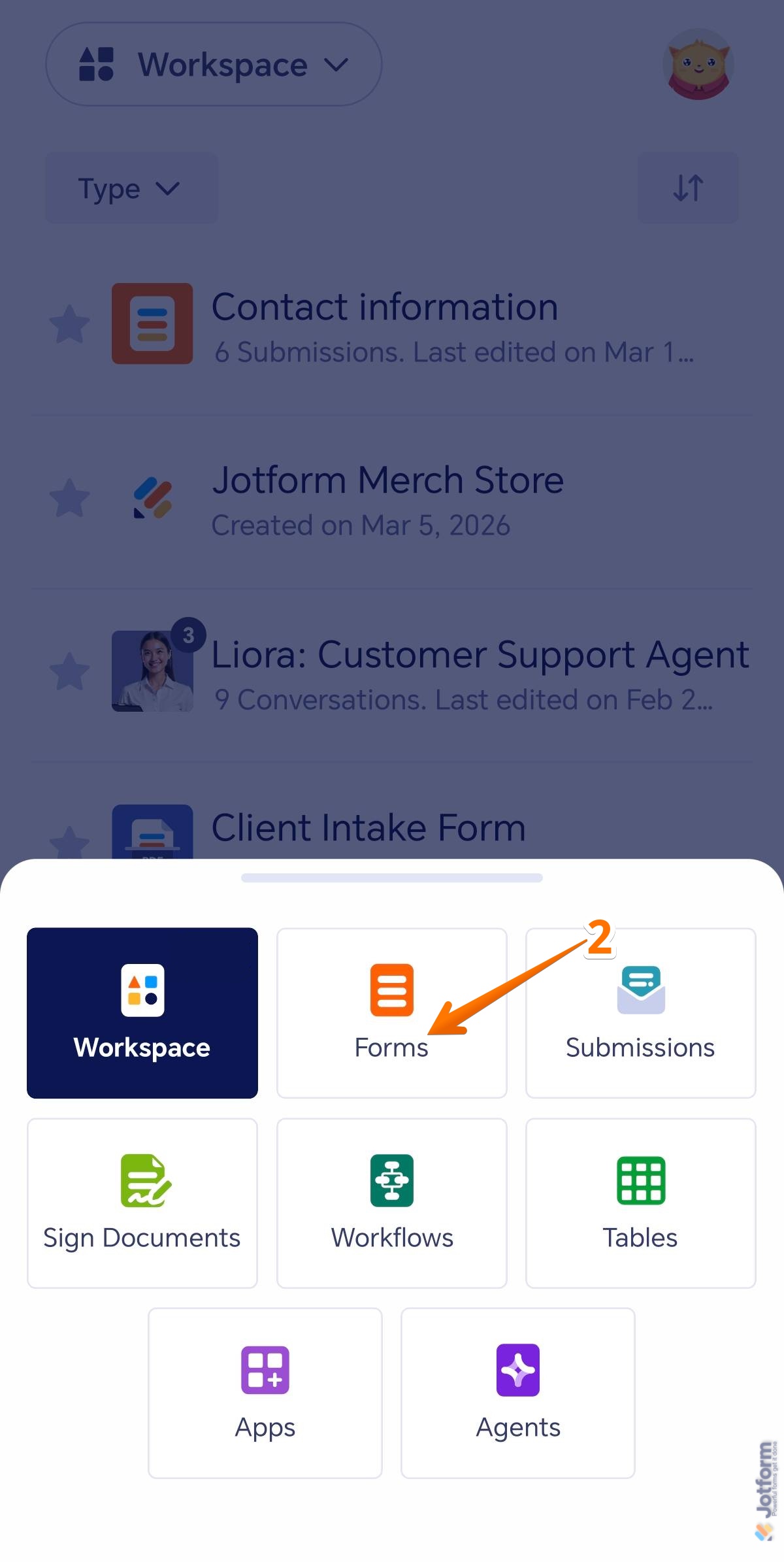
- Then, in the menu that opens at the bottom, tap on Forms.
Here’s one way to do it:
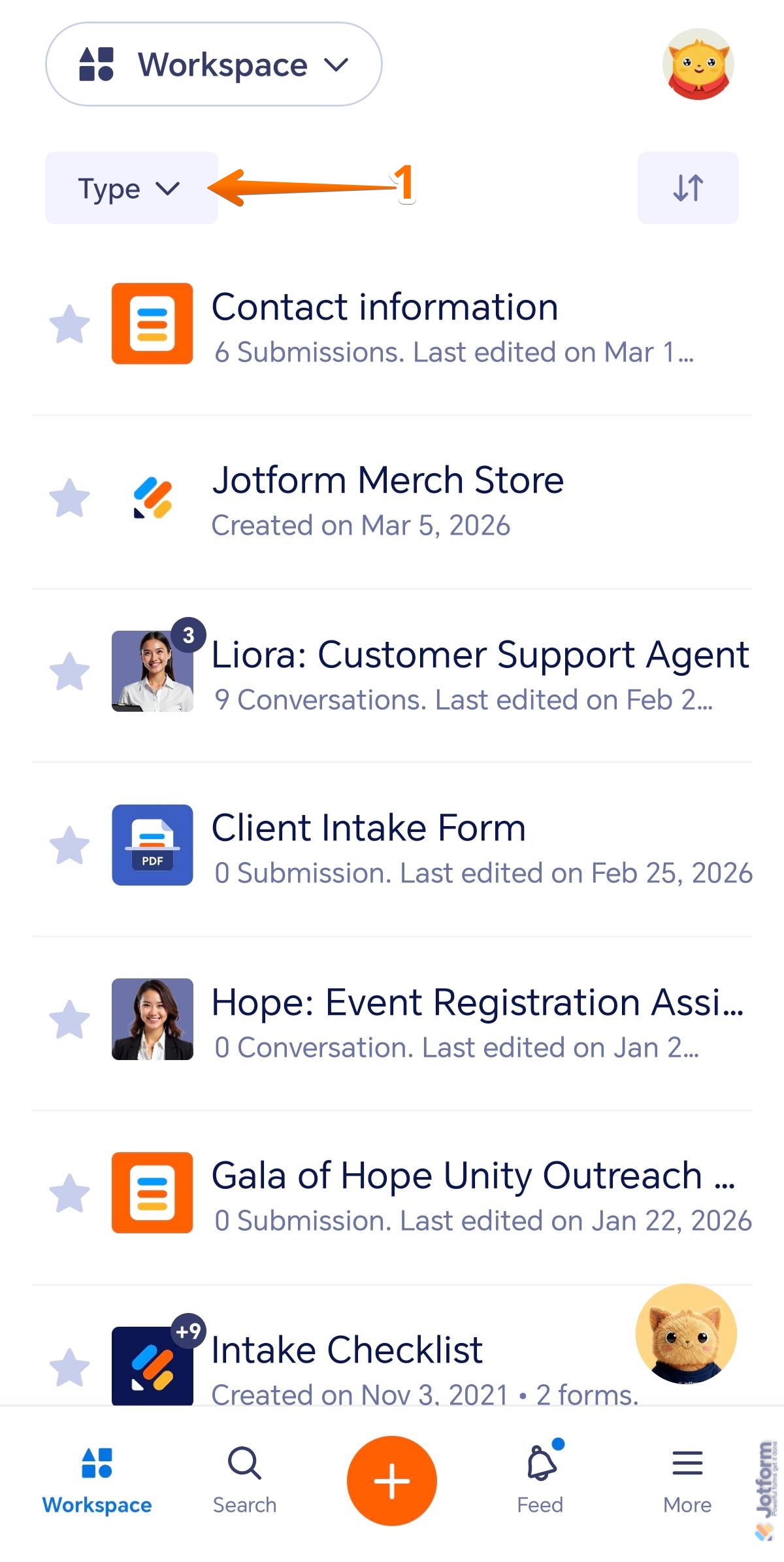
- In the Jotform Mobile App, on the top-left side of the screen, tap on the Type dropdown.
- Then, in the menu that opens at the bottom, uncheck the boxes next to all assets except Forms, so only Forms are shown on the page.
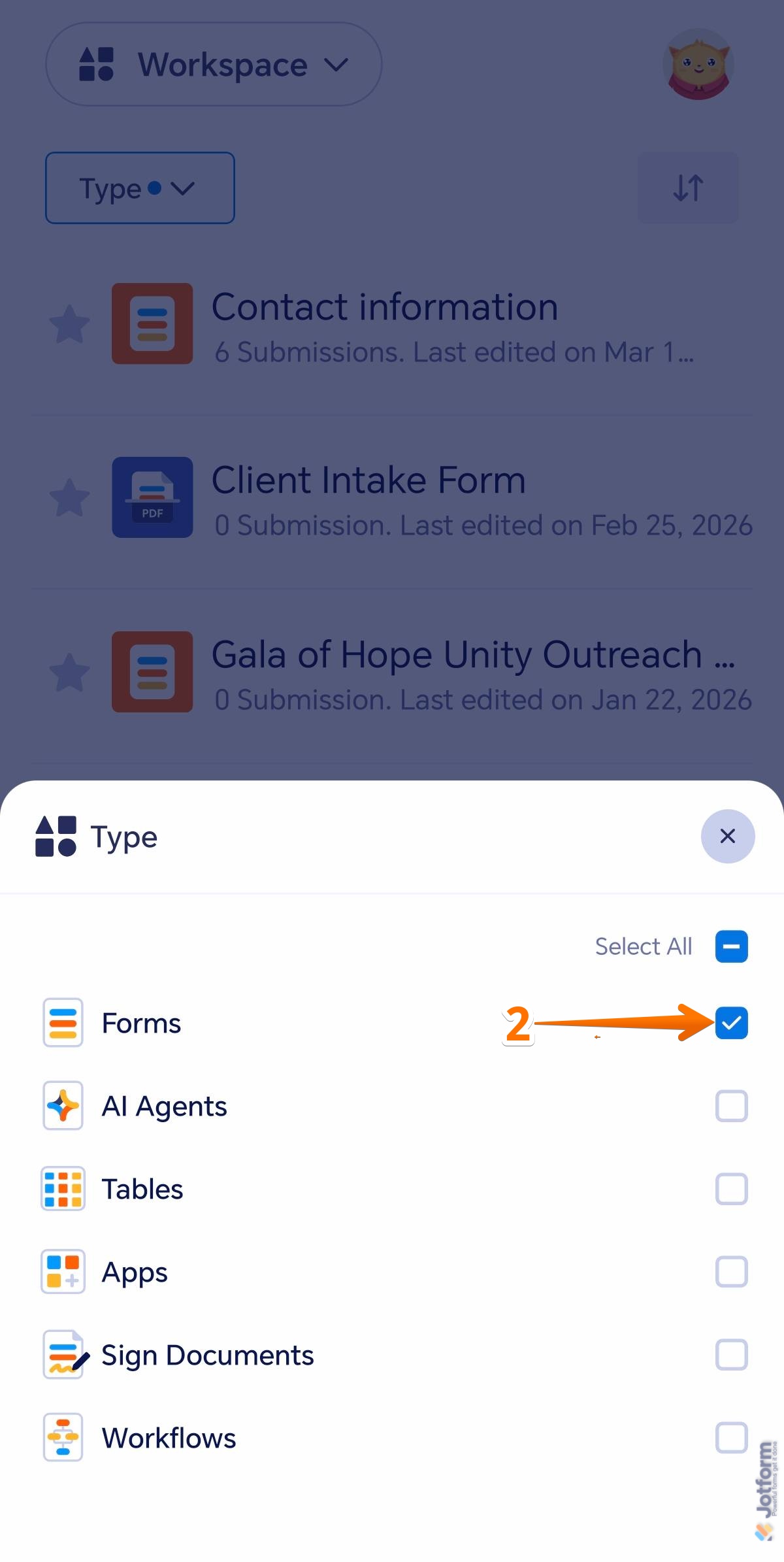
That’s it! You should have your forms displayed on the screen without the other assets of your account.
Viewing Submissions From All Your Forms
In the Jotform Mobile Forms app, you can view all your submissions at once, giving you quick access to the data collected from your forms in a single place. This makes it easy to review responses, monitor incoming entries, and stay updated on form activity while you’re on the go. Here’s the quick way to do it:
- In the Jotform Mobile App, tap on Workspace in the top-left corner of the screen.
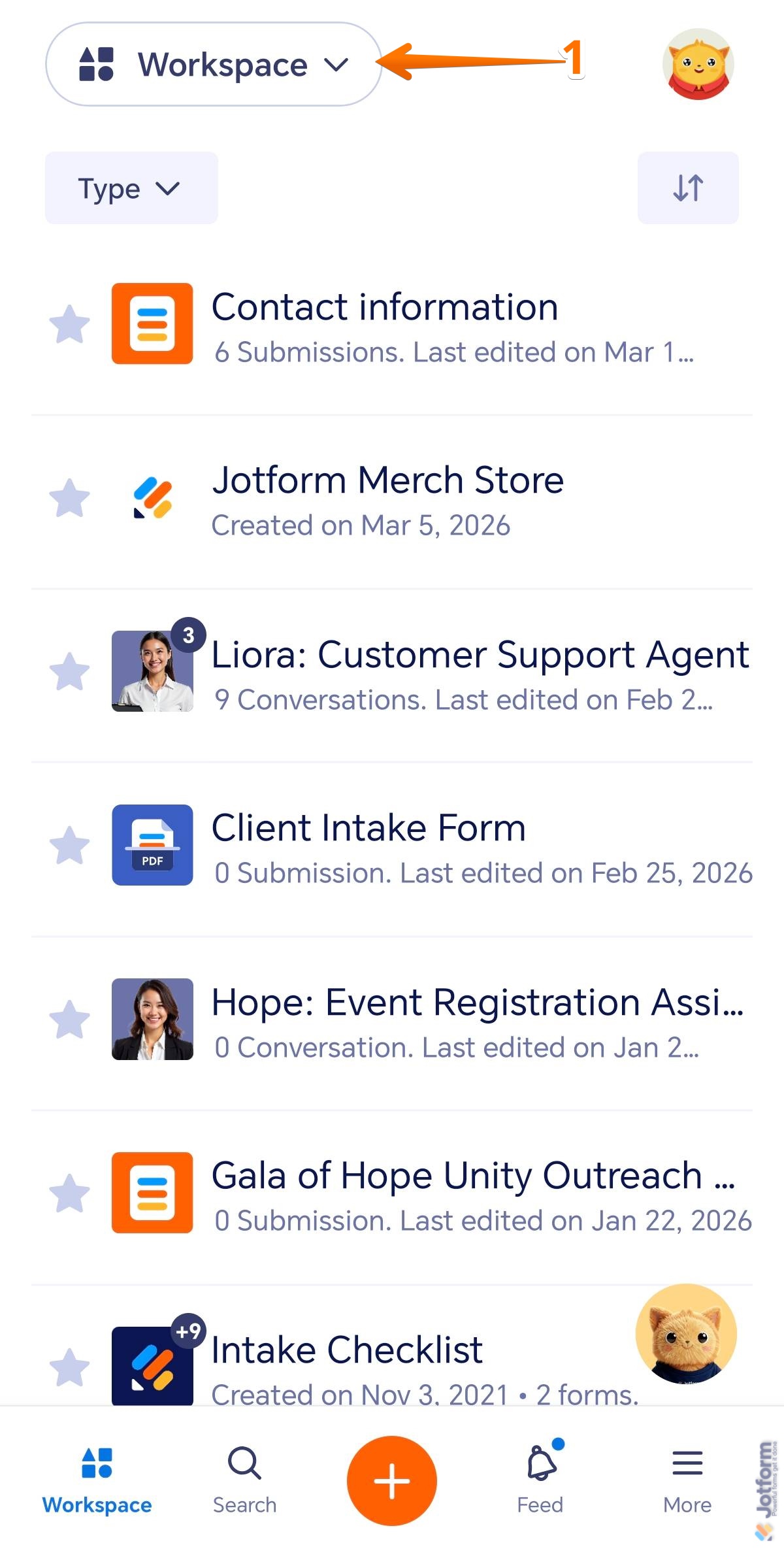
- Then, in the menu that opens at the bottom, tap on Submissions.

You should see the Inbox as the next screen. The Jotform Inbox is a built-in messaging and submission management tool that helps you view, organize, and respond to form submissions in a conversation-style interface.

You’ll also see the Sentbox, which stores all the messages and replies you’ve sent to respondents through your forms.
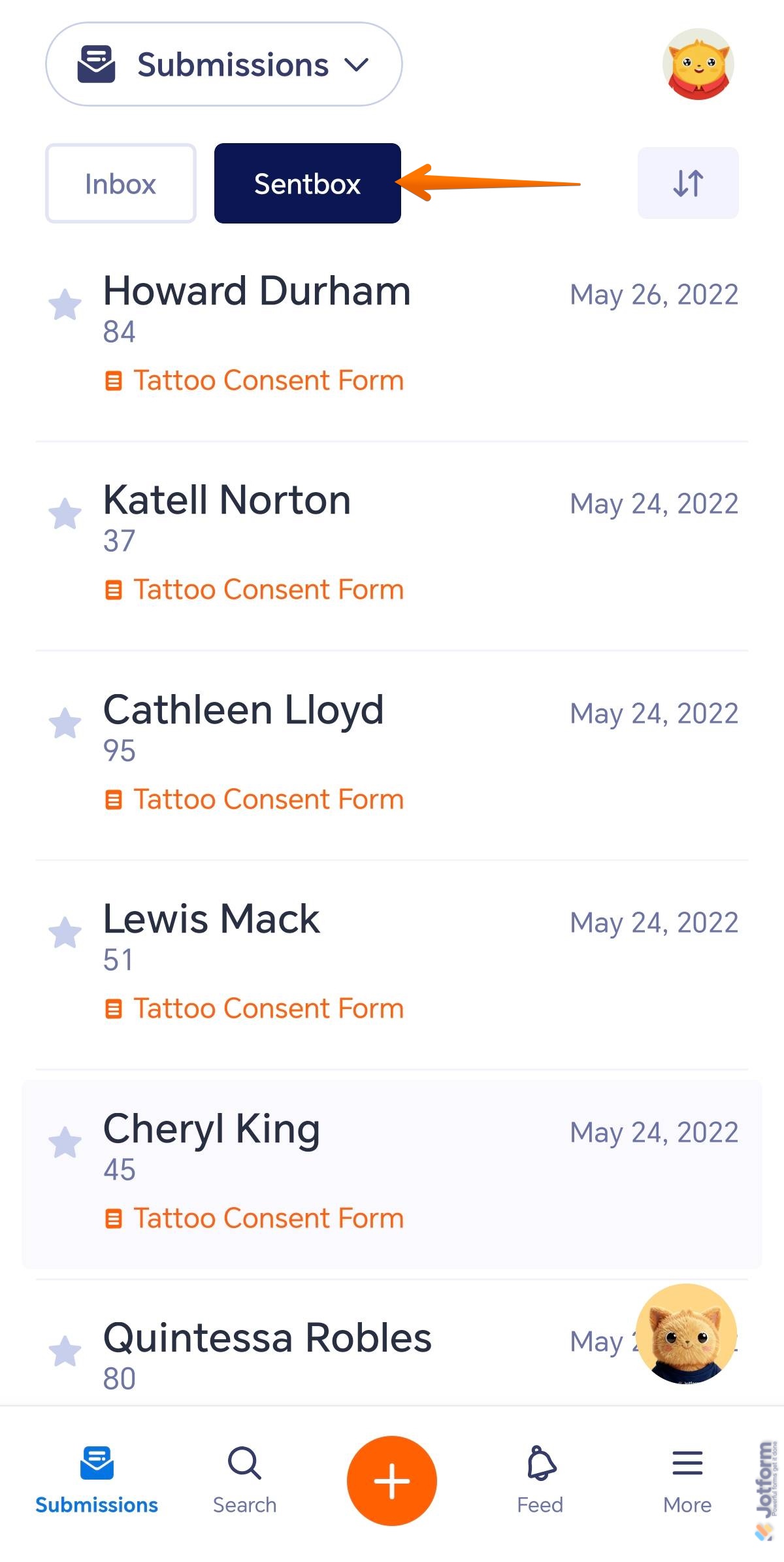
Lastly, you’ll see the Downward/Upward Arrow icon on the right side of the screen.
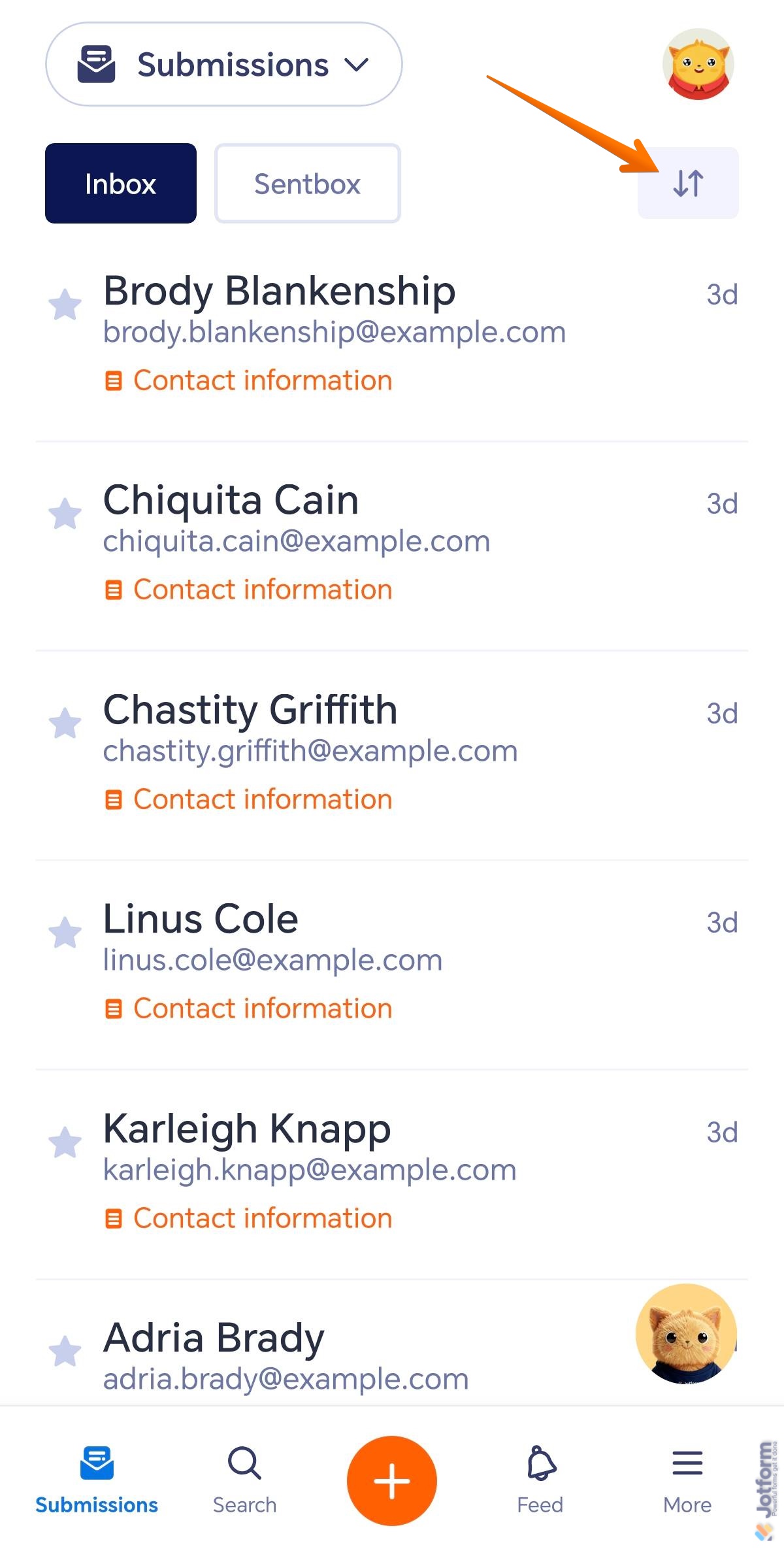
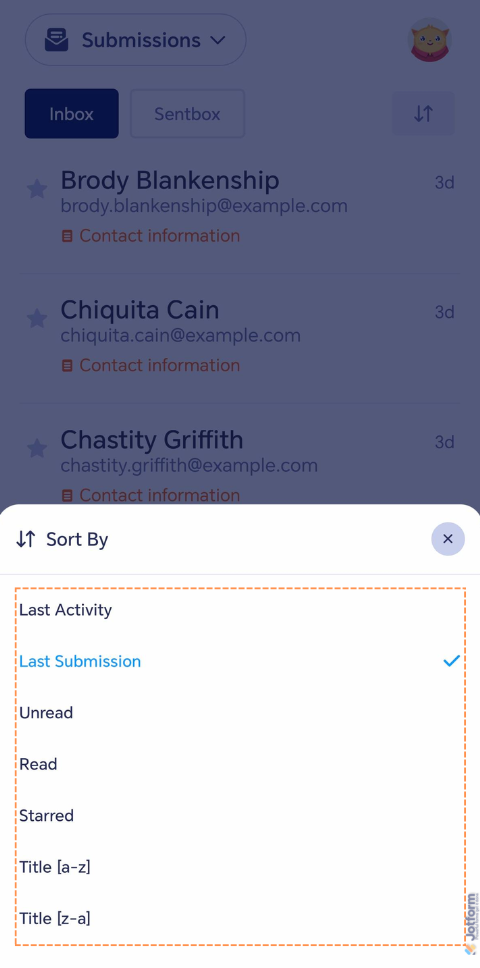
Tapping this icon lets you display submissions in a specific order through the sorting options menu.
Viewing Submissions From an Individual Form
If you prefer to view submissions from a specific form, you can easily do so using the Jotform Mobile Forms app. This lets you focus on the responses from a single form, making it easier to review entries, check details, and manage submissions without sorting through data from other forms. This is how it’s done:
- In the Jotform Mobile App, while on your Forms view, tap on the form you want to view its submissions. For example, Contact Information.
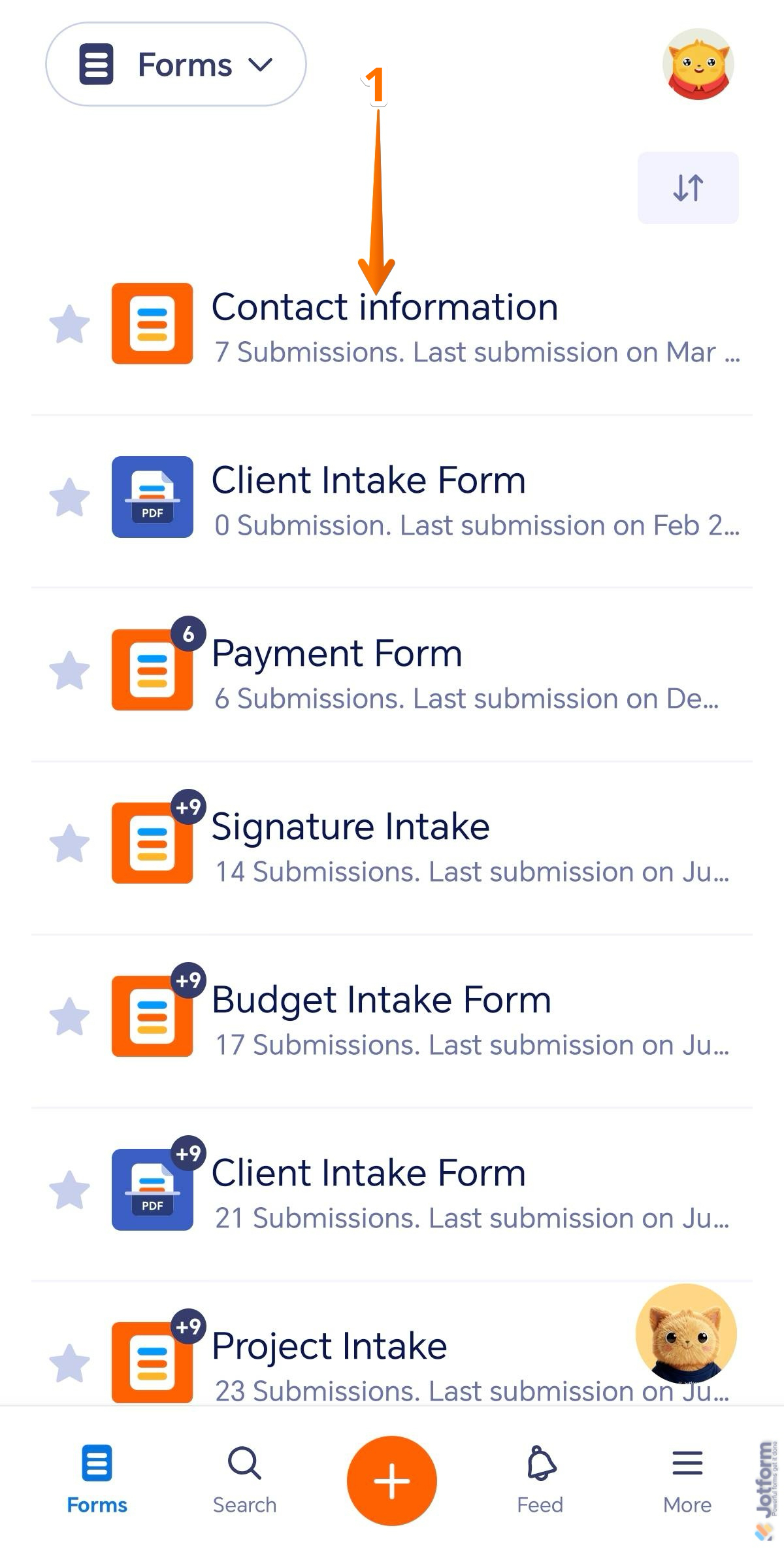
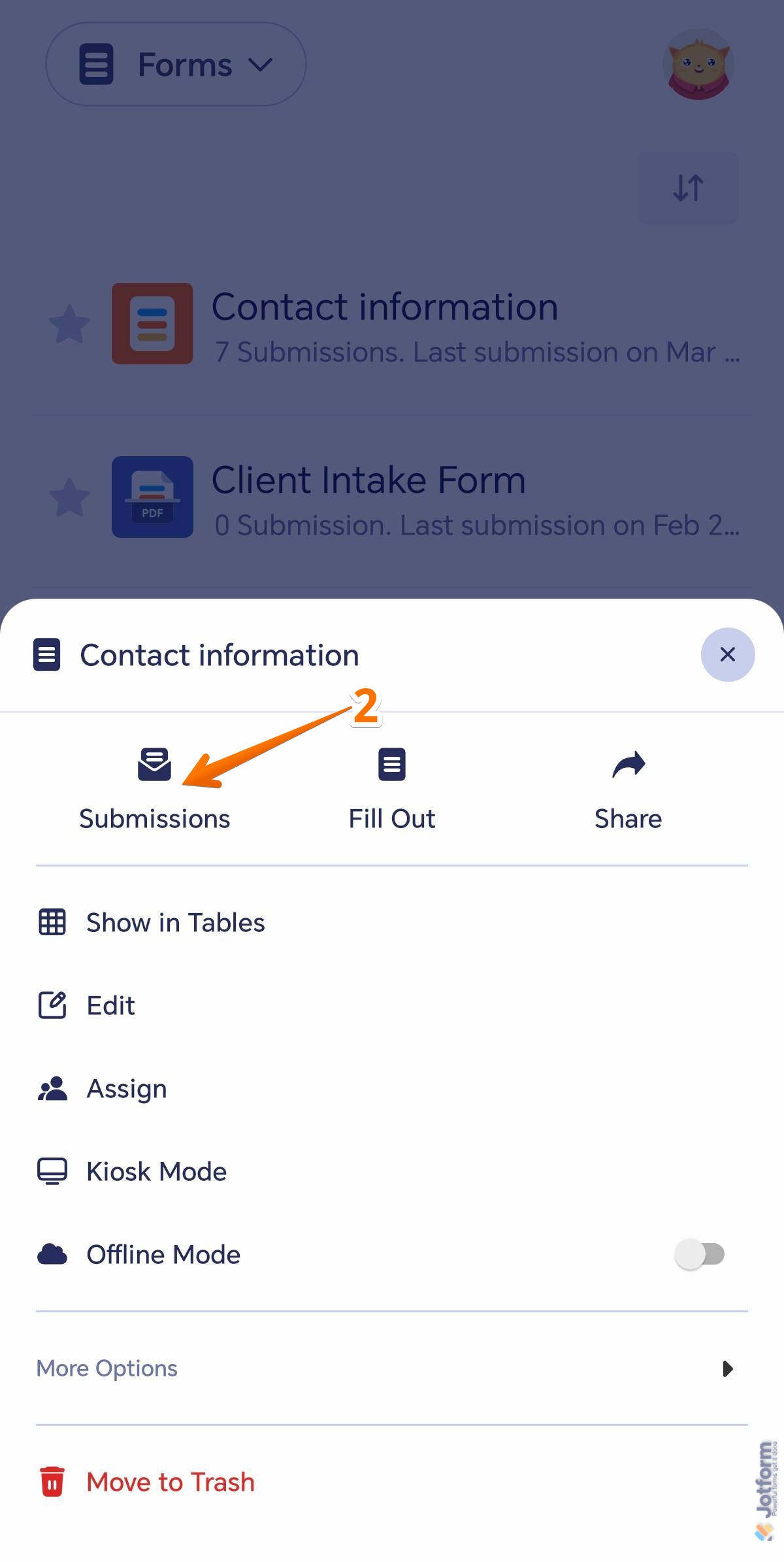
- Then, in the menu that opens, tap on Submissions.
Similar to the Submissions view, you’ll also see the Inbox as the next screen after tapping the Submissions option from a single form.
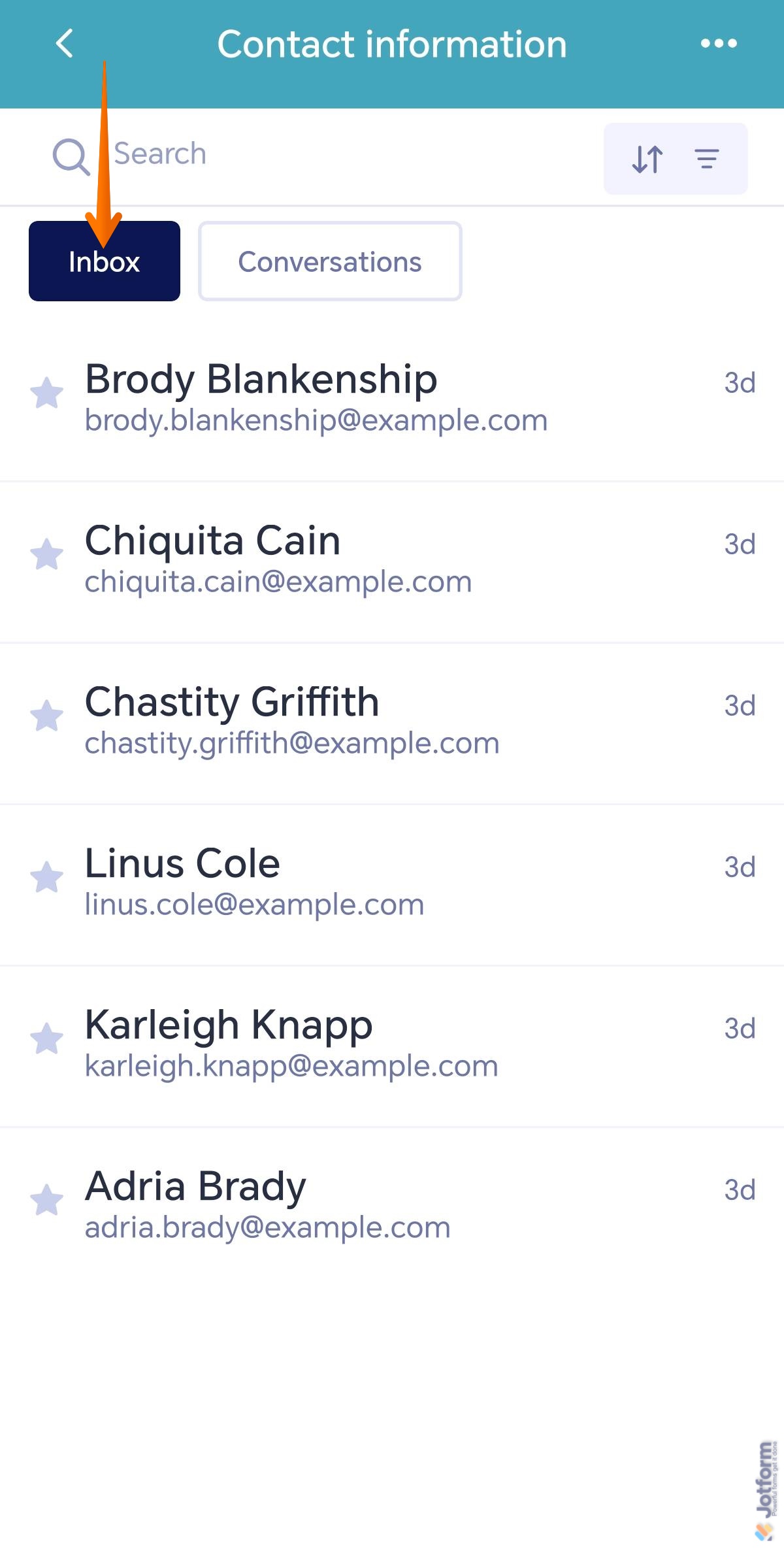
The Conversations tab is where your Form’s AI Agent’s conversations are listed. If you don’t have an AI Agent of the selected form, you’ll see the following screen with the Create Agent button.

If you have already created an AI Agent, and a conversation exists, you’ll see those listed in the Conversation tab.

Pro Tip
- You can use the Search field in the Inbox and Conversations screens to quickly find a specific entry from your form. Simply enter a keyword or relevant detail to locate the submission you’re looking for.
- You can also use the Filter option on the right side of the screen to organize the displayed items. This allows you to sort Submissions or Conversations in a specific order, helping you review entries more efficiently and find the information you need faster.
And that’s it – You’re all set to manage your forms and submissions seamlessly with the Jotform Mobile App. Whether you’re out in the field or working from home, it’s all at your fingertips.

Send Comment:
2 Comments:
July 10, 2024
I accidentally transfered my submissionz into thd archive. On my phone, can I transfer yhem back to thd inbox?
January 17, 2023
Trying to check status of my jotform application for the tablet from Alexander City Schools