When you contact our Help Center, you may need to share screenshots or a screen recording to help us understand your issue. Because support replies often come via email and email attachments aren’t accepted, you need to post images and recordings within the support thread.


Depending on what you want to share, click one of the options below to jump to the instructions:
How to Post a Screenshot to Our Help Center
If a single image is enough to show your issue, such as an error message, form setting, or page layout problem, you can easily attach a screenshot to your support reply. Here’s how:
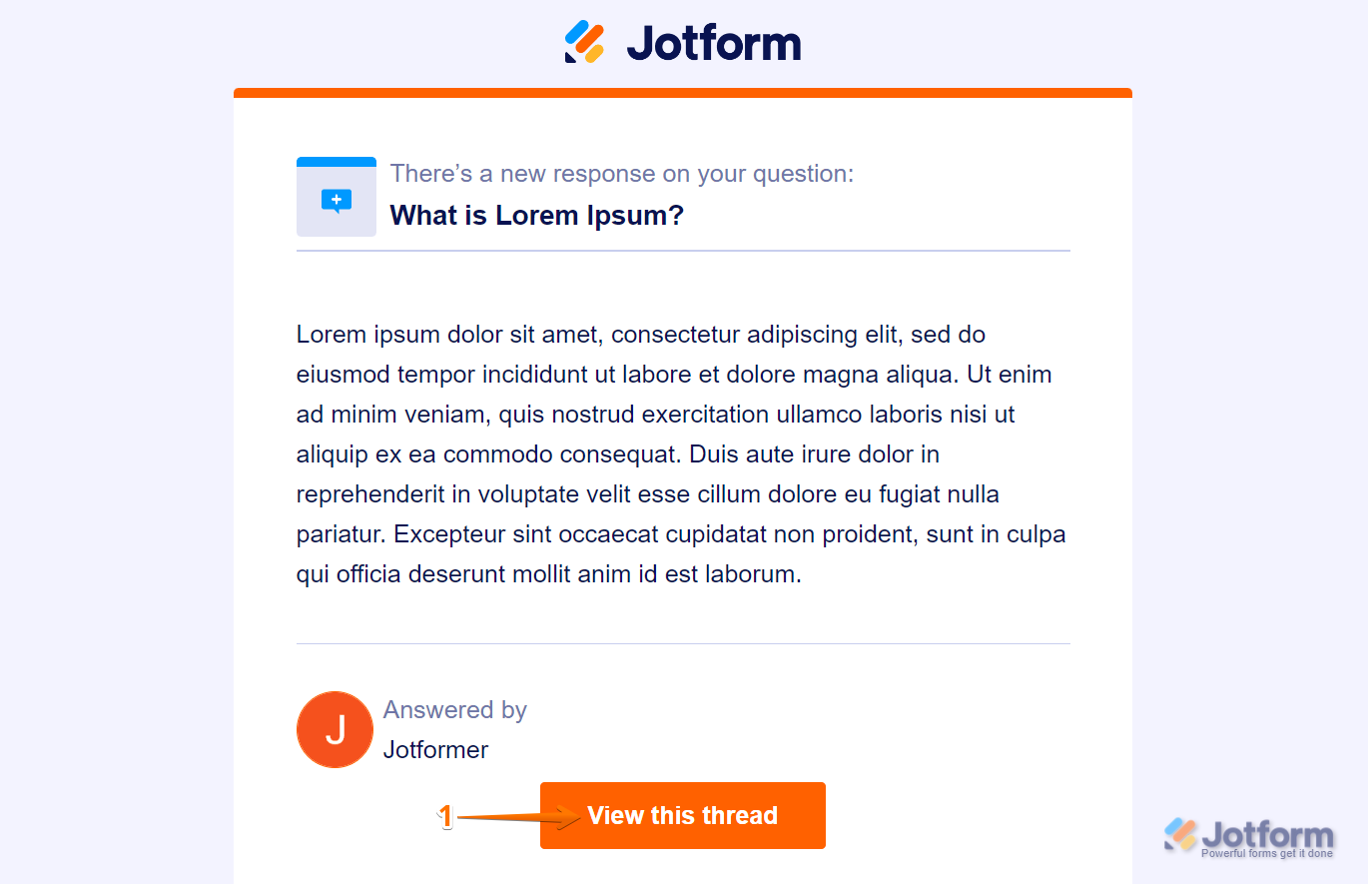
- If you received a reply by email, click on View this Thread at the bottom of the message to open the full thread in your browser.
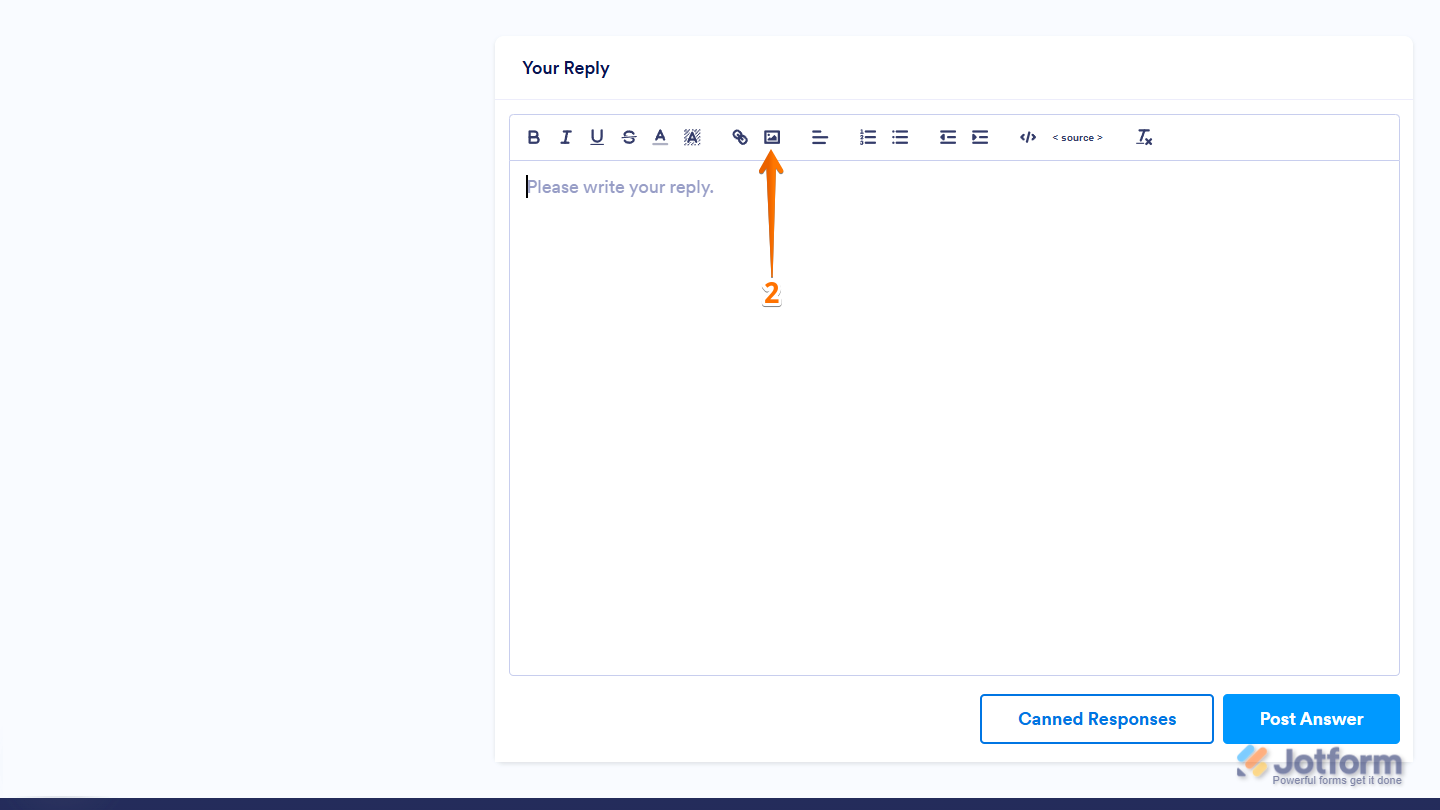
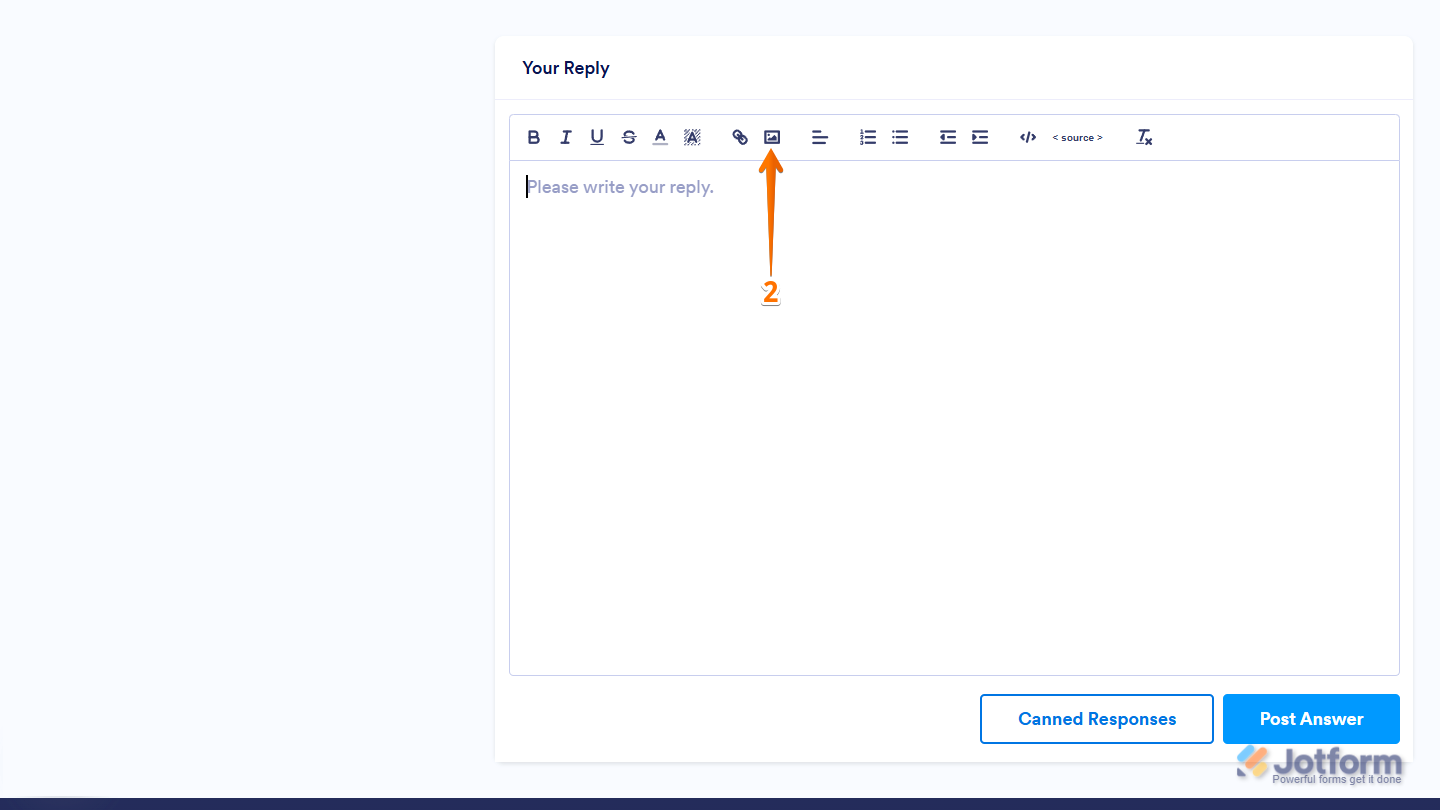
- Then, on the Help Center page, scroll down to the Your Reply section and click on the Image icon.
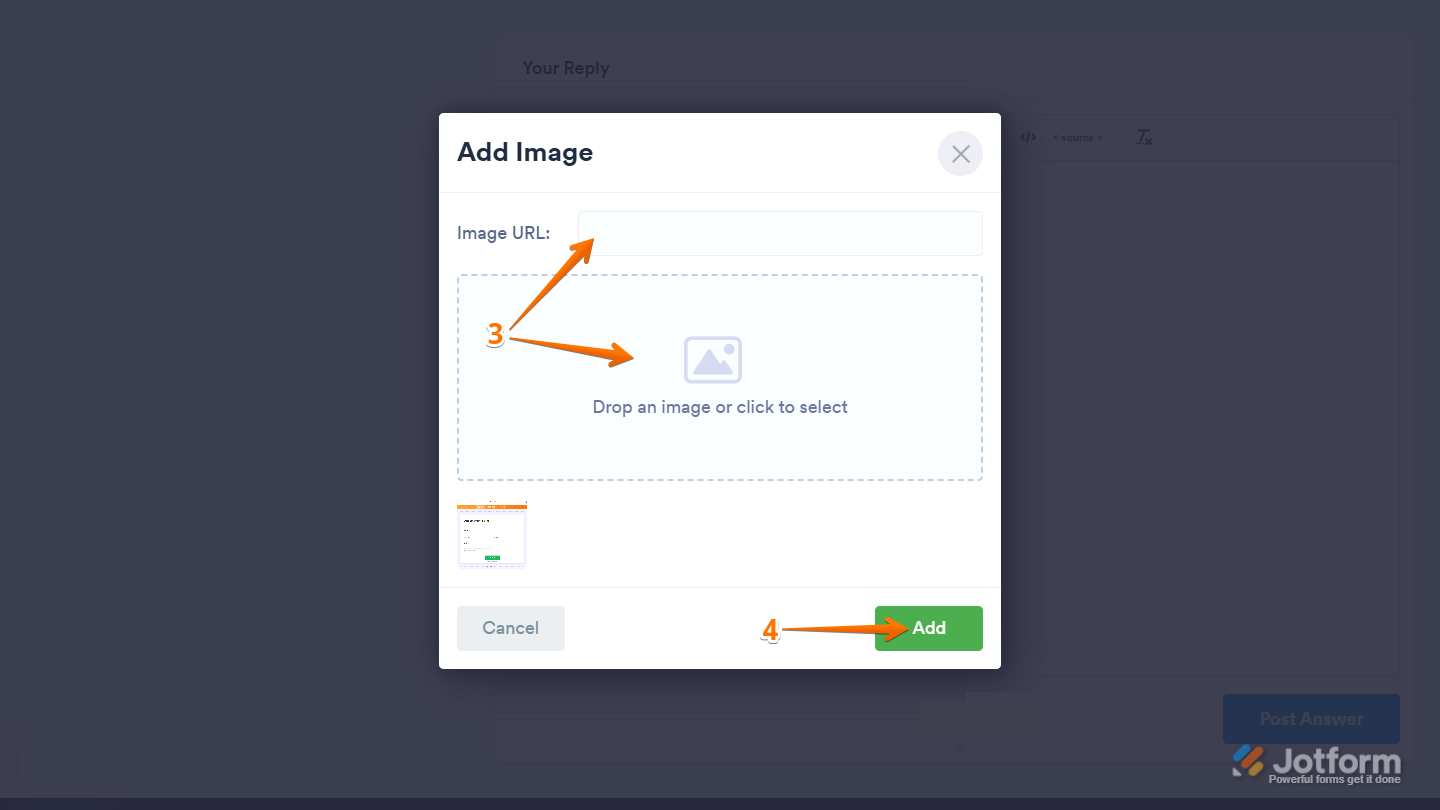
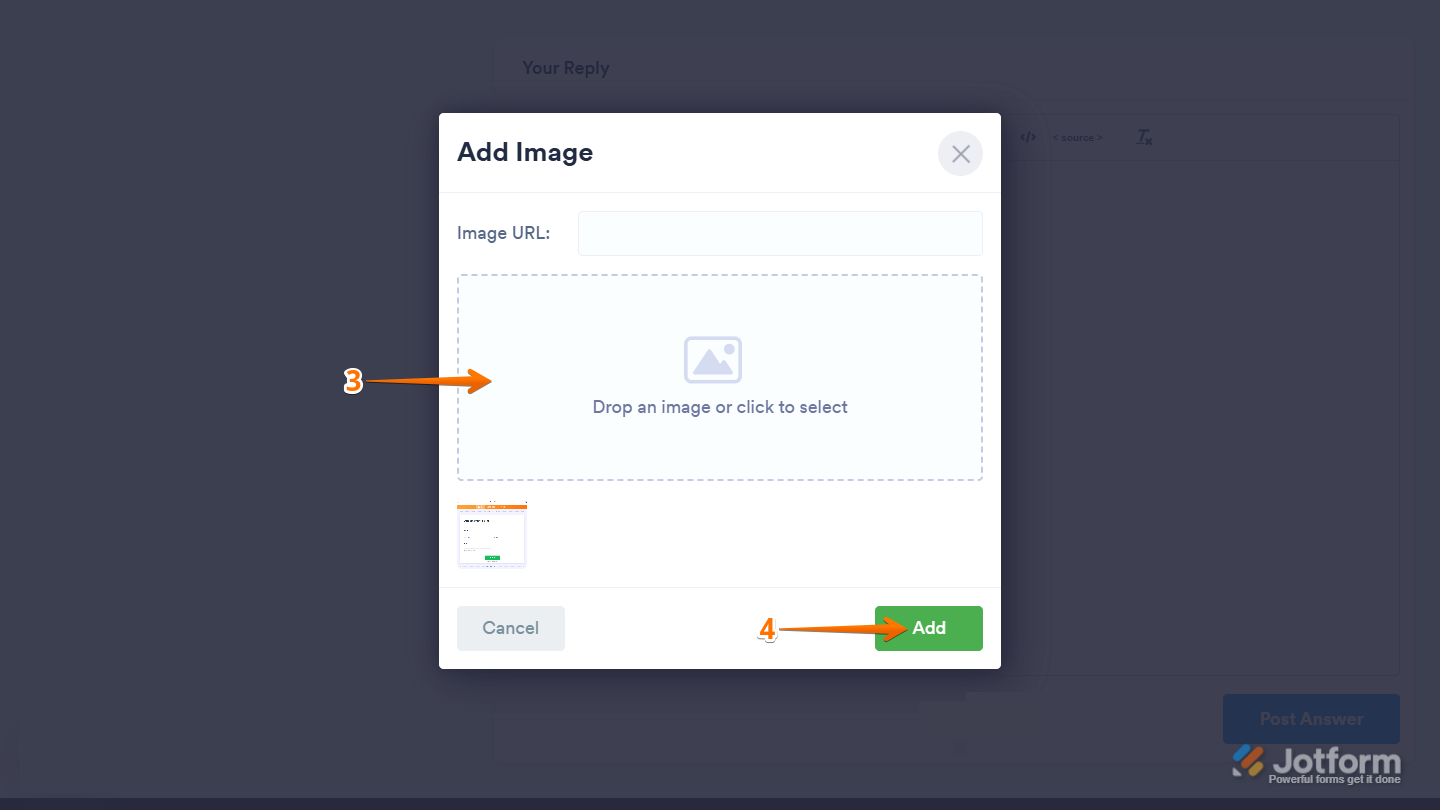
- Next, in the Add Image window that comes up, you can post a screenshot in one of two ways:
- Image URL — Paste the URL of your screenshot.
- Drop an Image or Click to Select — Upload a file directly from your device.
- Then, click on the Add button in the bottom-right corner of the window.
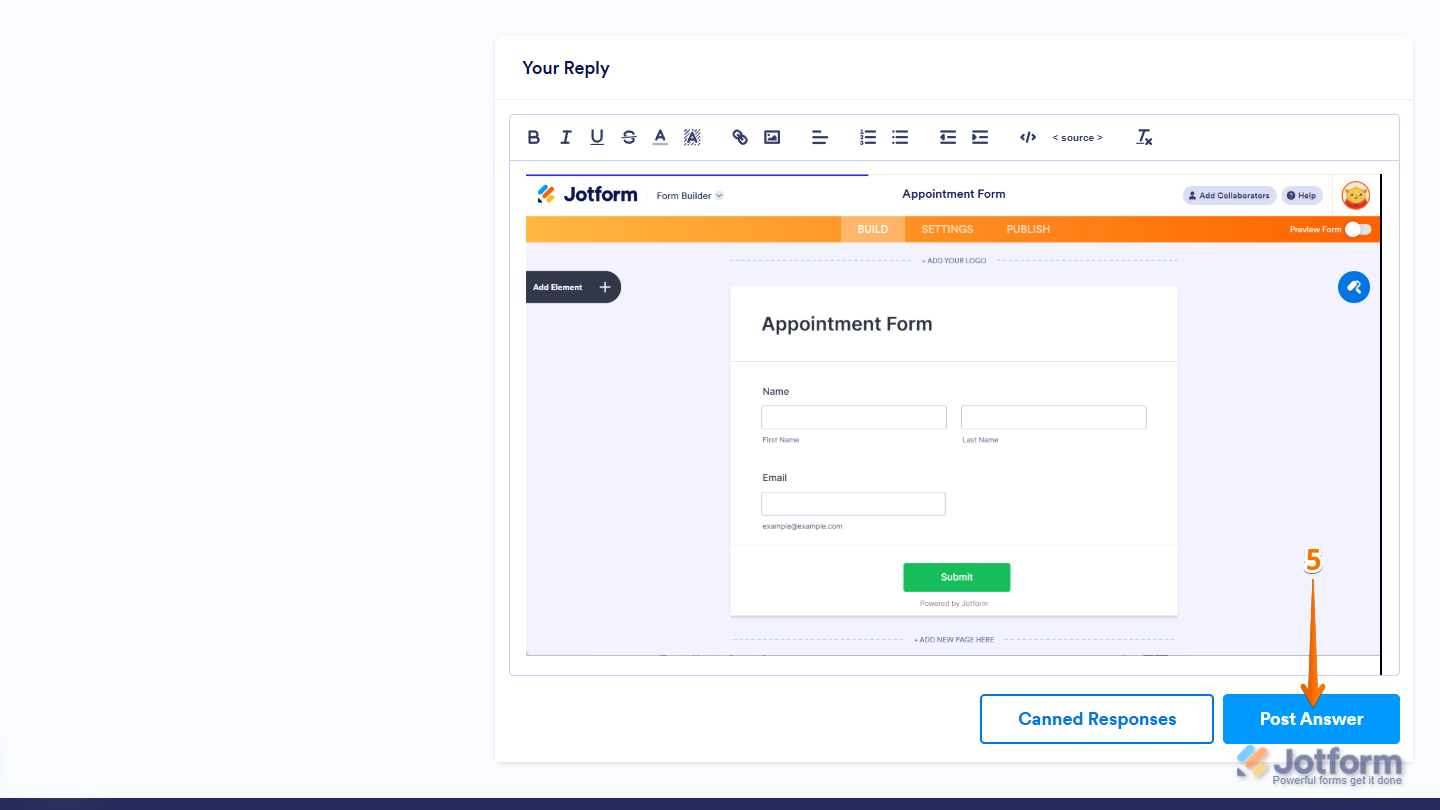
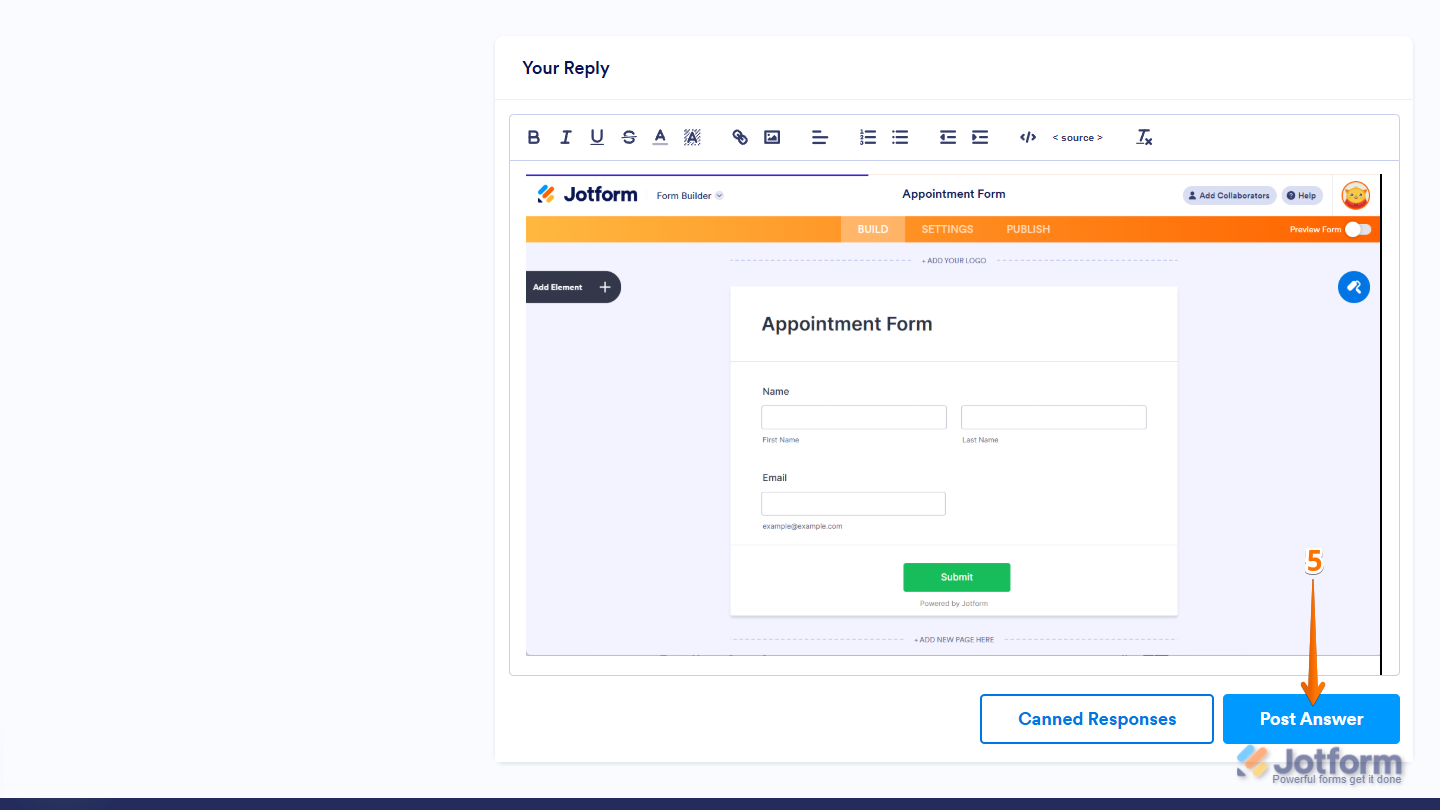
- Once you’re finished, click on the Post Answer button at the bottom right of the Your Reply section and you’re done.
How to Record and Submit a Screen Recording to Our Help Center
Our Help Center doesn’t support direct video file uploads, so we recommend using GIF screen recordings. These can be inserted like an image in your support message.
You can use any tool that exports the recording as a GIF file—this format works like an image and can be posted in the thread. Here are some options:
- LICEcap — Lightweight screen recording tool that saves as GIF.
- Monosnap — Screen Capture + GIF Recorder.
- Loom — Record screen then export or download as GIF.
After recording, save the GIF file to your computer and you can now upload it in your support reply. This is how it’s done:
- If you received a reply by email, click on View this Thread at the bottom of the message to open the full thread in your browser.
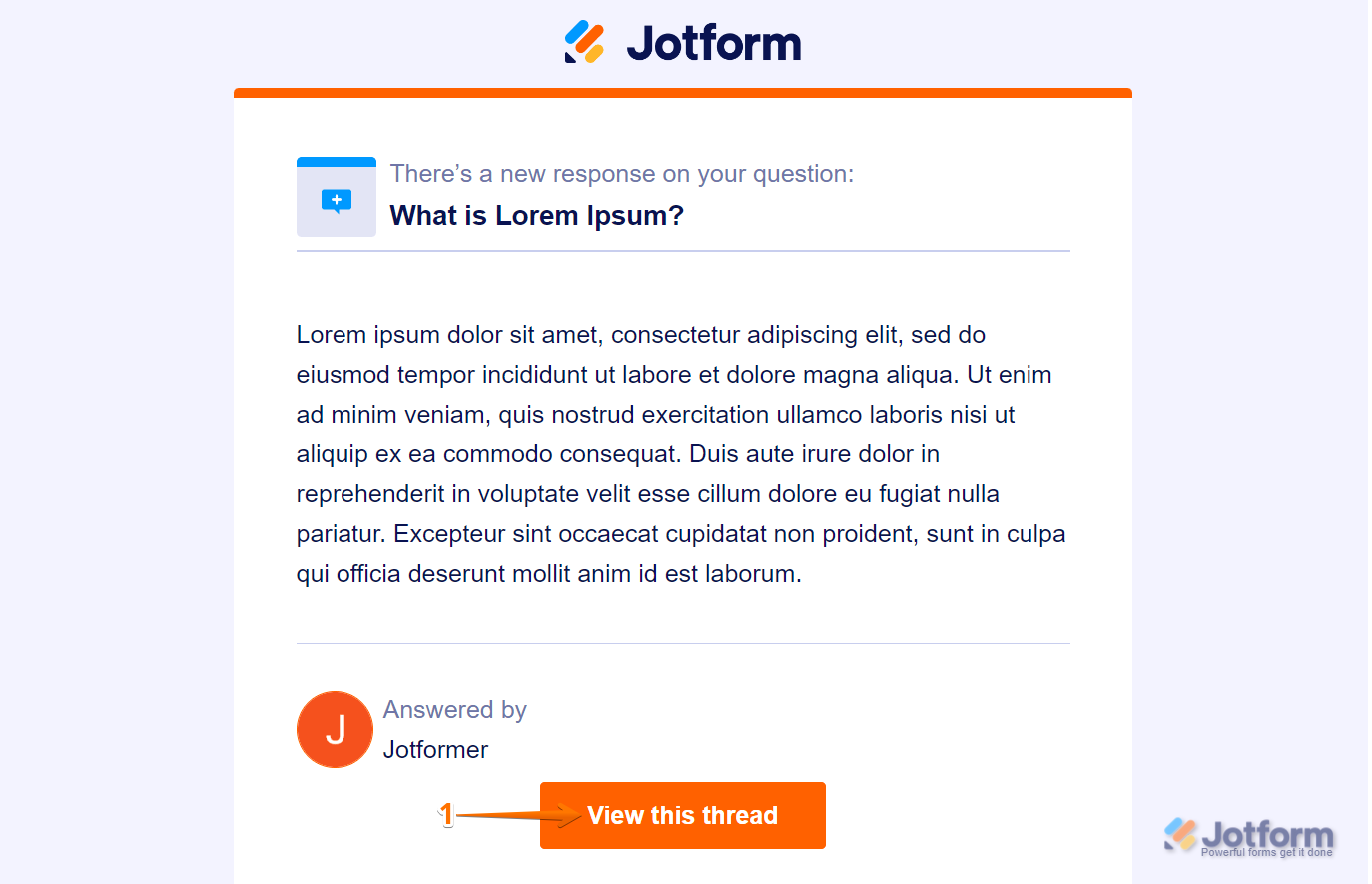
- Then, on the Help Center page, scroll down to the Your Answer section and click on the Image icon.
- Next, in the Add Image window that comes up, drag and drop your GIF file into the Upload box, or click on it and select your file.
- Then, click on the Add button in the bottom-right corner of the window.
- Once you’re finished, click on the Post Answer button at the bottom right of the Your Answer section and you’re all set!

Send Comment:
75 Comments:
December 17, 2025
I subscribe to a subscription and would like to cancel
November 21, 2025
When I click on the link in my response email I get an error.
Sorry, we couldn’t find that page
Unfortunately, the page you were looking for could not be found. It may be temporarily unavailable, moved or no longer exists.
April 5, 2025
it gives 404 error
February 18, 2025
when I click on the view this thread in the email chain it gives me 404 page not found for our support ticket, so I am unable to send the screenshots of the error messages our team is getting when trying to submit forms.
February 14, 2025
Ladies and Gentleman,
I placed an order via MODIV= whre I made a mistake by wanting to pay invoice and accidentally tapped PayU. Now I have received an invoicewithout account details and can`t find a way to pay via PayU. The way you offer in your program with screenshot is impiossible for me.
I have tried all the other options offered in your help program, many hours on different days, but to no avail. It just doesn`t work. I understand and speak very smal english.
I ask for account details so that i can transfer the amount of € 88,99.
It`s about the invoice 11341/01/2025/M=D-ESC from January 31, 2025
Seller: eschuhe.de GmbH
VAT number: DE815553518
Buyer: (30737423)
Helga Frevert
PayU transactionsnumber: 4320283045
Amount: € 89,99
Booking date: 2025-01-30 15:32:12
I hope, you can help me.
Greetings Helga Frevert
January 20, 2025
This is very frustrating; we can't even have someone to call us with issues. this did not help my errors. it has been going for some time with all my clients.
January 14, 2025
My form is still disabled
December 12, 2024
HELLO I HAVE AN ISSUE WITH MY ACCOUNT. IT USE TO WORK FINE. NOW WHEN I SEND THE LINK TO SOME ONE I DONT HAVE THE FORM COME BACK TO ME. I JUST RENEW MY CONTRACT WITH YOU GUYS. I GOT CHARGE AUTOMATICLY IN MY CREDIT CARD. AND I PAID FOR THE WHOLE YEAR
November 12, 2024
I am simply pasting the image using crtl-v. Is this fine?
September 26, 2024
Correto já fiz o procedimento com o print de tela.
August 31, 2024
When I click on 'View this threat' it shows 'Sorry, we couldn’t find that page' Now how could I send screenshots that could explain my problem?
July 22, 2024
see error message when trying to submit inquiry for enterprise pricing. I donya have another email to use. how shall I address this matter?
July 16, 2024
The process in this video does not apply if you are trying to restore a suspended account because you cannot get to your original thread in the support forum if you were locked out due to an account suspension. It tells you your account was suspended and keeps prompting you to log in, you get stuck in a loop.
July 15, 2024
my pc is saving screenshots as pdf's and I can't upload those
March 31, 2024
Can I resize image and then upload because the image size is too big and opens in full screen. I use image resize tool to change image resolution.
March 17, 2024
I would like to know that if it is possible or not
February 12, 2024
Not helpful people! Do NOT see Add Data option ANYWHERE.
January 26, 2024
Hi, I have been sending information in but we haven't got anywhere yet. I could do with some help, possibly a telephone conversation as I have no idea what to do and now our account has been downgraded and we need it sorted. Thanks
January 16, 2024
Hello... I have cloned a form and change the title but this not change when sharing the link. Also how can i get the logo picture to show on link. i have been able to do it before on others but its not showing now.
November 28, 2023
Dear team, I forgot my pasword to Access Encrypted Submissions
please send me antoher link
November 27, 2023
It's very easy to use the jotform , it's guiding and easy to follow
November 25, 2023
Suspended account
November 6, 2023
Suspended? Locked out? Help!
October 4, 2023
I receive an error from jotform when I open the shared link to attach the requested information. I'm not sure if its due to my account being locked, but whenever I receive an email response and click "view this thread" at the bottom I receive an error message saying" Whoops!
Unfortunately, the page you were looking for could not be found...
October 3, 2023
I receive an error from jotform when I open the shared link.