Sending an autoresponder email is the primary method of allowing users to view a copy of their submission through your form. If you want to avoid doing this or integrating your form into any 3rd party application, providing users a direct URL to view their submission is the best alternative.


You can utilize your form’s Thank You Message page for this method. Setting this up is very straightforward. Let’s start!
- In the Form Builder, go to the Settings tab.
- Click Thank You Page on the left.
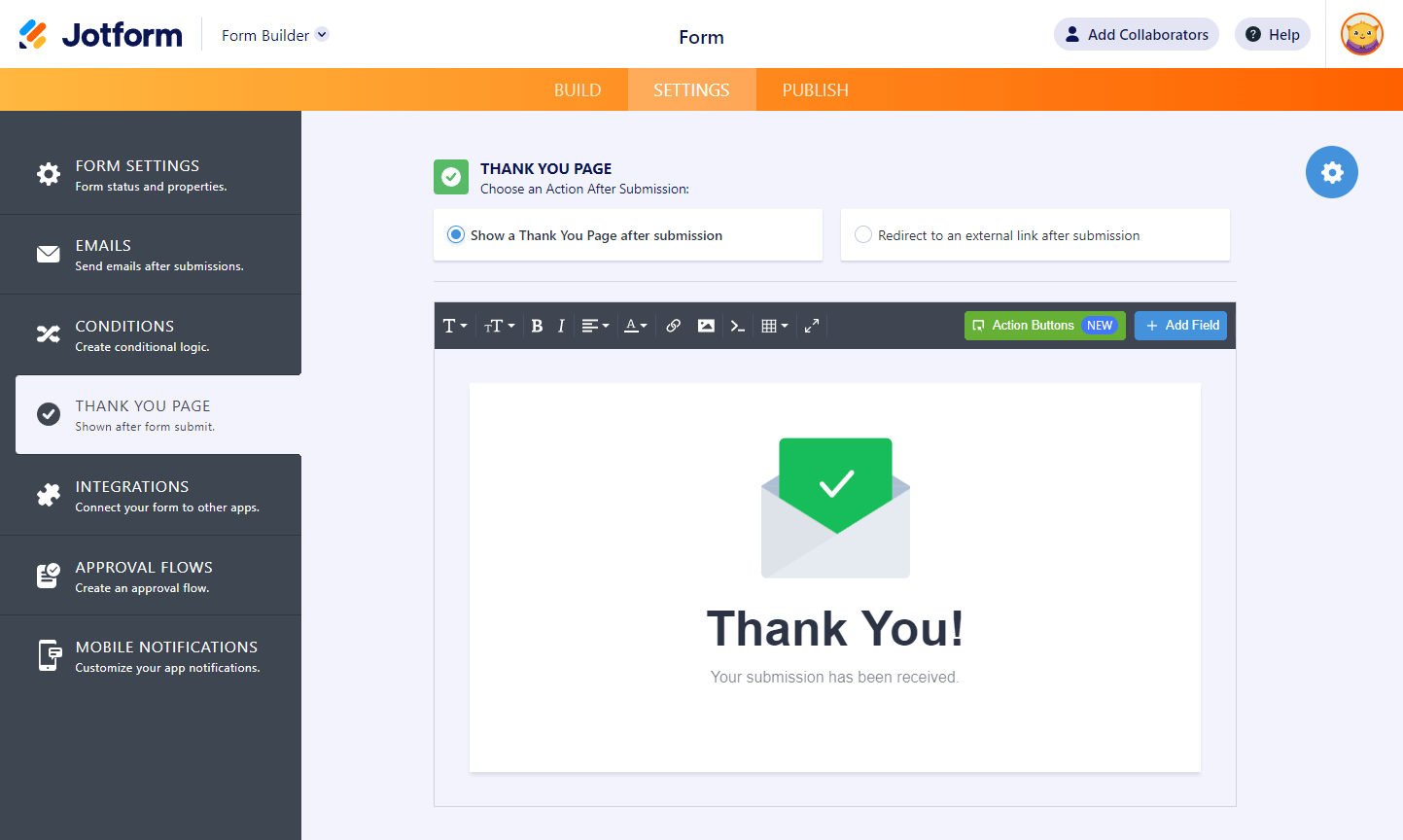
- Add the following URL in the Thank You Page:
https://www.jotform.com/submission/{id}The {id} parameter means the ID of the user’s submission. It’s also best to hyperlink the URL instead of just putting it as a text. That way, users can click the link instead of copy/pasting it to open.
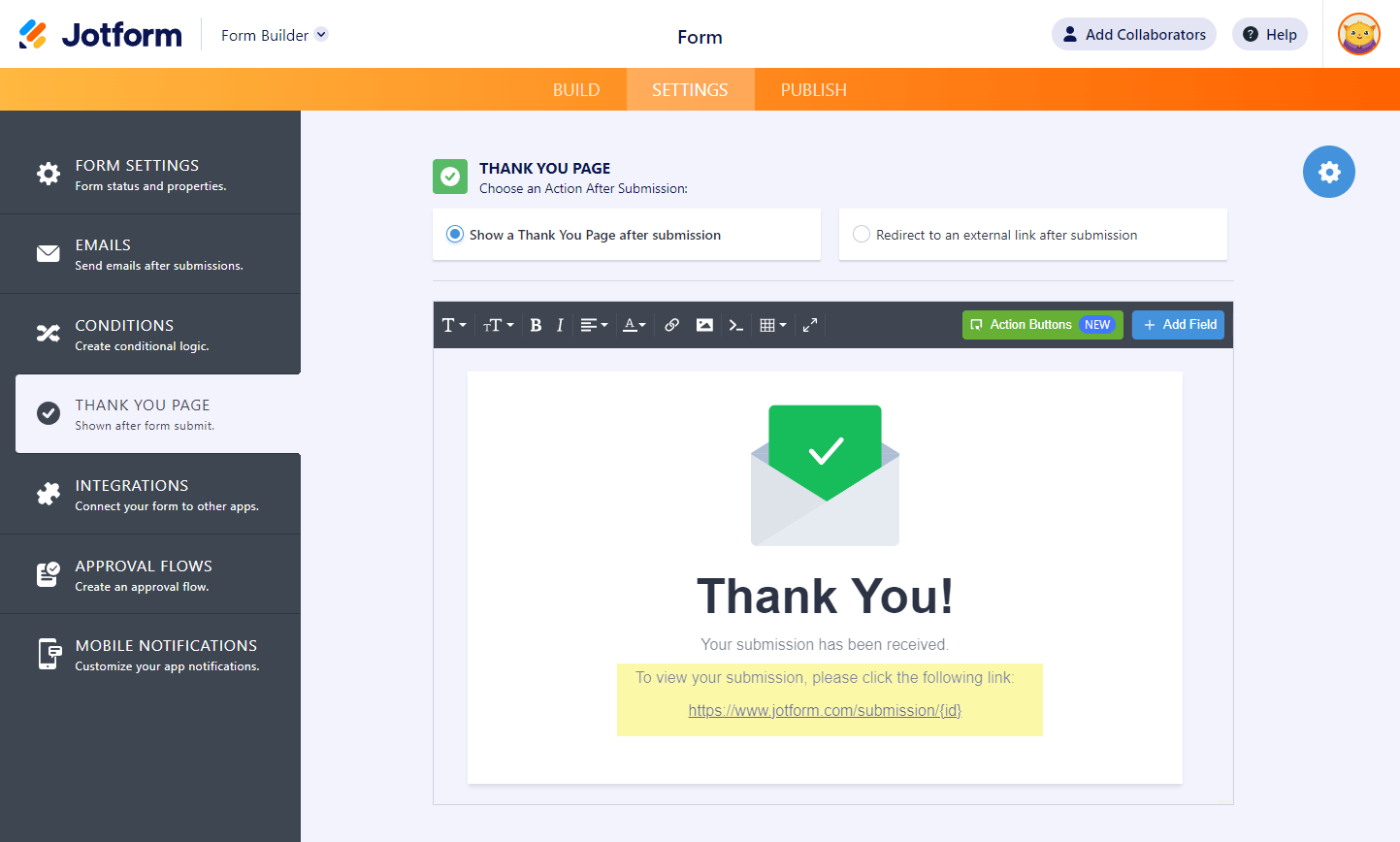
That’s it! When your user submits the form, they’ll get the following screen:


Send Comment:
6 Comments:
November 27, 2024
the submission icon doesn't submit. Not very inspiring.
March 11, 2024
Does this mean they can only view their own submission or can they see others?
September 26, 2022
Can you make it so that other users can view each other’s submissions?
April 1, 2022
it is also on the Publish / Assign Forms / Settings
Down a bit on the list is "show on Thank you page"
February 11, 2022
I can view submissions made on my form, but how do I share that with my fellow managers?
November 20, 2021
It's not working... when I click in the link it takes me to an error page that says:
Whoops!
Unfortunately, the page you were looking for could not be found. It may be temporarily unavailable, moved or no longer exists. Please check your spelling and retry.