Jotform Mobile Forms makes it easy to collect GPS coordinates directly from a mobile device. By using location-based widgets, you can capture the precise latitude and longitude of where a form is submitted. This is especially useful for inspections, field reports, deliveries, and surveys where location data is important.
Collecting GPS coordinates helps you verify locations, track field activities, and keep accurate records without requiring users to enter location details manually. Some commonly used widgets for collecting GPS coordinates include:
- Location Coordinates — Captures precise latitude and longitude coordinates on a map.
- GPS Location — Retrieves the device’s GPS location automatically.
- Geolocation — Detects the user’s location and displays it on a map.
To start collecting GPS coordinates, you first need to add a location widget to your form. Here’s how:
- In the Jotform Mobile App Form Builder, on the bottom-left corner, tap on Plus icon.
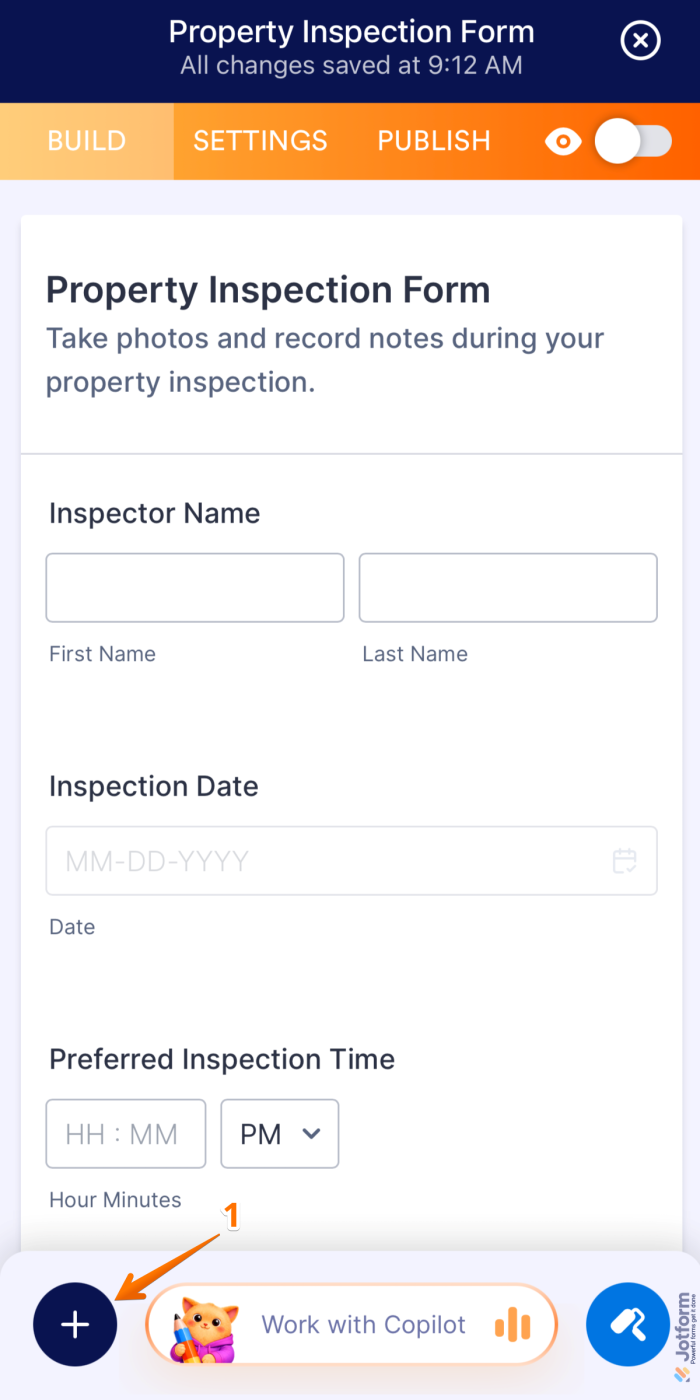
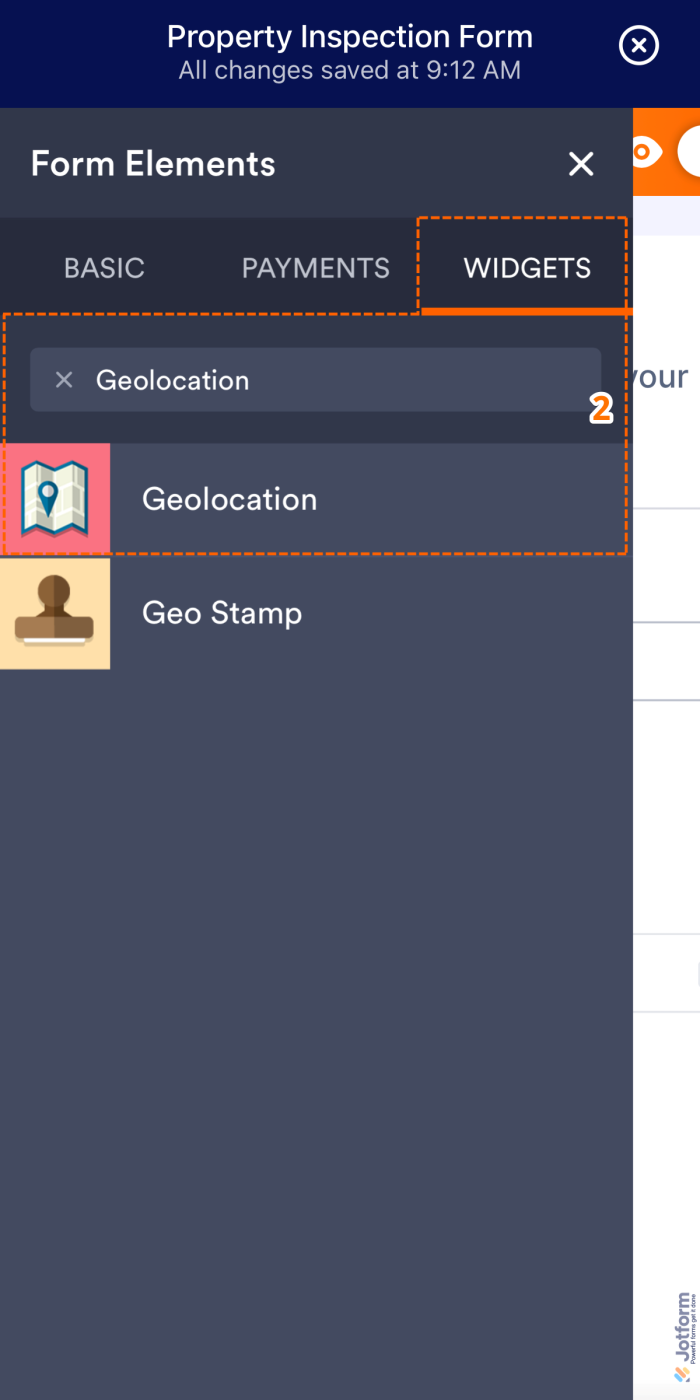
- Now, in the Form Elements menu, under the Widgets tab, search for Location Coordinates, GPS Location, or Geolocation, and click on the widget you want to use. Or drag and drop it onto your form. For example, Geolocation.
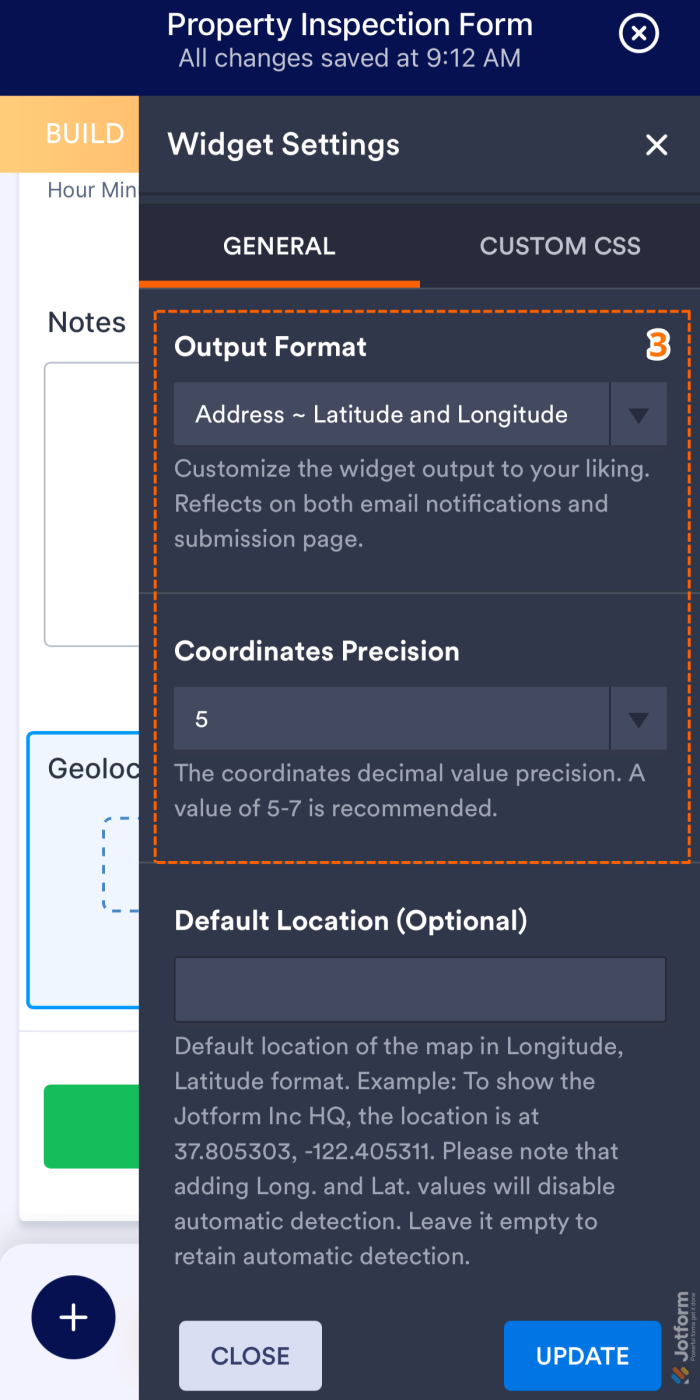
- Next, in the Geolocation Widget Settings menu that opens on the right side of the page, under the General tab, set up the following options:
- Output Format — Select how the location data is submitted: as a full address, latitude and longitude coordinates, or both.
- Coordinates Precision — Set the number of decimal places for latitude and longitude values. A precision of 5 to 7 digits is recommended for optimal accuracy.
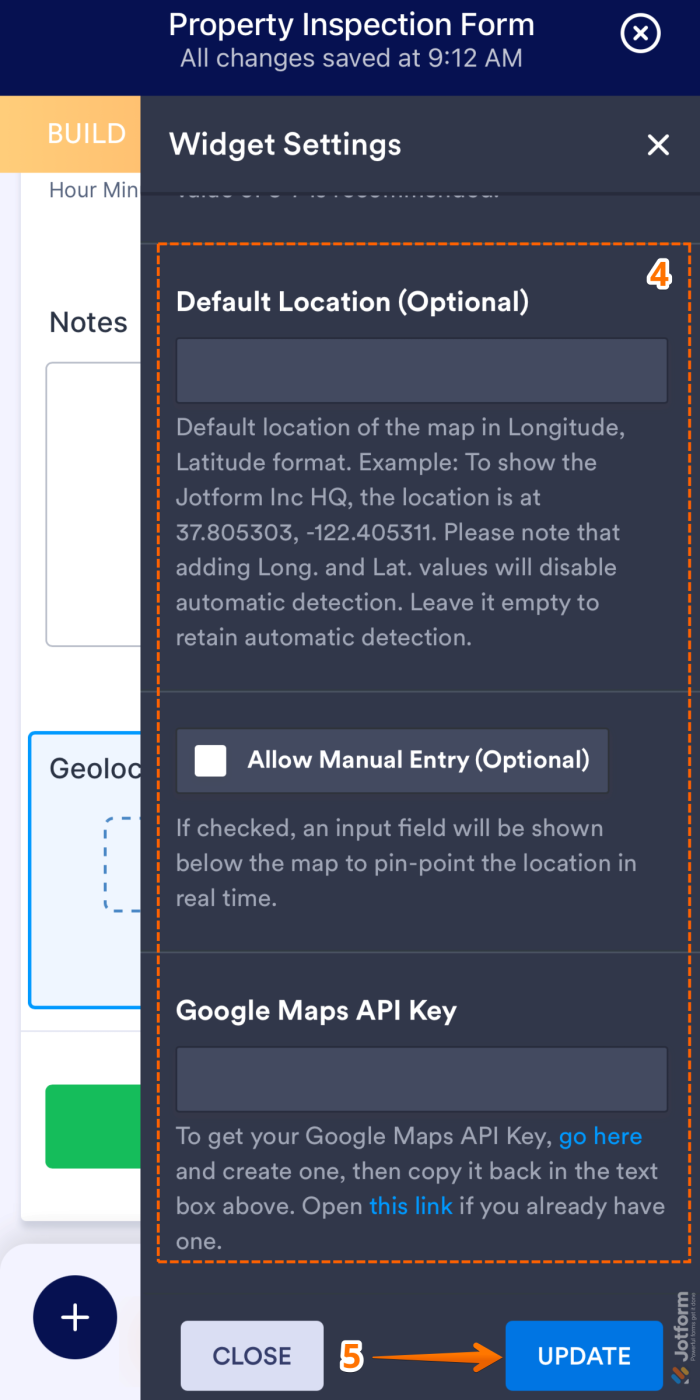
- Then, scroll down to the bottom and continue to set up these settings:
- Default Location — Set the map’s default position using Longitude and Latitude. However, entering coordinates disables automatic location detection. Leave blank to keep auto-detection enabled.
- Allow Manual Entry — When checked, an input field appears below the map, allowing users to manually enter and update the location in real time.
- Google Maps API Key — This API key is required for the widget to function properly. Without it, the map will not load or display on the form. Take a look at our guide on How to Get Google Maps API Key for Jotform Mapping Widgets for more details.
- Once your changes are complete, click on Update.
That’s it. Your form can now capture accurate coordinates from respondents who choose to share their location.
Note
The available settings and configuration options may vary depending on the location widget you use.

Send Comment:
1 Comment:
August 16, 2022
I tried to share form to test its capability to capture lat longs.
However, the users were not able to register the location when they opened the shared link in their mobile browser.