With Jotform Mobile Forms, staying in the loop is easy. You can set up instant notifications, so you’ll get a heads-up on your phone the moment someone submits a form—no need to keep checking manually.
You’re in control, too. Choose to get alerts for every form or just the ones that matter most to you. That way, you’ll always know when something important comes in without being flooded by too many notifications.
Enabling Mobile Forms Notifications in the Jotform App
Stay in the loop by turning on mobile notifications in the Jotform App. Setting it up is quick—here’s how:
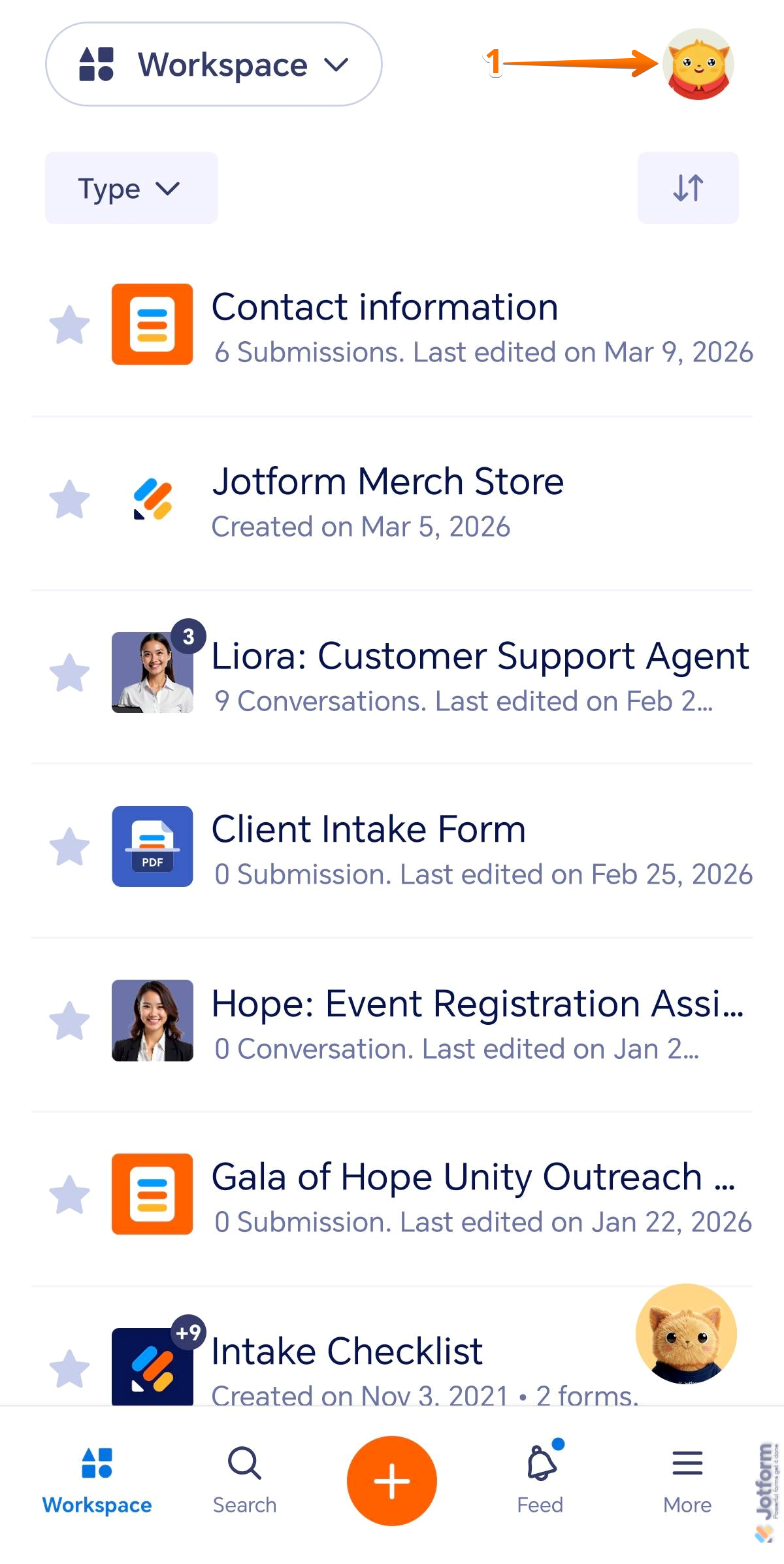
- In the Jotform Mobile App, tap your Profile Picture/Avatar in the top-right corner of the screen.
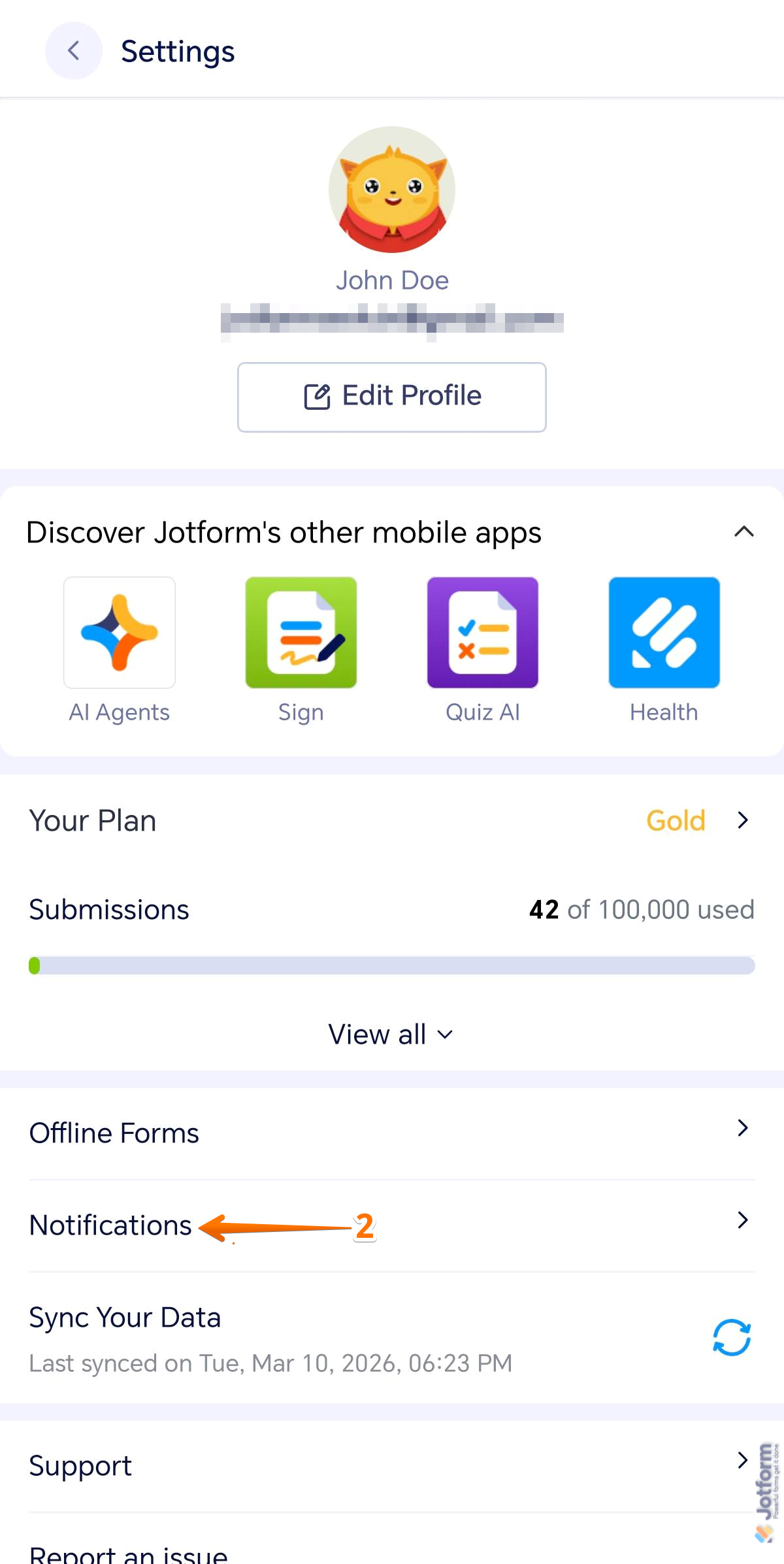
- In the menu that opens, tap Notifications.
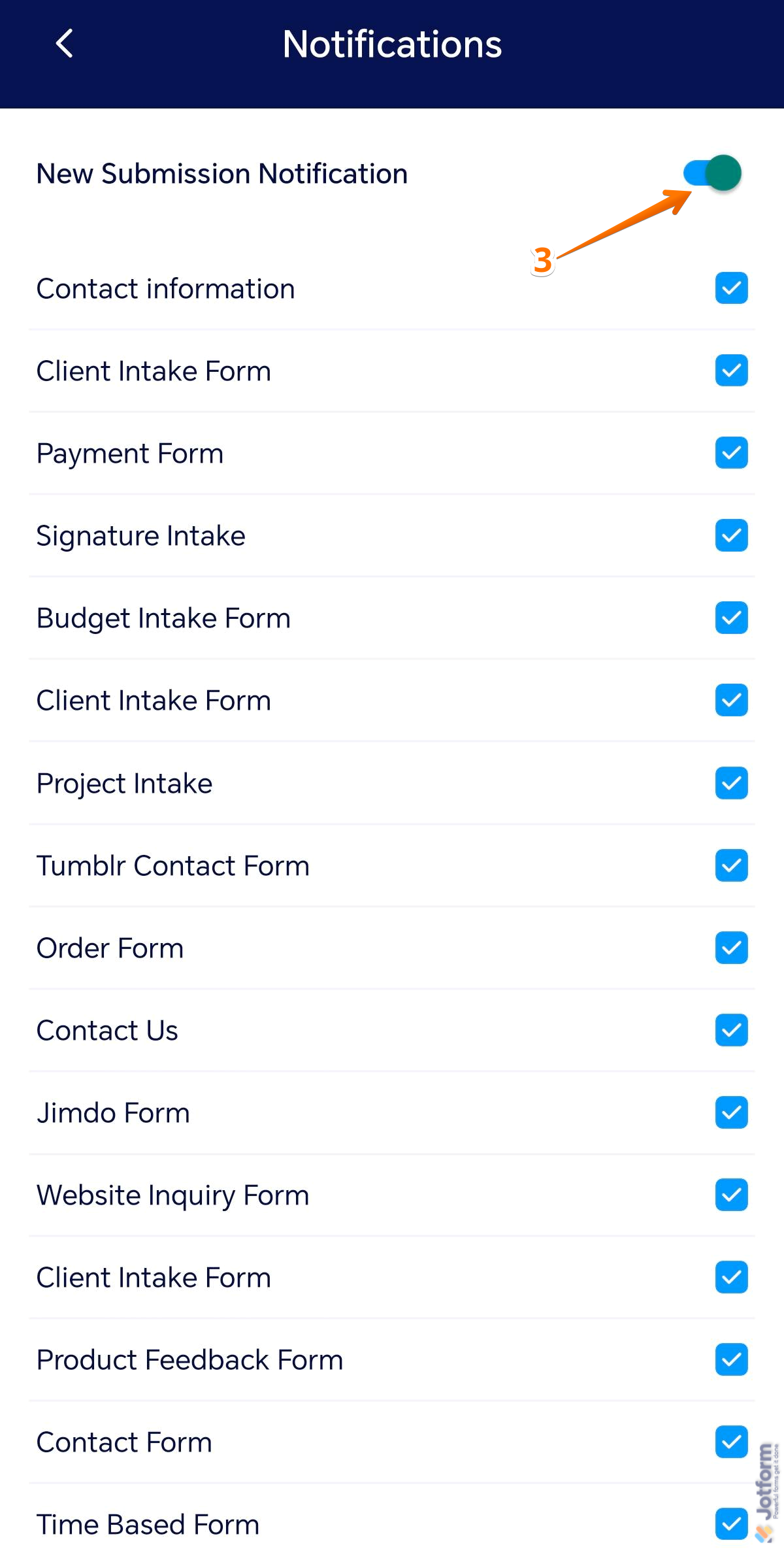
- Then, toggle on New Submission Notification to start getting alerts when someone fills out your form. To manage notifications for specific forms, just check or uncheck the box next to each one.
That’s it! You’ll now get a pop-up notification on your device every time someone submits one of the forms you selected. Tapping the notification takes you straight to the submission in the app.

Enabling Mobile Form Notifications in Your Form Settings
You can also turn on Mobile Form Notifications right from your desktop. This’ll help you catch every submission as it comes in. It only takes a minute to set up—here’s how:
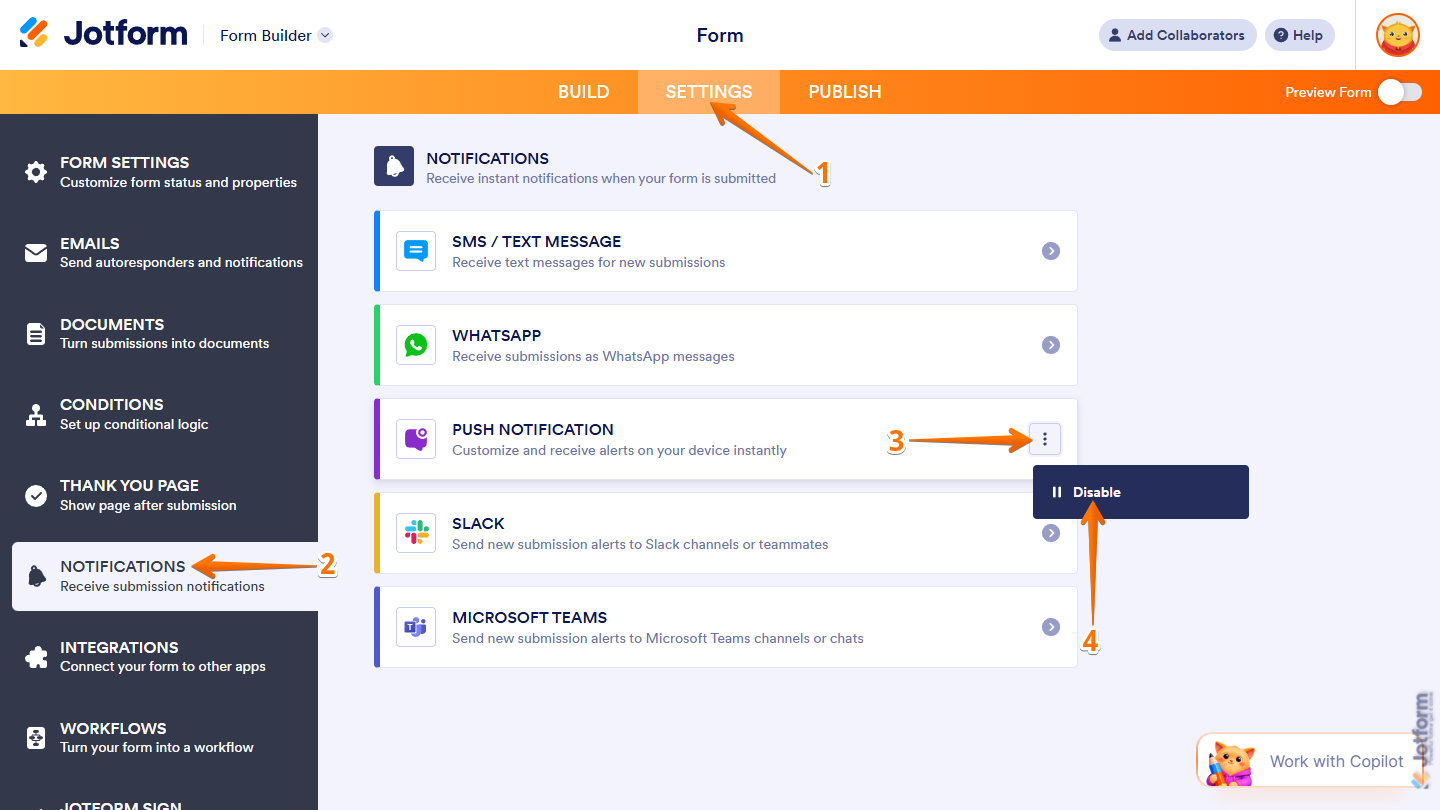
- In Form Builder, in the orange navigation bar at the top of the page, click on Settings.
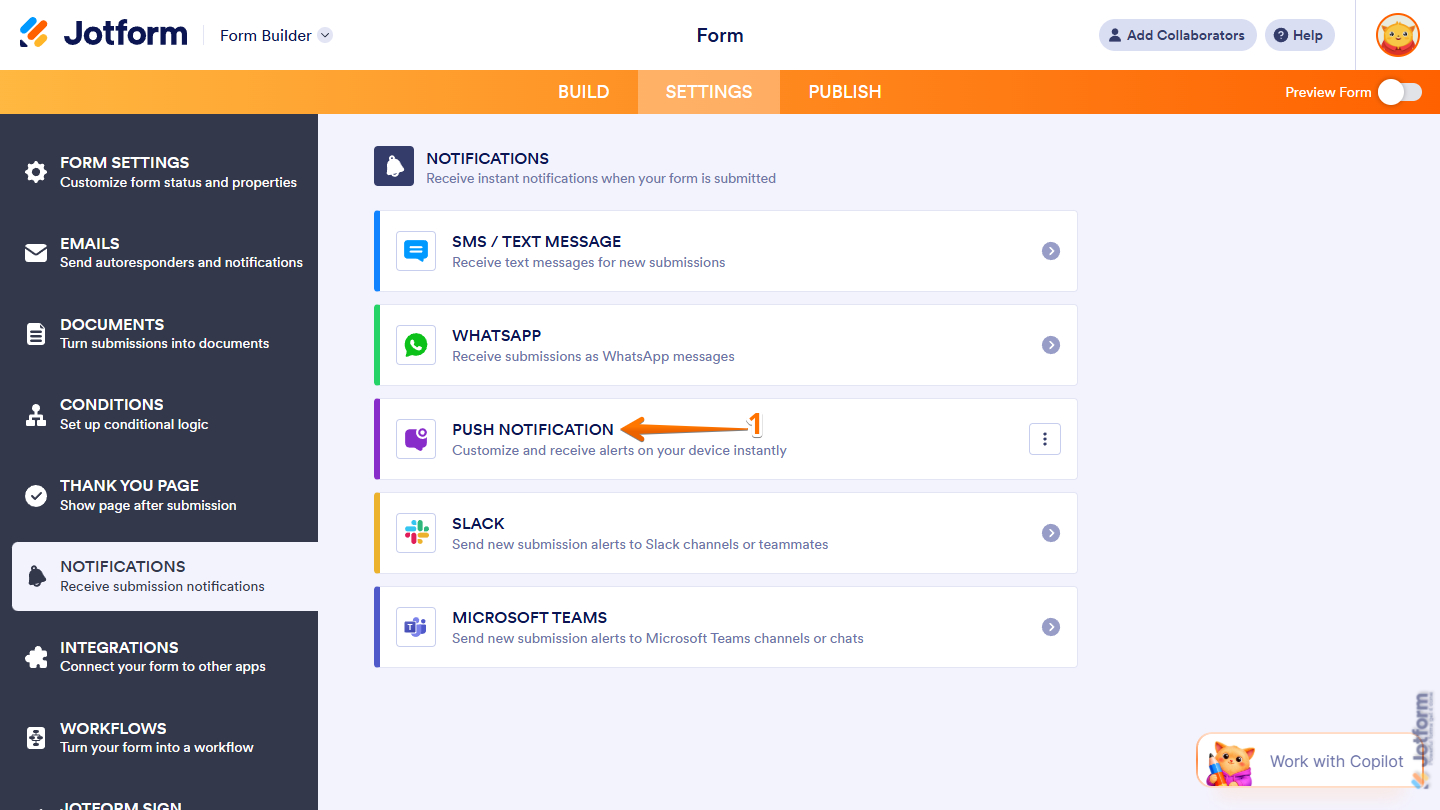
- Then, click on Notifications in the menu on the left side of the page.
- Next, on the right side of the Push Notifications option, click on the Three Dots icon.
- Now, in the Dropdown menu that opens, ensure that the option displays the Disable text. That means the form enabled the notification by default.
Customizing Push Notifications in Your Form Settings
You can personalize your Mobile Form Notifications with your form data, so each notification includes specific details submitted through your form. By inserting form fields into the notification message, you can quickly see important information—such as names, responses, or the form title—directly from the notification without opening the full submission. This makes it easier to stay informed, respond faster, and keep track of new entries while you’re on the go. Here’s the quick way to do it:
- While in the Notifications tab, click on Push Notifications from the list.
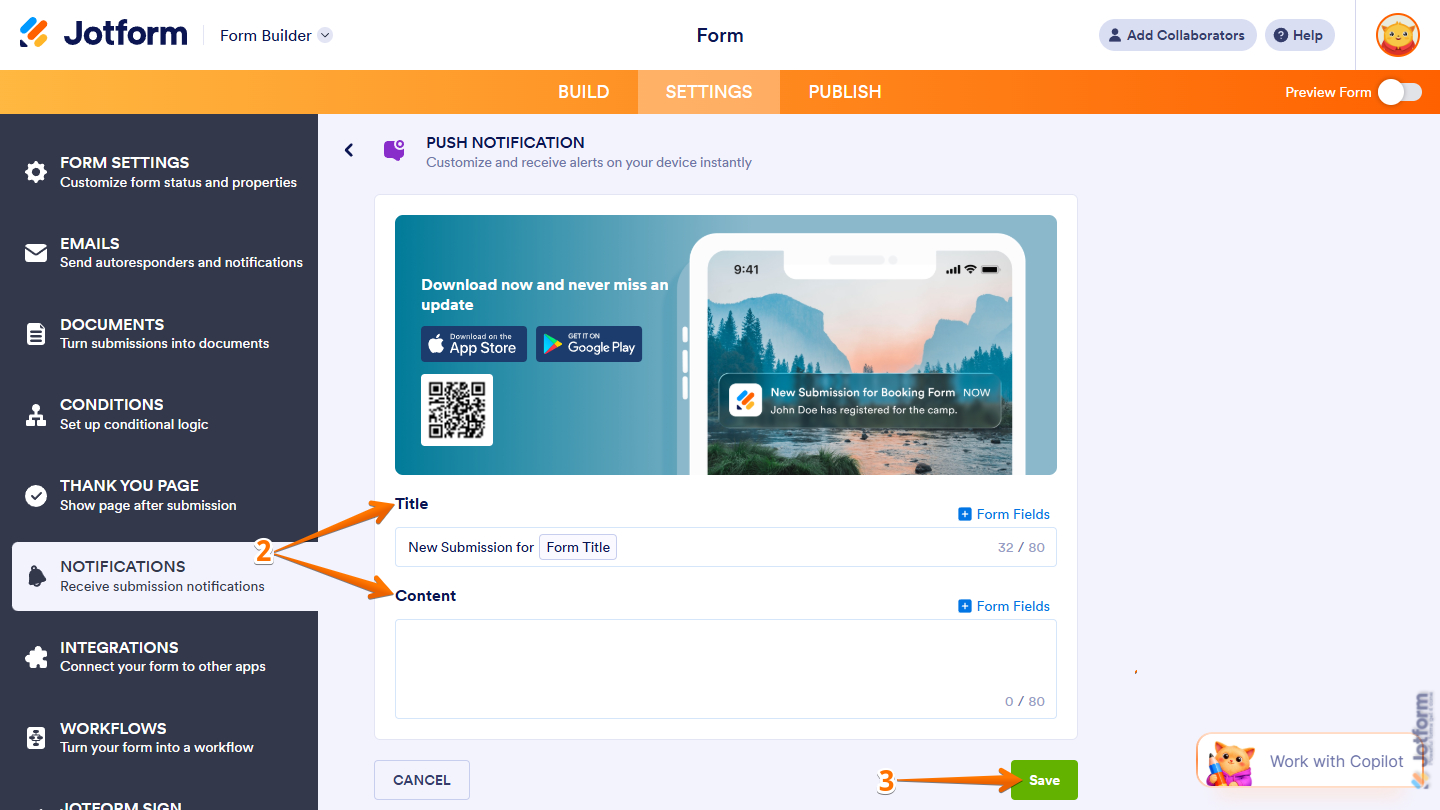
- Then, scroll down to set up the following options:
- Title — Edit this to personalize the message that shows up in the pop-up notification on your phone.
- Content — Set this up to add a message body that appears below the title in the pop-up notification.
- Once everything’s set, click on Save.
Pro Tips
- If you’re not getting alerts, double-check that the Jotform App has the right permissions on your phone.
- Submit a test entry to see how your customized notification looks in real time on your device.



Send Comment: