As a Jotform Enterprise admin, you get full control of your server. You can add and manage users, track forms, review logs, and more. You’ll also be able to update your server settings, including setting up a server-wide custom sender email with SMTP. You can connect it through Google, Microsoft, or your own custom SMTP. Once it’s set, your users can use that sender email for their forms.
Adding the Sender Email Using Custom SMTP
In your Enterprise Admin Console, just go to the Emails section to add a custom sender email using a Custom SMTP. You can set it up like this:
- On your My Workspace page, click on your Avatar/Profile picture on the top-right side of the screen.
- Then, in the menu that comes up, click on Admin Console.
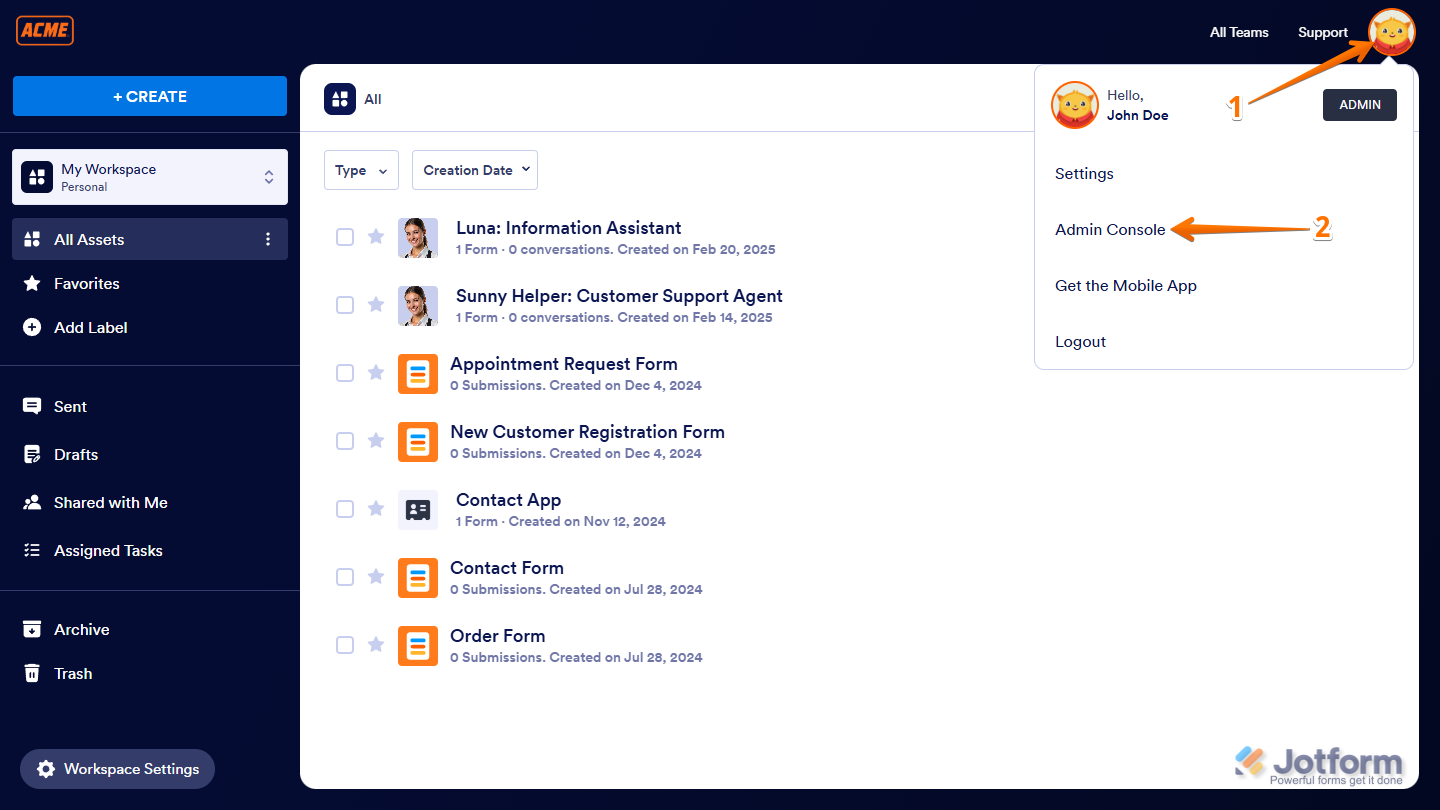
- Next, in the menu on the left side of the Admin Console page, click on Emails.
- Then, on the right side of the Emails page, click on Settings.
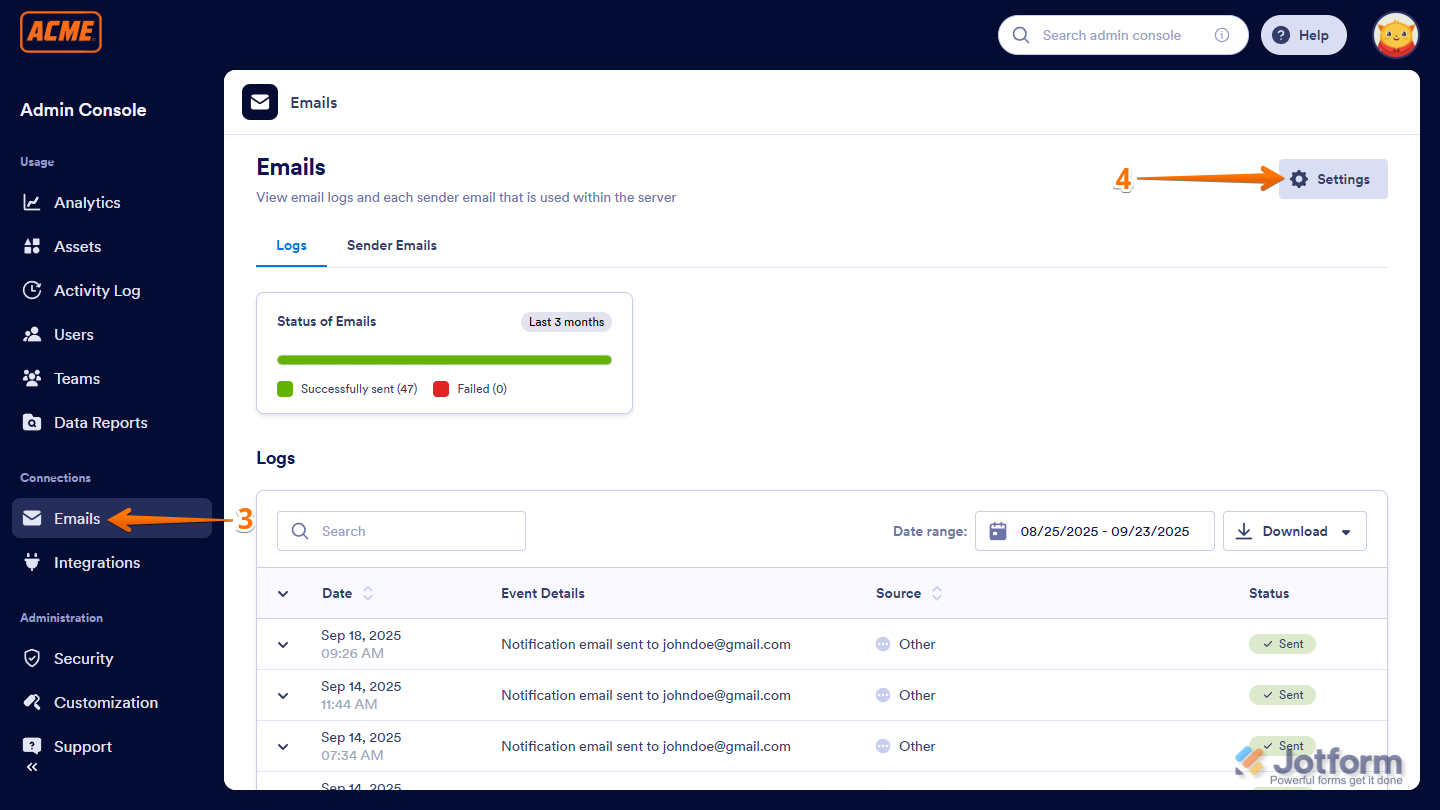
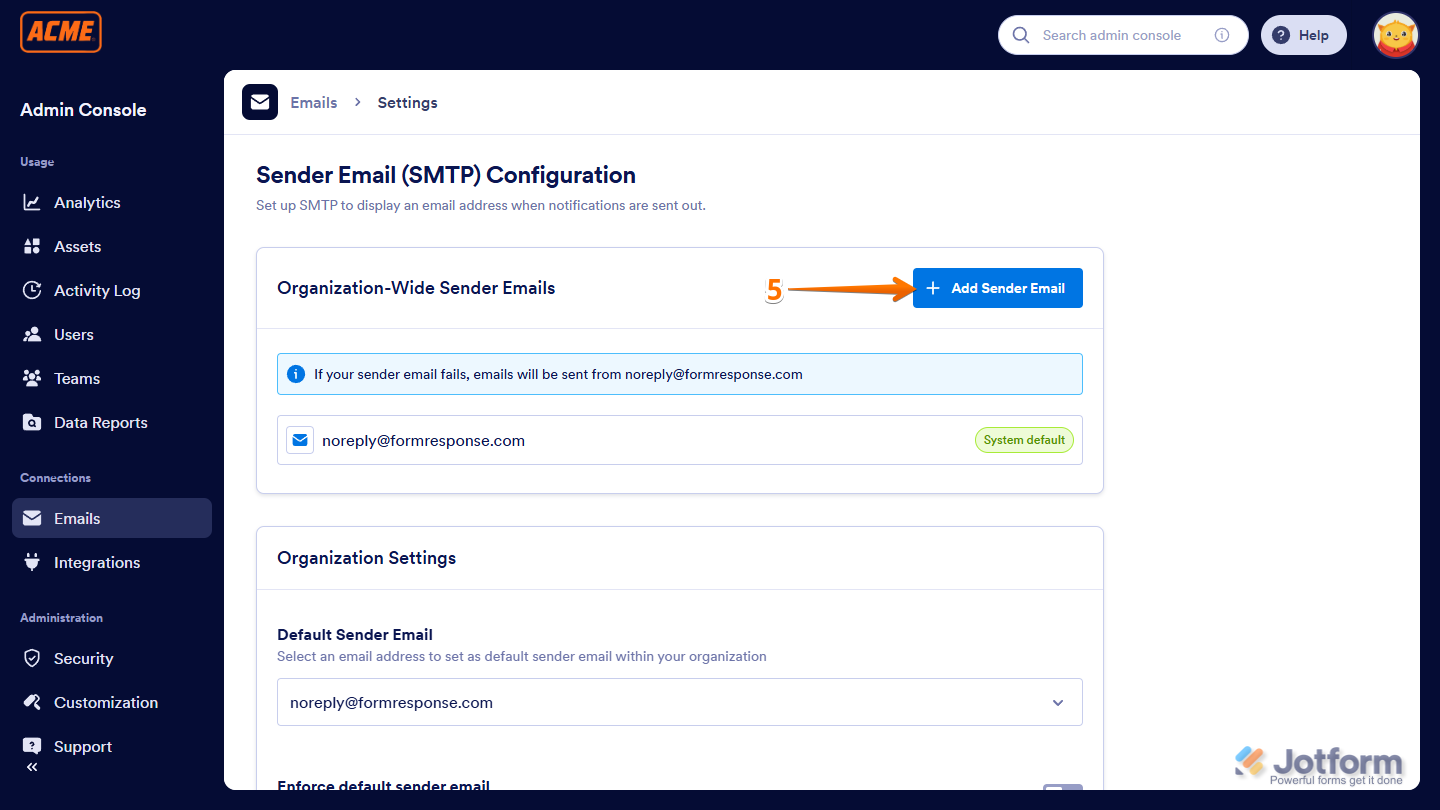
- Now, on the Sender Email (SMTP) Configuration page, under the Organization-Wide Sender Emails section, click on Add Sender Email.
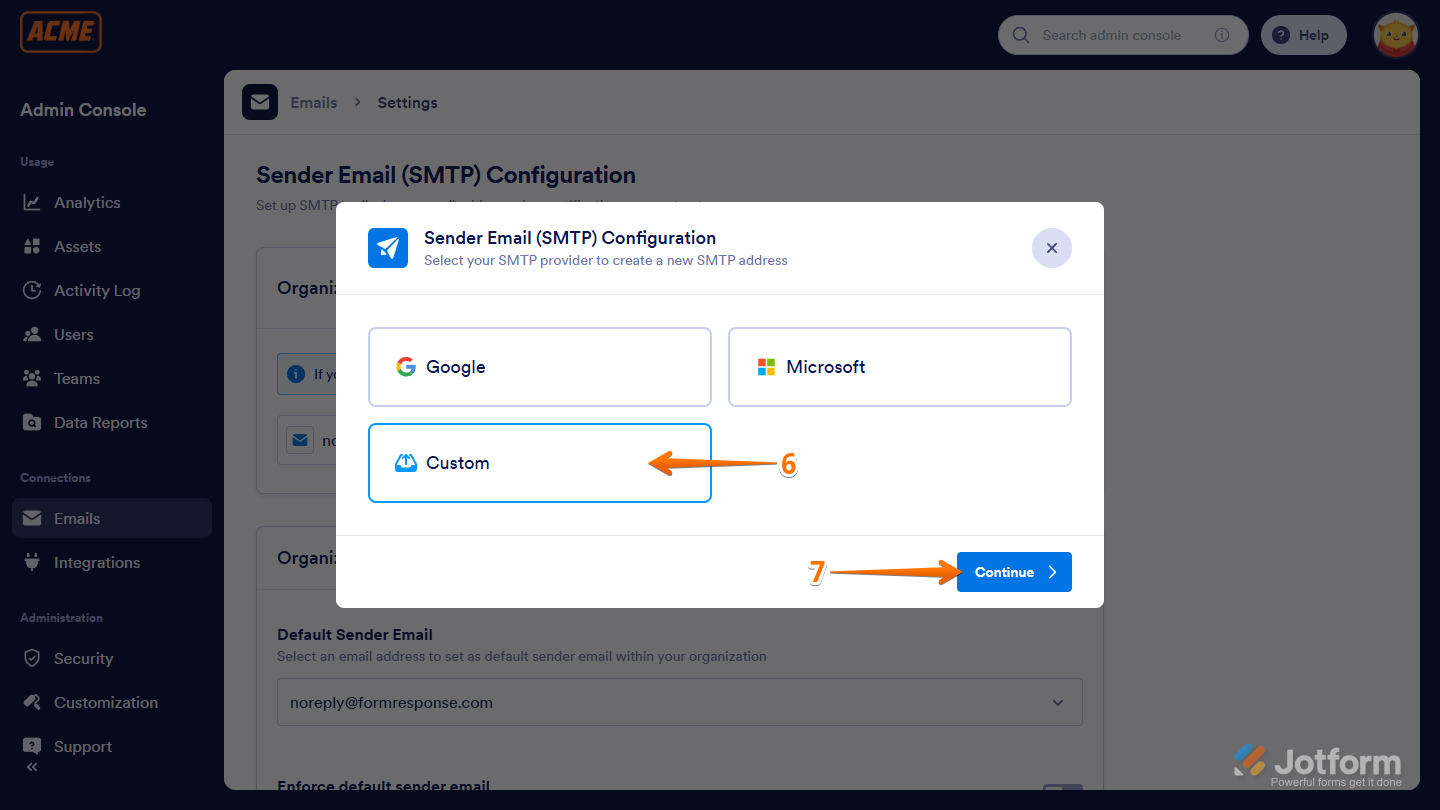
- In the Sender Email (SMTP) Configuration window that comes up, select Custom.
- Then, click on Continue.
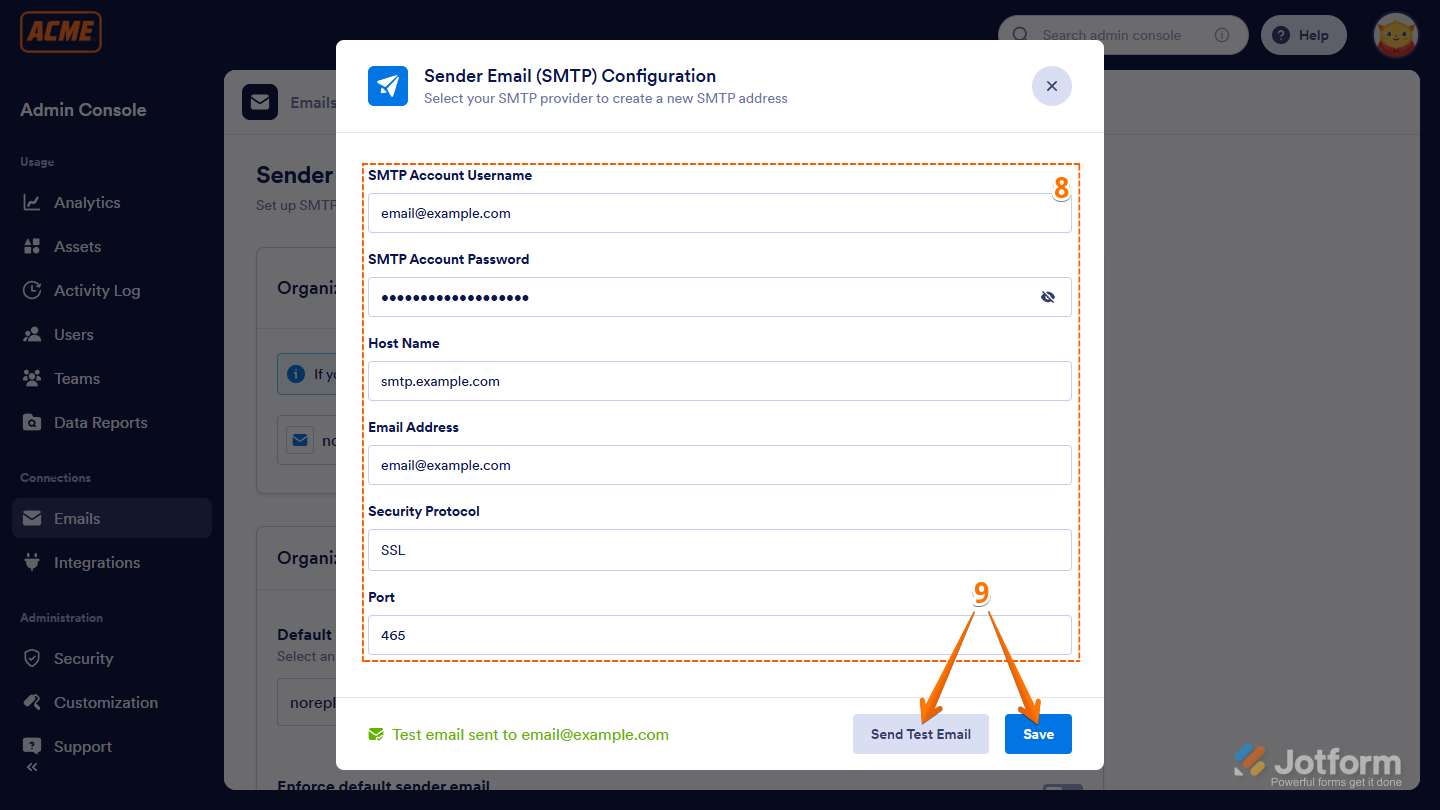
- Next, fill in these details:
- SMTP Account Username — In most providers, the username is the email address.
- SMTP Account Password — The password associated with your SMTP account.
- Host Name — Enter the hostname relative to the provided email address.
- Email Address — This will be the email address that will appear in the Sender Email dropdown of your form email settings.
- Security Protocol — Select the protocol: TLS or SSL.
- Port — Specify the port. The common ones are 465 for SSL, 587 for TLS, and 25 for Non-secure ports.
- Now, click on the Send Test Email button to see if it works, and click on Save to complete the setup.
That’s it! You can now send your form emails using your Custom SMTP.
Managing the Organization Settings
You can set a custom sender email as the default for your whole Enterprise Server in the Sender Email settings. From there, you can also prevent users from adding their own sender emails to their accounts. Here’s how to set it up:
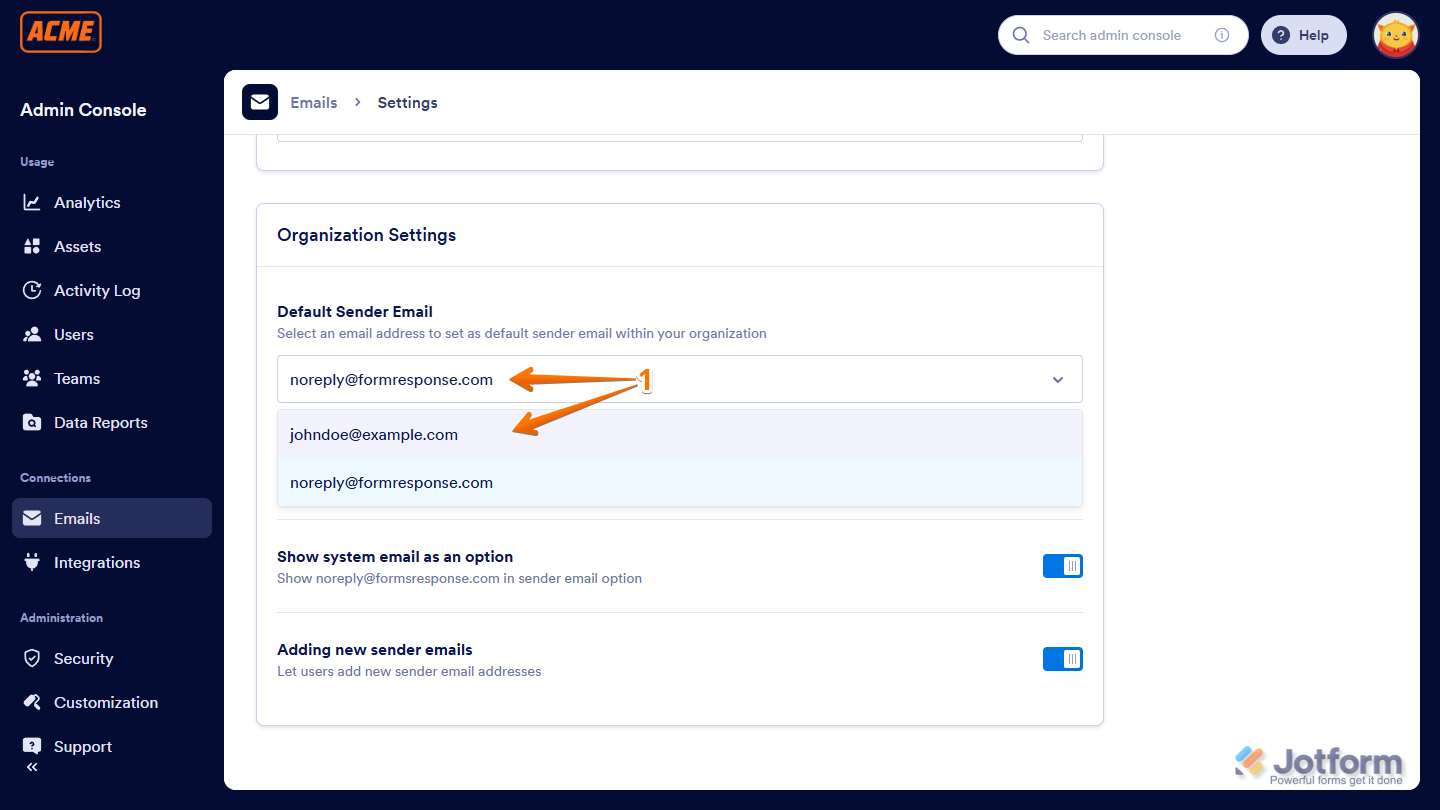
- While still on the Sender Email (SMTP) Configuration page, scroll down to the Organization Settings section, and in the Default Sender Email Dropdown menu, select the custom sender email.
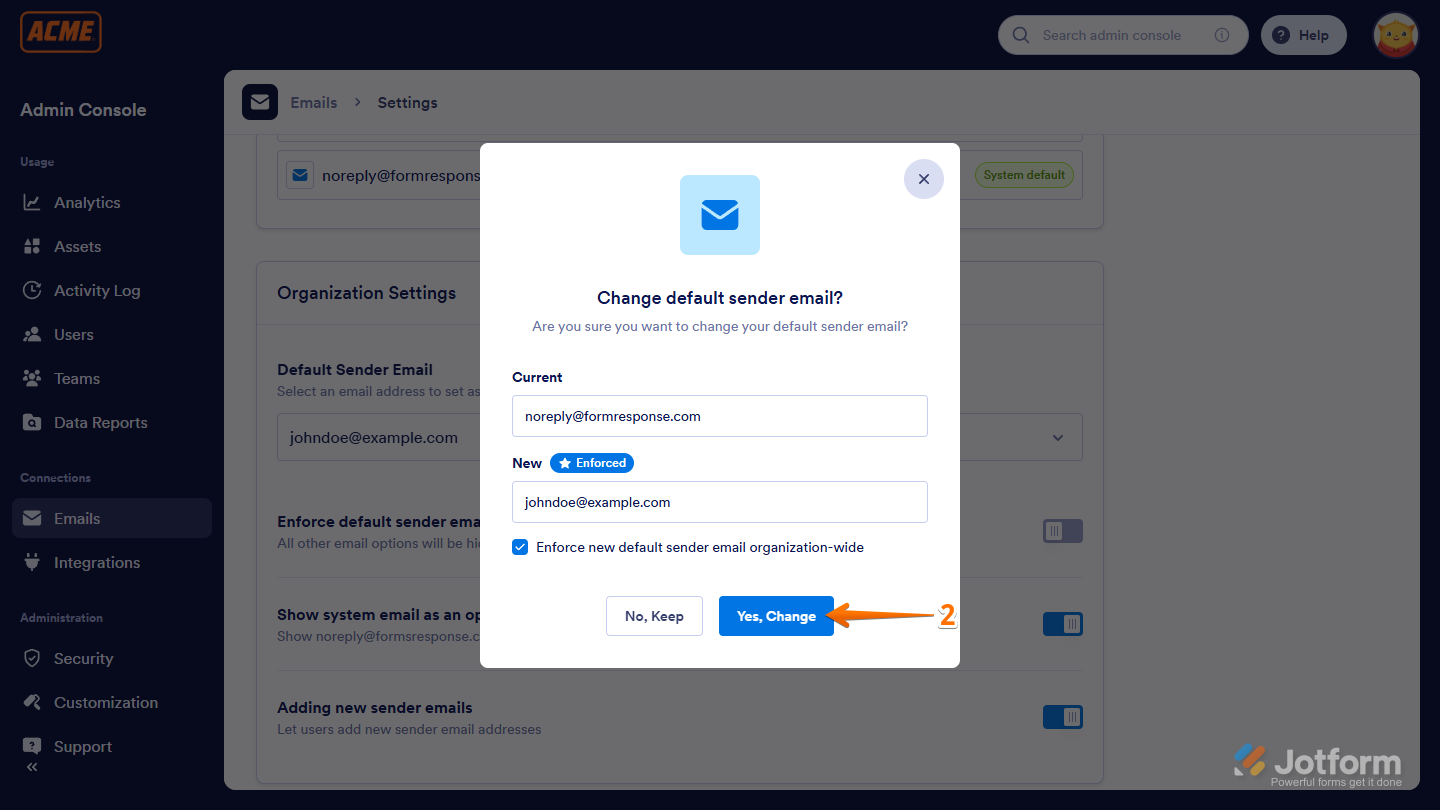
- Then, in the Change Default Sender Email? window that comes up, click on the Yes, Change button.
Note
When you check the Enforce New Default Sender Email Organization-Wide box, all forms on your Enterprise Server will automatically use the new Custom SMTP sender email. If you leave it unchecked, users can choose it on their own.
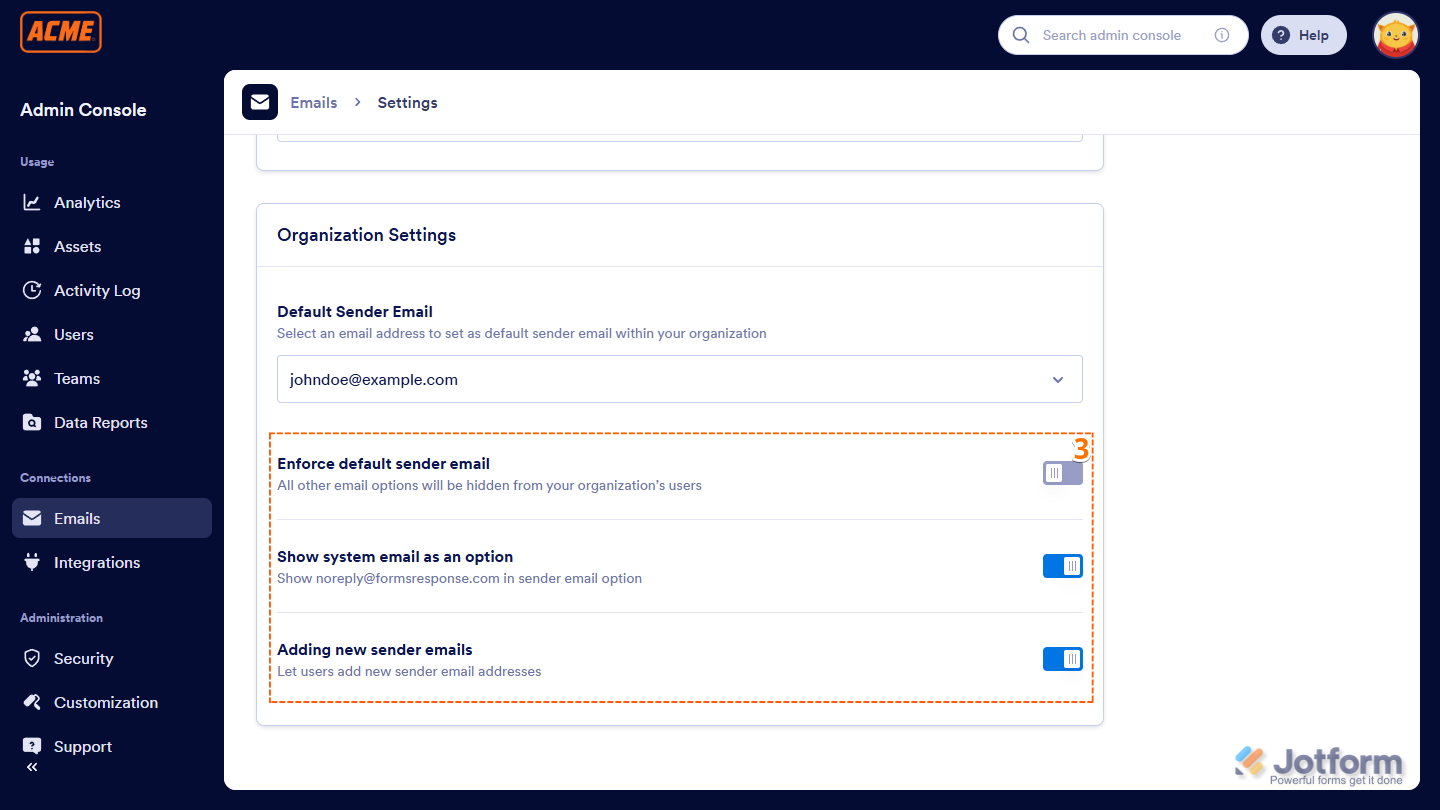
- Next, set up these things:
- Enforce Default Sender Email — Works the same way as “Enforce New Default Sender Email Organization-Wide.” When you turn this on, all other sender emails are hidden from users on your server.
- Show System Email as an Option — Toggle this on to include the default system email in the sender email options. This option is disabled if you enable Enforce Default Sender Email.
- Adding New Sender Emails — Toggle this on to let Enterprise users add their own sender email addresses from their accounts. This option is also disabled if Enforce Default Sender Email is on.
That’s it! You’ve finished setting up your Organization Settings. With your email setup and controls in place, you’re ready to go. From here, you can dive into managing forms, adjust other server settings, or simply let your team jump right in and start using the new setup.



Send Comment: