Jotform’s Add to Home Screen widget is a handy way to make your forms feel just like an app. With this widget, users can save your form directly to their mobile device’s home screen for quick and easy access anytime. Whether you’re sharing a registration form, feedback survey, or booking form, this feature gives your users the convenience of opening it instantly—just like tapping an app icon. It’s a simple touch that makes your form more accessible and user-friendly.
Here are a few ways to use it:
- Make Forms Easily Accessible on Mobile Devices — You can use the Add to Home Screen widget to let users save your form directly to their mobile home screen. This provides quick access without needing to open a browser or bookmark the page.
- Encourage Repeat Form Submissions — For forms that require recurring entries, such as daily reports, surveys, or attendance tracking, the widget makes it convenient for users to access the form regularly.
- Simplify Event or Registration Access — Event participants can save the registration or check-in form to their home screen, making it easier to quickly submit or reference during the event.
- Improve Engagement for Ongoing Campaigns — For fundraising campaigns, contests, or subscription sign-ups, adding the form to the home screen increases visibility and encourages more interactions.
Notes
- The Add to Home Screen widget works best on mobile devices since that’s where users can add shortcuts directly to their home screen.
- Once added, the shortcut opens your form in the browser—just like an app icon.
- If your form is updated, users don’t need to reinstall the shortcut. The shortcut will always open the most up-to-date version of your form.
Adding and Setting Up the Add to Home Screen Widget
Adding the Add to Home Screen widget to your form lets your users create a shortcut right on their mobile device’s home screen. Here’s the quick way to do it:
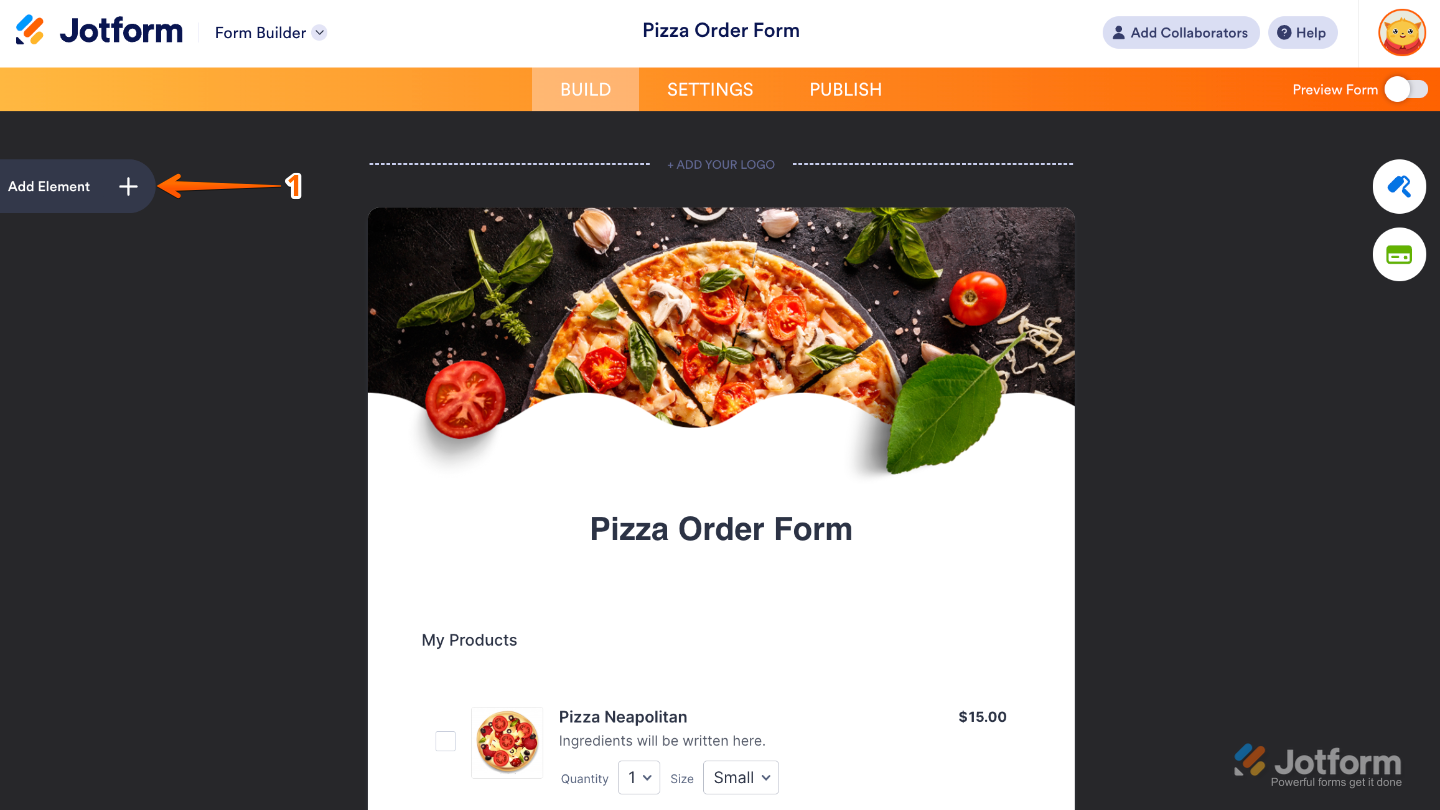
- In Form Builder, click on Add Element on the left side of the page.
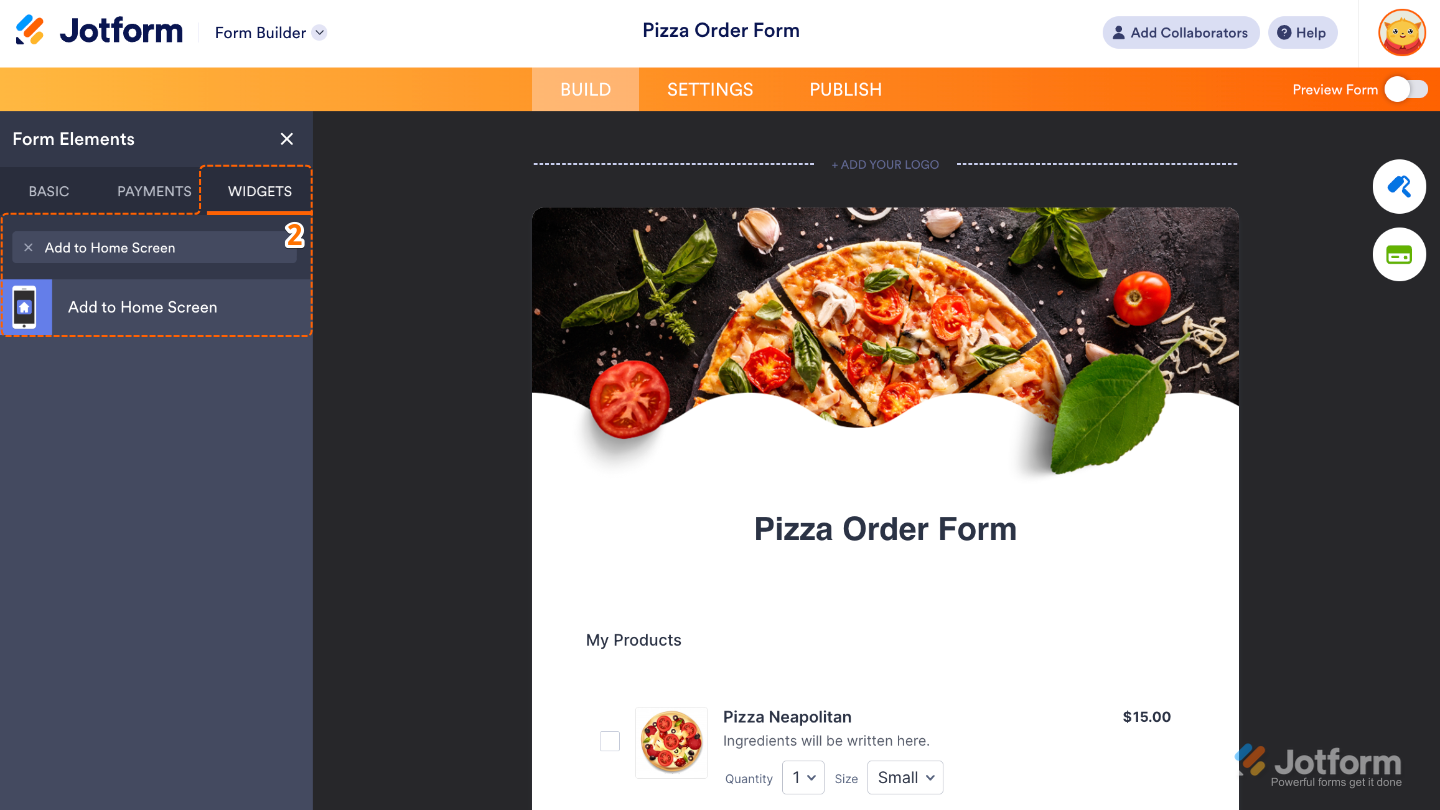
- Now, in the Form Elements menu, under the Widgets tab, search for Add to Home Screen and then click on it. Or, just drag and drop it to where you want it to be on your form.
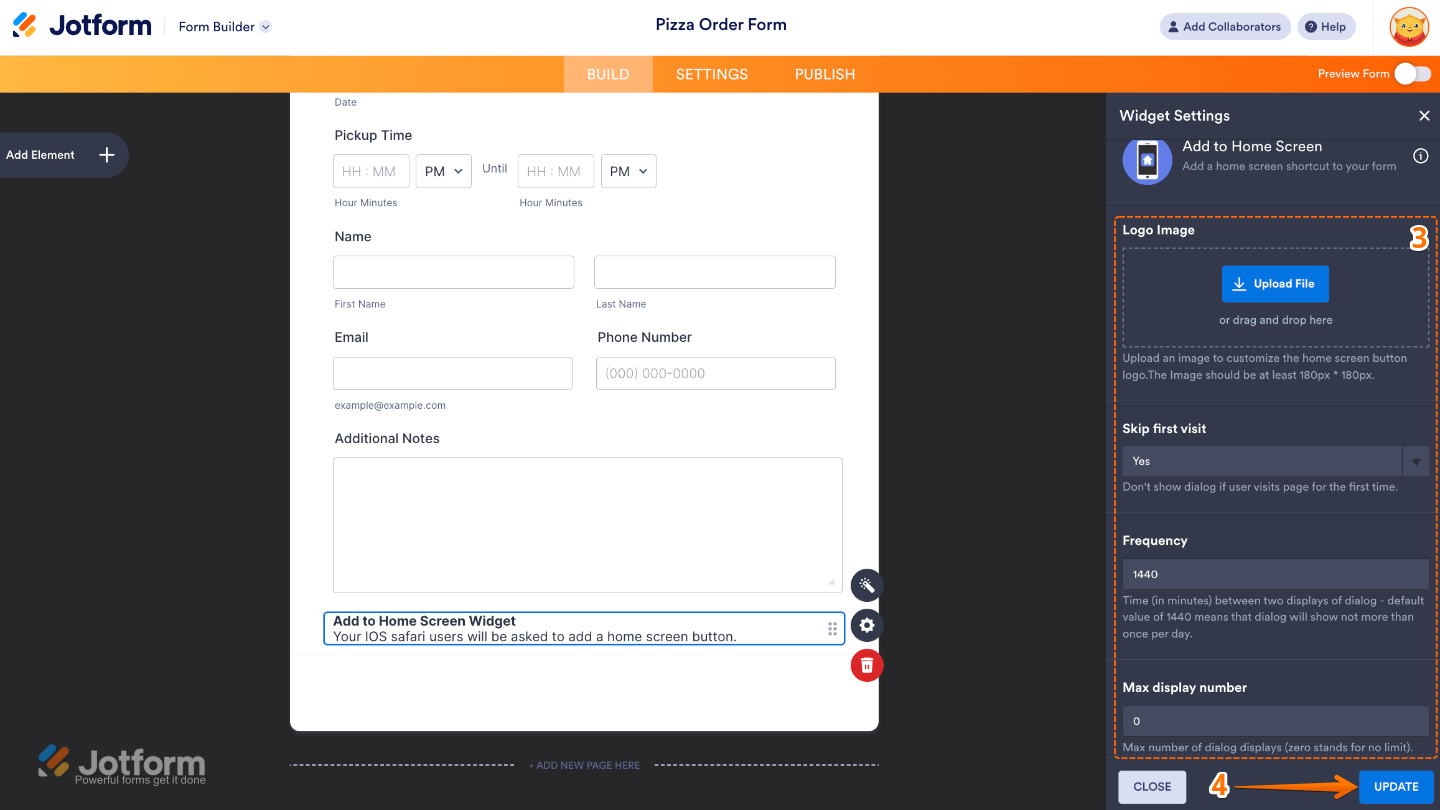
- Next, in the Widget Settings menu that opens on the right side of the page, set up these options:
- Logo Image — Upload a logo or icon that will appear on the shortcut when users add your form to their home screen. This makes it look polished and easy to recognize.
- Skip First Visit — Choose whether or not to show the prompt right away. Skipping the first visit means users won’t see the add-to-home-screen option until their next visit, which can feel less pushy.
- Frequency — Set how often the prompt will show up (for example, every time, once a day, or after a certain number of visits). A great way to remind users without overwhelming them.
- Max display number — Control the maximum number of times the prompt will appear for a user. This prevents the widget from being too repetitive.
- Once you’re done, click on Update.
That’s it. You’ve successfully added and set up the Add to Home Screen widget to your form. Now, you have a field in your form that makes it super easy for people who use it often to access it quickly—just a single tap from their home screen. Curious how it works on a live form? Check out this Demo Form.
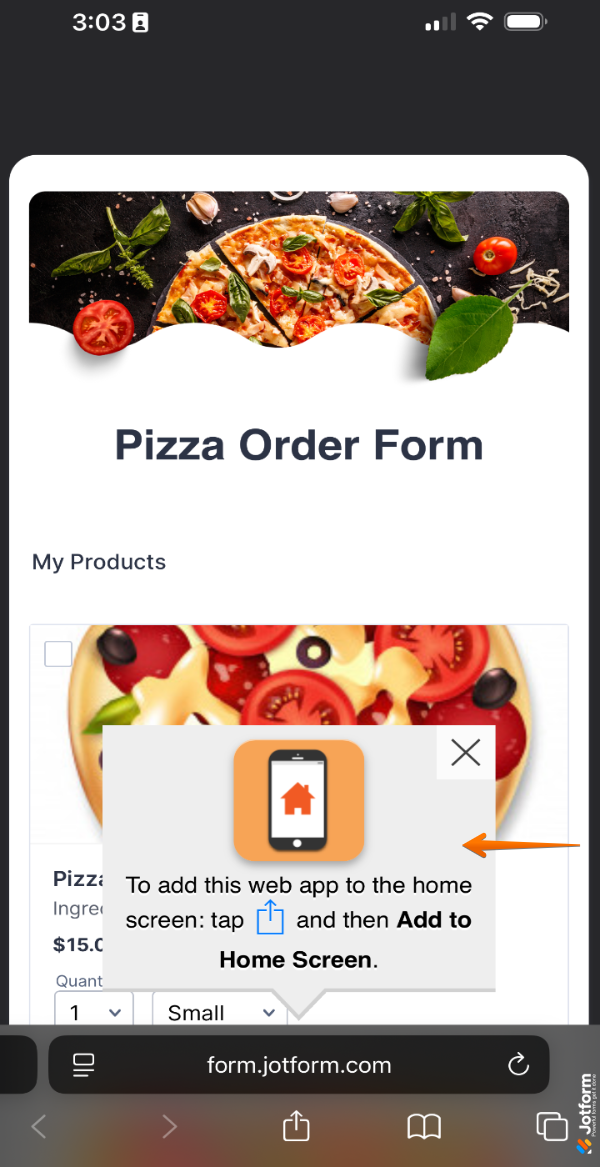
To further customize your Add to Home Screen field’s appearance, just click on the Gear icon to open its properties.
Pro Tip
Add a short instruction on your form explaining how the shortcut works, so users know they can save it to their home screen for faster access.

Send Comment: