Jotform’s Basic Separator widget is a simple way to add clean dividing lines between different parts of your form. It helps guide your users’ eyes, making the layout feel more organized and less overwhelming. Whether you’re grouping related questions, separating instructions, or just adding a visual break, this widget keeps things tidy and user-friendly, no coding needed.
Here are a few ways to use it:
- Organize Long Forms Into Clear Sections — You can use the Basic Separator widget to visually divide long forms into smaller, easy-to-follow sections. This helps users focus on one part at a time without feeling overwhelmed.
- Separate Different Topics or Categories — The widget works well for distinguishing between unrelated sections, such as personal information, billing details, and additional comments. It creates a smooth transition from one category to the next.
- Improve Form Readability — Adding separators between groups of fields makes your form easier to scan. Users can quickly understand where one section ends and another begins.
- Highlight Important Areas — You can place a separator before critical sections, such as payment details or terms and conditions, to draw attention and emphasize importance.
Notes
- The Basic Separator is purely visual; it doesn’t collect any data.
- You can add as many separators as you need to divide your form into logical sections.
- It’s a lightweight widget, so it won’t affect your form’s load time.
Adding and Setting Up the Basic Separator Widget
Adding the Basic Separator widget is a simple way to break your form into neat, easy-to-read sections, making everything feel more organized and less overwhelming for your users. Getting started is simple—here’s what to do:
- In Form Builder, click on Add Element on the left side of the page.
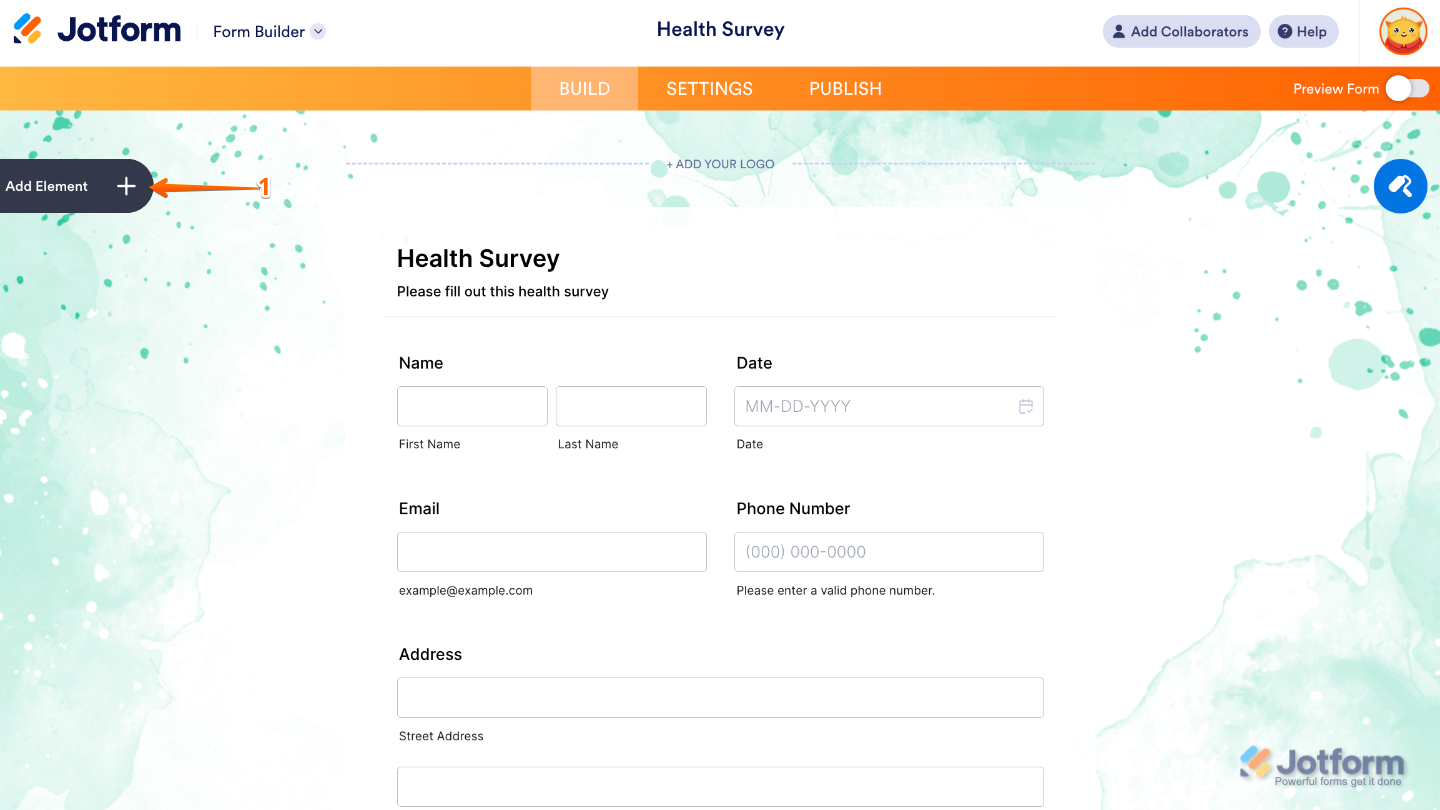
- Now, in the Form Elements menu, under the Widgets tab, search for Basic Separator and then click on it. Or, just drag and drop it to where you want it to be on your form.
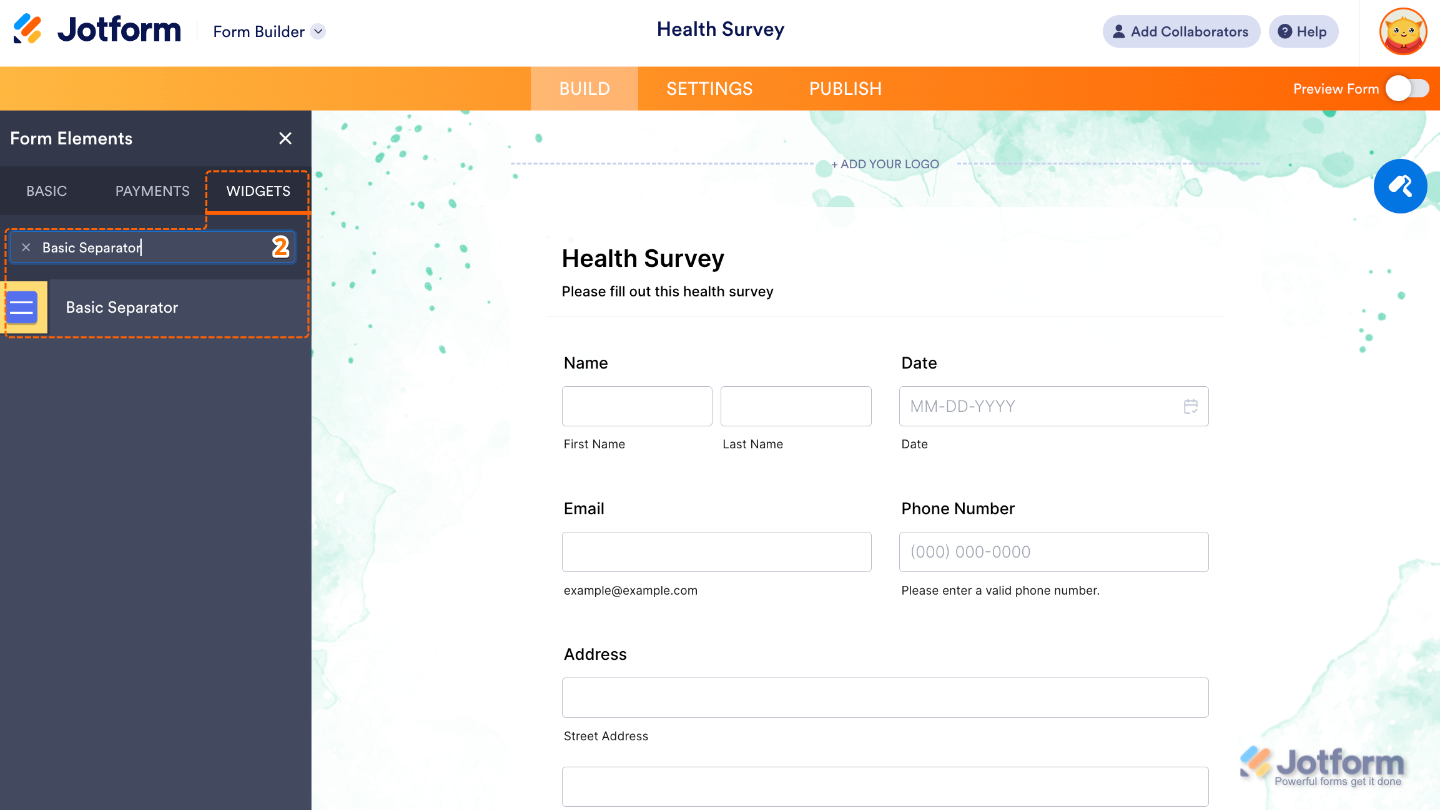
That’s it. You’ve successfully added and set up the Basic Separator widget to your form. Now, you’ve got a field in your form that neatly divides sections with clean horizontal lines, keeping everything organized and easy to follow. Wondering how it looks in action? Check out this Demo Form.
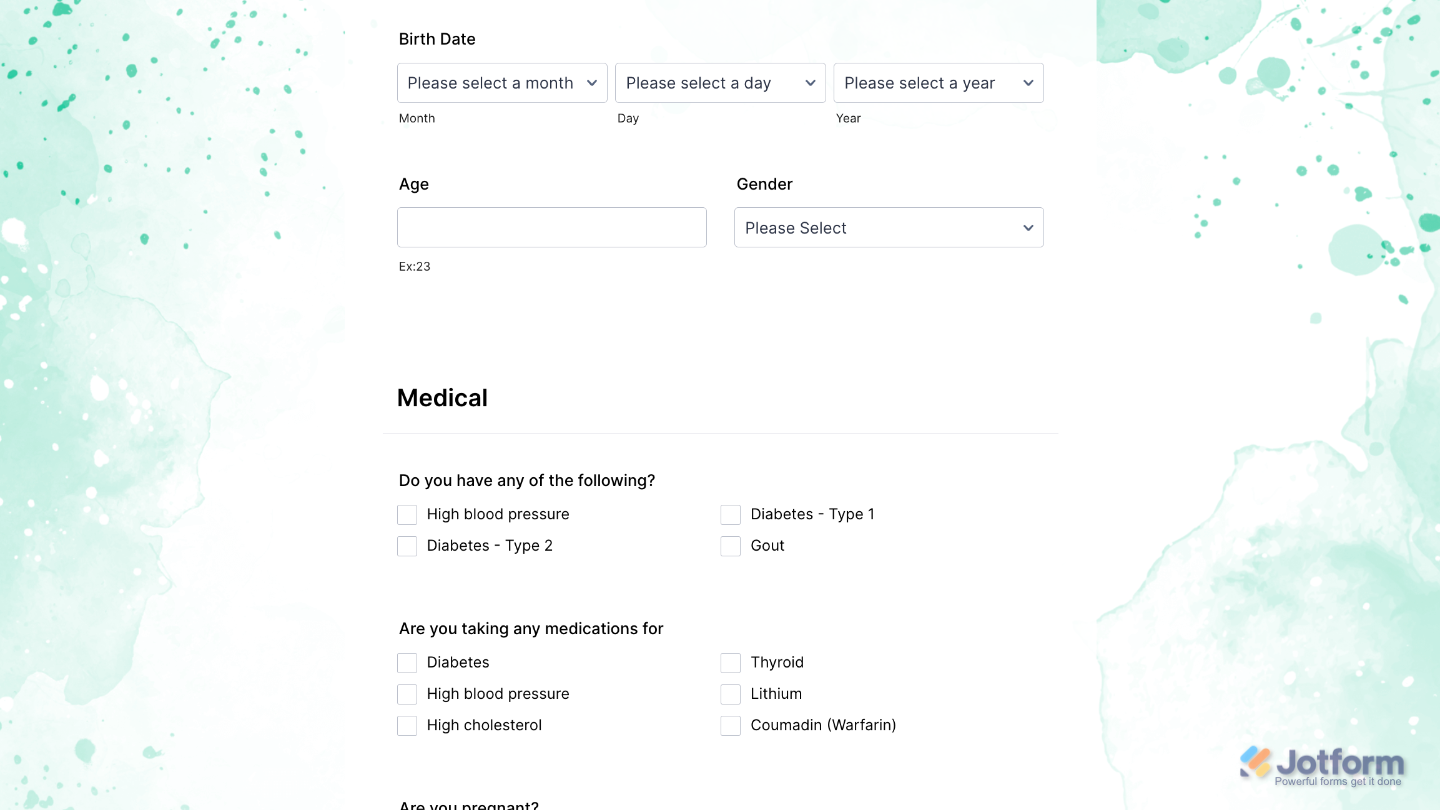
To further customize your Basic Separator field’s appearance, just click on the Gear icon to open its properties.
Pro Tips
- Use the same style and spacing for all separators to maintain a clean, professional look.
- Pair separators with clear section headings so users know what’s coming next.
- Too many separators can make your form feel choppy; aim for a natural flow between sections.
- Check that your separators still look good and fit well when viewed on smaller screens.

Send Comment: