Creating a smooth and easy form-filling experience is always a win, and that’s exactly what the Breadcrumbs widget helps you do. By giving your users a clear visual guide of where they are in your form and what’s coming next, you make long or multi-step forms feel more manageable and less overwhelming.
Whether you’re organizing a detailed application, a survey, or any form with multiple sections, adding Breadcrumbs is a simple way to boost clarity and keep users confidently moving forward.
Here are a few ways to use it:
- Make Long Forms Feel More Manageable — If your form has several sections, breadcrumbs help break things up and show users how far along they are. It’s a simple way to keep them motivated to finish.
- Perfect for Multi-Step Processes — Whether you’re collecting applications, onboarding new users, or building a detailed survey, breadcrumbs guide people step by step so the experience feels clear and structured.
- Reduce Confusion and Backtracking — Users can easily see which section they’re in and what they’ve already completed, which helps them stay focused and confident throughout the form.
- Create a More Professional, Polished Look — Breadcrumbs add a clean, organized feel to your form. It’s a small visual detail that instantly makes your form feel more user-friendly and thoughtfully designed.
Adding and Setting Up the Breadcrumbs Widget
Adding the Breadcrumbs widget to your form gives your users a clear, step-by-step view of their progress, helping them see exactly where they are and what comes next as they move through your form. Here’s a quick how-to:
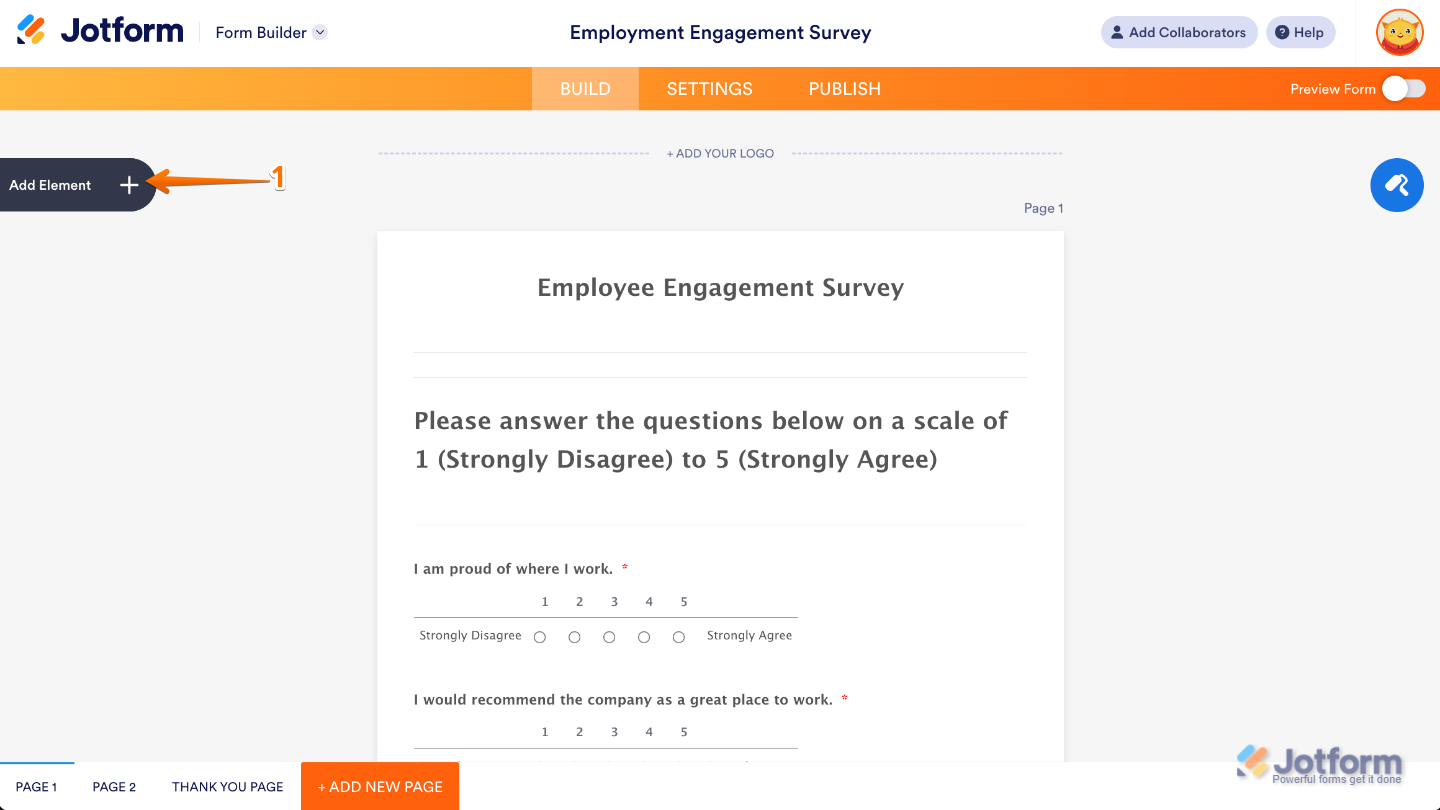
- In Form Builder, click on Add Element on the left side of the page.
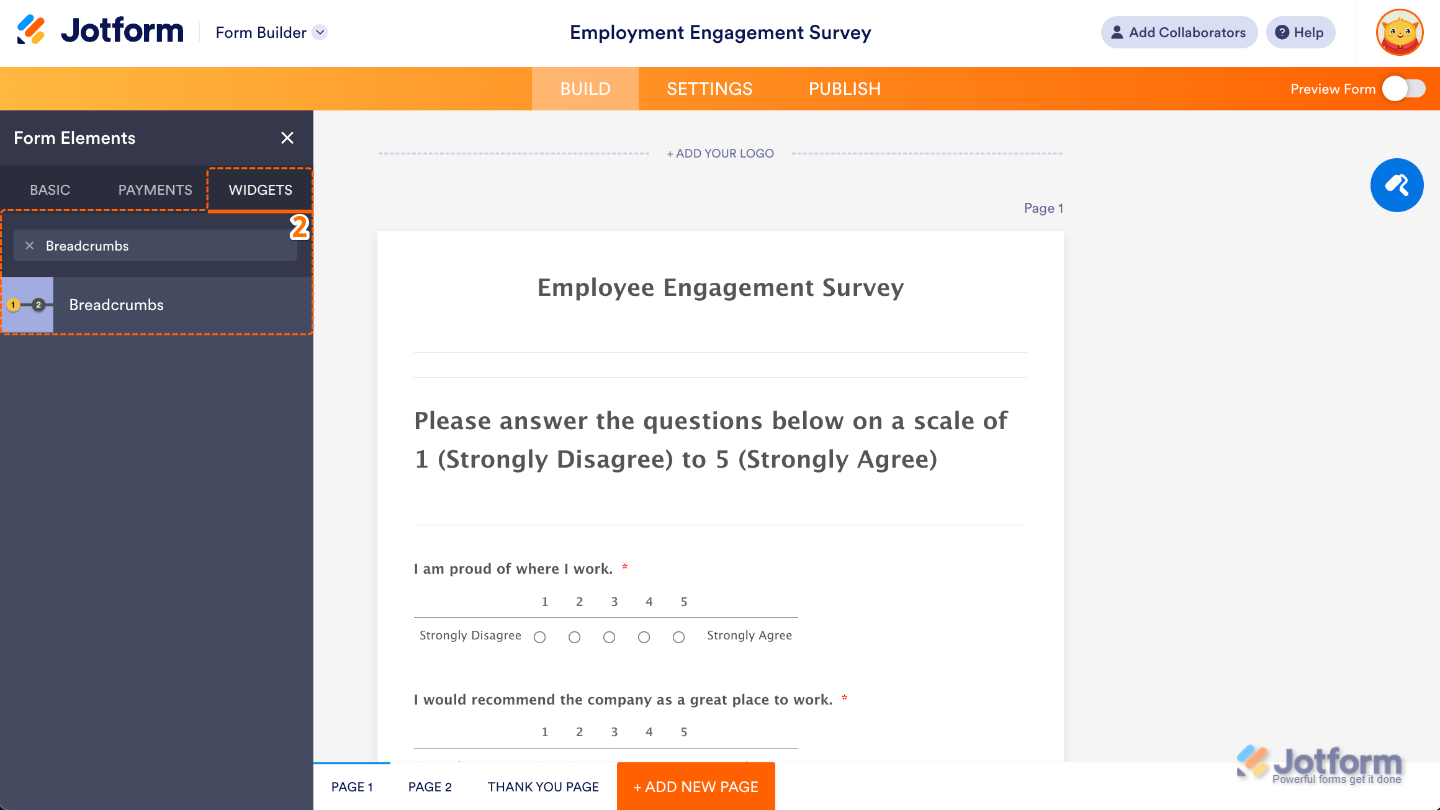
- Now, in the Form Elements menu, under the Widgets tab, search for Breadcrumbs Editor and then click on it. Or, just drag and drop it to where you want it to be on your form.
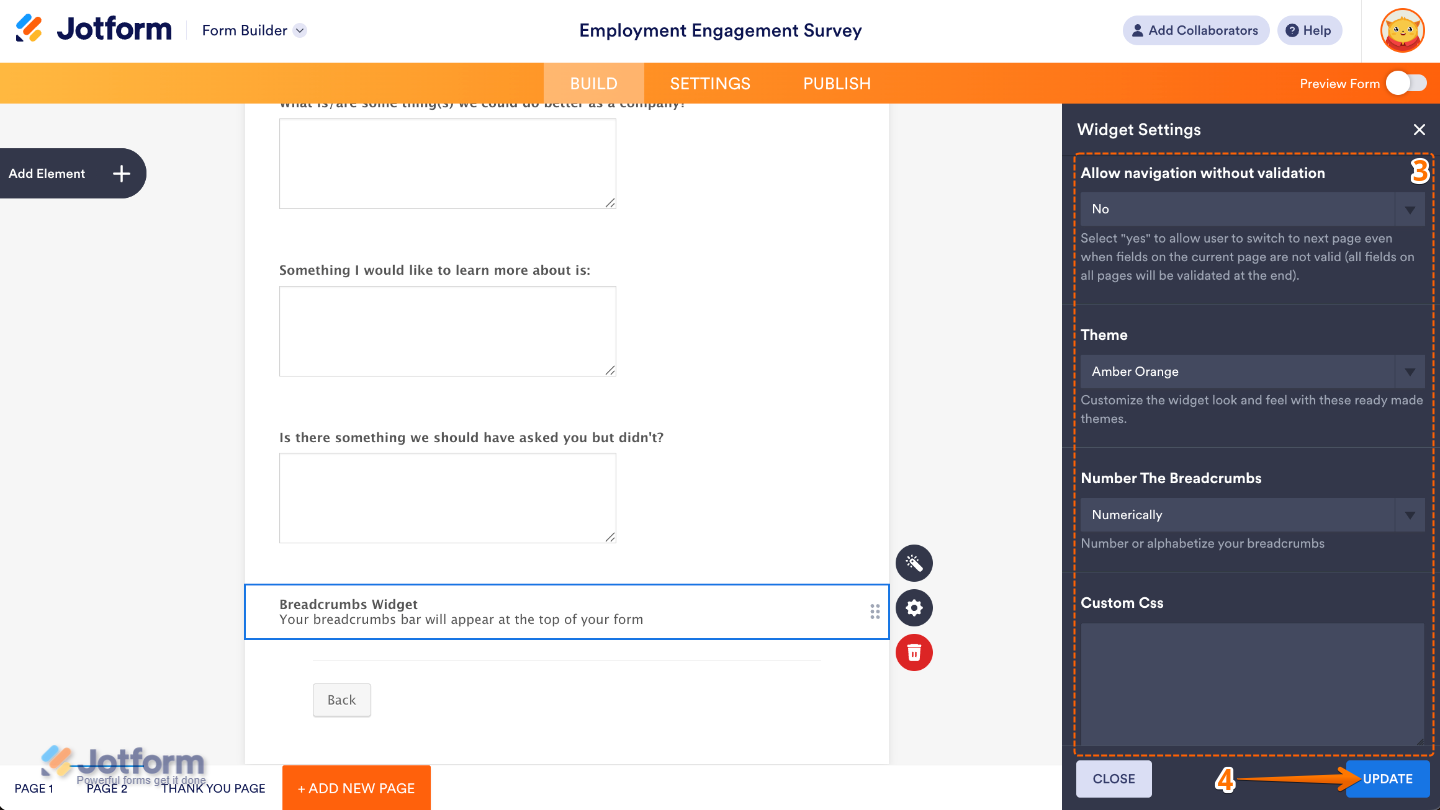
- Next, in the Widget Settings menu that opens on the right side of the page, set up the following options:
- Allow navigation without validation — Select Yes if you want to let your users click through the breadcrumbs to move between form sections without being forced to fill out every field first.
- Theme — Choose a style for your breadcrumbs. This option lets you pick from preset looks (like classic, modern, or minimal) so the breadcrumbs match your form’s overall design.
- Number The Breadcrumbs — Use this setting to choose how your breadcrumbs appear, whether you want them numbered (1, 2, 3…) or labeled alphabetically (A, B, C…).
- Custom CSS —Add your own CSS code to change colors, fonts, spacing, or other design details so your breadcrumbs perfectly fit your brand or style.
- Once you’re done, click on Update.
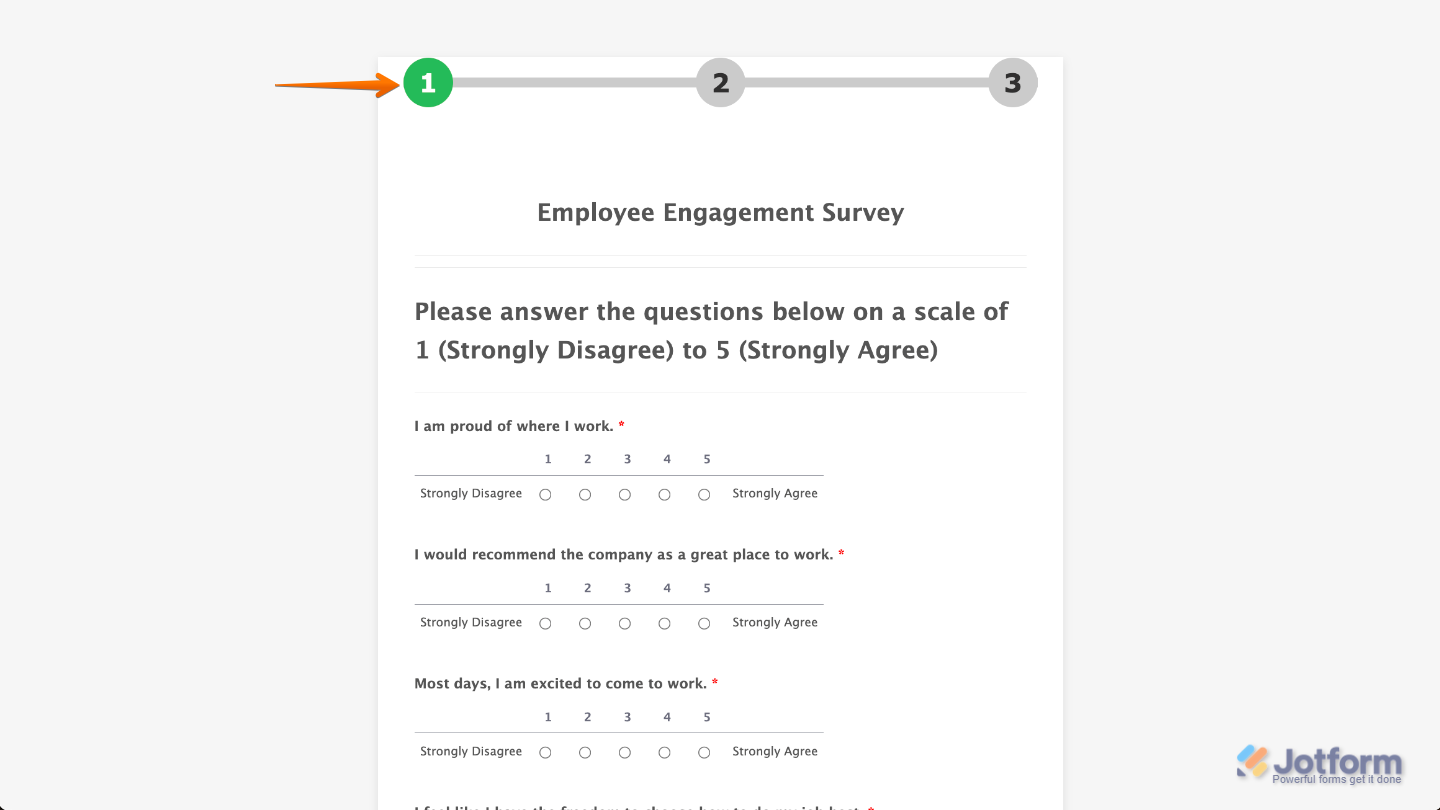
That’s it. You’ve successfully added and set up the Breadcrumbs widget on your form. Now your users can easily see where they are in the process, making navigation smoother and helping them move through your form with confidence. Curious how it works on a live form? Check out this Demo Form.
To further customize your Breadcrumbs field appearance, just click on the Gear icon to open its properties.
Pro Tips
- Breadcrumbs work best when your form has multiple steps. If your form is short, adding them might feel unnecessary.
- The “Allow navigation without validation” option is great for flexibility, but remember: it might let users skip required fields. Use it thoughtfully.
- Customize the Breadcrumbs theme to match your form’s look. A consistent style makes your form feel polished and professional.

Send Comment: