Jotform’s Dynamic QR Code widget makes it easy to create QR codes automatically from the information users enter in your form. In just a few clicks, you can turn links, text, or custom details into a scannable code. Whether you’re sharing contact information, event details, or product data, this widget keeps things simple and convenient for both you and your users.
Here are a few ways to use it:
- Share Contact Information Easily — You can use the Dynamic QR Code widget to generate a scannable QR code containing contact details. This makes it simple for users to save your information without typing anything manually.
- Link to Event Details or Tickets — The widget can create QR codes that direct users to event pages, tickets, or registration forms. This is perfect for invitations, conferences, or workshops.
- Promote Products or Services — You can generate QR codes that link directly to product pages, service offerings, or online catalogs. Customers can scan the code to access details instantly.
- Create Custom Links for Marketing Campaigns — Dynamic QR codes can change based on form submissions, letting you generate personalized URLs for promotions, surveys, or special offers.
Adding and Setting Up the Dropdown with Dynamic QR Code Widget
Just drag the widget onto your form using Jotform’s easy, no-code builder, then choose what you want the QR code to include. Setting it up takes no time at all—here’s how:
- In Form Builder, click on Add Element on the left side of the page.
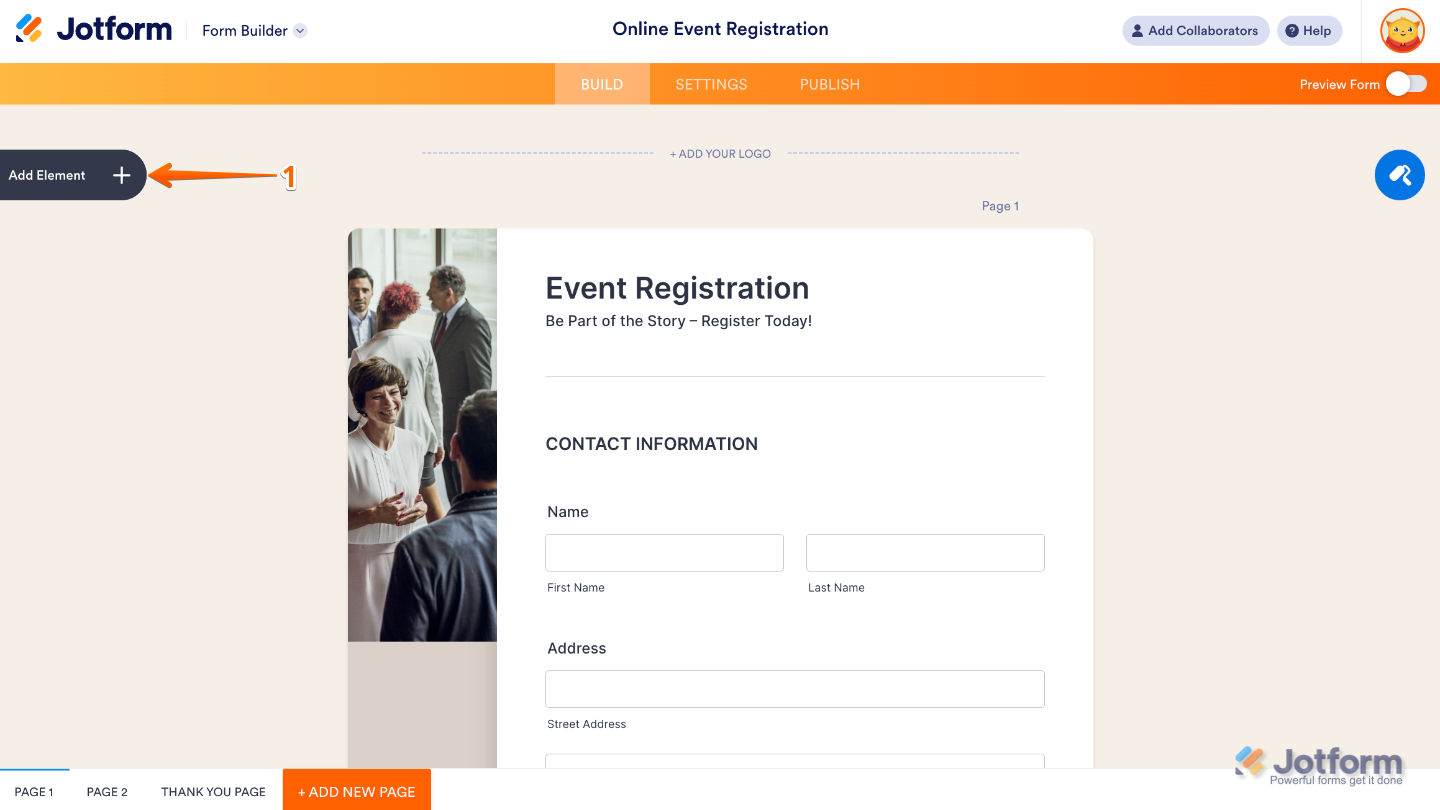
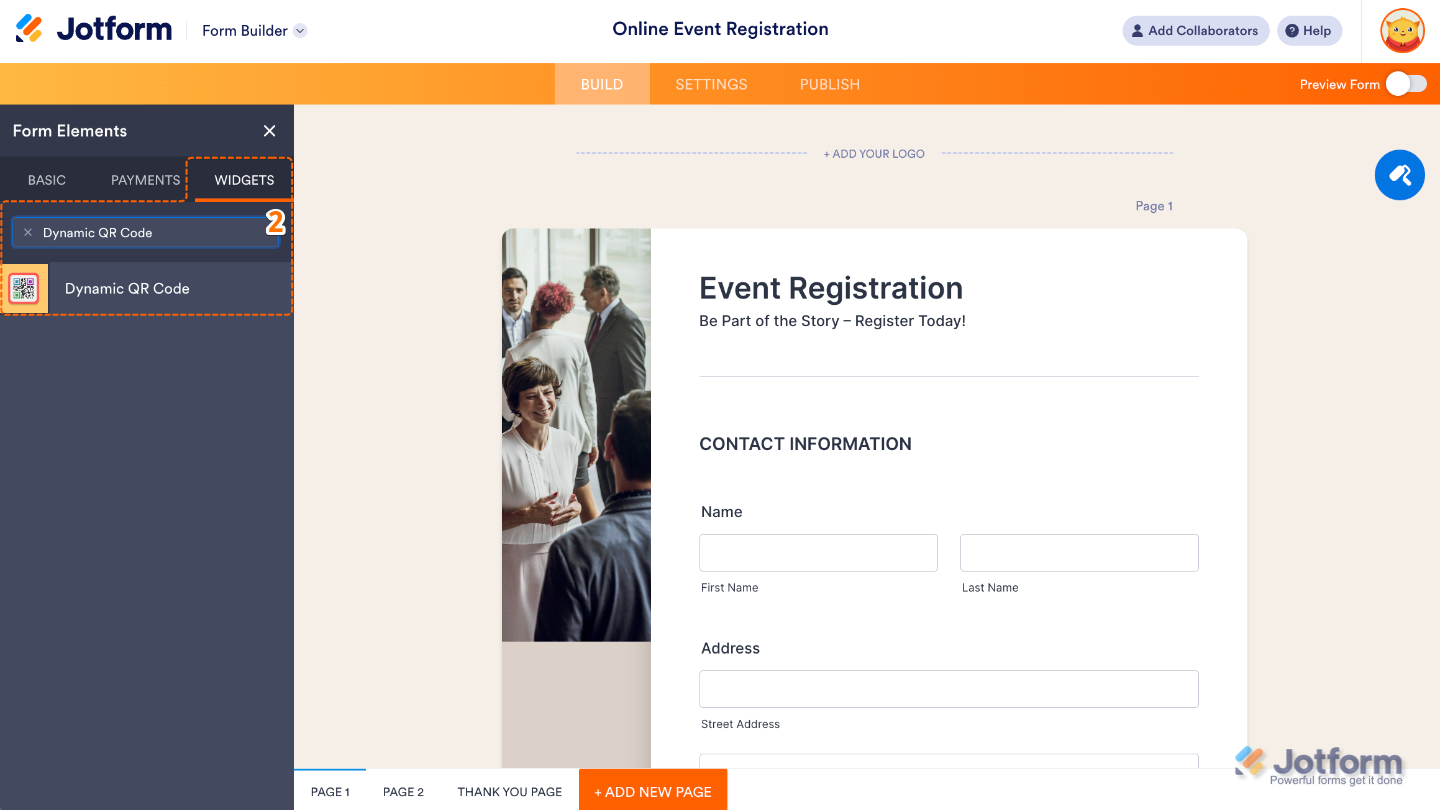
- Now, in the Form Elements menu, under the Widgets tab, search for Dynamic QR Code and then click on it. Or, just drag and drop it to where you want it to be on your form.
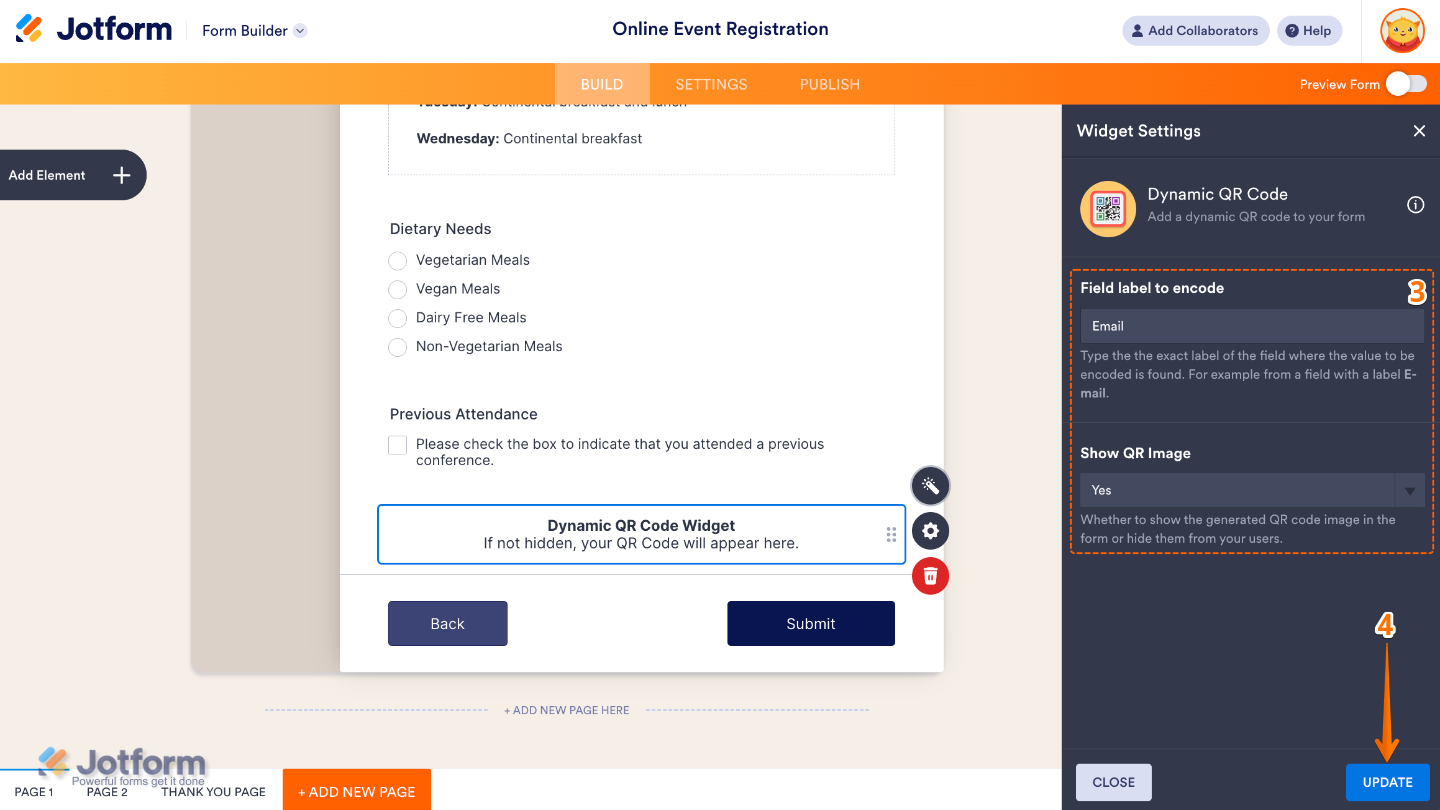
- Next, in the Widget Settings window that opens on the right side of the page, set up the following options:
- Field label to encode — Enter the exact label of the form field you want to turn into a QR code—this tells the widget where to pull the info from.
- Show QR Image — Toggle No if you’d prefer not to display the QR code directly on your form.
- Once you’re done, click on Update.
That’s it. You’ve successfully added and set up the Dynamic QR Code widget to your form. Now, you have a feature in your form that instantly creates QR codes based on what users enter in a specific field—no extra tools required. Wondering how it looks in action? Check out this Demo Form.
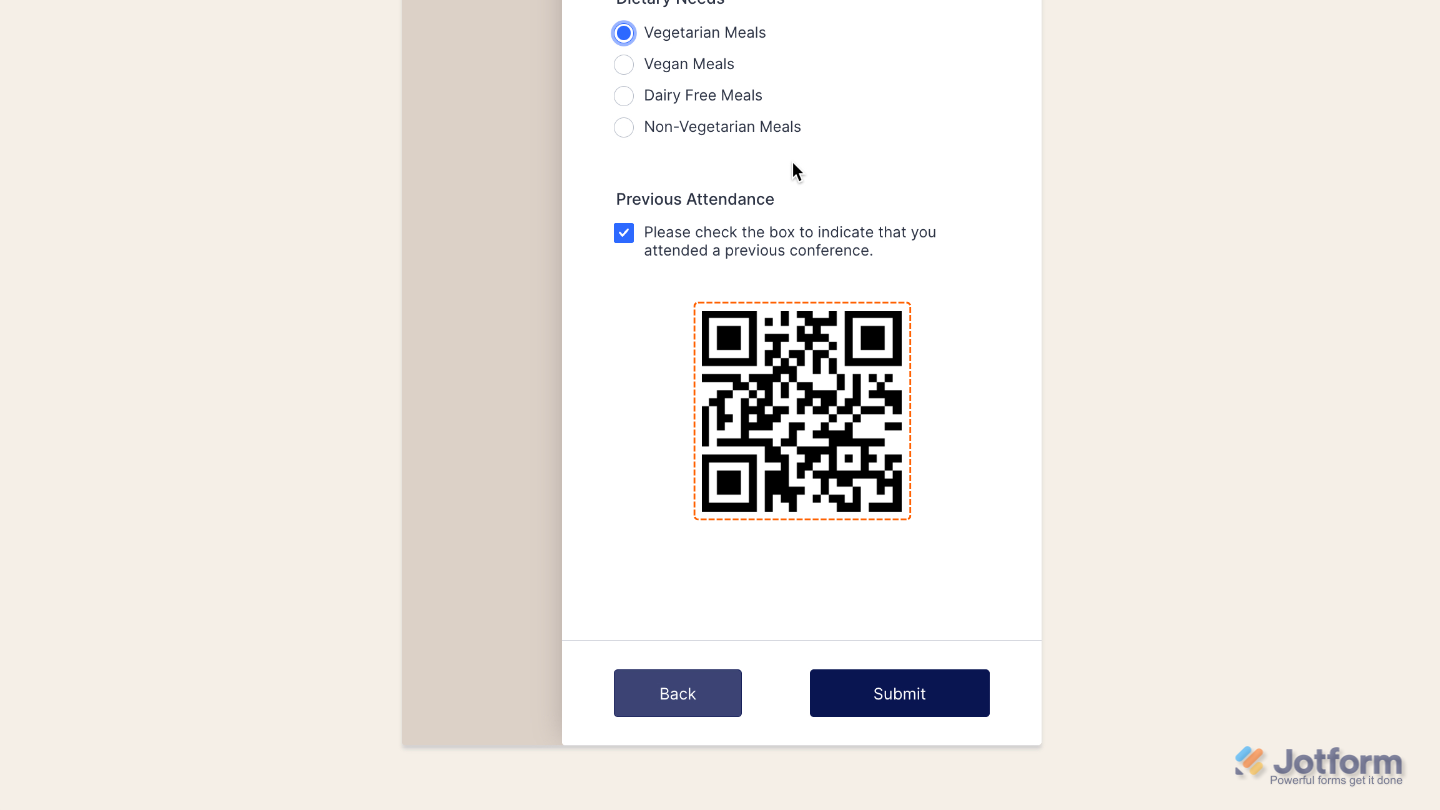
To further customize your Dynamic QR Code field appearance, just click on the Gear icon to open its properties.
Pro Tips
- Use it for event check-ins, digital tickets, or instant downloads—just map the right field to generate unique codes for each user.
- Test your QR code before going live; fill out a sample form, scan the code, and check if it pulls up the correct info.

Send Comment: