To make your form feel more you, the Google Fonts Picker widget is a simple but powerful way to give it a personalized touch. Instead of sticking to standard fonts, this widget lets you choose from a wide range of Google Fonts, so your form’s text can match your brand style, mood, or message. Whether you’re going for modern and clean, fun and playful, or sleek and professional, the right font can instantly elevate the look and feel of your form.
Here are a few ways to use it:
- Let Users Choose Their Preferred Font Style — If your form involves creativity, like branding requests, design preferences, or style feedback, this widget gives users an easy way to pick a font that matches their taste. It’s like handing them a mini font palette so they can show you what “feels right.”
- Collect Branding or Style Guidelines — For clients sharing brand assets, the Google Fonts Picker makes it simple for them to choose the exact font families they want you to use. Instead of typing out names (and hoping for no typos!), they can select directly from the list. Smooth, clean, and fuss-free.
- Make Creative Projects More Interactive — If you’re gathering information for invitations, posters, logos, or any design project, the widget adds a fun, hands-on moment. It helps your users feel more involved in the creative process—like they’re co-designing with you.
- Capture Font Choices for Web or App Projects —Developers and UX/UI teams can use this widget when collecting preferred fonts for prototypes, websites, or apps. It keeps everything organized and ensures you get the exact Google Fonts selection your clients or teammates want.
Adding and Setting Up the Google Fonts Picker Widget
Adding the Google Fonts Picker widget to your form gives you a quick and simple way to choose from hundreds of beautiful Google Fonts. Just set it up like this:
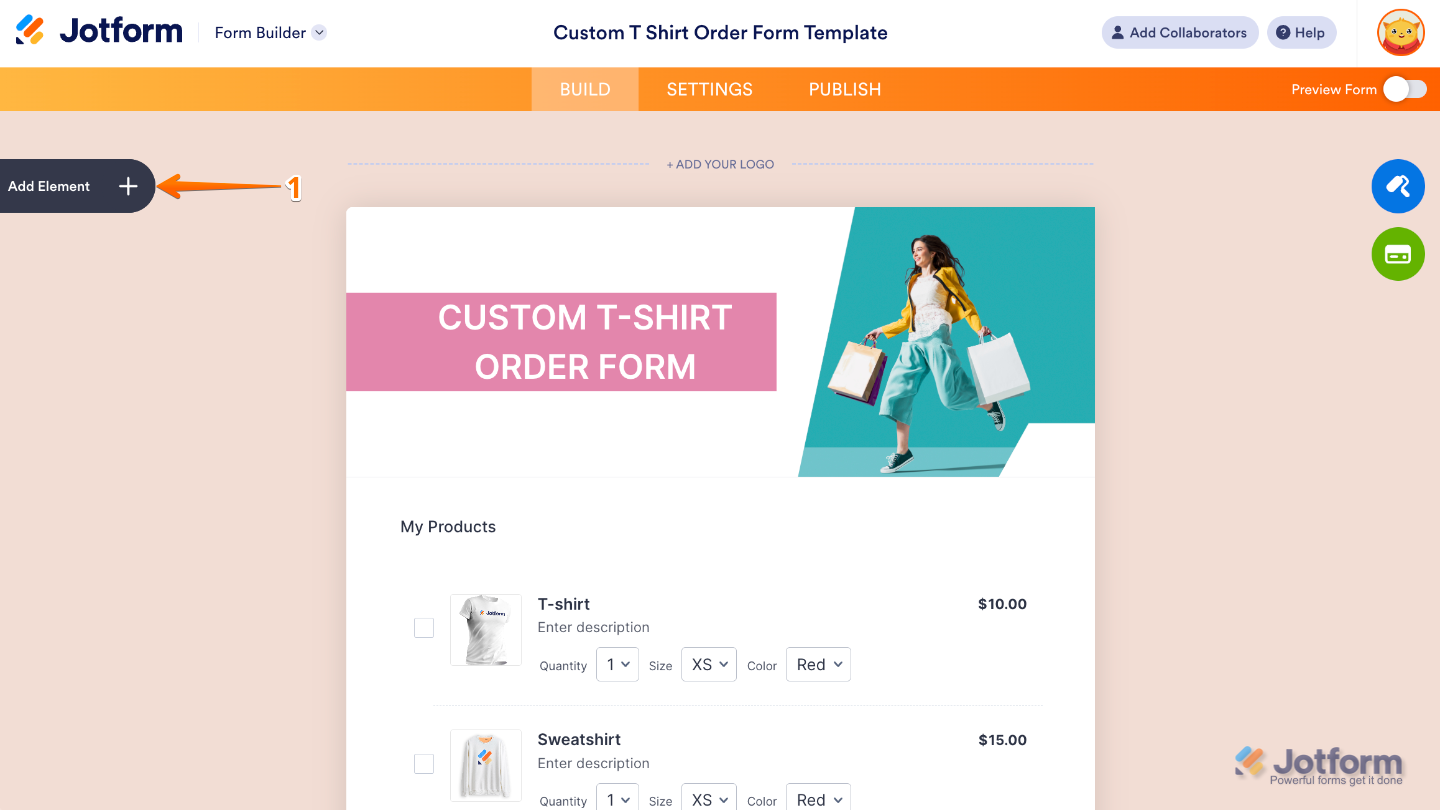
- In Form Builder, click on Add Element on the left side of the page.
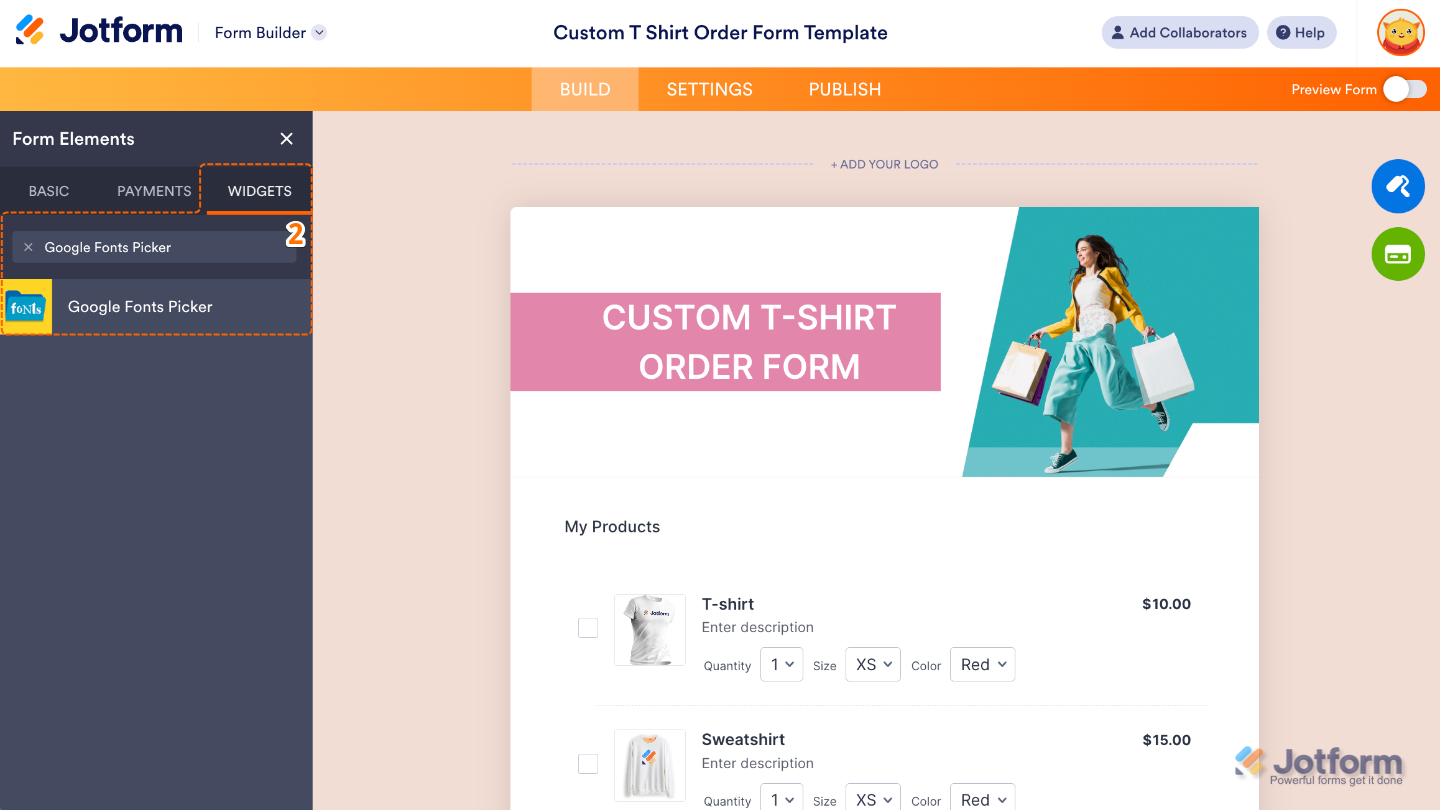
- Now, in the Form Elements menu, under the Widgets tab, search for Google Fonts Picker and then click on it. Or, just drag and drop it to where you want it to be on your form.
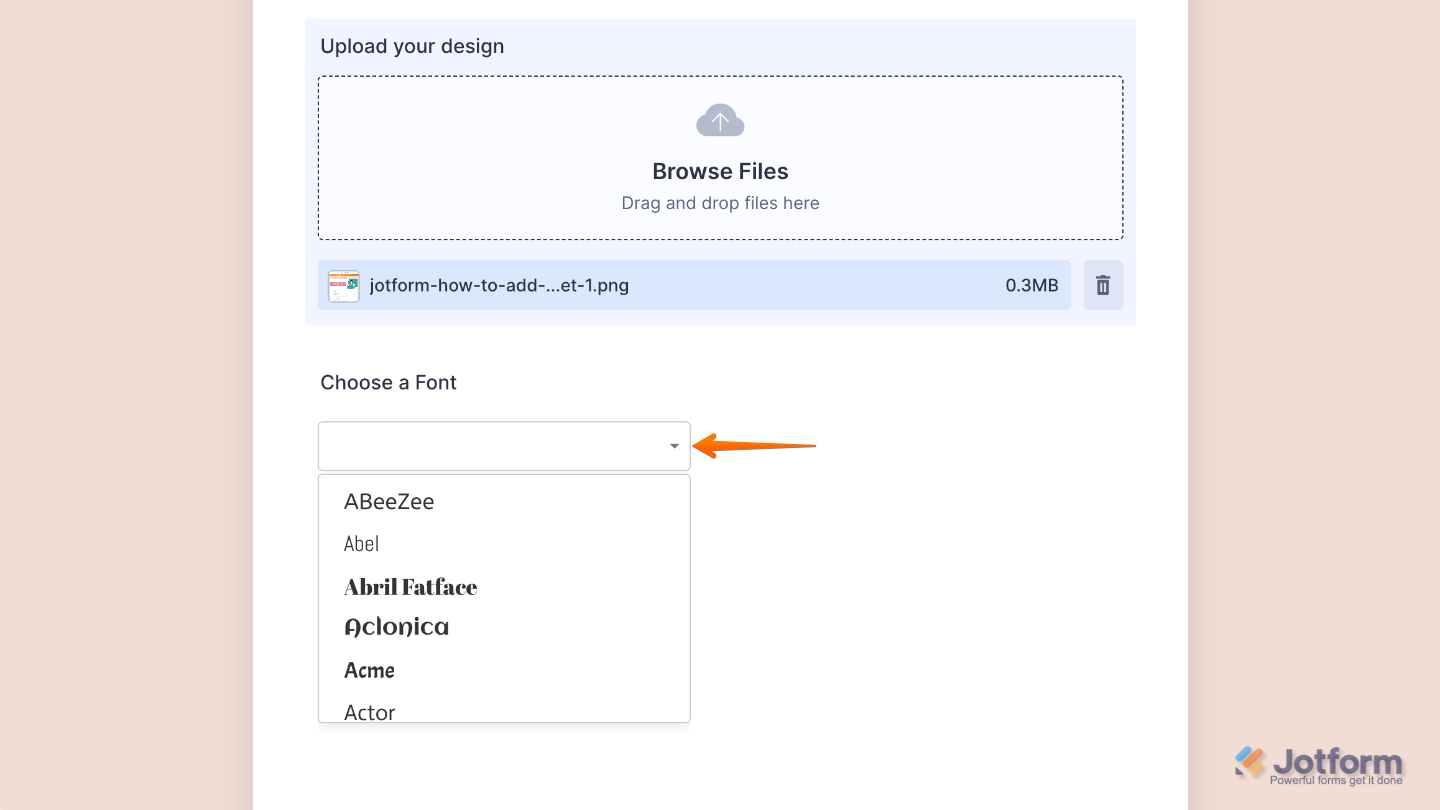
That’s it. You’ve successfully added and set up the Google Fonts Picker widget on your form. Now you can easily select and apply beautiful fonts, giving your form a polished, on-brand look without any extra effort. Curious how it works on a live form? Check out this Demo Form.

Send Comment: