When you need a simple and organized way to score answers on your form, the Grading widget can be a huge help. It lets you assign point values to questions, automatically total the score, and keep everything neat and easy to review. Whether you’re creating quizzes, evaluations, or feedback forms, this tool makes grading straightforward and hassle-free.
Here are a few ways to use it:
- Collect Feedback Quickly — Whether it’s for customer satisfaction, service reviews, or event feedback, the grading widget makes it easy for users to rate things on a scale — like 1 to 5 stars, points, or emojis.
- Build Quizzes or Assessments — Use it for educational quizzes, training evaluations, or skill assessments. You can assign points and easily calculate totals based on user selections.
- Make Forms More Engaging — Interactive grading is more fun than typing numbers or checking boxes. It adds a playful, visual element that encourages users to participate.
- Track Performance — If you’re gathering data on employee performance, student progress, or project reviews, the widget gives you a clear, standardized way to capture scores.
Adding and Setting Up the Grading Widget
Adding the Grading widget to your form lets you easily assign points and scores to questions, giving respondents a clear and organized way to complete quizzes, assessments, or evaluations. Here’s the quick way to do it:
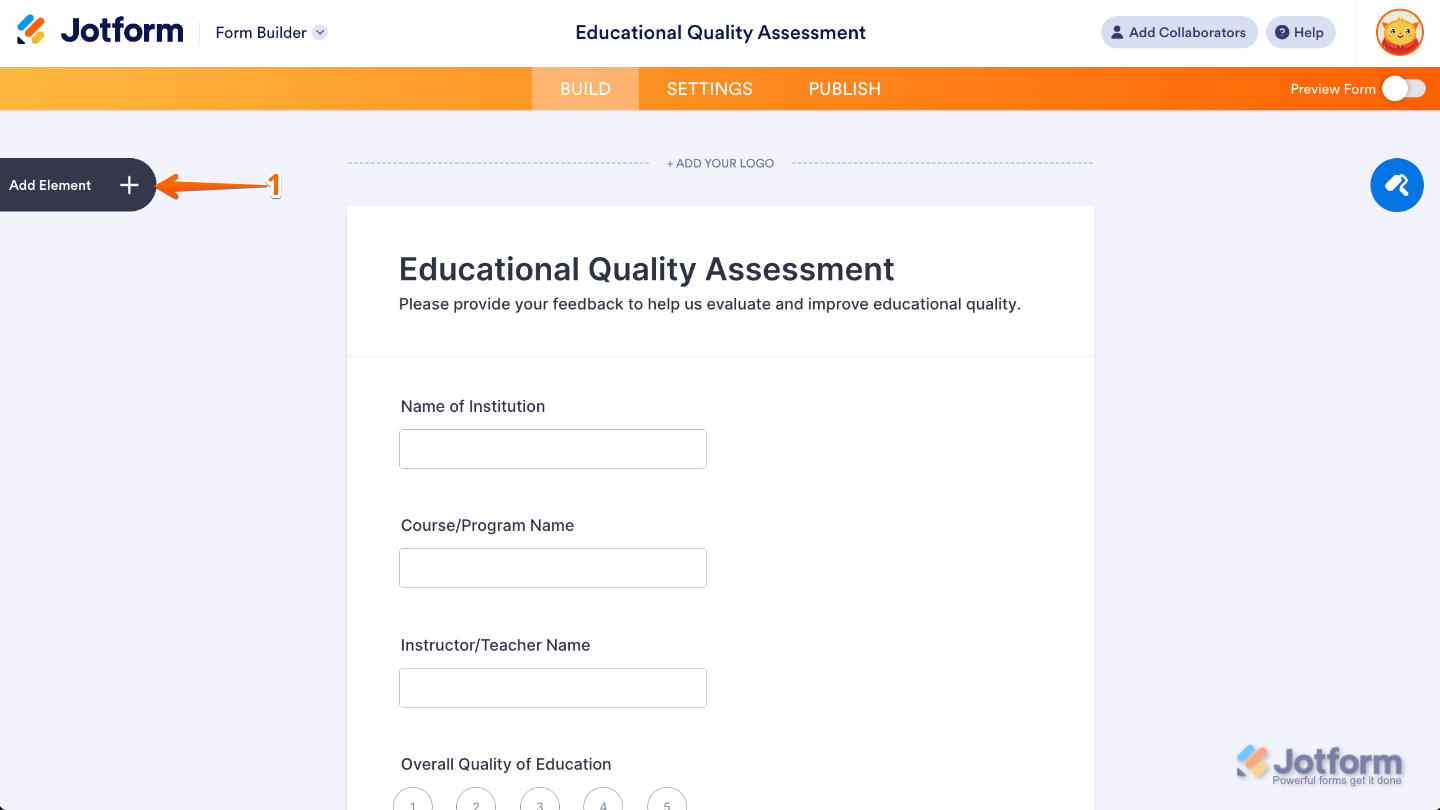
- In Form Builder, click on Add Element on the left side of the page.
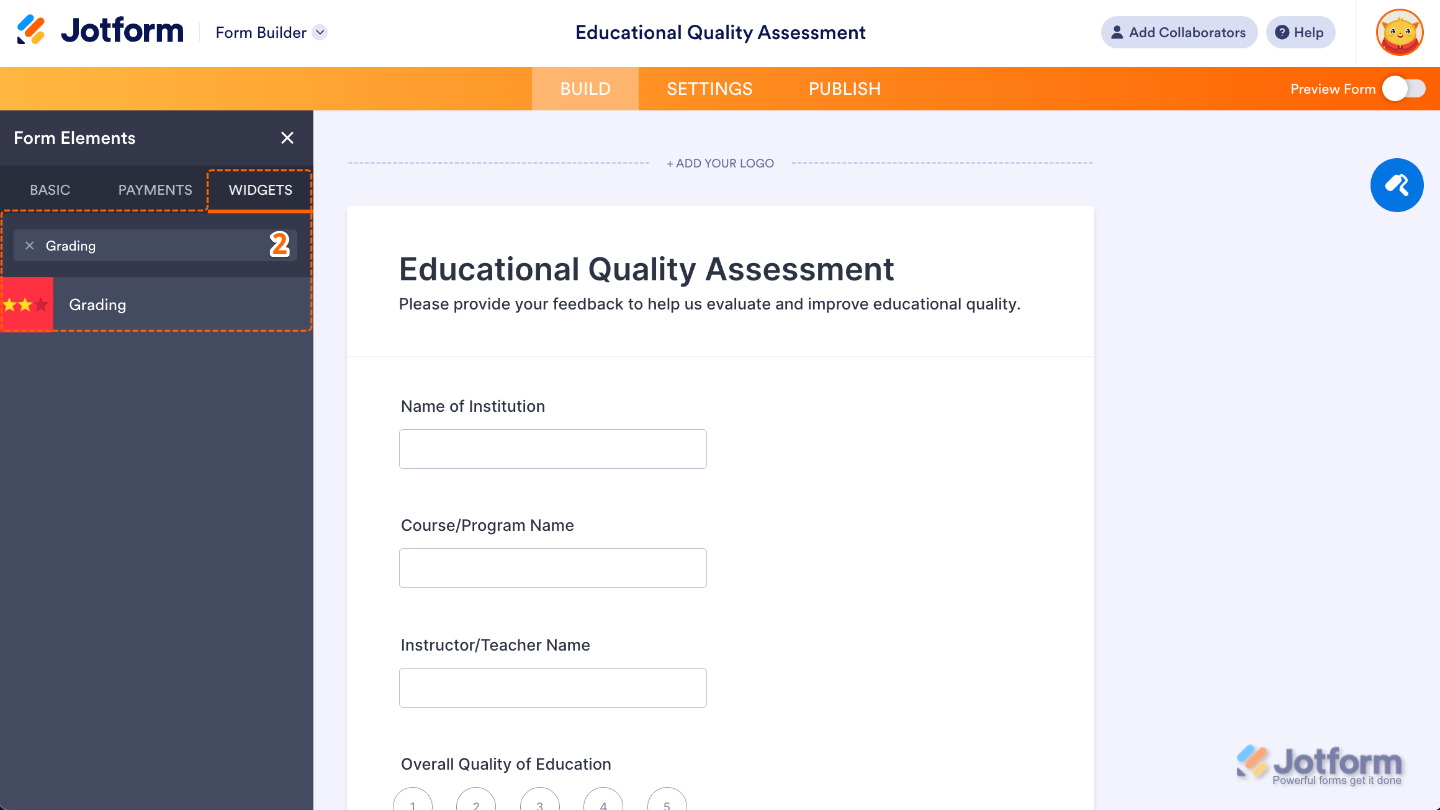
- Now, in the Form Elements menu, under the Widgets tab, search for Grading and then click on it. Or, just drag and drop it to where you want it to be on your form.
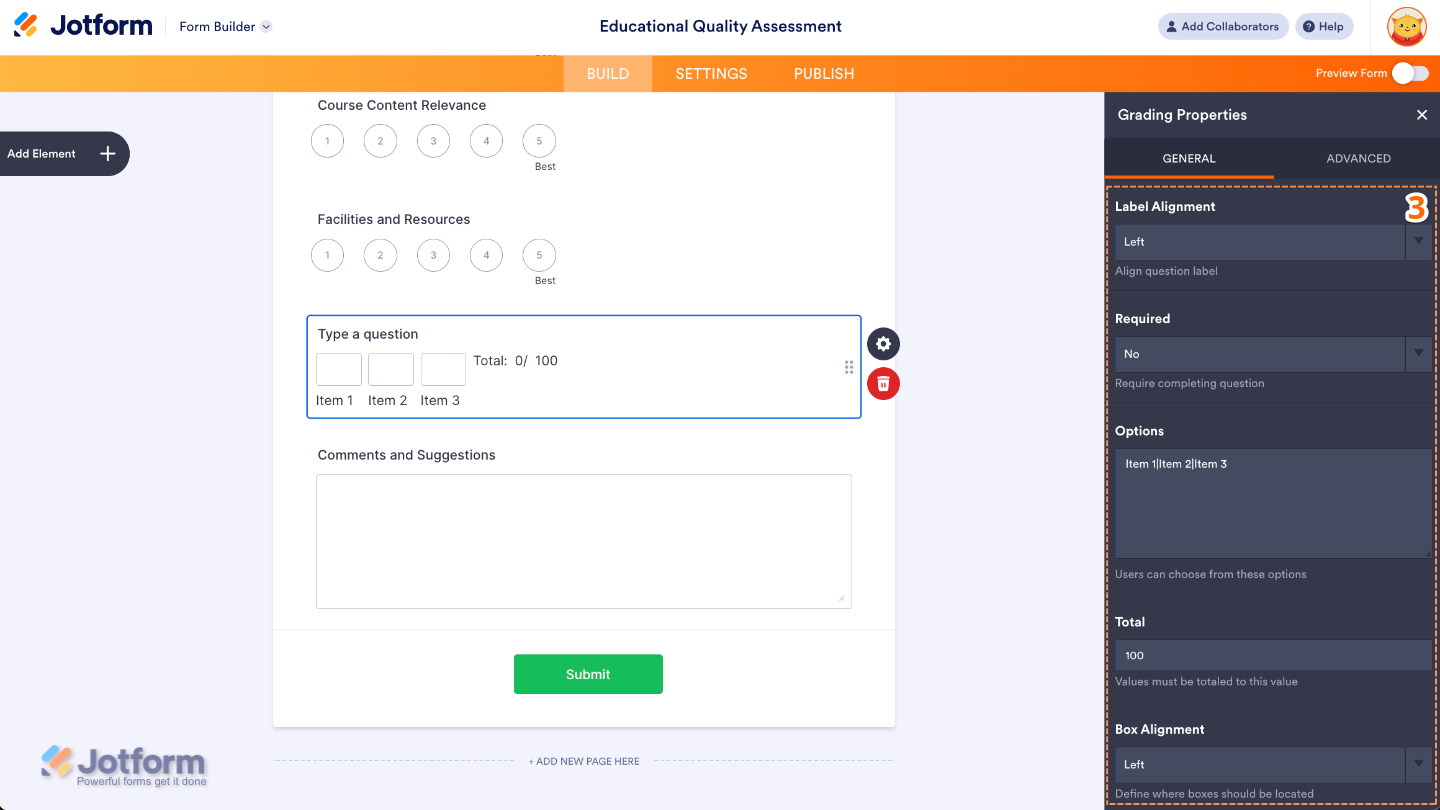
- Next, in the Grading Properties menu that opens on the right side of the page, set up the following options:
- Label Alignment — Control where the question label appears. You can align it to the left, right, or top, depending on what looks best with your form layout.
- Required — Turn this on if you want to make sure users must fill out the grading field before they can submit the form.
- Options — Enter the items or criteria you want users to grade—one per line.
- Total — Set this up to show the maximum overall score or add up all the points based on your setup.
- Box Alignment —Edit this to control how the grading boxes themselves are positioned left, right, or centered, so you can match the widget to your form’s design and layout.
That’s it. You’ve successfully added and set up the Grading widget on your form. Now you have an easy way to score responses right inside your form, making evaluations clearer, faster, and more intuitive for both you and your users. Curious how it works on a live form? Check out this Demo Form.
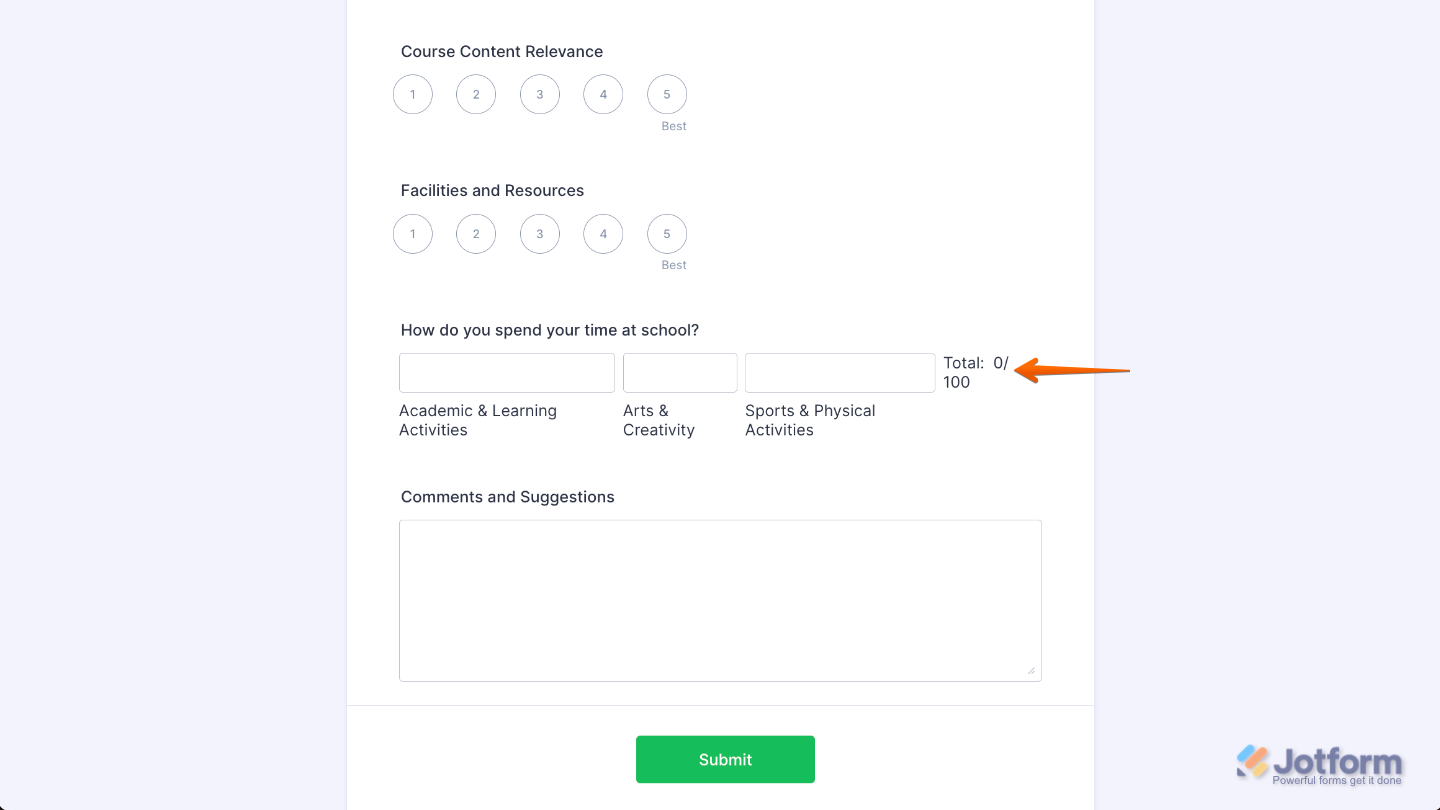
Note
The widget automatically calculates the total, so make sure the maximum possible score makes sense for your purpose.
Pro Tips
- The Grading widget shines when each item is easy to understand. Short, straightforward criteria help users grade confidently without second-guessing what each line means.
- Try to keep your point values aligned across all items. Consistency makes the grading process feel fair and helps users breeze through the form.

Send Comment: