Jotform’s Instagram widget lets you display your Instagram feed right inside your form—perfect for showcasing your latest posts, sharing product shots, or adding some visual personality. It’s a simple way to make your form more engaging, connect with your audience, and give them a glimpse of what’s happening on your Instagram without leaving the page.
Here are a few ways to use it:
- Display Your Instagram Feed on a Form — You can use the Instagram widget to showcase your latest posts directly inside your form. This helps reinforce your brand identity and keeps your form visually engaging.
- Promote Social Media Engagement — The widget encourages users to visit and follow your Instagram profile. By placing it strategically, you can increase followers and boost engagement.
- Showcase Products or Portfolio Work — Businesses and creatives can use the widget to highlight product photos, event coverage, or portfolio images. This gives users visual context while they complete the form.
- Add Social Proof to Registration or Order Forms — Displaying real Instagram content can build trust and credibility. Seeing active posts and customer interactions can make users feel more confident about engaging with your brand.
Note
The Instagram widget displays individual Instagram posts in your form using the post’s URL, allowing you to showcase specific content directly within your form.
Adding and Setting Up the Instagram Widget
Adding the Instagram widget to your form is a simple, fun way to show off your feed, brighten up your form with visuals, and keep your audience inspired and engaged. To get going, here’s what you’ll do:
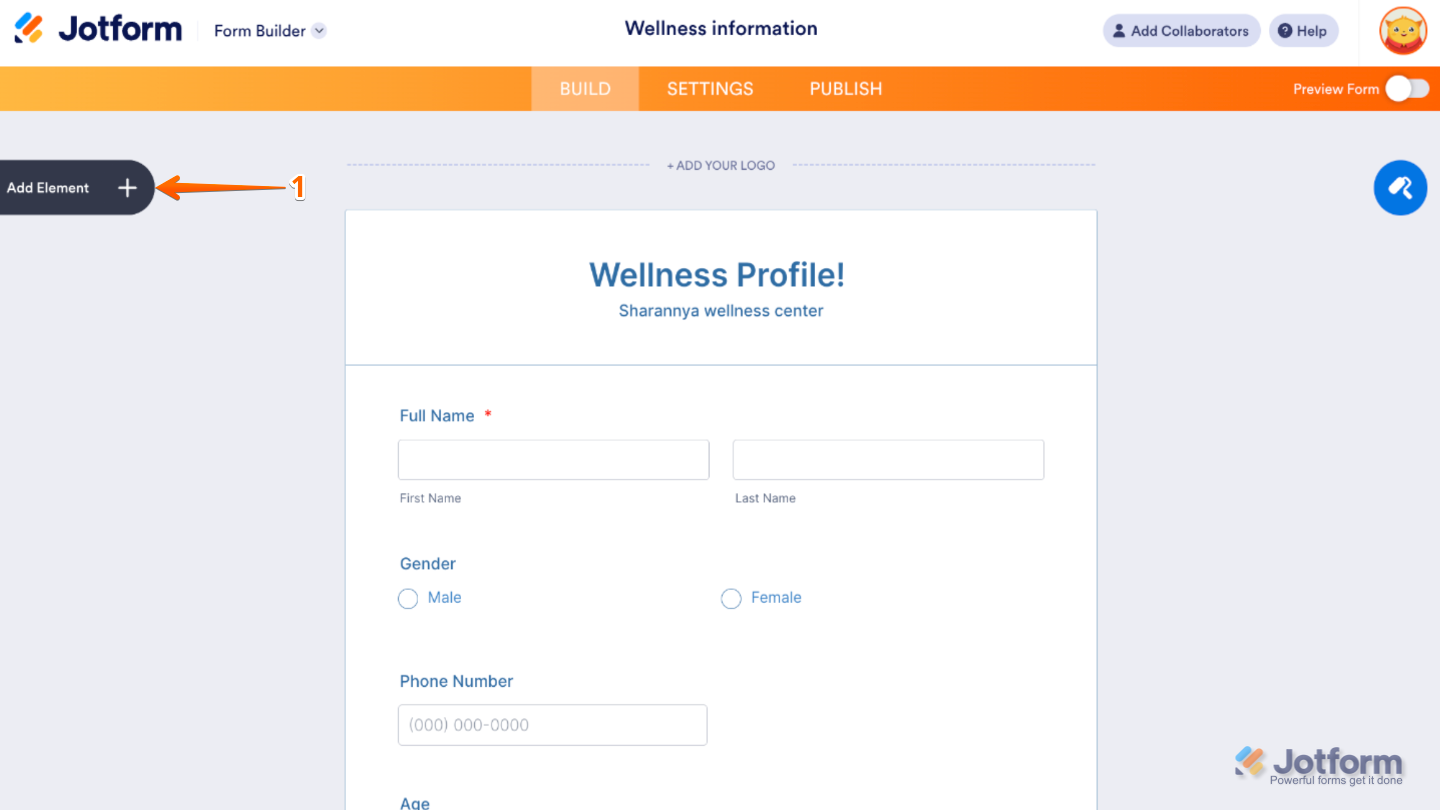
- In Form Builder, click on Add Element on the left side of the page.
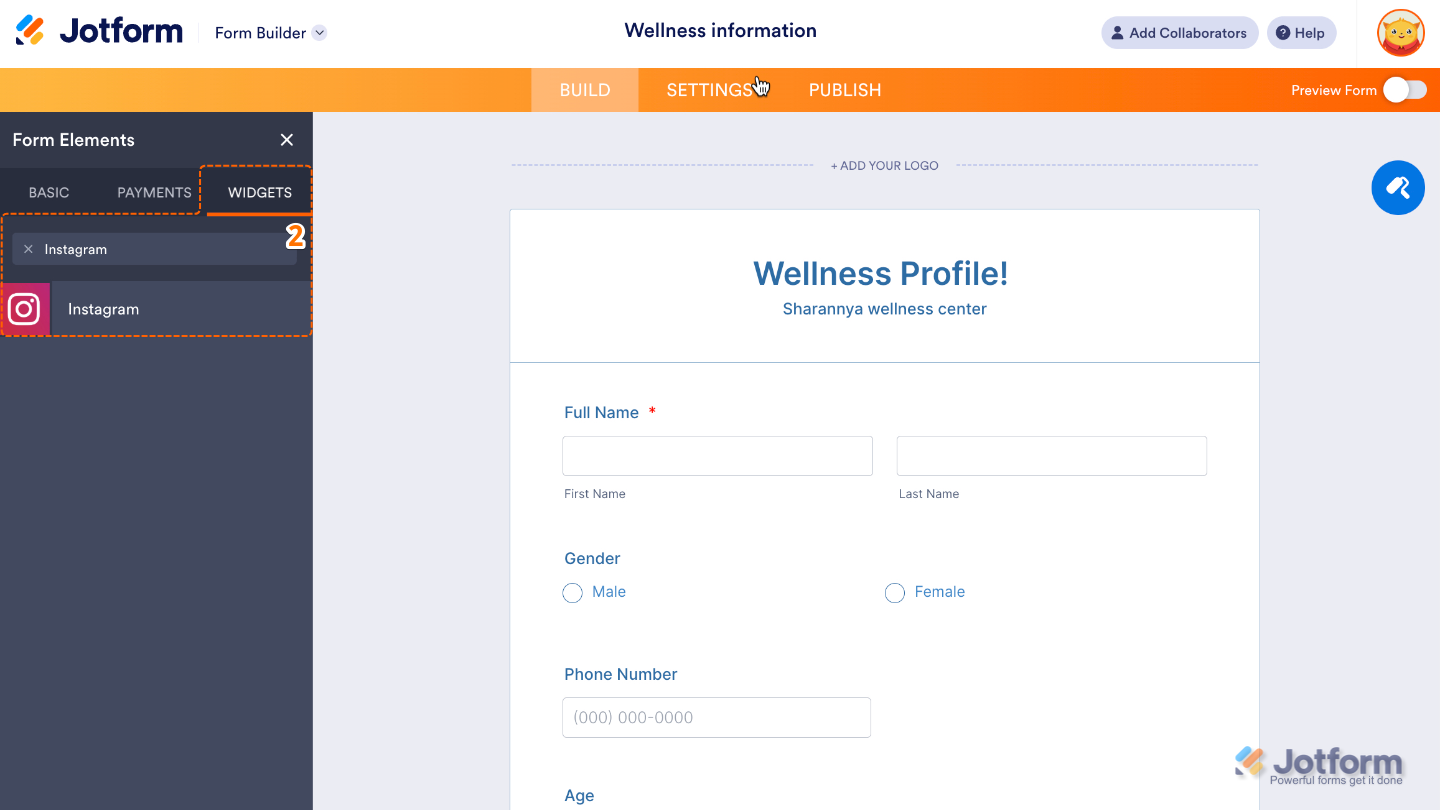
- Now, in the Form Elements menu, under the Widgets tab, search for Instagram and then click on it. Or, just drag and drop it to where you want it to be on your form.
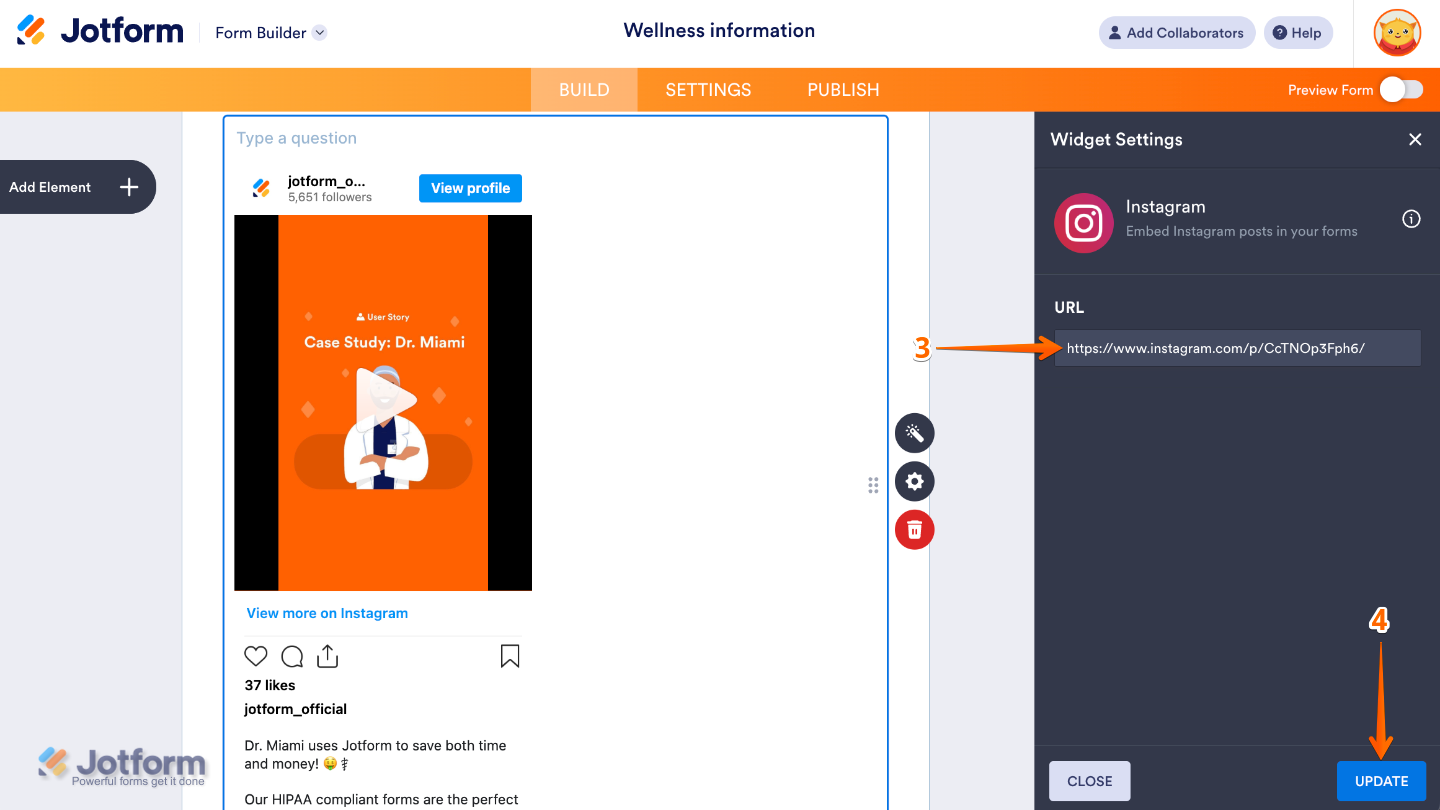
- Next, in the Widget Settings window that opens on the right side of the page, set up the URL option to add the specific Instagram post you want to display in your form.
- Once you’re done, click on Update.
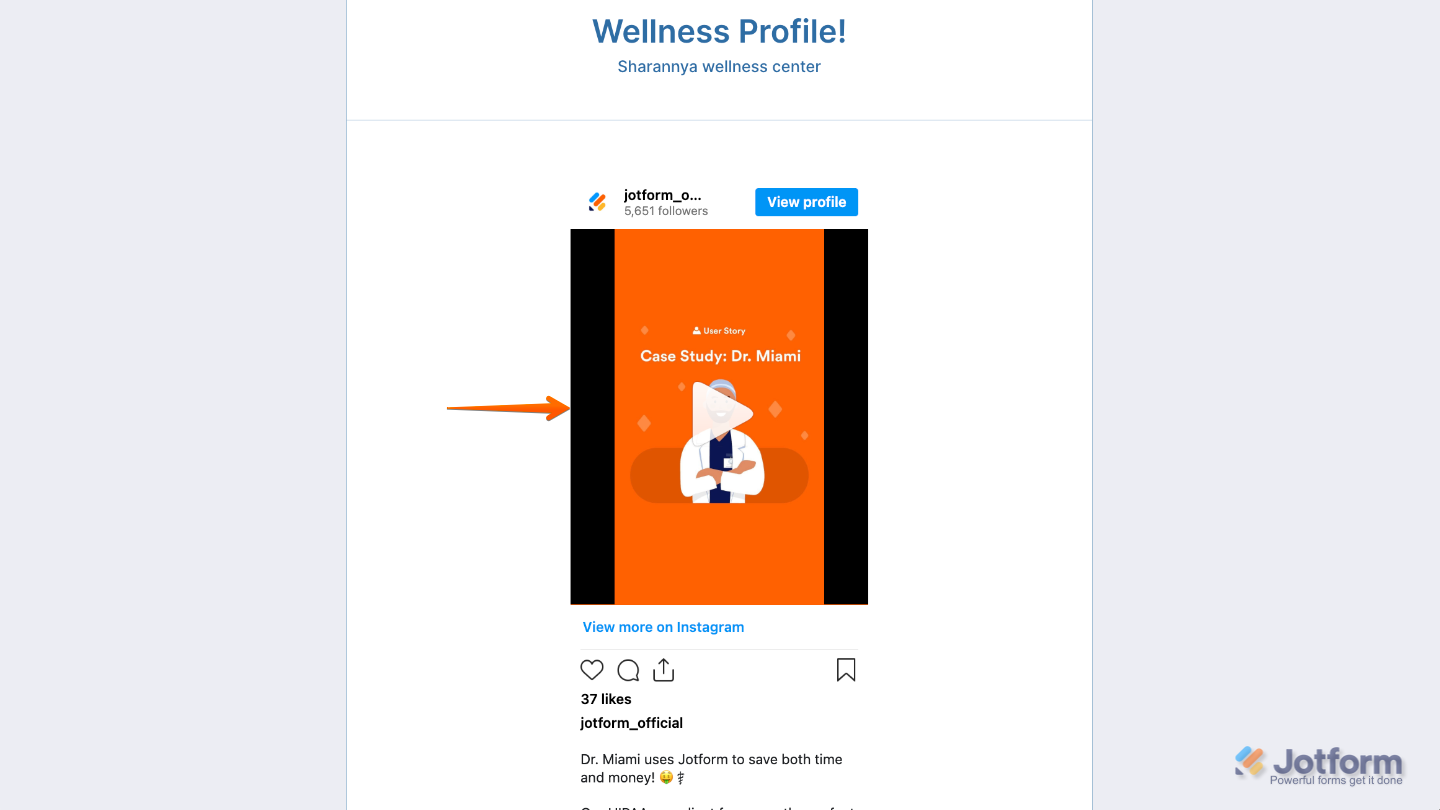
That’s it. You’ve successfully added and set up the Instagram widget to your form. Now, you have a field in your form that lets you showcase your Instagram posts in just a few clicks. Curious how it works on a live form? Check out this Demo Form.
To tweak how your Instagram field looks, just click the gear icon to open its settings and adjust it to your liking.
Pro Tips
- Choose high-quality, eye-catching posts to grab users’ attention and make your form visually appealing.
- Place the widget strategically—for example, near a signup button or purchase section—to inspire action.
- If your form is viewed on mobile, test to ensure the embedded post displays well on smaller screens.
- Update your Instagram post regularly to keep your form looking fresh and relevant.

Send Comment: