Jotform’s Scroll to Top Widget makes it super easy for your users to get back to the top of your form with just one click. Instead of endlessly scrolling through long forms, this handy button saves time and effort—giving your form a smoother, more user-friendly experience. Whether you’re creating detailed surveys, long applications, or multi-section forms, this widget keeps navigation simple and stress-free.
Here are a few ways to use it:
- Improve Navigation in Long Forms — You can use the Scroll to Top widget to help users quickly return to the beginning of a long form. This makes navigation easier without requiring excessive scrolling.
- Help Users Review Earlier Responses — If users need to check or edit information entered at the top of the form, the widget allows them to instantly scroll back to that section.
- Enhance Mobile Form Usability — On mobile devices, long forms can require a lot of scrolling. The Scroll to Top widget makes it easier for users to navigate back to the start with a single tap.
- Improve User Experience After Reaching the Bottom — Once users reach the end of a form, they can quickly return to the top if they want to review instructions or previously completed fields.
Note
Once you add the Scroll to Top widget, a handy scroll-to-top button will automatically appear on your form.
Adding and Setting Up the Scroll to Top Widget
Adding the Scroll to Top widget to your form gives users a simple button they can click to jump right back to the top. You can do it in a few simple steps:
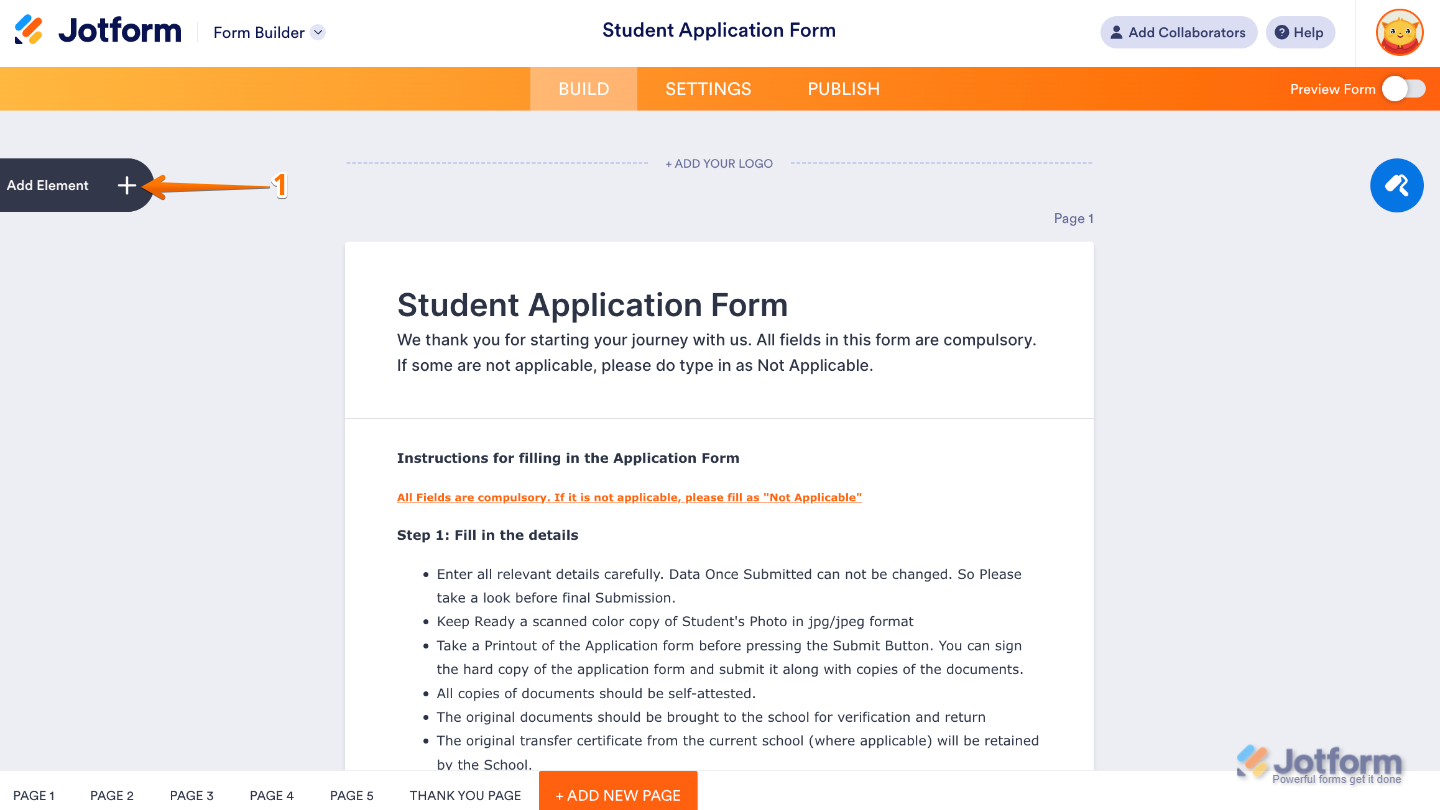
- In Form Builder, click on Add Element on the left side of the page.
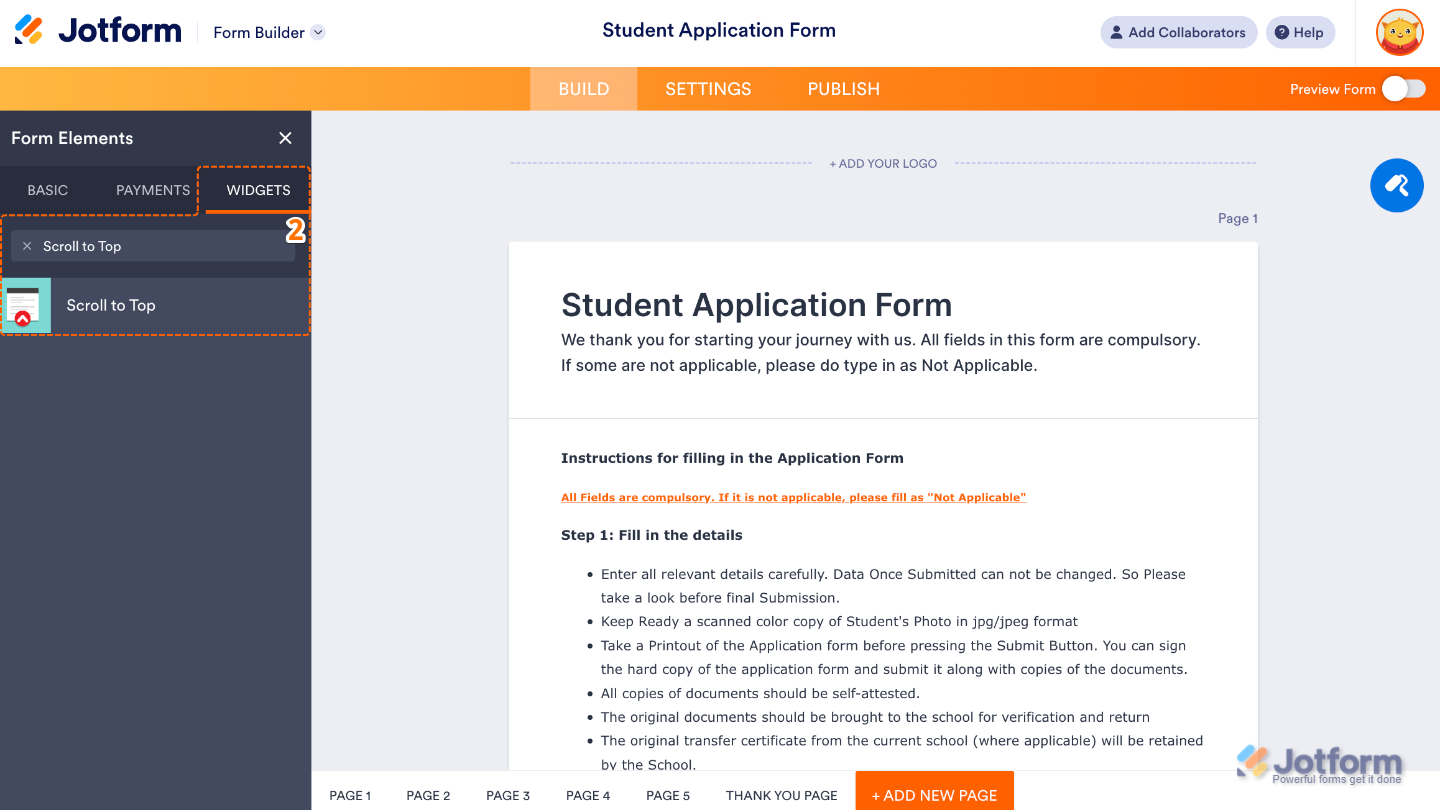
2. Now, in the Form Elements menu, under the Widgets tab, search for Scroll to Top and then click on it. Or, just drag and drop it to where you want it to be on your form.
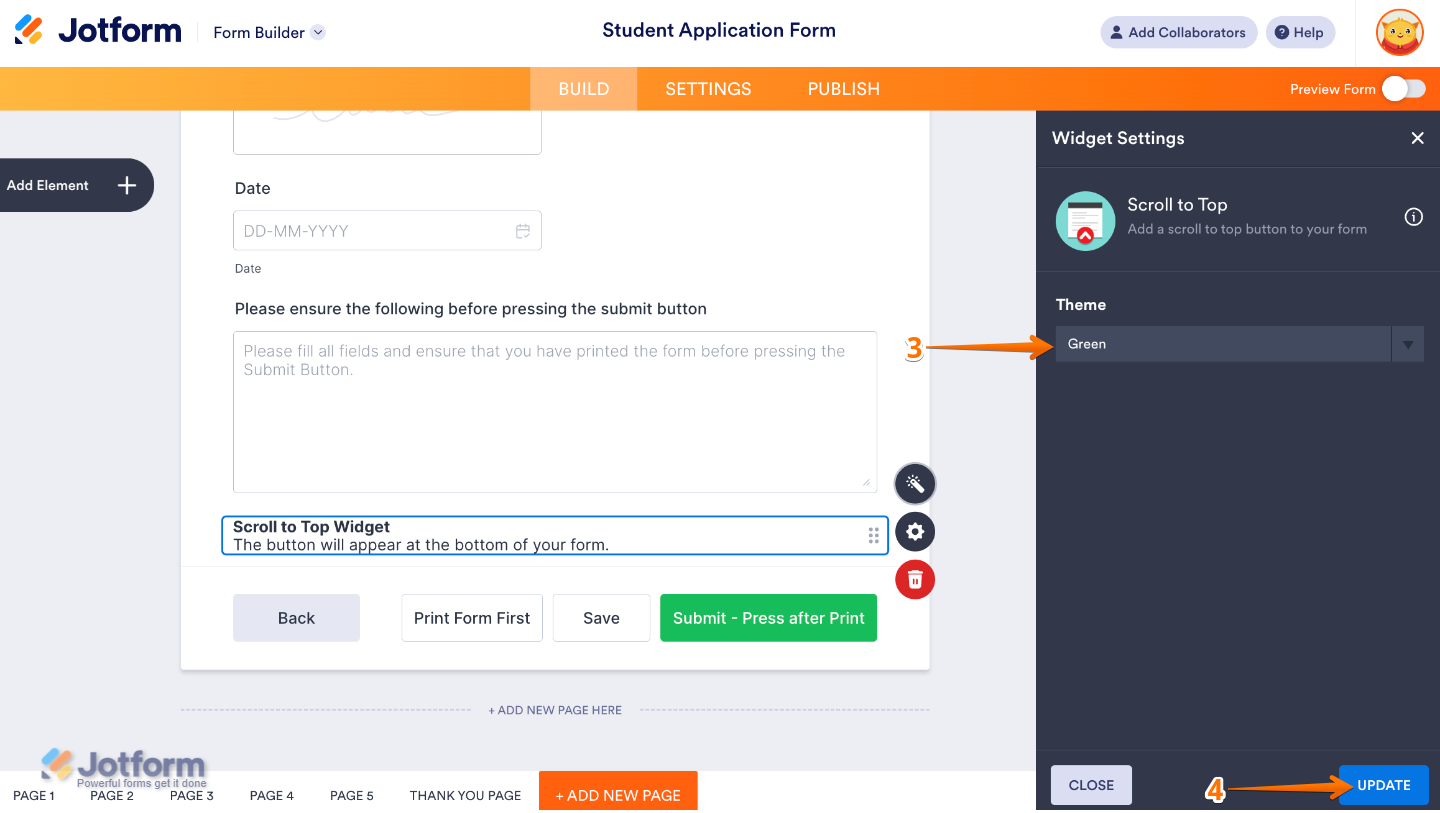
- Next, in the Widget Settings window that opens on the right side of the page, choose a Theme to style your button by picking the color that looks best on your form. This way, your scroll-to-top button not only works smoothly but also matches your form’s overall look and feel.
- Once you’re done, click on Update.
That’s it. You’ve successfully added and set up the Scroll to Top widget to your form. Now, you have a field in your form that helps users get back to the top with a single click. Curious how it works on a live form? Check out this Demo Form.
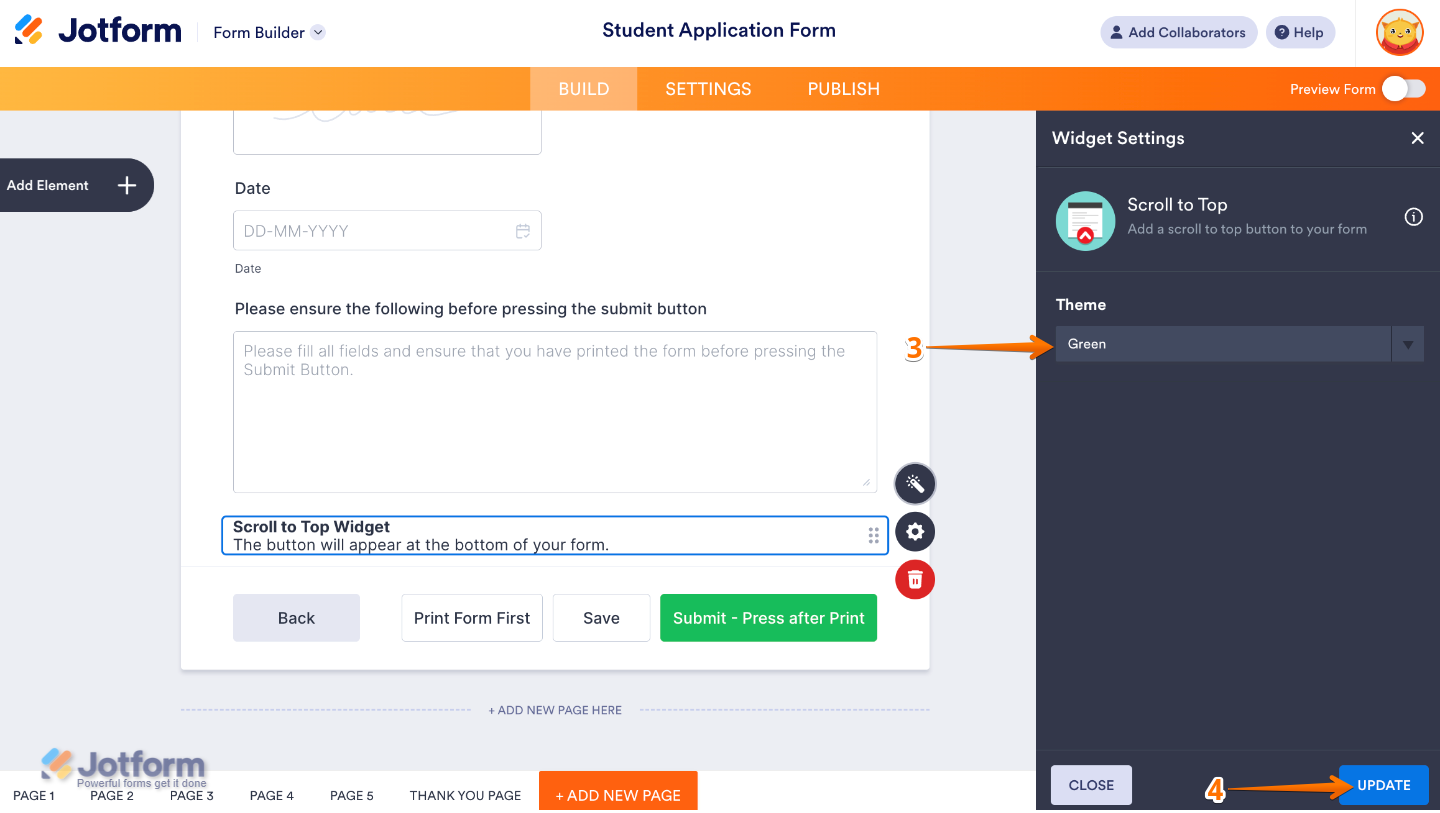
To tweak how your Scroll to Top field looks, just click the gear icon to open its settings and adjust it to your liking.

Send Comment: