The Shuffle Widget is a great way to make each form submission feel a bit different—and it’s especially helpful if you want to reduce bias by automatically mixing up the order of your fields. It automatically randomizes selected questions or options each time someone opens your form, giving every user a fresh experience. Whether you’re running surveys, quizzes, or anything that benefits from unpredictability, this widget helps keep things fair and engaging.
Setting it up is quick and straightforward, and you’re in full control of which fields get shuffled and which ones stay put. With just a few adjustments, you can add a fun, dynamic twist to your form while improving the quality of the responses you collect.
Here are a few ways to use it:
- Prevent Bias in Surveys and Questionnaires — If you want honest, unbiased responses, this widget is a lifesaver. Shuffling questions helps avoid “order bias,” where people might pick the first visible choice just because it’s on top.
- Create Fair Quizzes or Tests — Whether it’s for school, training, or fun, shuffling keeps things fair. Every respondent gets the same questions but in different order, making it harder to copy answers.
- Rotate Product or Service Options — If you’re running a form with multiple offerings, Shuffle them to give each item equal visibility, great for preference surveys or product testing forms.
- Perfect for Contest Entries — If your form includes a “pick one” or ranking-style question, shuffling keeps the choices neutral so no option gets an advantage.
Adding and Setting Up the Shuffle Widget
Adding the Shuffle widget to your form is straightforward, and setting it up to randomize your options just the way you want is even easier. Just set it up like this:
- In Form Builder, click on Add Element on the left side of the page.
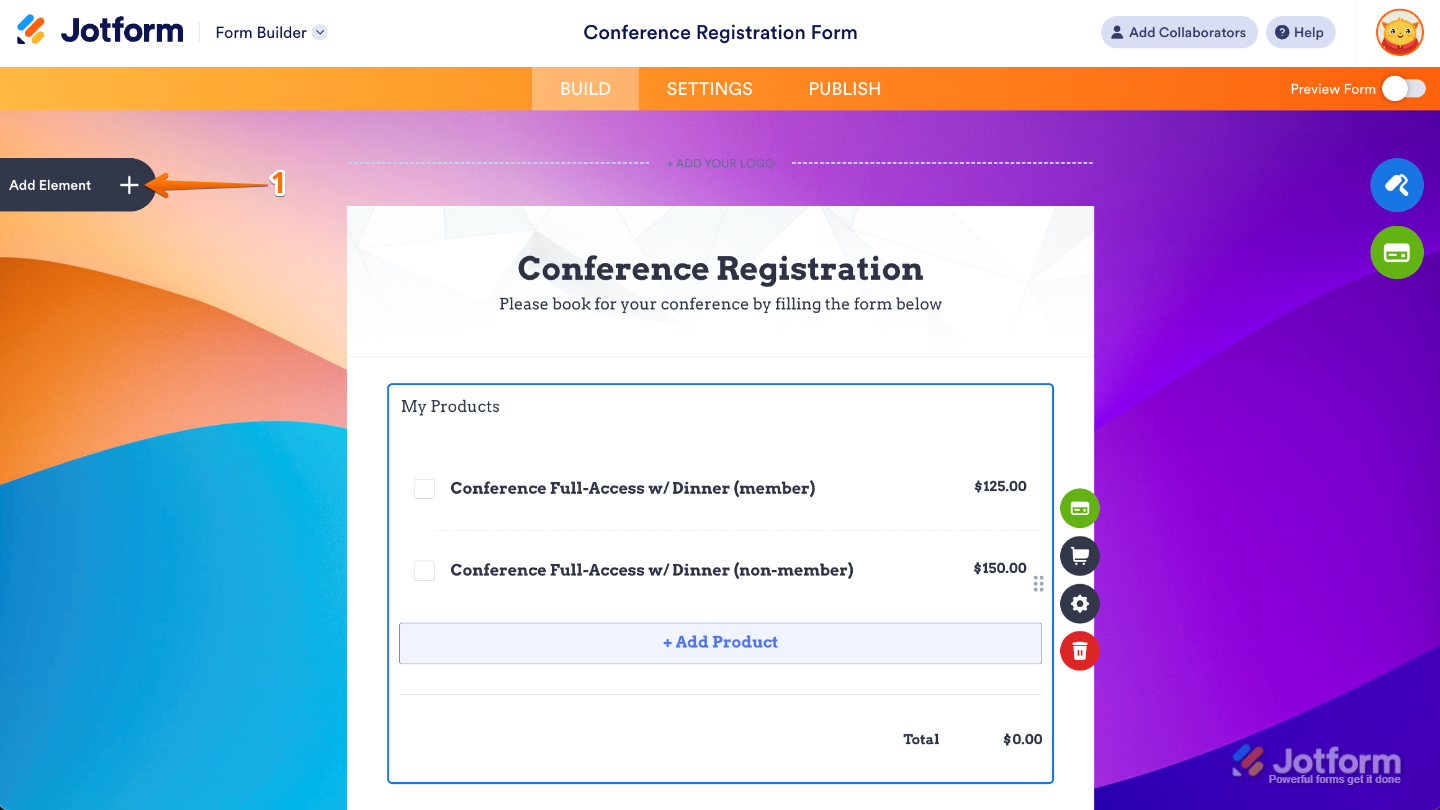
- Now, in the Form Elements menu, under the Widgets tab, search for Shuffle and then click on it. Or, just drag and drop it to where you want it to be on your form.
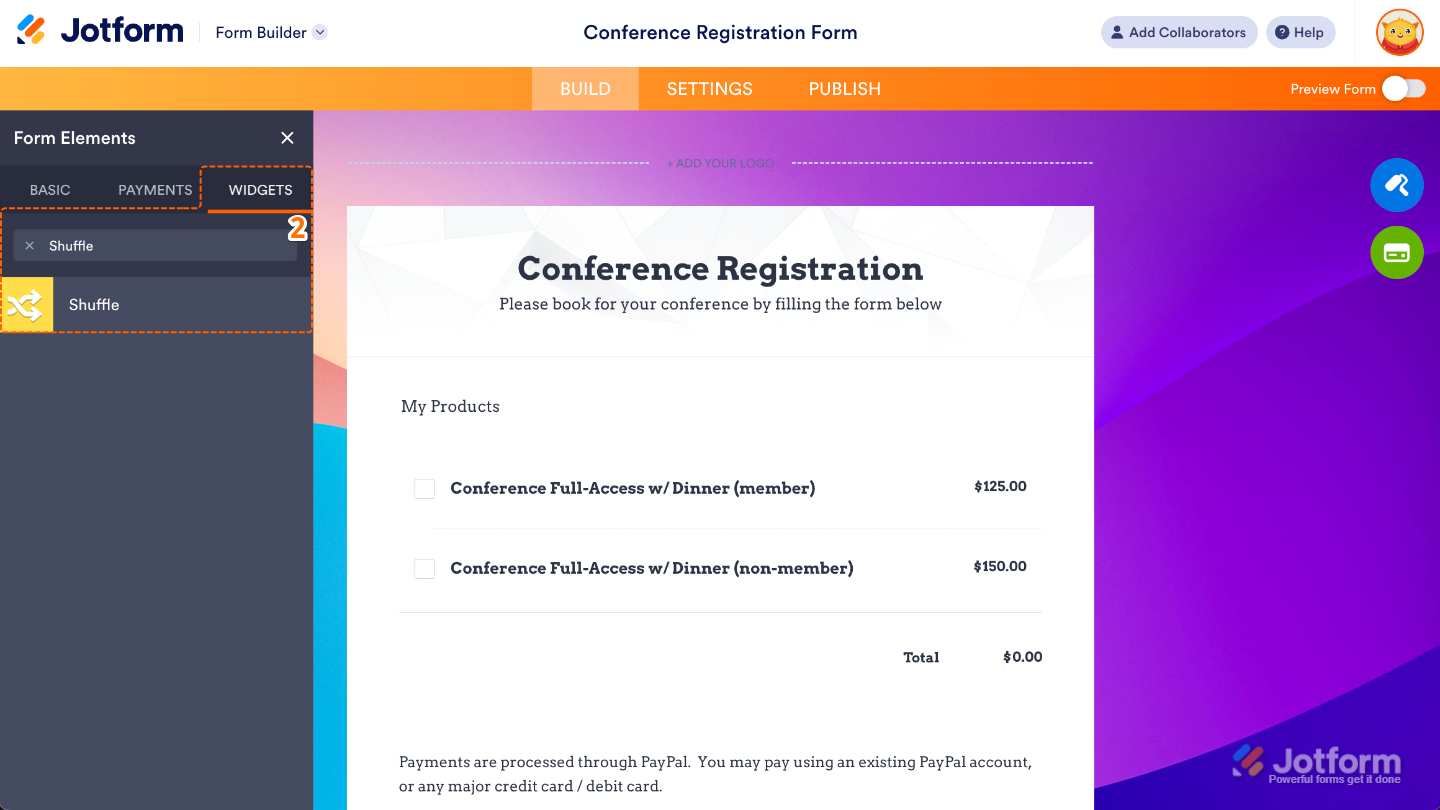
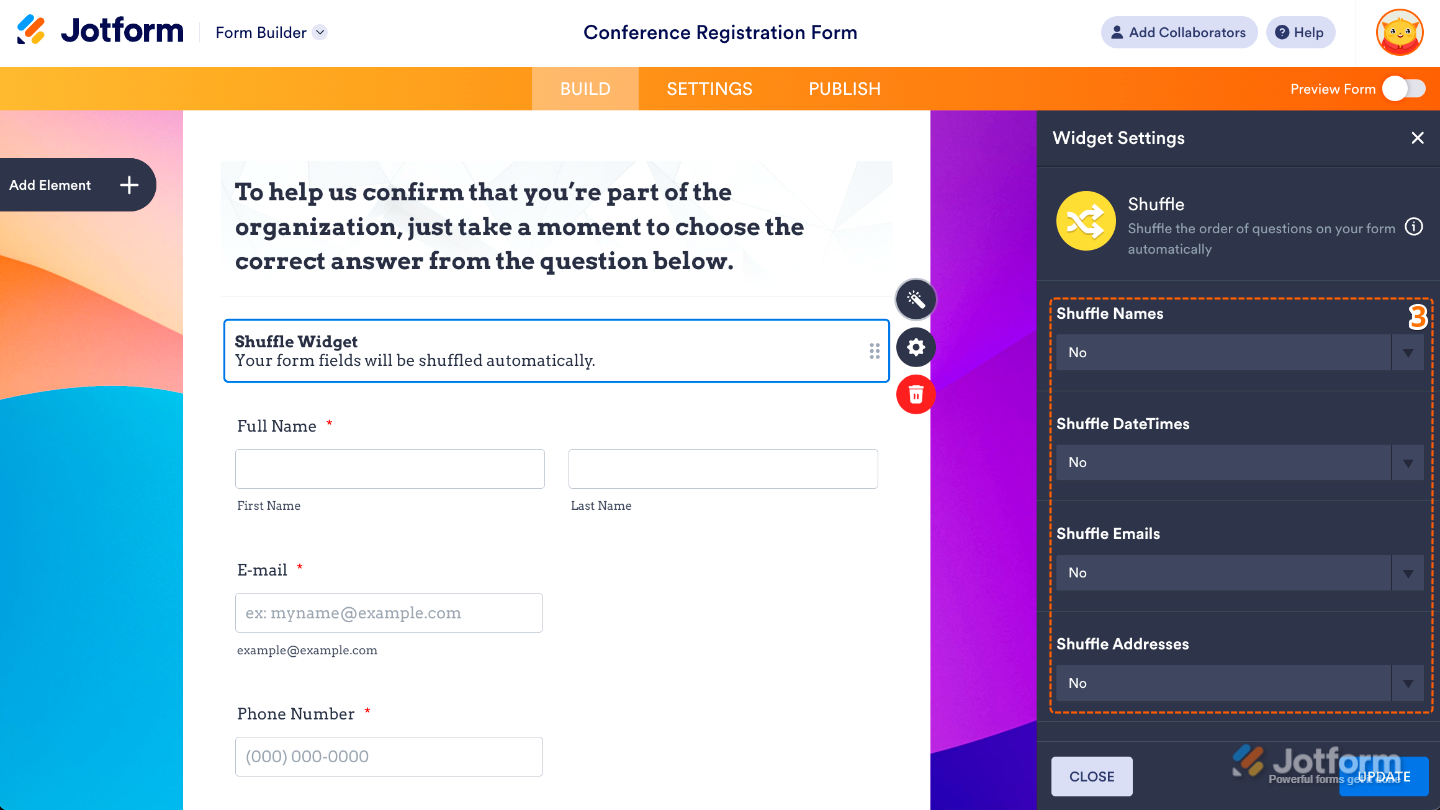
- Next, in the Widget Settings window that opens on the right side of the page, set up the following options:
- Shuffle Names — Enable this if you want to shuffle any Full Name fields on your form. If you’re collecting multiple names (like team members or nominees), this mixes up their order so no one appears first every time.
- Shuffle DateTimes — Turn this on if you want your Date or DateTime fields to appear in a different order for each respondent. Helpful when you’re gathering multiple dates and don’t want the order to influence choices.
- Shuffle Emails — This shuffles all your Email fields. It’s useful in forms where multiple emails are collected—like registration forms for groups—so each field doesn’t always appear in the same sequence.
- Shuffle Addresses — If your form has more than one Address field, this option mixes them up randomly for every viewer. It’s especially helpful when you want to avoid placement bias.
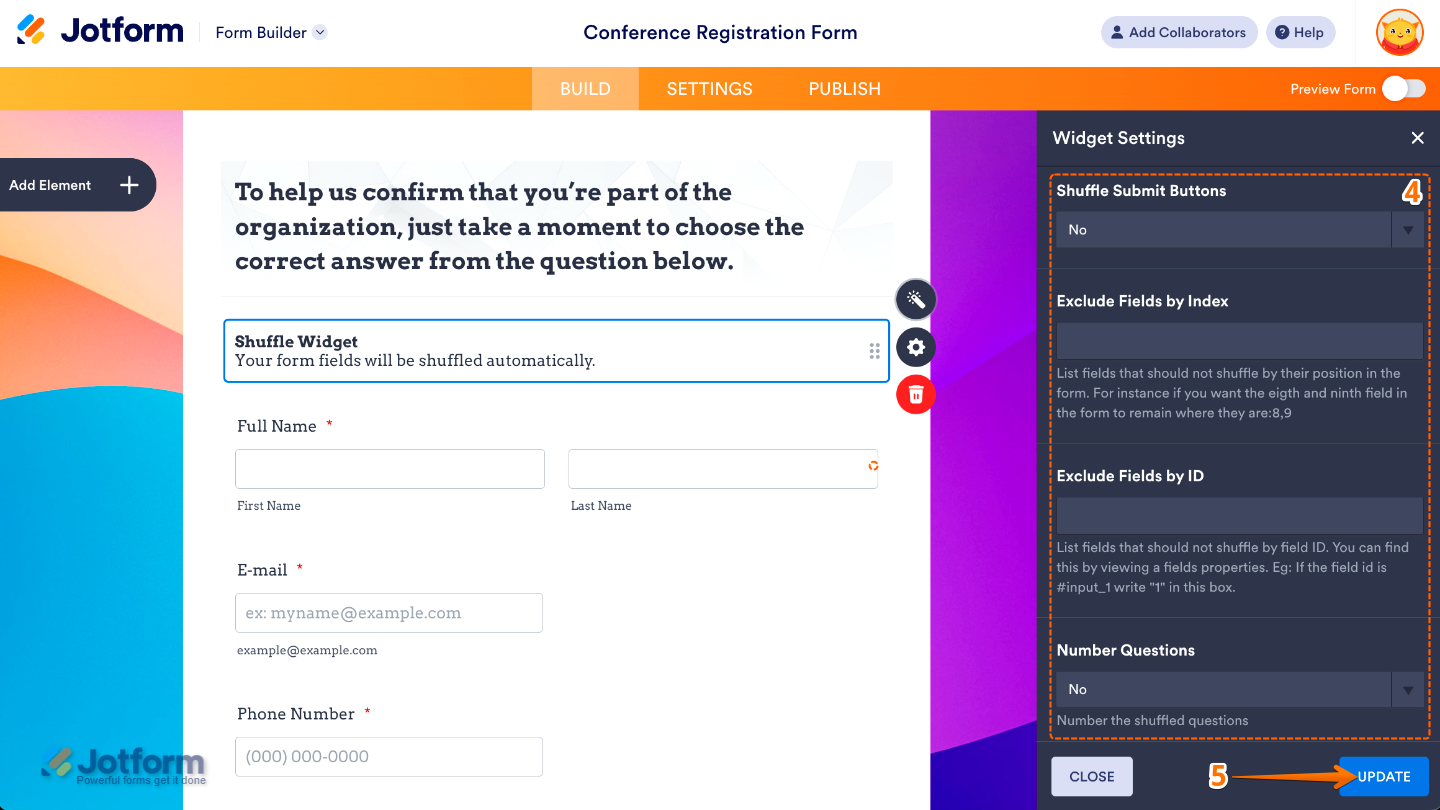
- Then, scroll down to the bottom and continue to set up these options:
- Shuffle Submit Buttons — If you’re using multiple submit buttons (like “Submit,” “Save,” or “Next”), this setting shuffles their positions so users don’t always gravitate to the first one they see.
- Exclude Fields by Index — This lets you keep specific fields out of the shuffle using their index number (basically their order in the form). It’s great for fields that must stay put—like your form title, instructions, or mandatory fields.
- Exclude Fields by ID — Similar to excluding by index, but more precise. Here, you can enter the unique Field IDs to make sure certain fields never move when the rest are shuffled.
- Number Questions — Enable this if you want the widget to automatically add numbers to your questions after they’ve been shuffled. This keeps everything tidy and helps respondents follow along, even when the order changes.
- Once you’re done, click on Update.
That’s it. You’ve successfully added and set up the Shuffle Widget on your form. Now your fields can automatically appear in a fresh, mixed order each time—helping you reduce bias, keep things engaging, and create a smoother experience for your users. Curious how it works on a live form? Check out this Demo Form.
To further customize your Shuffle field appearance, just click on the Gear icon to open its properties.
Pro Tips
- If the question order matters to your process, adding a note like “Questions appear in random order” helps set expectations and reduces confusion.
- Required fields will still stay required, even when shuffled. Just make sure the order change doesn’t confuse users about what they must answer.

Send Comment: