The Sketchfab widget powered by Sketchfab, makes it incredibly easy for you to bring interactive 3D content directly into your form. Whether you’re showcasing a product, explaining a concept, or adding a bit of visual flair, embedding a 3D model can help your form stand out and keep users more engaged. Instead of relying on flat images or lengthy descriptions, you can let people explore a fully interactive model right within the form itself.
With just a few simple steps, you can add the Sketchfab widget, paste your model link, and customize how it appears to your users. It’s a great way to create a more dynamic, hands-on experience—perfect for designers, educators, sellers, and anyone who wants to add a modern, immersive touch to their forms.
Here are a few ways to use it:
- Showcase 3D Models Right Inside Your Form — If you want people to explore a product, design, artwork, or prototype from every angle, this widget lets you embed a Sketchfab 3D model directly into your form. Users can rotate, zoom, and interact with the model without opening another tab — keeping everything smooth and distraction-free.
- Enhance Product or Project Presentations — Adding a 3D model helps your audience instantly visualize the details, making it ideal for selling an item, proposing a design, and sharing a creative project. It’s perfect for product demos, architectural plans, gaming assets, or even student portfolios.
- Collect Feedback With Context — When users can actually see the model in 3D, they’ll give more accurate feedback. Pair the widget with text fields, rating scales, or approval workflows to gather impressions, suggestions, or approvals.
Adding and Setting Up the Sketchfab Widget
Adding the Sketchfab widget to your form lets your users view and interact with 3D models right within the form. You can do it in a few simple steps:
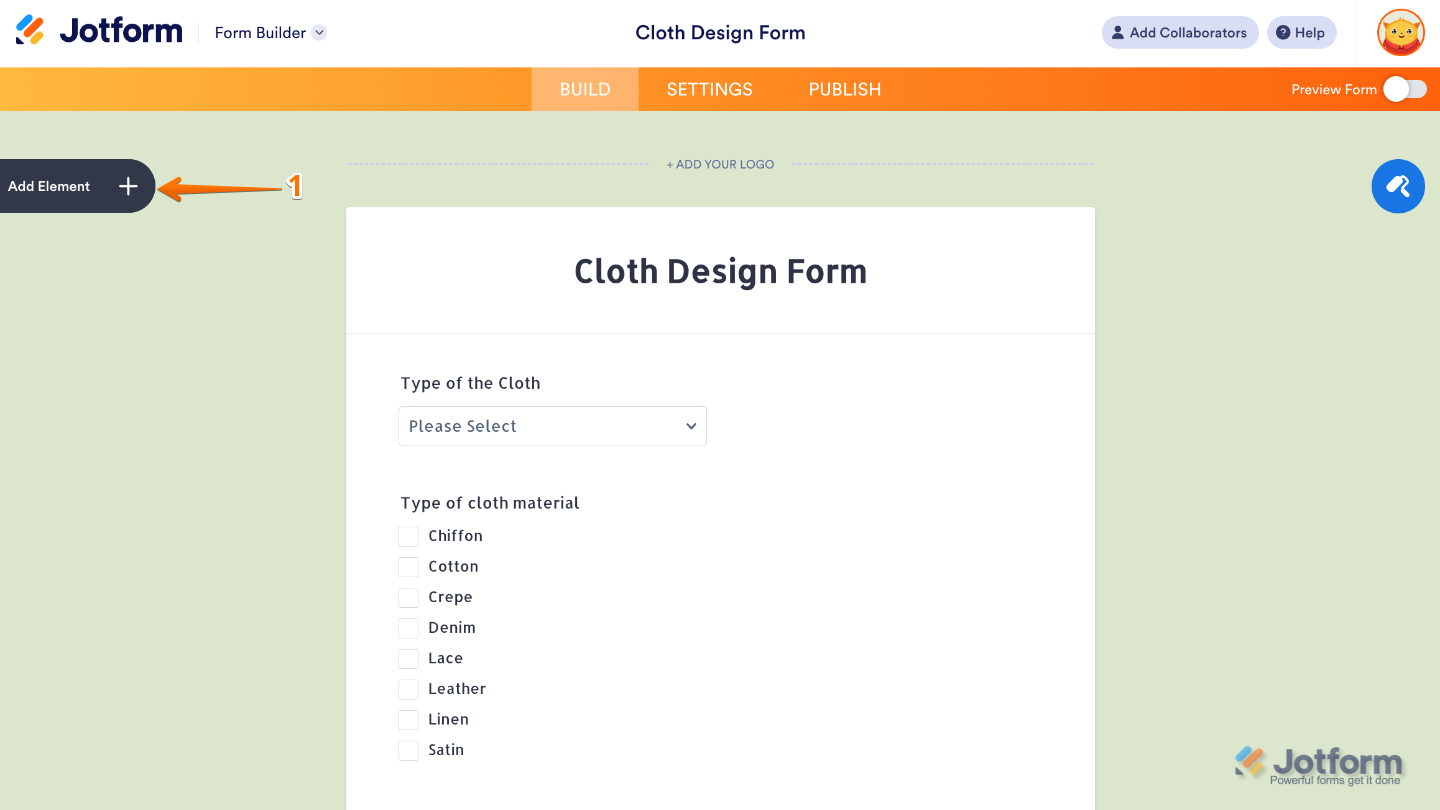
- In Form Builder, click on Add Element on the left side of the page.
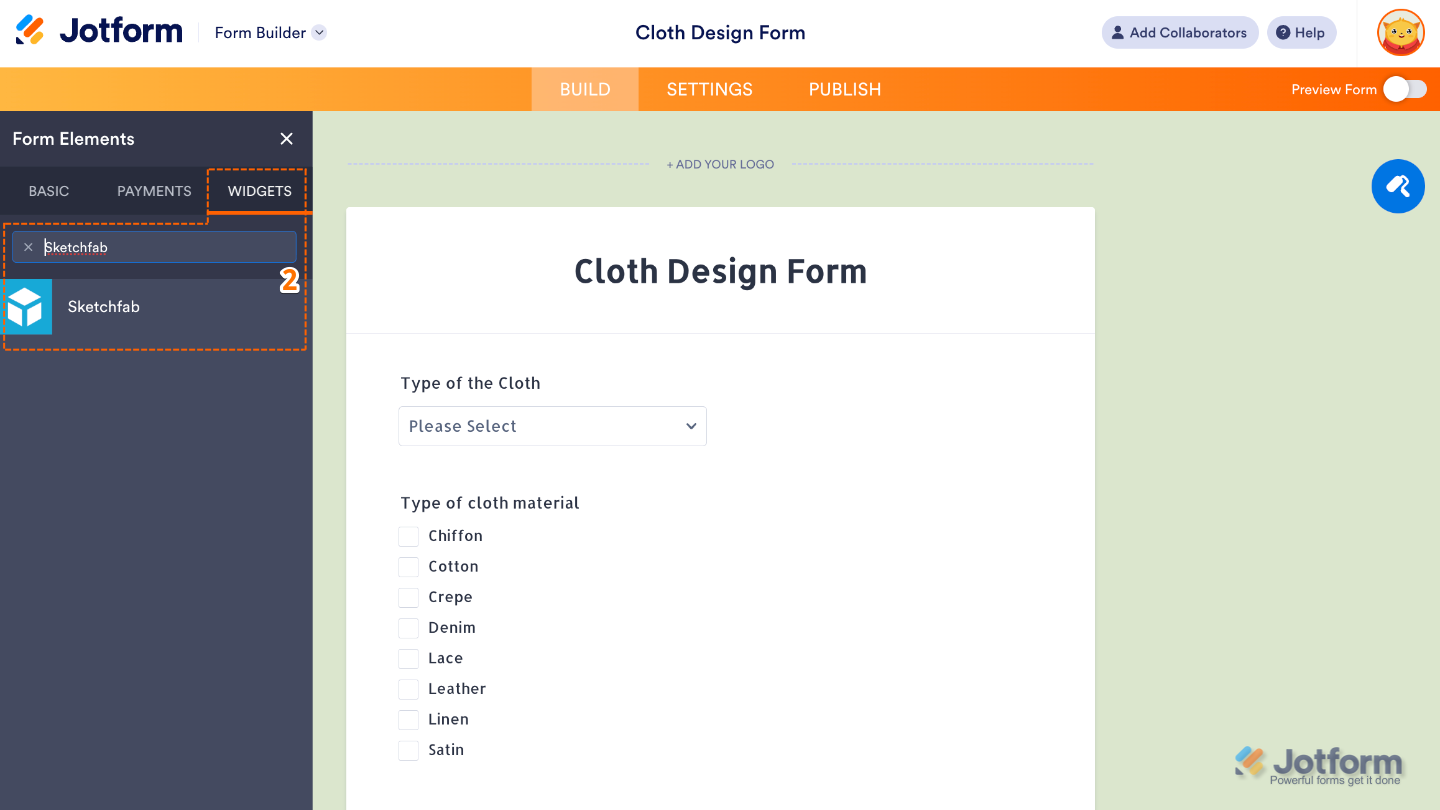
- Now, in the Form Elements menu, under the Widgets tab, search for Sketchfab and then click on it. Or, just drag and drop it to where you want it to be on your form.
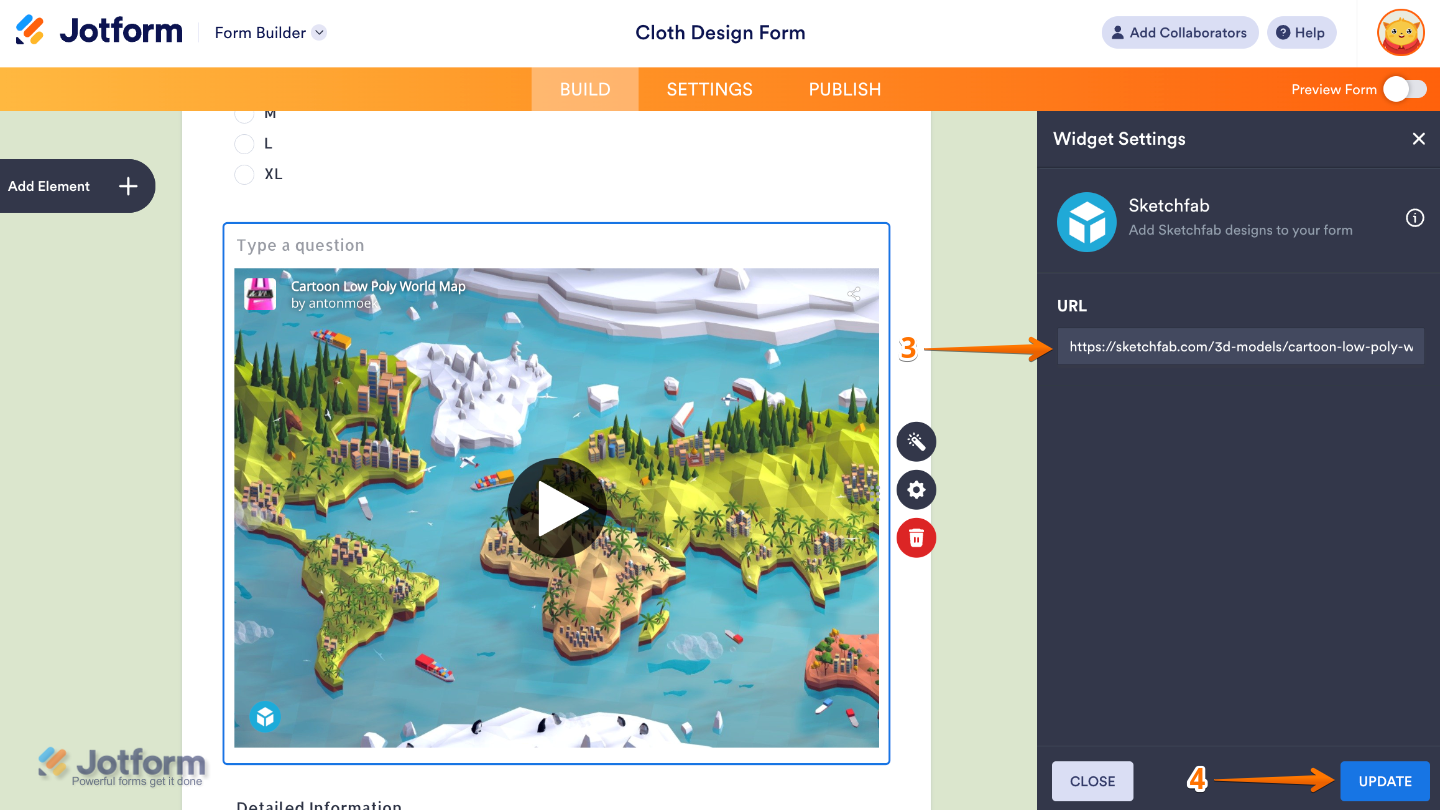
- Next, in the Widget Settings menu that opens on the right side of the page, paste the link to your Sketchfab 3D model in the URL section. It tells the widget which model to display inside your form.
- Once you’re done, click on Update.
That’s it. You’ve successfully added and set up the Sketchfab widget on your form. Now your users can easily view and interact with 3D models right inside your form, making your content more engaging and visually interactive. Curious how it works on a live form? Check out this Demo Form.
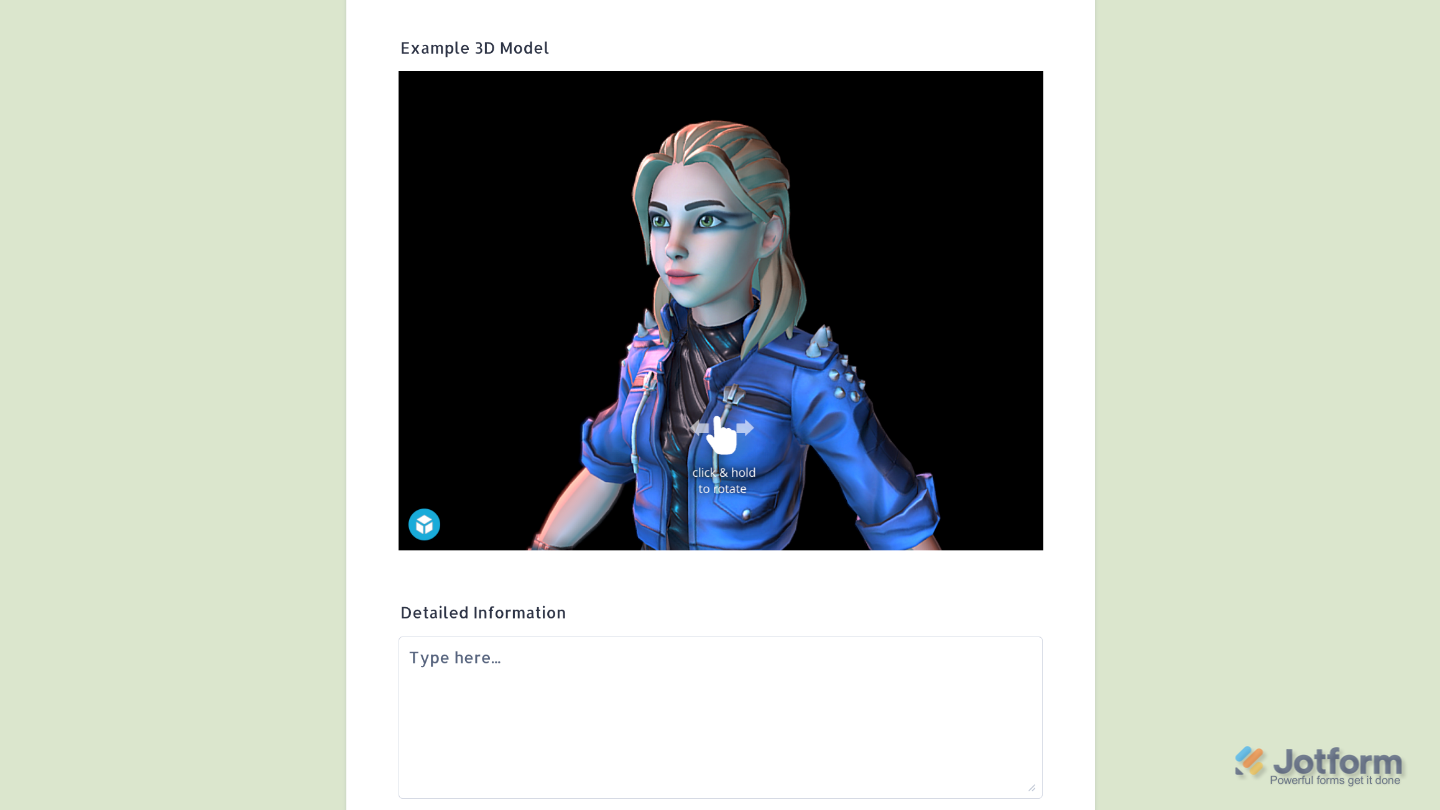
To further customize your Sketchfab field appearance, just click on the Gear icon to open its properties.
Pro Tips
- The better the model resolution, the more engaging the experience. Make sure your 3D model is clear and loads smoothly for users on different devices.
- Use the widget to highlight one model per field. If users need to explore multiple angles or details, having one model per widget keeps things tidy.
- Zooming and rotating are great, but if your form is mobile-heavy, make sure interactions remain smooth. Sometimes a simpler, static default view helps prevent accidental scrolling issues.

Send Comment: