Deleting a submission in Tables sends it to the Trash, where it stays for some time before being permanently removed. Archiving, on the other hand, moves the entry to the Archive, where it can be stored indefinitely.
Archiving Entries
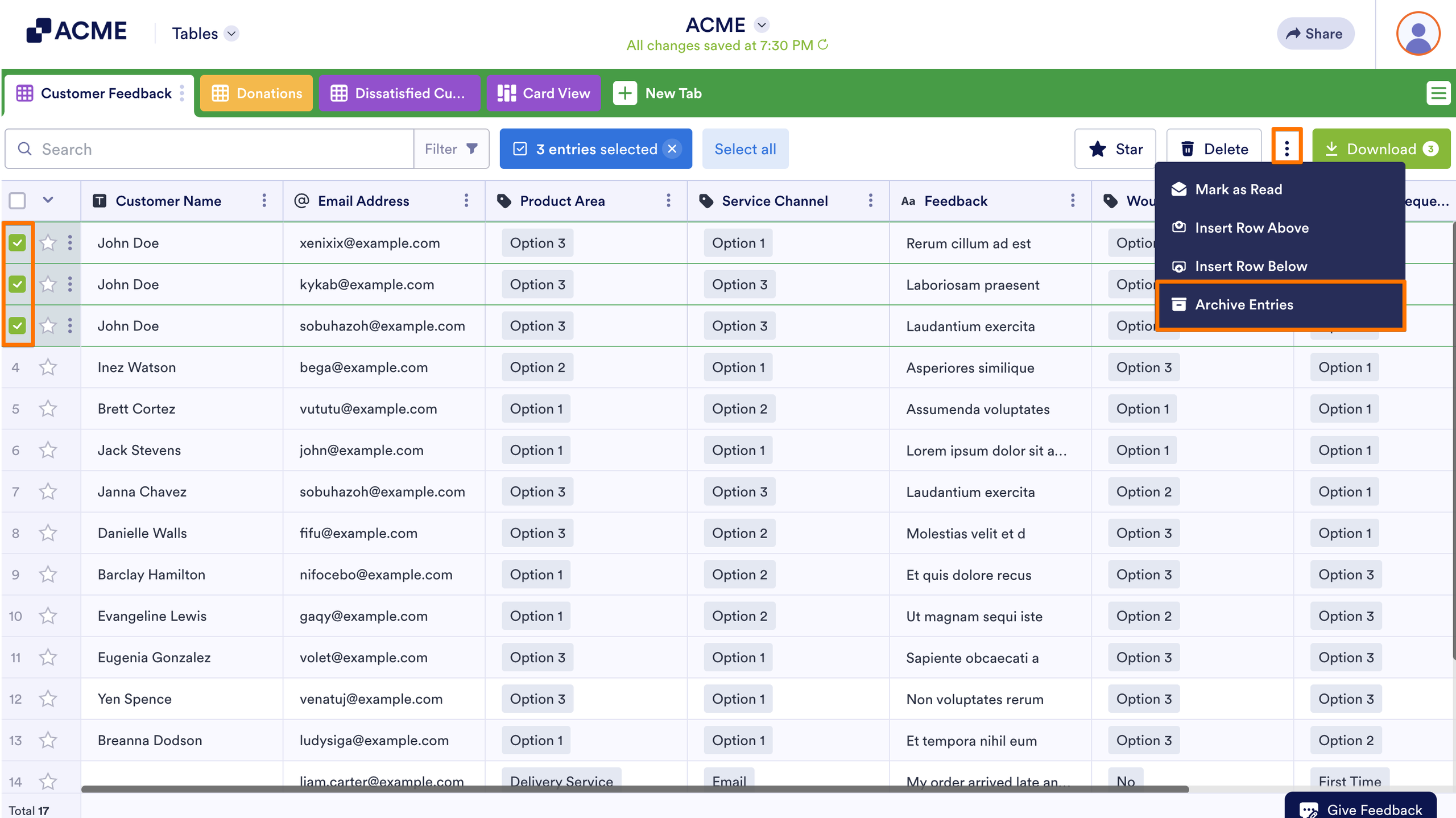
To archive submissions and keep them accessible for future use, here’s what you need to do:
- In Tables, check the box on the left side for the entries you want to archive
- Then, click on the Three Dots icon at the top.
- In the menu that comes up, select Archive Entries.
Viewing Archived Entries
To access and review the entries you’ve archived, follow these steps:
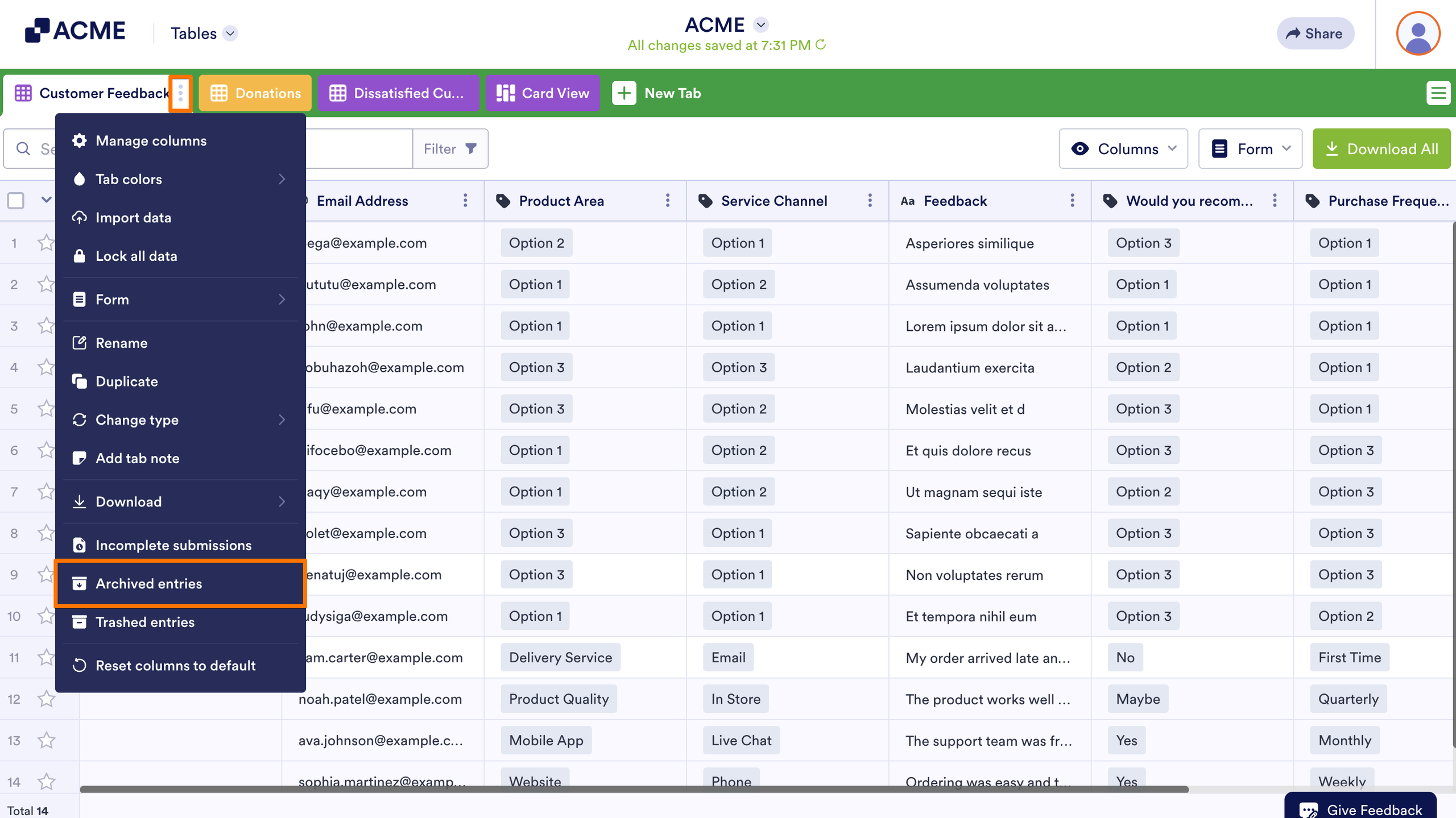
- In Tables, click on the Three Dots icon next to the name of the current tab for which you want to view archived submissions.
- Then, click on Archived entries in the menu.
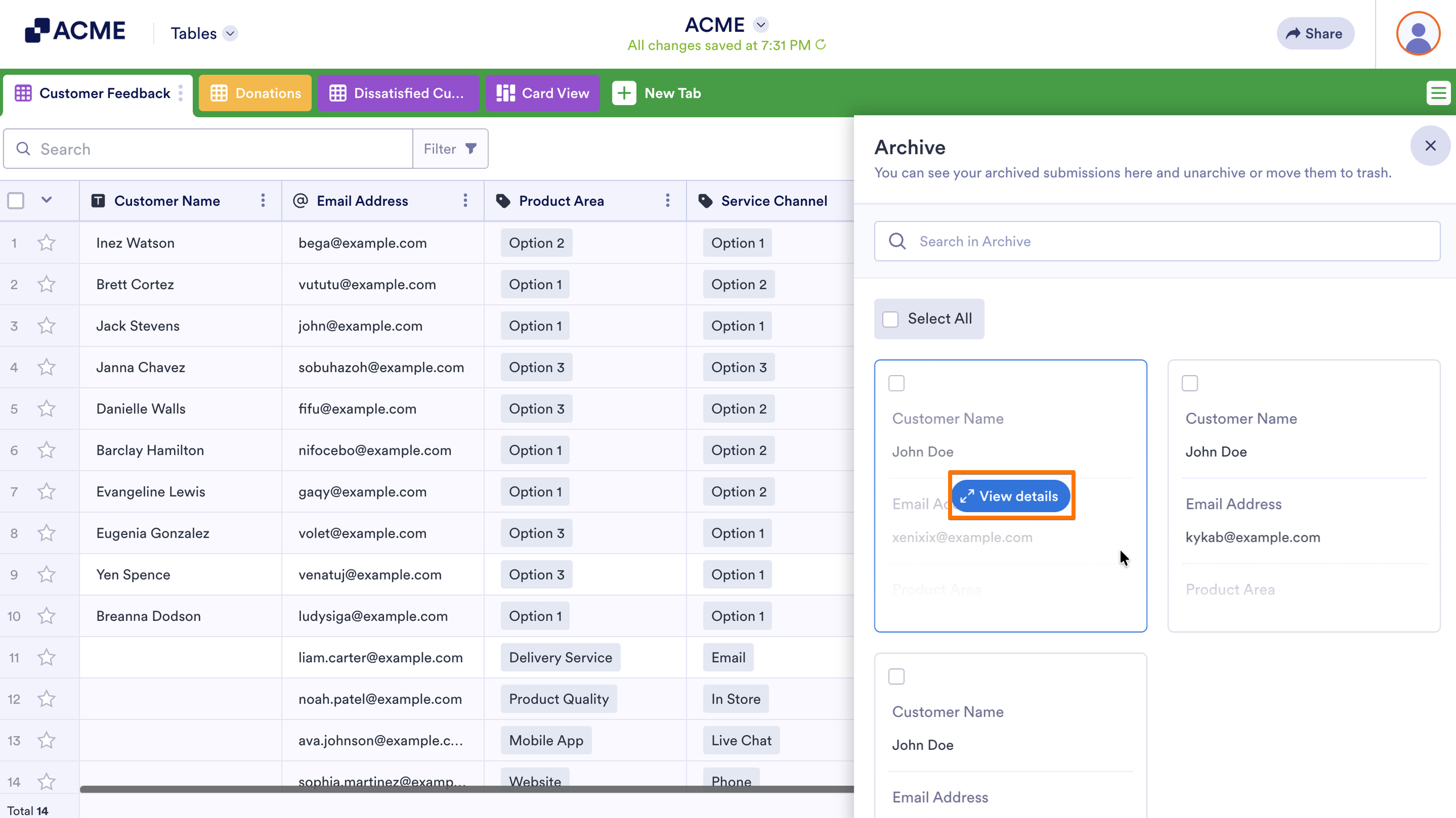
- In the Archive section that appears on the left side of the screen, hover your mouse over an archived entry and click View Details to see more information about it.
Note
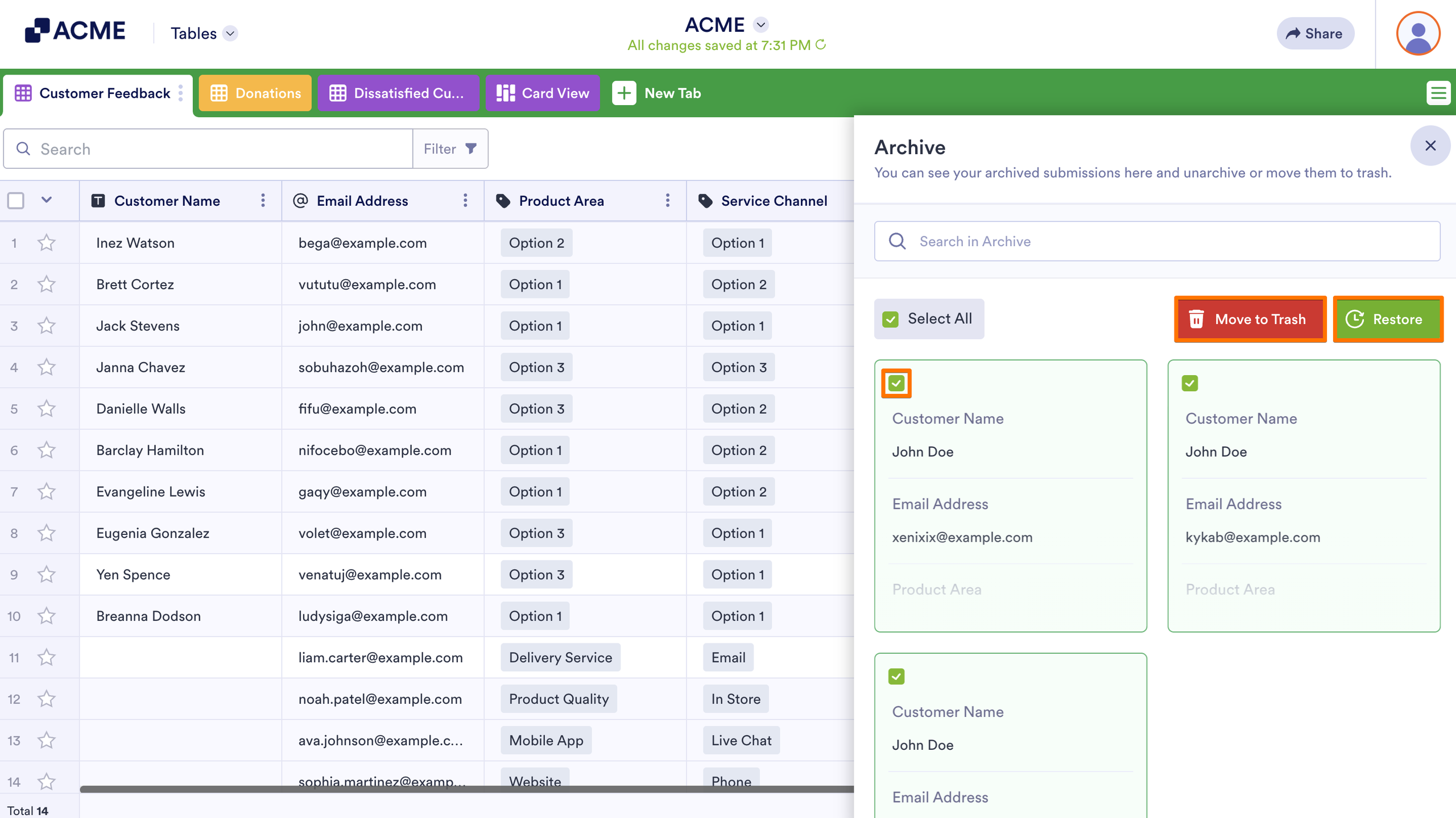
Check the box at the top of each entry to perform actions like moving it to trash or restoring it back to the table.
To view and restore trashed entries, see How to Restore Deleted Submissions in Tables.

Send Comment: