When you’re working on something important, it’s good to know you’re not alone. Our Enterprise Support Team is here to back you up, whether you’ve hit a roadblock, have a question, or just need a little guidance. Reaching out to them is simple, and they’ll make sure you get the help you need, right when you need it.
Submitting a Support Request as an Enterprise User
If you are an Enterprise user, you can submit a support request at any time to receive assistance with your personal account. Here’s what to do:
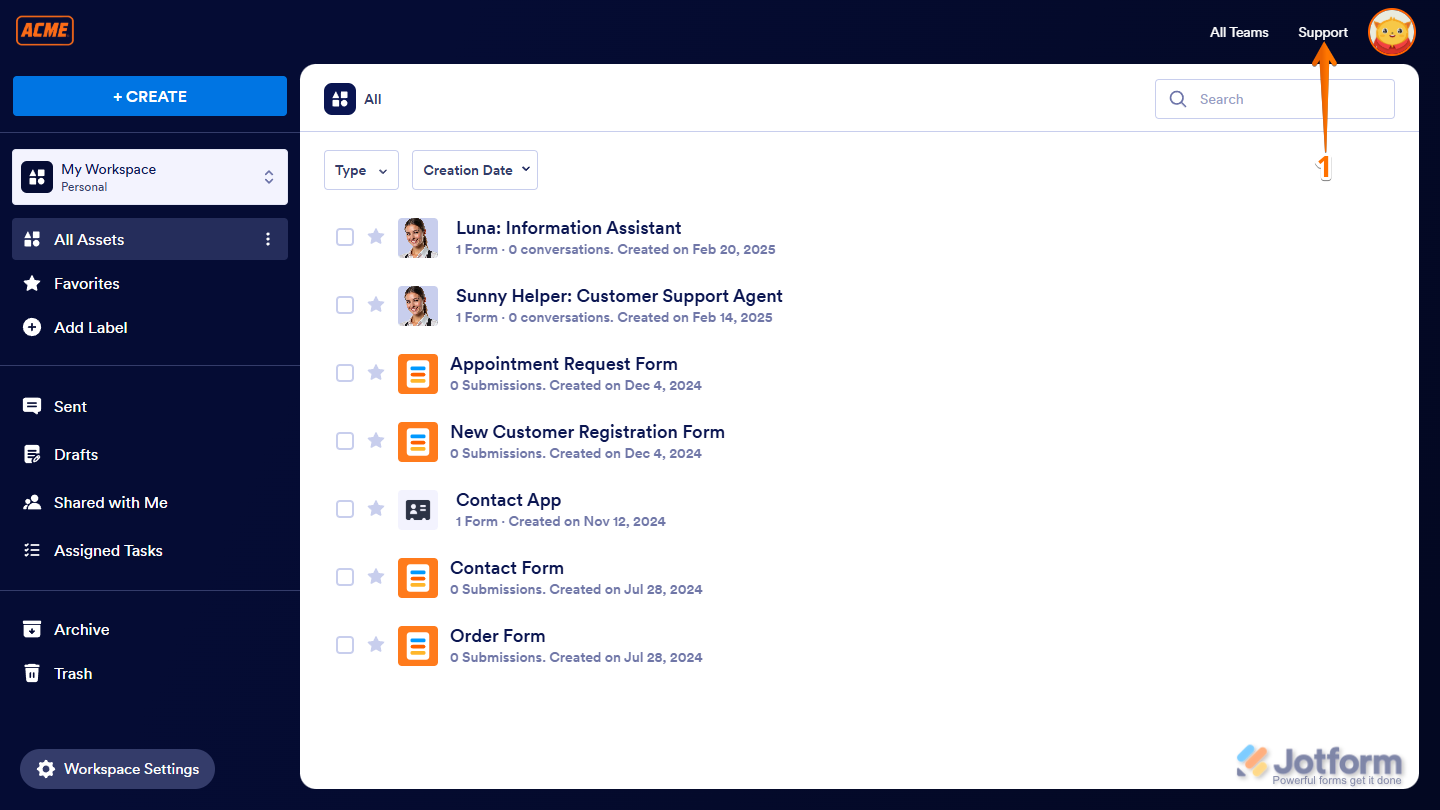
- On your Workspace page, in the top-right side of the screen, click on Support.
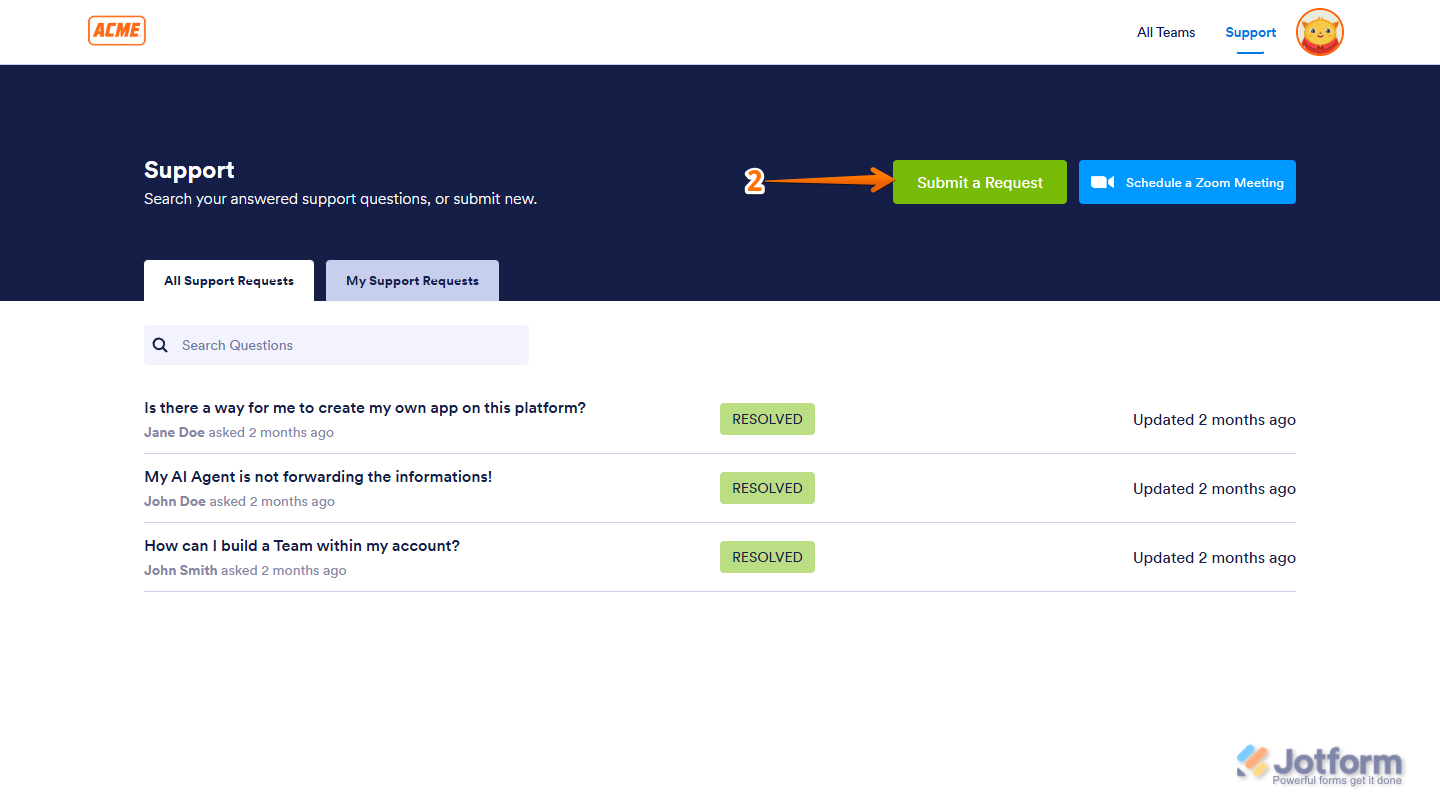
- Then, on the Support page, click on Submit a Request.
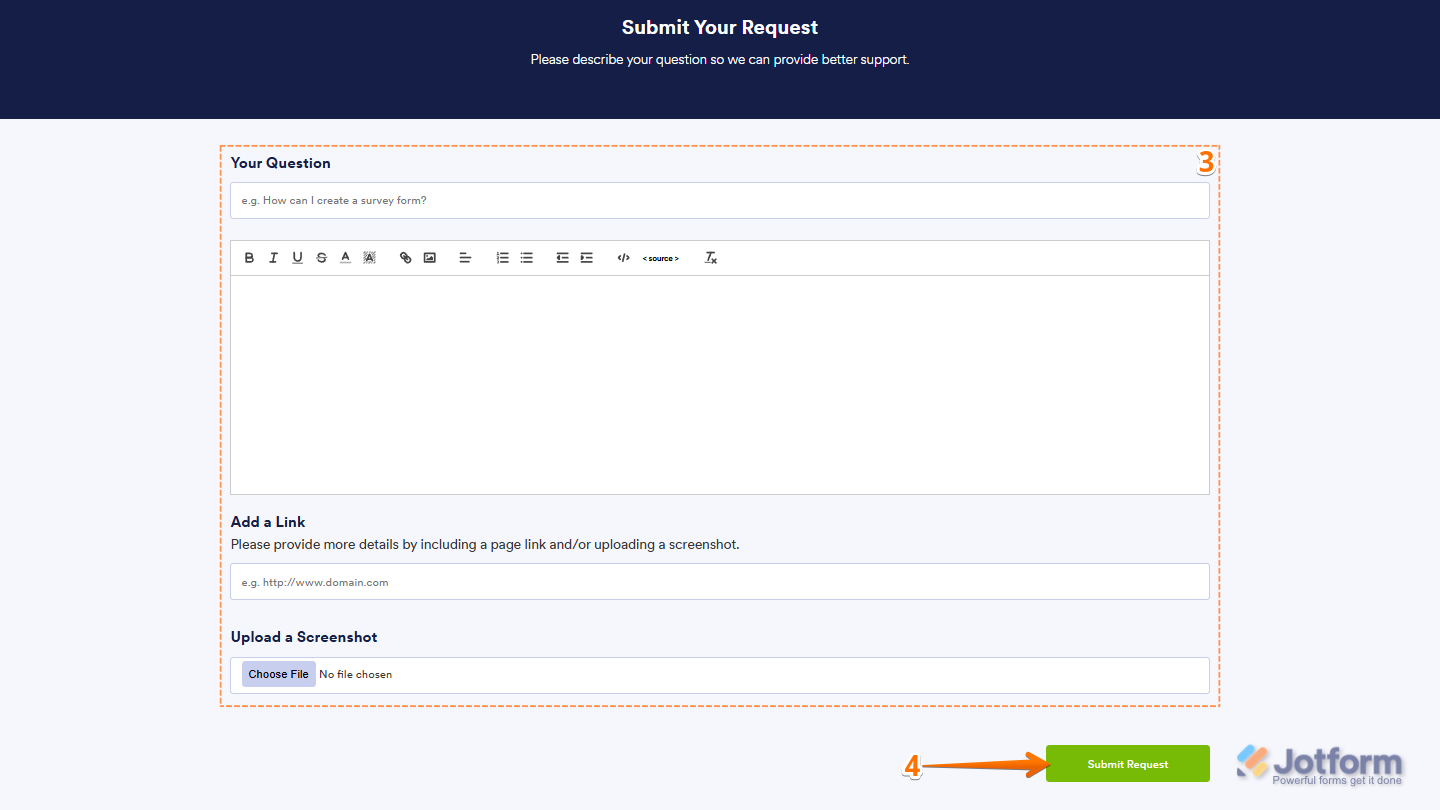
- Next, complete these fields:
- Your Question — Enter a short descriptive title of your support request.
- Description — Provide the full details of your support request. You can add links and images when necessary.
- Add a Link — If your request involves a single link only, you can enter it here.
- Upload a Screenshot — Attach a screenshot to your request that would help the Enterprise Support Team understand your issues/concerns.
- Now, click on Submit Request.
Note
After you submit a support request, the page takes you straight to that request. You’ll also see it in your Support Requests list, along with its status.
Submitting a Support Request as an Enterprise Administrator
If you are an Enterprise Administrator, you can also submit a support request through the Admin Console. This is how it’s done:
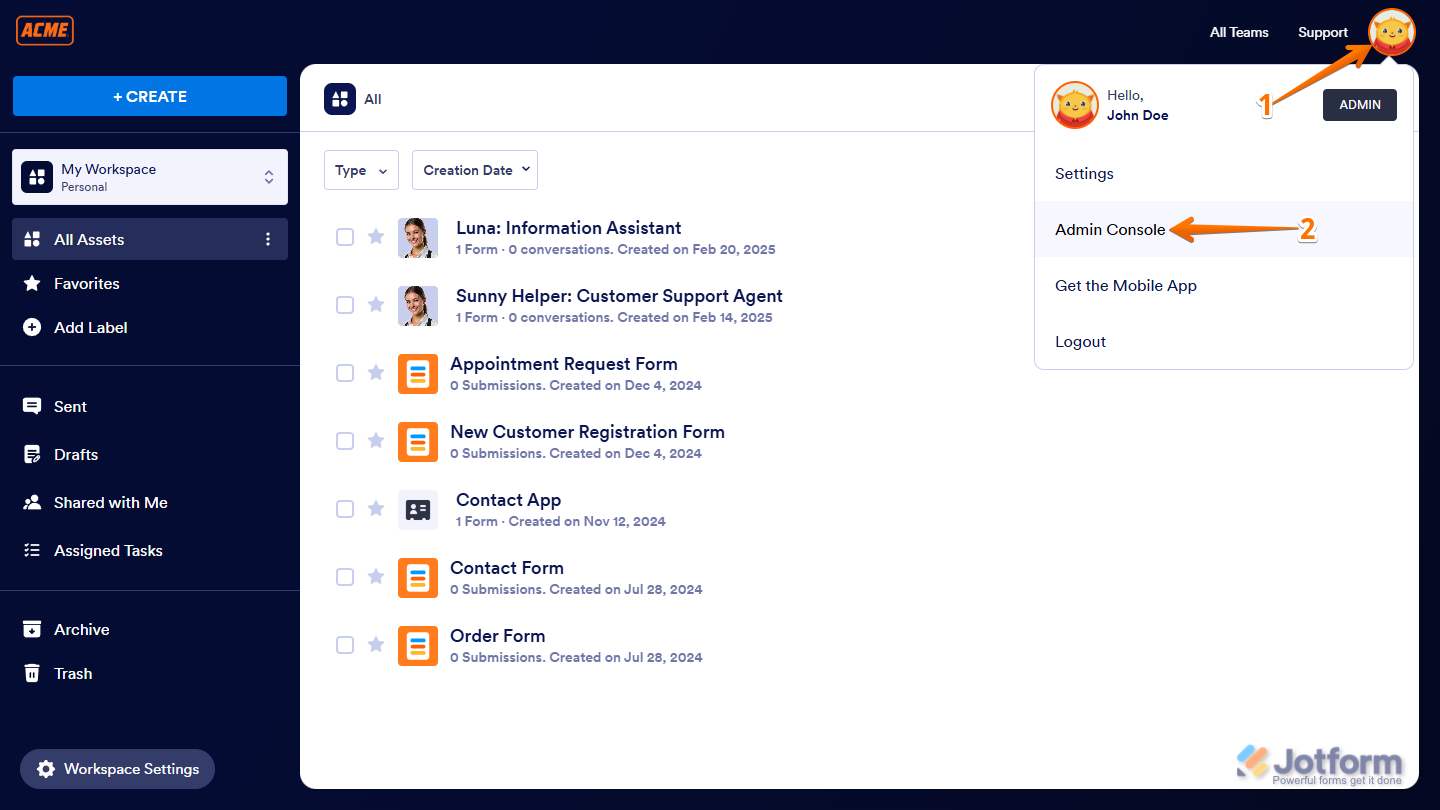
- On your Workspace page, click on your Avatar/Profile picture in the top-right corner of the page.
- Then, in the menu that comes up, click on Admin Console to open your Admin Dashboard page.
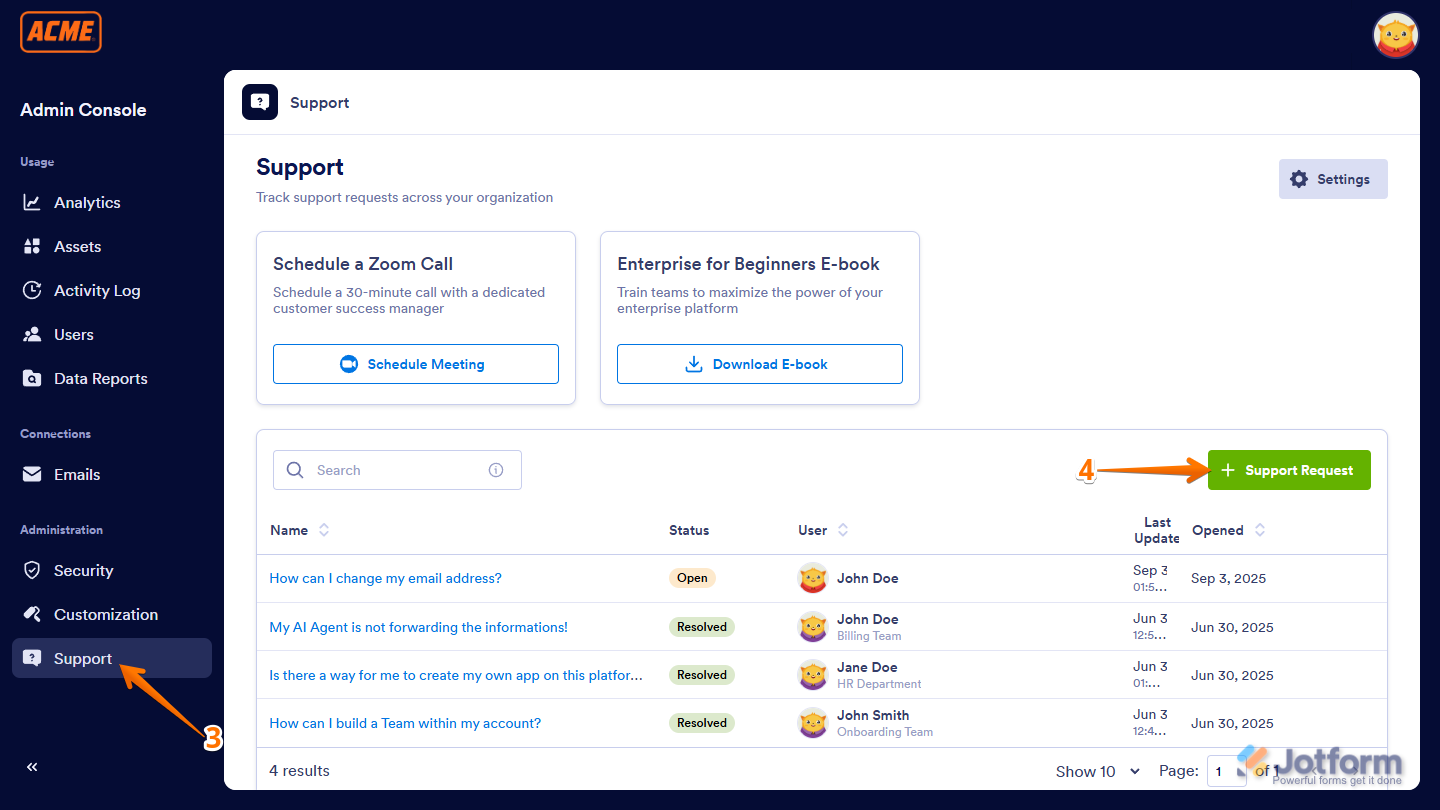
- Next, in the menu on the left, click on Support.
- Now, on the Support page, click on + Support Request.
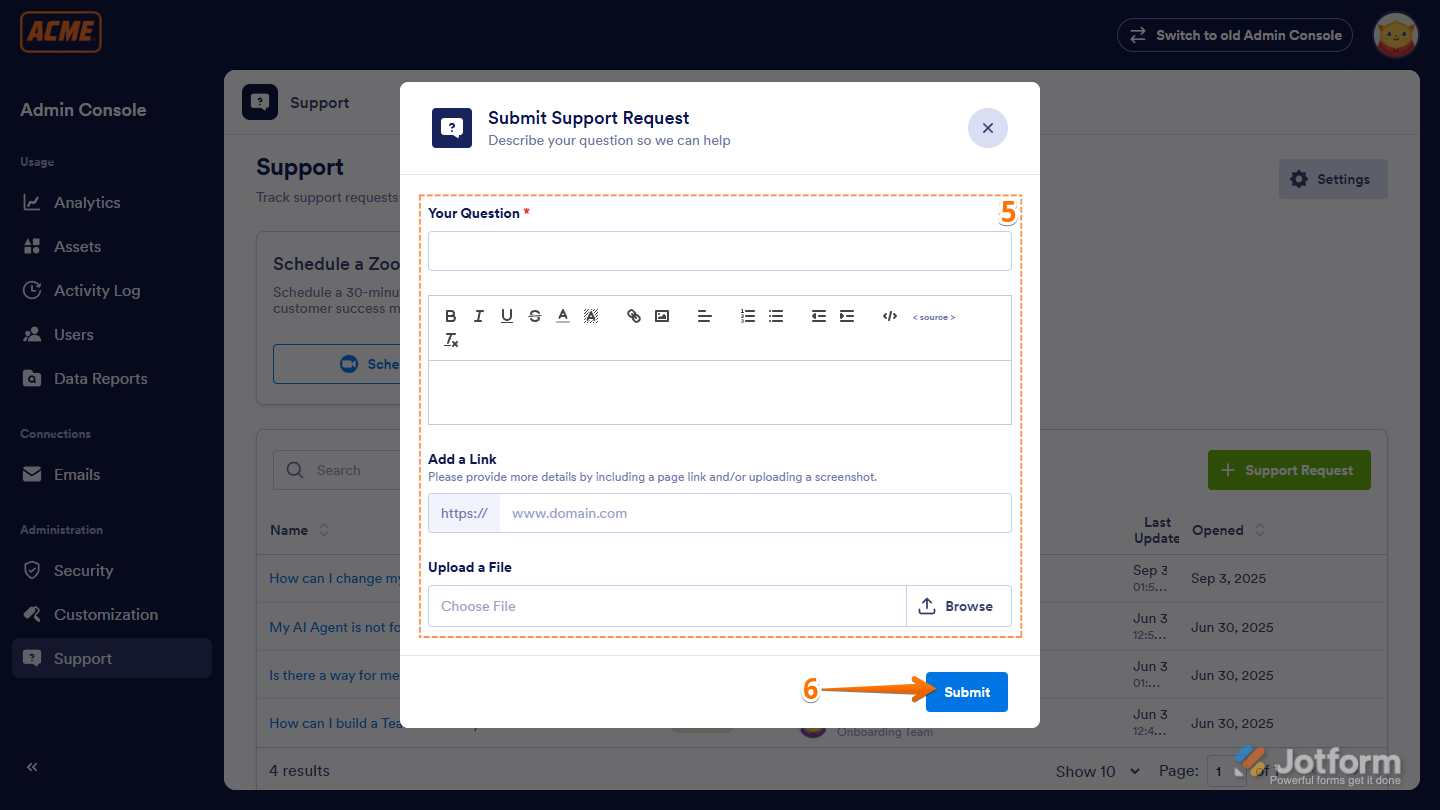
- In the Submit Support Request window that opens, fill in these details:
- Your Question — Enter a short title that briefly describes your support request.
- Description — Provide the full details of your support request. Use the toolbar to format your text, add links, and images as needed.
- Add a Link — Enter the link to the website or page that the Enterprise Support Team can check.
- Upload a File — Attach a screenshot that’s related to your support request.
- Now, click on Submit, and that’s it!
Enabling or Disabling Support for Your Enterprise Users
As an admin, you can choose whether your Enterprise users can contact Enterprise Support or not. Here’s how:
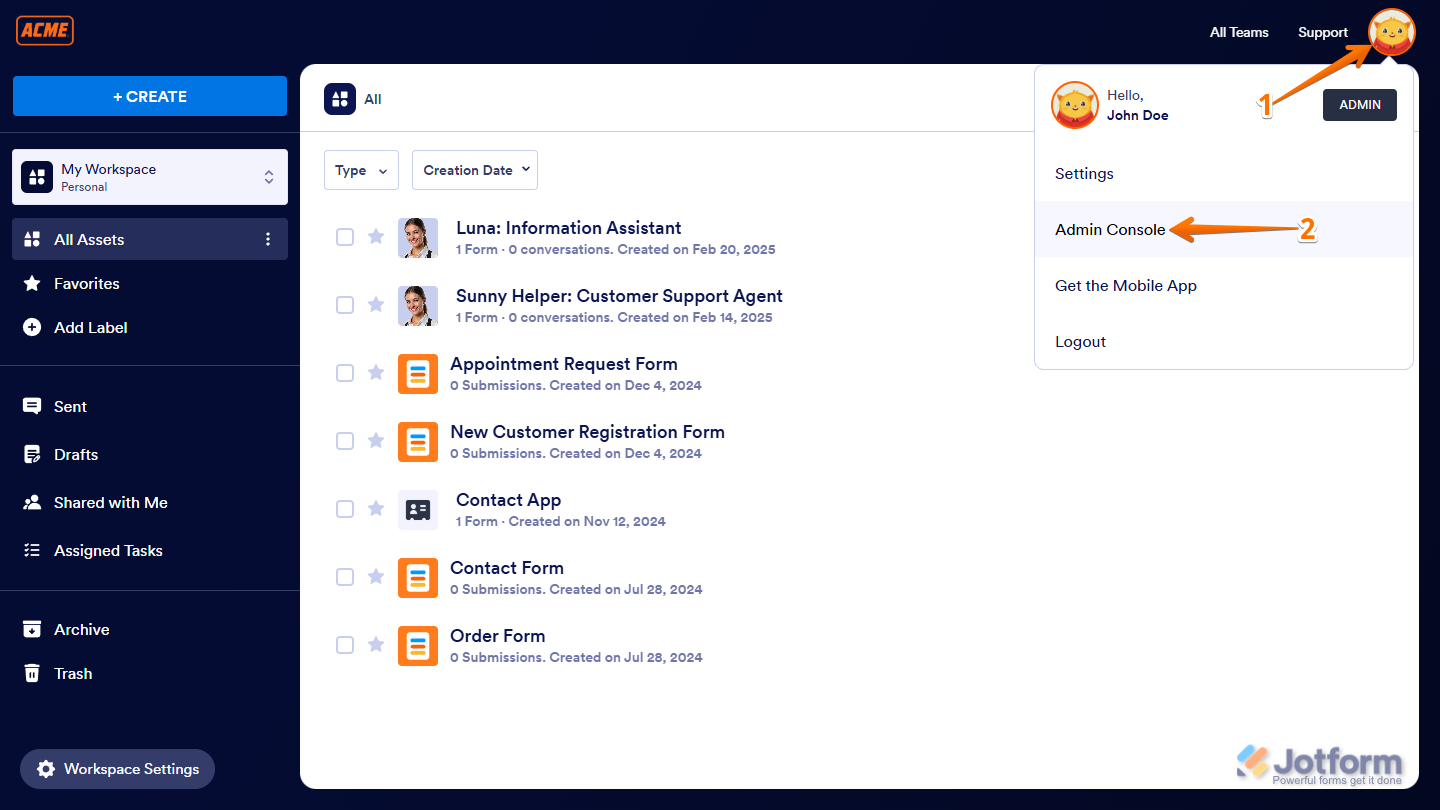
- On your Workspace page, click on your Avatar/Profile picture in the top-right corner of the page.
- Then, in the menu that comes up, click on Admin Console to open your Admin Dashboard page.
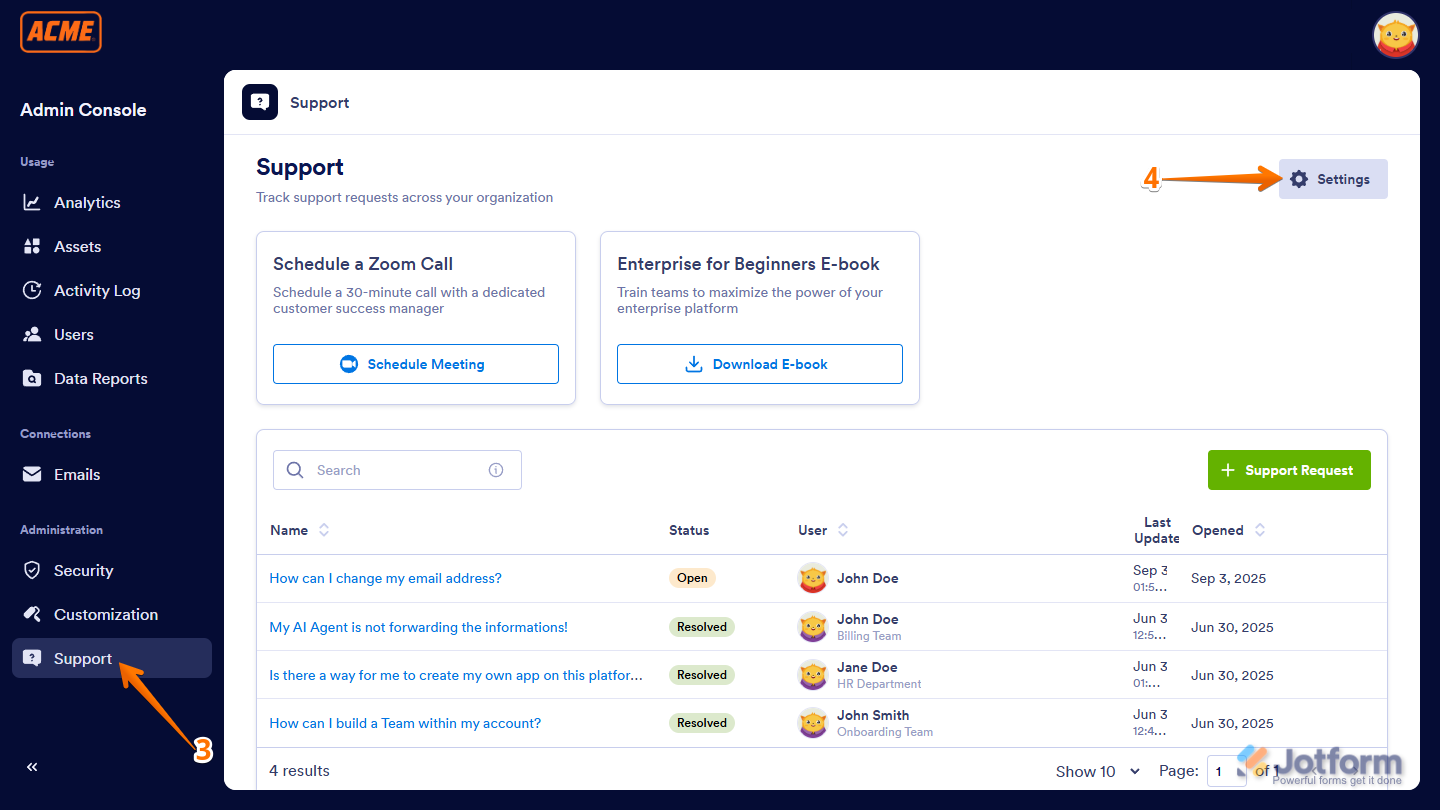
- Next, in the menu on the left, click on Support.
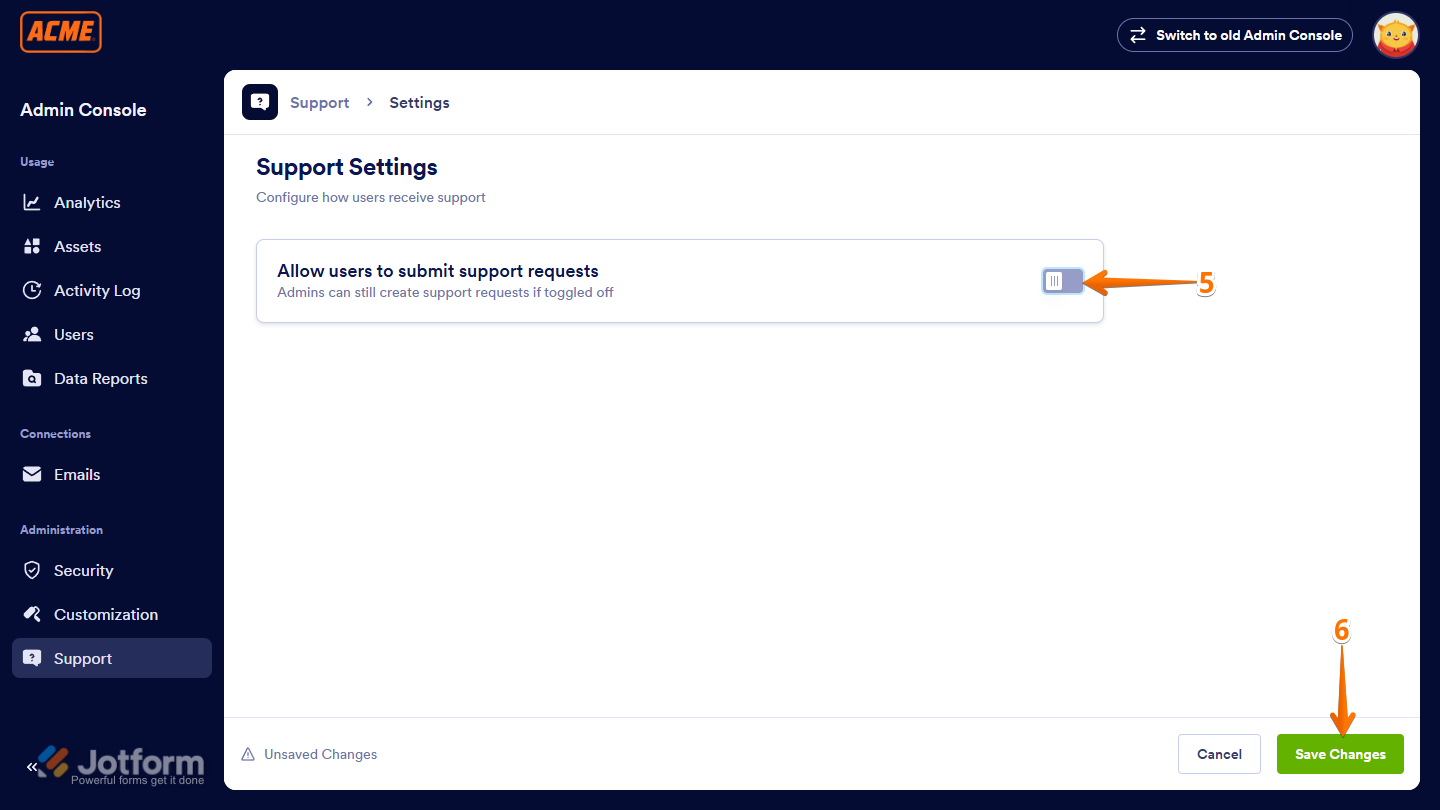
- On the Support page, click on Settings.
- Now, on the Support Settings page, toggle on or off Allow Users to Submit Support Requests.
- Finally, click on Save Changes at the bottom, and that’s it!
Knowing When an Enterprise Support Request is Answered
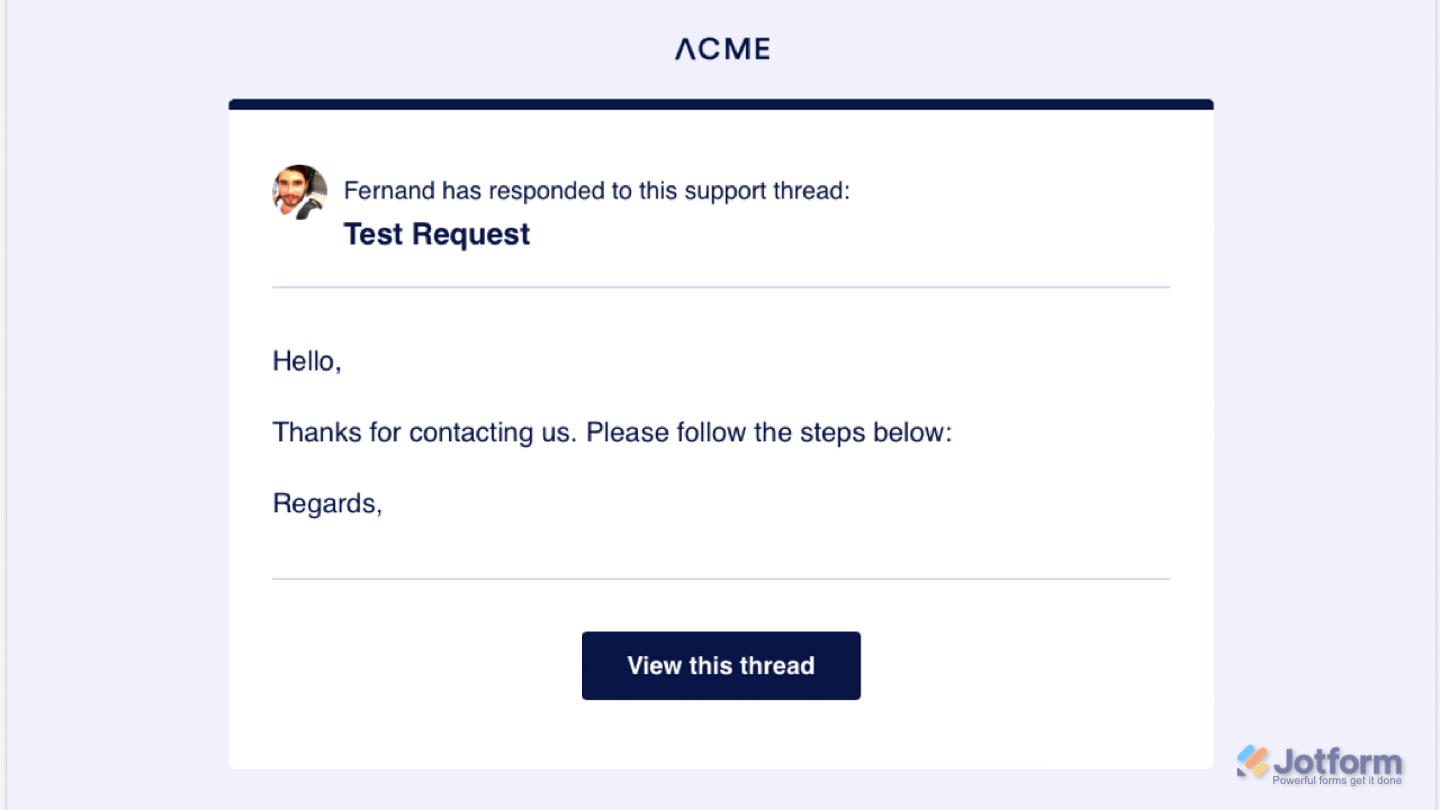
You’ll receive an email when the Enterprise Support Team replies. Just click on View This Thread to see the answer, and make sure you’re logged in to your account first.
And that’s all it takes to get in touch with the Enterprise Support Team. No complicated steps, no hassle. Whenever you need answers, they’re just a request away.
