Claude AI makes it easy to generate forms using simple prompts. With the Jotform Connector for Claude, you can describe the form you need in a conversation, and Claude will automatically create it in your Jotform account.
This makes it easier to build forms for surveys, registrations, feedback, or internal workflows without manually adding fields in Form Builder.
Connecting Claude to Your Jotform Account
Before you can create forms in Claude, you need to connect the Jotform Connector. There are two ways to open the Connectors window and connect your account. Here’s how:
- Go to Claude, open a new chat, then click on thePlus icon in the bottom-left corner of the prompt area.
- Next, in the menu that opens, select Add Connectors.

And you can also do it this way:
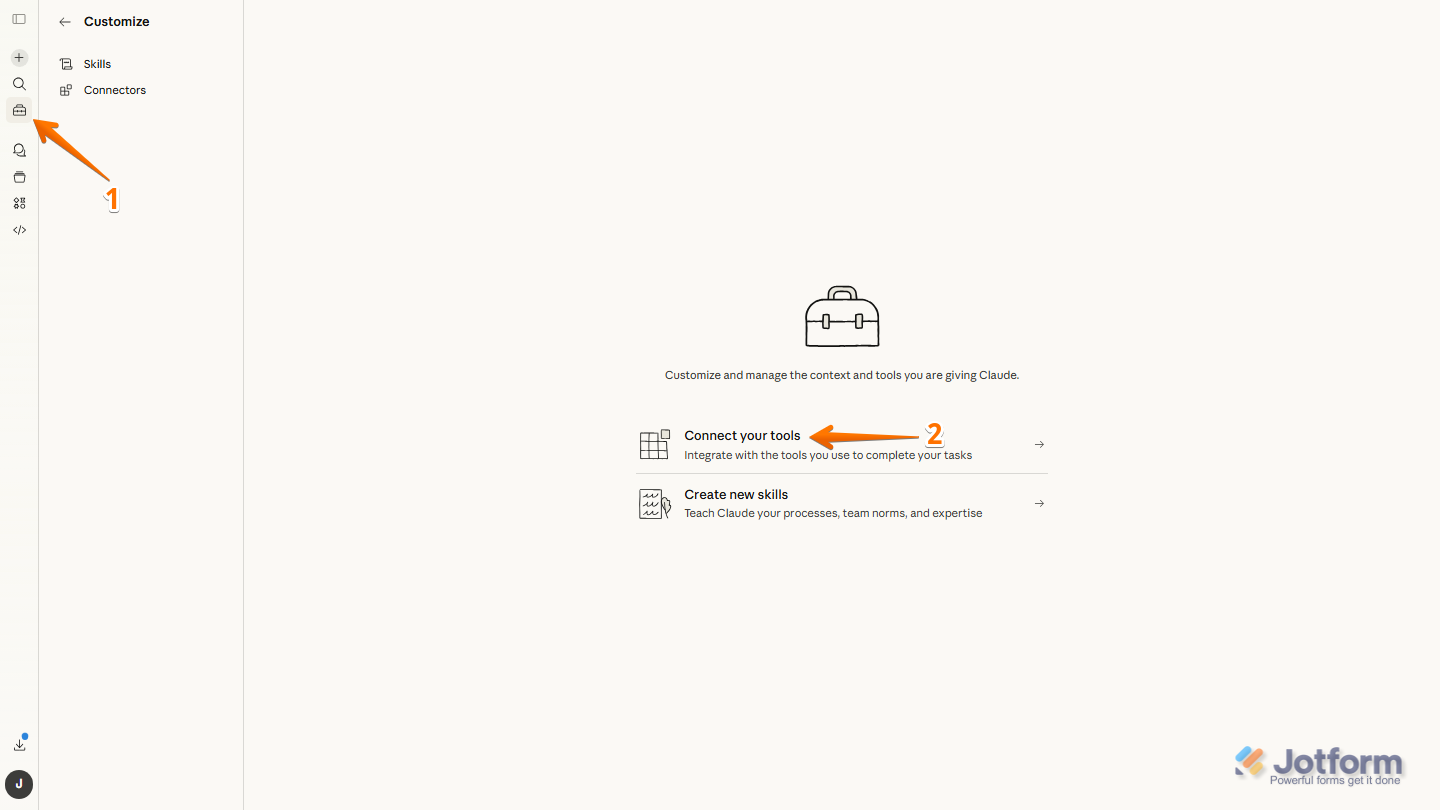
- In Claude, in the left-side menu, click on the Customize icon.
- Then, click on Connect your Tools.
- Now, in the Connectors window that opens, in the Search Bar, type Jotform.
- Then, in the Jotform connector that appears, click on the Plus icon.

- Finally, log in to your Jotform Account and click on Allow to proceed, and you’re done.

Once connected, Claude will be able to access your forms and create new ones in your account.
Creating a Form with Claude
After connecting your account, you can generate a form using a simple prompt. This is how it’s done:
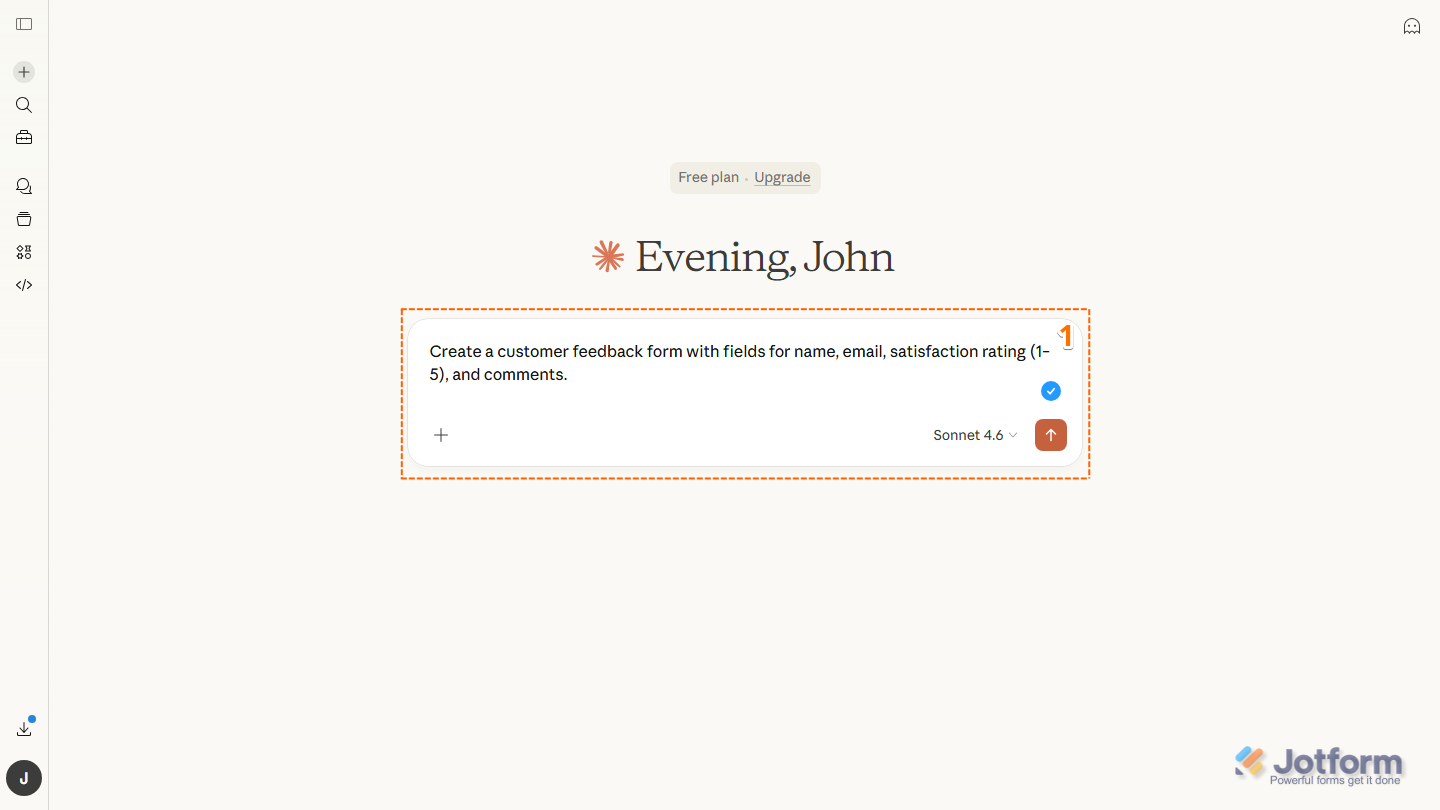
- In Claude, open a new chat, then, enter a prompt describing the form you want to create. For example: Create a customer feedback form with fields for name, email, satisfaction rating (1–5), and comments.
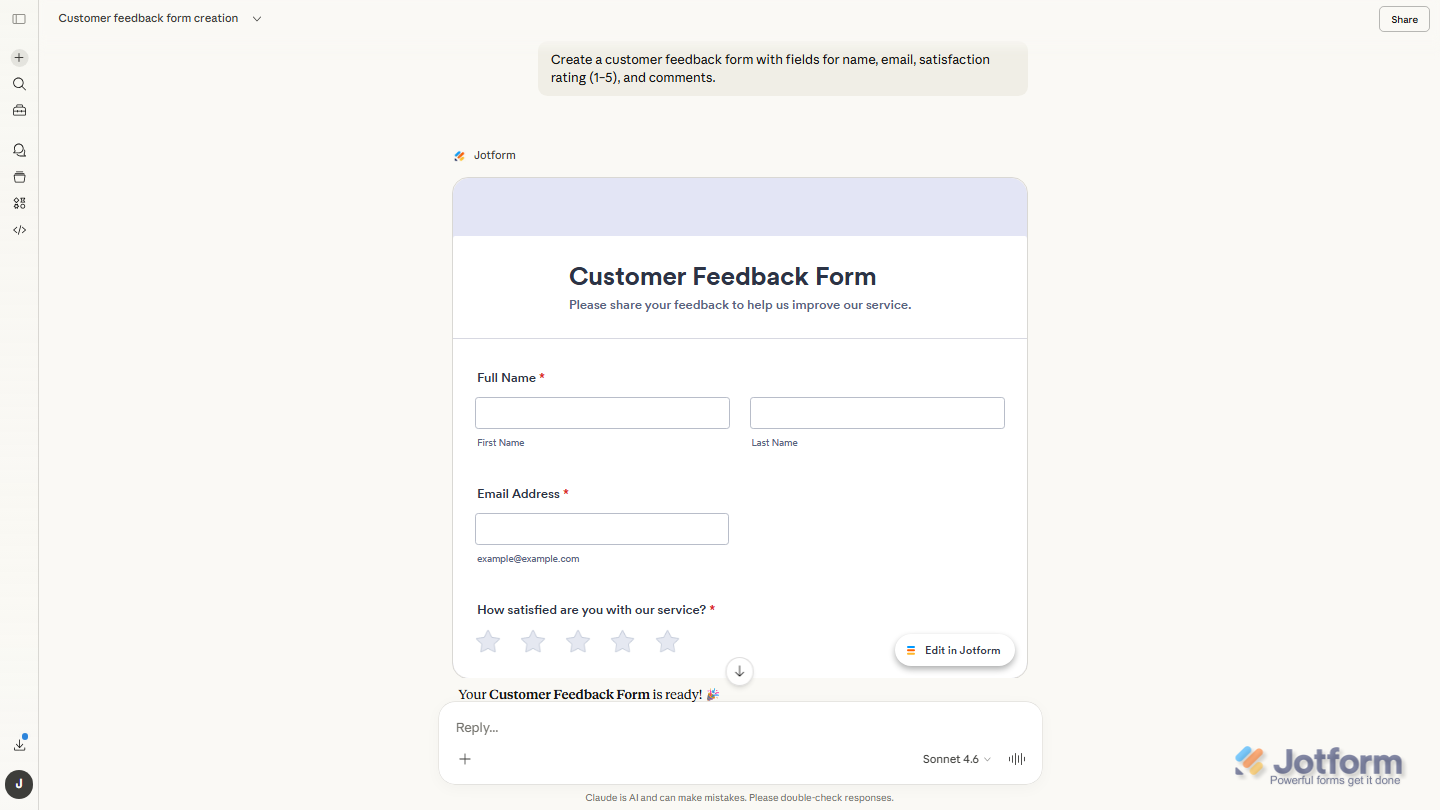
Claude will then generate and display the form directly in the conversation. The form will also be automatically created in your Jotform account.
Note
Forms created through the Jotform Connector in Claude count toward your Jotform account’s form limits. If you reach your plan’s limit, you may need to delete existing forms or upgrade your plan before creating additional ones. Take a look at our guide on Understanding Your Account Usage and Limits for more details.
Editing the Generated Form
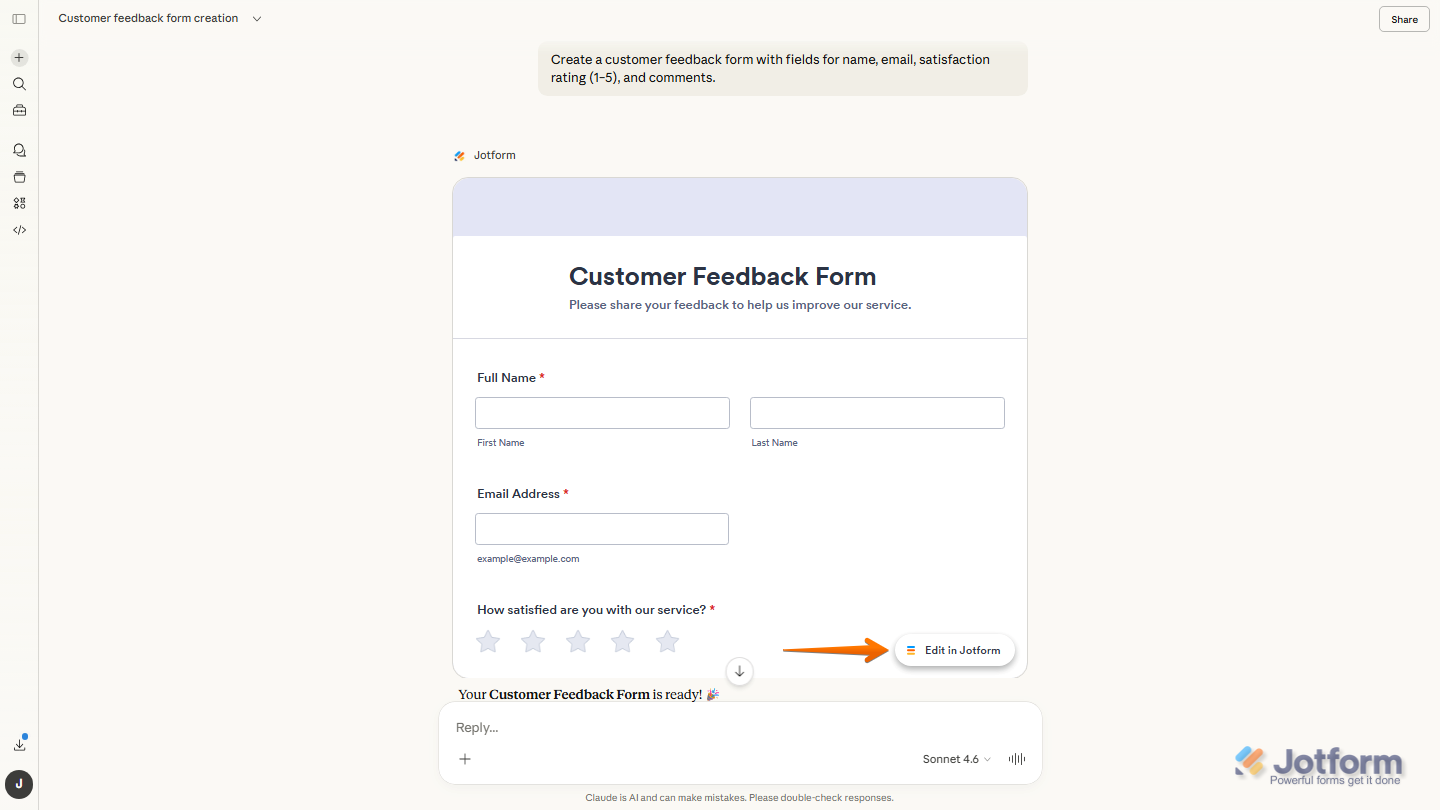
After Claude generates the form, it will appear directly in the conversation. From the generated form preview in Claude, click on Edit in Jotform to open the form in Jotform Form Builder, where you can continue customizing your form.
You can also update the form by entering another prompt describing the changes you want. Example prompt: “Change the Background Color to Green.”
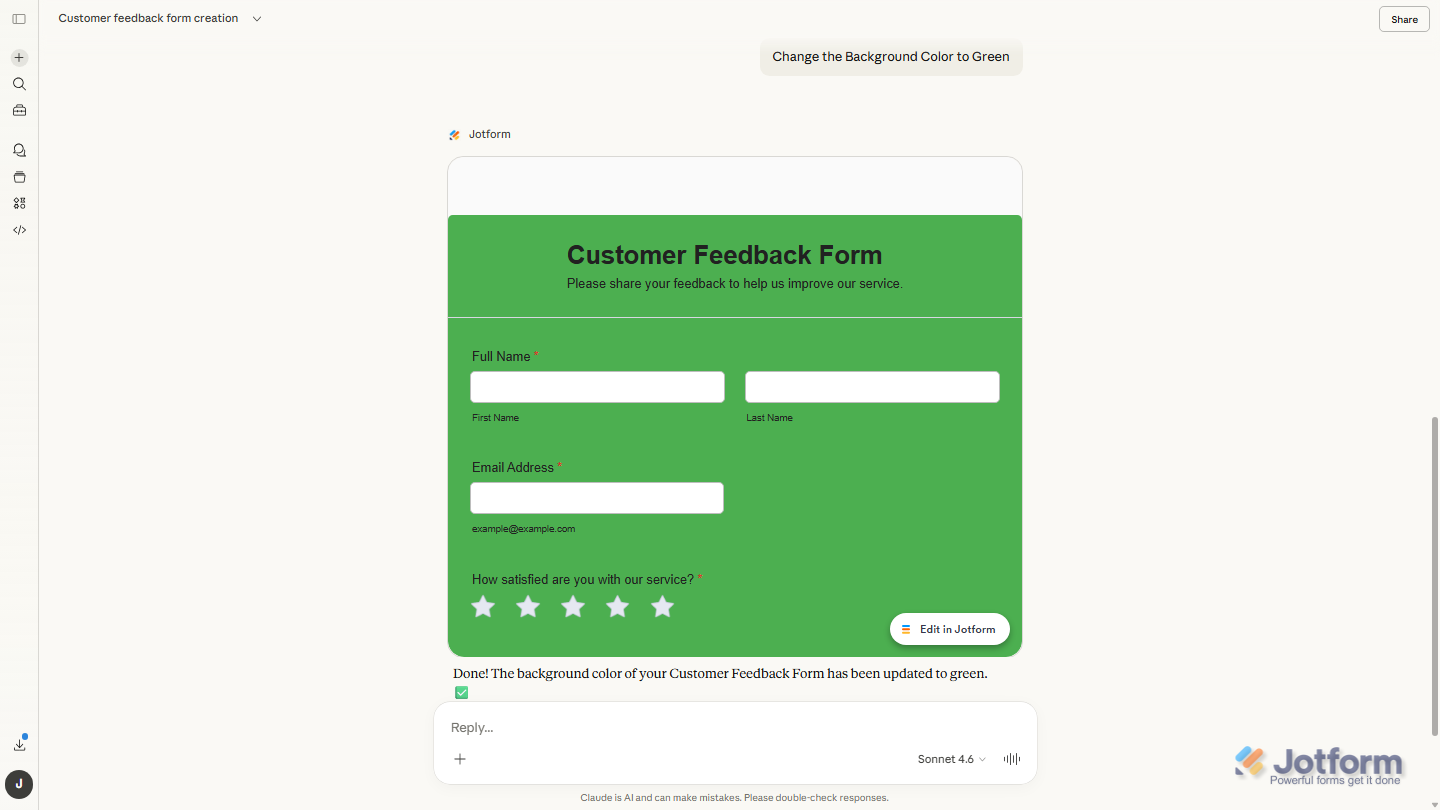
And that’s it! Using the Jotform Connector in Claude allows you to quickly generate and modify forms using natural language prompts. Once your form is created, you can continue refining it in Claude or open it in Jotform Form Builder to customize it further.

Send Comment: