Jotform makes it easy to create an app using ChatGPT with the Jotform Apps Plugin. Simply describe the app you want to build in plain language, and ChatGPT will generate a ready-to-use Jotform App that you can continue customizing in Jotform.
Whether you’re creating a customer portal, business website, event app, or internal tool, the Jotform Apps plugin helps you turn your ideas into a fully functional app in just a few minutes.
Installing the Jotform Apps Plugin to Your ChatGPT Account
Before you can create Jotform Apps with ChatGPT, you’ll first need to install the Jotform Apps plugin. Here’s how to set it up:
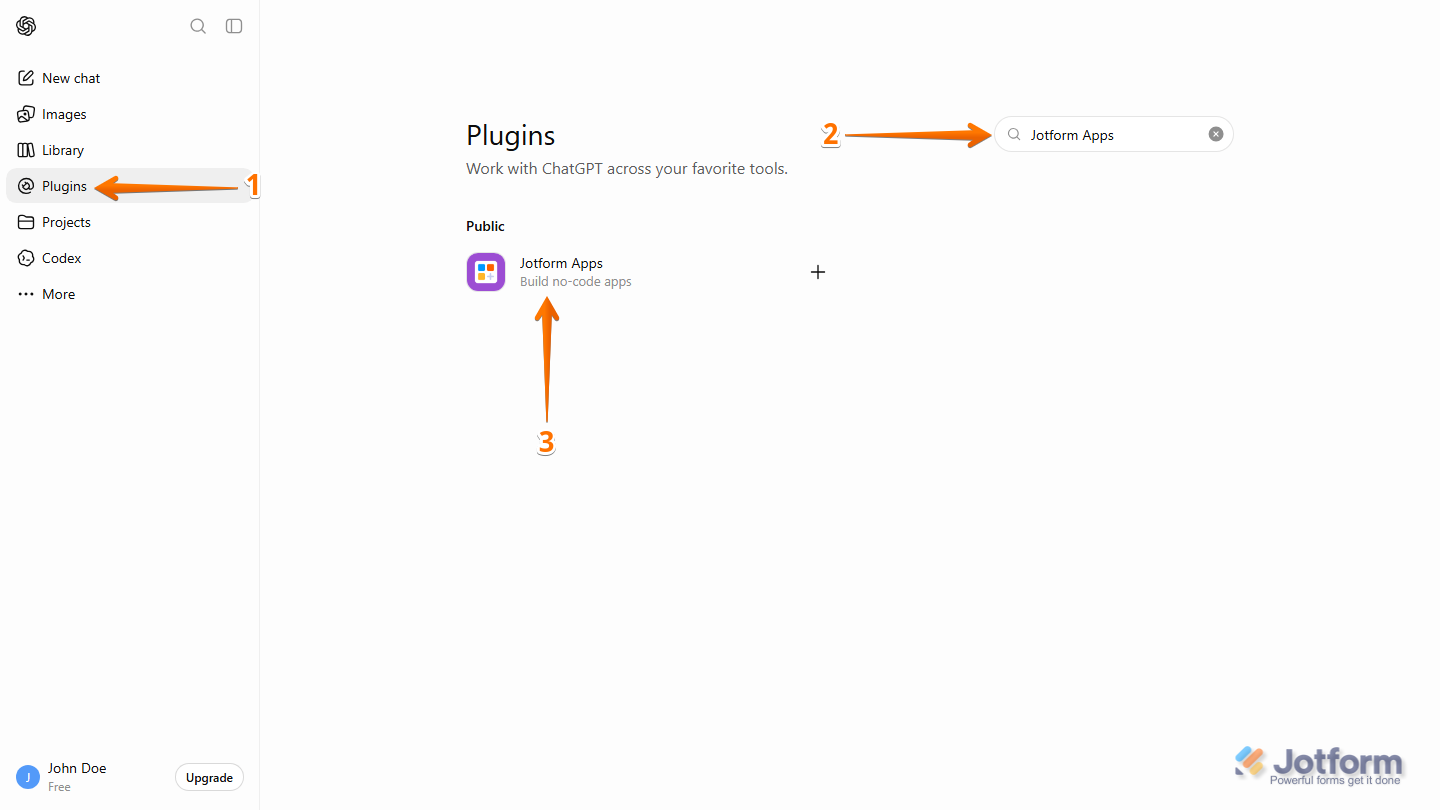
- Log in to your ChatGPT Account and, in the menu on the left side of the page, click on Plugins.
- Then, in the Search bar on the upper-right side of the Plugins page, enter Jotform Apps.
- Next, in the search results, click on the Jotform Apps.
Pro Tip
You can also click on the Plus icon next to Jotform Apps to install the plugin directly.
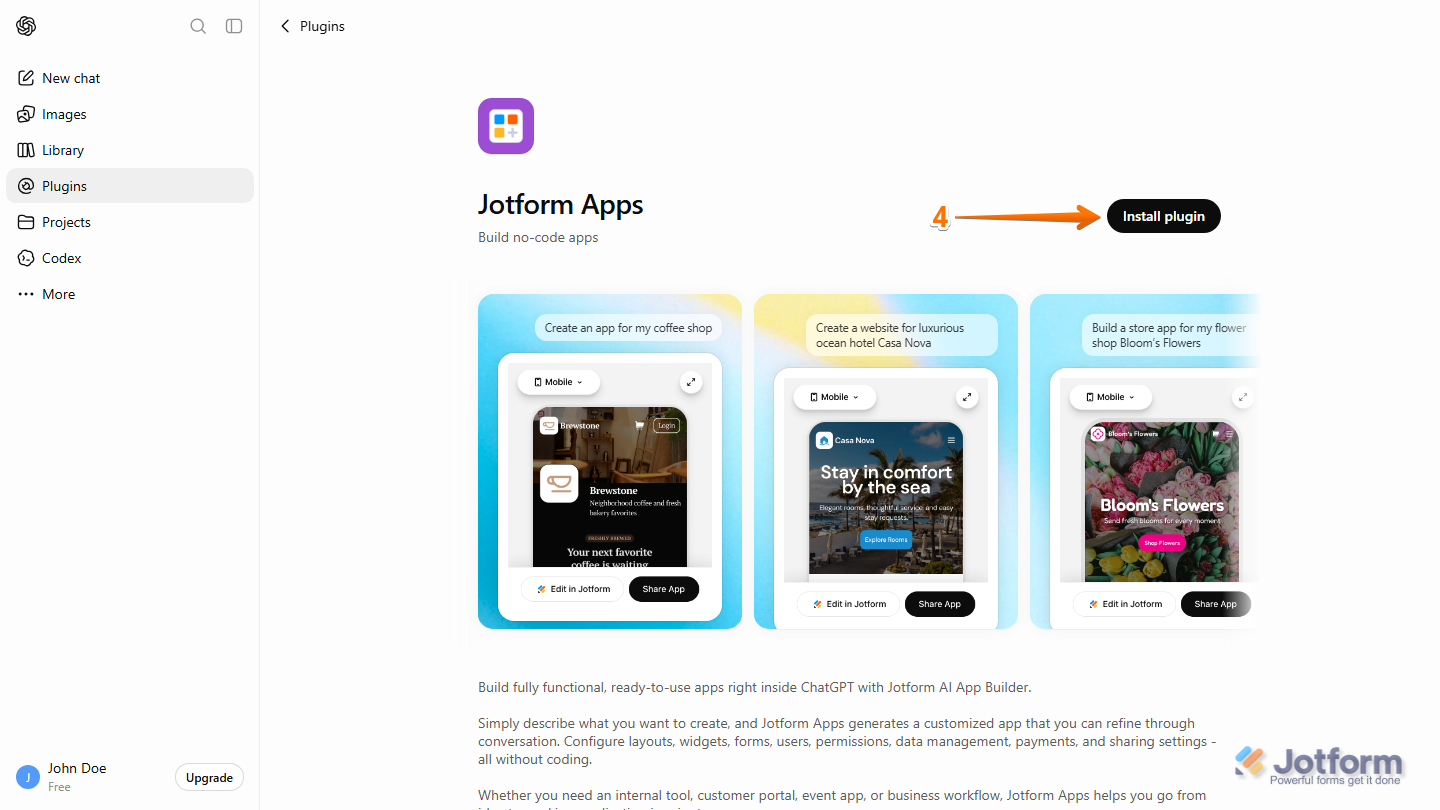
- Now, on the upper-right side of the Jotform Apps page, click on Install Plugin.
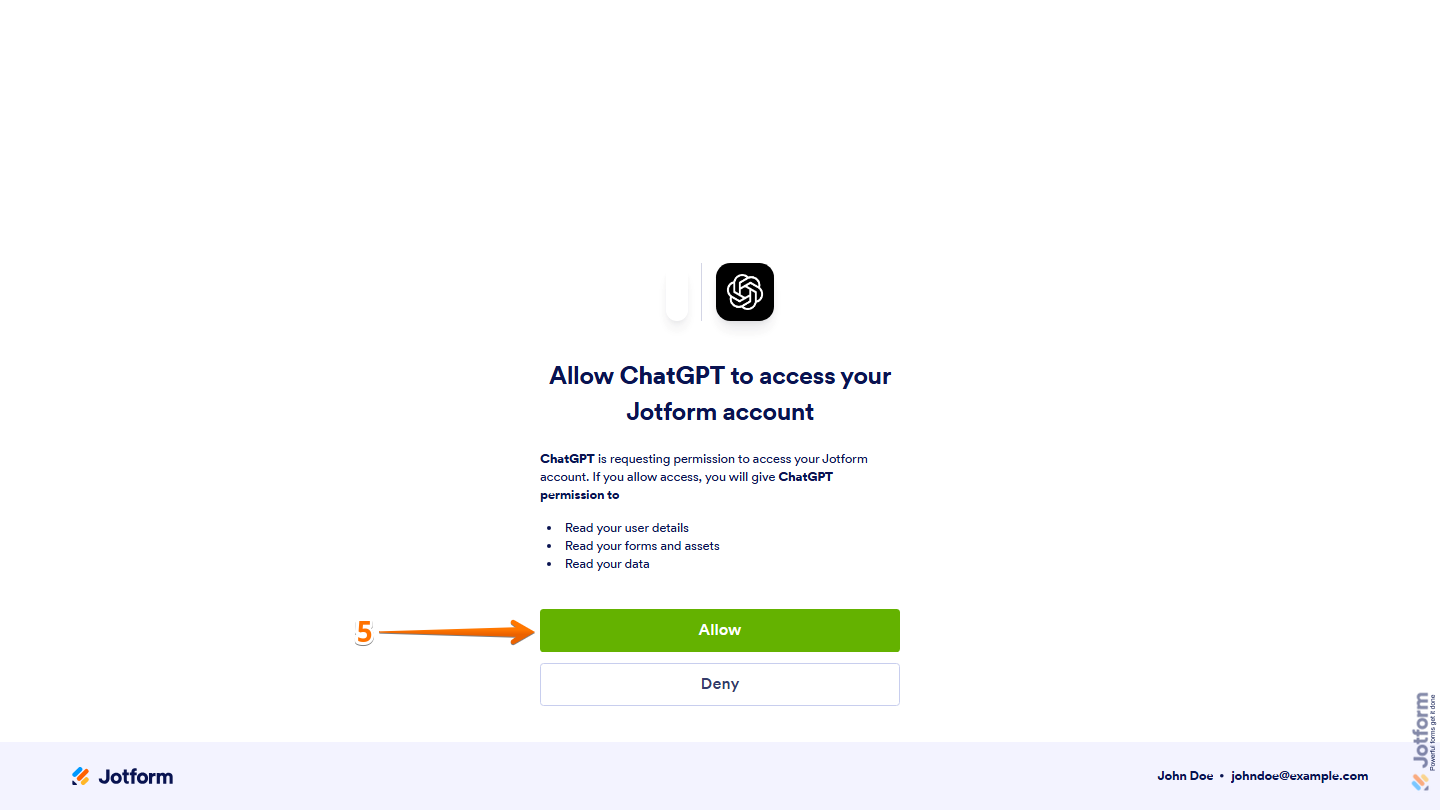
- If prompted, on the Authorization page, review the requested permissions and then click on Allow.
Note
If you’re not logged in to your Jotform account, you’ll be asked to sign in before the authorization page appears.
- Once the plugin has been installed, on the right side of the page, click on Try in Chat to use it right away.
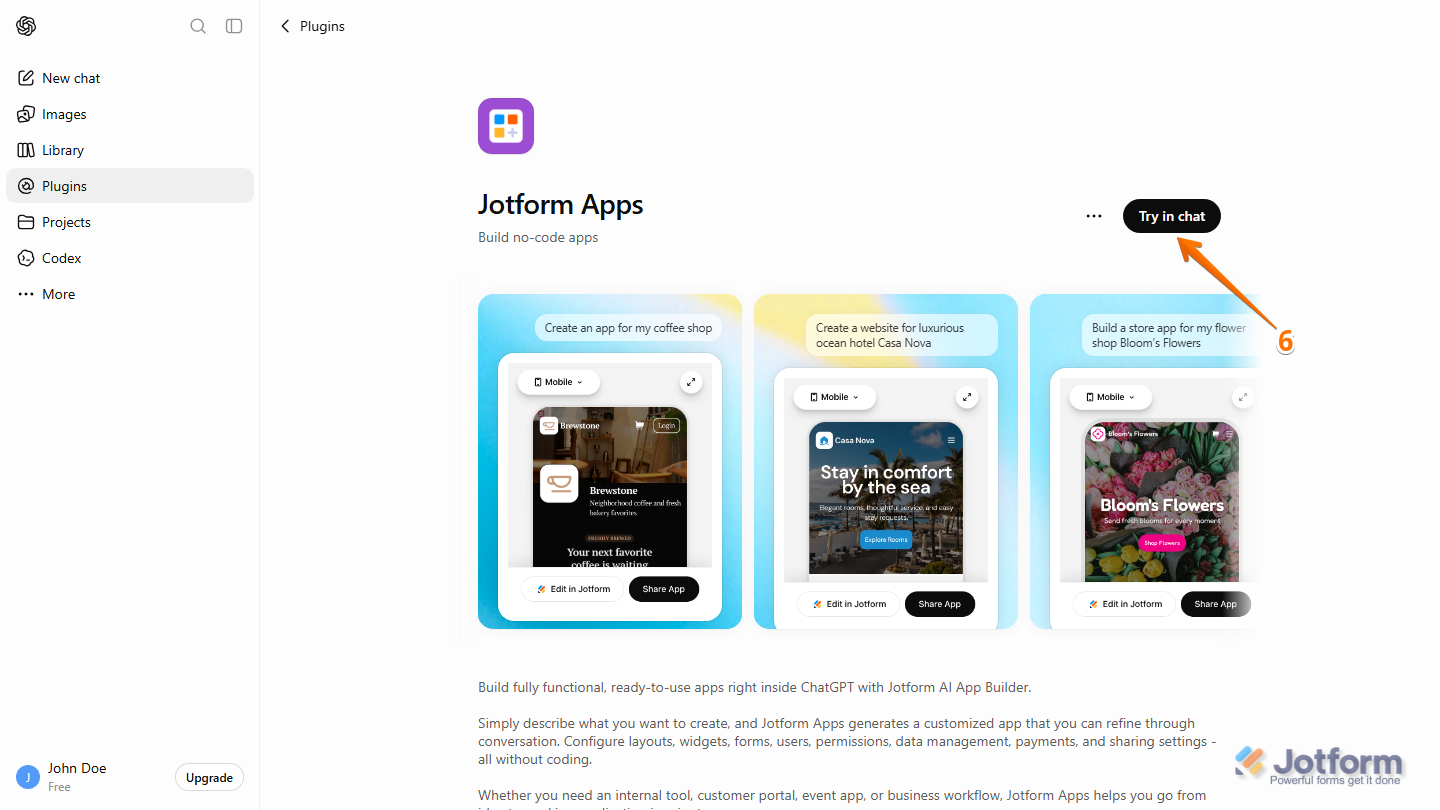
That’s it! You’re now ready to create Jotform Apps directly from ChatGPT.
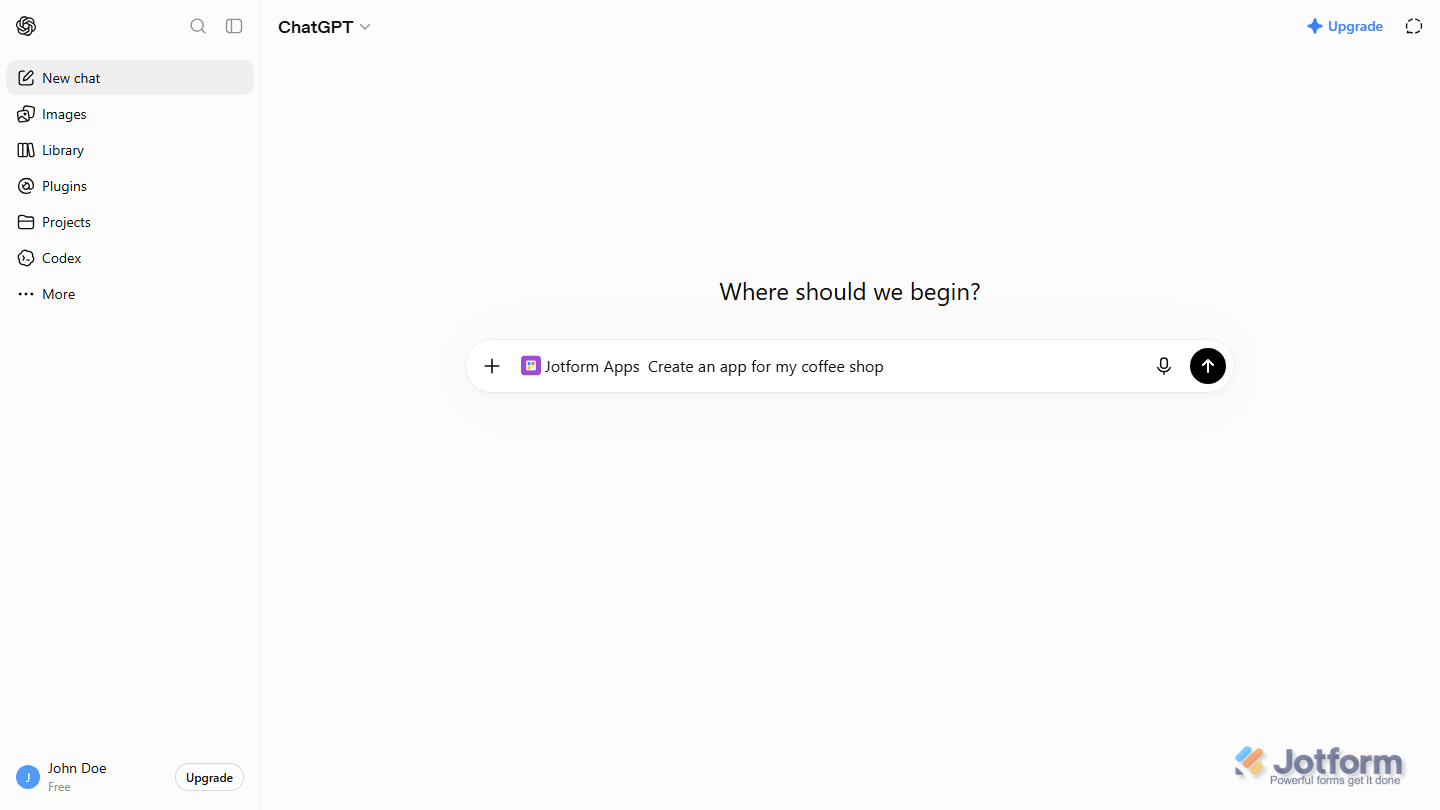
Creating an App Using ChatGPT
Once the Jotform Apps plugin is installed, you can create an app by describing what you want in plain language. Here’s how to get started:
- In a new chat, type @Jotform Apps in the prompt box, and then select Jotform Apps from the list that appears.
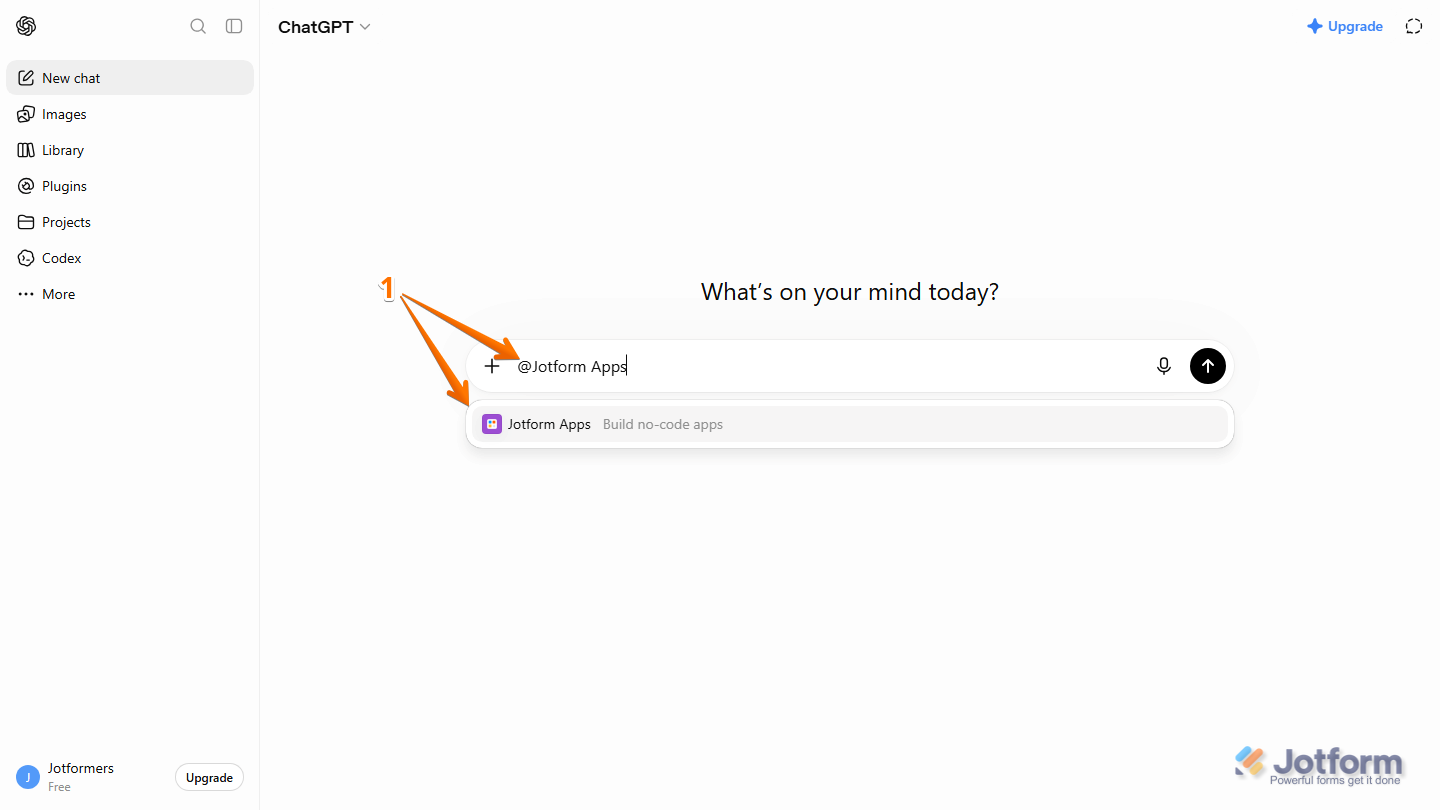
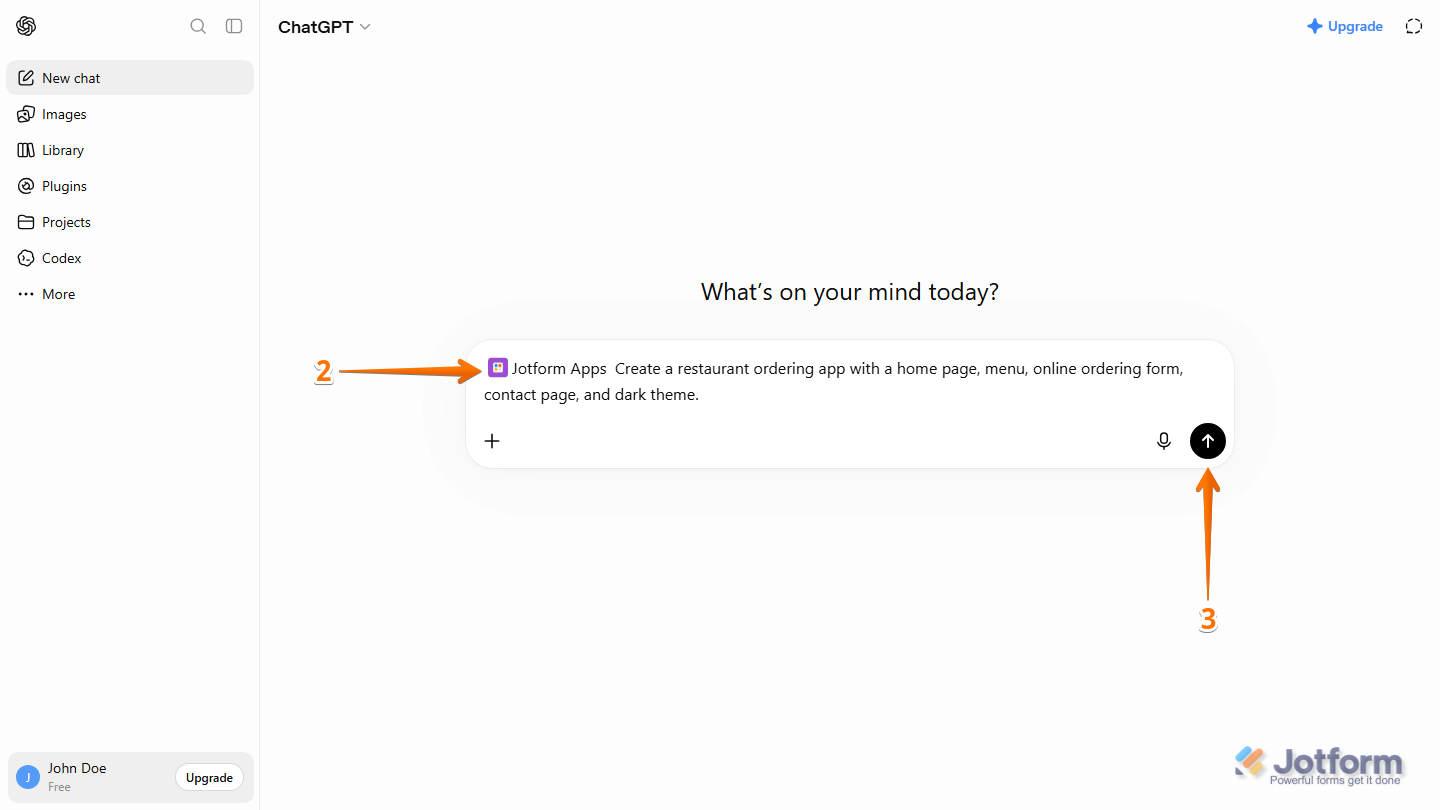
- After Jotform Apps has been added to the prompt box, enter a prompt describing the app you want to create. For example: Create a restaurant ordering app with a home page, menu, online ordering form, contact page, and dark theme.
- Then, click on the Upward Arrow icon or press Enter on your keyboard to generate your app.
- If prompted, review the requested permissions, then click on Allow Once or Always Allow to let ChatGPT use Jotform Apps.
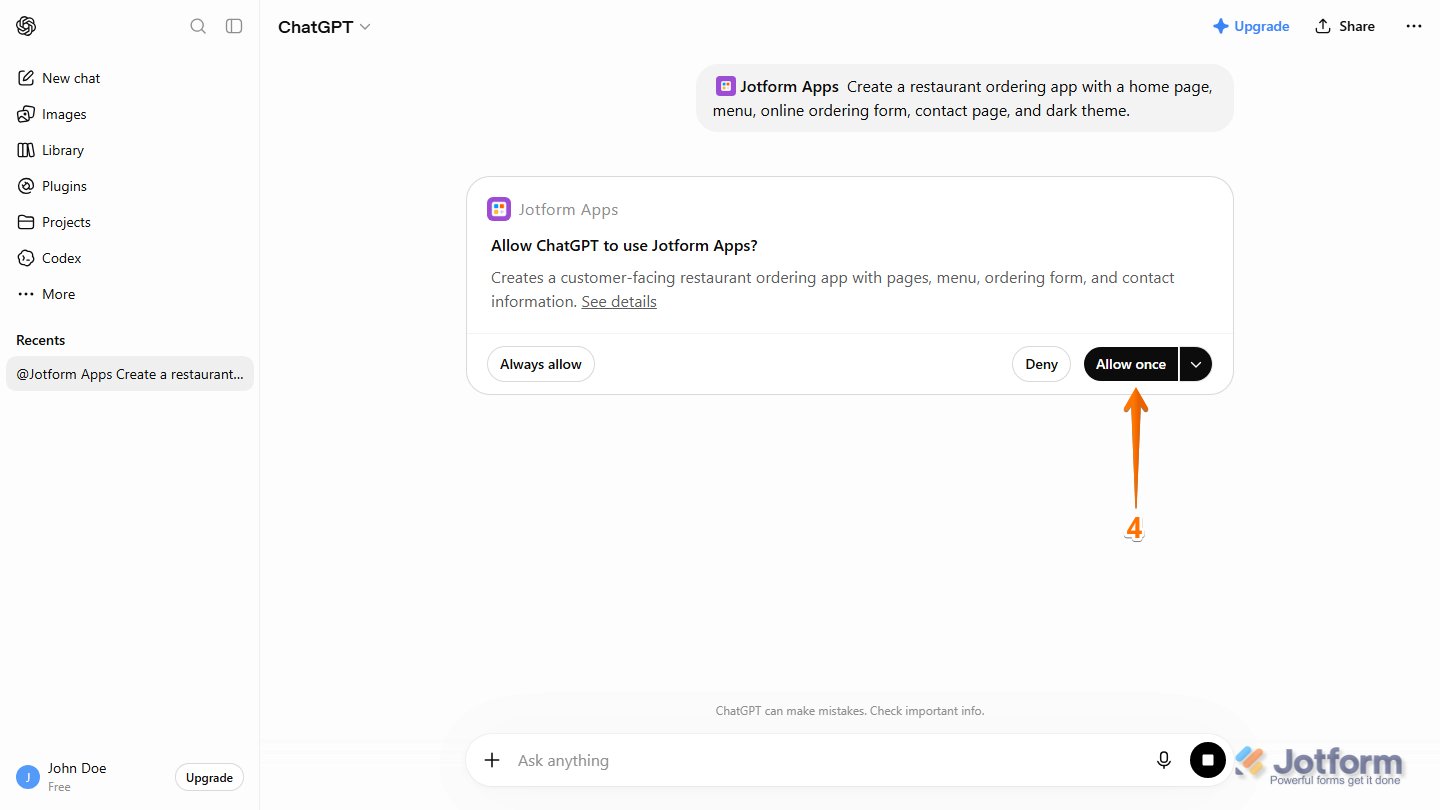
Note
The permission prompt only appears the first time you use the Jotform Apps plugin. If you select Always Allow, you won’t be asked again in future chats.
- Once your app has been generated, click on Edit in Jotform to continue customizing it in Jotform App Builder, or click on Share App to choose how you want to share your app.
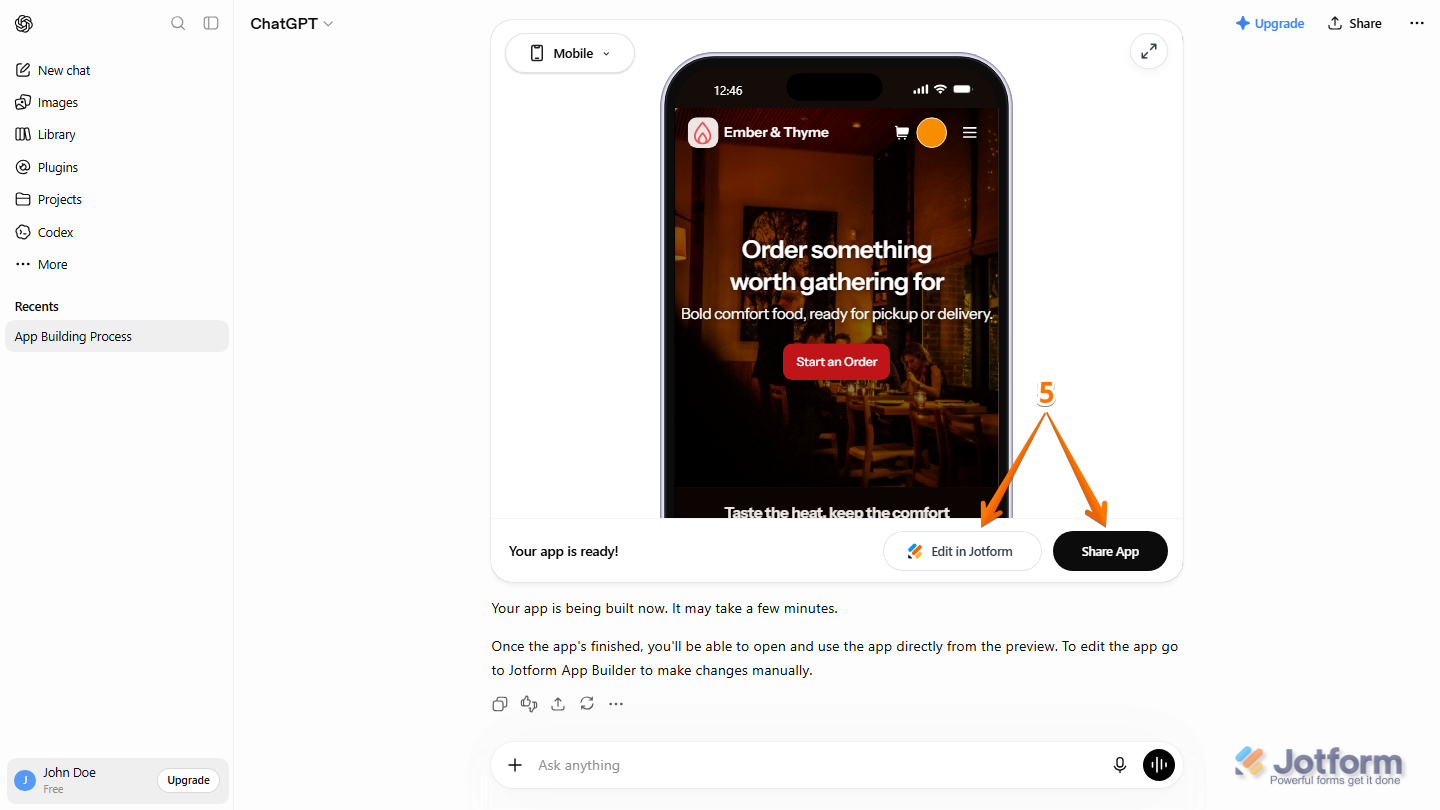
That’s it! Your app has been created successfully and is ready to use.
Editing Your App Using ChatGPT
Once your app has been created, you can continue customizing it by entering additional prompts. Here’s how:
- In the same chat, enter another prompt describing the updates you want to make in the app. Here a few prompts you can try:
- Add a contact page with a map.
- Change the color scheme to blue and white.
- Add a booking form to the homepage.
- Create an FAQ page.
- Add a gallery section.
- Then, click on the Upward Arrow icon or press Enter on your keyboard to update your app.
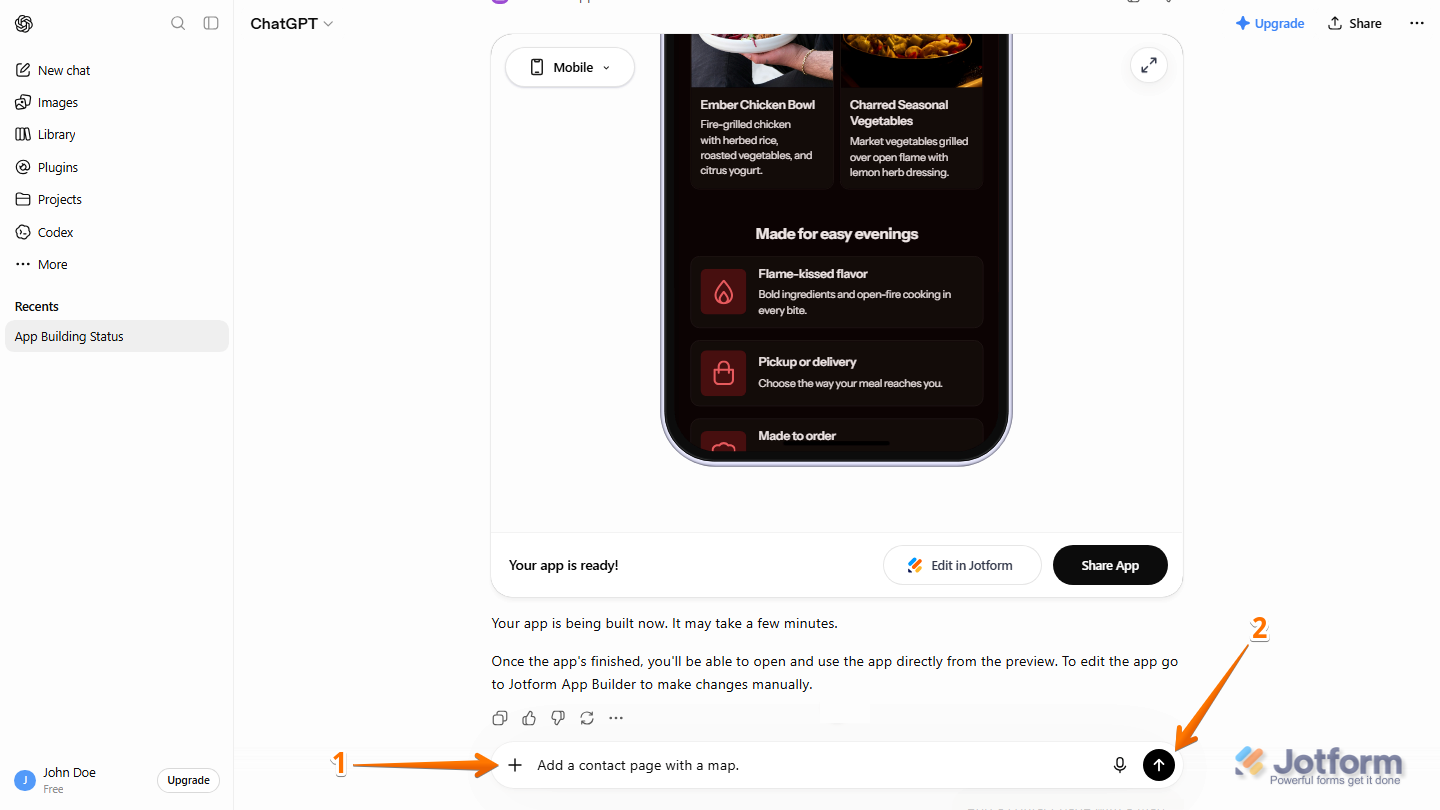
- Once your app has been updated, click on Edit in Jotform to continue customizing it in Jotform App Builder, or click on Share App to choose how you want to share your app.
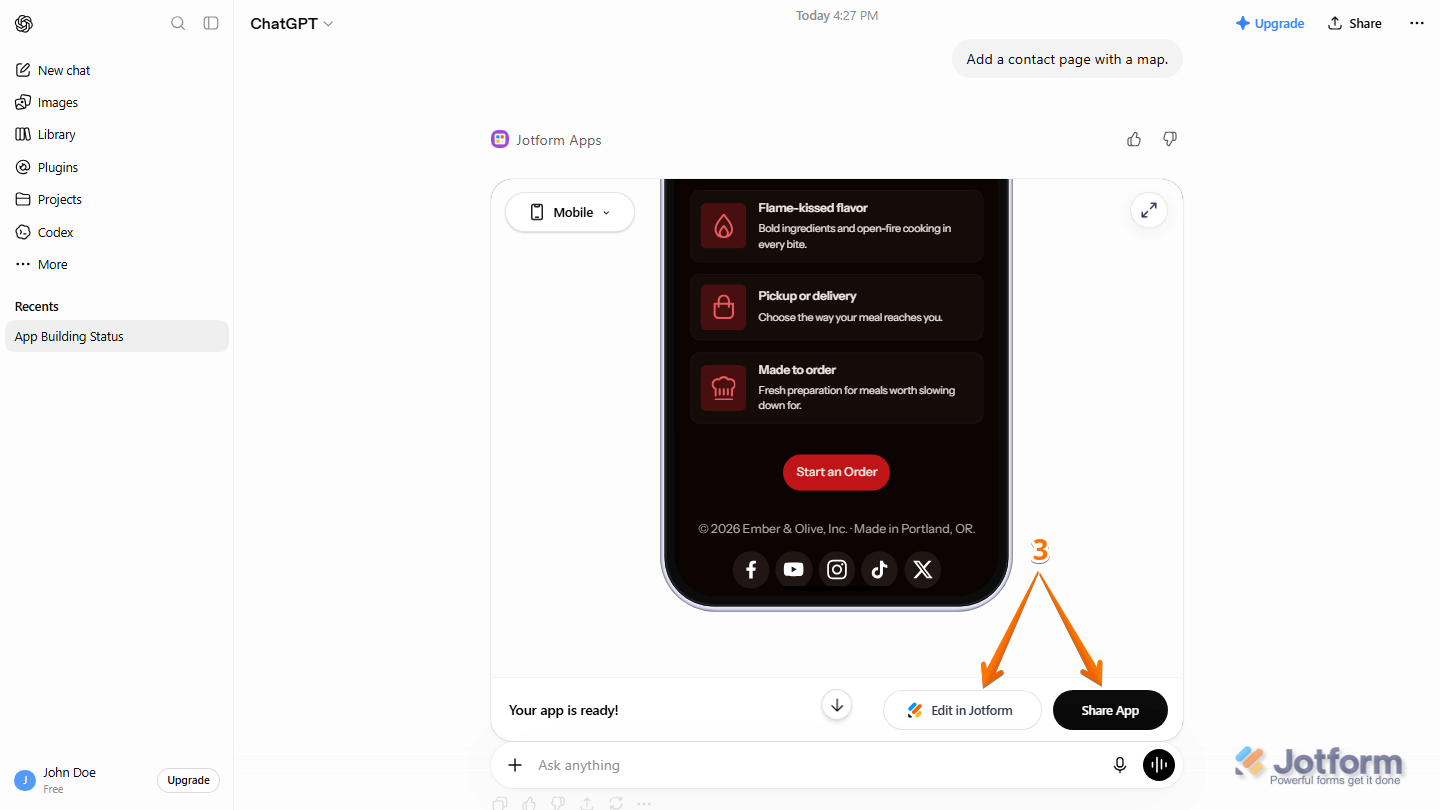
That’s it! You can continue refining your app through additional prompts at any time.

Send Comment: