Creating a file upload form shouldn’t require the people submitting files to create an account or log in. Whether you’re collecting resumes, project files, images, or documents from clients and colleagues, a simple upload form makes it easy for anyone to send what you need without extra steps or the hassle of a login barrier.
Creating File Upload Forms From a Template
Jotform offers a variety of file upload form templates you can choose from and customize. You can start with a simple template or opt for a more advanced layout that suits your personal or business needs. Creating a file upload form from a template is simple—here’s what to do:
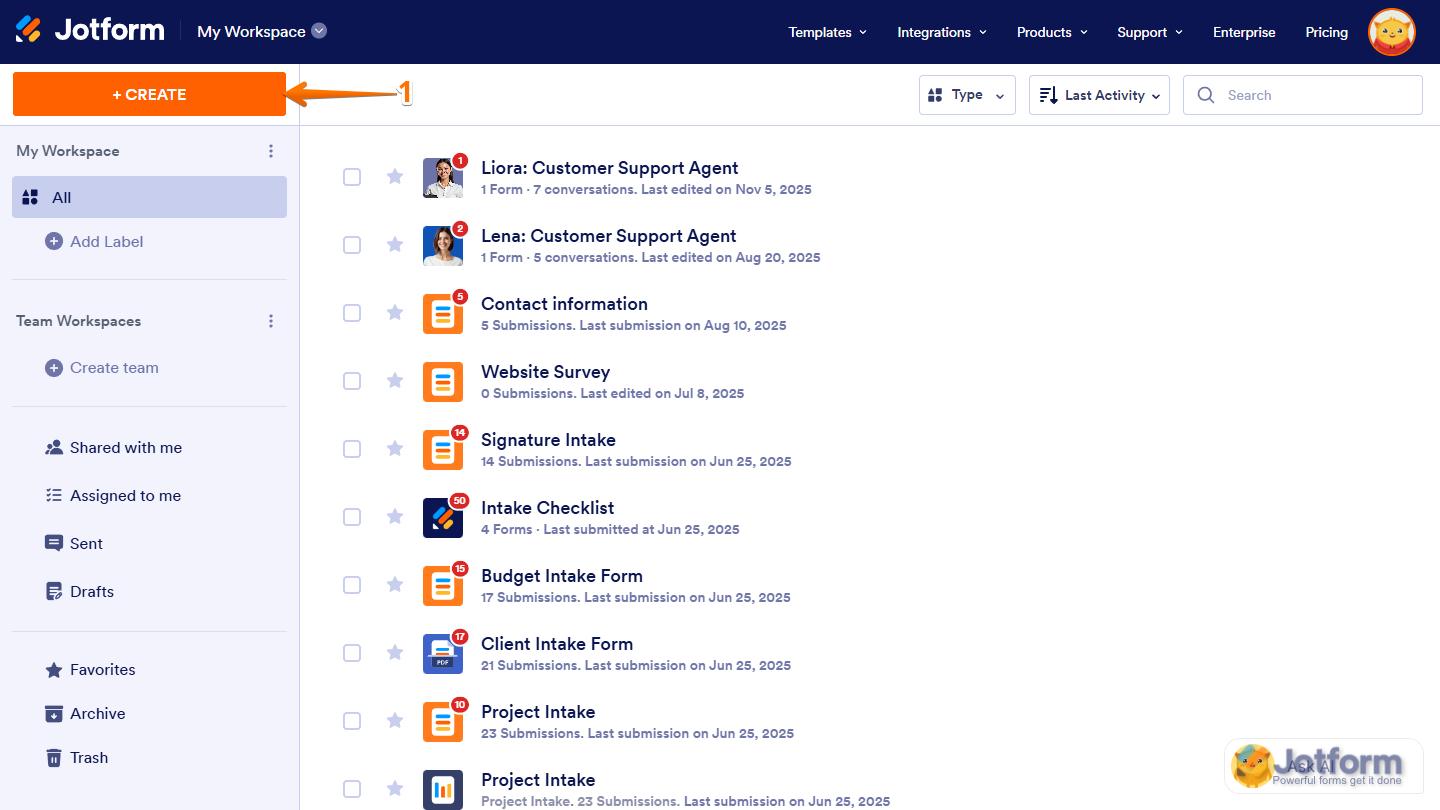
- On your My Workspace page, click on Create on the top-left side of the screen.
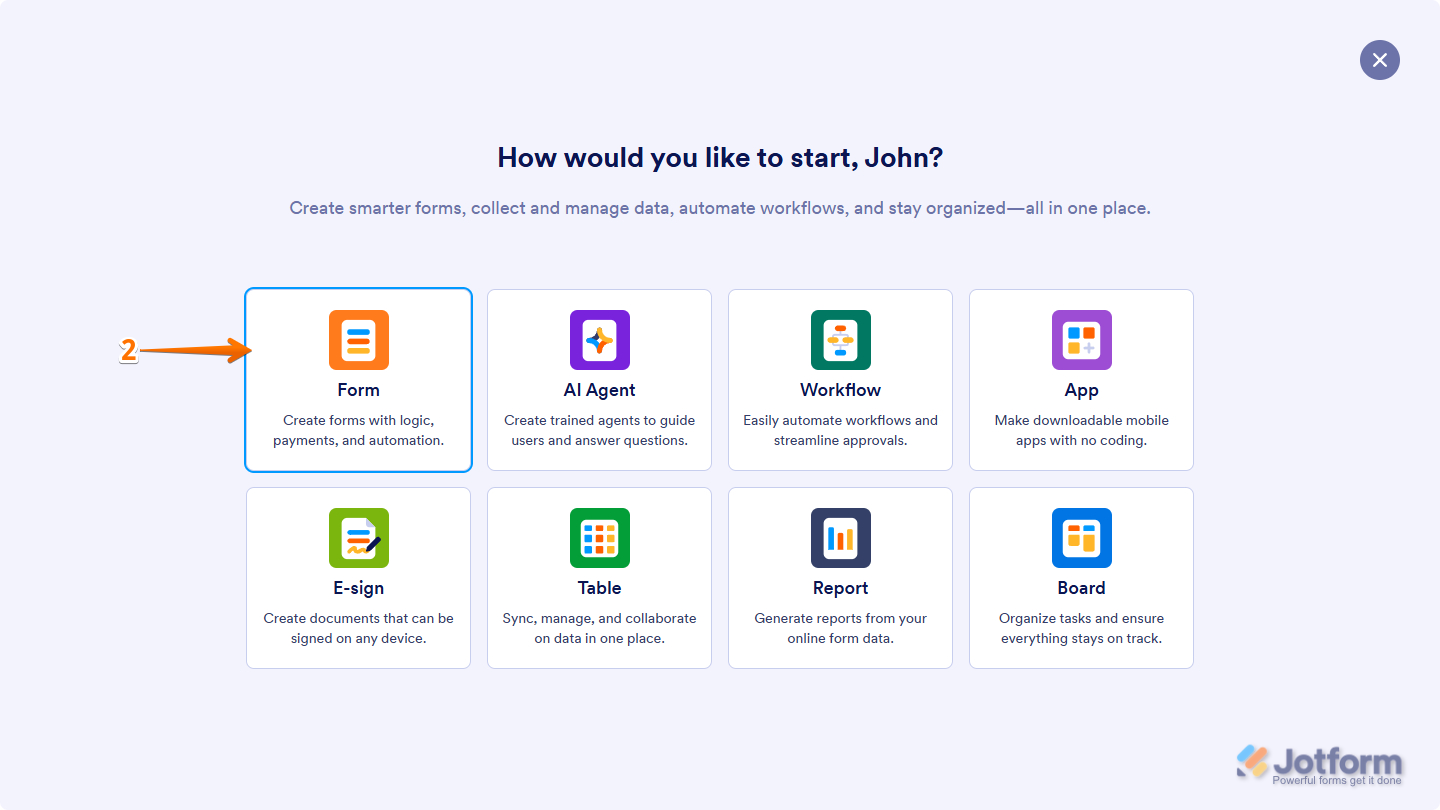
- In the window that opens, click on Form.
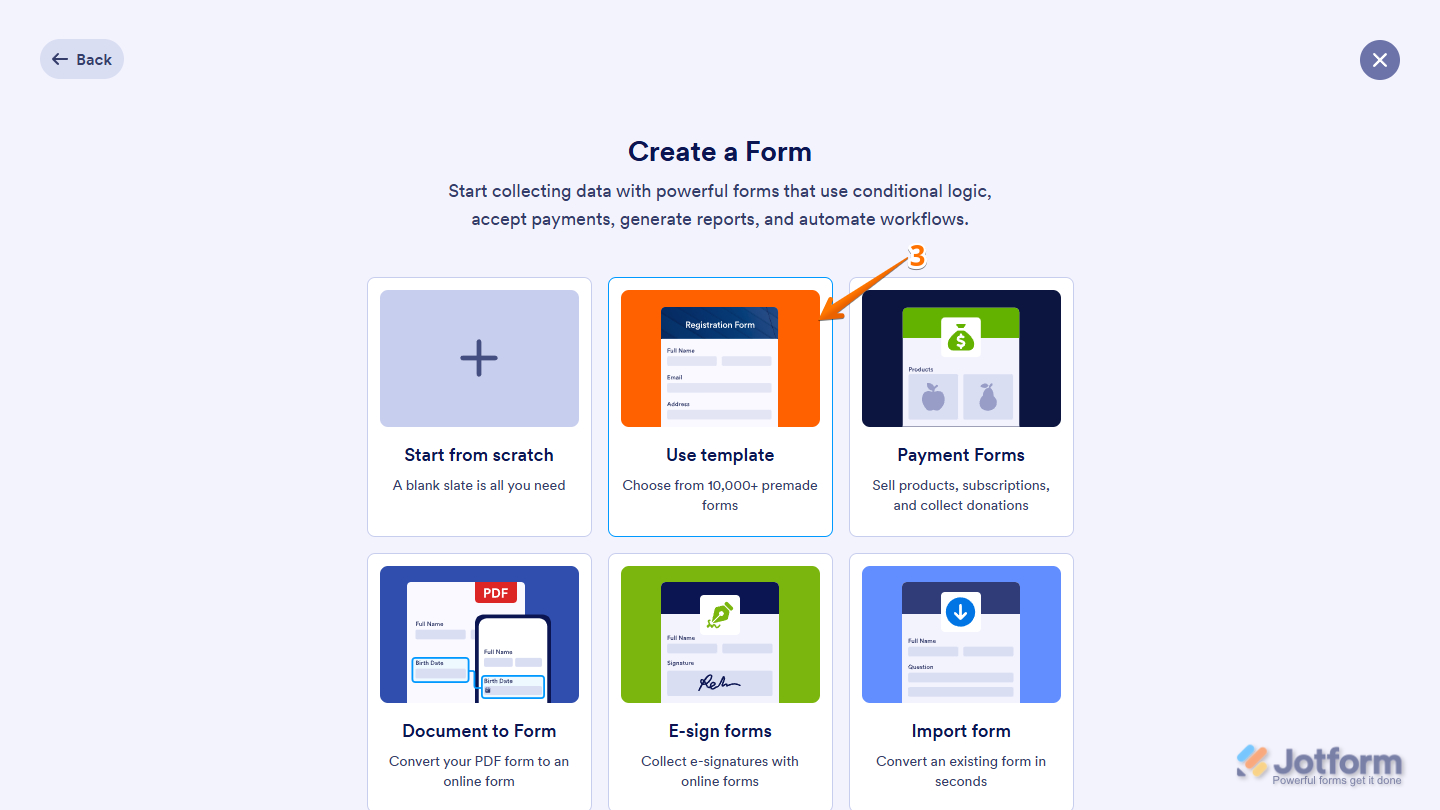
- Then, in the Create Form window that opens, select Use Template.
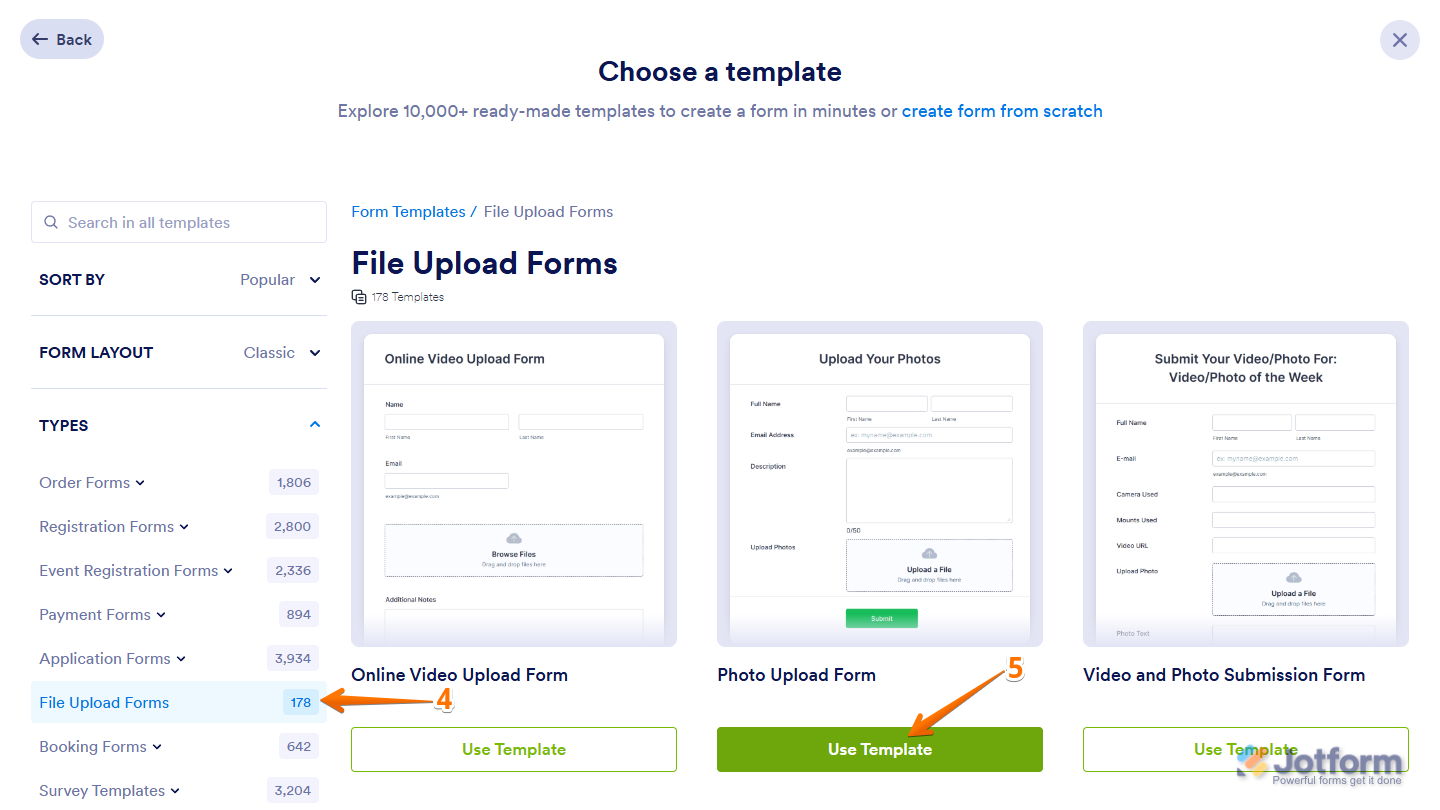
- Next, in the menu on the left side of the Choose a Template page, under the Form Type tab, click on File Upload Forms.
- Now, select a template and click the Use Template button to create the form.
Creating a File Upload Form From Scratch
You can also create a file upload form from scratch. This gives you full control over the layout, fields, and settings so you can build something tailored to your exact needs. Add only the elements you want, decide how files are collected, and design an upload form that works the way you do. This is how it’s done:
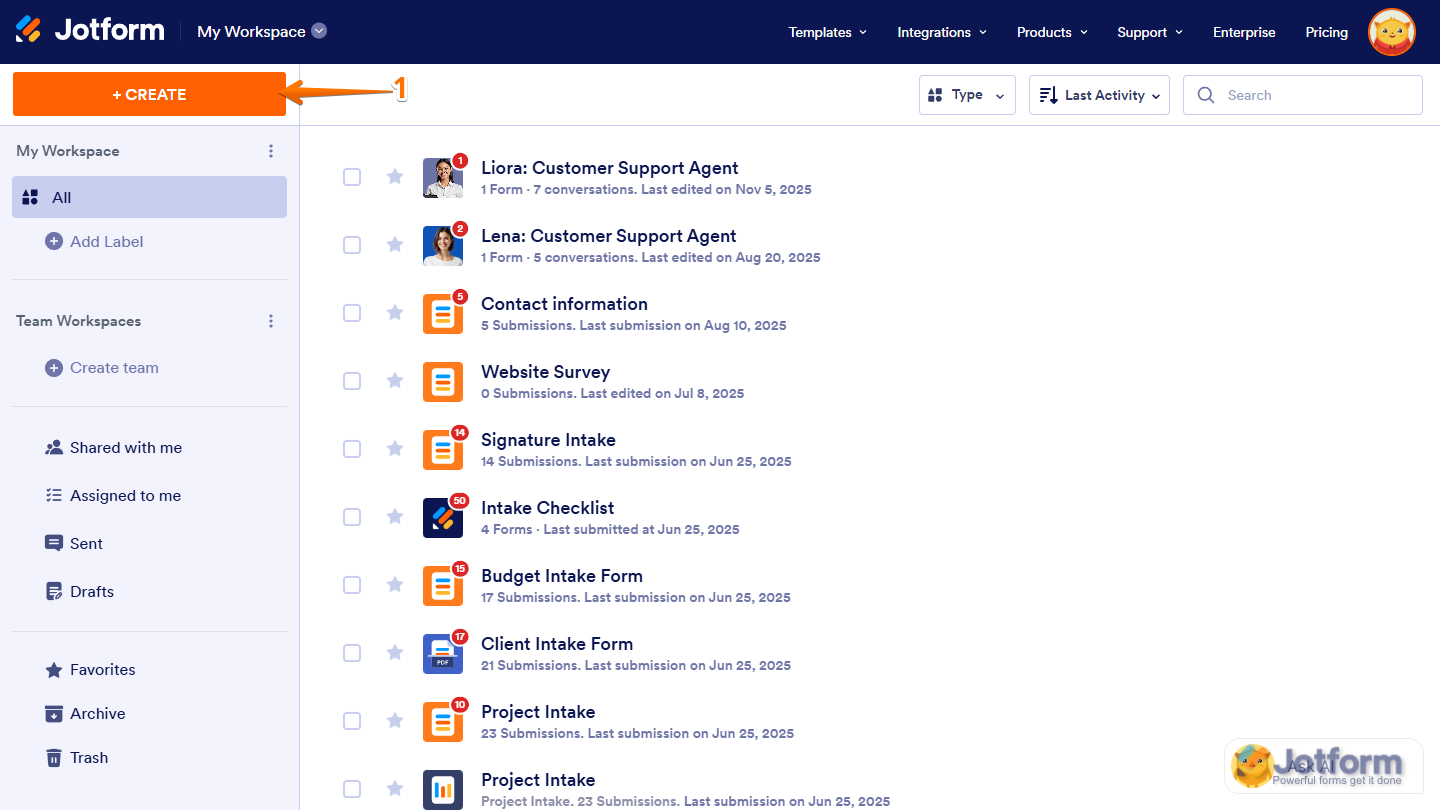
- On your My Workspace page, click on Create on the top-left side of the screen.
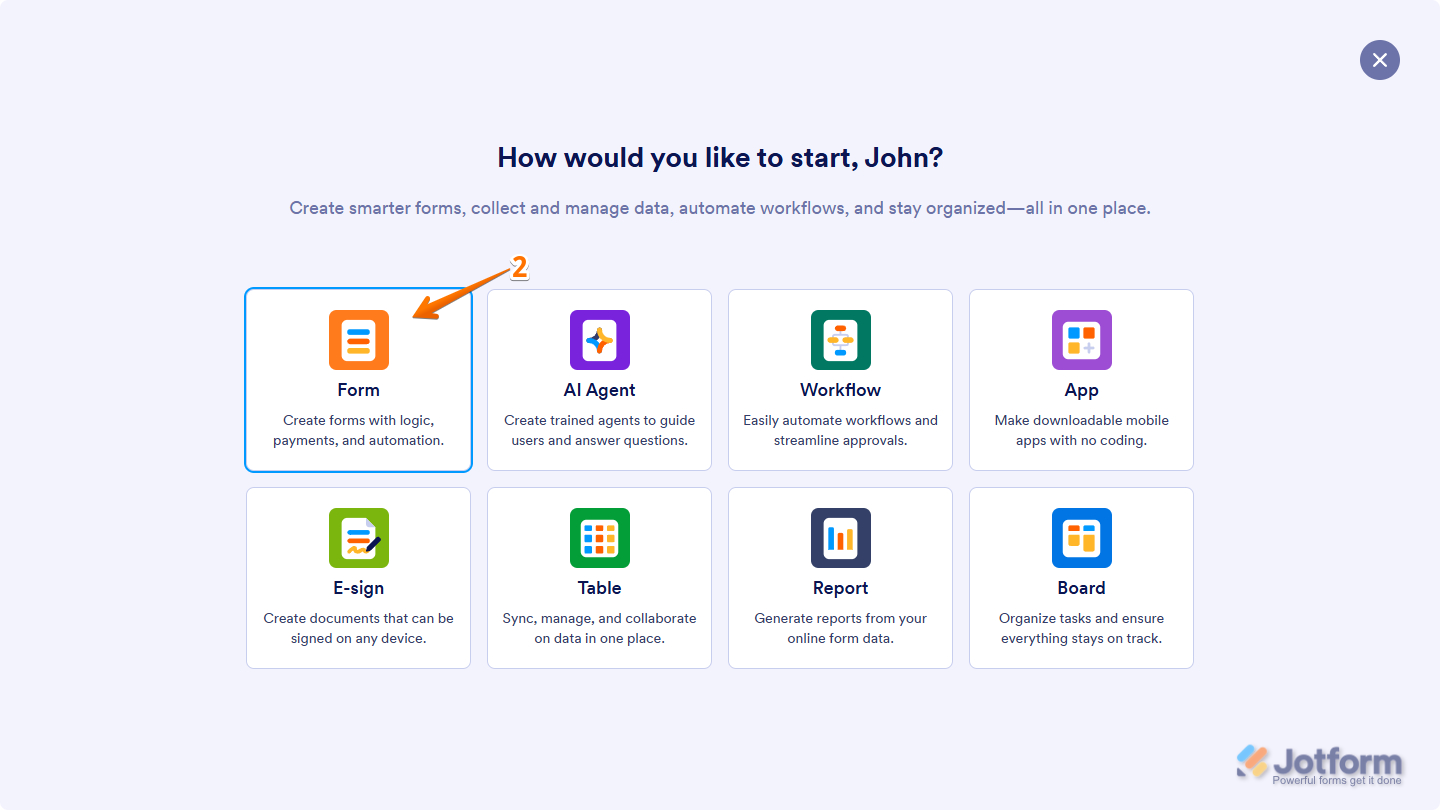
- In the window that opens, click on Form.
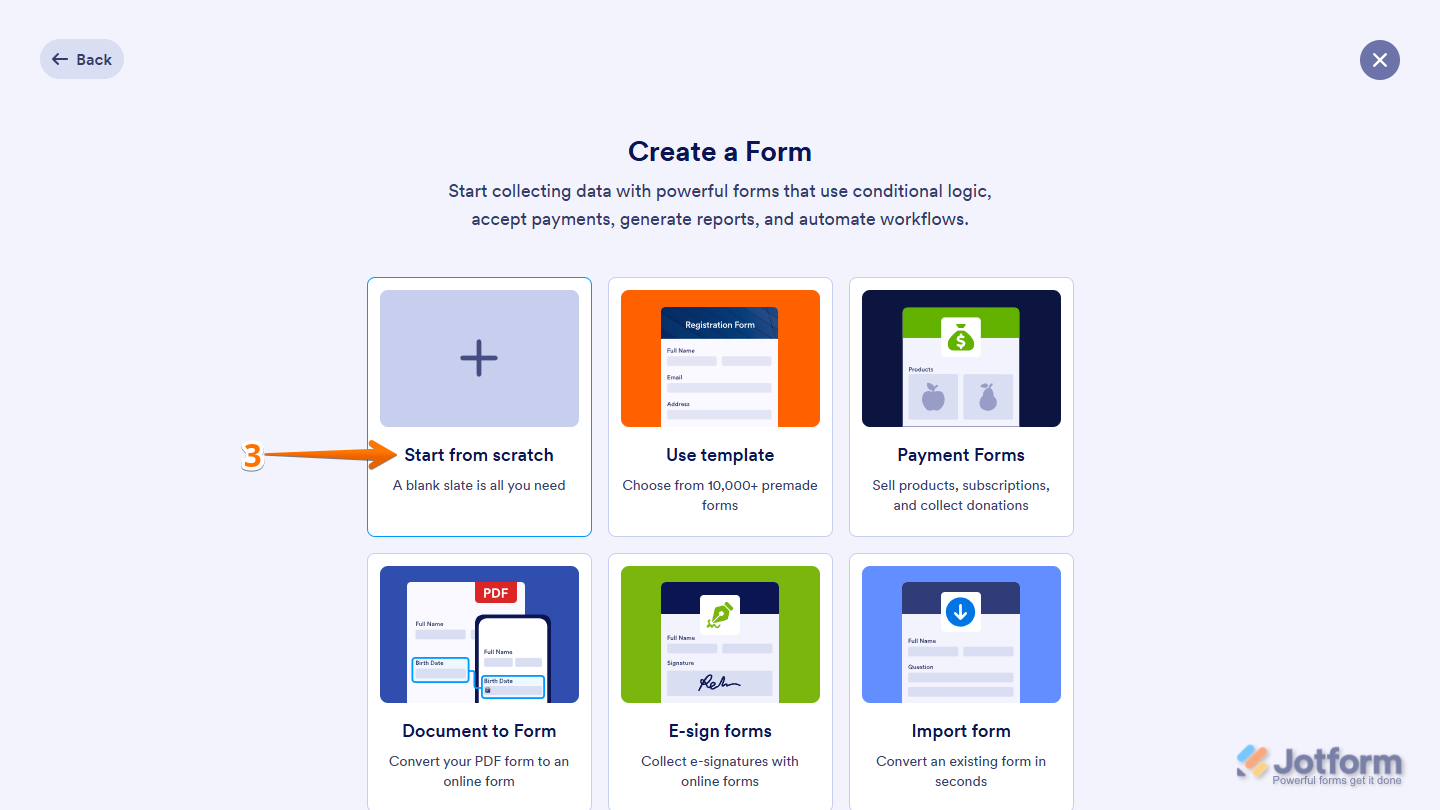
- Then, in the Create a Form window that opens, select Start From Scratch.
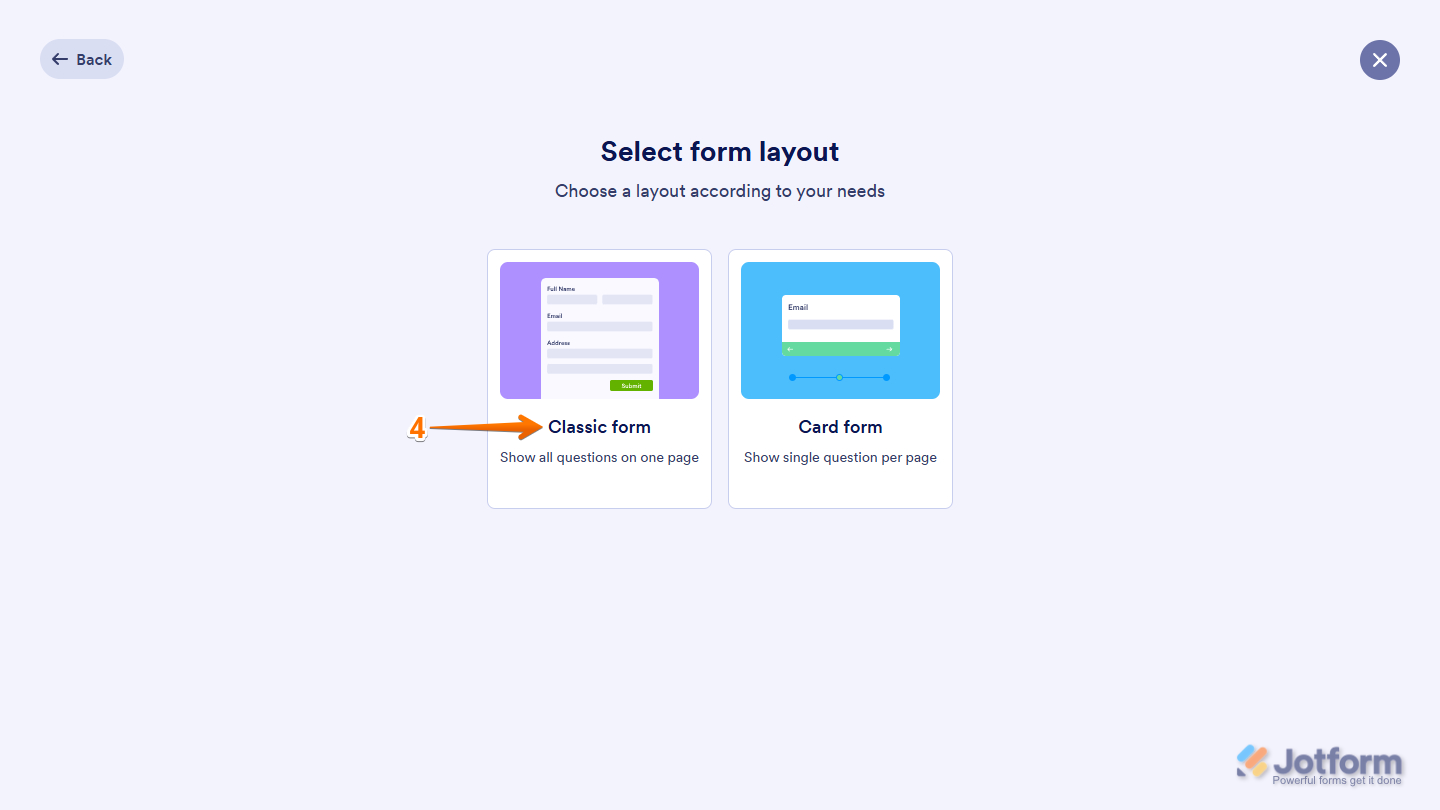
- Next, on the next page, select your form layout: Classic or Card Form. Let’s select Classic Form as an example.
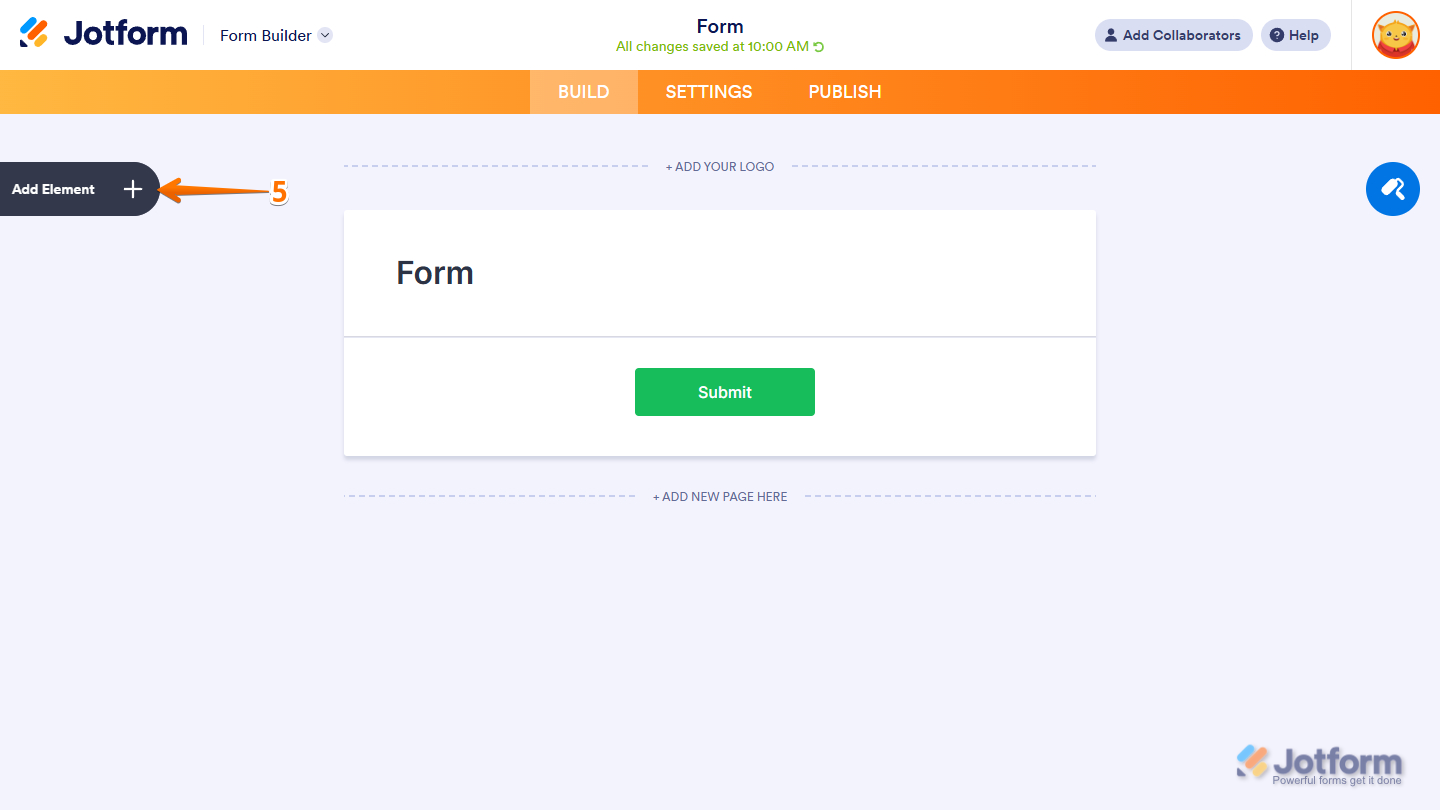
- In Form Builder, click on Add Element on the left side of the page.
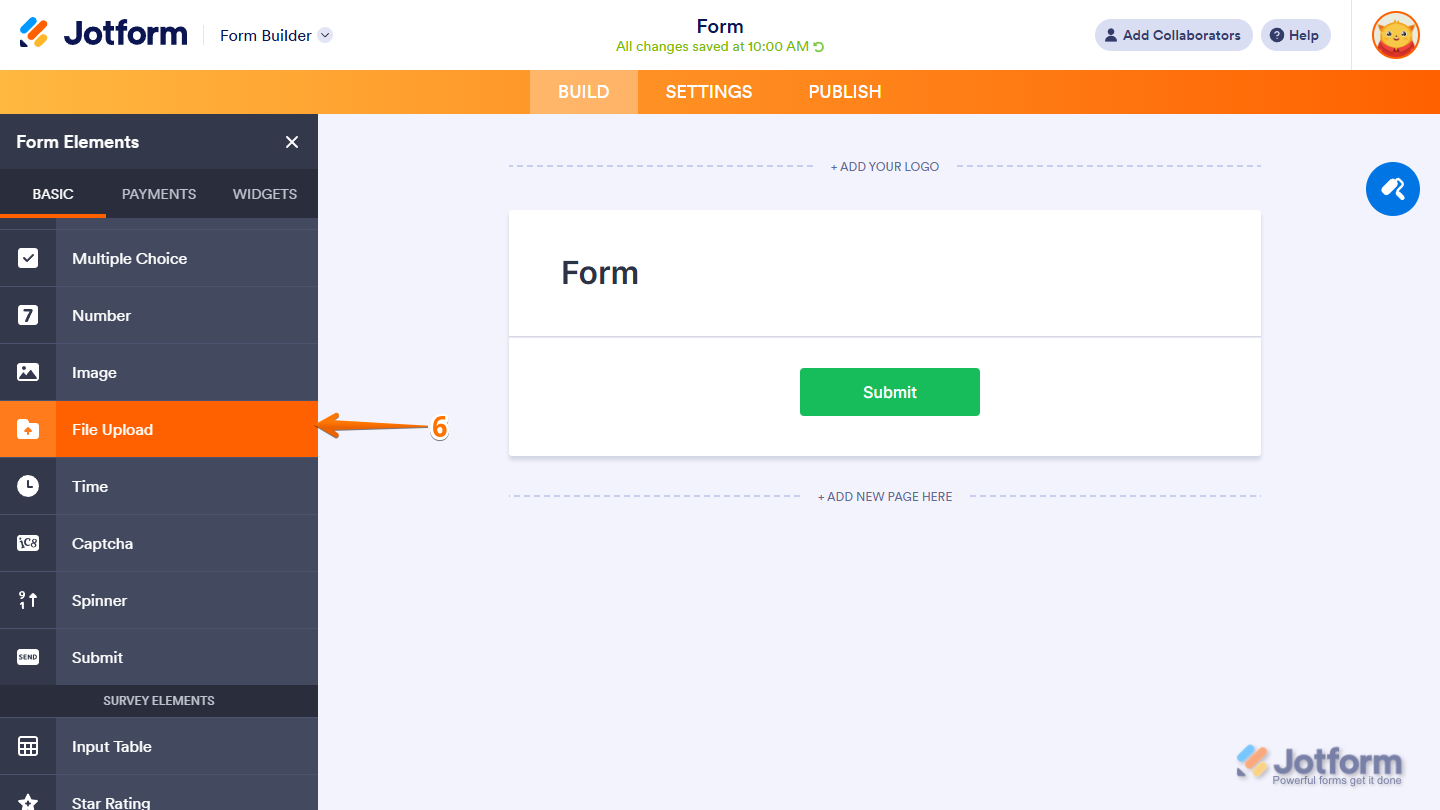
- Now, in the Form Elements menu, under the Basic tab, click on File Upload. Or, just drag and then drop it to where you want it to be on your form.
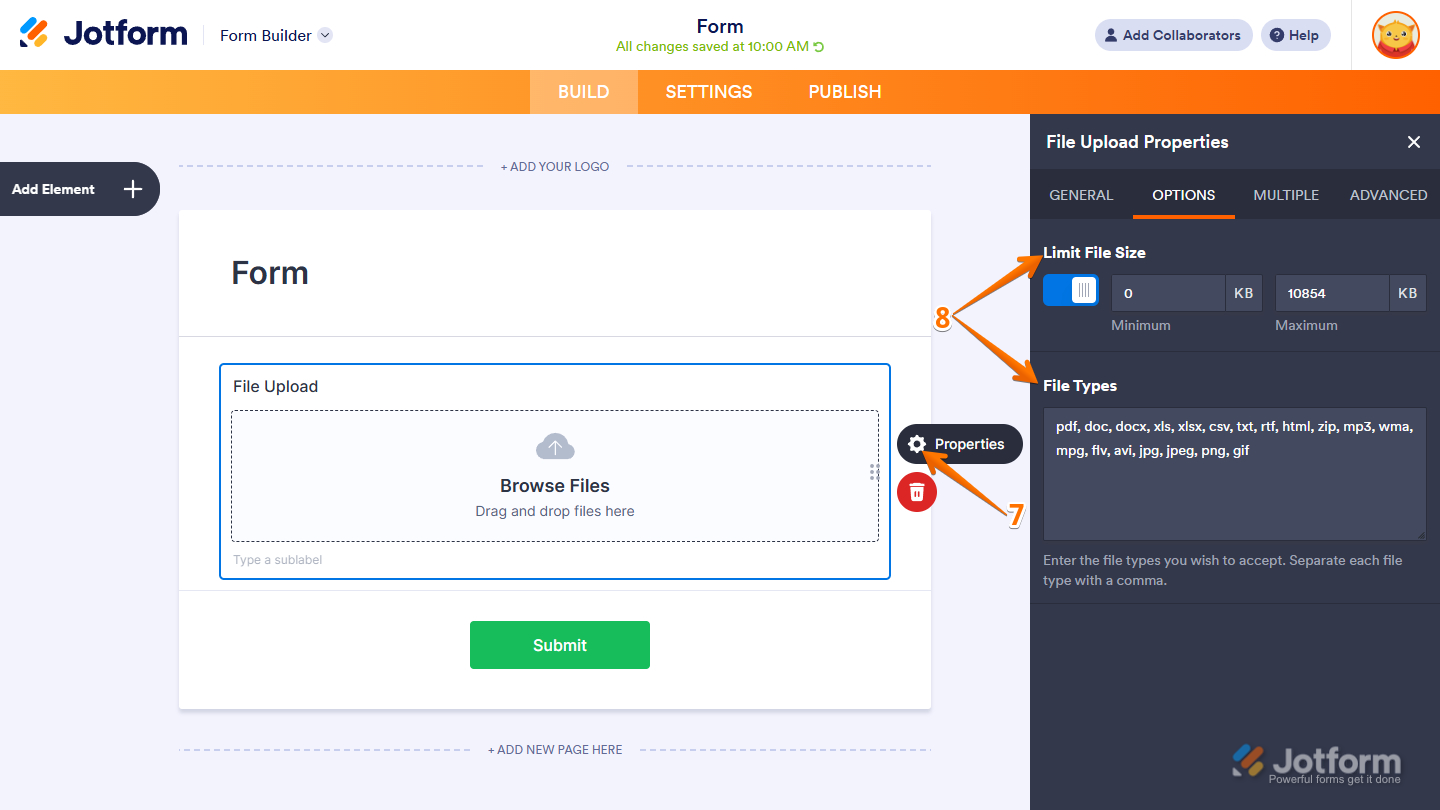
- Next, on the right side of the File Upload field, click on the Gear icon.
- In the File Upload Properties window, under the Options tab, set the Upload File Size in the Limit File Size section and enter the File Formats you want to allow in the File Types section.
Note
- To complete your form, add any other fields you want using the Form Elements menu in the Form Builder.
- You can also select and apply a theme from the Themes section to give your form the look and style you prefer. Check out our guide on How to Apply a Theme to Your Form to learn more.
- You can easily create audio recording file upload forms following exactly the same steps explained in this guide. The file upload field allows uploading popular audio file types such as .mp3 and .wma.
That’s it! You’ve successfully added a file upload field to your form, and you’re now ready to start collecting files from users.

Send Comment: