Tables support adding as many Action Buttons as needed, offering flexibility for various tasks. However, when a table includes multiple Action Buttons that perform different actions—such as sending the same forms or emails to different recipients, sharing data with various third-party platforms, syncing files to distinct external services, or requesting updates from different individuals, such as team members or form respondents—customizing their appearance becomes essential. Styling or renaming buttons make their purpose immediately recognizable, reducing confusion and improving usability, especially for collaborators with whom you’ve shared your table.
Follow the steps below to customize the Action Buttons on your table:
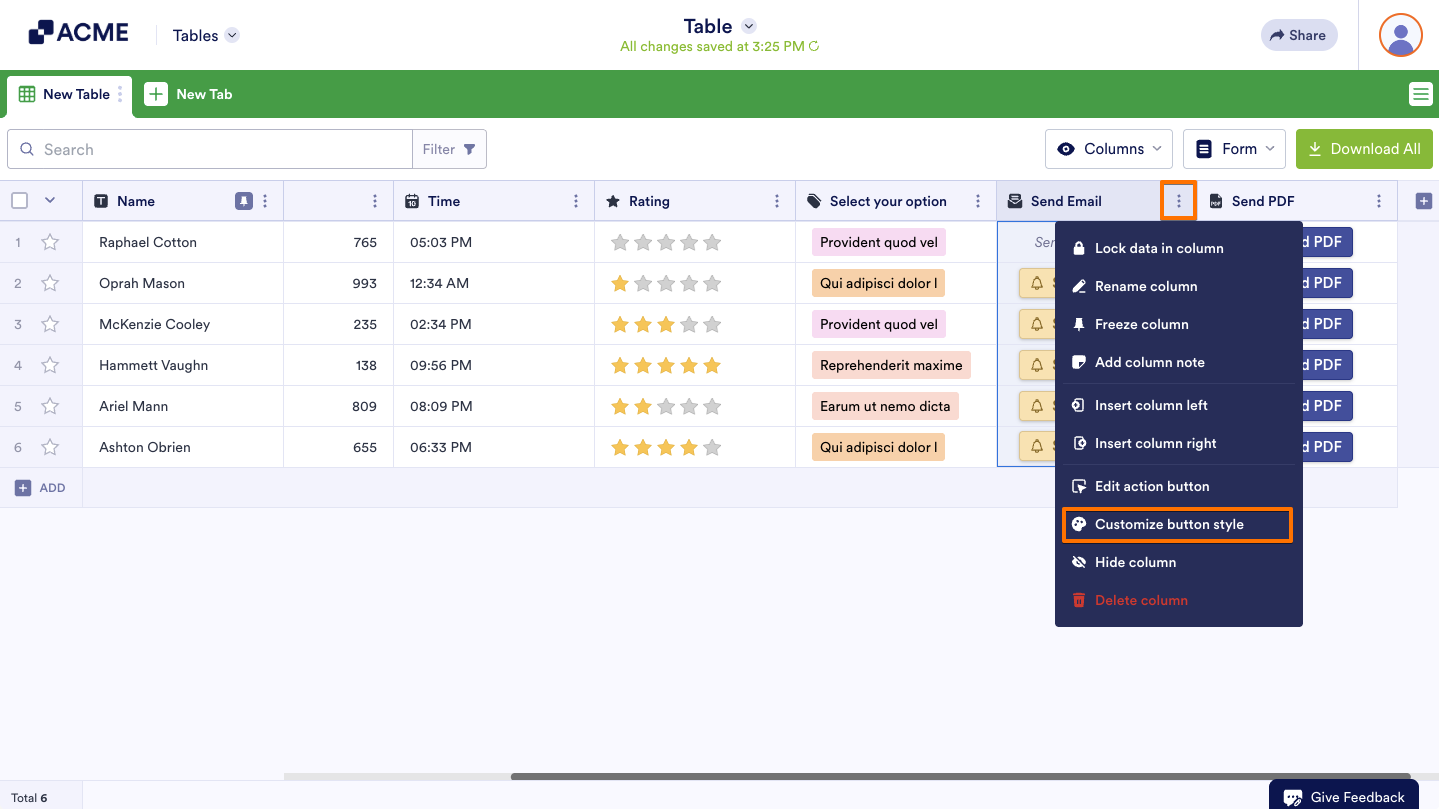
- In Tables, click on the Three Dots icon next to the name of the Action Button column to open the Column menu and select Customize Button Style.
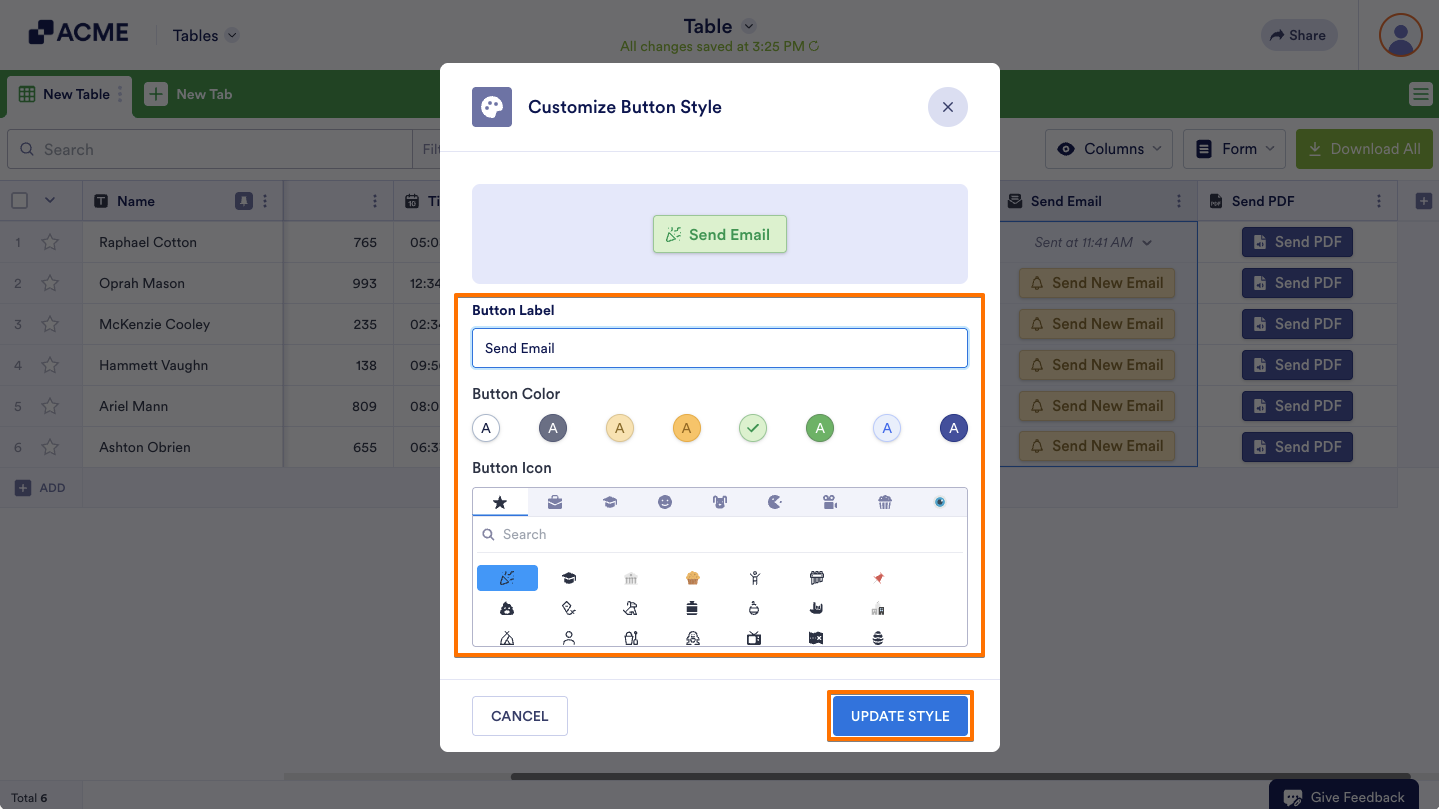
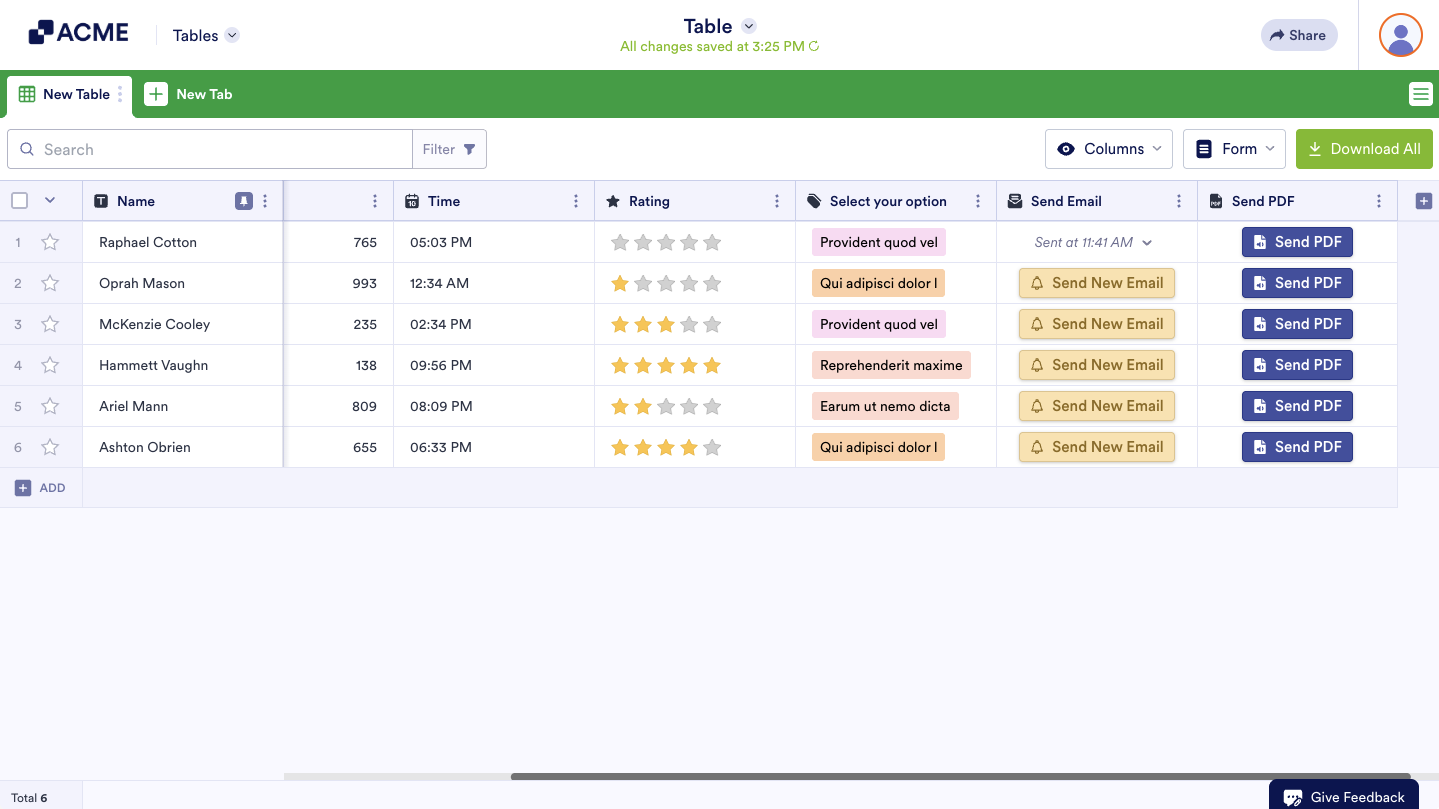
- In the Customize Button Style window, update the label, change the color, and add icons to the buttons in that column. Once you’re done, click on Update Style to save your changes.

Send Comment: