As the Team Admin of your Jotform Team, you have the power to personalize your workspace. Whether you’re updating your team’s avatar, selecting the perfect cover photo, or renaming your workspace, you can create a space that represents your team’s unique identity.
Accessing Your Team Settings
Before you start customizing your team’s workspace, you need to access the Team Settings page. Here’s how to get there:
- On the left side of your Workspace page, click on My Workspace.
- Then, in the menu that comes up, under Team Workspaces, select the team you want to manage. For example, the Content Team.
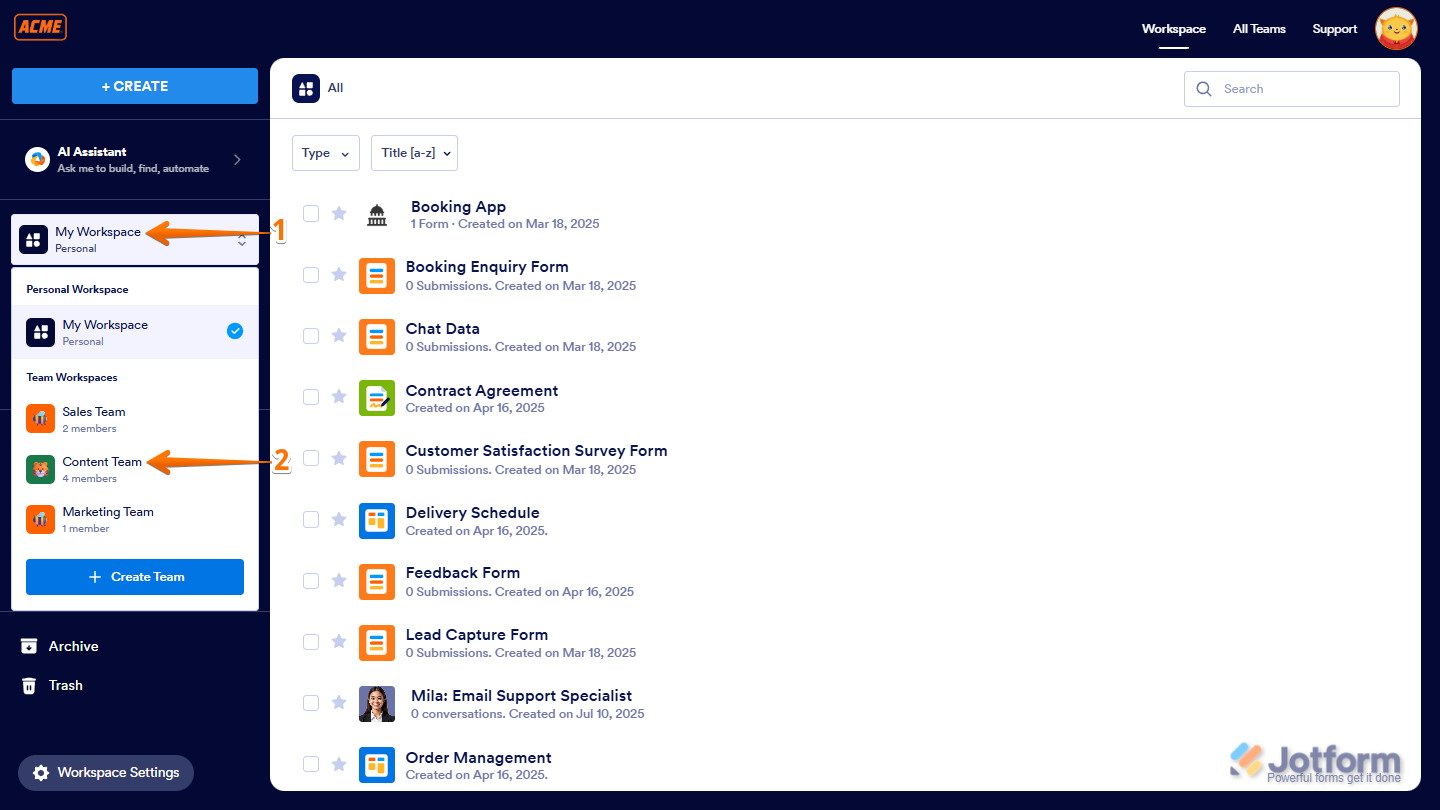
- Next, on the left side of the page of your Team Workspace, click on the Three Dots icon next to All Assets, and then select Team Settings.
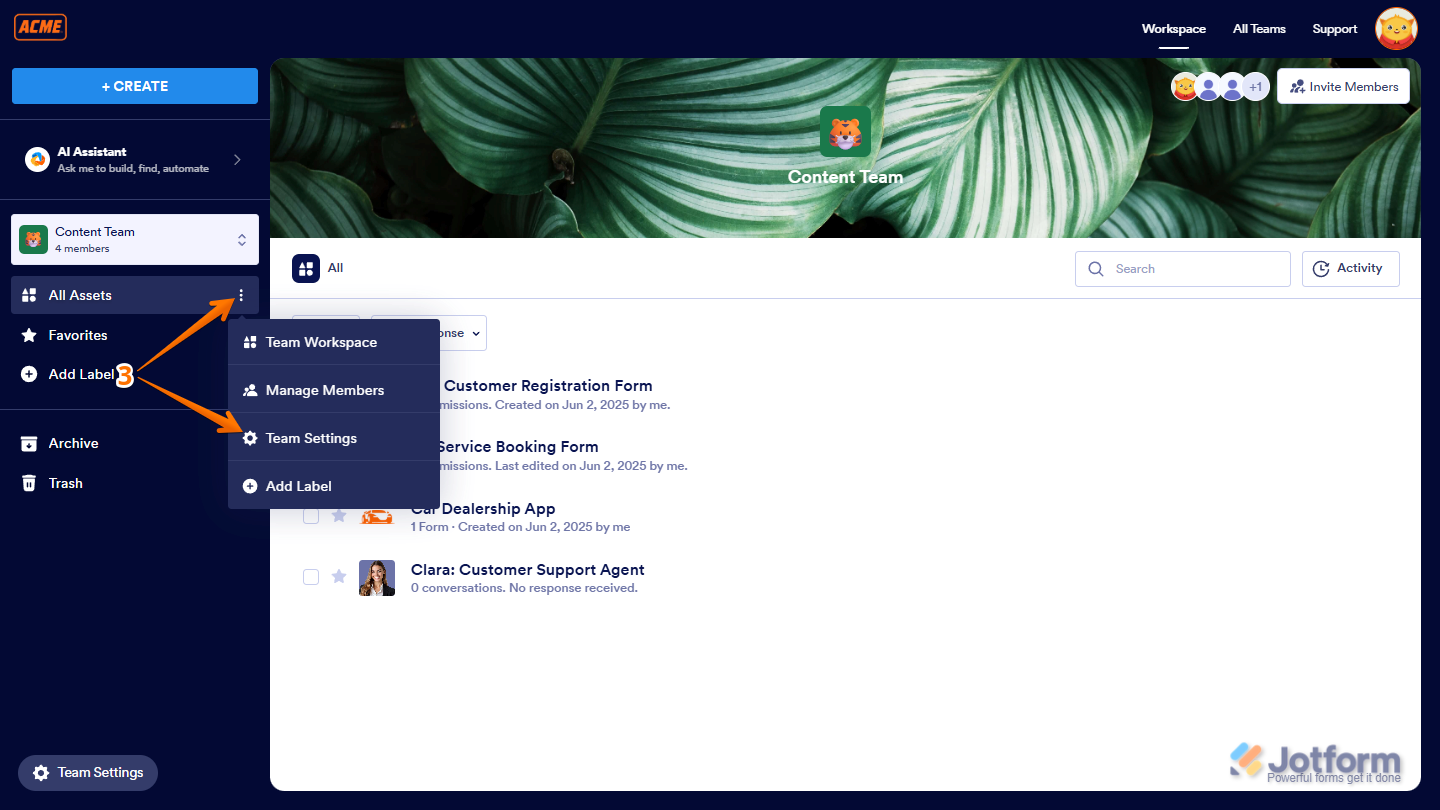
Once you’re on the Team Settings page, you’ll see the following options:
- Customize your team’s avatar
- Change your team’s cover photo
- Repositon your team’s cover
- Rename your team
- Update your team’s URL
Let’s explore each options below:
Customizing Your Team Avatar
Your team’s avatar helps people recognize your team at a glance. You can choose an image or icon that reflects your team’s style and makes it stand out. Here’s how to set it up:
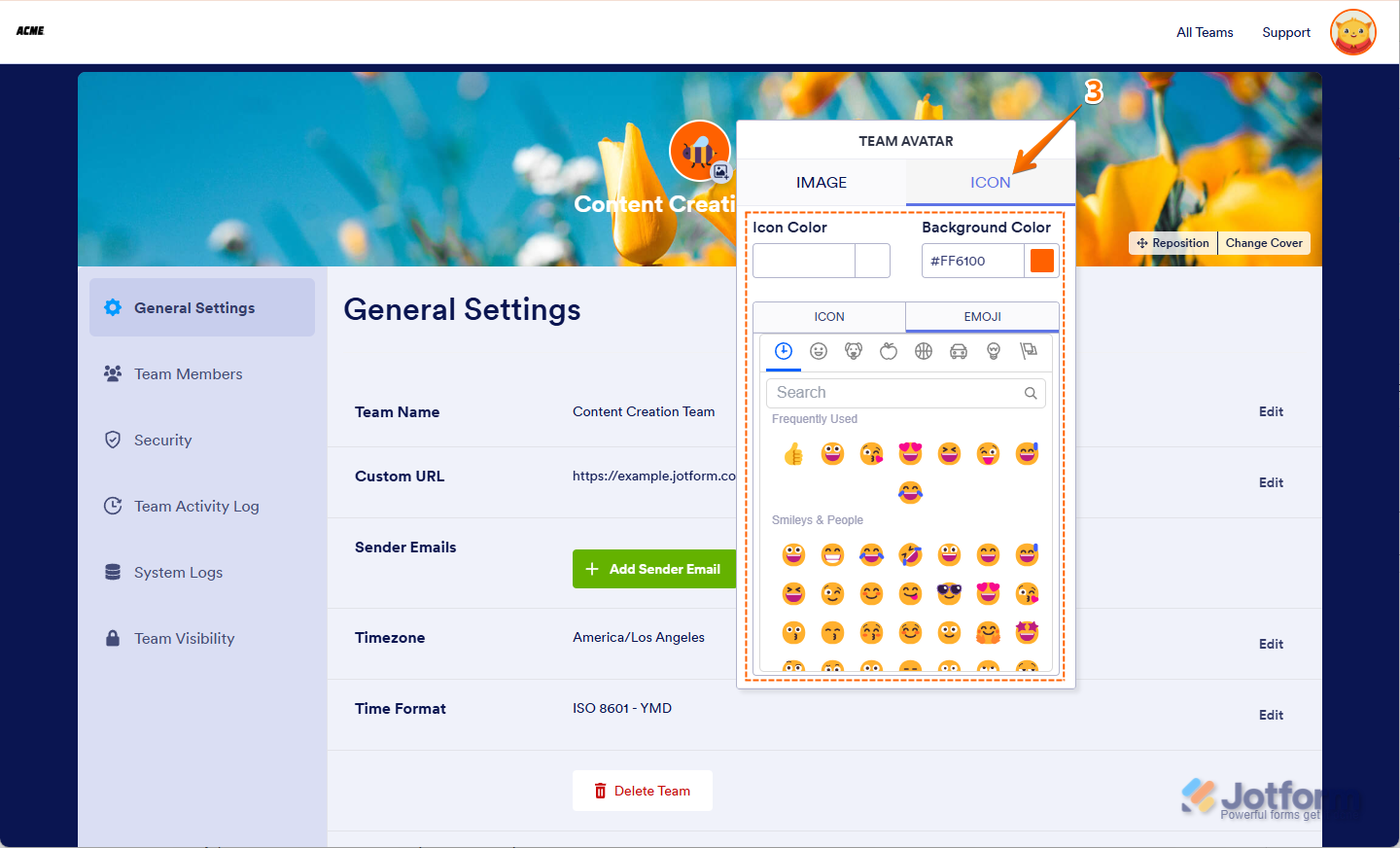
- In the Team Settings, click on your Team Avatar.
- In the Team Avatar window that opens, under the Image Tab, you can:
- Gallery — Pick an image from the built-in gallery.
- Upload — Upload an image from your device.
- Enter URL — Use a direct HTTPS link to your image.

- Under the Icons Tab, you can:
- Icon Color — Change the color of the icon (for outline-style icons).
- Background Color — Set a background color for your icon.
- Icon — Choose from a variety of icons to represent your team.
- Emoji — Use an emoji as your team’s avatar.
Customizing Your Team Cover
Your team cover is the banner displayed in your workspace. You can customize it to create a more welcoming and visually appealing environment. Here’s how to do it:
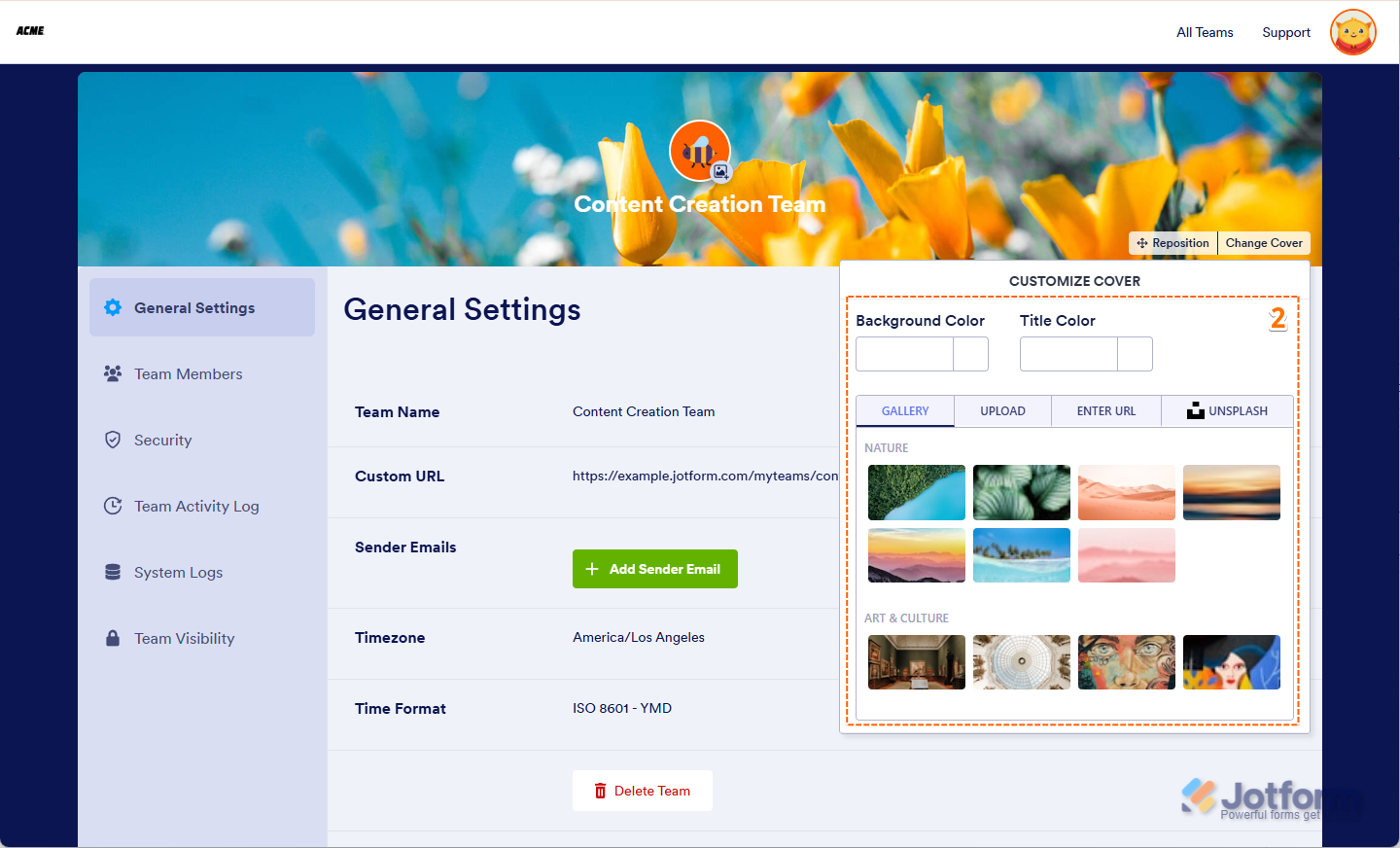
- In the Team Settings, click on Change Cover on the top-right side of the screen.

- In the Customize Cover window that opens, you can do the following things:
- Background Color — Set a background color for images with transparency.
- Title Color — Change the color of your team name on the cover.
- Gallery — Pick a photo from the pre-selected gallery.
- Upload — Upload an image from your device.
- Enter URL — Provide a direct HTTPS link to your cover image.
- Unsplash — Use high-quality, copyright-free images from Unsplash.
Repositioning Your Team Cover
Once you’ve selected a cover image, you can reposition it to frame it just the way you want it to look in your workspace. Here’s how to do it:
- In the Team Settings, click on Reposition on the top-right side of the screen.
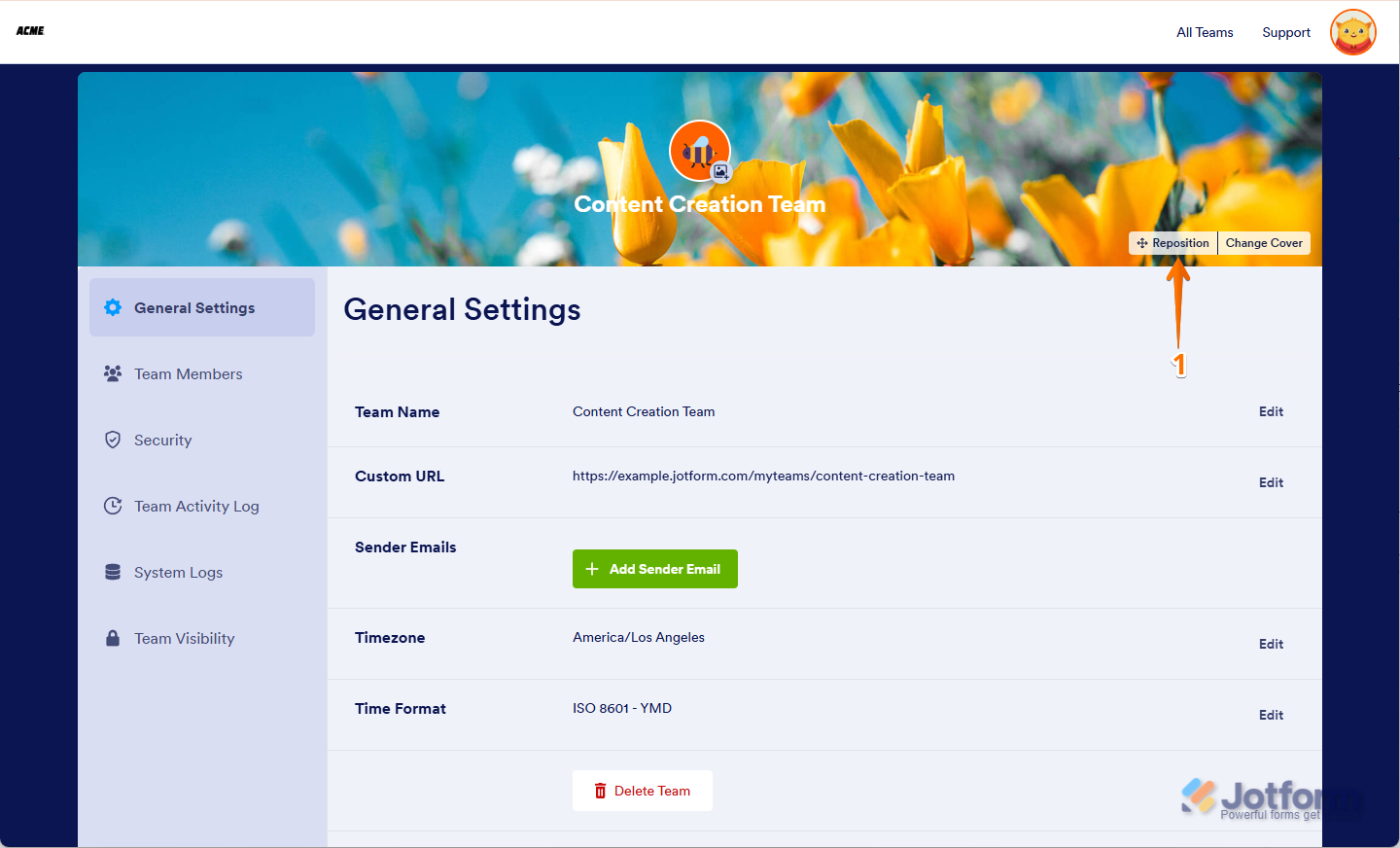
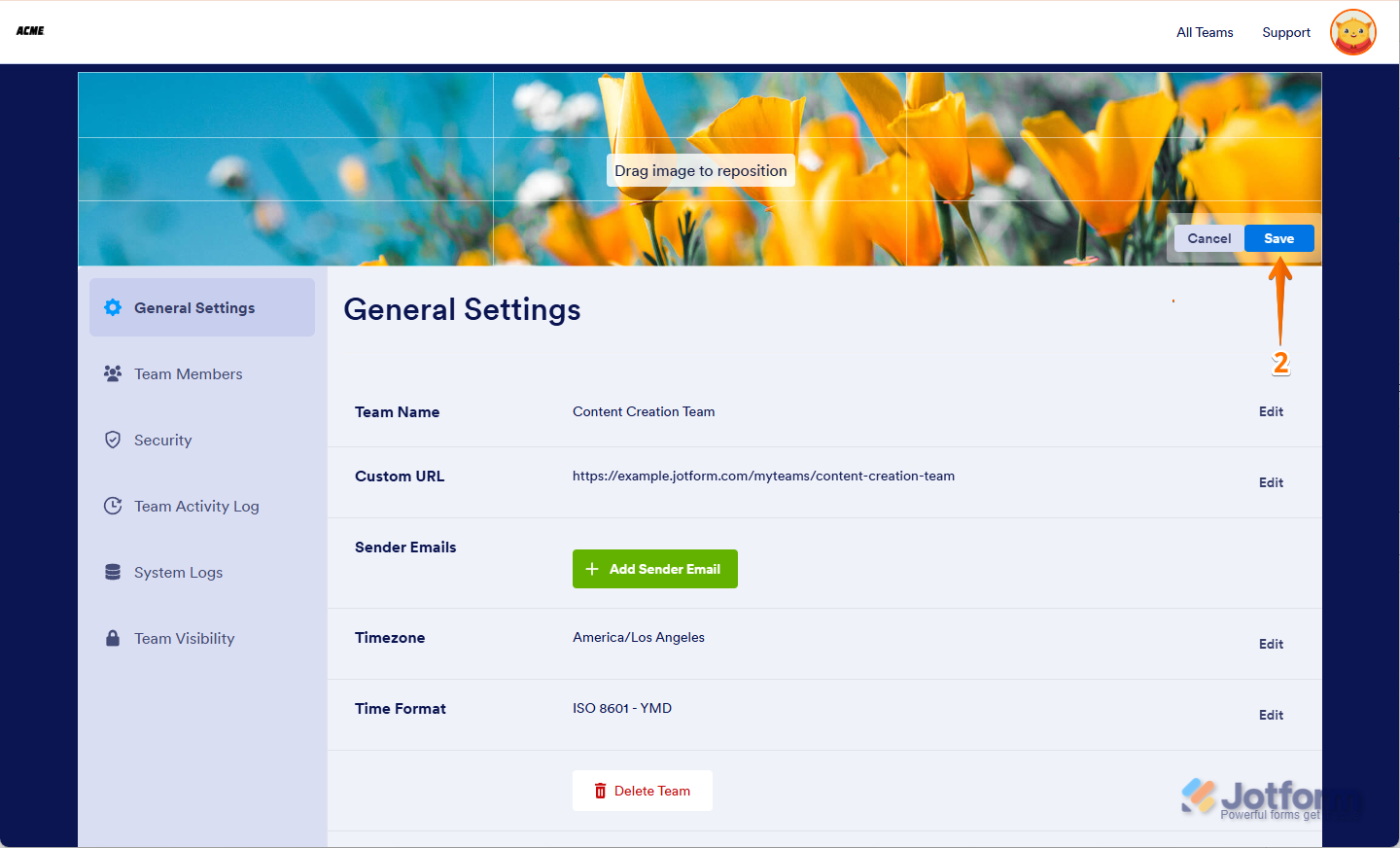
- Now, click on the image and drag it to where you want it to be, and then click on Save.
Renaming Your Team
You can update your team’s name anytime to better match your current focus, identity, or style. Here’s how to do it:
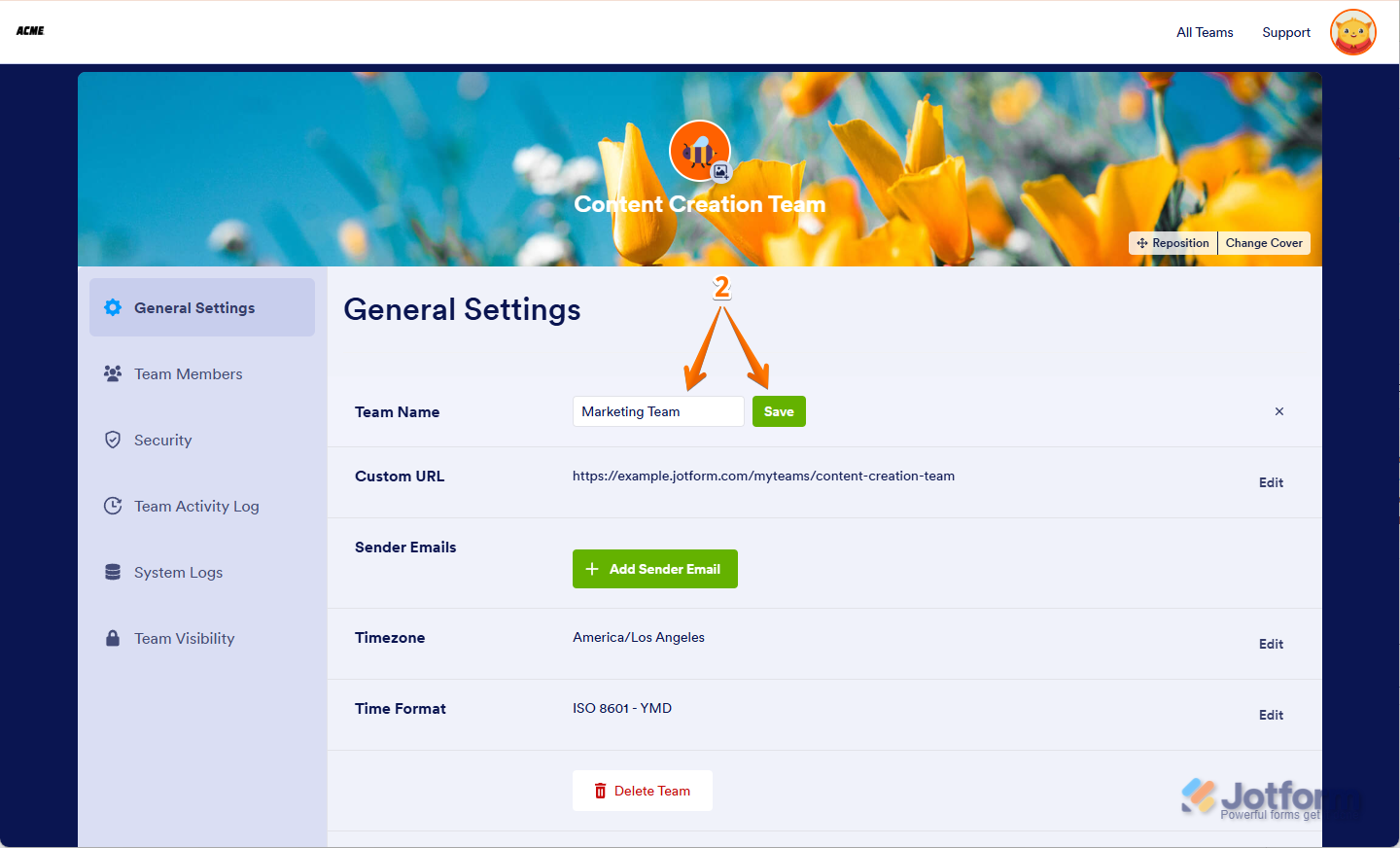
- In the Team Settings, click on Edit on the right side of your current Team Name.

- Then, enter your new Team Name and click on Save.
Changing Your Team’s URL
You can update or customize your team’s URL anytime to better reflect your brand. Here’s how:
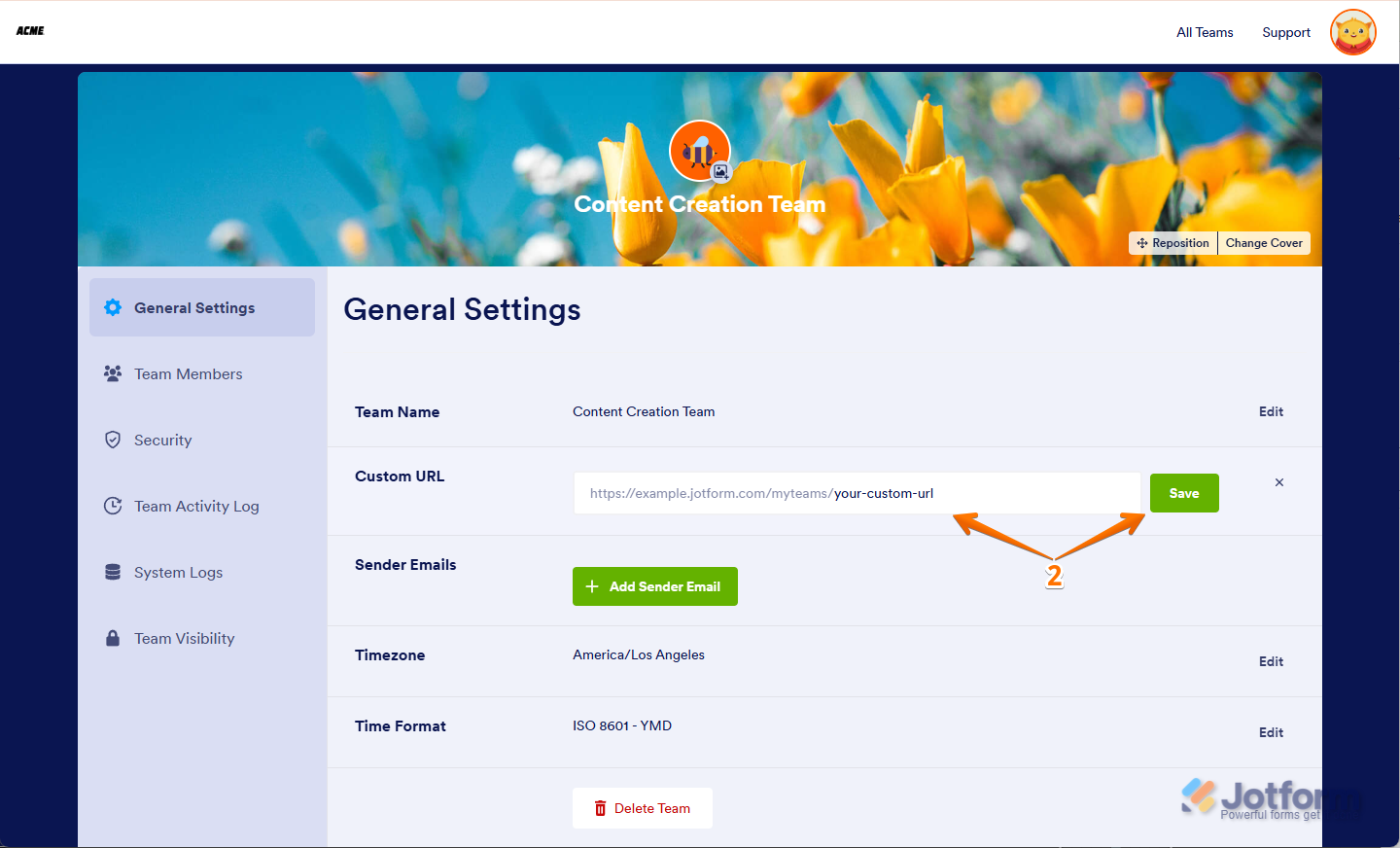
- In the Team Settings, click on Edit on the right side of your current Custom URL.
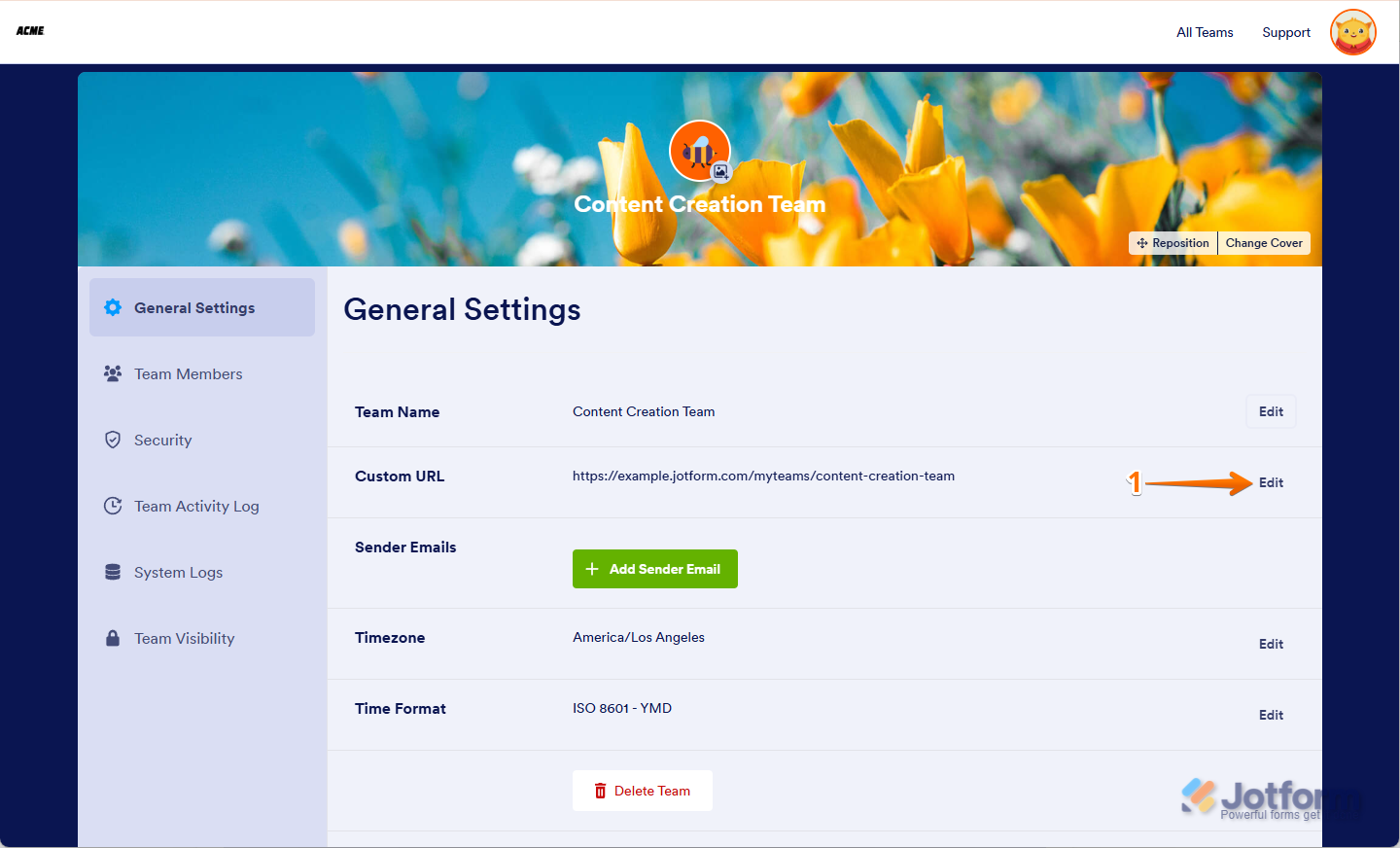
- Then, enter your Custom URL and click on Save.
Other Team Workspace Settings
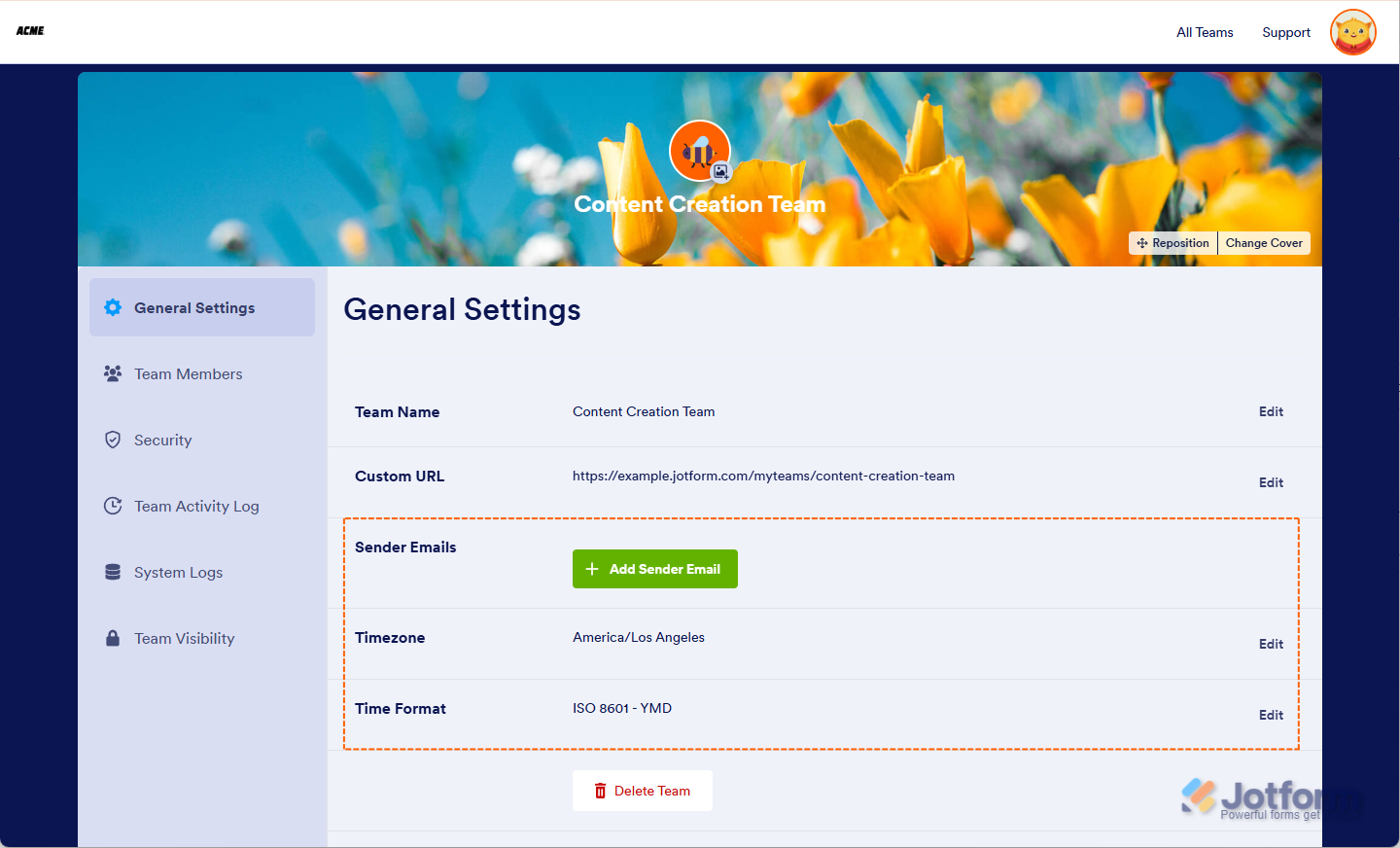
While these options aren’t visual, they help personalize how your workspace functions:
- Time Format — Choose between 12-hour and 24-hour display formats.
- Sender Emails — Set the email address used to send messages from your team.
- Timezone — Adjust your team’s timezone for scheduling and activity logs.

Send Comment: