How to Disable HIPAA Features

September 4, 2026

If you no longer need the HIPAA Compliance features for your Jotform account, you can disable them from your Account Settings. You can turn these features off in just a few steps and enable them again later if needed.


You can disable the HIPAA Compliance features in just a few steps. Here’s what to do: 

  1. On the top-right side of your Workspace page, click on your Avatar/Profile Image.
  2. Then, in the menu that opens, click on Settings to open your Account Settings page in a new browser tab.
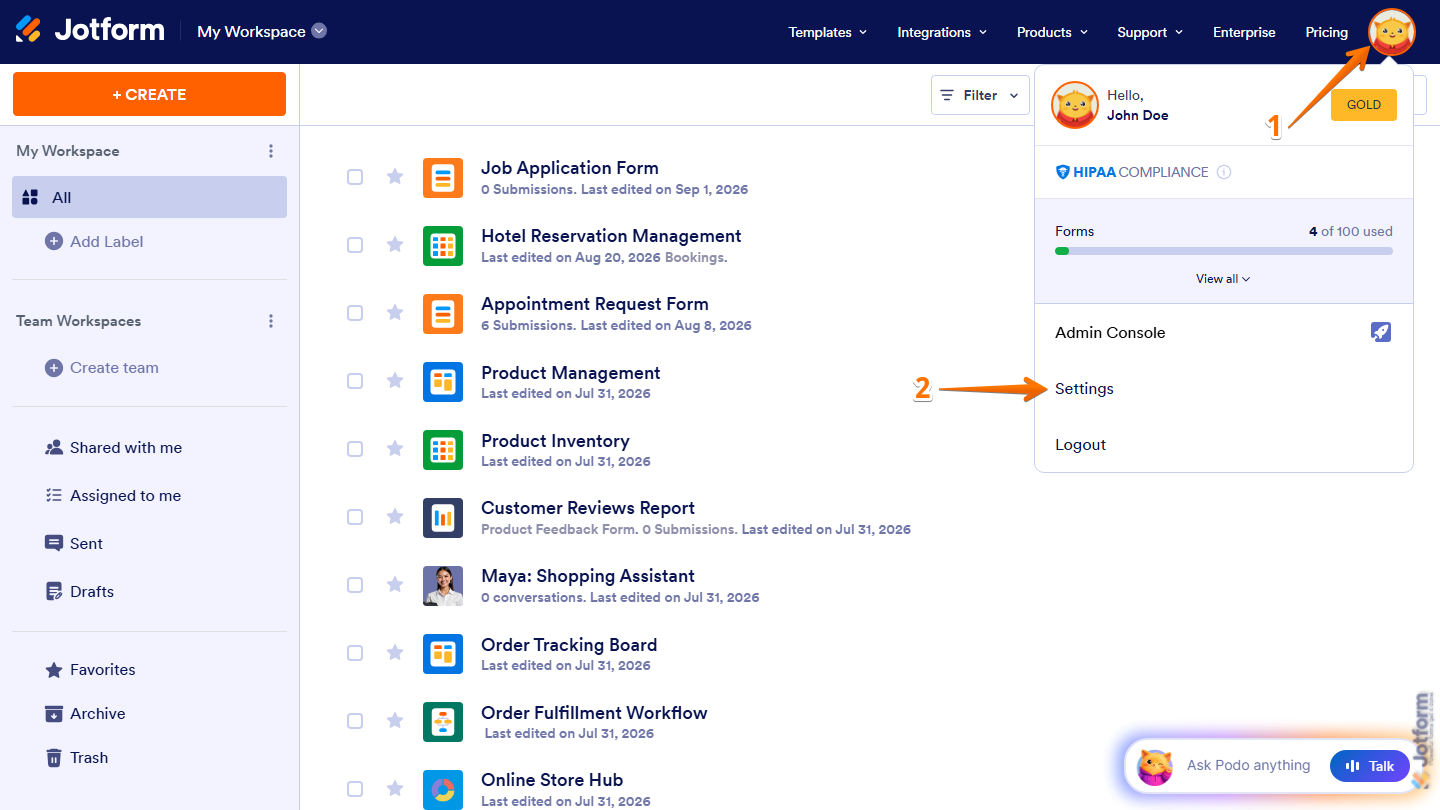
Jotform Workspace page showing the Avatar/Profile Image menu in the top-right corner, with Settings available to open the Account Settings page in a new browser tab
  1. Next, in the menu on the left, click on Data.
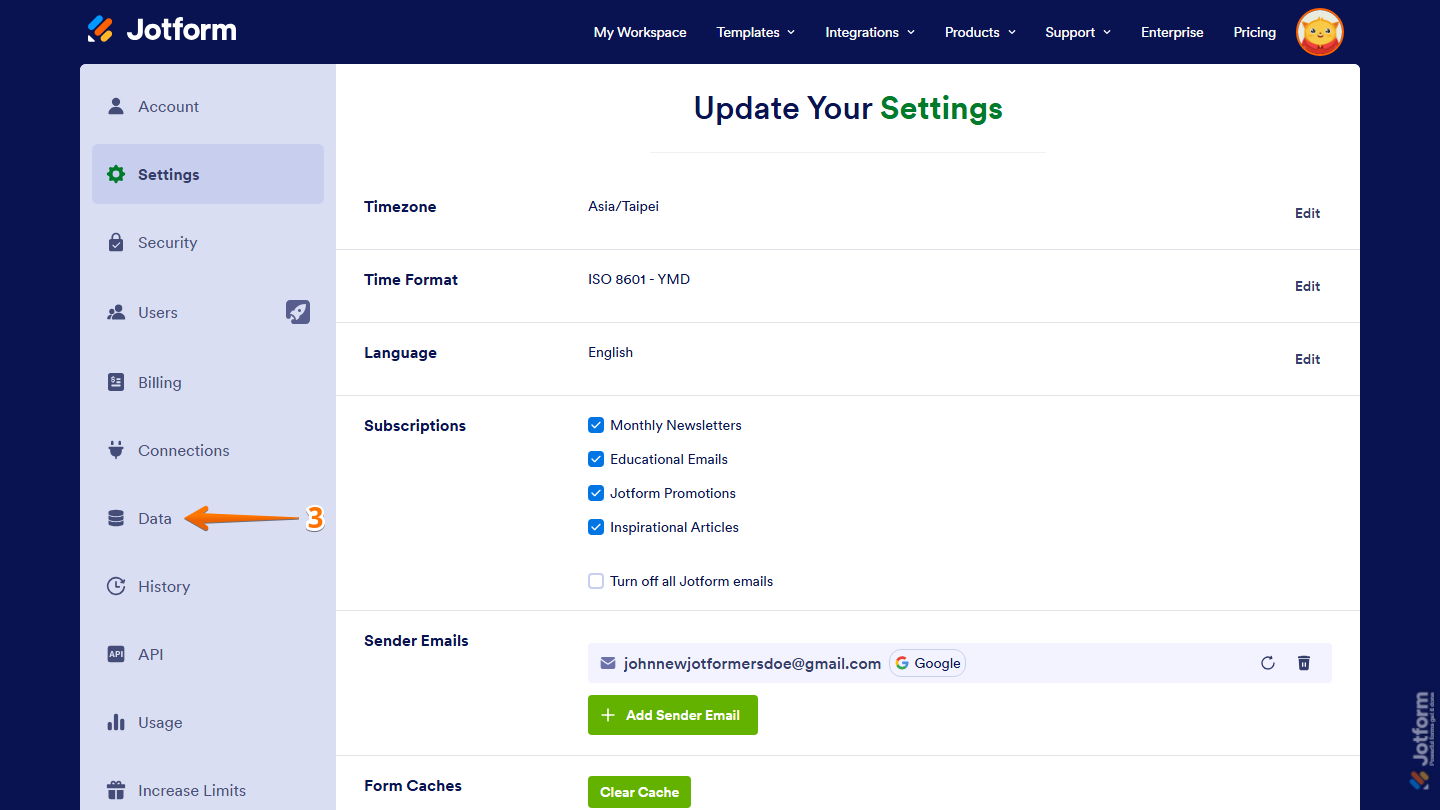
Jotform Account Settings page with the Data option visible in the left-side menu for accessing data-related settings
  1. Then, in the Data Security section, click on Disable HIPAA Compliance Features.
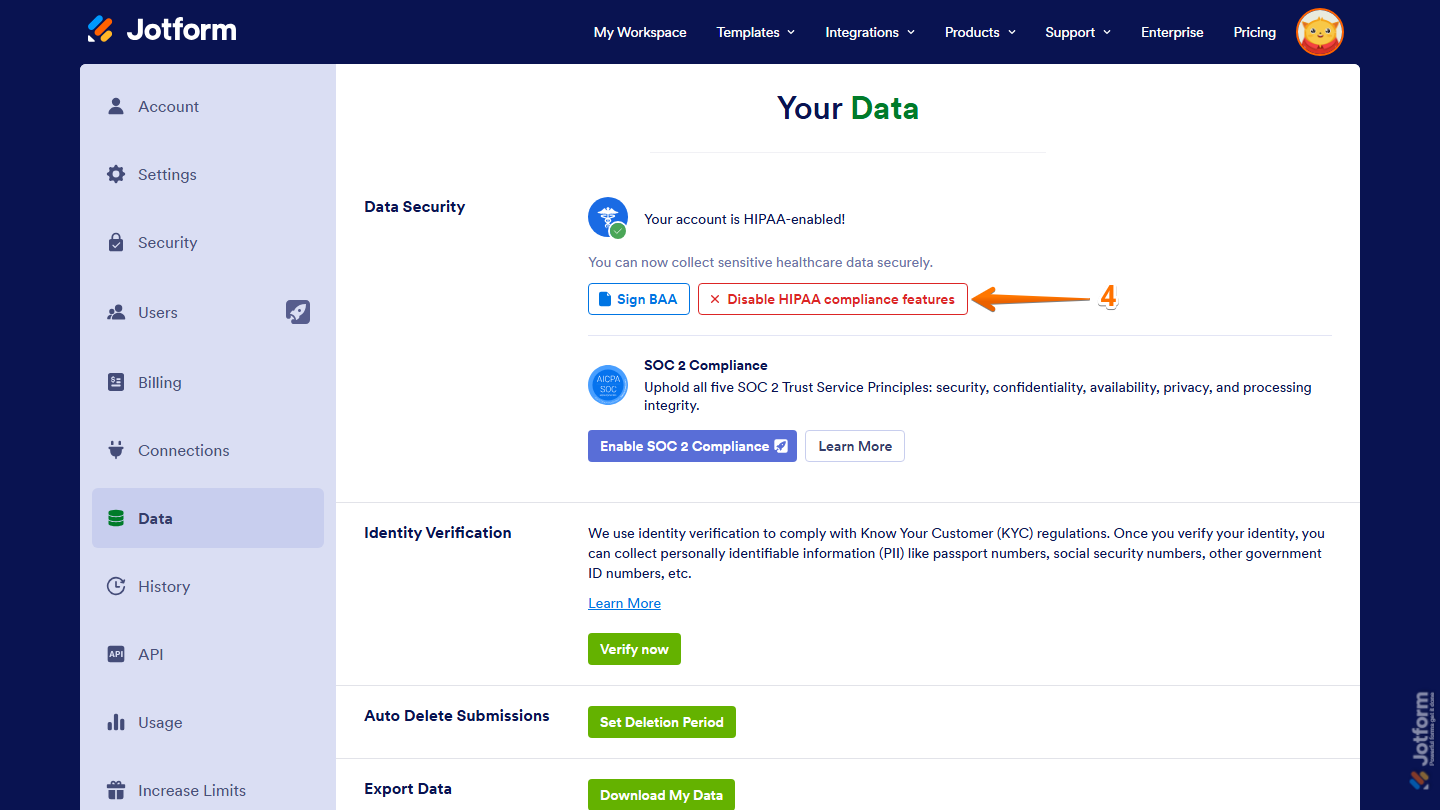
Jotform Account Settings page showing the Data Security section with the Disable HIPAA Compliance Features option available to turn off HIPAA compliance features
  1. Now, in the confirmation window that opens, click on Yes, Disable, and you’re done.
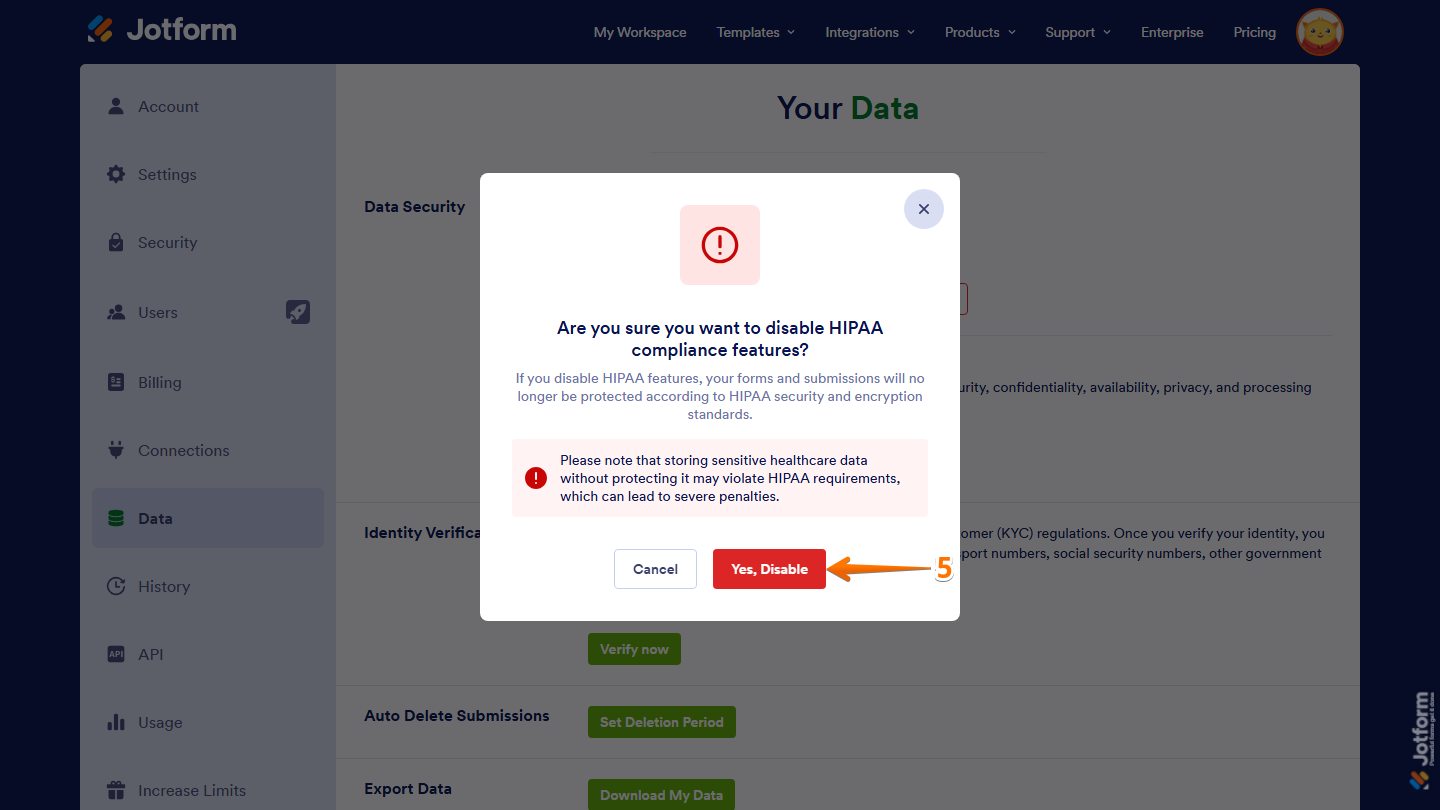
Jotform Data Security confirmation window showing the Yes, Disable button for confirming the deactivation of HIPAA Compliance Features

That’s it! You’ve successfully disabled the HIPAA compliance features for your account.

Note

Storing sensitive healthcare data without proper protection may violate HIPAA requirements and could result in severe penalties.

Send Comment:

Jotform Avatar
This site is protected by reCAPTCHA and the Google Privacy Policy and Terms of Service apply.

Podo Comment Be the first to comment.
Still have unanswered questions?

We’re here for you 24/7, anytime you need us day or night. Have a question or need a hand with something? Our team is always ready to help out.