With Jotform Form Builder for Shopify, you can easily edit and manage your existing forms directly from your Shopify Admin page. You can update form details, rename or duplicate forms, preview them, and view their submissions from the My Forms page.
It only takes a minute to edit your forms in Shopify. Here’s how to get started:
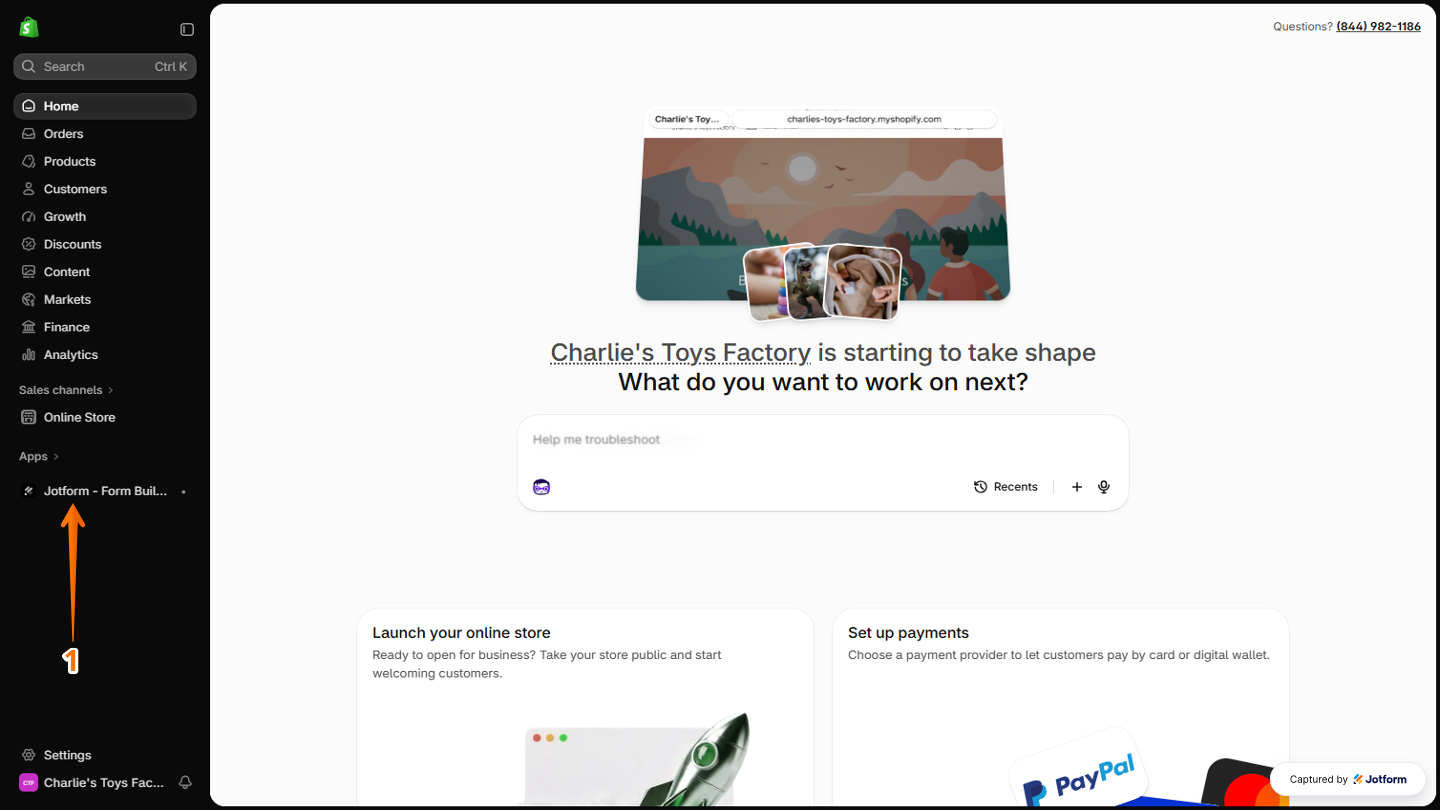
- On your Shopify Admin page, in the menu on the left side, click on Jotform – Form Builder.
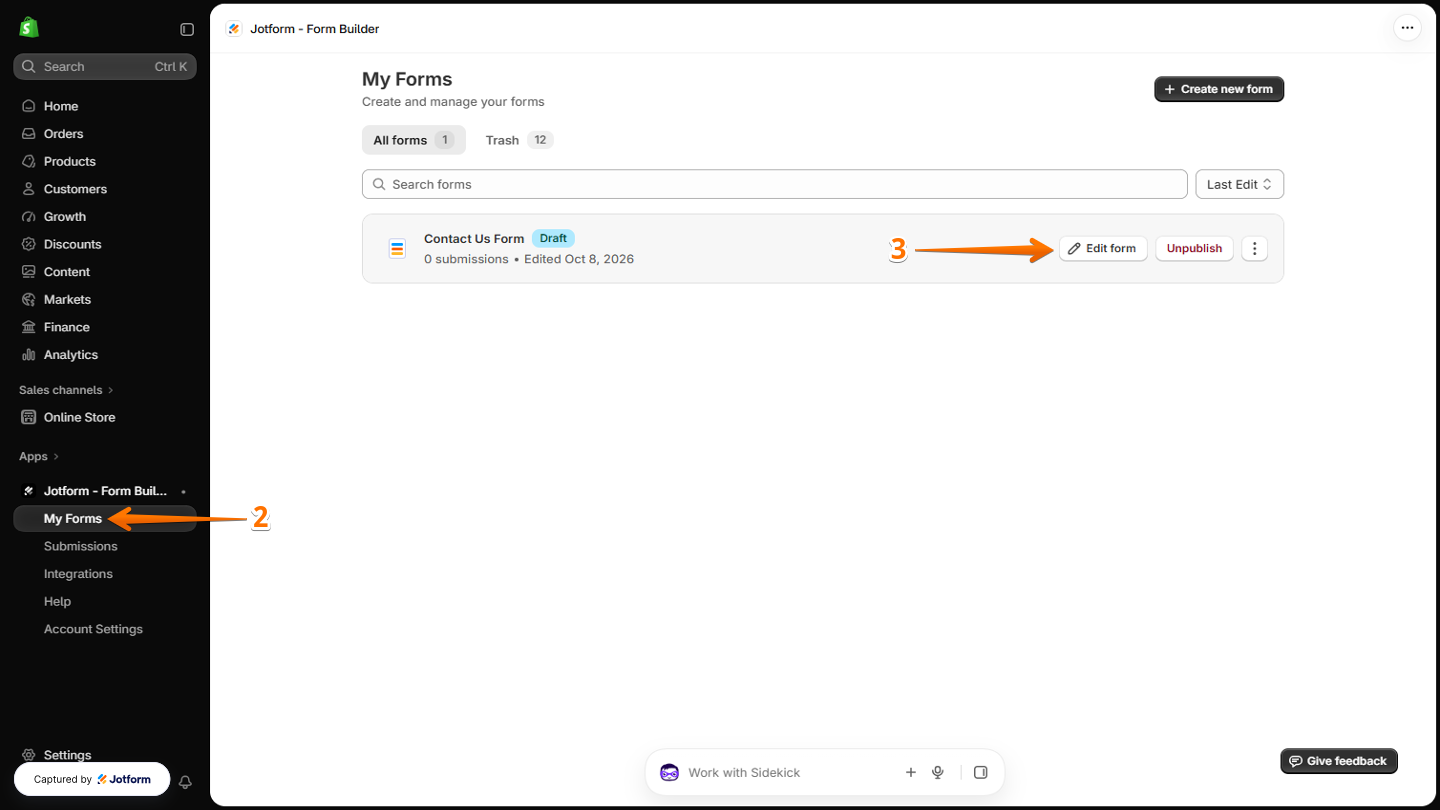
- Then, in the menu that opens, under the Jotform – Form Builder section, click on My Forms.
- Now, hover your mouse over the form you want to edit, and then click on Edit Form.
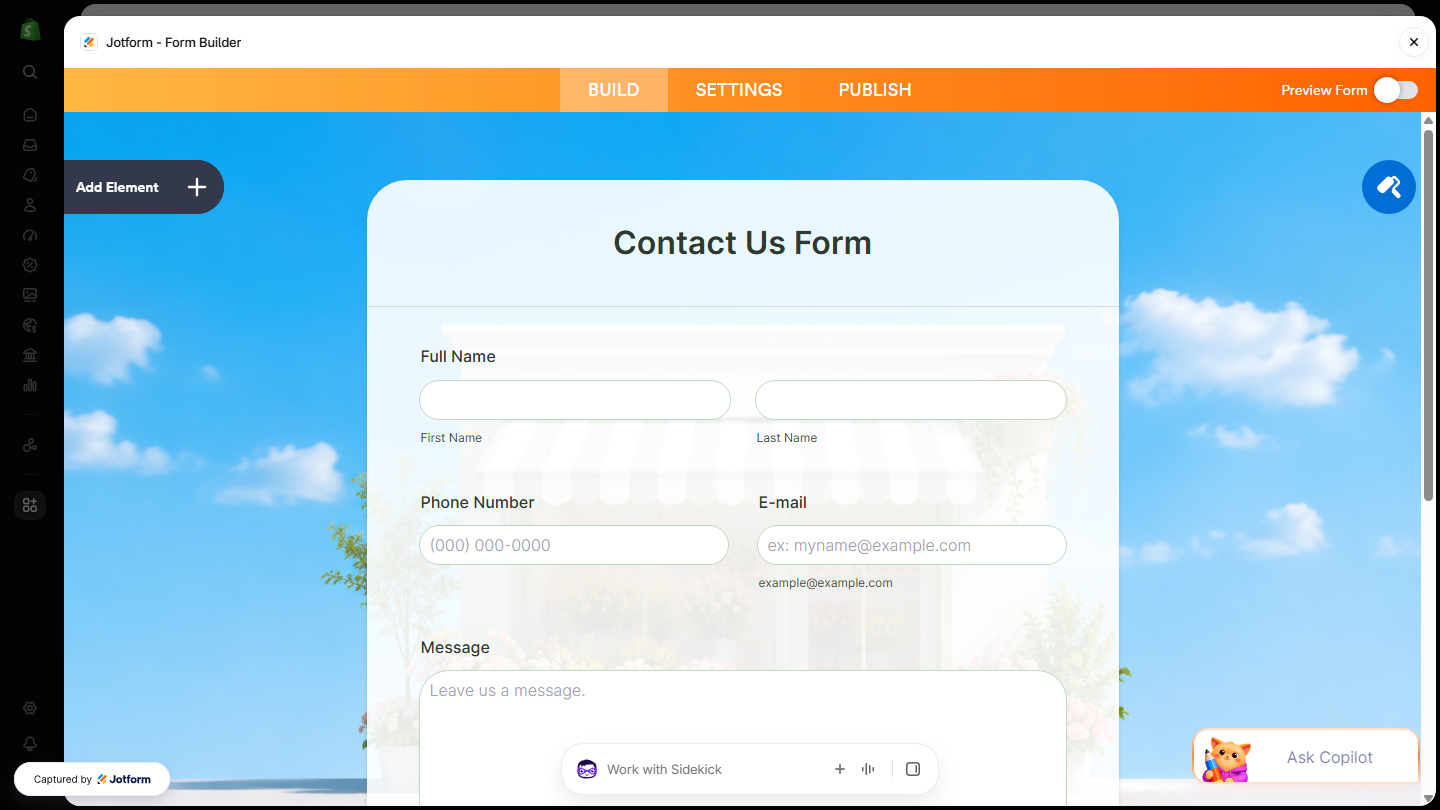
That’s it! You’ll be redirected to Form Builder, where you can continue customizing your form.
Note
Any changes you make to your form will automatically appear in the form embedded in your Shopify store.
Managing Your Forms
You can easily manage your forms from the My Forms page, where you can rename, preview, duplicate, or delete them, as well as access other form options. Here’s a quick how-to:
- On your Shopify Admin page, in the menu on the left side, under the Jotform – Form Builder section, click on My Forms.
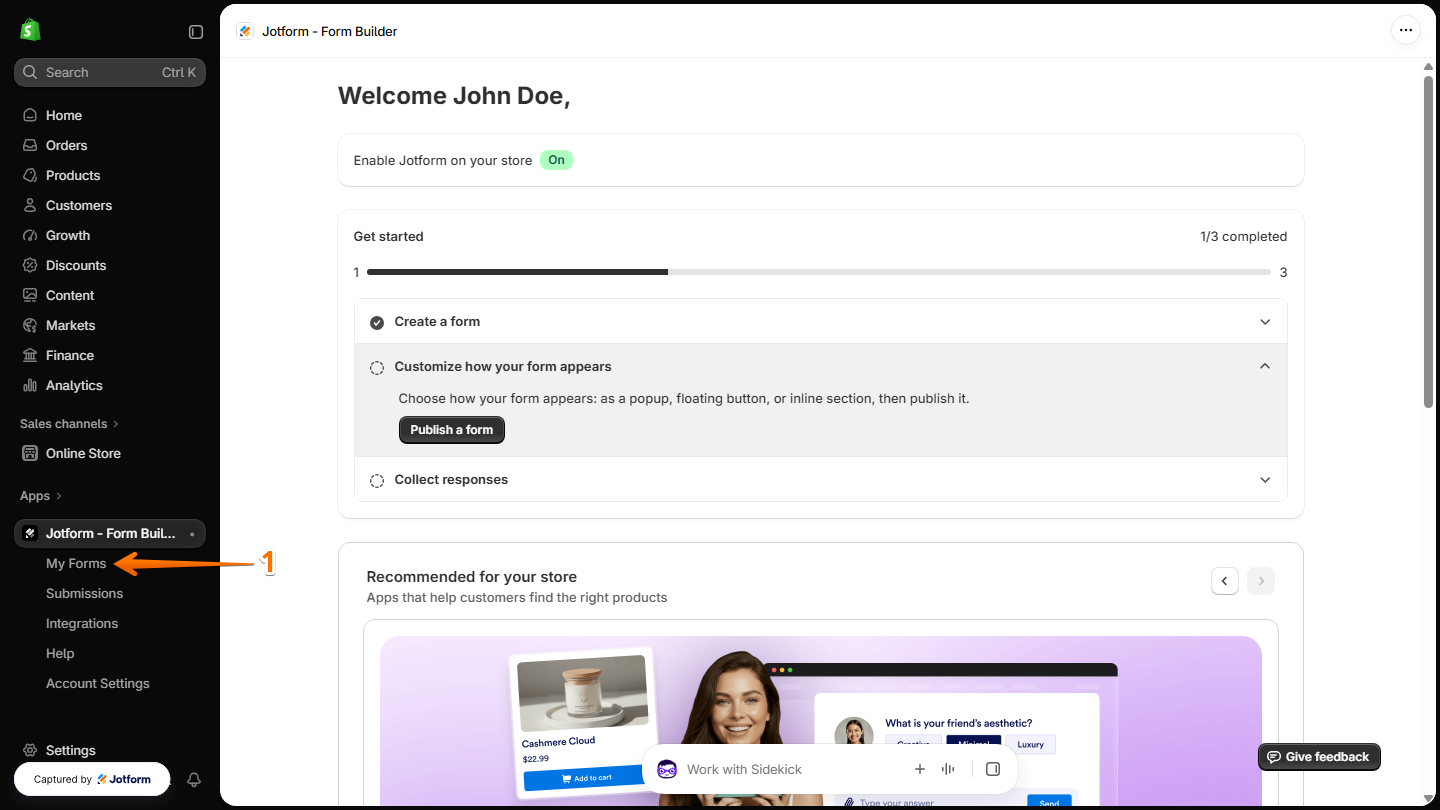
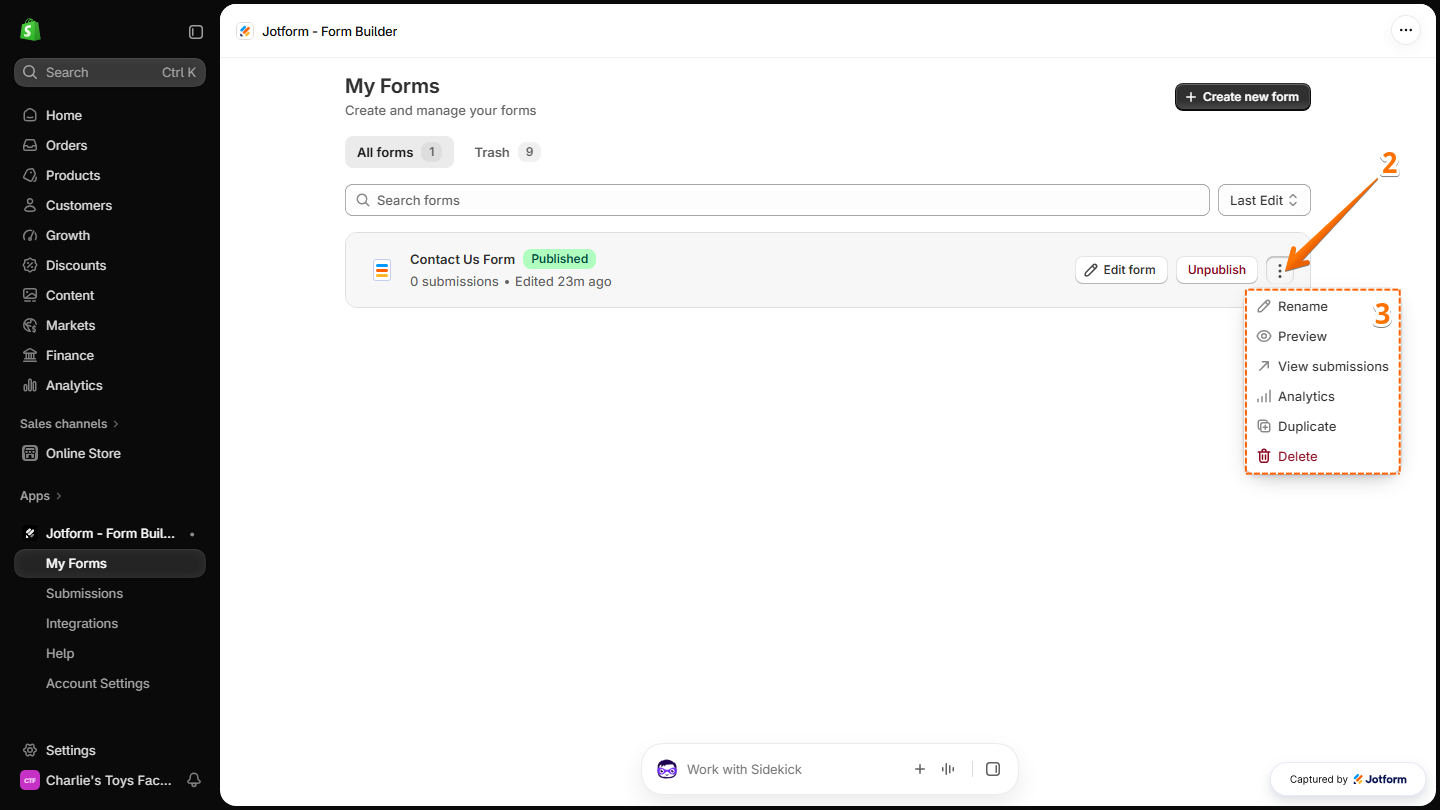
- Next, hover your mouse over the form you want to manage, and click on the Three Dots icon.
- Now, in the menu that opens, select the action you want to perform:
- Rename — Change the name of your form.
- Preview — View how your form appears before sharing it.
- View Submissions — Check the responses submitted through your form. You can also view your submissions by clicking on Submissions in the menu on the left.
- Analytics — View data and insights about your form submissions.
- Duplicate — Create a copy of your form.
- Delete — Move the form to Trash.
You’re all set! You can edit your forms or manage them whenever you need to.

Send Comment: