Jotform AI is an AI-powered chatbot that helps your organization with asset creation, editing, and troubleshooting; workflow automation; and navigating and using the settings for both admins and users from the workspace to the admin console. Jotform AI features include AI co-pilots integrated into the builders to streamline complex and detailed tasks. These tools enable you to more efficiently develop sophisticated forms complete with professional designs, workflows, conditions, and emails. Jotform AI is your helper in the workspace; it helps you automate your daily tasks.
In the guide below, you can see how to enable or disable Jotform AI:
Disabling Jotform AI
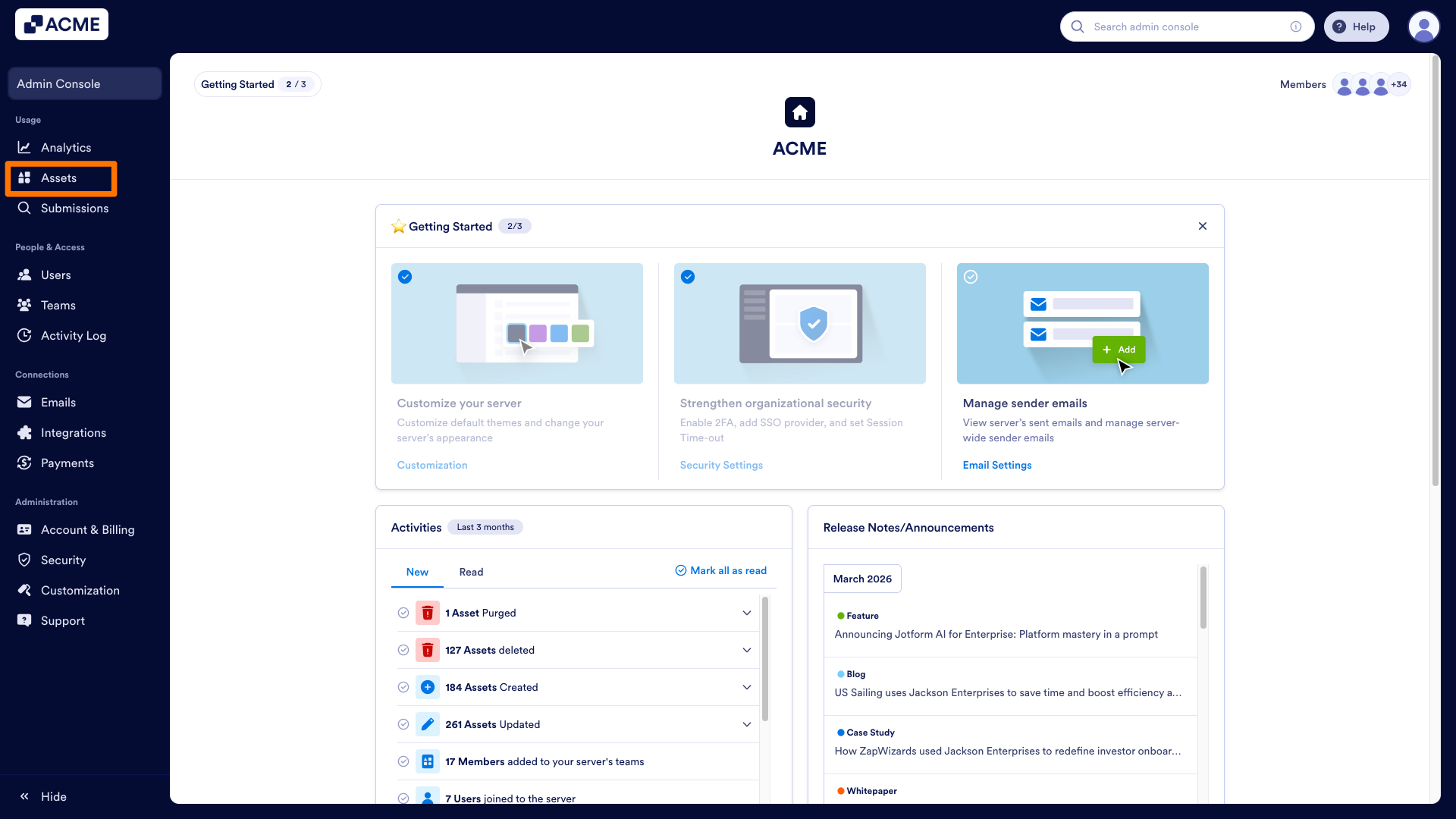
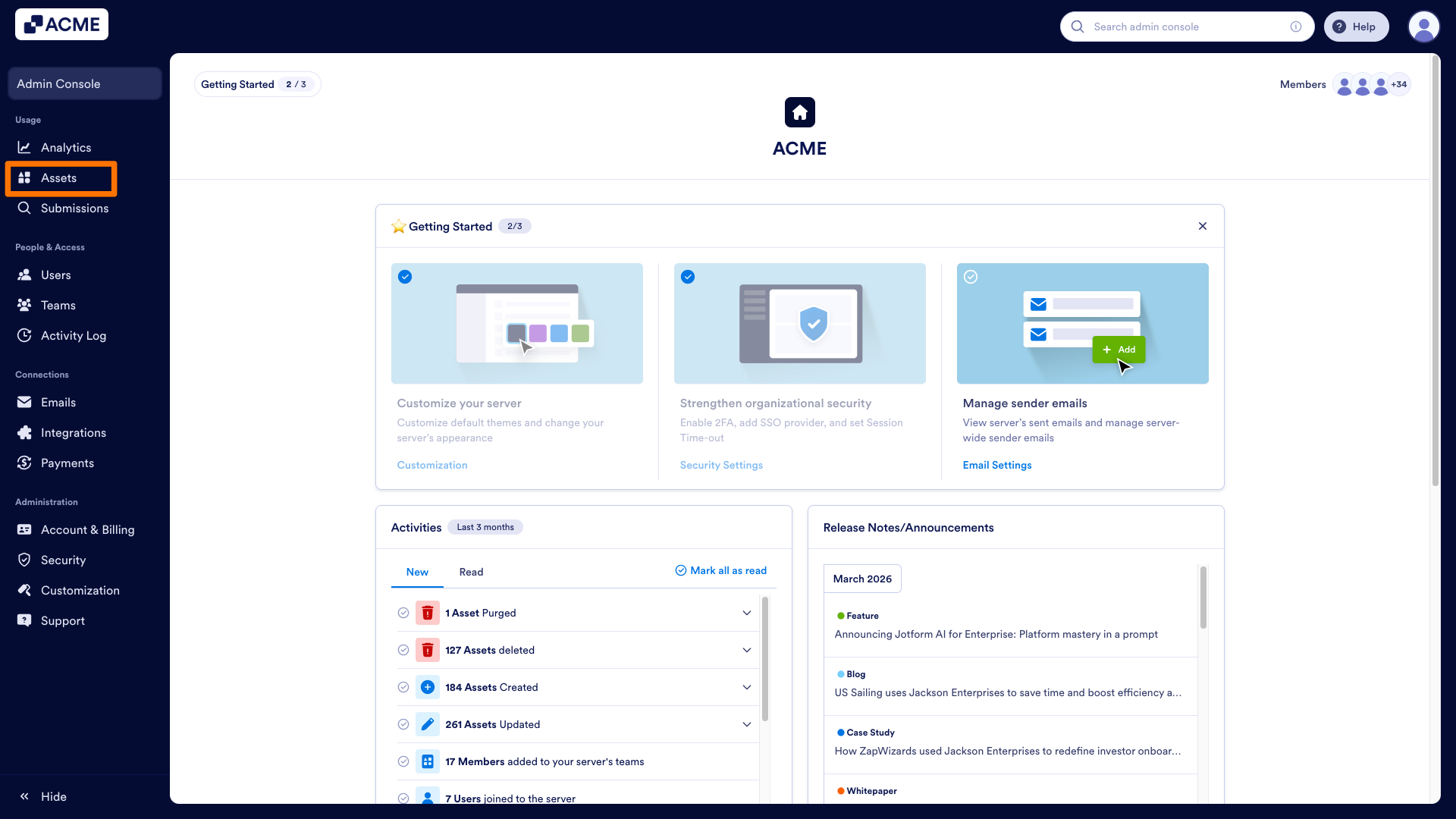
- In the Admin Console, click on Assets on the left side.
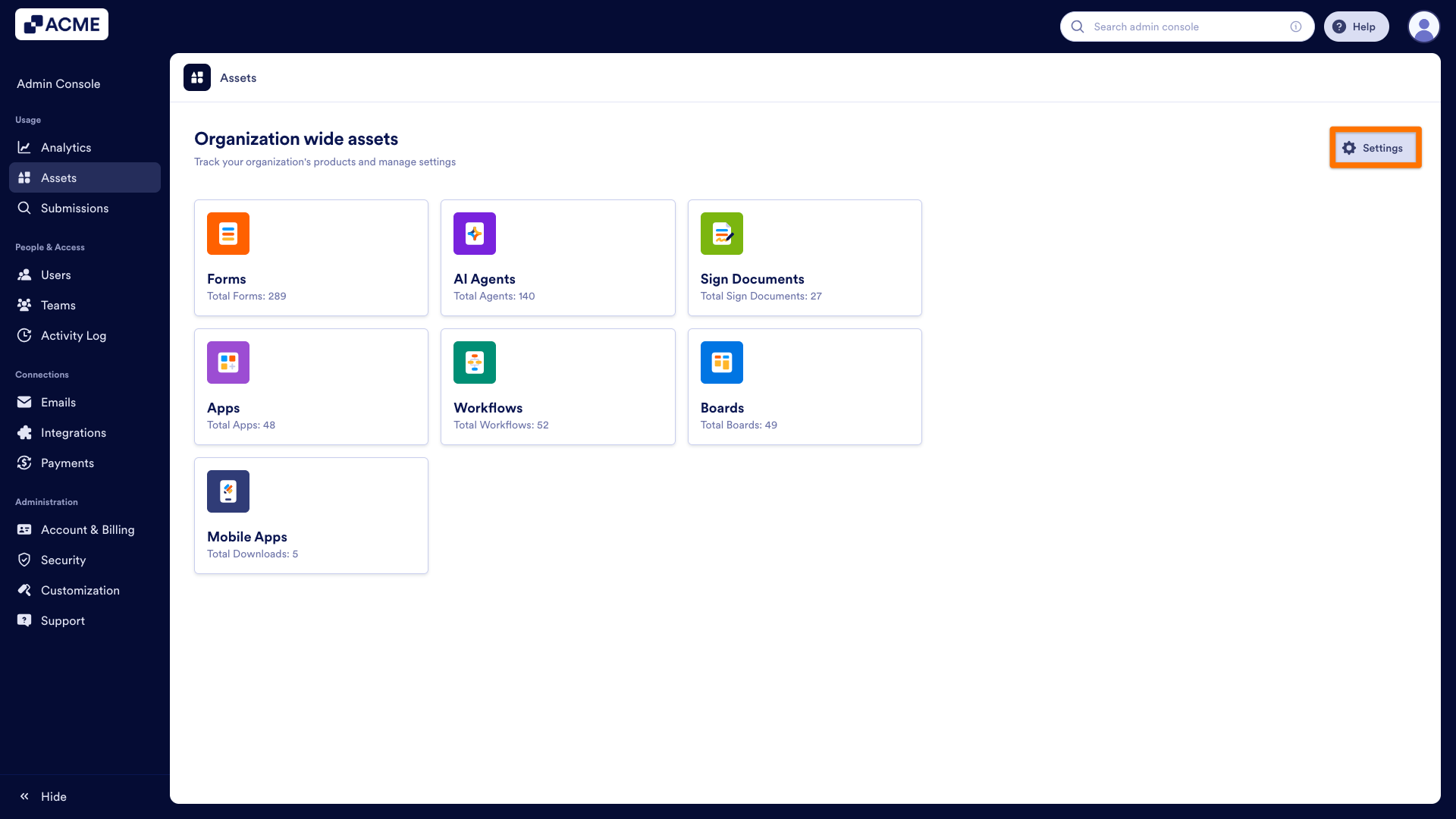
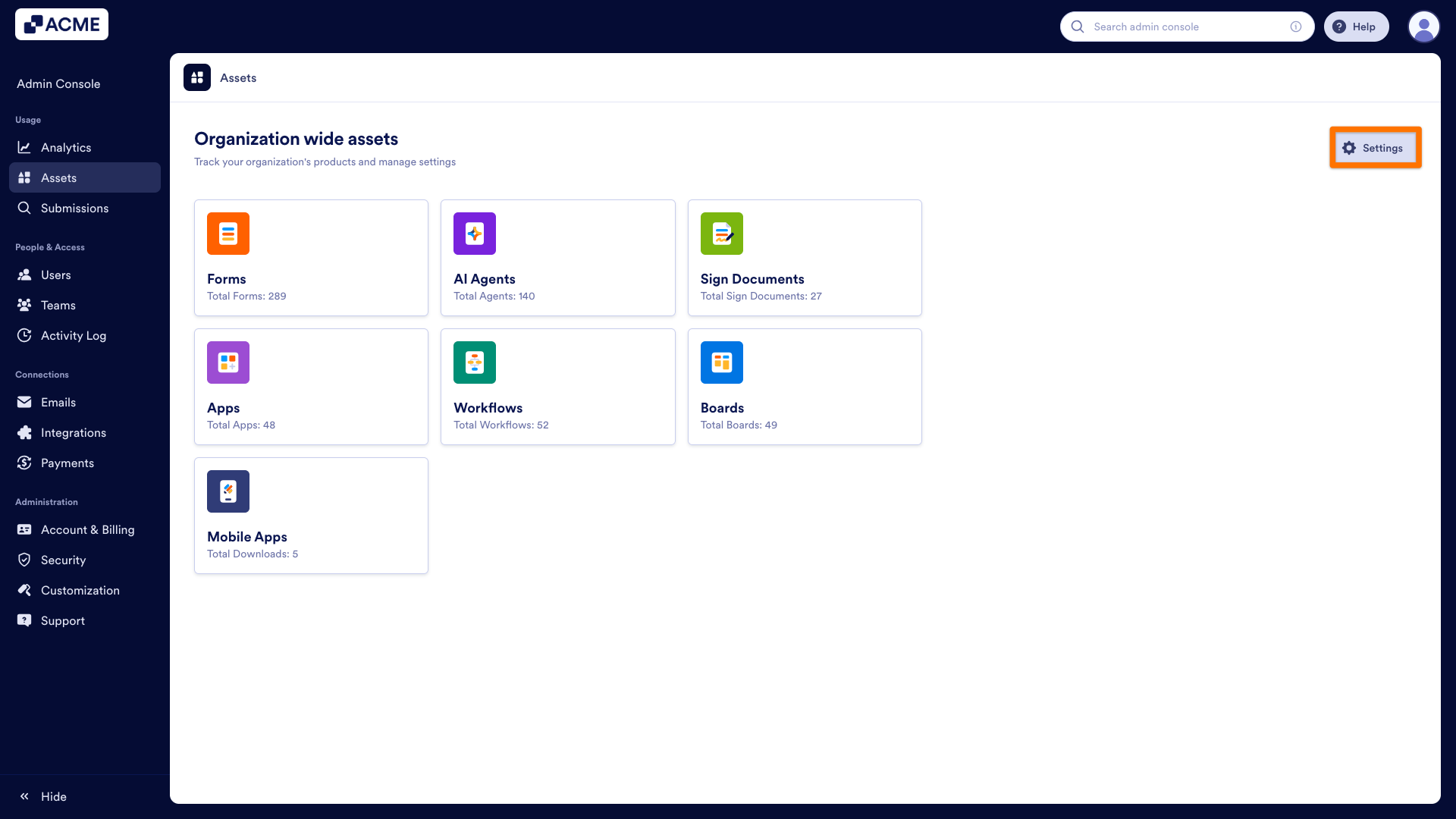
- Under the Assets tab, go to Settings from the top-right side.
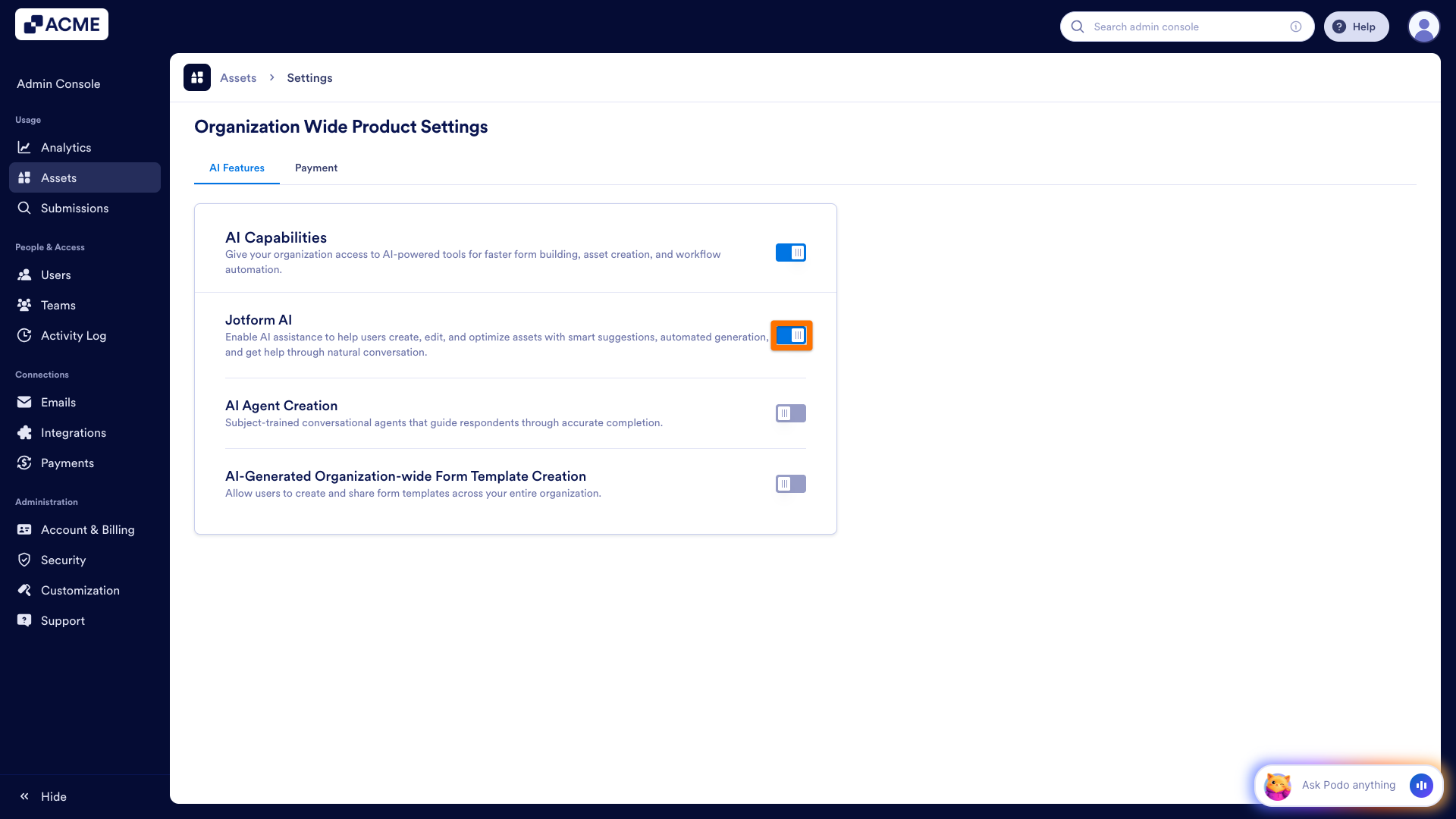
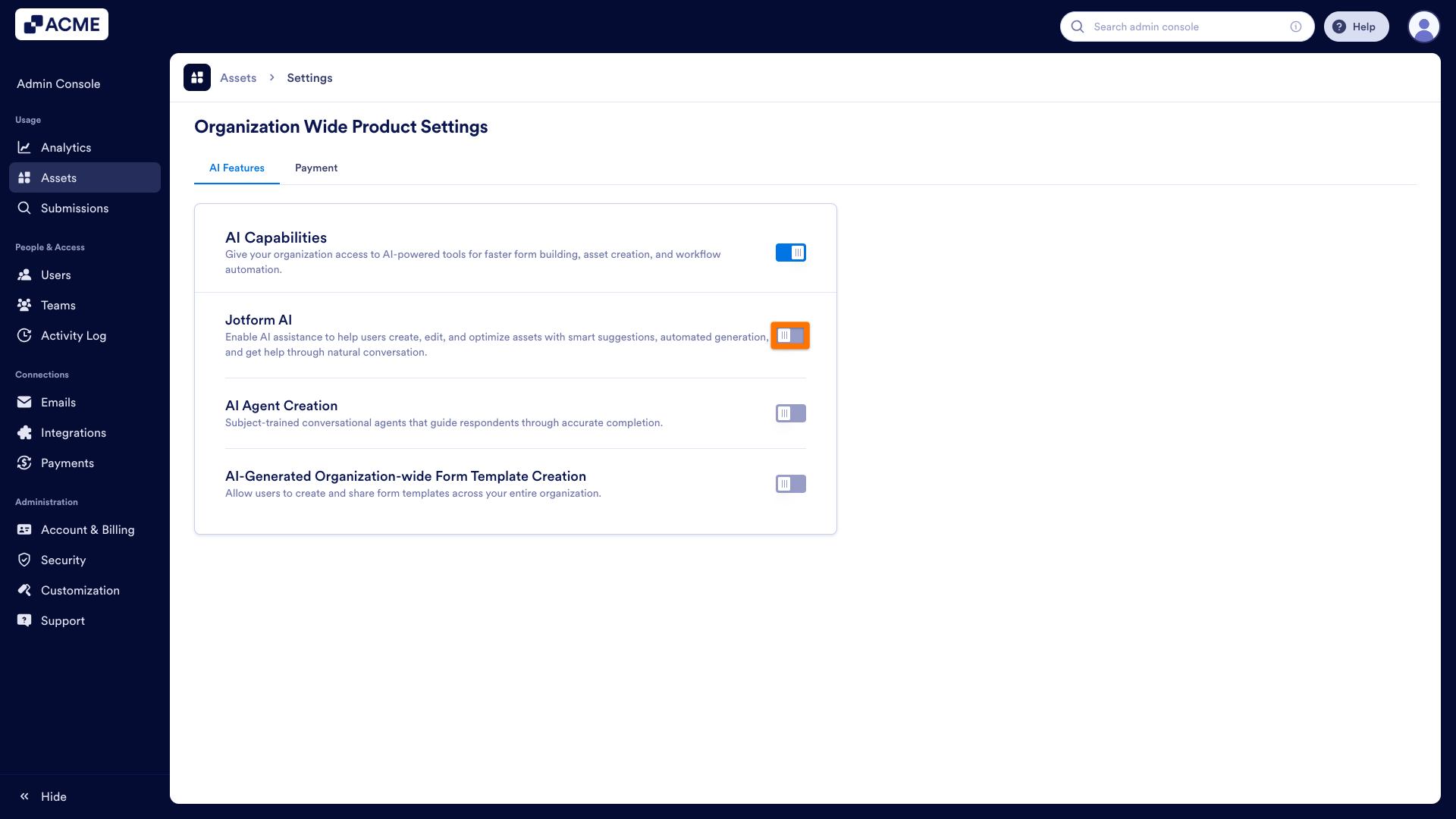
- From Organization-Wide Product Settings, under the AI Features tab, toggle OFF the Jotform AI feature.
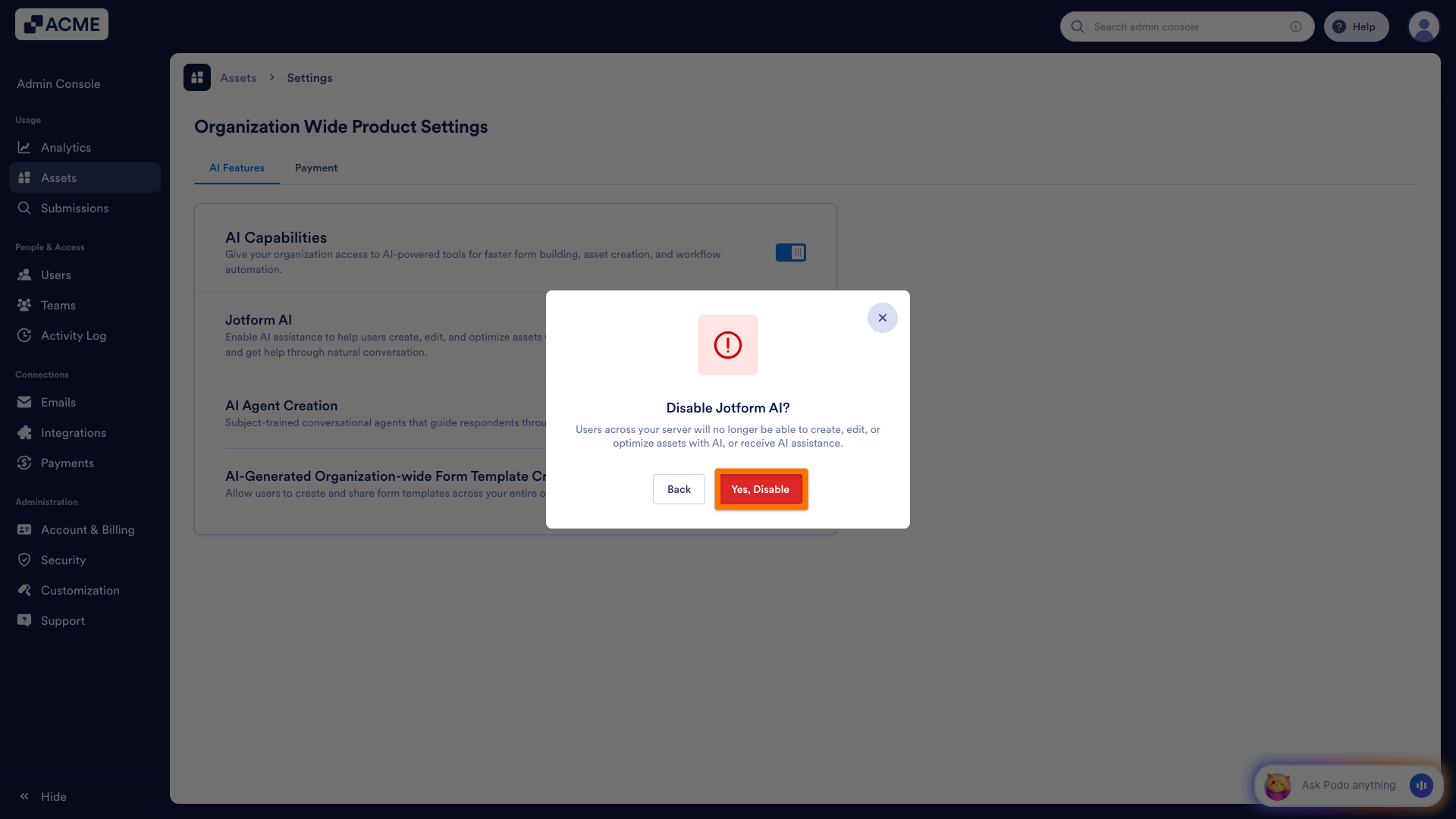
- Then confirm your selection in the pop-up window that opens by clicking on Yes, Disable.
Enabling Jotform AI
- In the Admin Console, click on Assets on the left side.
- Under the Assets tab, go to Settings from the top-right side.
- From Organization-Wide Product Settings, under the AI Features tab, toggle ON the Jotform AI feature.
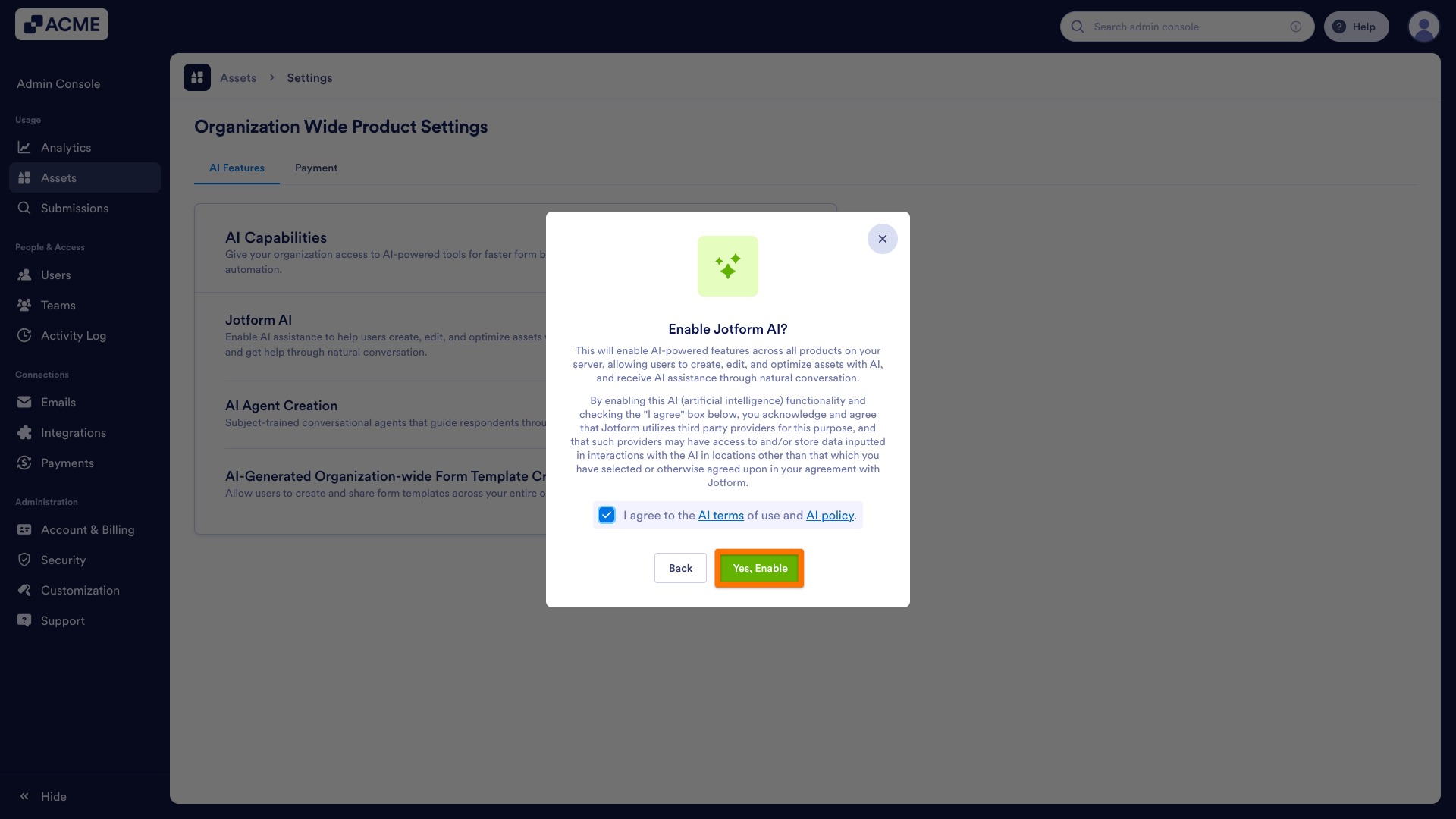
- Click on the checkbox next to “I agree to the AI Terms of Use and AI Policy.”
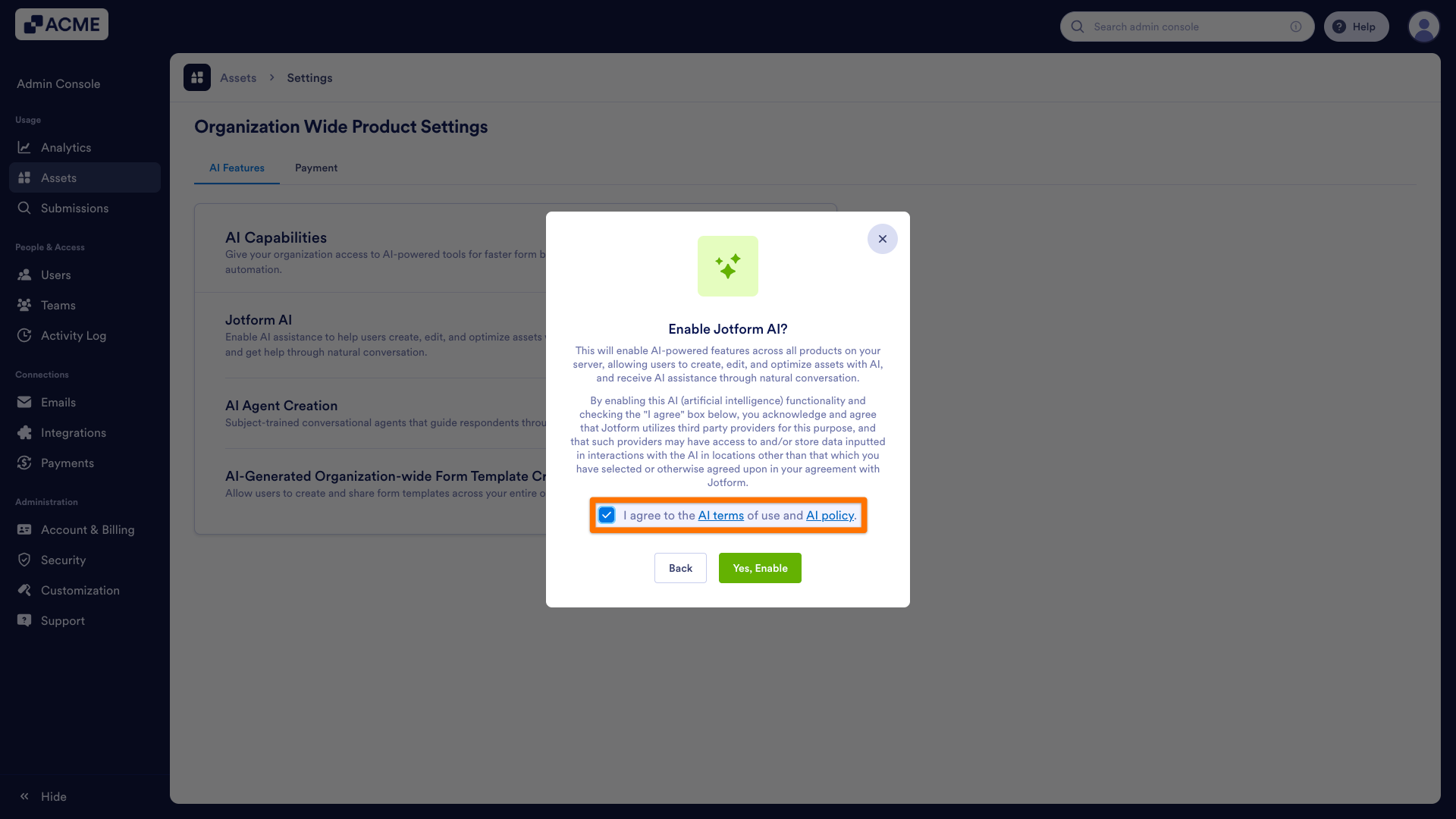
- Then confirm your selection in the pop-up window that opens by clicking on Yes, Enable.

Send Comment: