In Jotform, two-factor authentication (2FA) adds an extra layer of security to your account by requiring a second step when you log in—typically a code generated by an authenticator app. Enabling 2FA helps protect your account even if someone gets hold of your password. It’s a simple way to reduce the risk of unauthorized access and keep your information safe. Once it’s turned on, you’ll sign in using both your password and a time-based code from your app.
What You Need for This Setup:
To enable 2FA, you must first install a third-party authenticator app on your mobile device. Several providers are available, including:
- Google Authenticator
- Duo Mobile
- Authy
Choose the one that works best for you, then follow the setup steps below.
Setting up 2FA takes just a few minutes and gives your account stronger protection. Here’s how to do it:
- On the top-right side of your Workspace page, click on your Profile Picture/Avatar.
- Then, in the menu that opens, click on Settings to open the Settings page in a new browser tab.

- Now, go to the Security tab on the left, and click on Send Verification Code in the Verification prompt.

- Then, copy the Verification Code sent to the email address linked to your account.
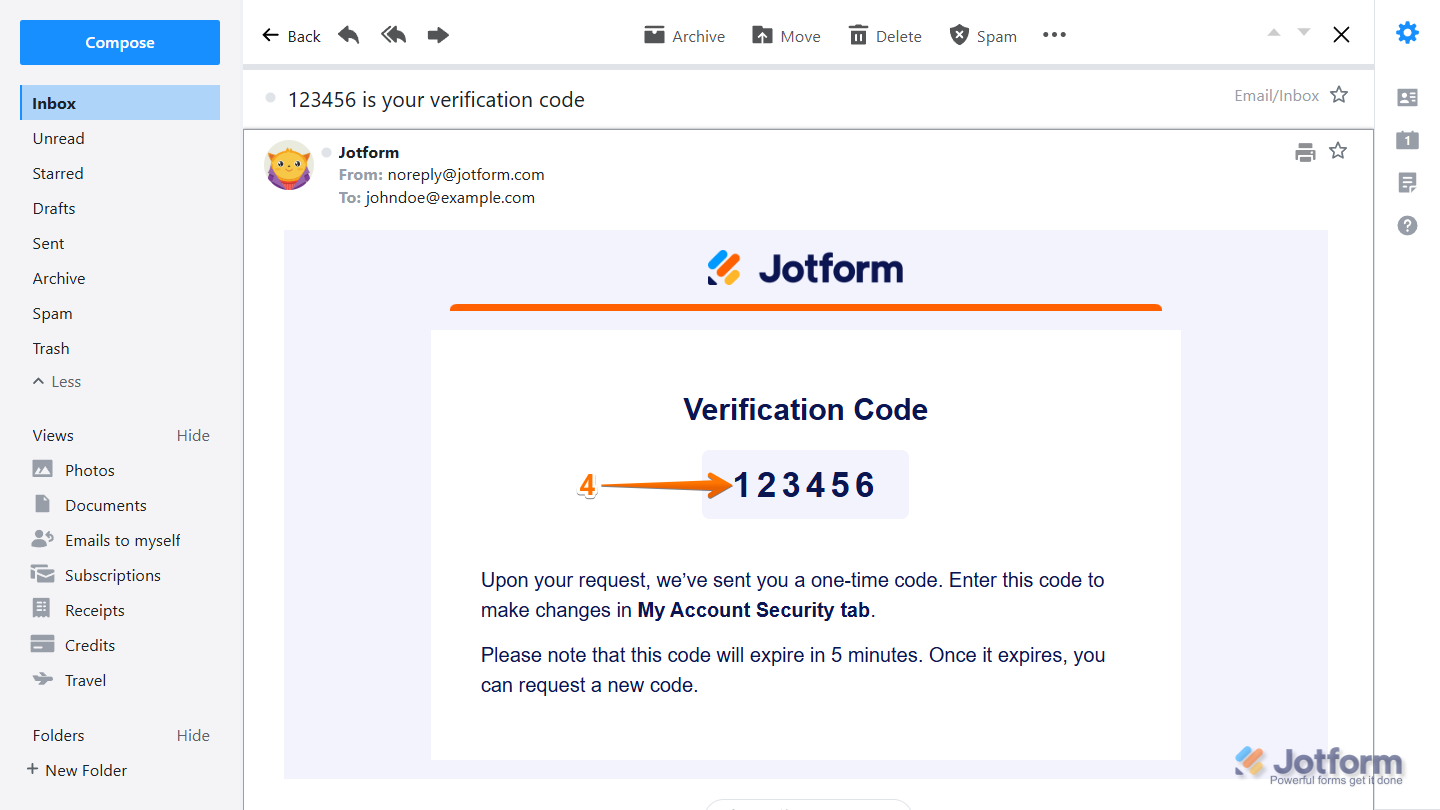
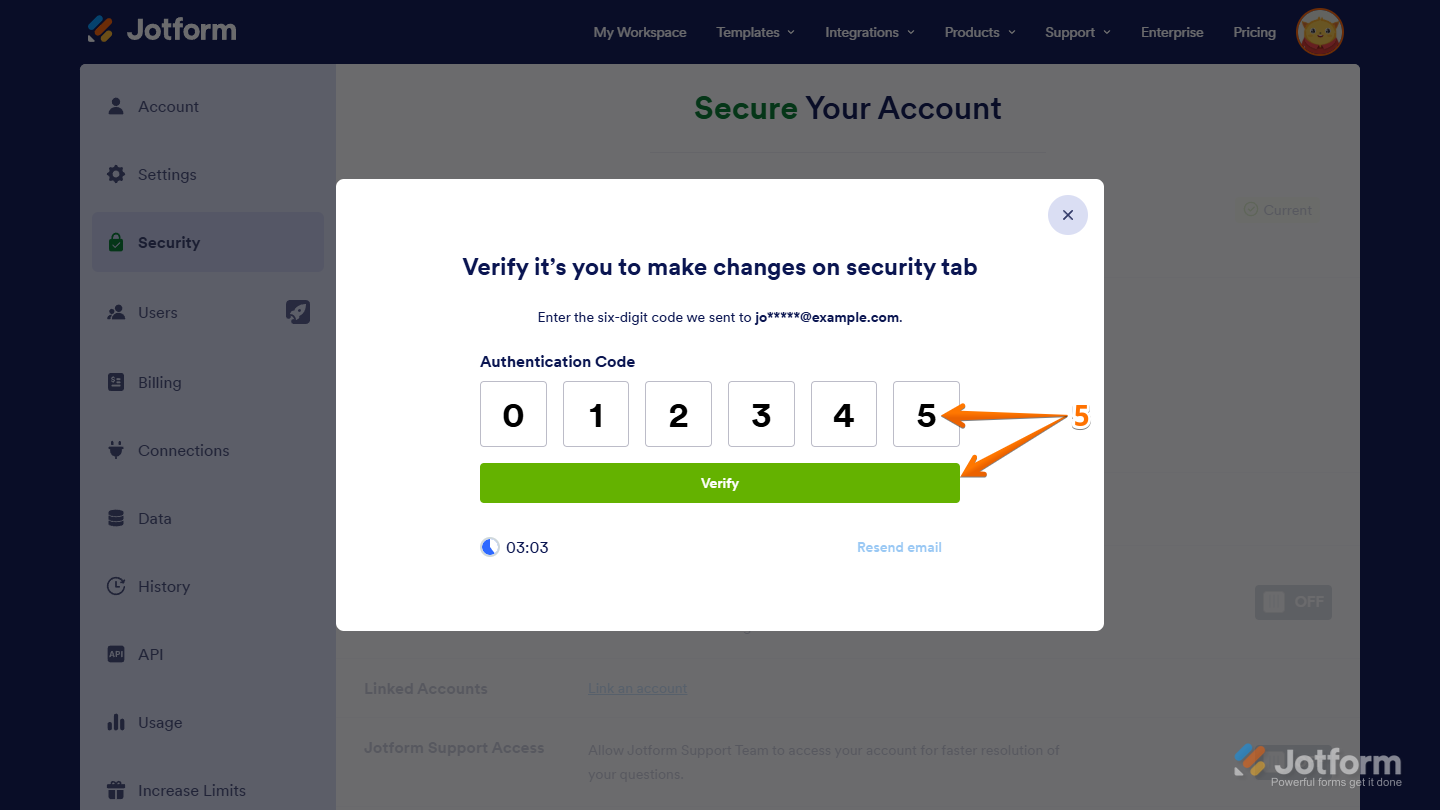
- Next, enter the code to verify you’re making changes to your account, and it’ll be accepted automatically. If it isn’t, or if you enter the wrong code, correct it and click on Verify.
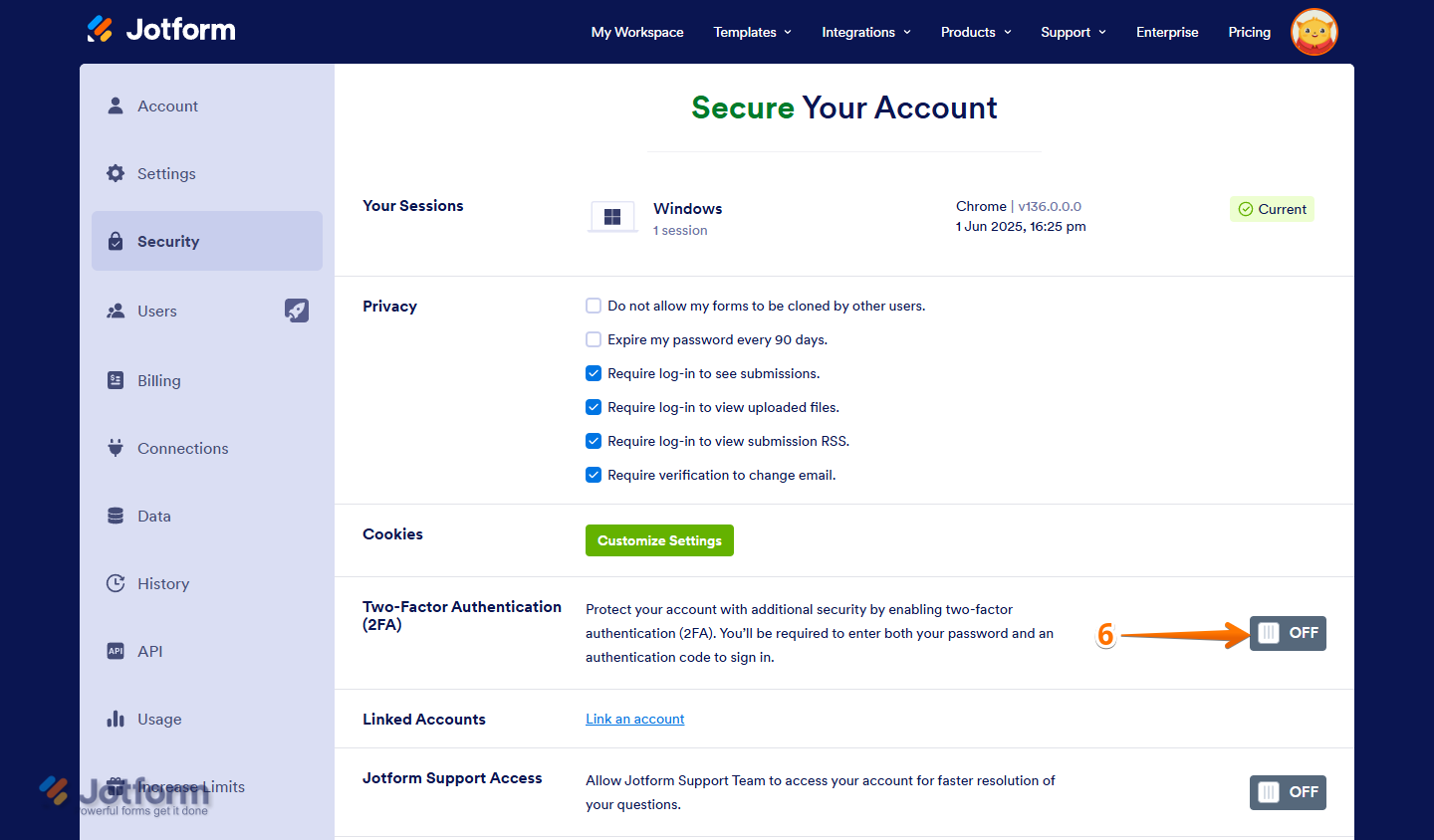
- Now, on the right side of the Two-Factor Authentication (2FA) section, toggle it on.
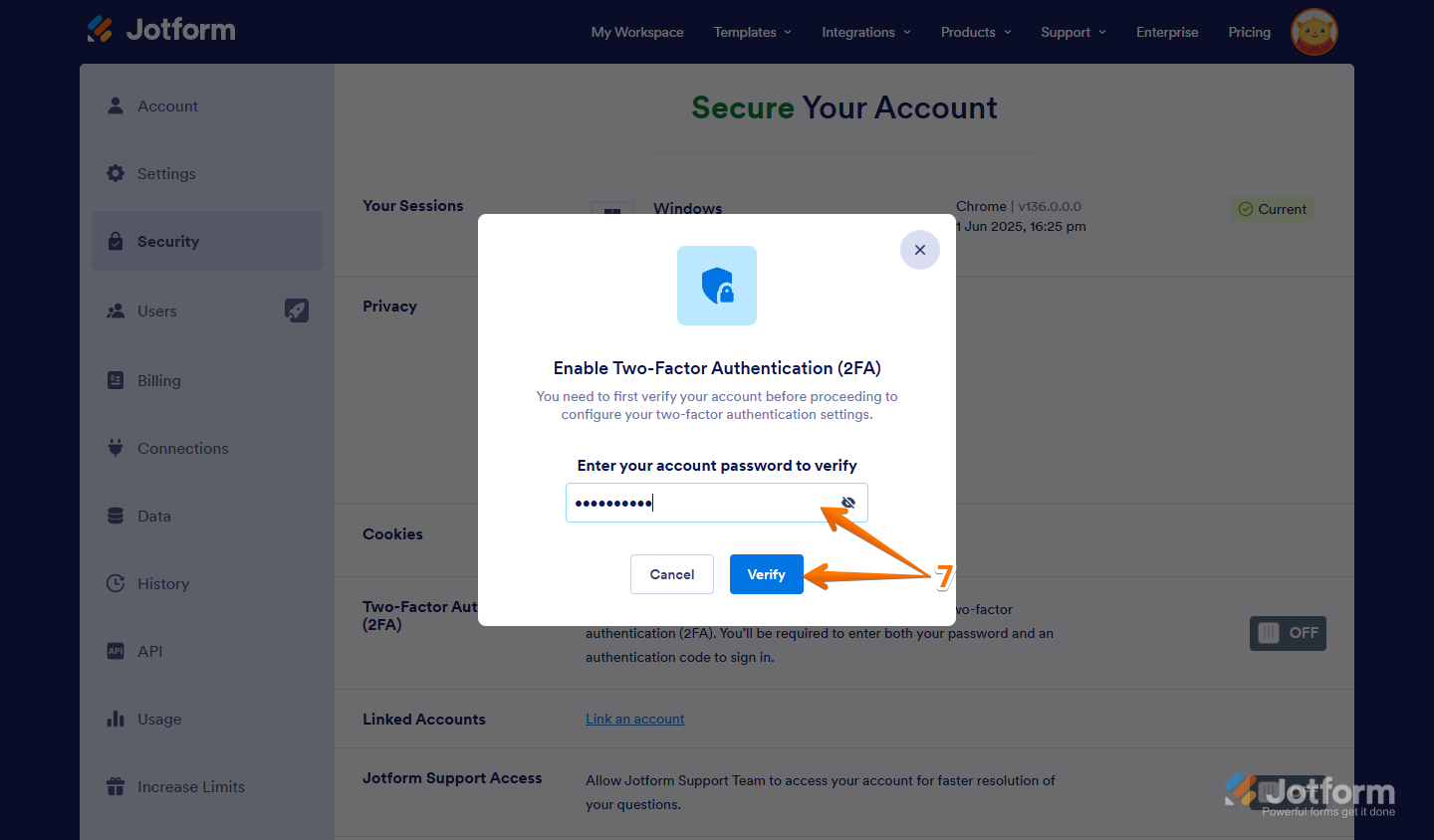
- Then, in the Enable Two-Factor Authentication (2FA) Confirmation window, enter your account password and click on Verify.
- Now, in the Configure the Authenticator App window, scan the QR code or enter the Setup Key in your authenticator app. Then, in the boxes below, enter the generated code and it’ll be accepted automatically. If it isn’t, or if you enter the wrong code, correct it and click on Enable 2FA.
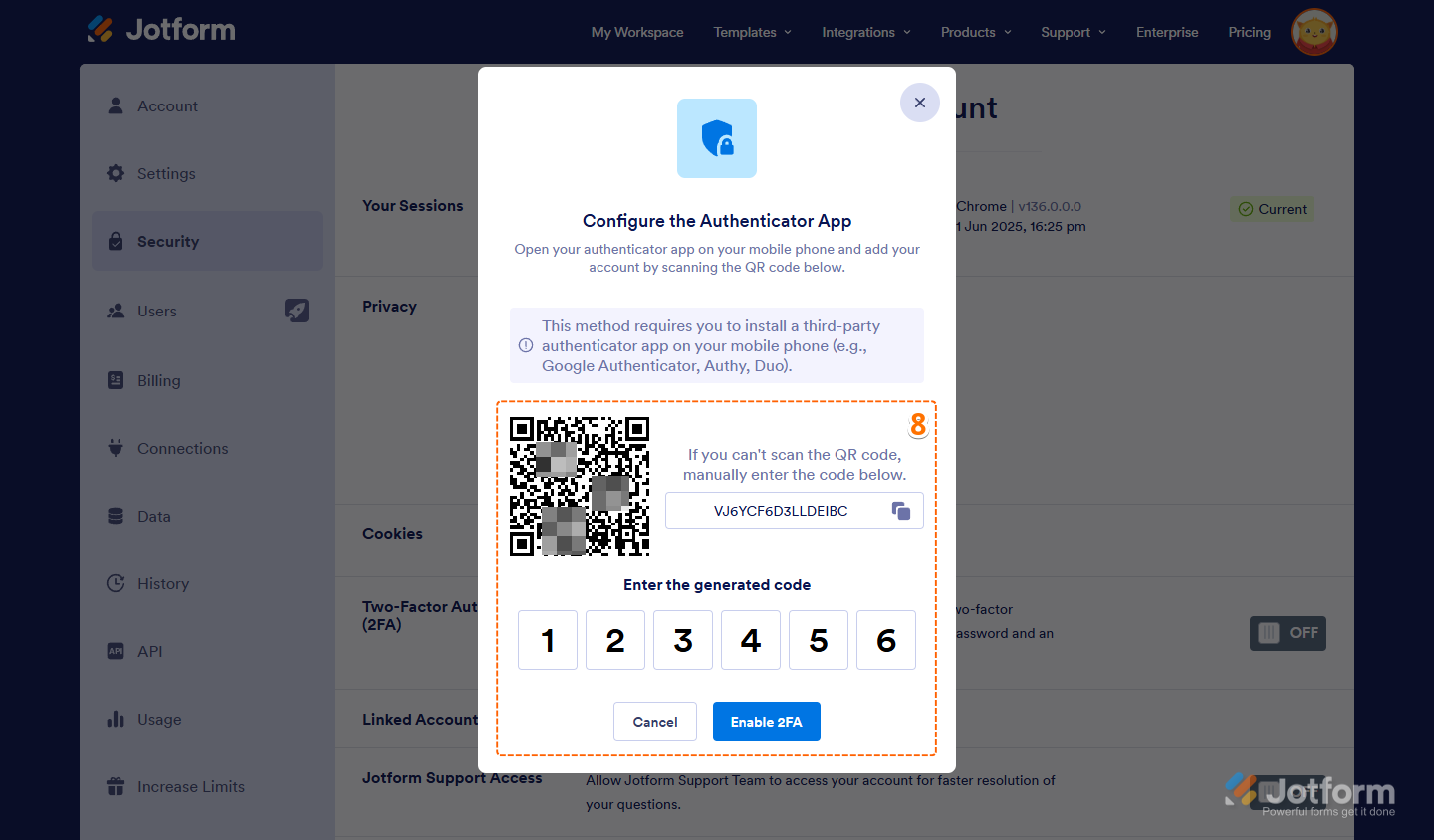
Before you close the window, copy or download your recovery codes. You’ll need them if you lose access to your authenticator app, so keep them somewhere safe and easy to find.
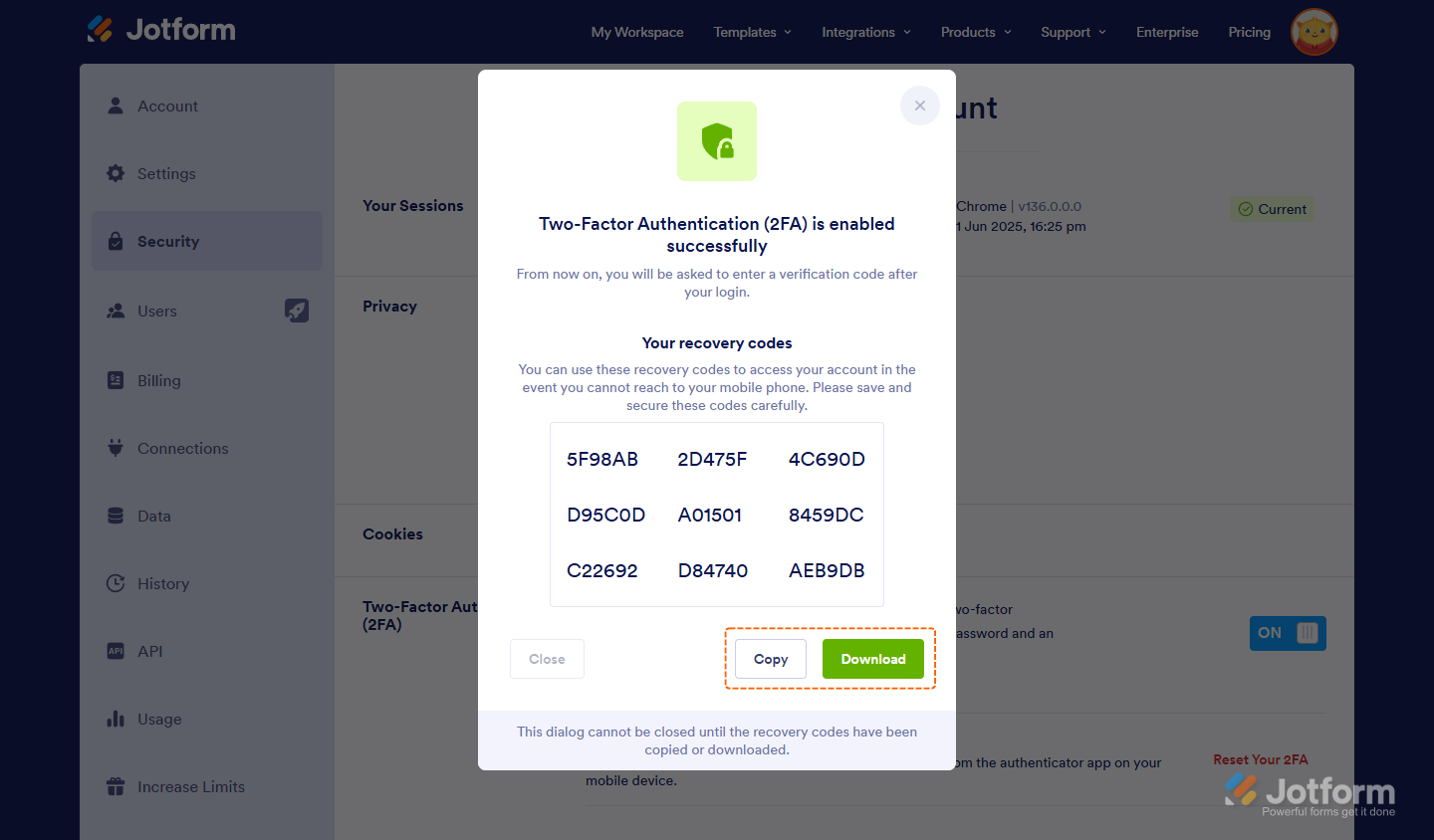
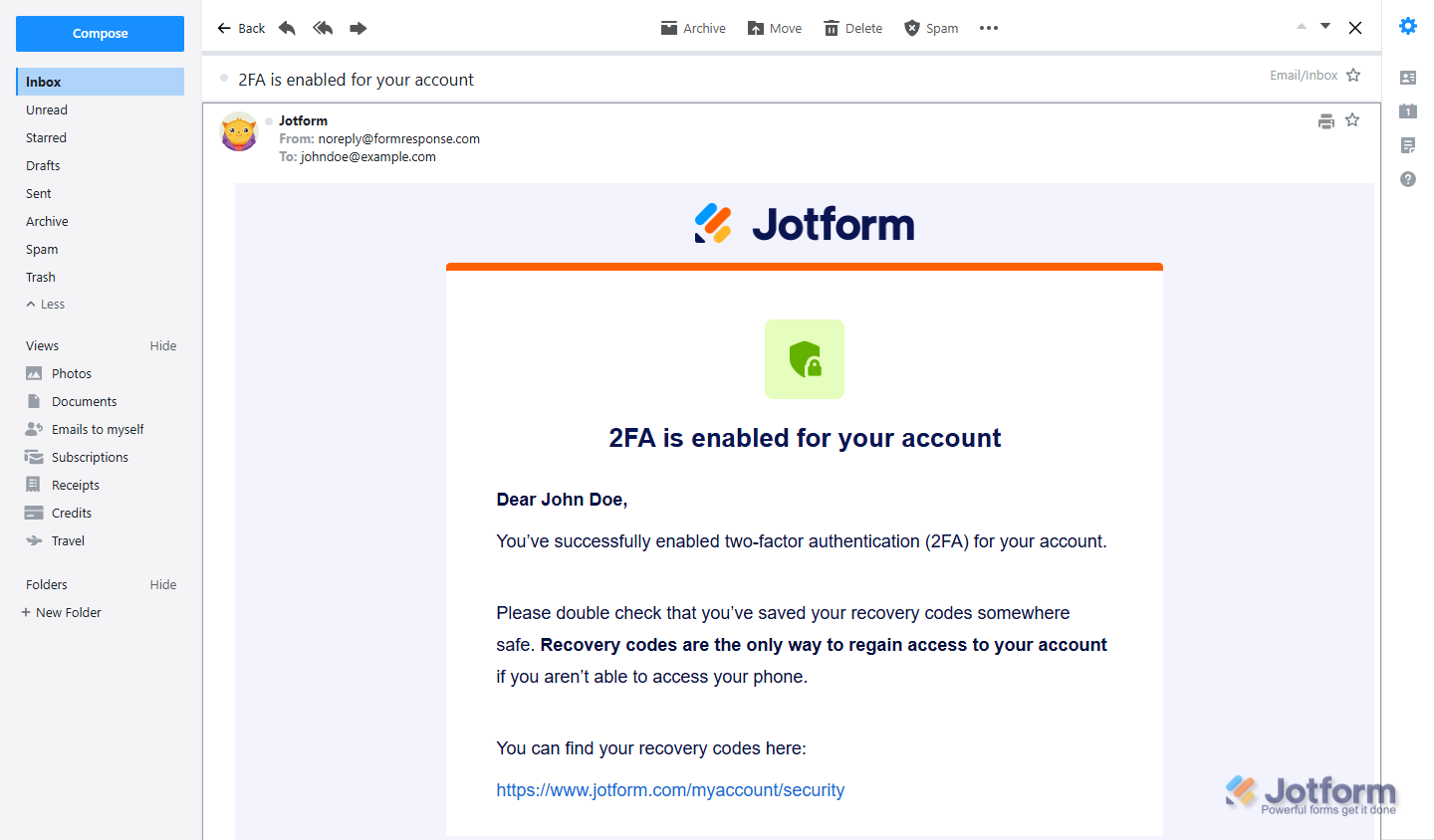
That’s it. You’ve successfully enabled 2FA and added an extra layer of security to your account. You’ll also get a confirmation email at the address linked to your account to let you know it’s turned on.
From now on, every time you log in to your account, you’ll enter a verification code from your authenticator app after your password.


Send Comment:
3 Comments:
June 27, 2025
Can you enforce 2FA on all users in the account?
August 28, 2024
How to enable gifting
May 21, 2024
I turned on 2FA yesterday.
I have lost the QR code to get my authenticator codes from the app.
can you please send me the QR code so I can set up my authenticator app to access my jot form account.
I am unable to access it without the authenticator codes.