It’s easy to export your form submissions to Microsoft Excel so you can organize, review, and manage your data more easily. Downloading your submissions as an Excel file gives you a simple way to sort information, create reports, and keep a copy of your responses whenever you need one.
Whether you’re tracking entries, analyzing results, or sharing data with your team, exporting to Excel helps make everything easier to work with. You can download your form data in just a few steps and start using it right away.
Note
You can also integrate your form directly with Microsoft Excel.
CSV and PDF downloads are also available. Check out our guide on How to Download Form Submissions as Excel, CSV, or PDF to learn more.
You can quickly download your form submissions as an Excel file directly from Tables. Here’s how to do it:
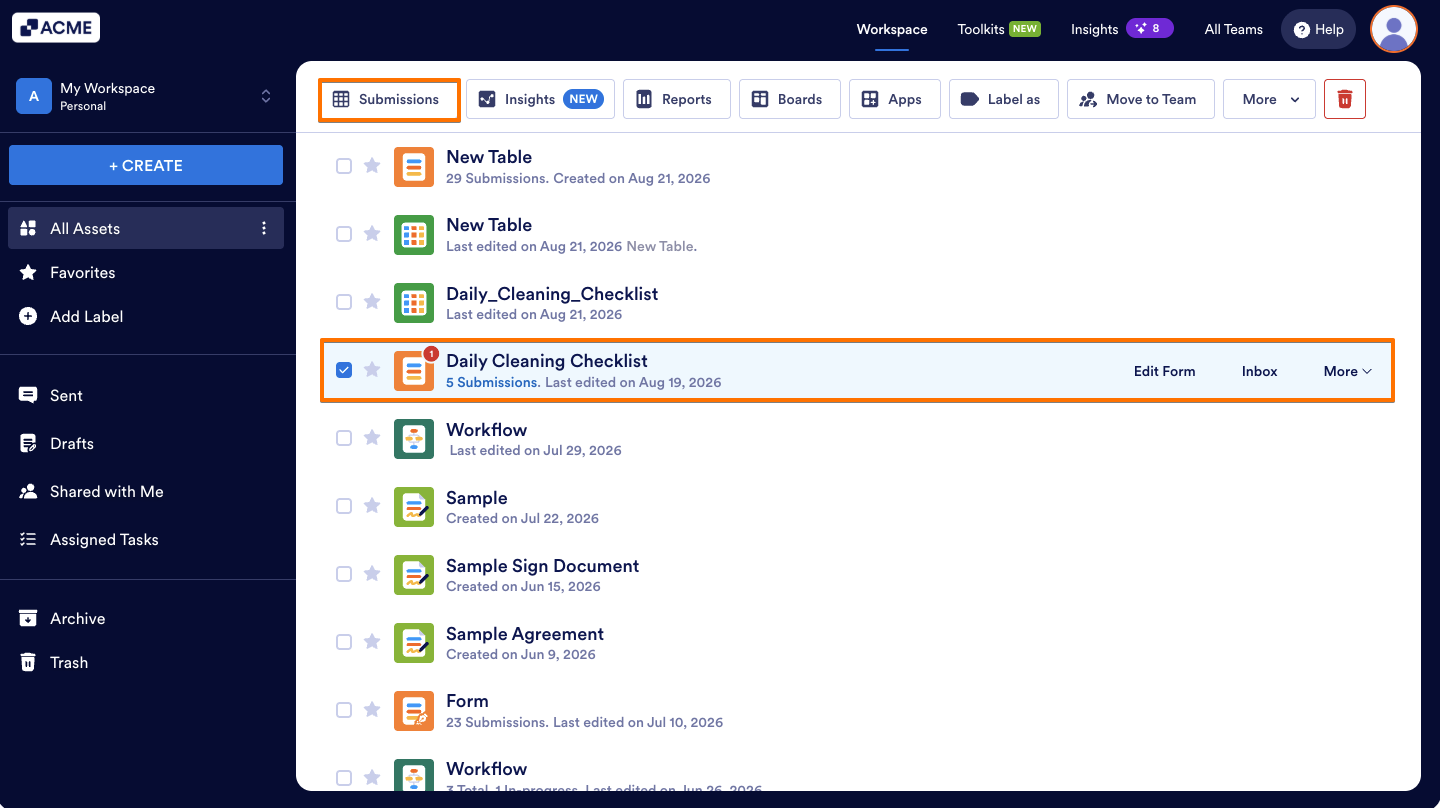
- On your Workspace page, click on the form with the data you want to download. For example, Daily Cleaning Checklist.
- Then, in the menu that comes up on the top, click on Submissions.
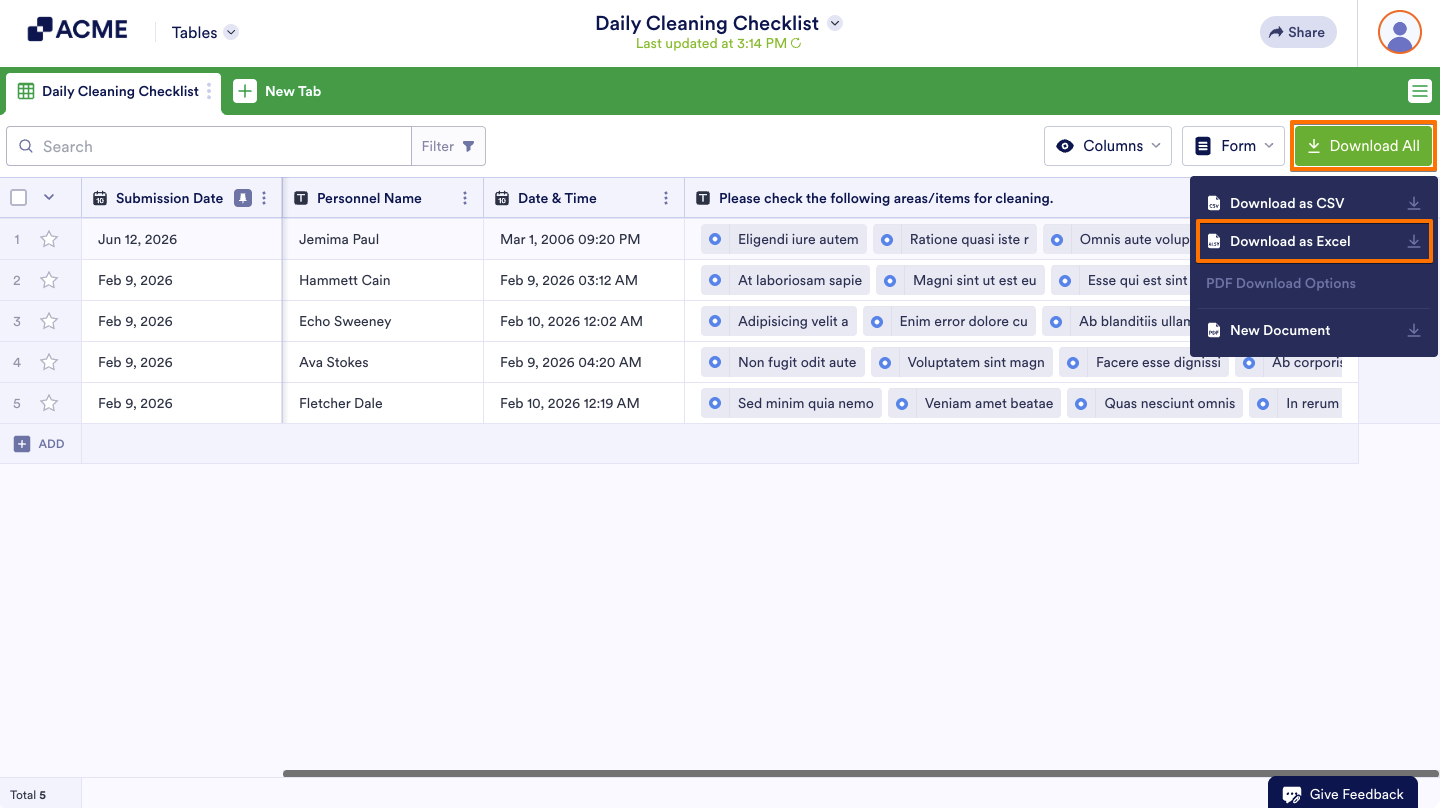
- Next, in Tables that opens, in the upper-right side of the page, click on Download All.
- Now, in the menu that opens, select Download as Excel and you’re done.
The download will start automatically once your file is ready. This may take a moment depending on the size of your submissions.

Send Comment: