Tables lets you easily analyze and manage your form data with its filter feature. It can help you search entries by dates, status, tags, terms, or answers. You can download, delete, or archive the filtered entries or save them into tabs.
Filtering Entries by Submission Date
If you need to view submissions on your form sent on specific dates, you can filter them by Submission Date:
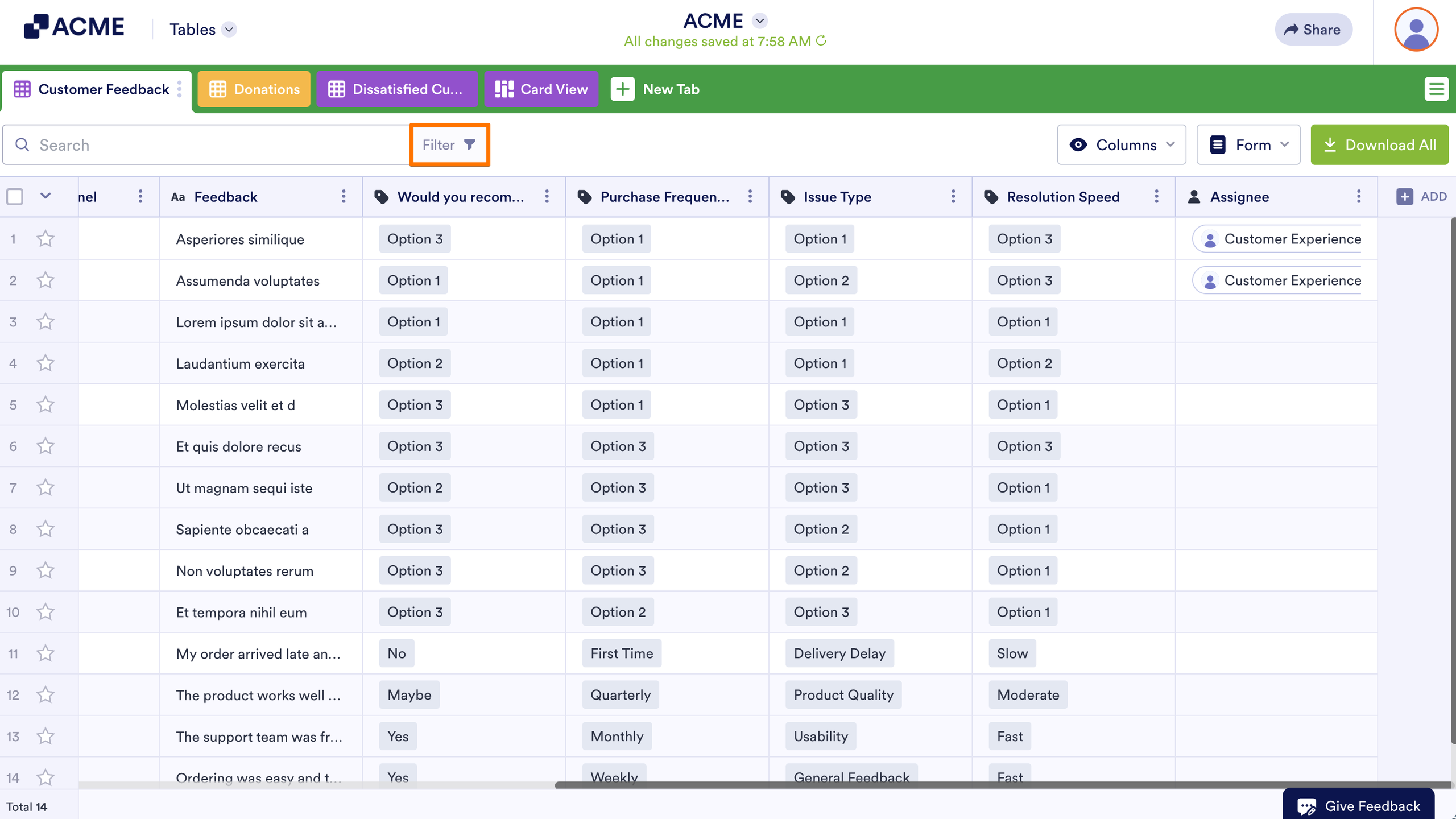
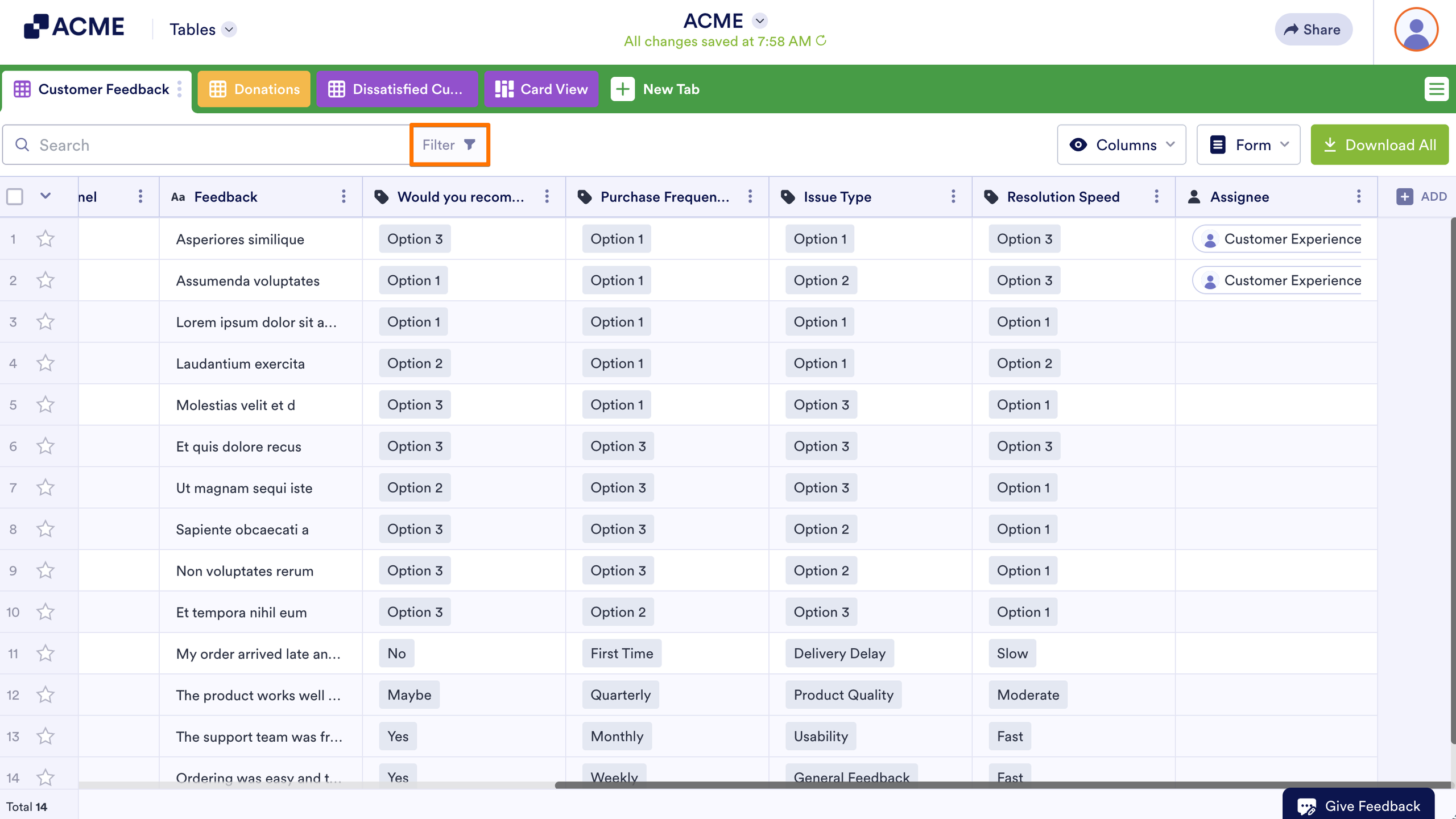
- In Tables, click on Filter next to the search bar in the upper-left of the page.
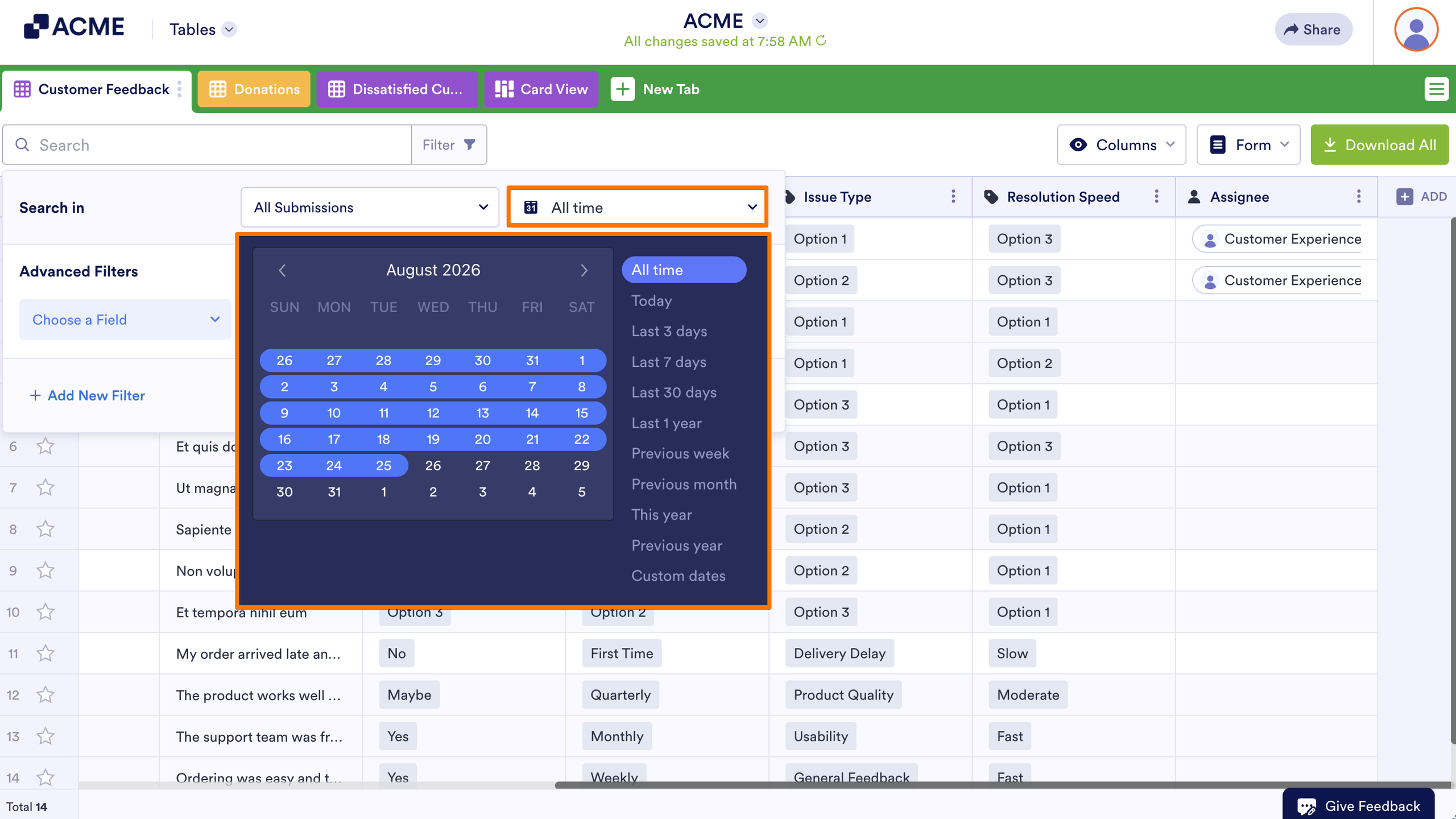
- In the Filter box that opens, click on All Time. You can choose your desired range in the date picker. You can either use the presets on the right or choose custom dates using the calendar.
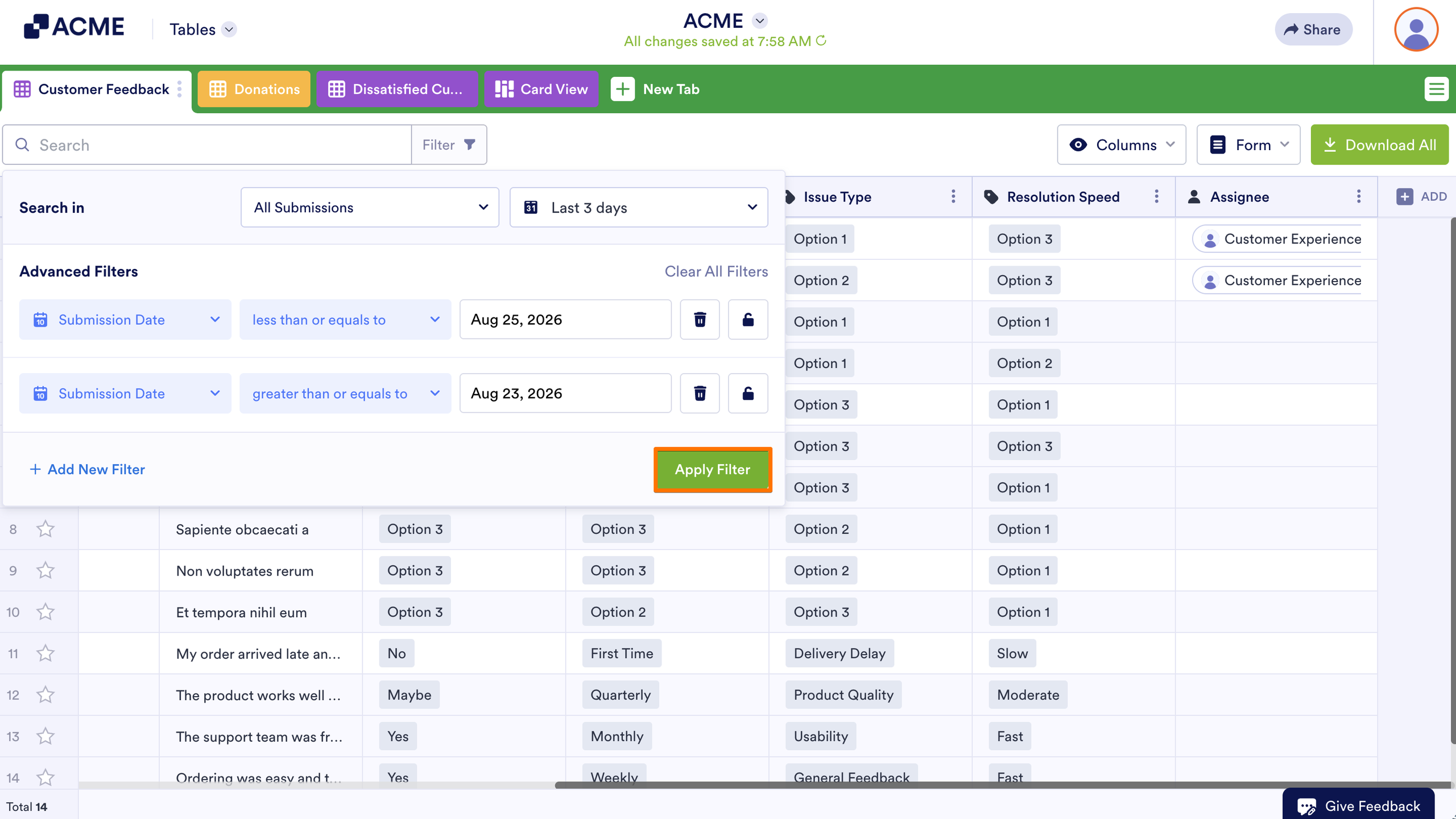
- Click anywhere outside the Date Filter box, then select Apply Filter.
Filtering Entries by Search In
You can filter your form submissions by different categories, including whether they are Unread, Read, Starred, or Unstarred. To filter using Search In.
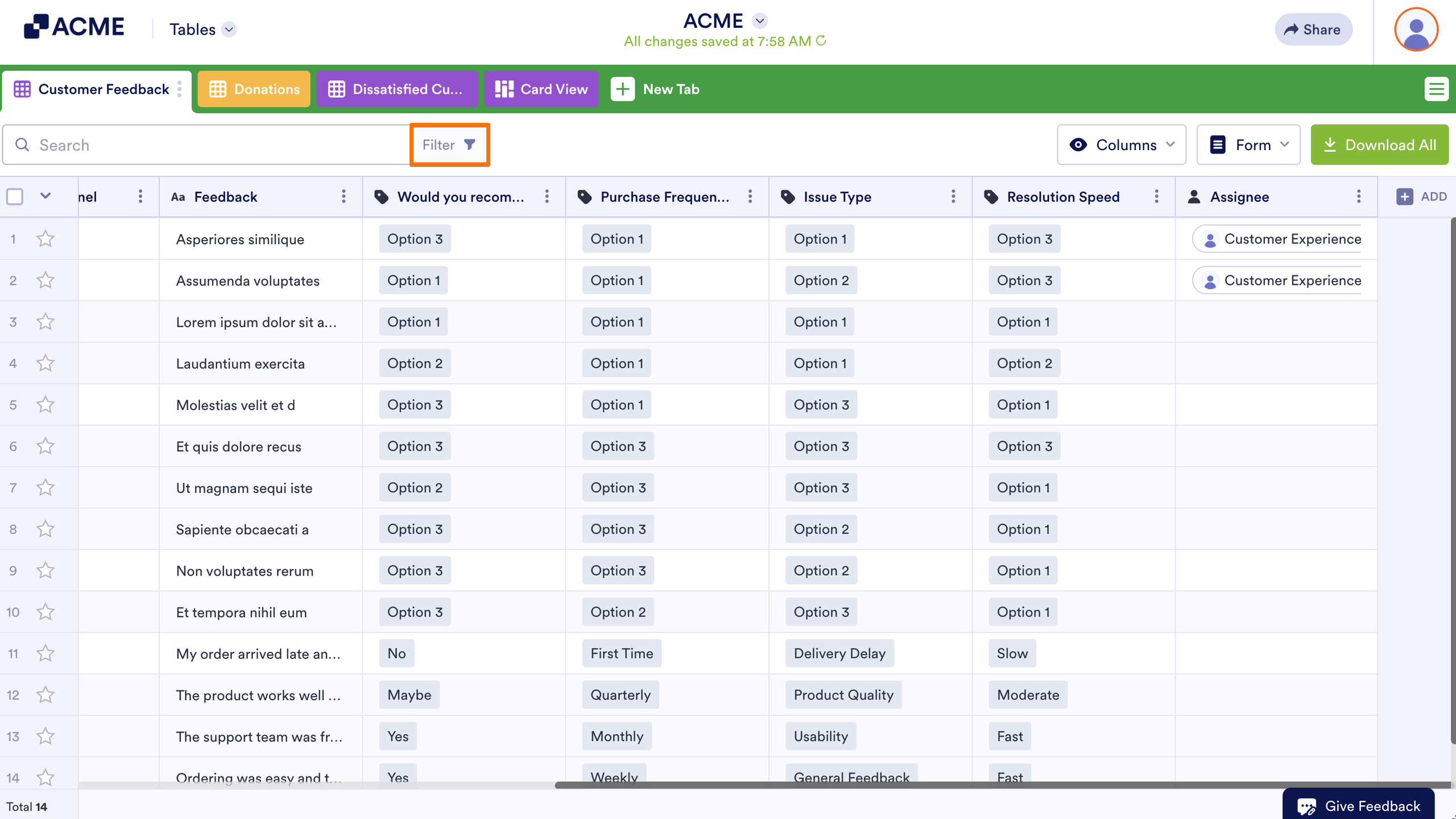
- In Tables, click on Filter next to the search bar in the upper-left of the page.
- In the Filter box that opens, click on All Submissions dropdown, then select your preferred option and click on Apply Filter.
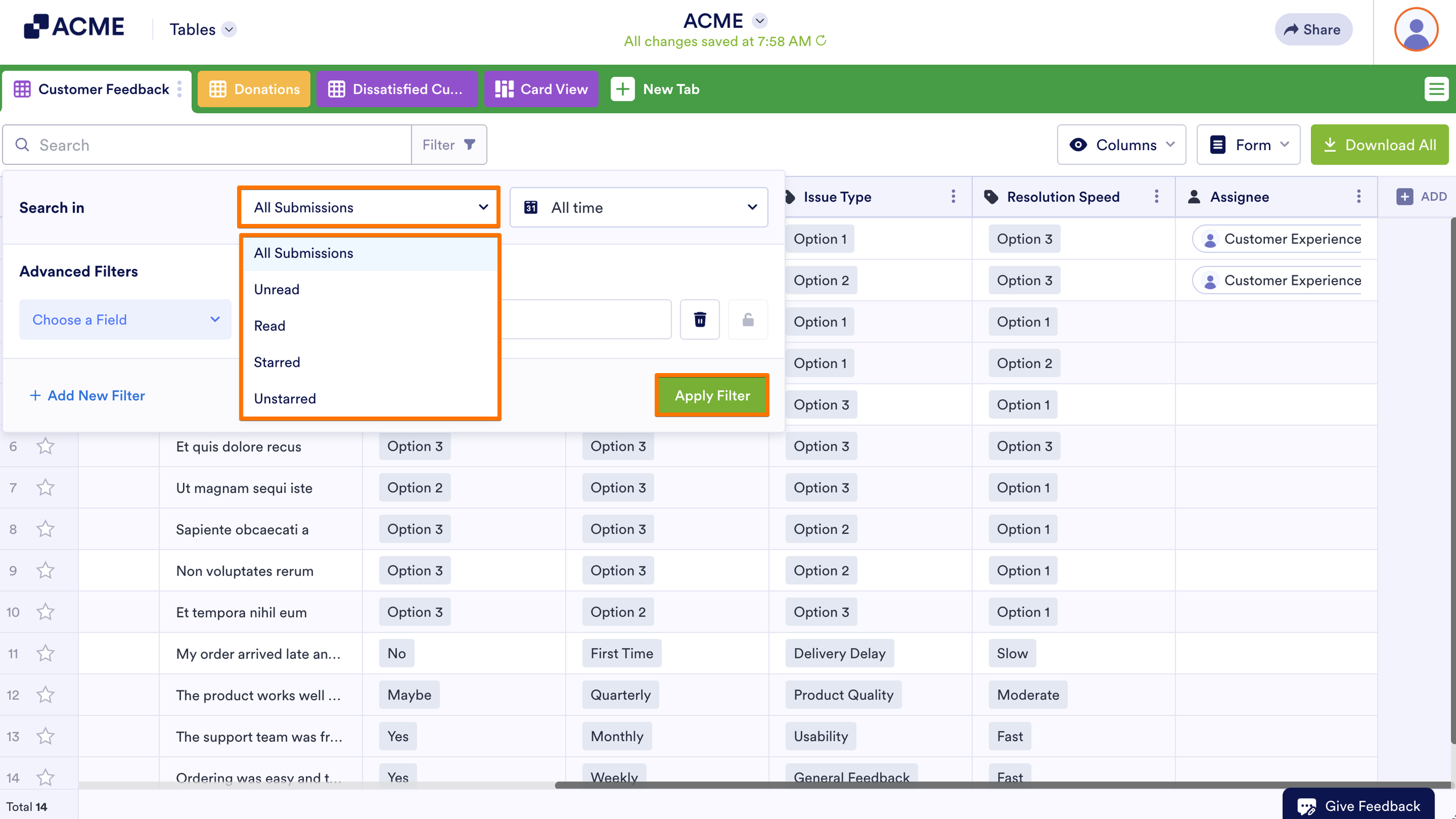
You can select on your desired Search in based on your preferred filter. The available options are:
- All Submissions — This option shows all the form submissions regardless of their status.
- Unread — This filter shows only the submissions that you have not read yet.
- Read — This filter shows the form submissions that you have already read.
- Starred —The Starred filter displays all submissions that you have marked with a star.
- Unstarred — The Unstarred filter will display only the submissions that do not have a star.
Filtering Entries by Date
Unlike the Submission Date filter, other date-related data in Tables don’t have filter presets. To filter custom date fields.
- In Tables, click on Filter next to the search bar in the upper-left of the page..
- Under Advanced Filters, choose a date field and enter the start date:
{your date field}, greater than or equal to, {the start date}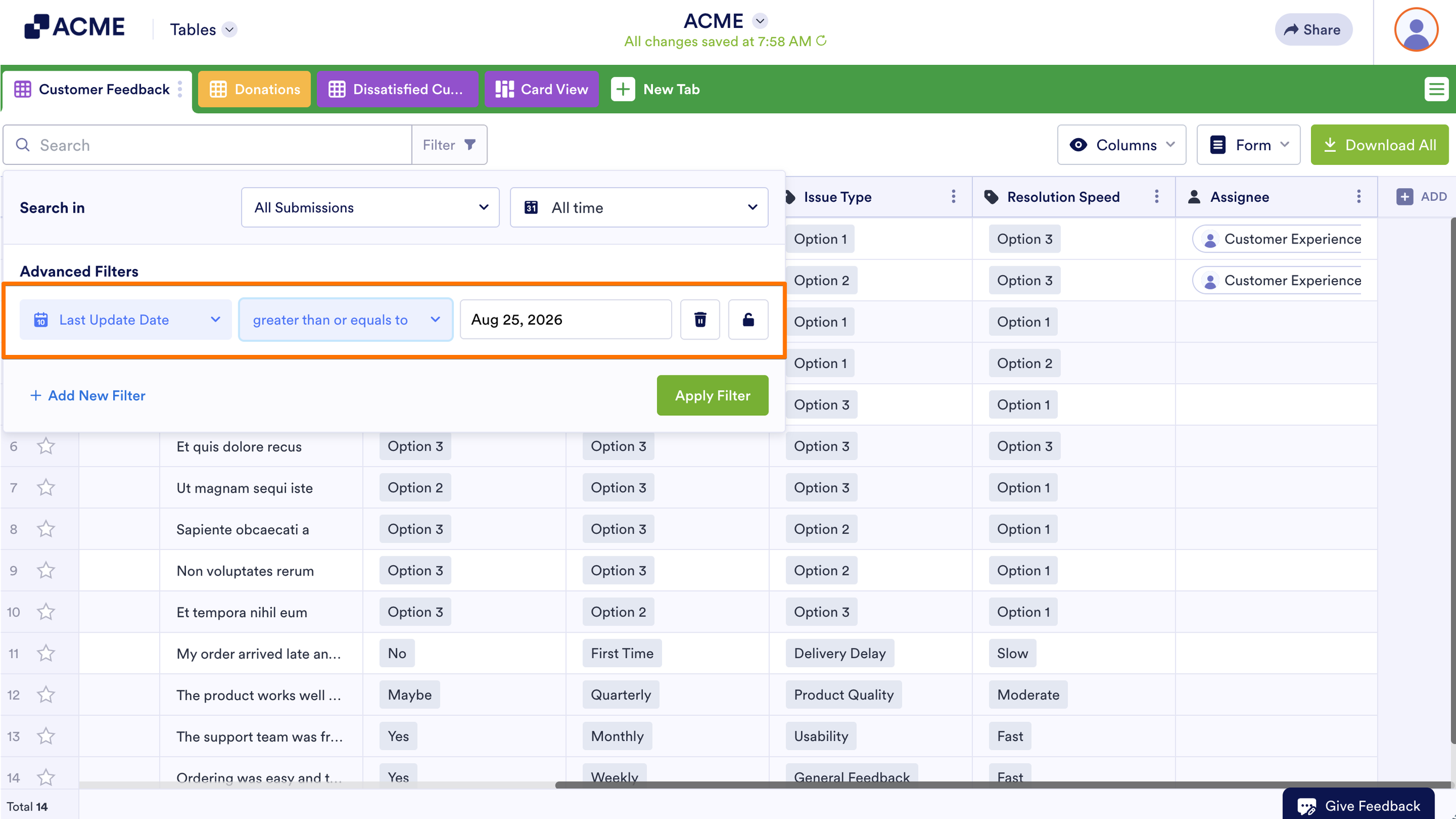
- Select Add New Filter in the lower-left corner.
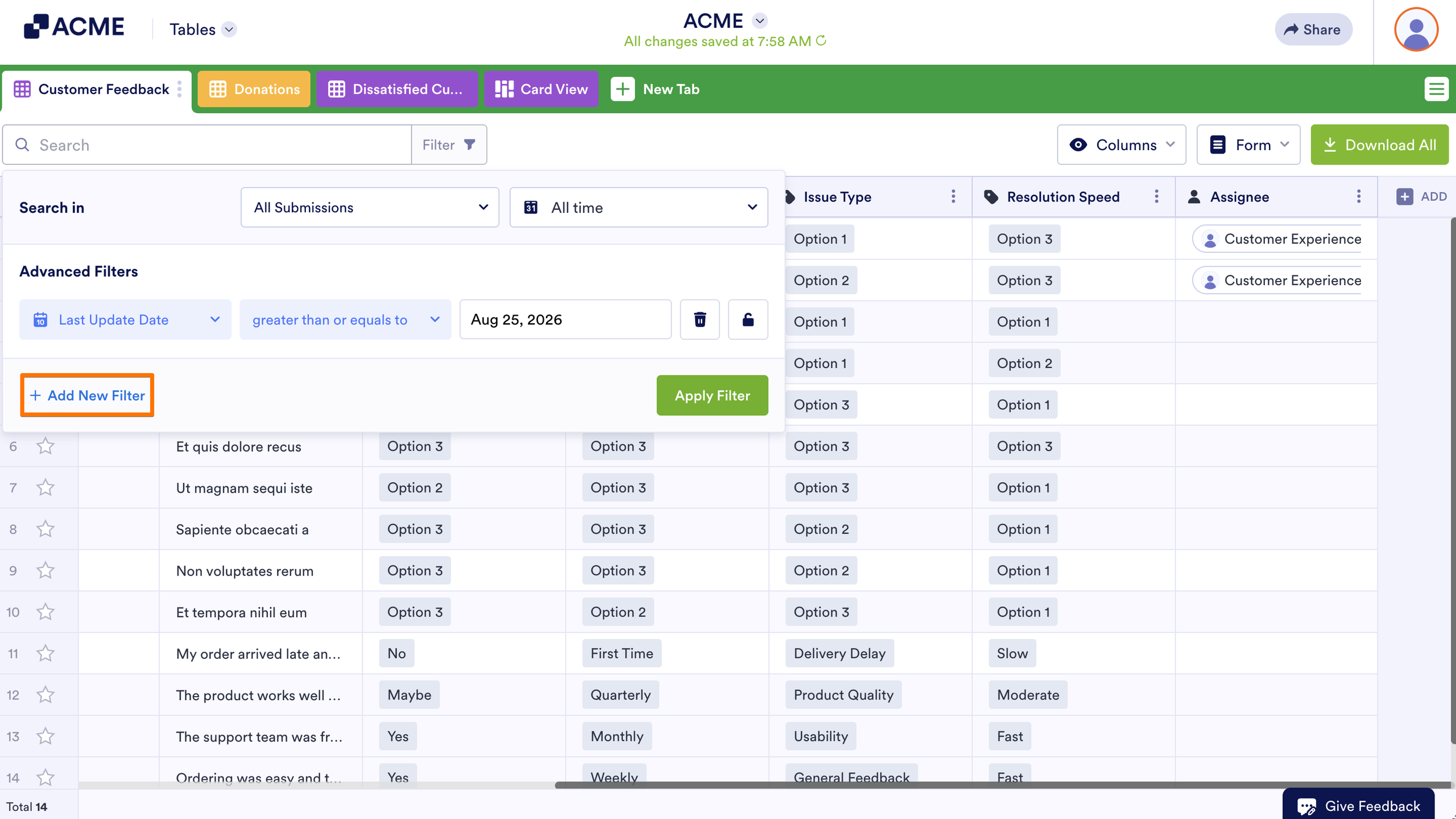
- Configure the same date field for the end date:
{your date field}, less than or equal to, {the end date}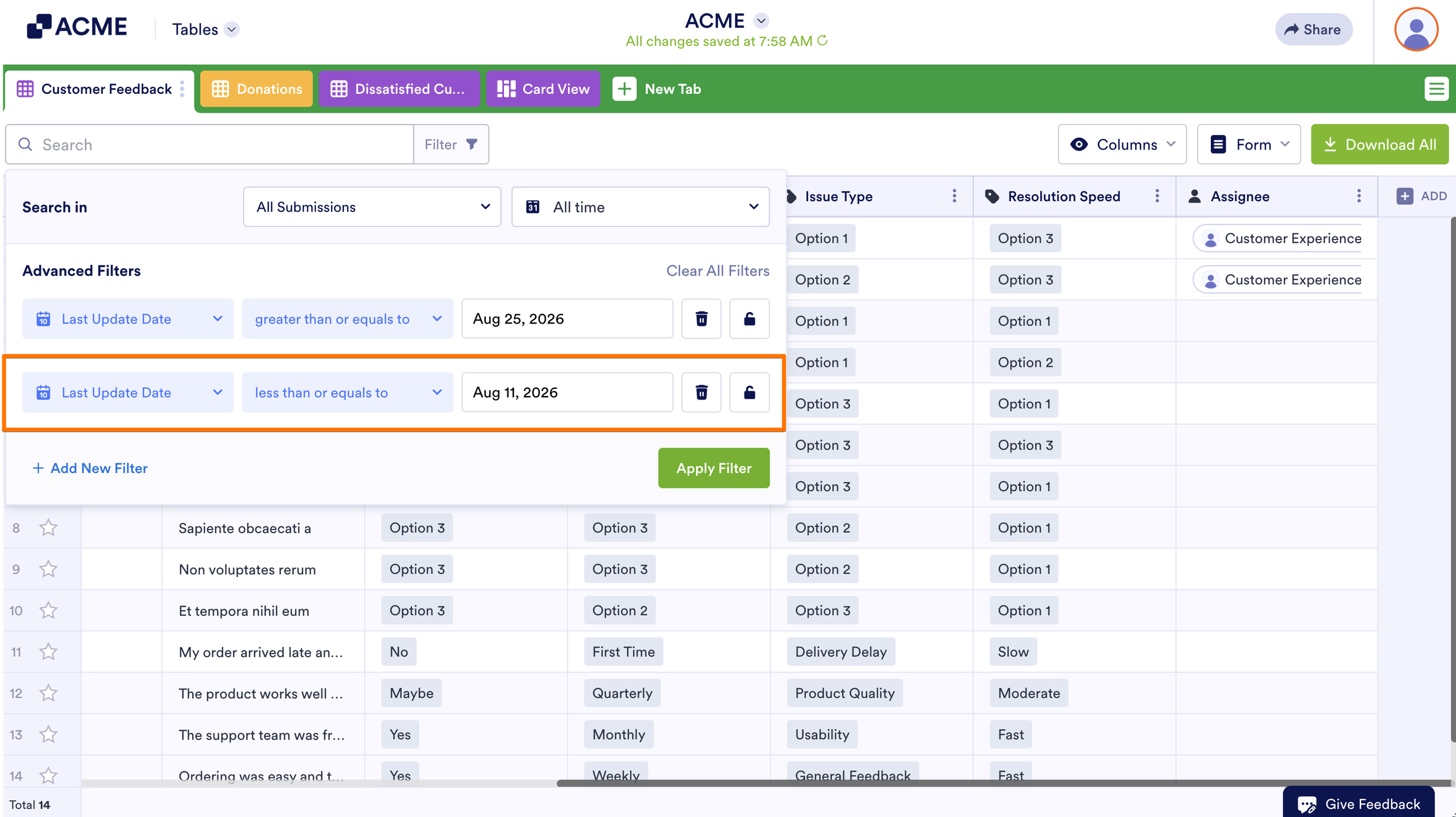
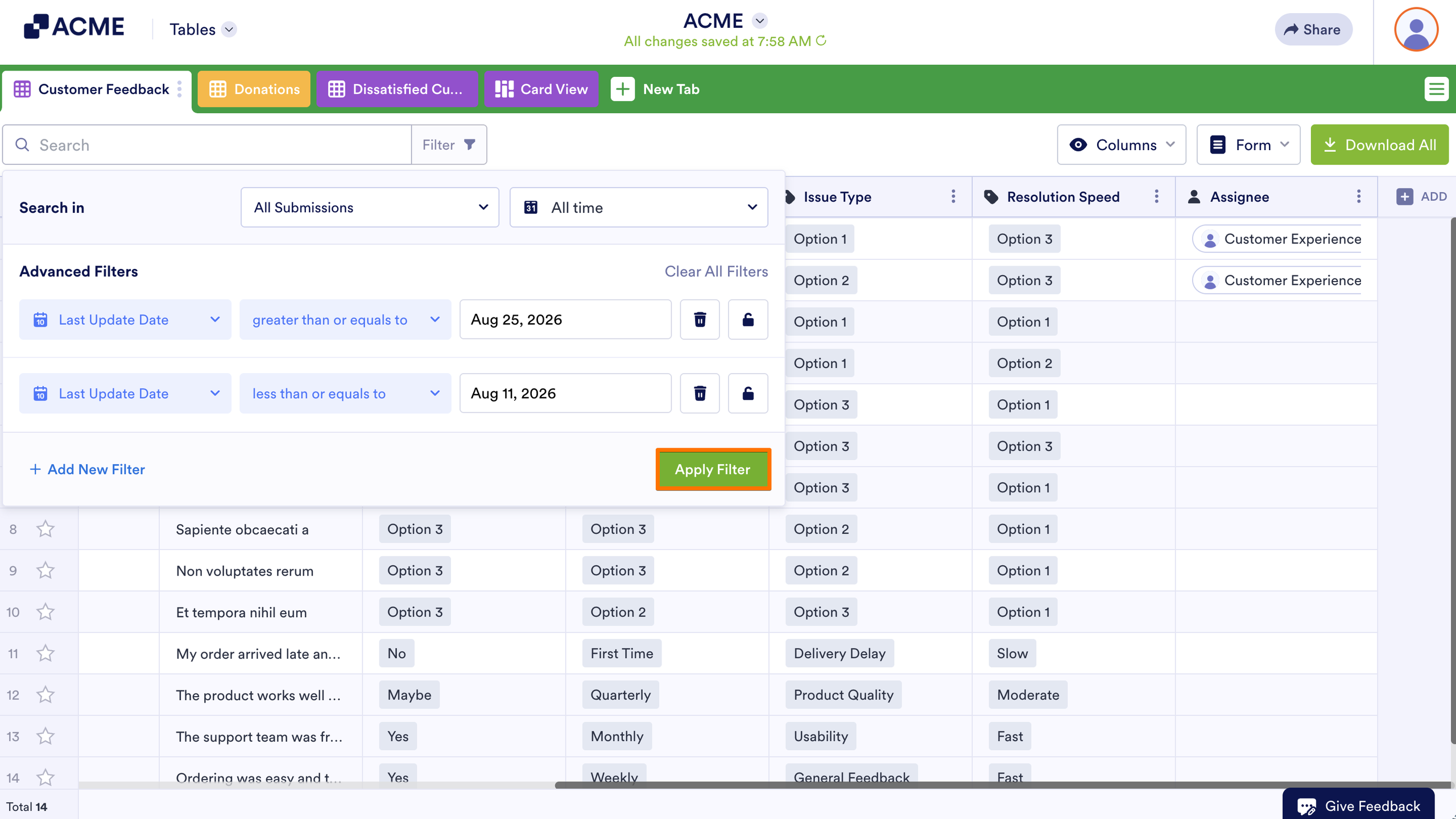
- Ensure both filters are using the same date field, then click on Apply Filter.
Filtering Entries by Value
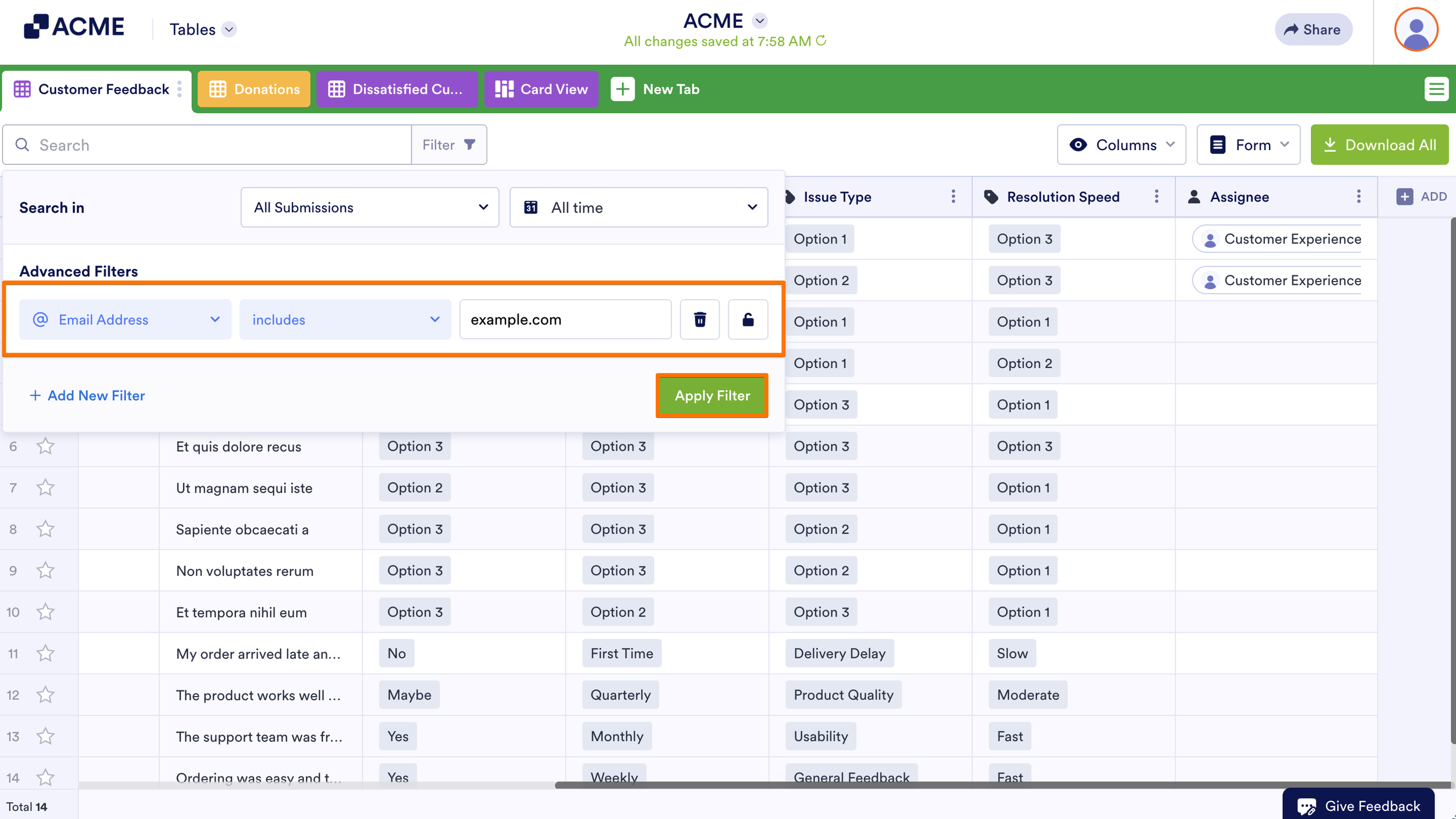
To filter submissions by field value or answer on the form
- In Tables, click on Filter next to the search bar in the upper-left of the page.
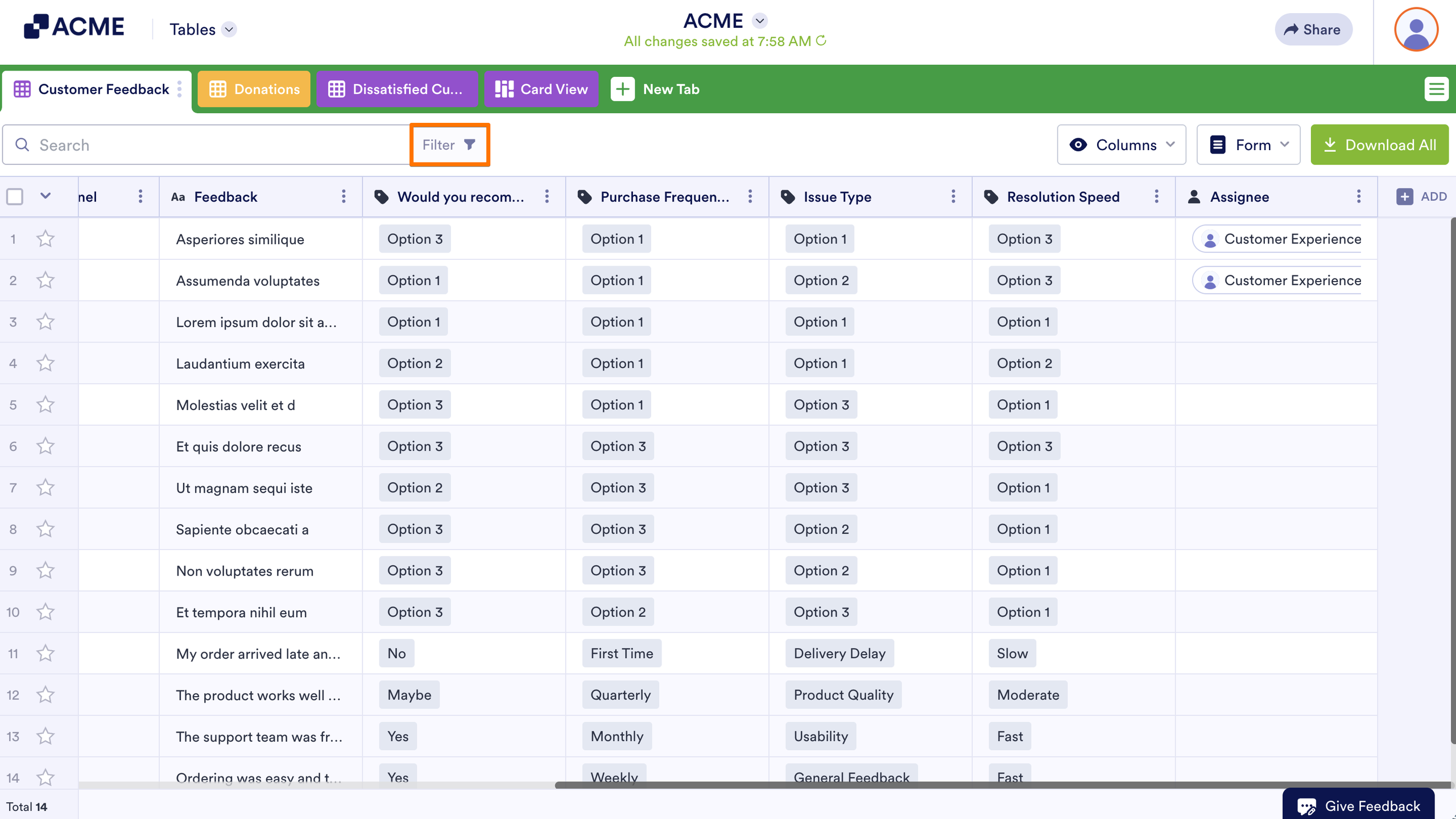
- Under Advanced Filters, specify the field and value to search, then apply your filter.
Editing and Removing Filters
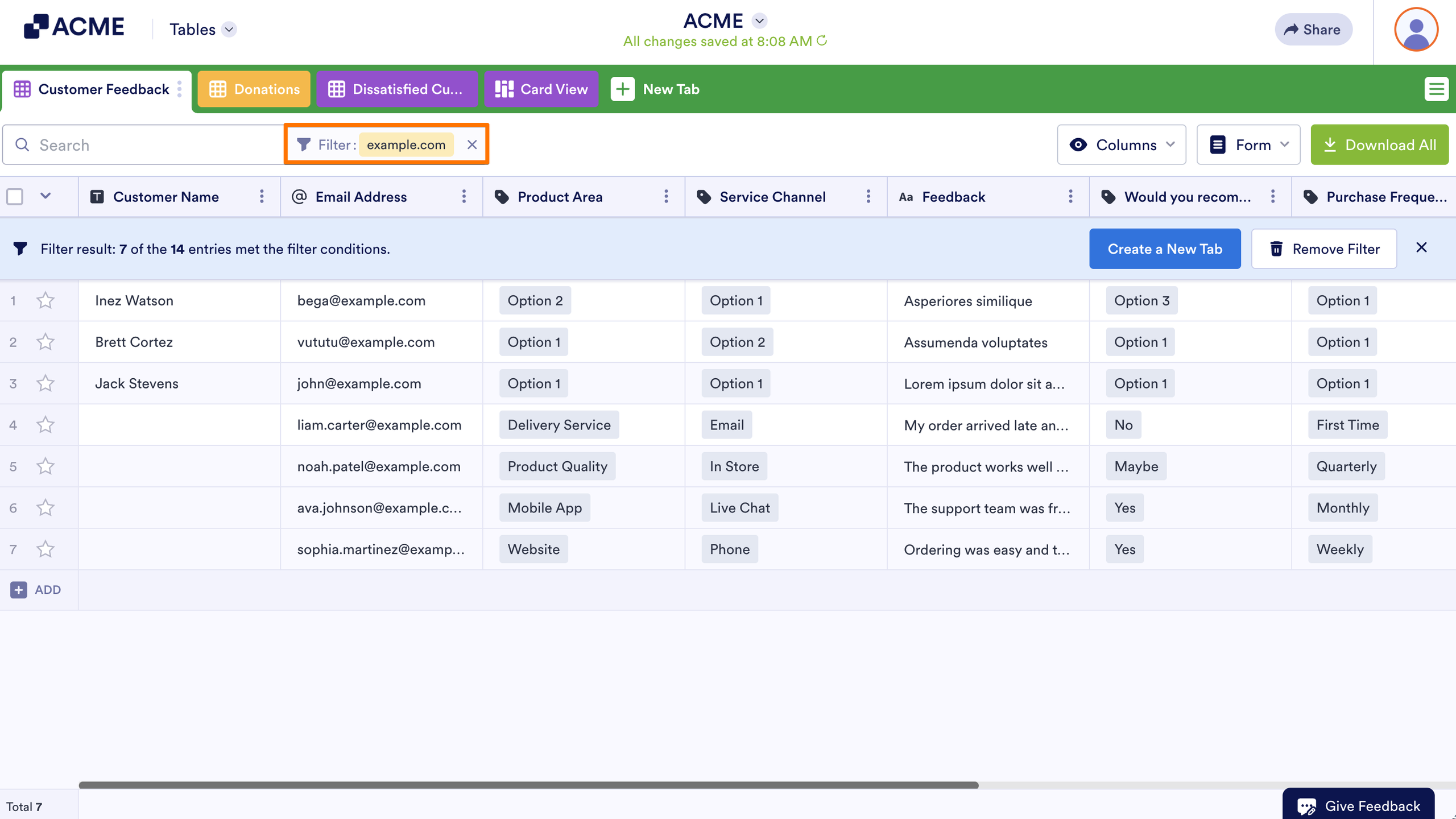
You can edit your existing filters by opening Filter. To remove filters, select the Remove icon next to the Filter button.

Send Comment: