With Jotform Canva App, you can easily browse and filter form templates to find options that match the style and purpose of your Canva designs. Whether you’re creating event materials, customer feedback pages, business presentations, or contact forms, filtering templates by category, layout, or language makes it easier to narrow down your choices and discover forms that fit your project more naturally. The built-in search and filtering tools also help save time, especially when you’re trying to narrow down a large selection of templates.
Jotform helps simplify the process of pairing forms with designs, making it useful for marketers, business owners, educators, event organizers, and anyone creating interactive content in Canva. Instead of scrolling through countless options, you can quickly focus on templates that align with your design goals, helping create a more organized and seamless experience for both creators and audiences.
When looking for Jotform templates to add forms to your Canva designs, you can also apply filters to quickly narrow down your options and find templates that best match your project. Here’s what to do:
- While you’re in the Jotform Canva App on the Canva Design Editor page, under the Create tab, select Templates.
- Then, click on the Filter icon on the right side of the Search bar above the list of available templates.
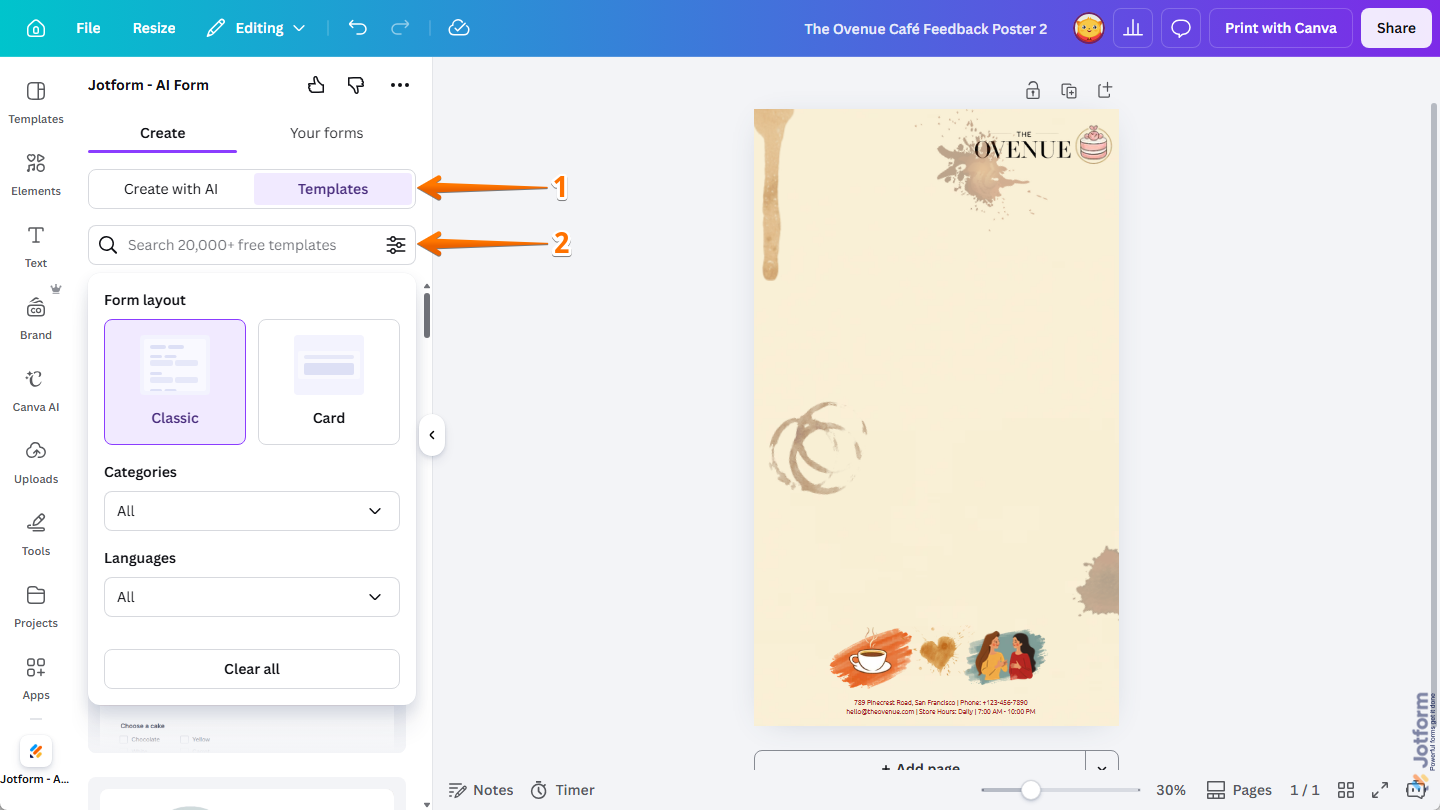
- Now, in the Filter menu that opens, under the Form Layout section, keep Classic selected or choose Cards if you only want to show available form templates in that layout. You can check out our guide on When to Use Card Forms to learn more.
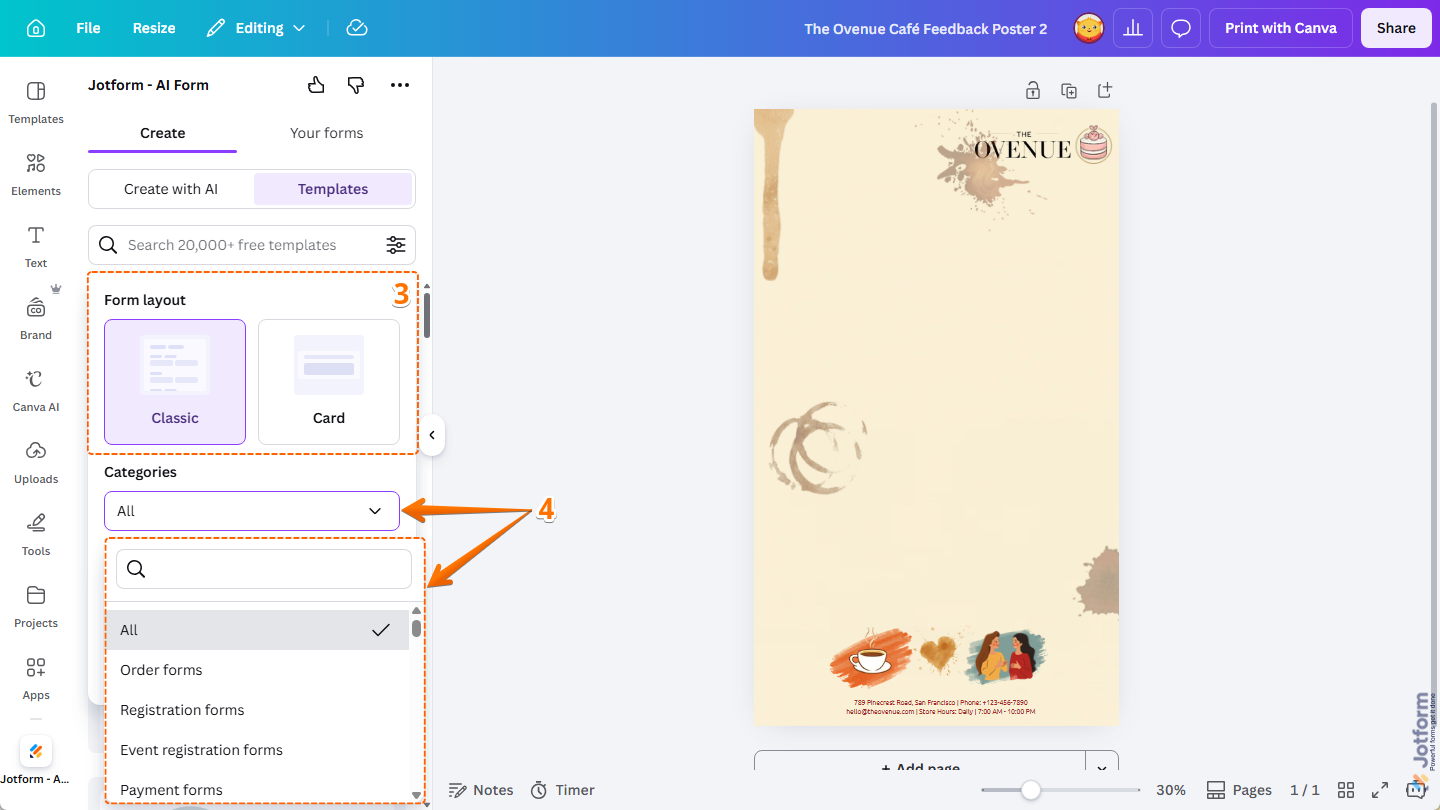
- Then, click on the Categories Dropdown menu and select the form type you want to show templates for, or keep All selected to display templates from every category. You can use the Search bar at the top of the Filter menu to quickly find the one you want.
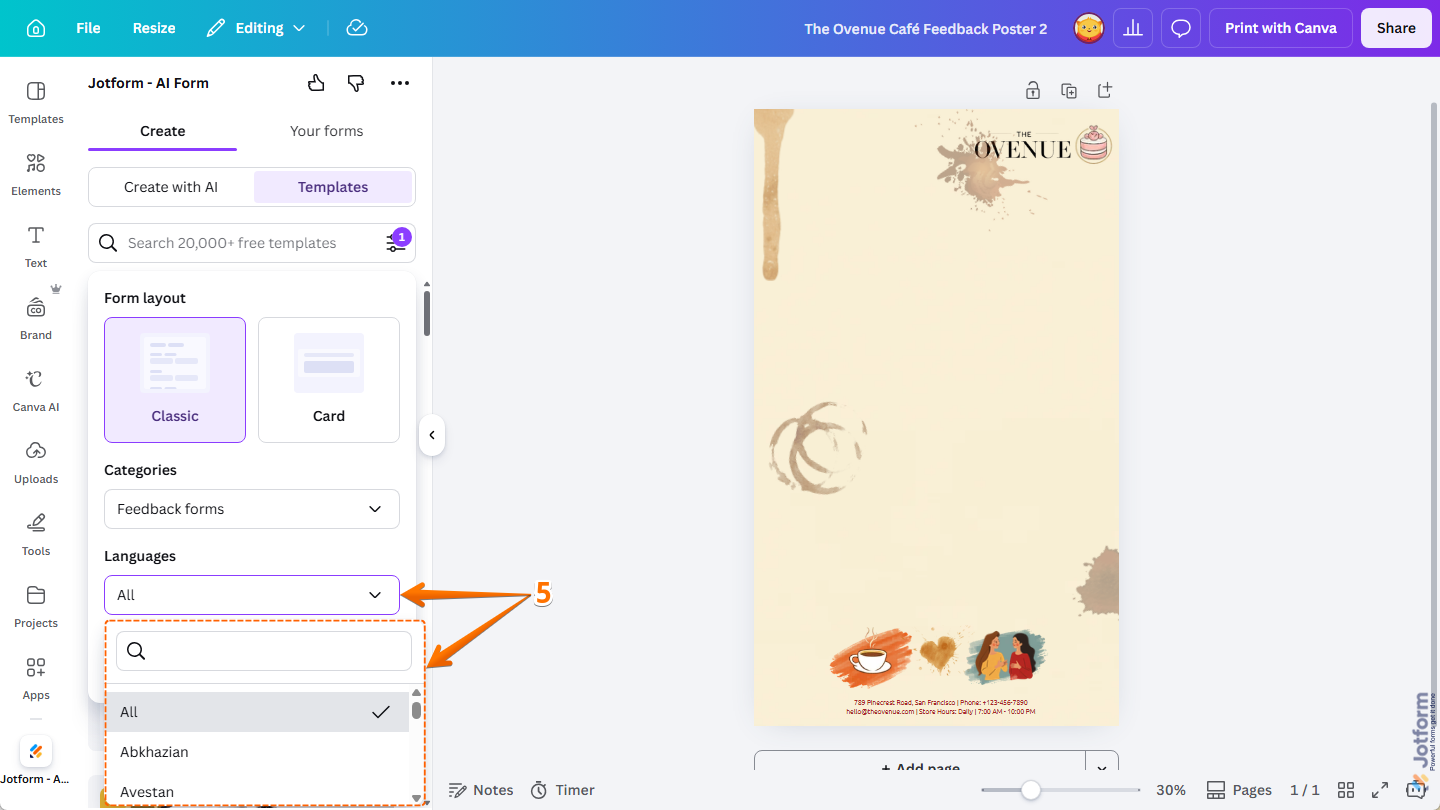
- Next, click on the Languages Dropdown menu and select the language you want to show templates in, or keep All selected to display templates in every language. You can use the Search bar at the top of the Filter menu to quickly find the one you want.
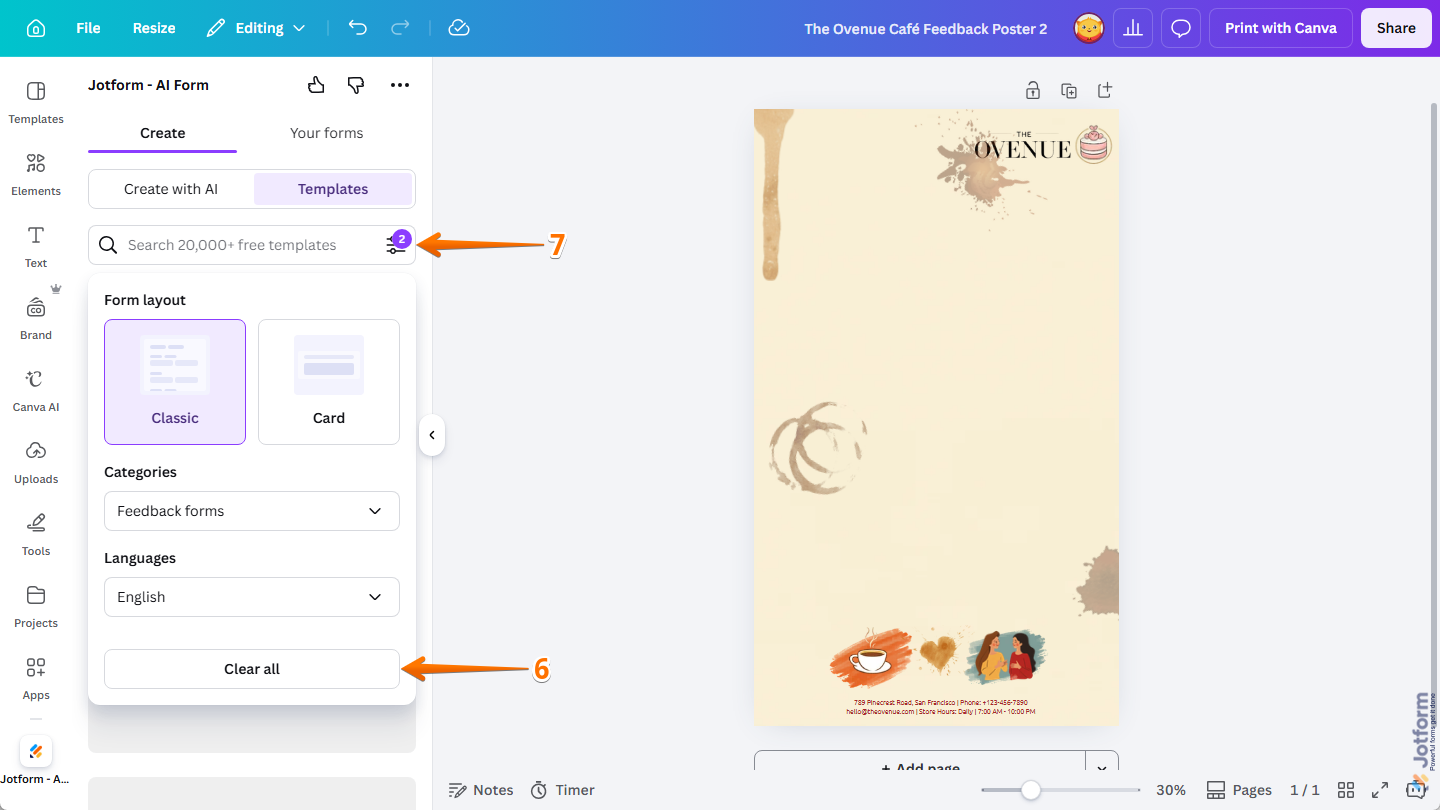
- To reset every filter setting to its default state, click on Clear All at the bottom of the Filter menu.
- Once everything’s set, click on the Filter icon again to refresh the list of templates based on the filters you selected.
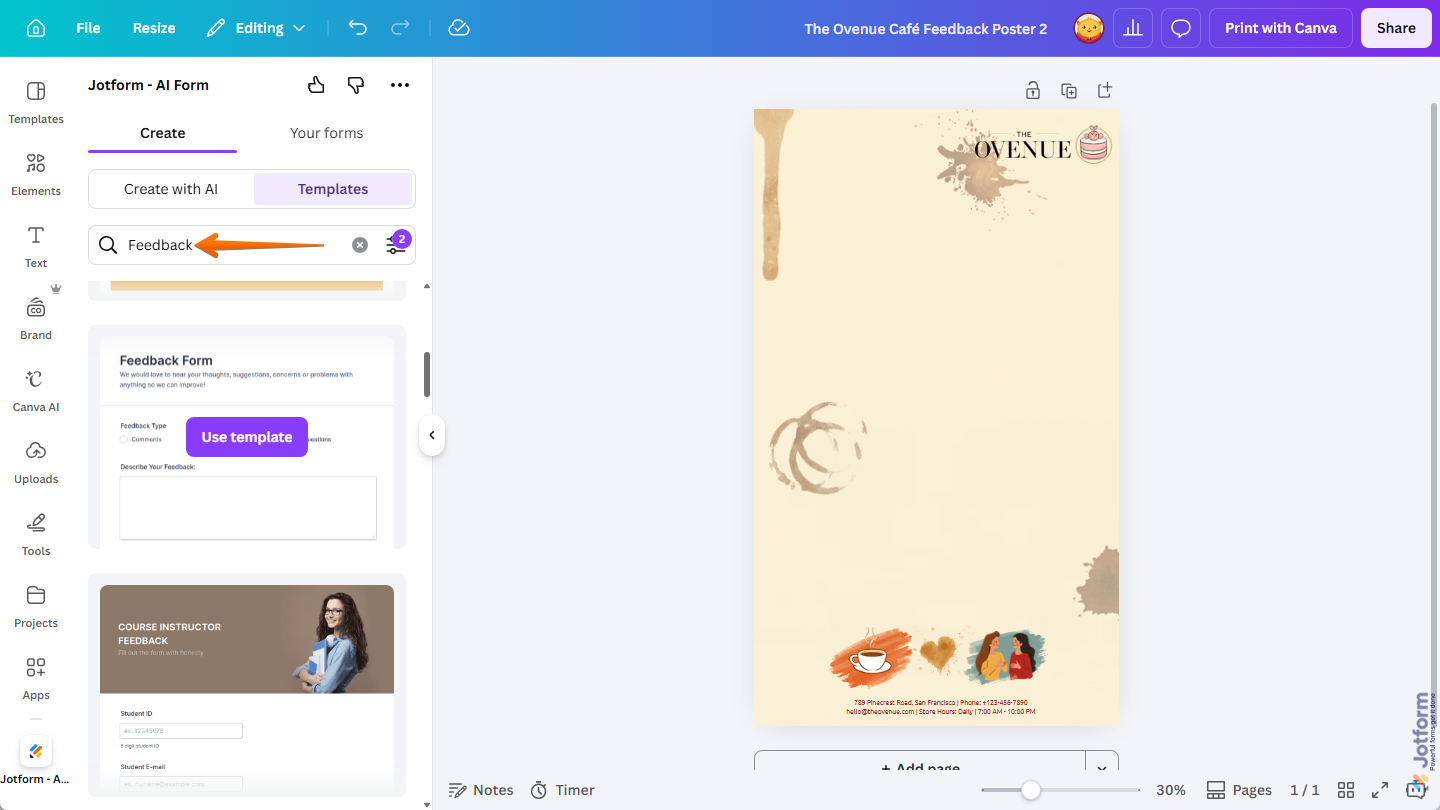
That’s it! Now finding the right template for your Canva design is quicker and easier. You can also type a keyword in the Search bar and press the Enter key on your keyboard to quickly find templates within your filtered results.
Notes
- The Filter icon will show the number of filters you applied to the current template list.
- You can scroll to the bottom of the template list to load the rest of the templates that match your selected filters, if there are any.

Send Comment: