Jotform makes it easy to receive real-time form submission alerts directly in your Slack workspace. Slack is a powerful communication platform that helps teams stay aligned and respond quickly. With Jotform’s Slack Notifications, you can instantly send submission details to any Slack channel or teammate—allowing your team to act faster without manually checking emails or dashboards.
Connecting Your Slack Account in Form Notifications
Whether you’re setting up a new form or updating an existing one, connecting your Slack account in your Form Notifications takes no time at all—here’s how:
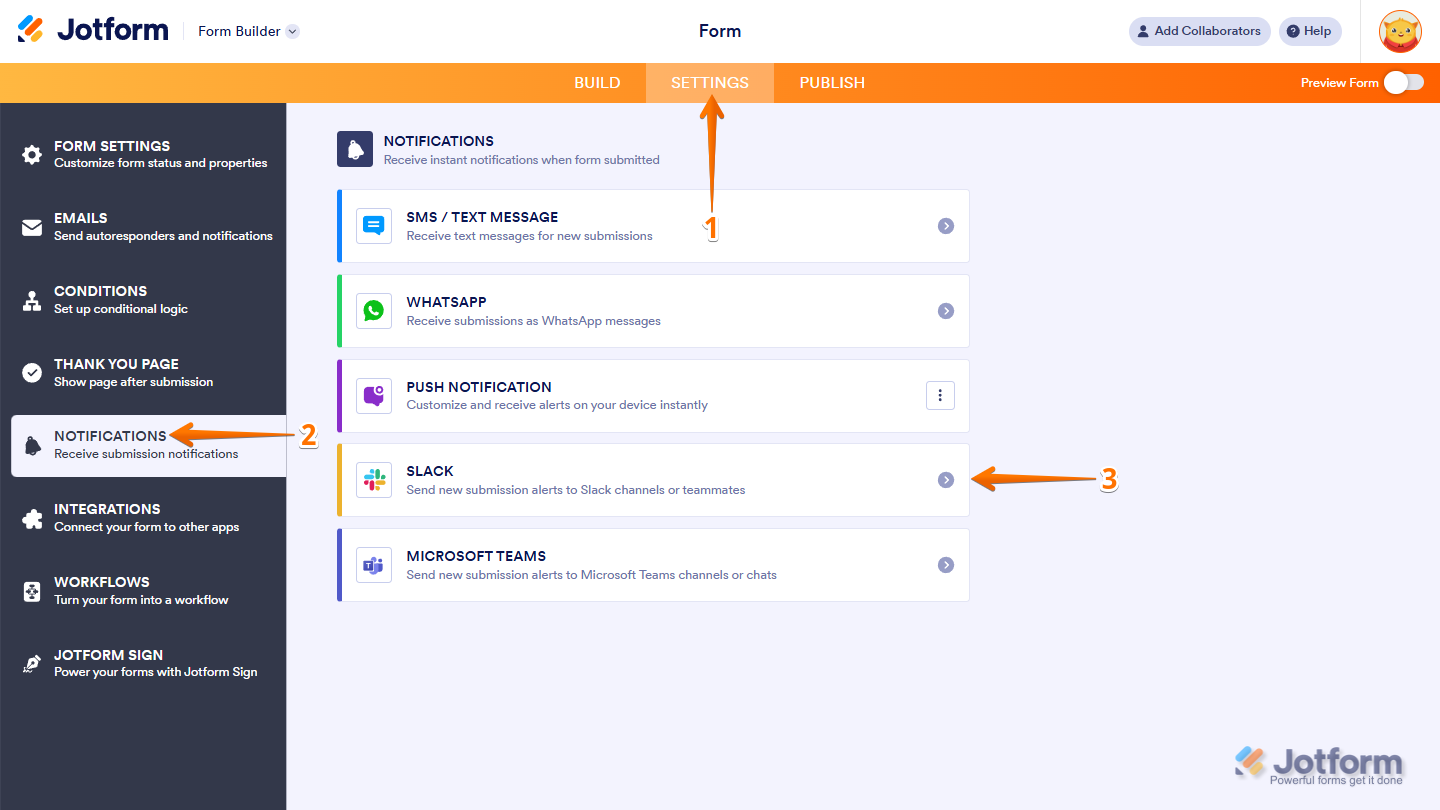
- n Form Builder, in the orange navigation bar at the top of the page, click on Settings.
- Then, in the menu on the left, click on Notifications.
- Now, select Slack from the list of available notification channels.
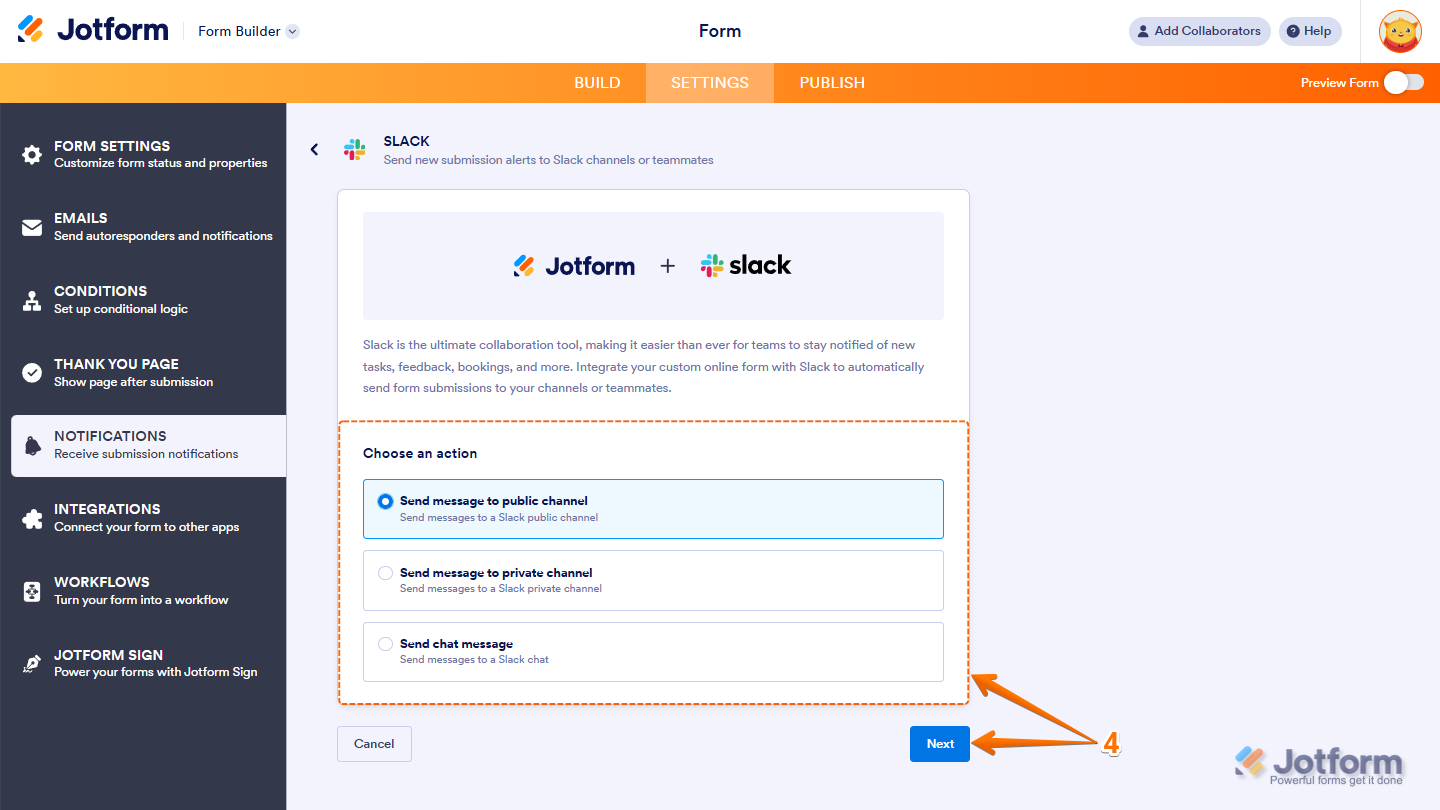
- Next, under the Choose an Action section, select what you want to do, and then click on Next.
- Send Chat Message — Sends a direct message (DM) to a specific teammate, ideal for personal responsibilities such as sales, support, or approval workflows.
- Send Message to Private Channel — Sends a message to a private channel used by internal teams. Make sure to follow the instructions in this note to properly add Jotform to the channel so notifications are delivered.
- Send Chat Message — Sends a direct message (DM) to a specific teammate, ideal for personal responsibilities such as sales, support, or approval workflows.
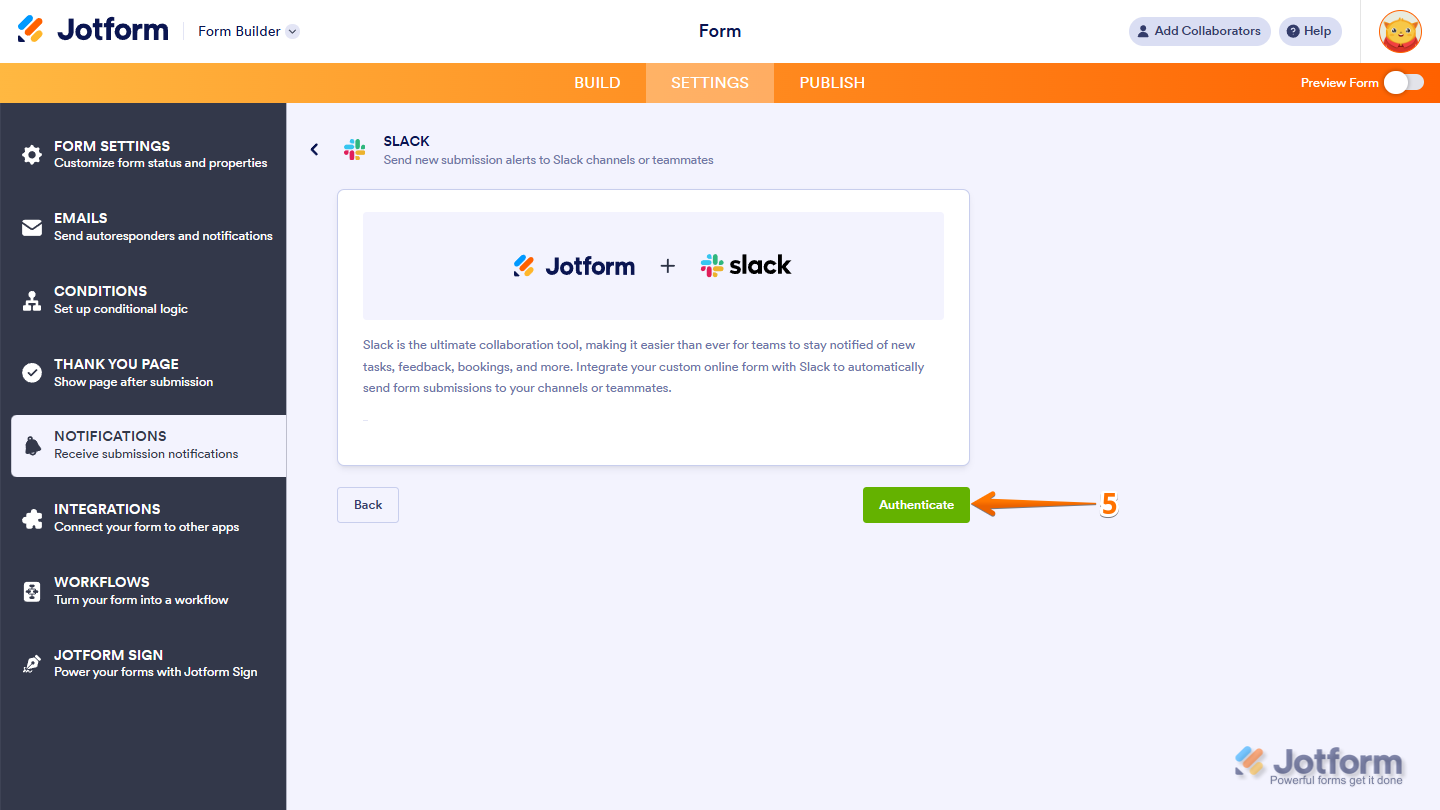
- Then, click on Authenticate and log in to your Slack account.
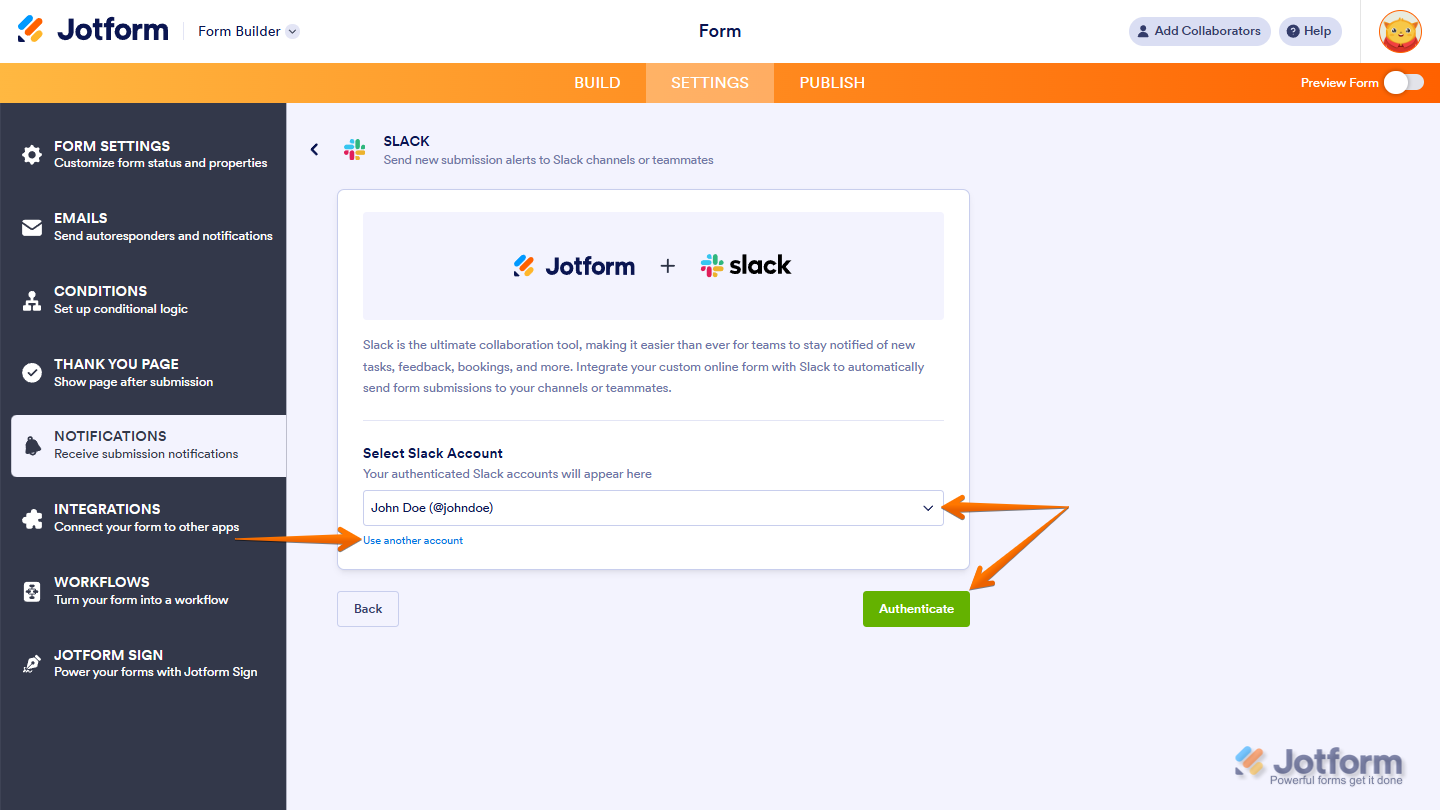
If you’ve logged in before, just pick your Slack account from the Dropdown menu, and click on Authenticate. To use a different one, click on Use Another Account link.
Depending on the action you selected, you’ll see different configuration options. Let’s discuss it below in more detail.
Send Message to Public Channel
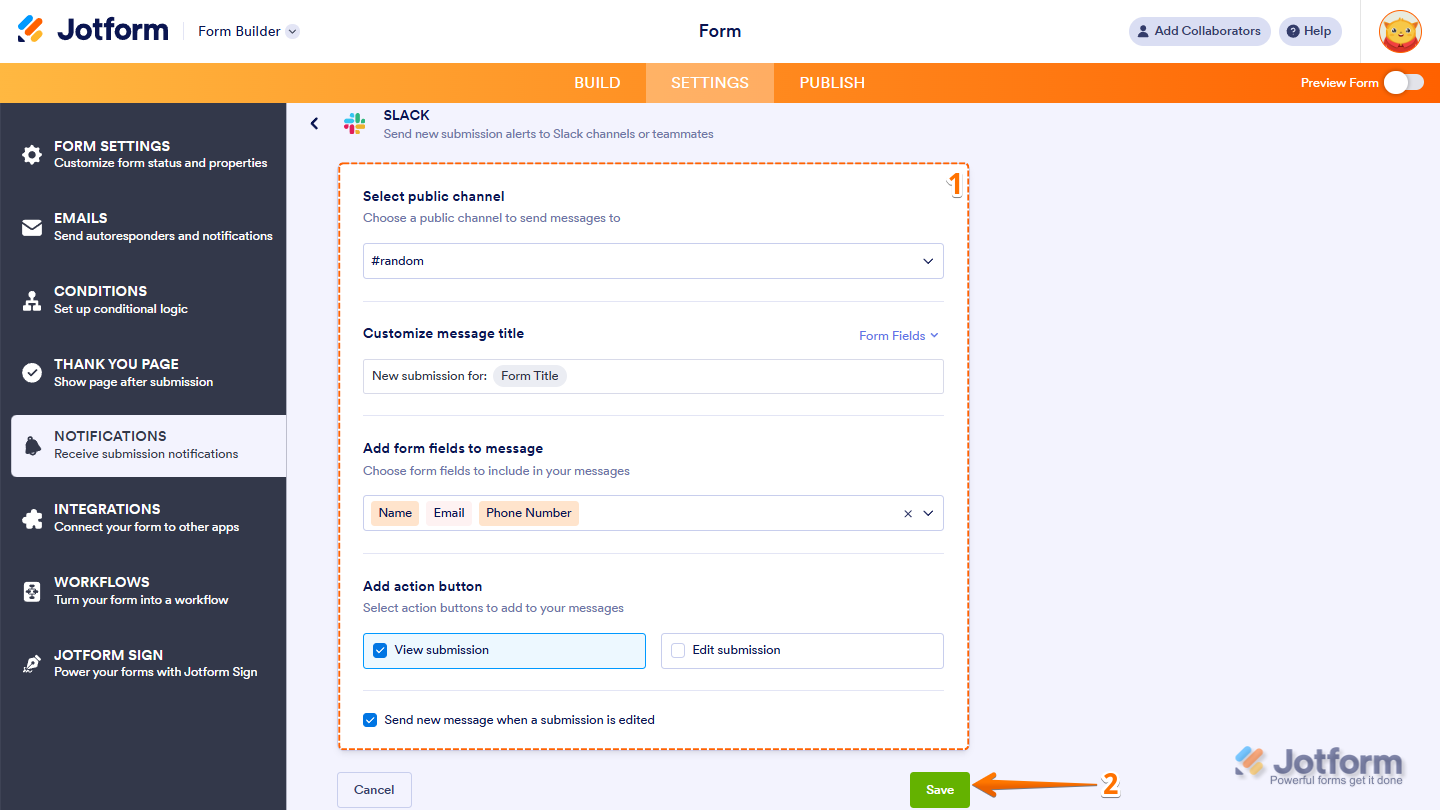
The Send Message to Public Channel action lets you automatically post a notification message to any public Slack channel. Here’s how to set it up:
- In the next screen, after authenticating your account, set up these things:
- Once your settings are ready, click on Save.
Send Message to Private Channel
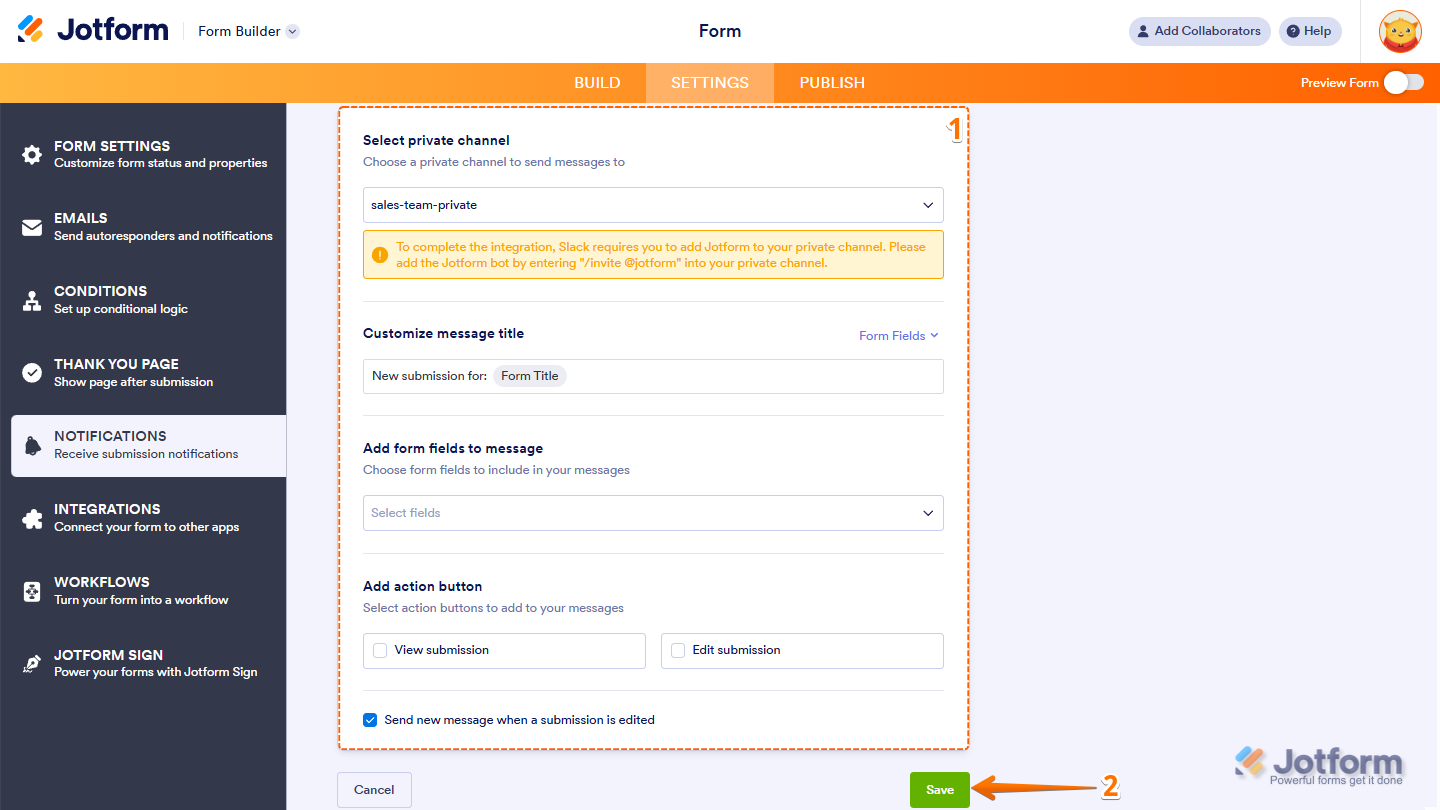
The Send Message to Private Channel action lets you share a notification message to any private Slack channel you have access to. This is how it’s done:
- In the next screen, after authenticating your account, configure these things:
- Private Channel — Choose the private channel where you want your notifications to appear. Make sure to follow the instructions in this note to properly add Jotform to the channel so notifications are delivered.
- Customize Message Title — Enter your notification title. You can also use the Form Fields menu on the right to personalize it with form values.
- Add Form Fields to Message — Select which submission details you want to include in the body of the Slack message.
- Add Action Button – Choose whether to add a View Submission or Edit Submission button.
- Send New Message When a Submission Is Edited — Turn this on if you want Slack to send a new notification whenever a submission is updated.
- Once everything’s set, click on Save.
Note
To complete the integration, you need to add Jotform bot to your private channel. In the channel, type /invite @jotform to add the Jotform bot. Without this step, Slack will block notifications from being delivered.
Send Message to Direct Message
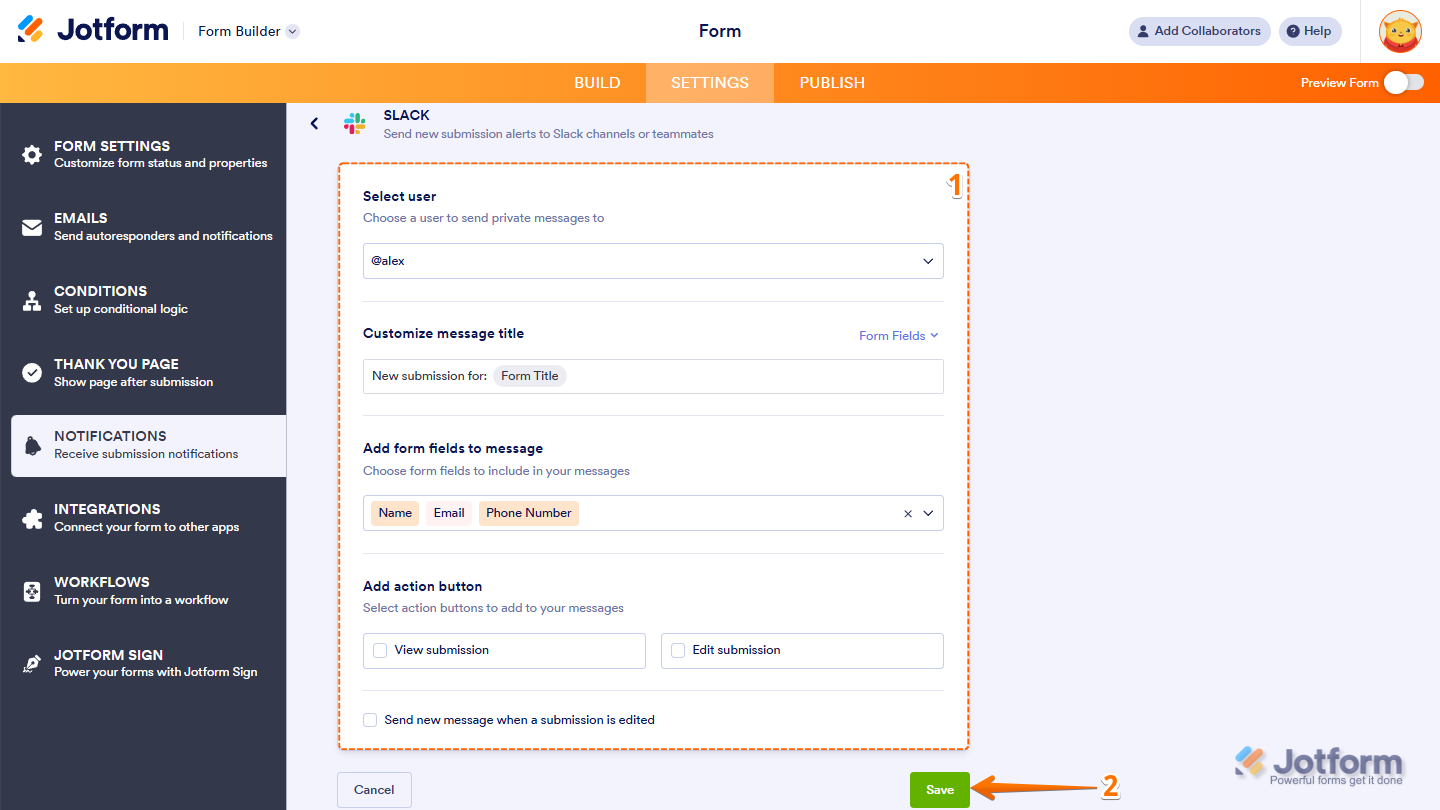
The Send Message to Direct Message action lets you send notifications to any Slack user via direct message. You can do it in just a few steps:
- In the next screen, after authenticating your account, fill in these details:
- Select User — Choose the Slack user who should receive the notification.
- Customize Message Title — Enter your notification title. You can also use the Form Fields menu on the right to personalize it with form values.
- Add Form Fields to Message — Select which submission details you want to include in the body of the Slack message.
- Add Action Button — Choose whether to add a View Submission or Edit Submission button.
- Send New Message When a Submission Is Edited — Turn this on if you want Slack to send a new notification whenever a submission is updated.
- Once you’re done, click on Save.
That’s it! You’ve successfully set up Slack notifications for your form submissions. Now, whether it’s a public channel, private channel, or a direct message, your team will receive real-time updates instantly—helping everyone stay informed and act faster.
Note
If you still want to connect to Slack through the traditional integration method, you can still set it up in the Integrations tab. For a full breakdown of how to do it, head over to our guide on How to Integrate Slack with Jotform.

Send Comment: