WhatsApp Notifications let you receive real-time submission alerts directly in your WhatsApp application. This is ideal when you need immediate visibility and faster communication than email, enabling you to respond and take action without delay.
Setting up the WhatsApp Notification
Whether you’re setting up a new form or updating an existing one, setting up WhatsApp Notification takes no time at all—here’s how:
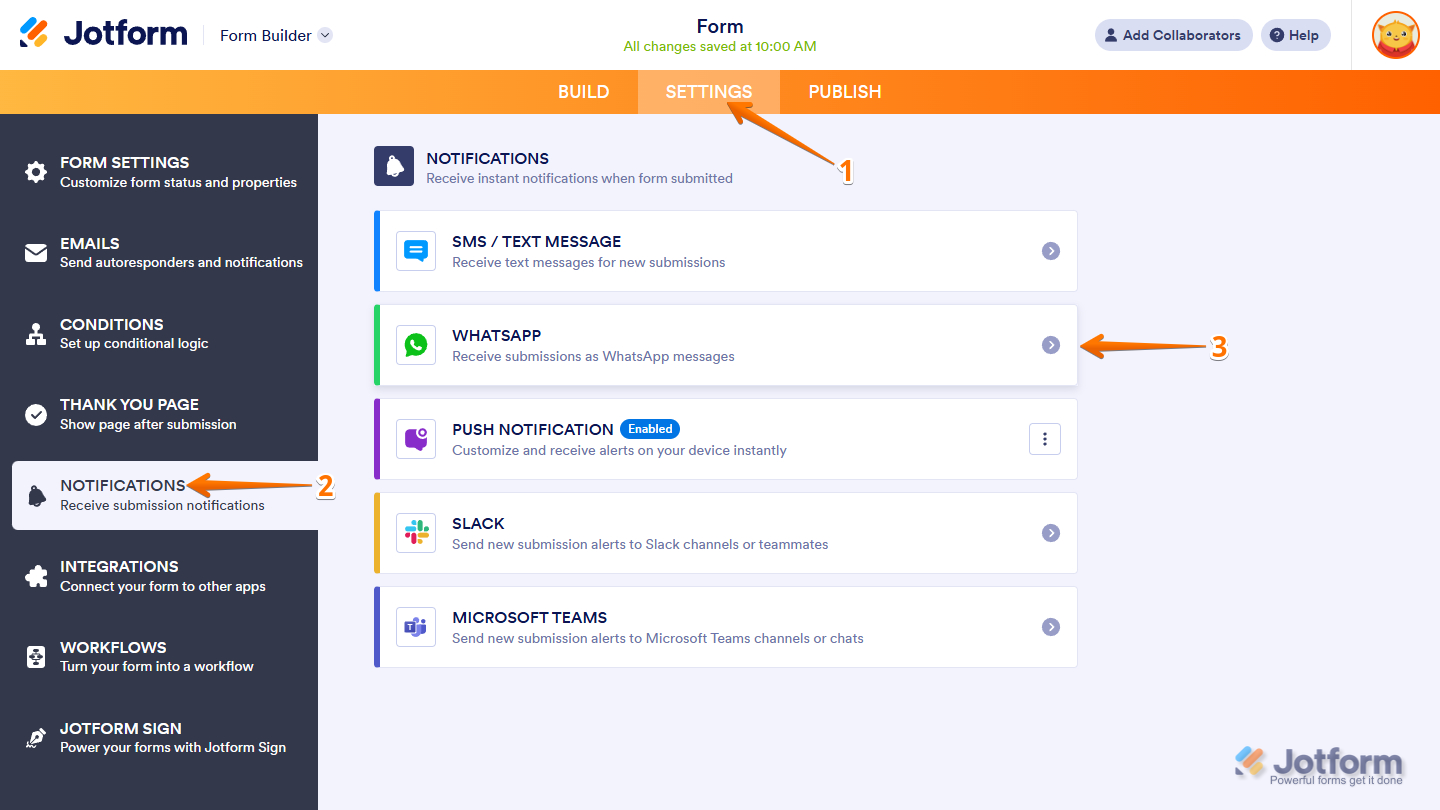
- In Form Builder, in the orange navigation bar at the top of the page, click on Settings.
- Then, in the menu on the left, click on Notifications.
- Next, select WhatsApp from the list of available notification channels.
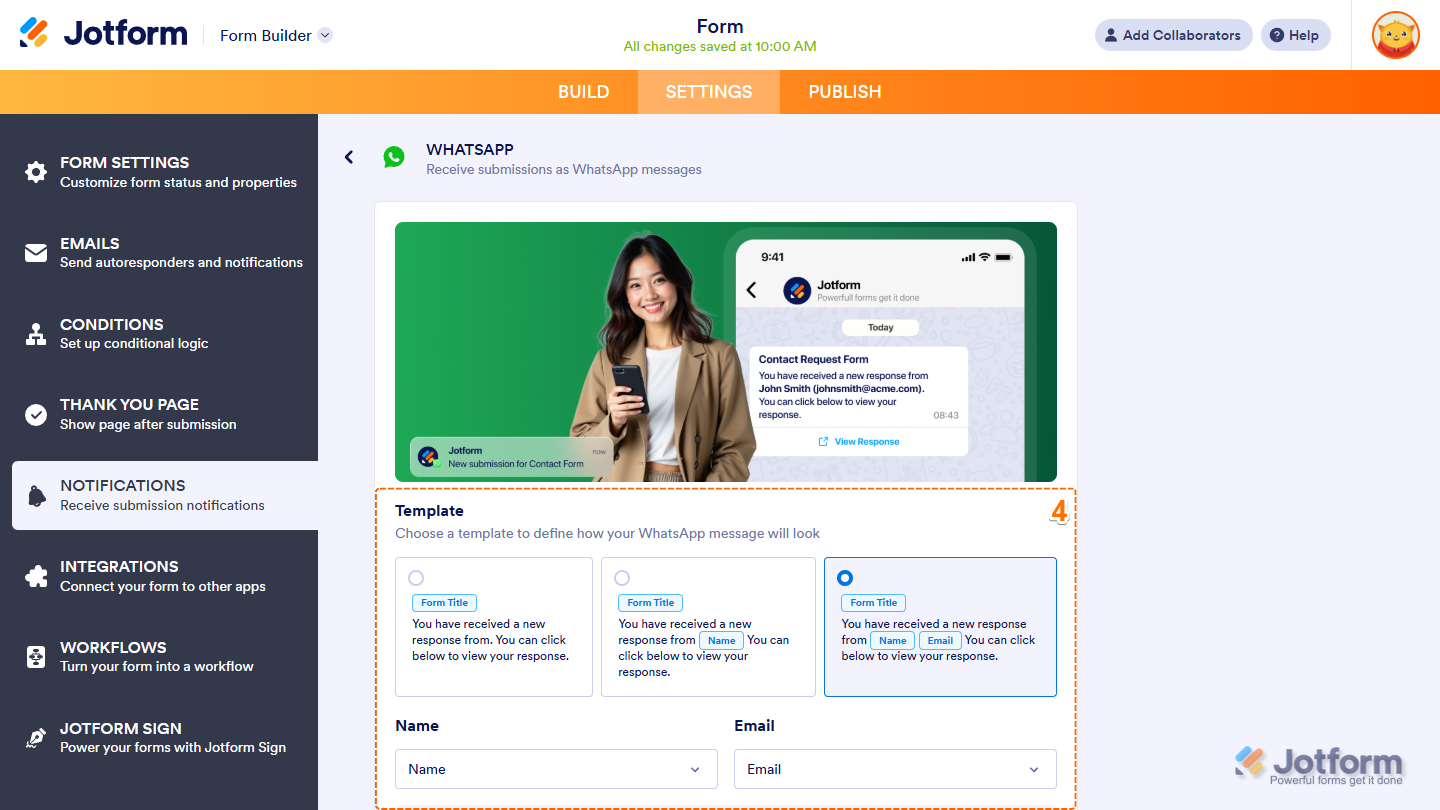
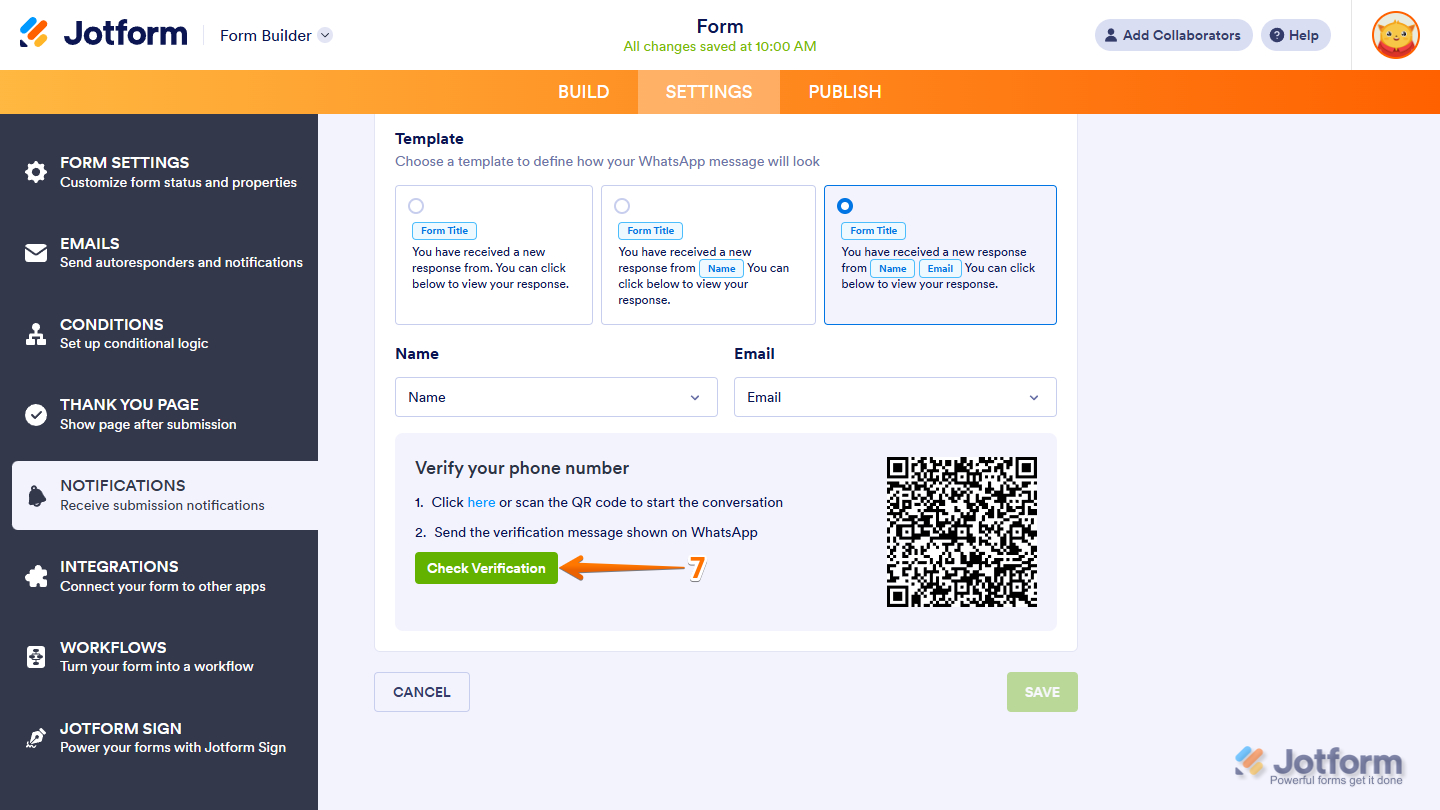
- In the WhatsApp Notification settings, under the Template section, select from the available template options:
- Basic Template — This is the default basic template for the WhatsApp Notification.
- Name Template — Select this option to have the respondent’s name as part of the notification message.
- Name and Email Template — This option includes both the name and email address in the notification message.
Note
As shown above, you may need to map the Name, Email Address, or both, depending on the template you selected.
- Then, under the Verify Your Phone Number section, scan the QR Code with your phone to send a verification request message to Jotform’s WhatsApp account. Or, click the Here link to verify through the WhatsApp application on your desktop or through WhatsApp Web.
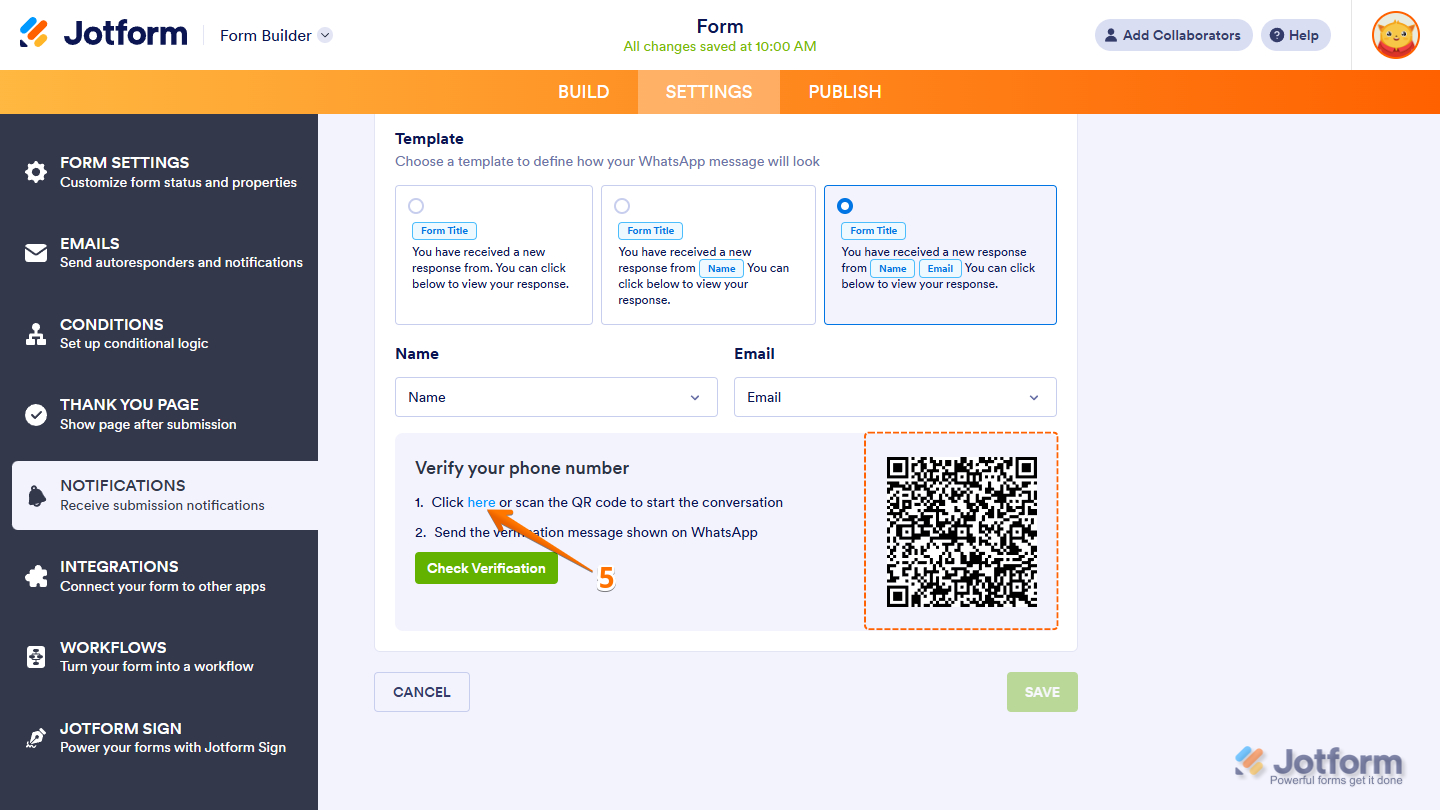
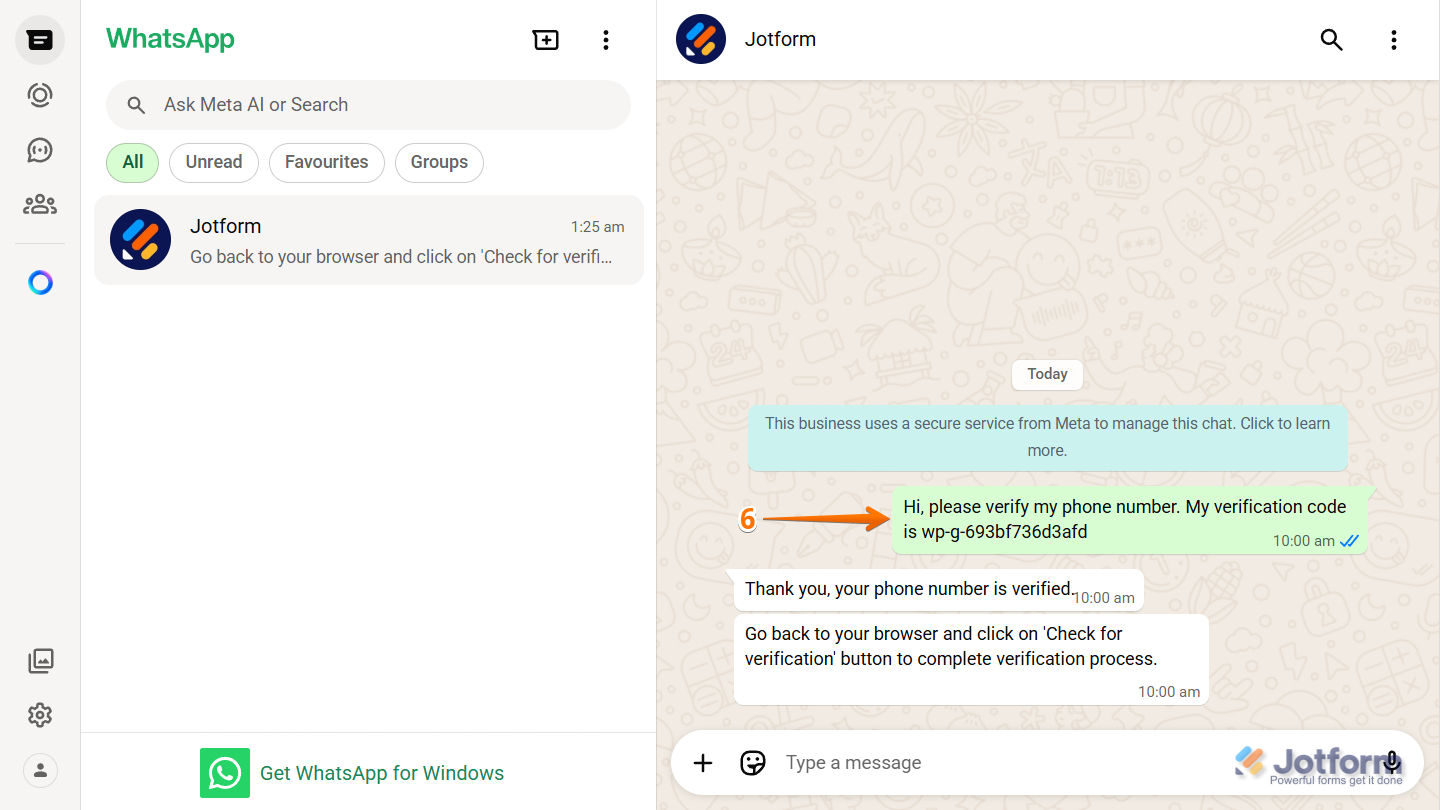
- Next, on your WhatsApp mobile/desktop/web app, send the request, and Jotform’s WhatsApp account should immediately send the confirmation.
Note
The image above illustrates the verification process for both the desktop and WhatsApp Web versions. However, the messaging flow remains the same on mobile devices.
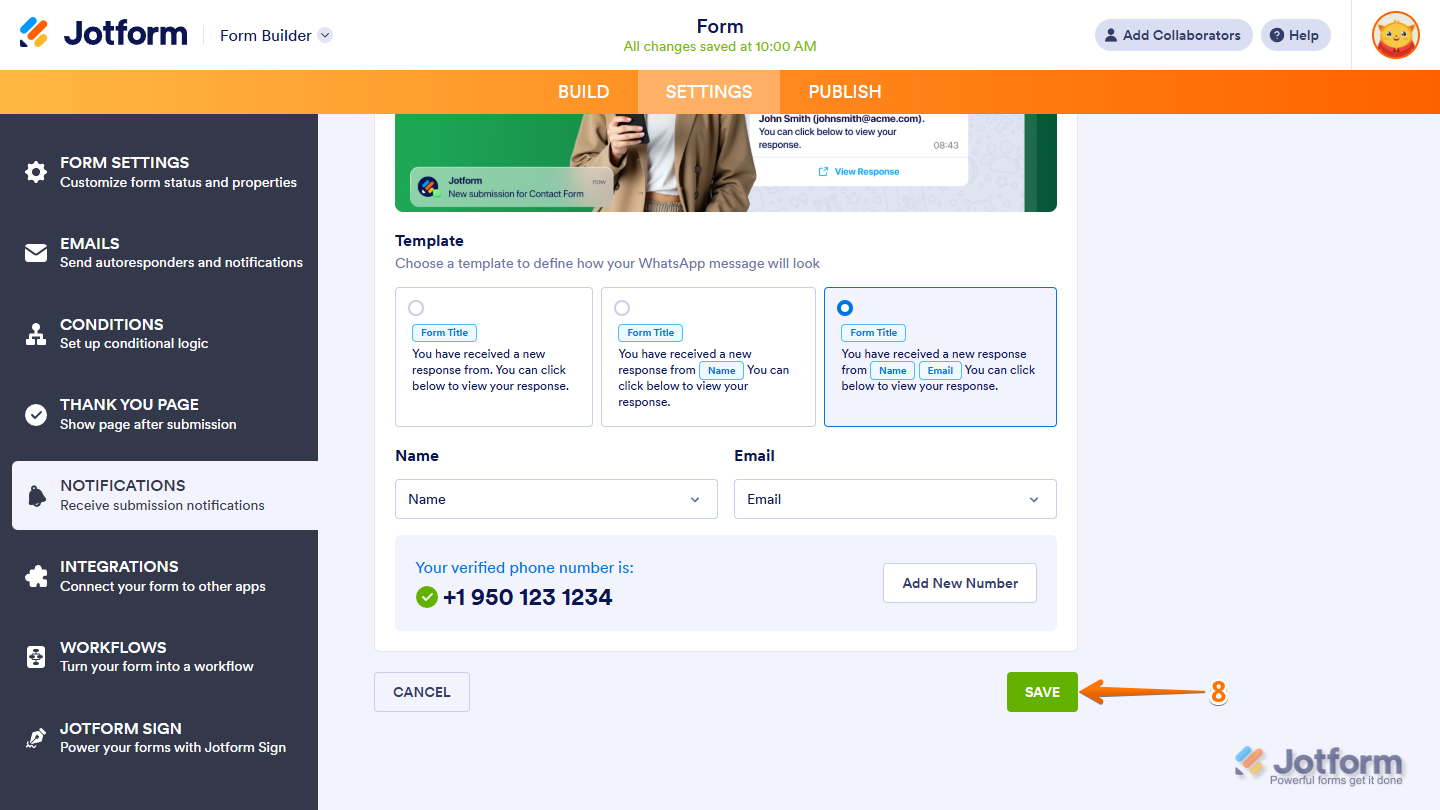
- Now, still under the Verify Your Phone Number section, click on Check Verification. At this stage, it should display the verified number indicating the verification is complete.
- Finally, click on Save to complete the setup.
Managing WhatsApp Notification
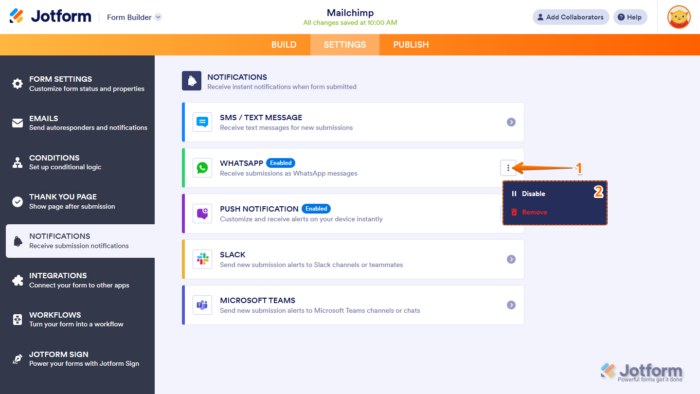
After saving your WhatsApp Notification, you can manage it in two ways: Disable and Remove — and here’s how:
- On the right side of the WhatsApp notification, click on the Three Dots icon.
- Now, select an option:
- Disable — Turns off notifications without removing your settings.
- Remove — Permanently deletes the configuration and resets the setup.
That’s it! Your form is now set up for WhatsApp Notifications. When someone submits the form, you’ll receive their information as messages in your WhatsApp account.
Pro Tip
If you prefer to continue using the traditional WhatsApp integration method, you can configure it at any time through the Integrations tab. Take a look at our guide on How to Integrate Your Form with WhatsApp for more details.



Send Comment: