Smartsheet is a powerful work management platform designed to help teams plan, track, automate, and report on their projects in a collaborative, spreadsheet-style environment. It enables organizations to manage tasks efficiently, improve visibility, and keep everyone aligned in real time.
Our Smartsheet integration lets you automatically send your Jotform submissions to Smartsheet and create new rows in your sheets in real time. This ensures your data is instantly captured and organized without manual entry. With this seamless connection, you can streamline your workflows, improve data accuracy, and keep your team aligned by automatically populating Smartsheet with up-to-date form responses.
Connecting Your Smartsheet Account
Whether you’re setting up a new form or updating an existing one, connecting your Smartsheet account takes no time at all—here’s how to do it:
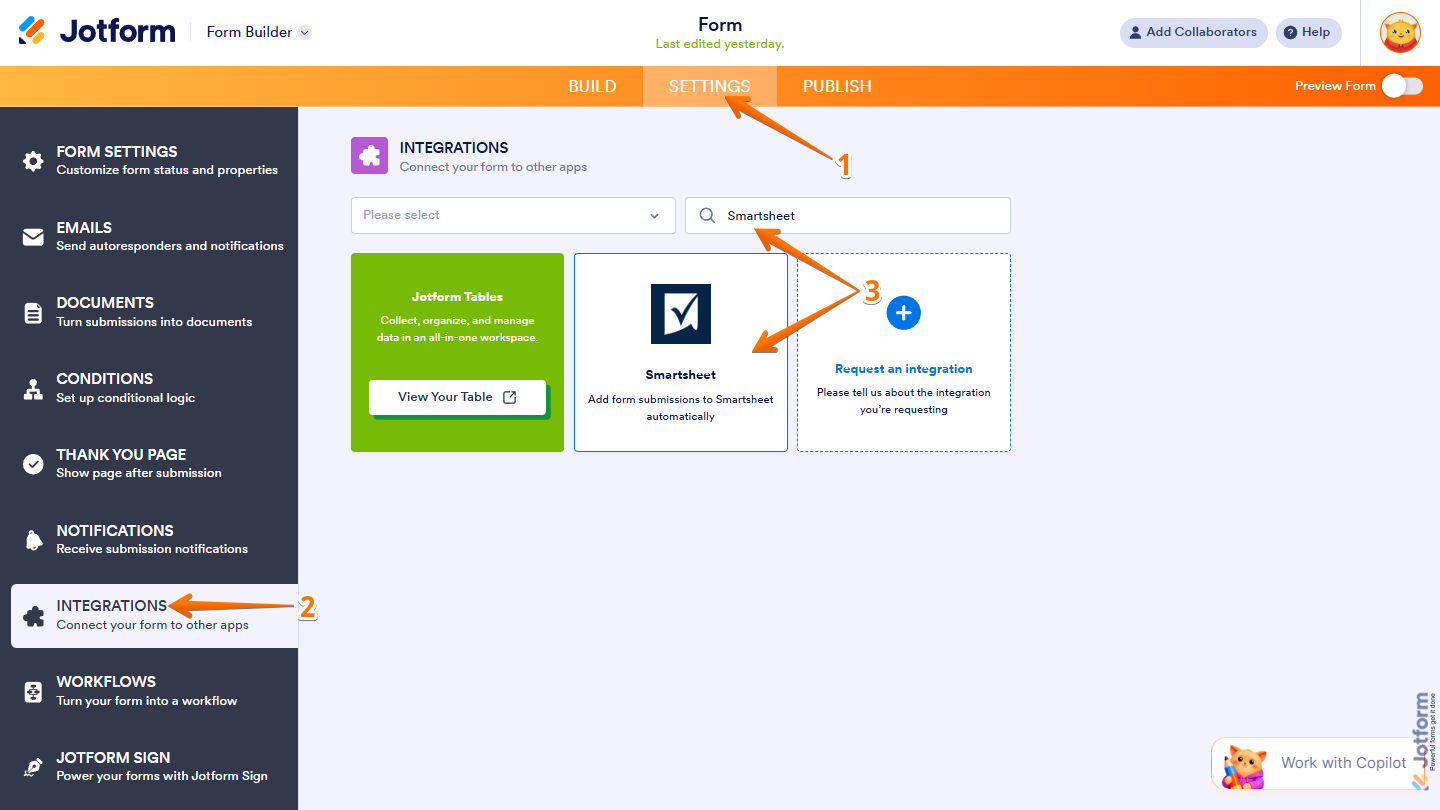
- In Form Builder, in the orange navigation bar at the top of the page, click on Settings.
- Then, in the menu on the left, click on Integrations.
- Now, search for Smartsheet and click on it.
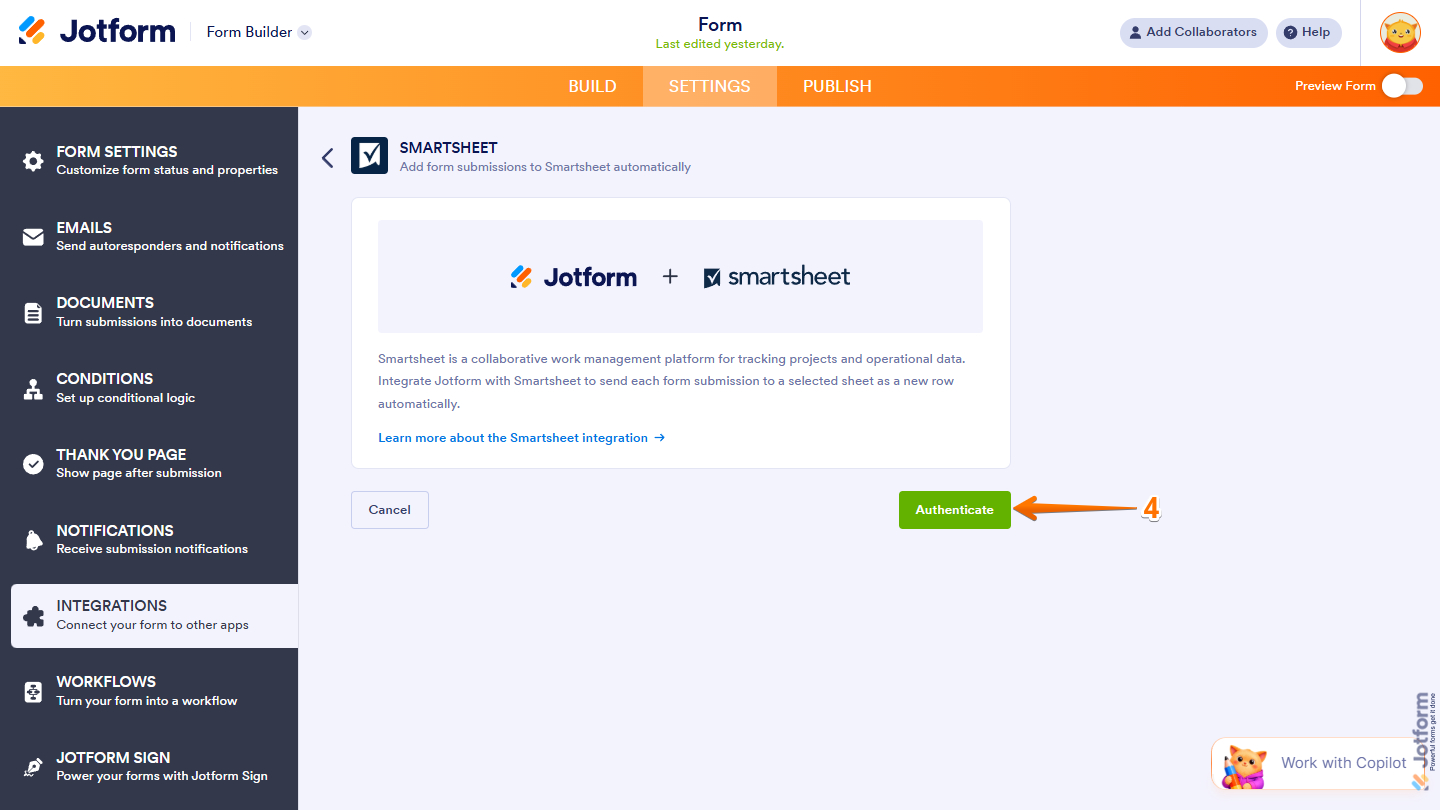
- In the Smartsheet section, click on Authenticate and log in to your Smartsheet account.
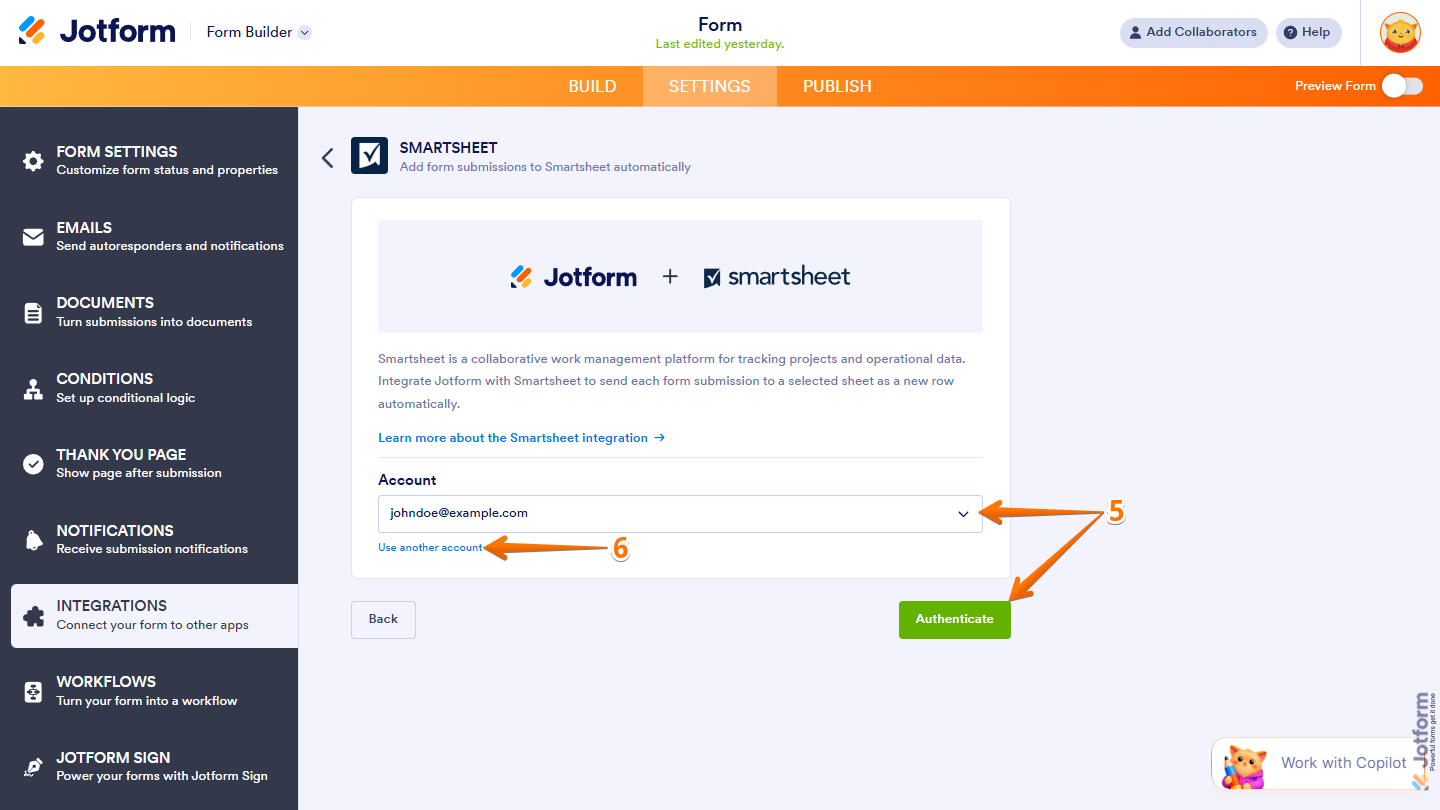
- Now, if you’ve logged in before through one of your other forms, you can pick that Smartsheet account from the Dropdown menu and then click on Authenticate.
- Or, to use a different one, click on Use Another Account.
Adding a Row to a Sheet
Adding a new row to a Smartsheet sheet only takes a minute to do—here’s how:
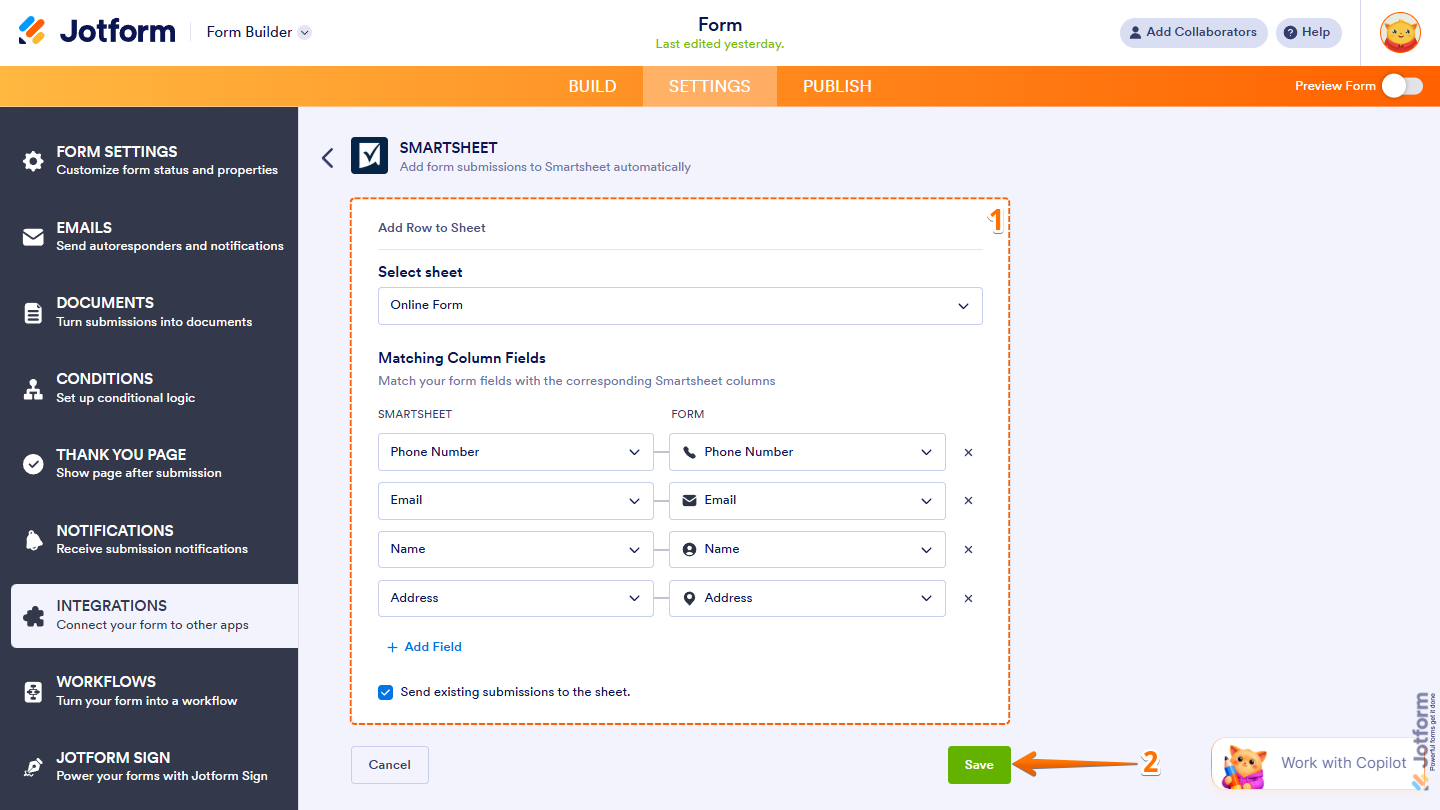
- After authenticating your account, in the Add Row to Sheet section, set up these things:
- Select Sheet — Select the Smartsheet sheet your form submissions will be added to as new rows.
- Matching Column Fields — Map your Smartsheet columns on the left to the corresponding Jotform form fields on the right. Click on Add Field to create additional mappings as you need them.
- Send Existing Submissions to the Sheet — Enable this if you want to include previously submitted form entries in the Smartsheet sheet.
- Once those are set, click on Save at the bottom.
Managing Smartsheet Integration Actions
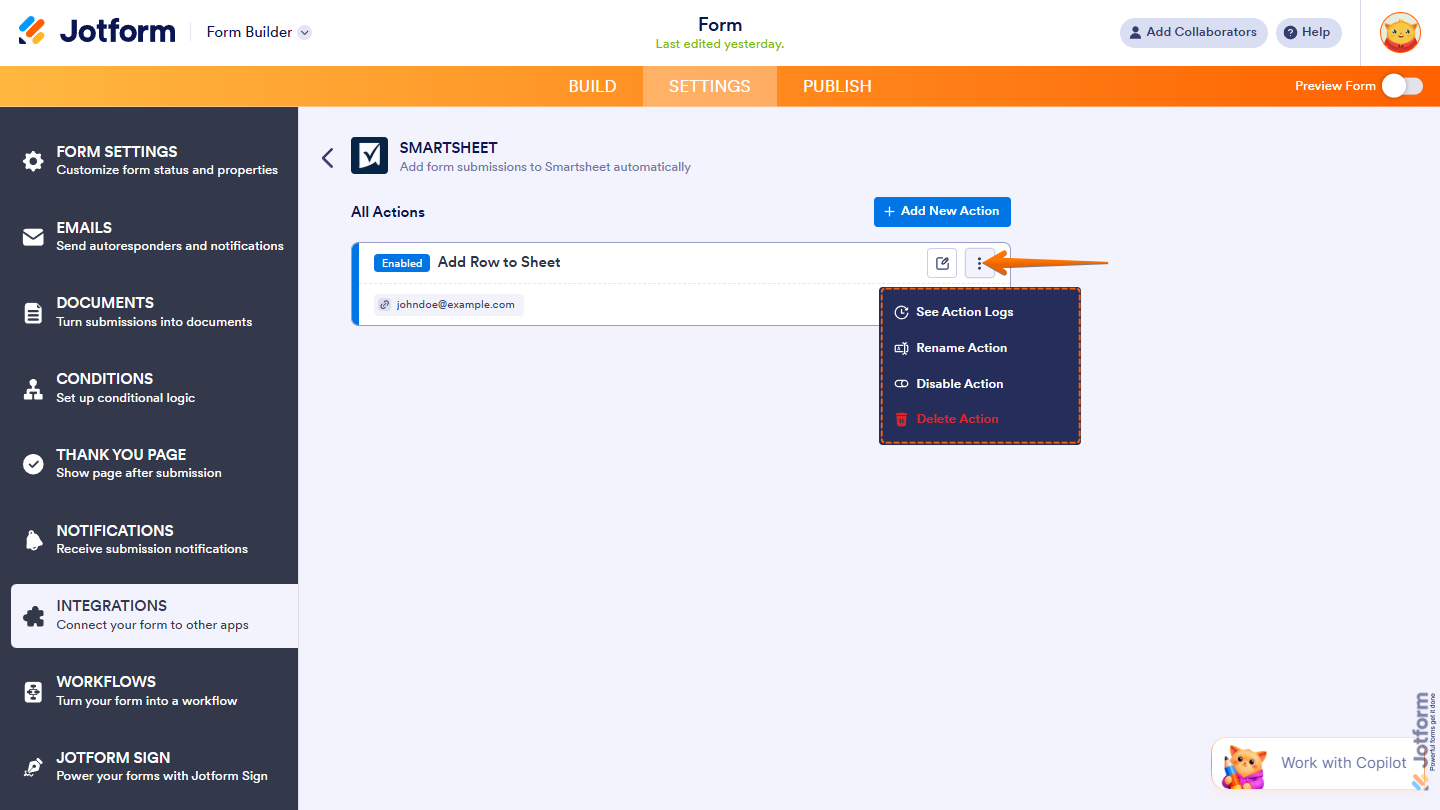
After saving the integration, you’ll see the list of actions you’ve set up and the Add New Action button on the main page. Hover your mouse over an action and click on the Pencil icon to edit it or the Three Dots icon to access more options:
- See Action Logs — View successful and failed runs, helpful for troubleshooting.
- Rename Action — Change the action’s title.
- Disable Action — Temporarily stop the integration from sending data.
- Delete Action — Remove the action from your form.
And that’s it for integrating your form with Smartsheet. Once set up, your submissions will automatically flow into your sheet, keeping your data organized and up to date in real time.
With everything connected, you can focus on managing your workflows, collaborating with your team, and making informed decisions—without the need for manual data entry.

Send Comment: