Jotform PDF Editor automatically adds and uses the fields on your form when you create a PDF document or report including the entries’ submission date. This guide shows how to remove the submission date in your PDF document.
To remove the submission date in your PDF document
- Go to My Forms and choose your form.
- On the right side, open the More menu and select Open PDF Editor.
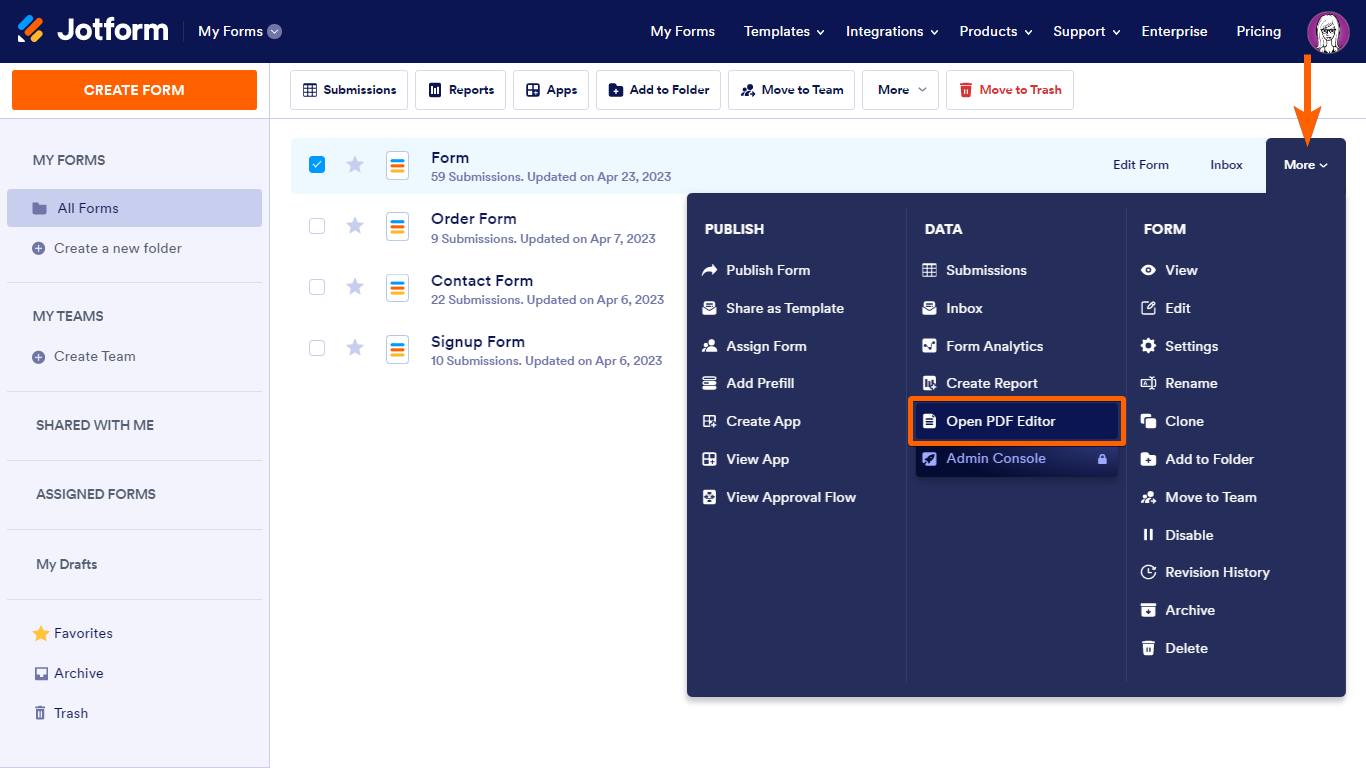
- In Jotform PDF Editor, select the submission date in the main pane.
- Select the trash icon to remove the element.
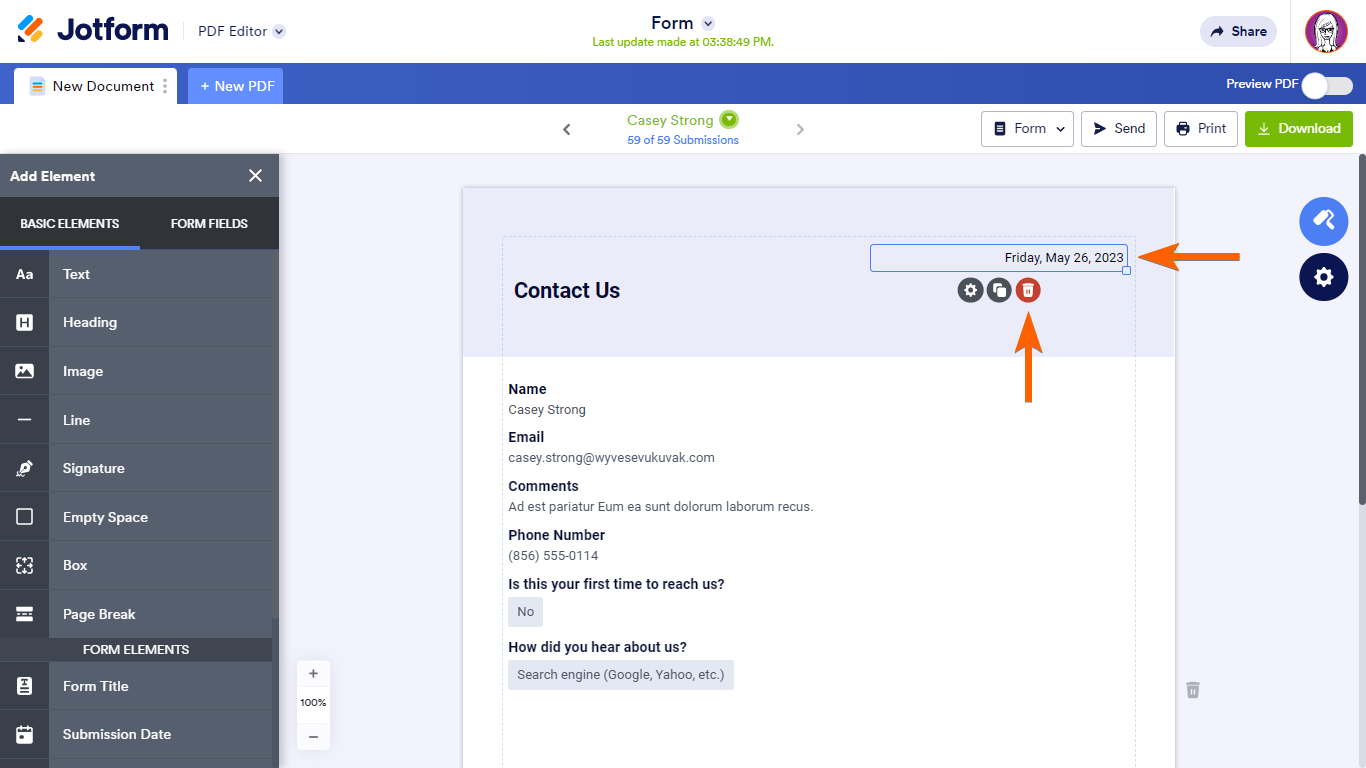
To add the submission date again, select Submission Date in the Add Element pane on the left. See Applying Form Submission Data into a PDF Document to learn more.


Send Comment:
2 Comments:
February 20, 2026
how do i remove the submission date on everything at once. I don't want to keep submission data on any of my pdfs
August 31, 2024
how to remove the submission date from all pdf at once? Or what can I do if I don't want to keep submission date to any of my pdf?