The Send PDF action button lets you send PDF submission reports to your users. You can customize PDF documents with PDF Editor and share them with recipients via email directly from Tables.
To use the Send PDF action button:
- In Tables, add or insert a new column. See How to Add and Organize Columns for more information.
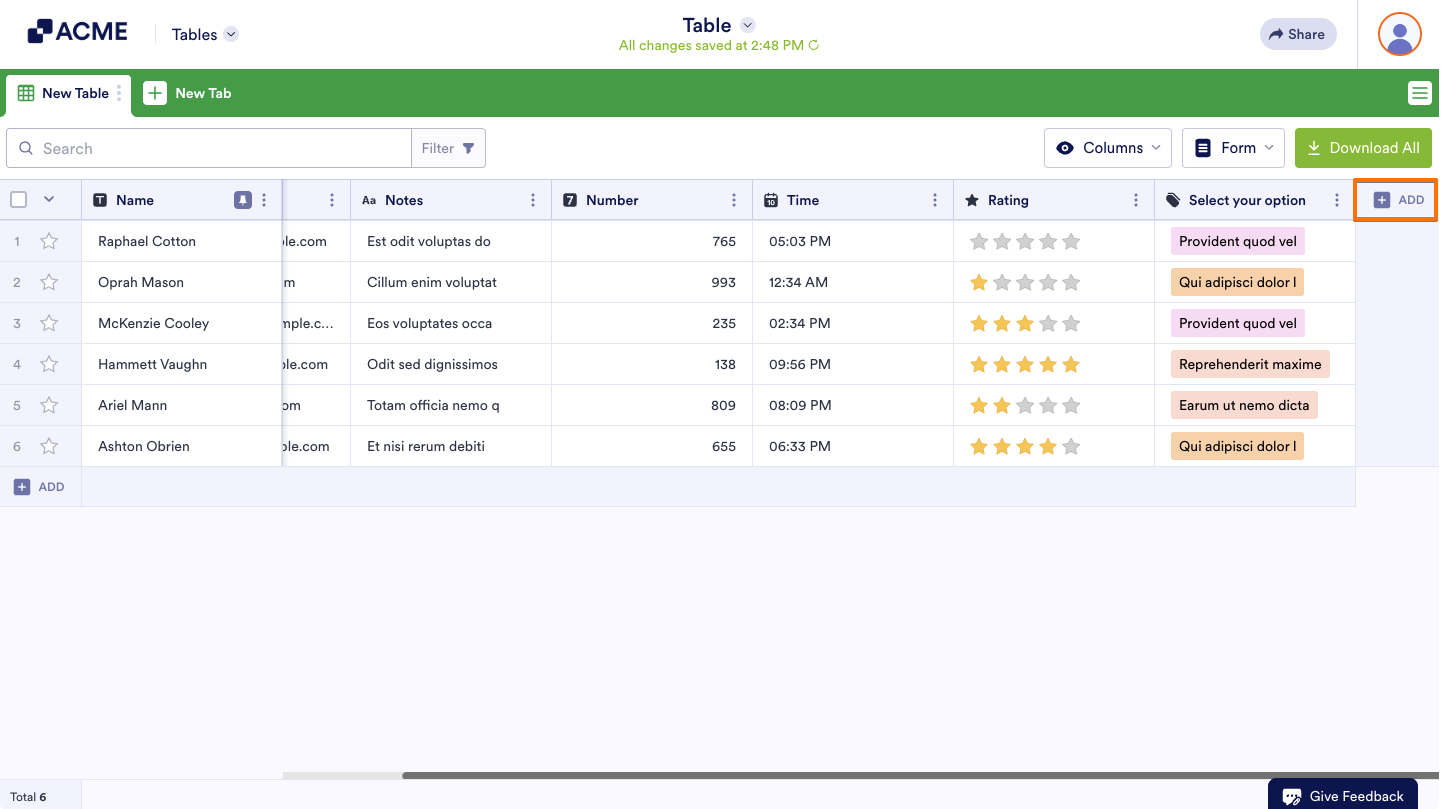
- In the dialog, go to Buttons at the top, then select Send PDF and click Next.
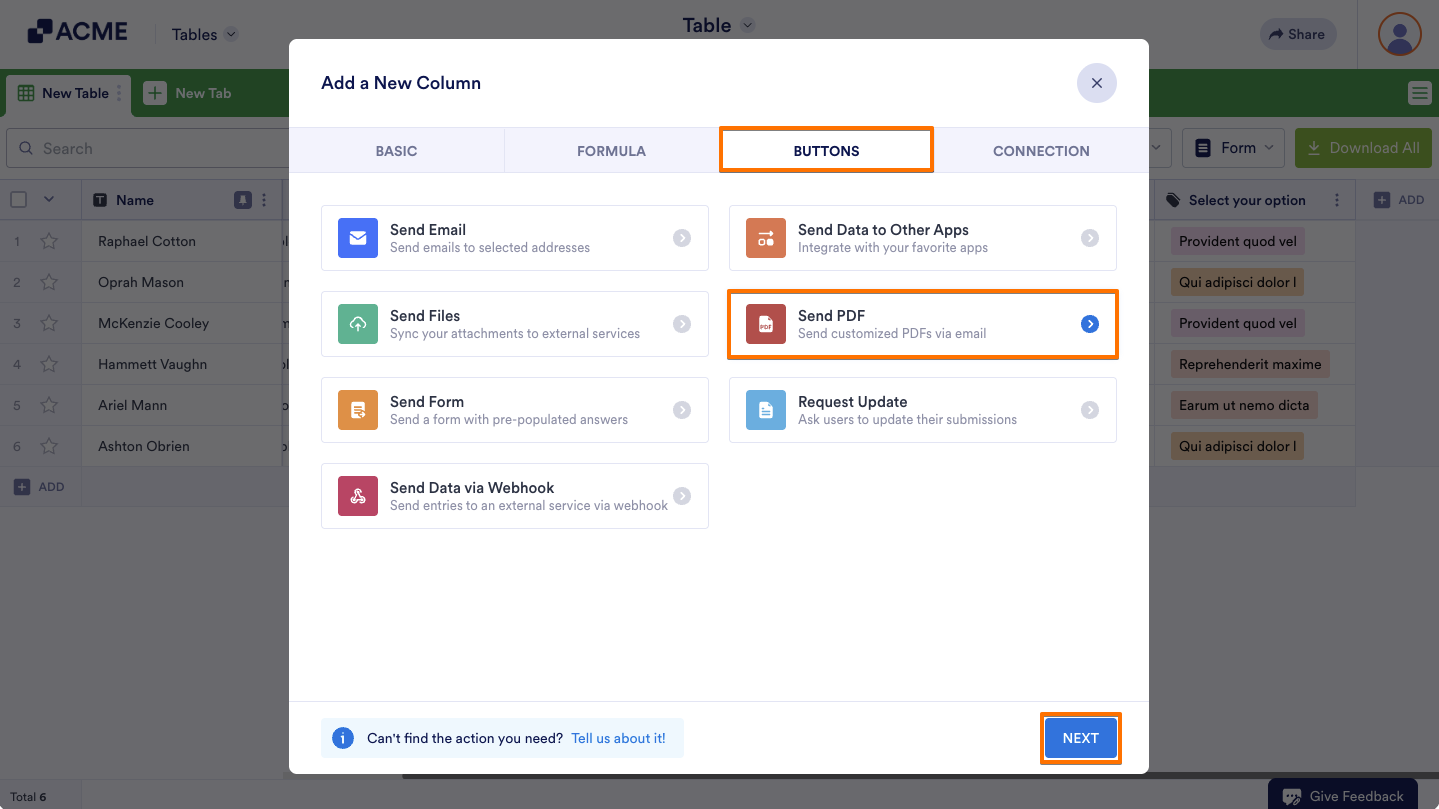
- Next, enter your desired column name and click Next.
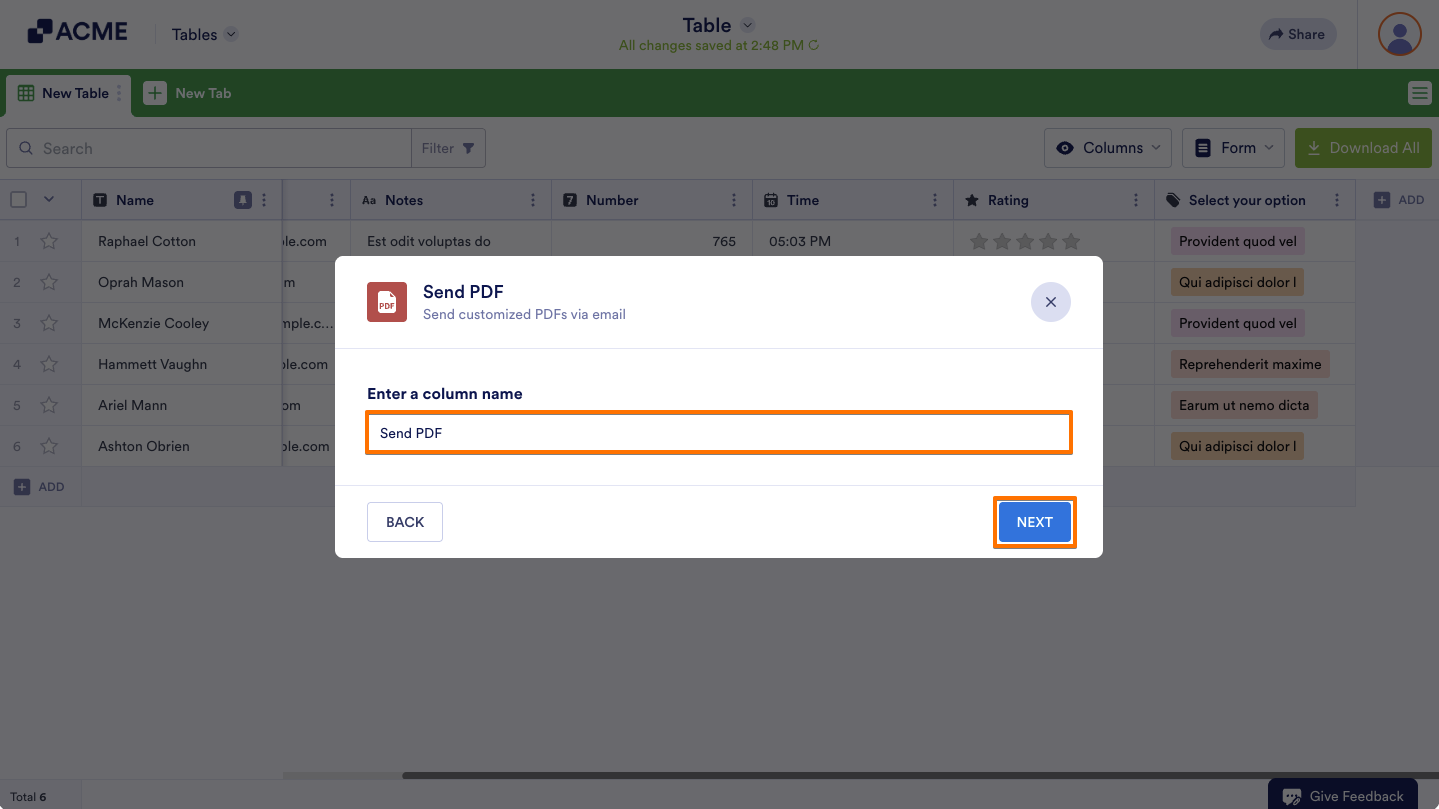
- Next, choose the PDFs to send.
- Turn on PDF password protection if needed.
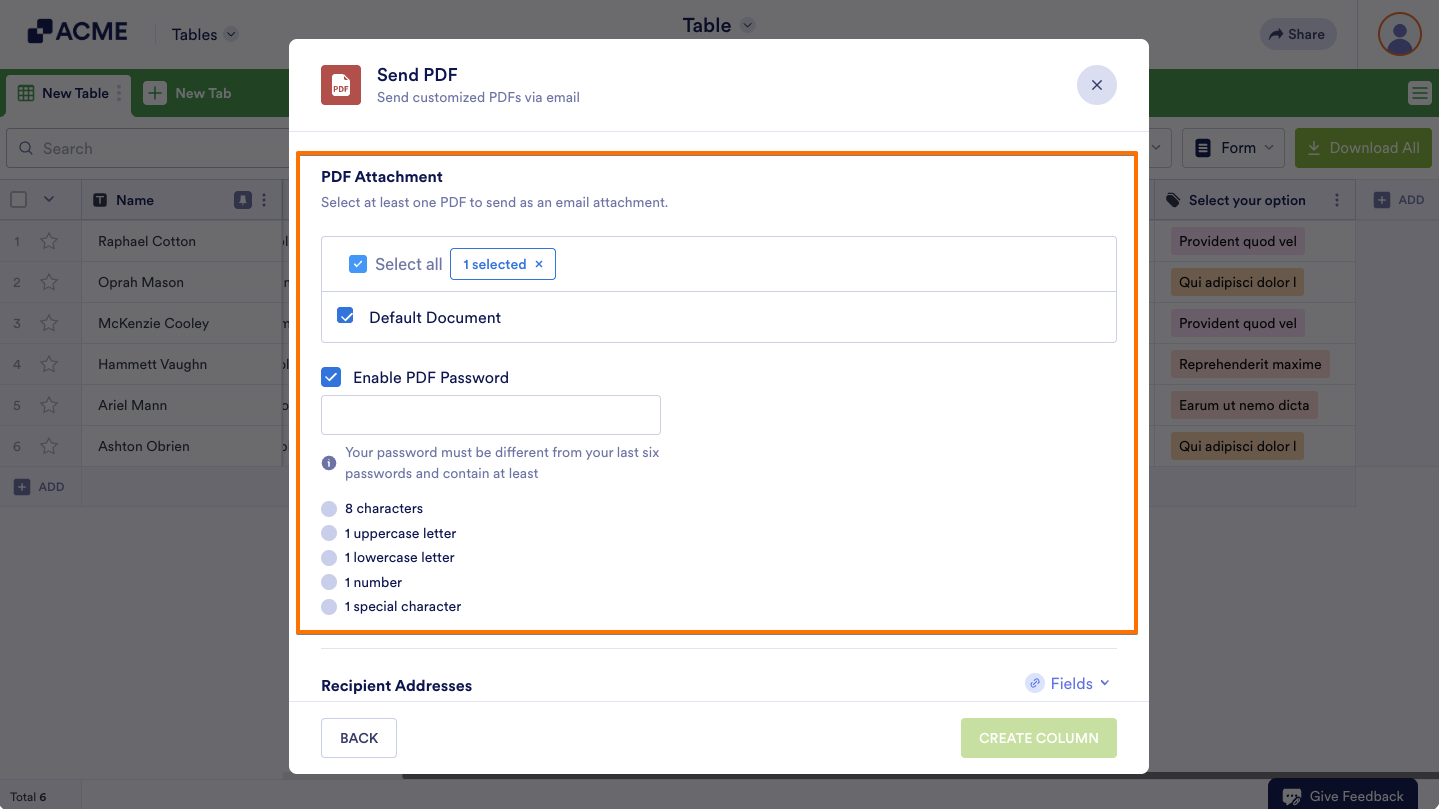
- Enter your desired recipients or select Fields on the right to assign recipients dynamically.
- Add an optional message, then select Create Column to complete the setup.
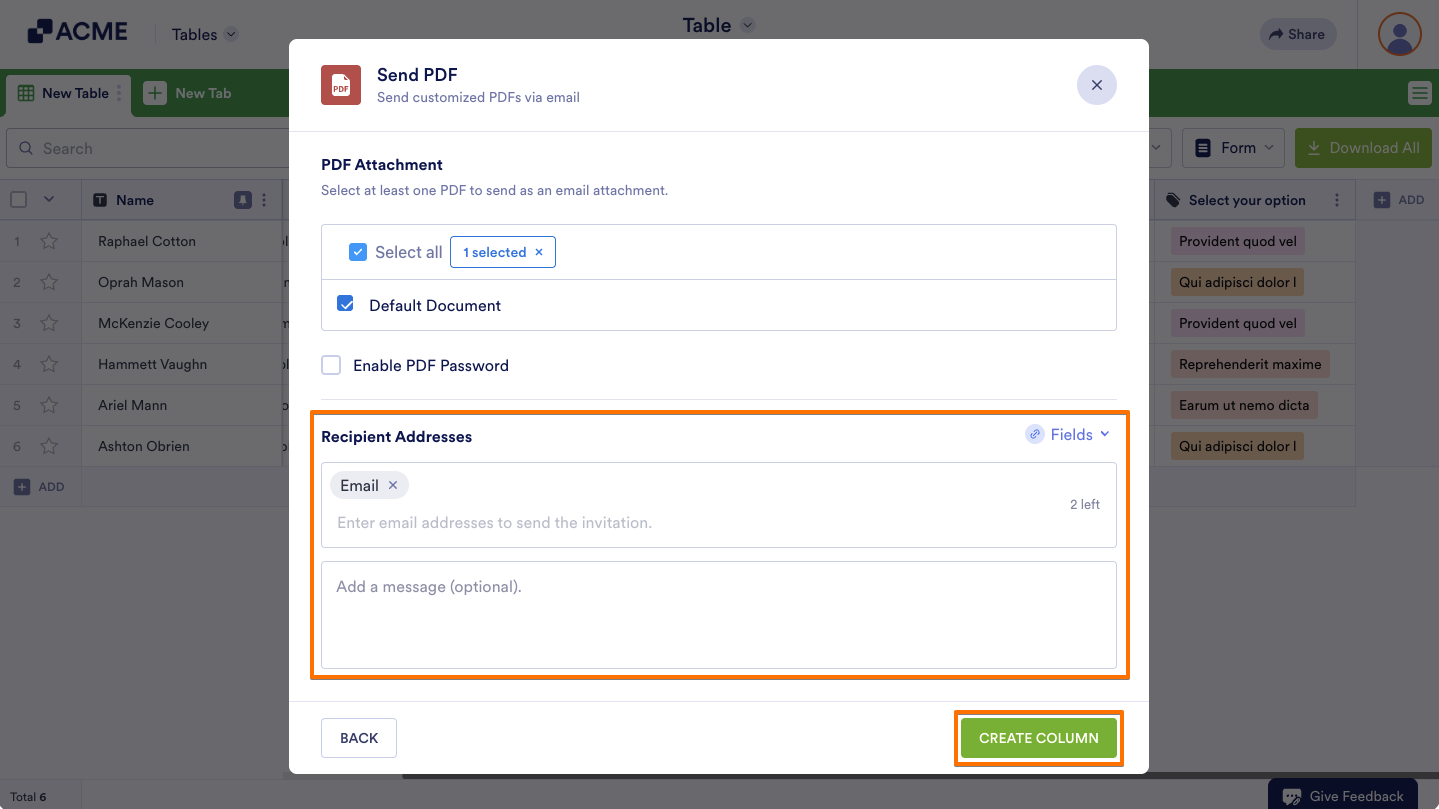
You can now send PDF submission reports to your users.
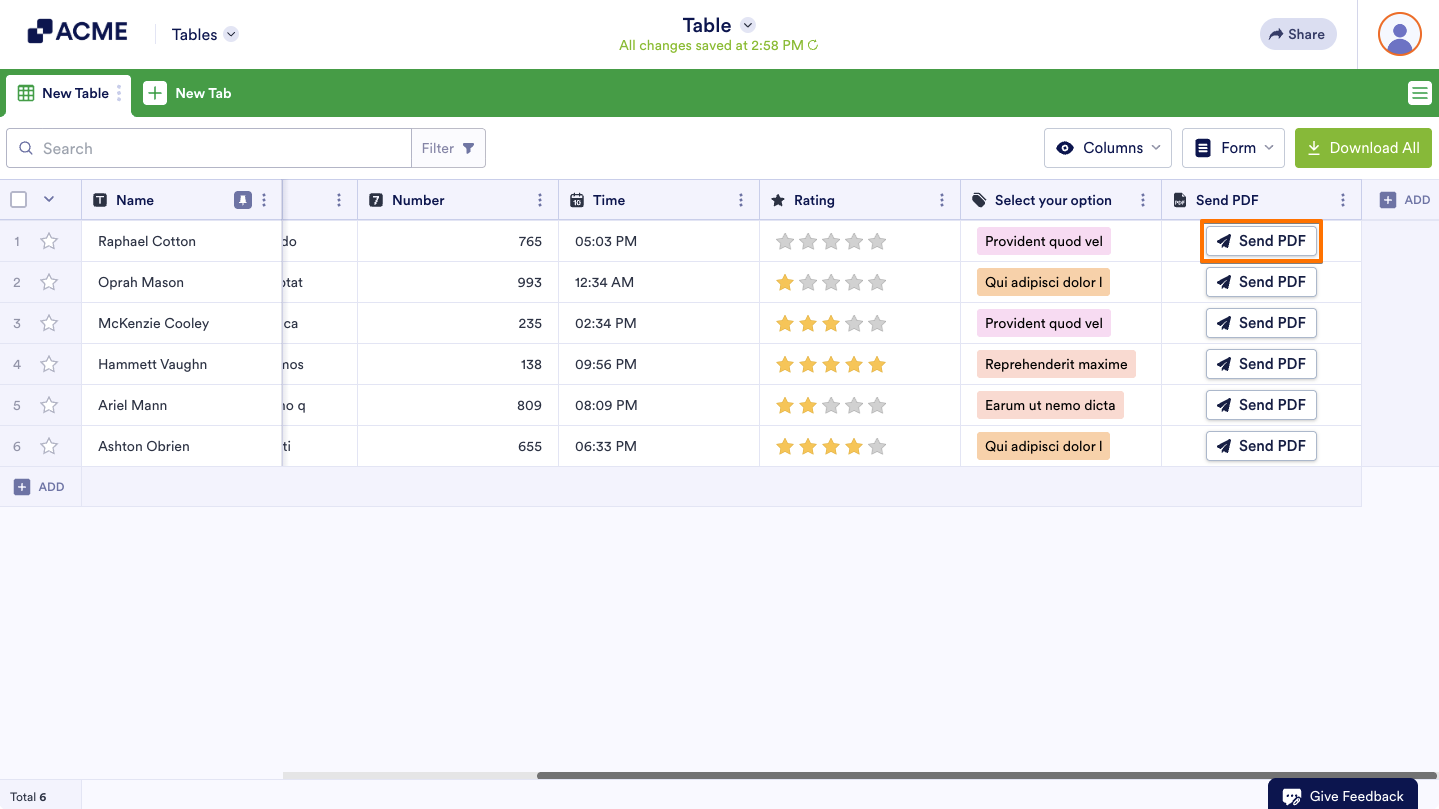
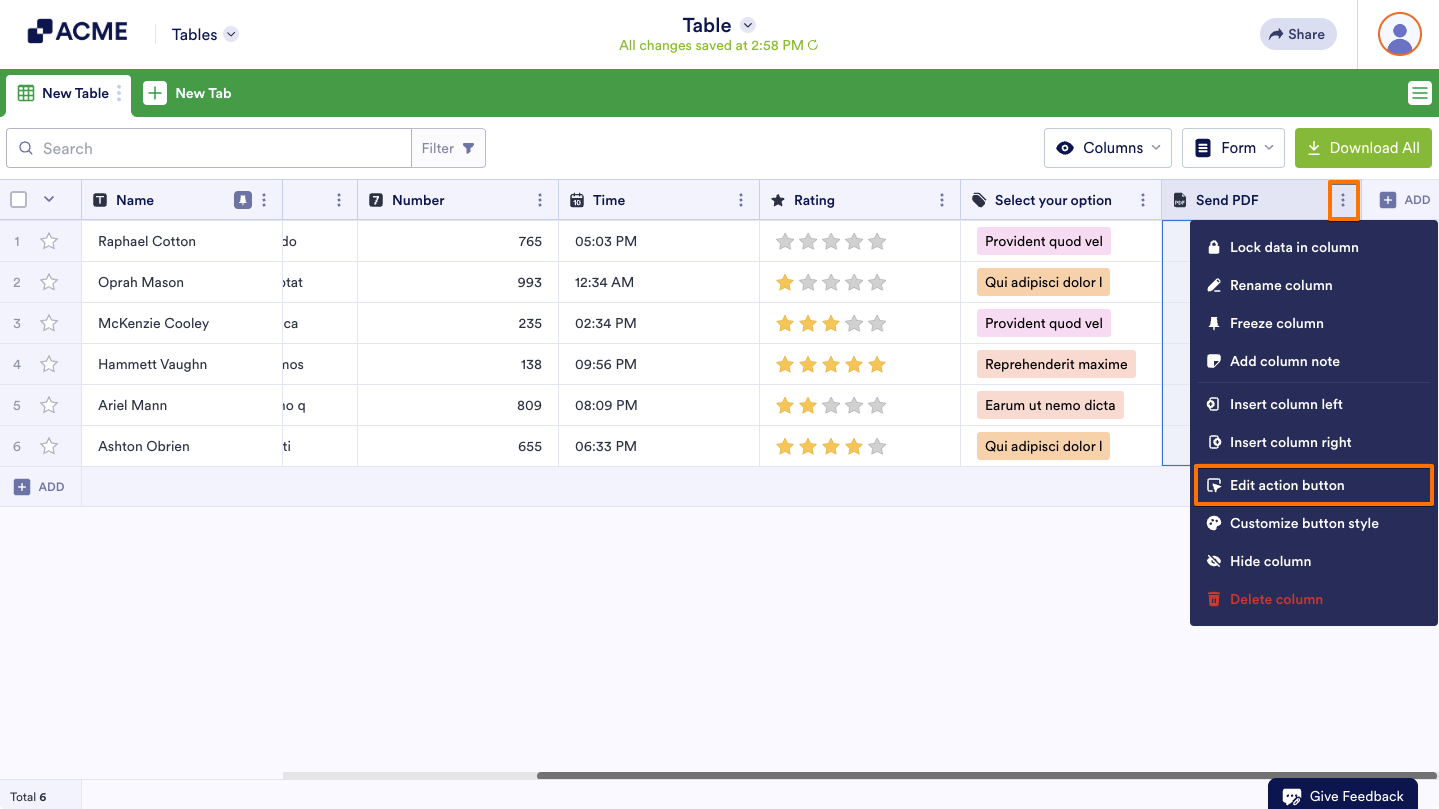
To change settings, open the column’s menu, then select Edit action button.
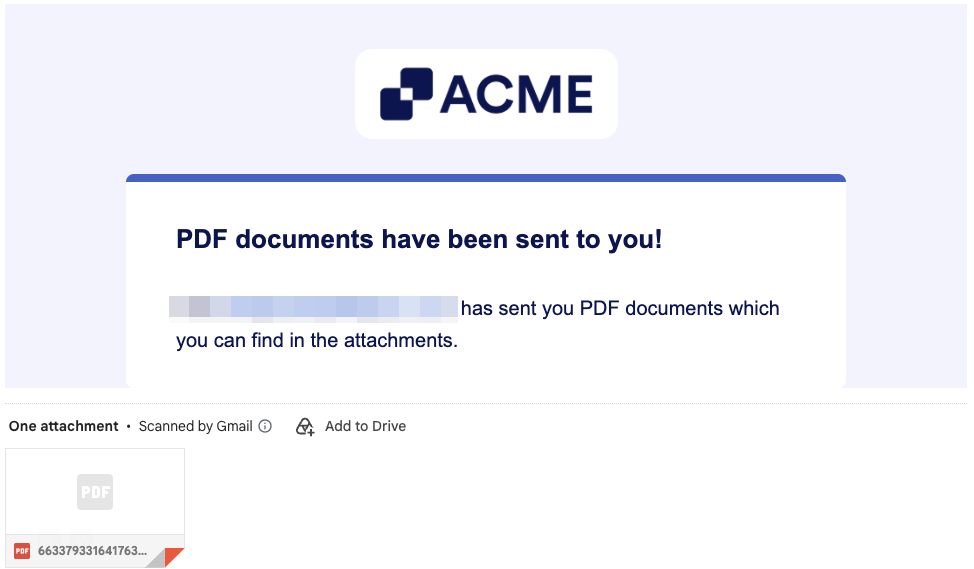
Emailed recipients will receive a message with the PDFs attached.

Send Comment: