Draft Mode is a specialized feature exclusive to Jotform Enterprise users that lets you make changes to a form without affecting the live version respondents are currently using. Instead of publishing updates immediately, you can draft them, review changes, and publish them only when everything is ready.
How Draft Mode Works
Draft Mode separates your form into two versions:
- Live Form — The version currently published and accessible to respondents.
- Draft Version — A working copy where you can safely make updates without impacting the live form.
You can continue collecting responses on the live form while updating the draft in the background. Once you’re satisfied with the changes, you can publish the draft to replace the live version.
How to Turn On Draft Mode
You can turn on Draft Mode in the Form Builder settings. It’s pretty easy, you’ll just need to follow these simple steps:
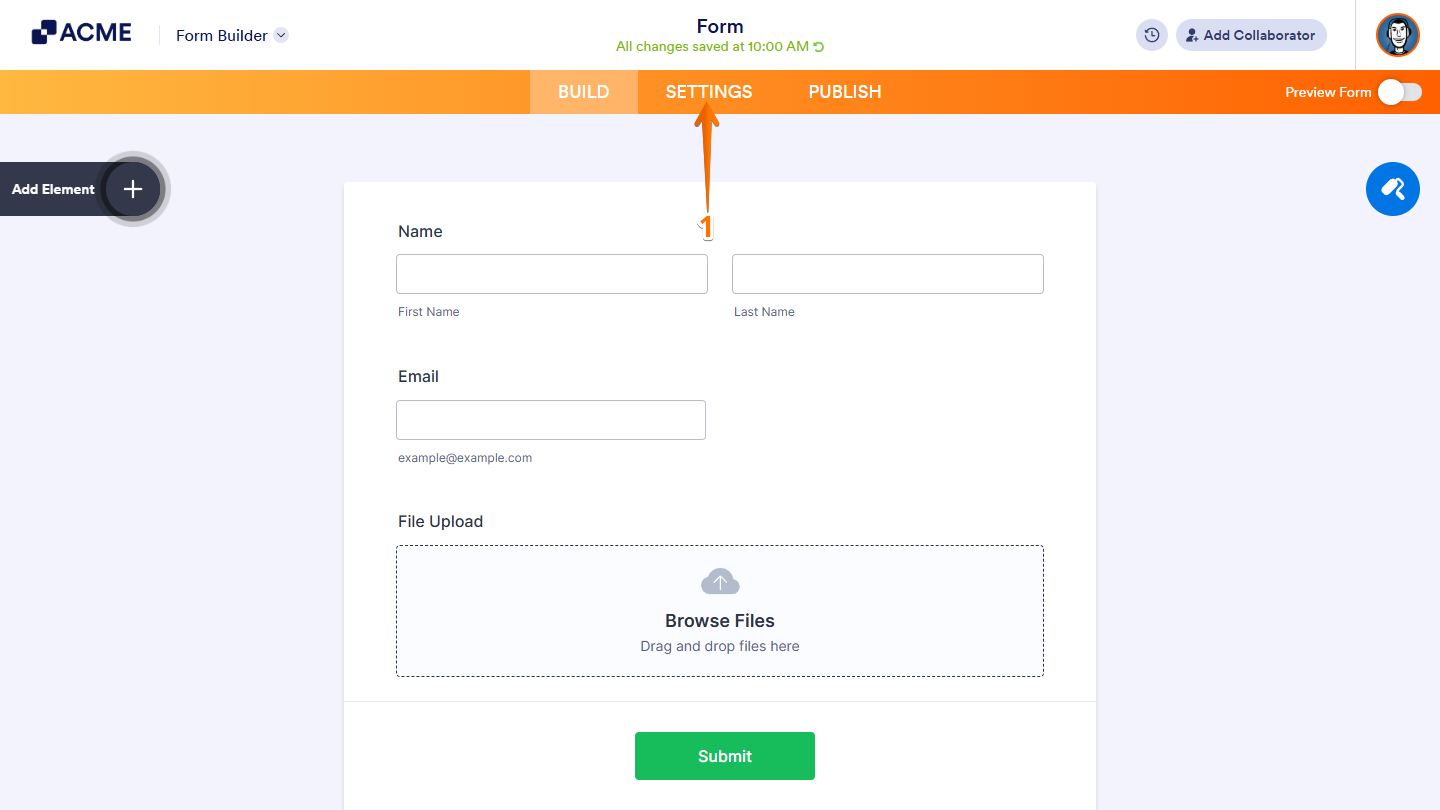
- In Form Builder, in the orange navigation bar at the top of the page, click on Settings.
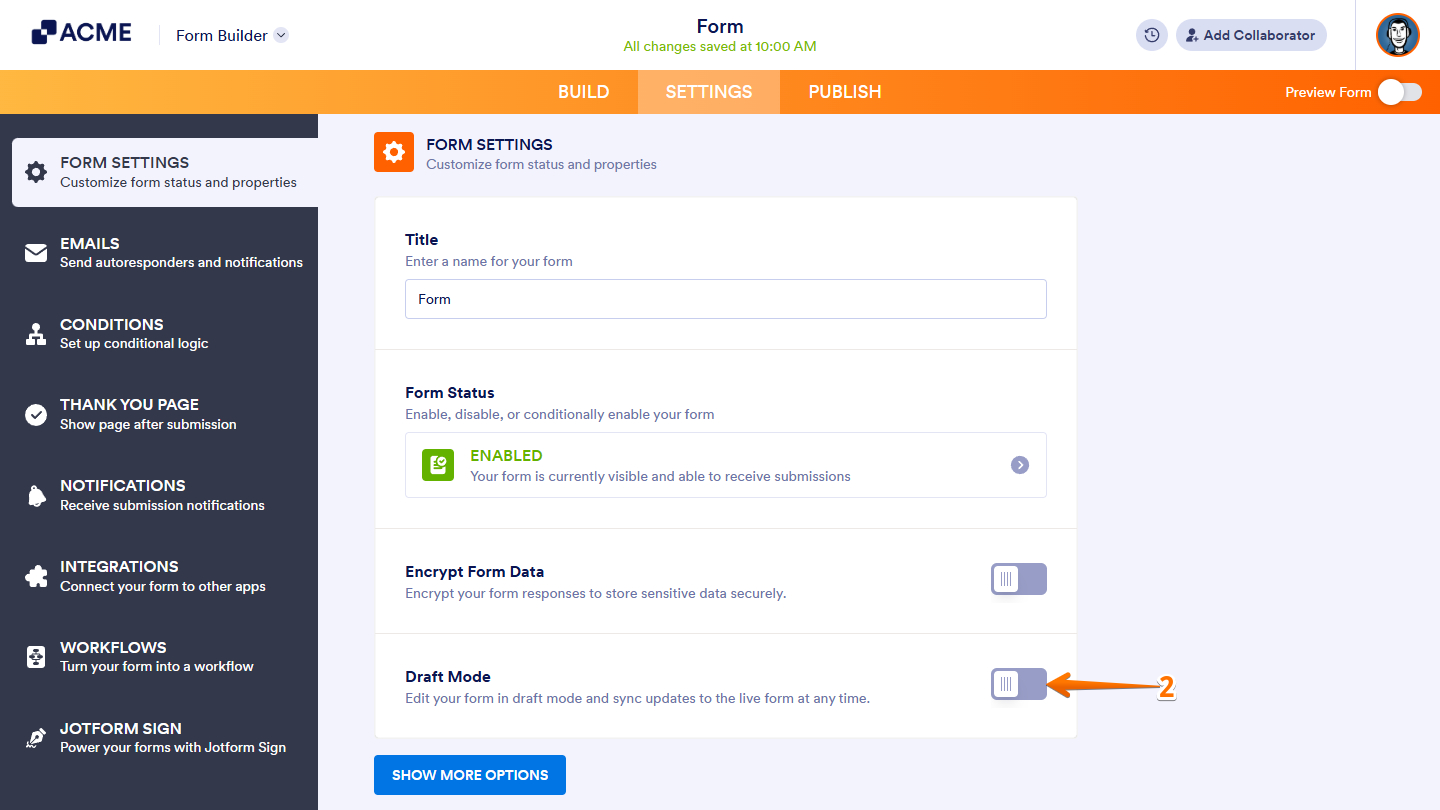
- Then, under Form Settings, toggle on the Draft Mode switch.
- Now, in the window that opens, click on Reload.
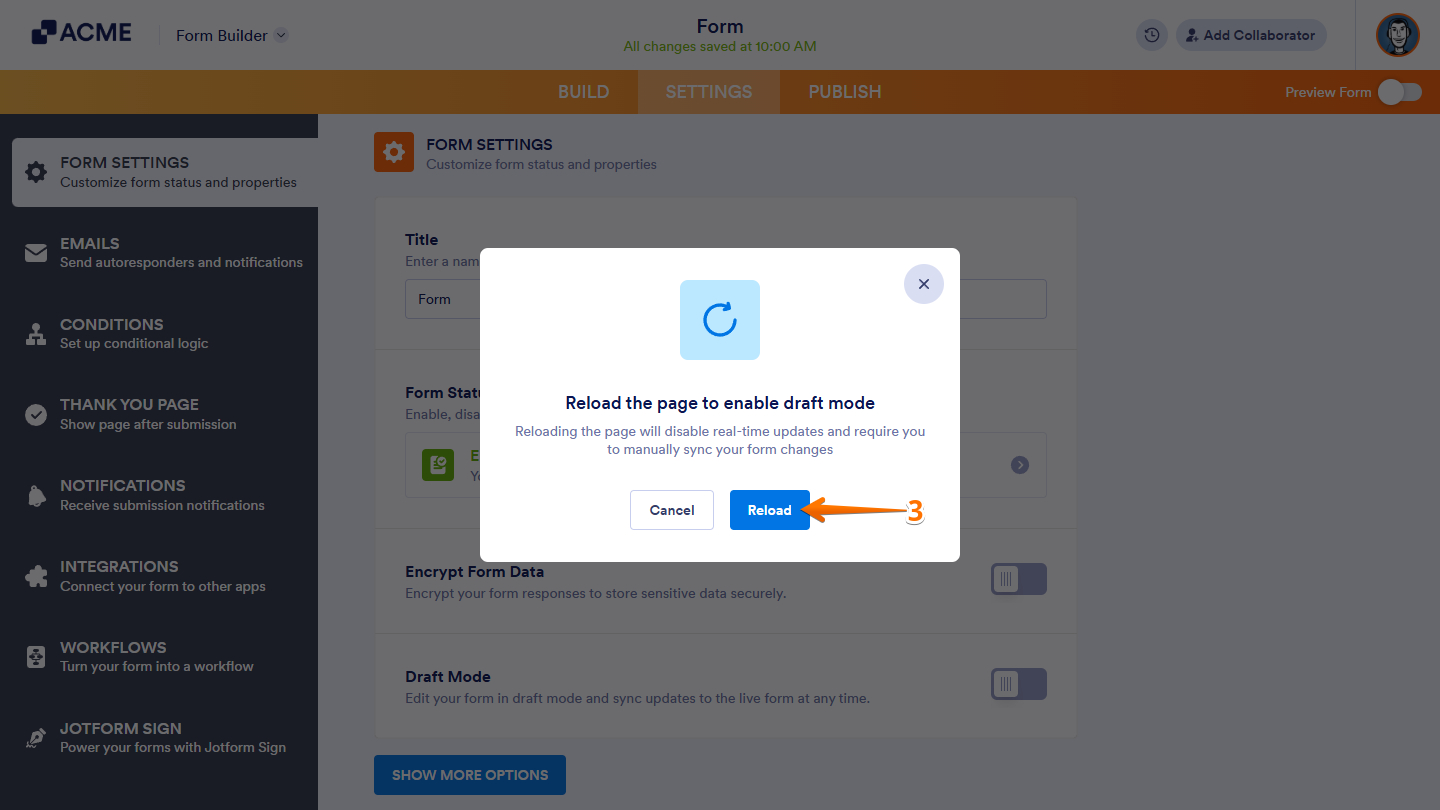
Once Draft Mode is enabled, any edits you make are saved as a draft. The live form remains unchanged, and respondents continue interacting with the last published version.
How to Track and Sync Form Versions
Draft Mode works together with Revision History to help you track changes made to your form over time. You can view previous versions, see when updates were made, and understand how the draft version differs from the currently published form. Viewing and syncing your form versions only takes a second—here’s what to do:
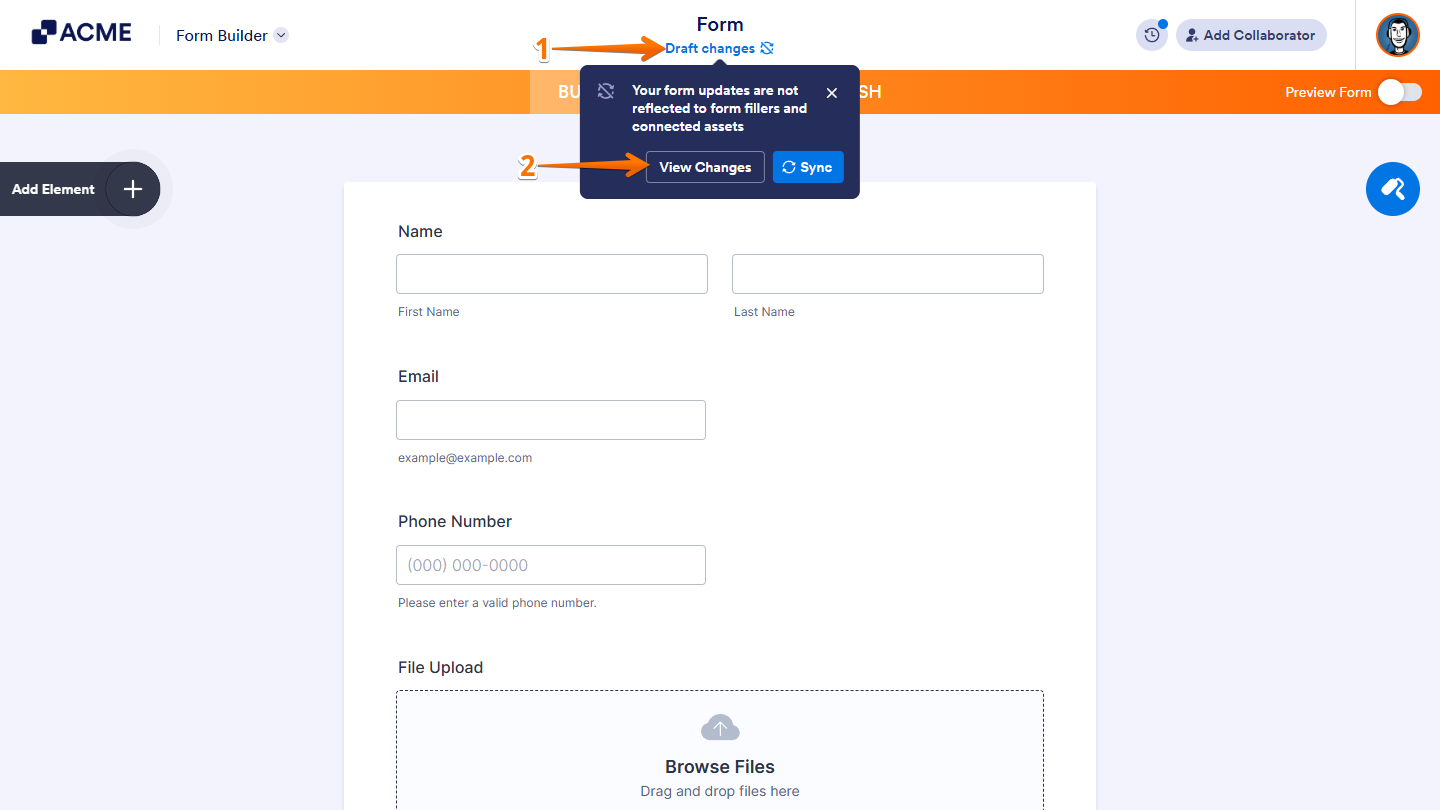
- In Form Builder, at the top, click on Draft Changes just below the form title.
- Then, in the Dropdown menu that opens, click on View Changes.
And you can also do it this way:
- In Form Builder, in the orange navigation bar at the top of the page, click on Publish.
- Then, on the Quick Share page, click on View Changes.

- Next, in the Revision History menu on the right, click on the Three Dots icon on a specific draft under the Current Drafts section.
- Now, click on Sync.
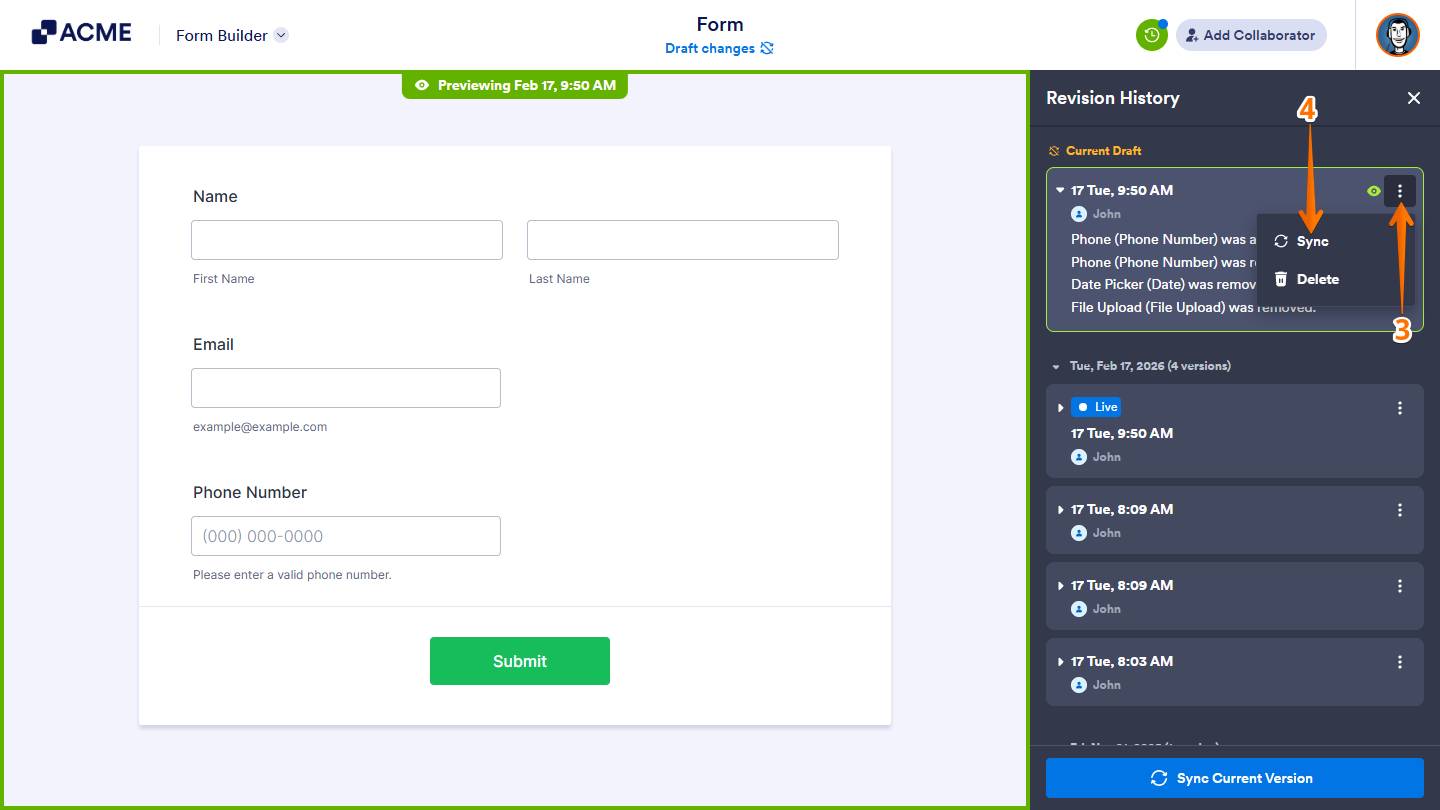
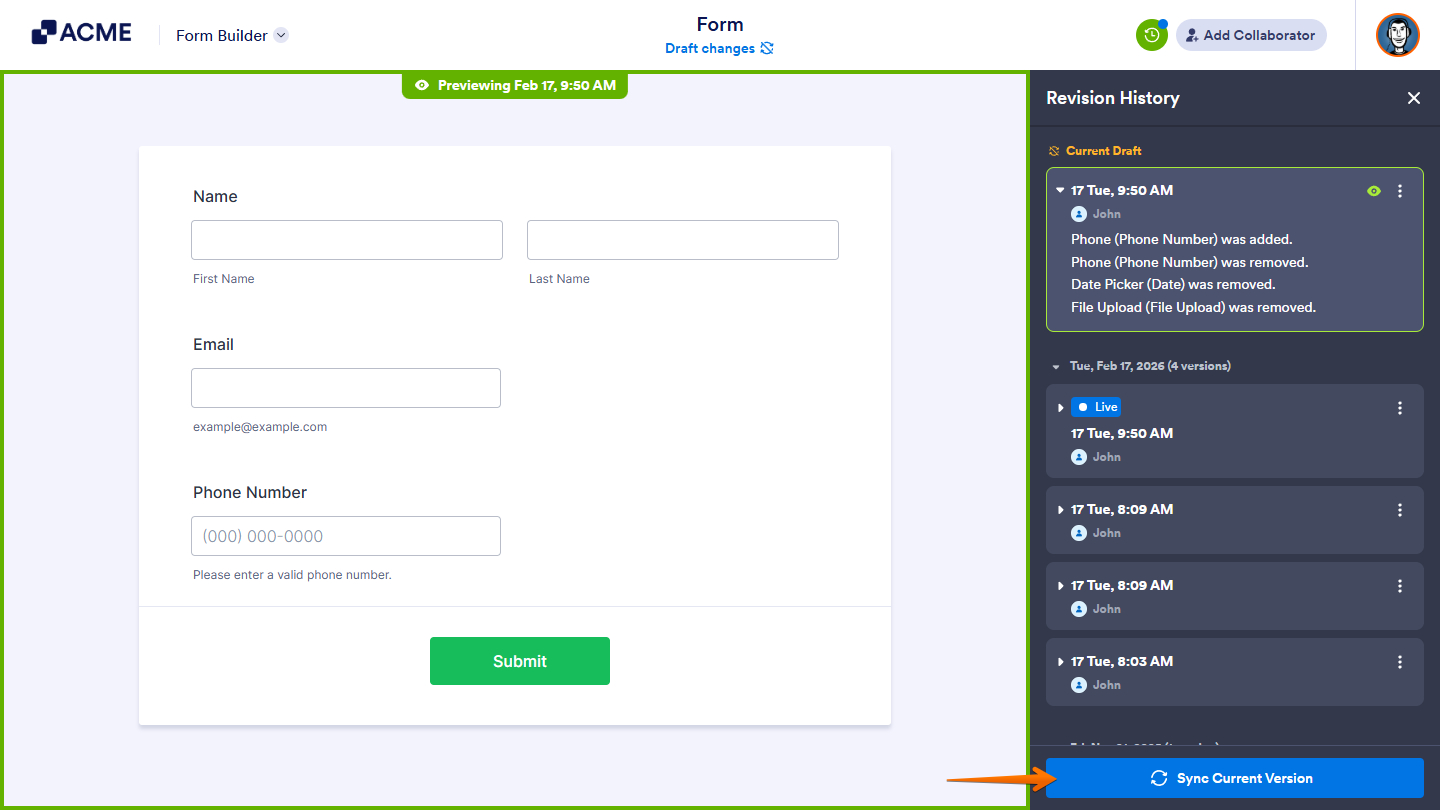
You can also click on Sync Current Version at the bottom of the Revision History menu.
- Finally, in the window that opens, click on Sync to finally sync the changes.

You should now see your most recent sync marked as Live in the Revision History. To confirm everything is working as expected, open your published form and review the latest changes.

Pro Tip
Draft Mode supports collaboration by allowing multiple teammates to work on updates while keeping the live form unchanged. This helps teams coordinate changes, review updates internally, and avoid accidental edits to active forms.

Send Comment: