With Jotform Form Builder for Shopify, you can view the responses customers send through your forms. This makes it easy to check submitted details, keep track of orders and requests, and find the information you need.
To get started, you’ll just need to follow these simple steps:
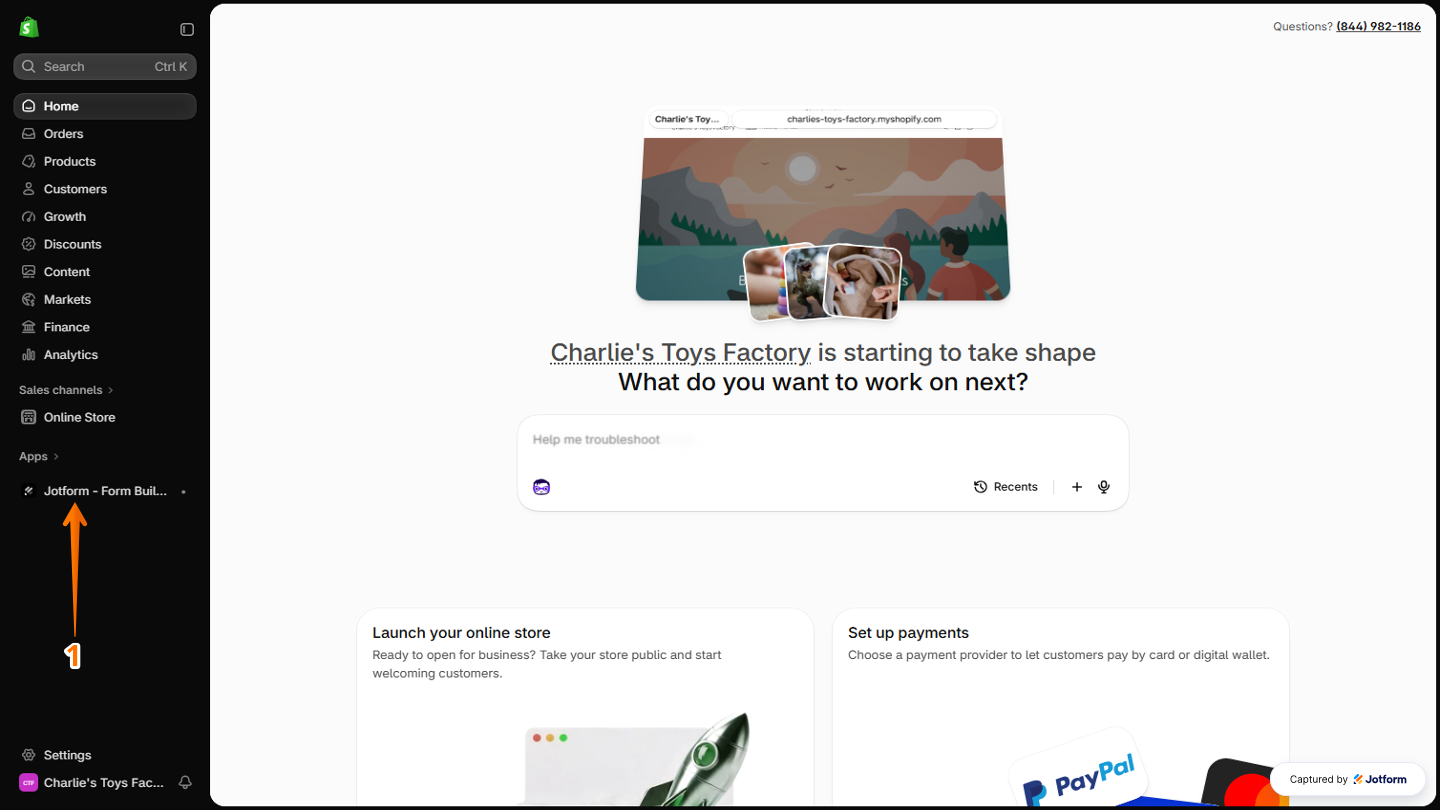
- On your Shopify Admin page, in the menu on the left side, click on Jotform – Form Builder.
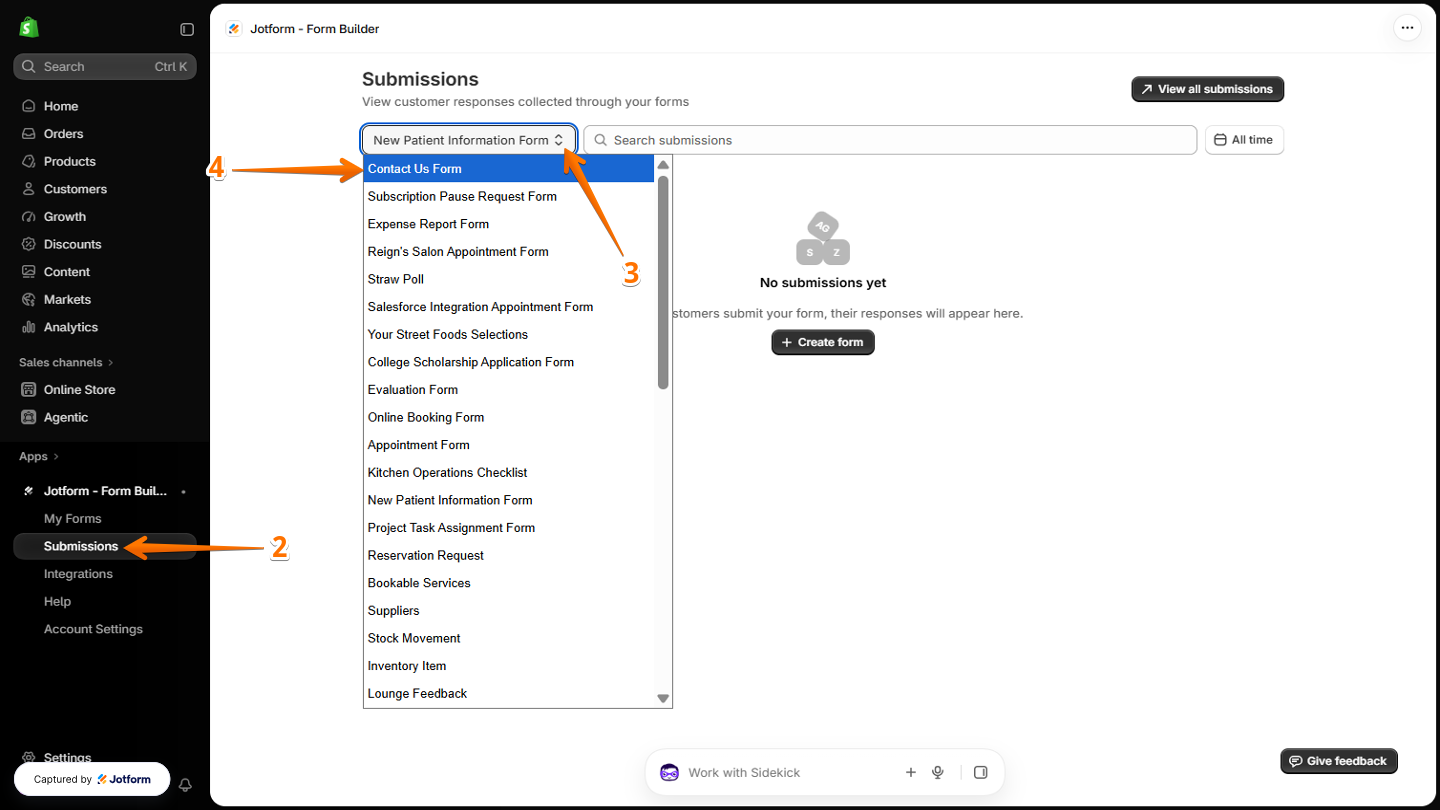
- Then, in the menu that opens, under the Jotform – Form Builder section, click on Submissions.
- Next, in the Submissions section, click on the Upward-Downward Arrow icon.
- Now, in the Dropdown menu that opens, select the form you want to view submissions for.
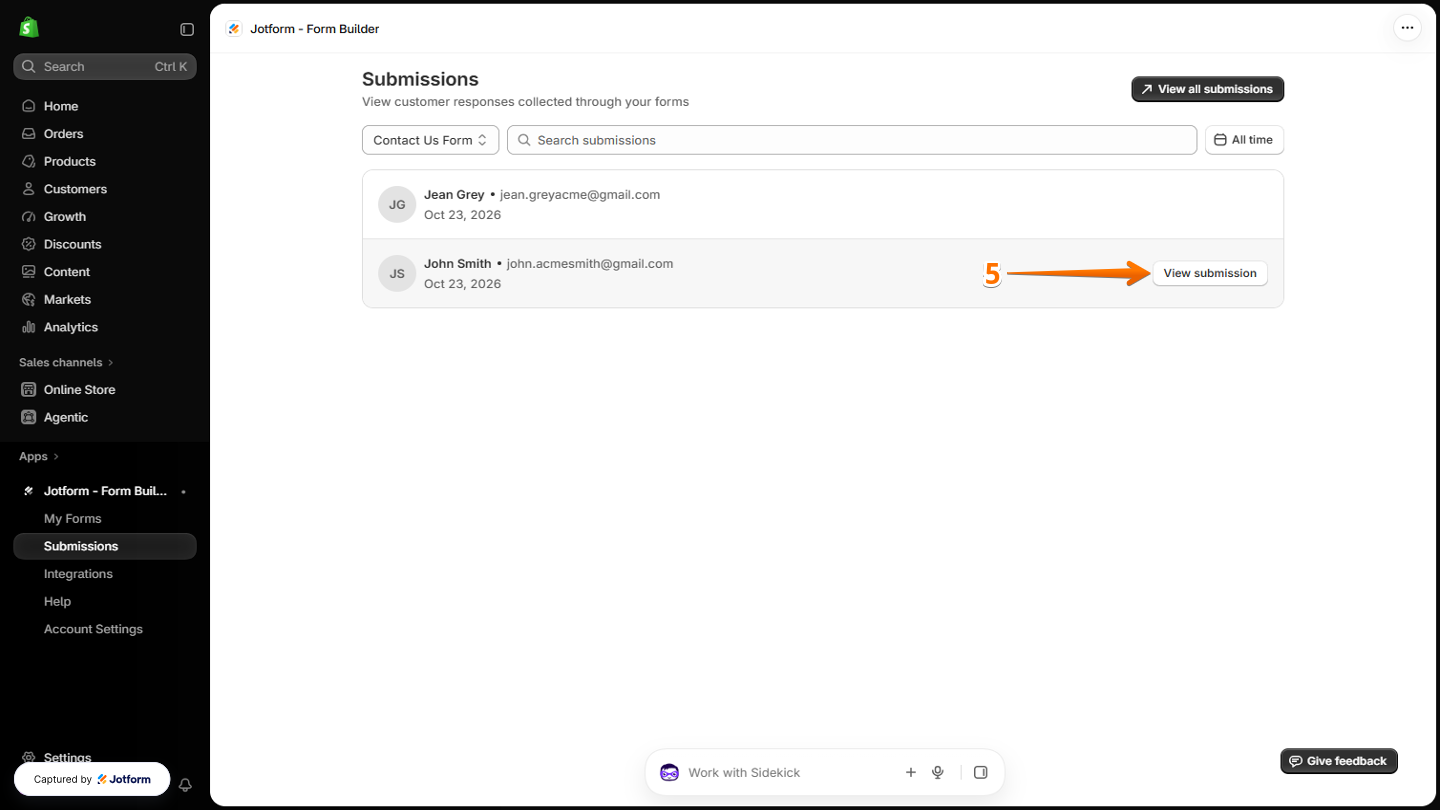
- Then, hover your mouse over the submission that you want to check, and click on View Submission.
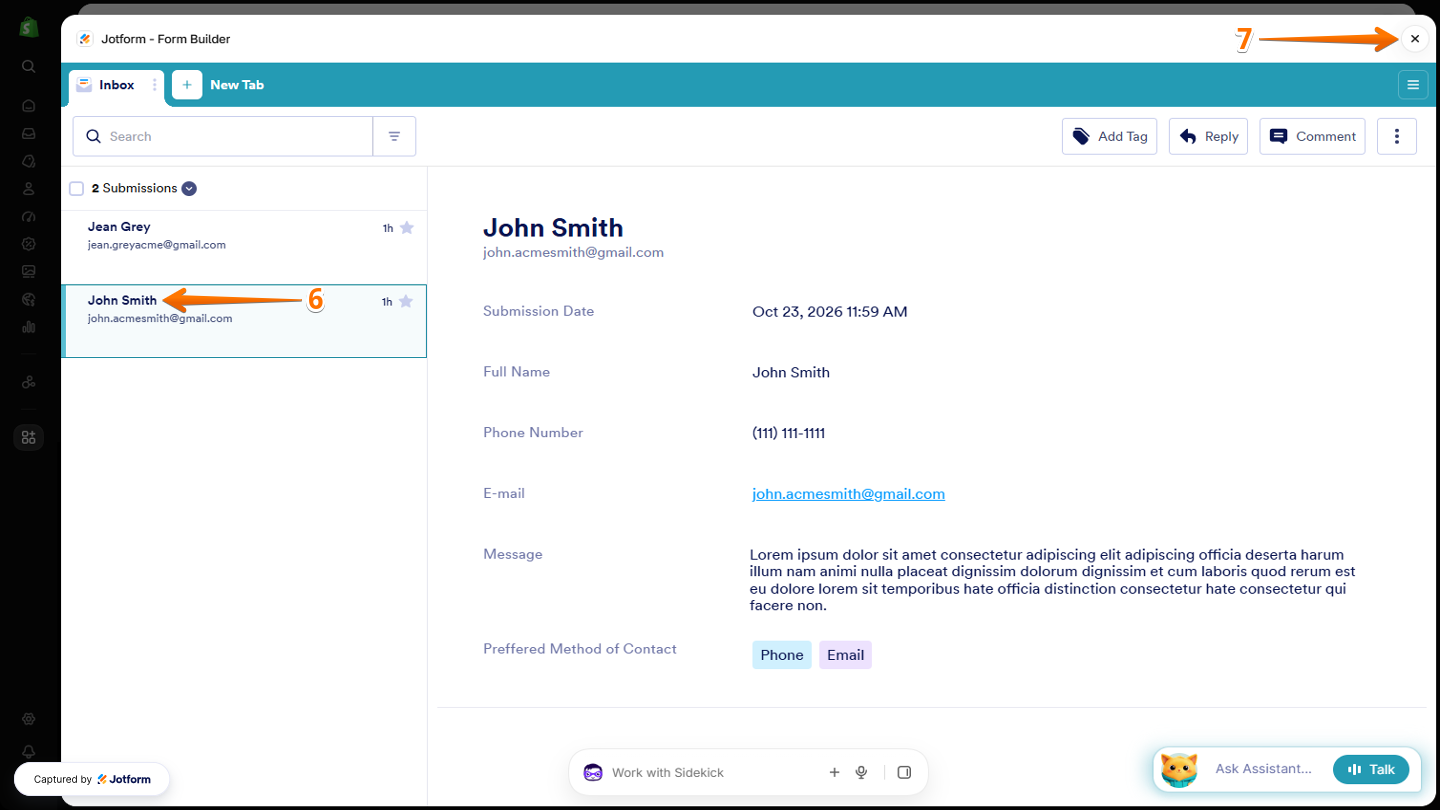
- Next, in the Jotform – Form Builder window that opens, you can view the selected submission in Jotform Inbox.
- Now, click on the X icon at the top-right of the page to return to the Submissions page.
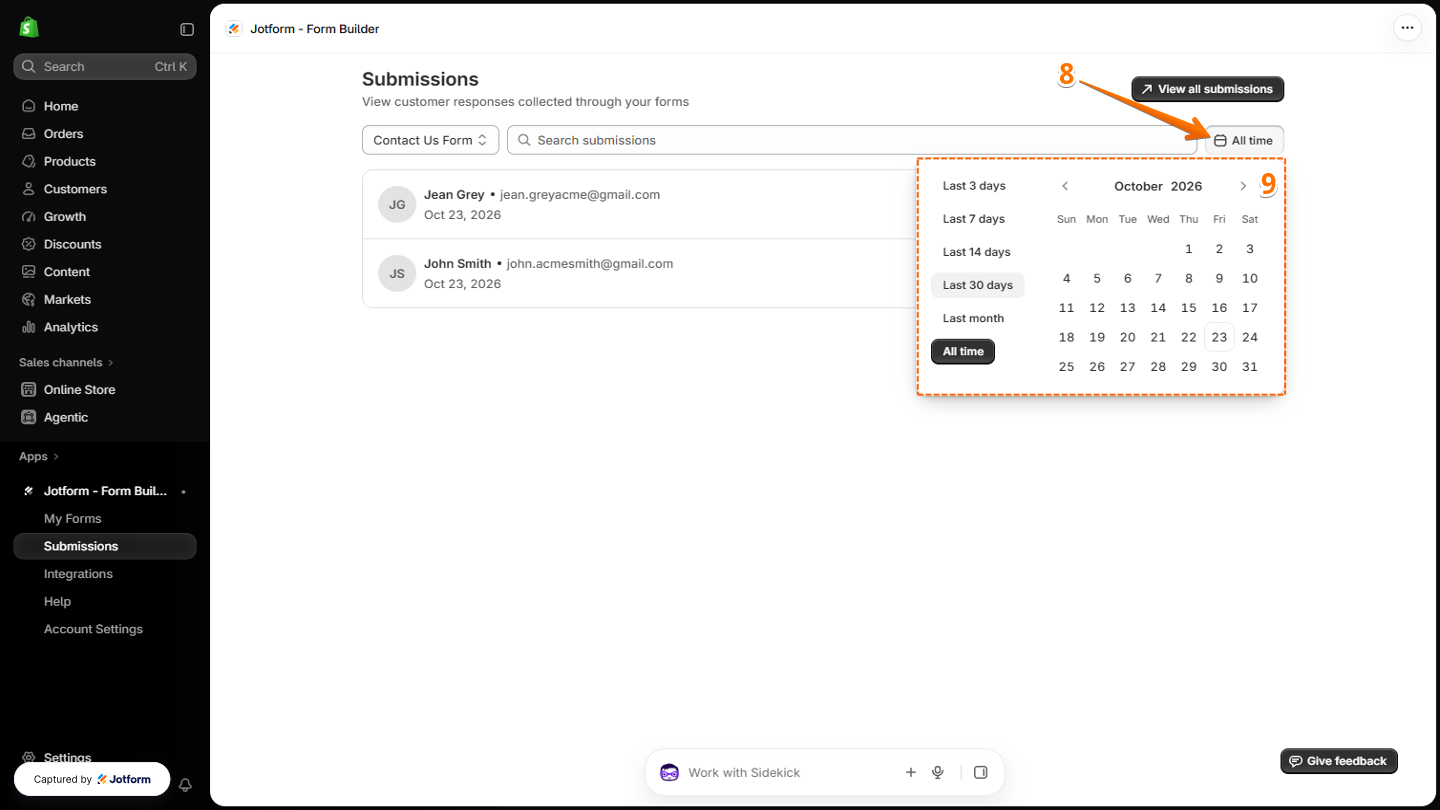
- To change the specific date periods you want to view, click on the Calendar icon next to All Time.
- Then, in the menu that opens, select the Date Range you want to check.
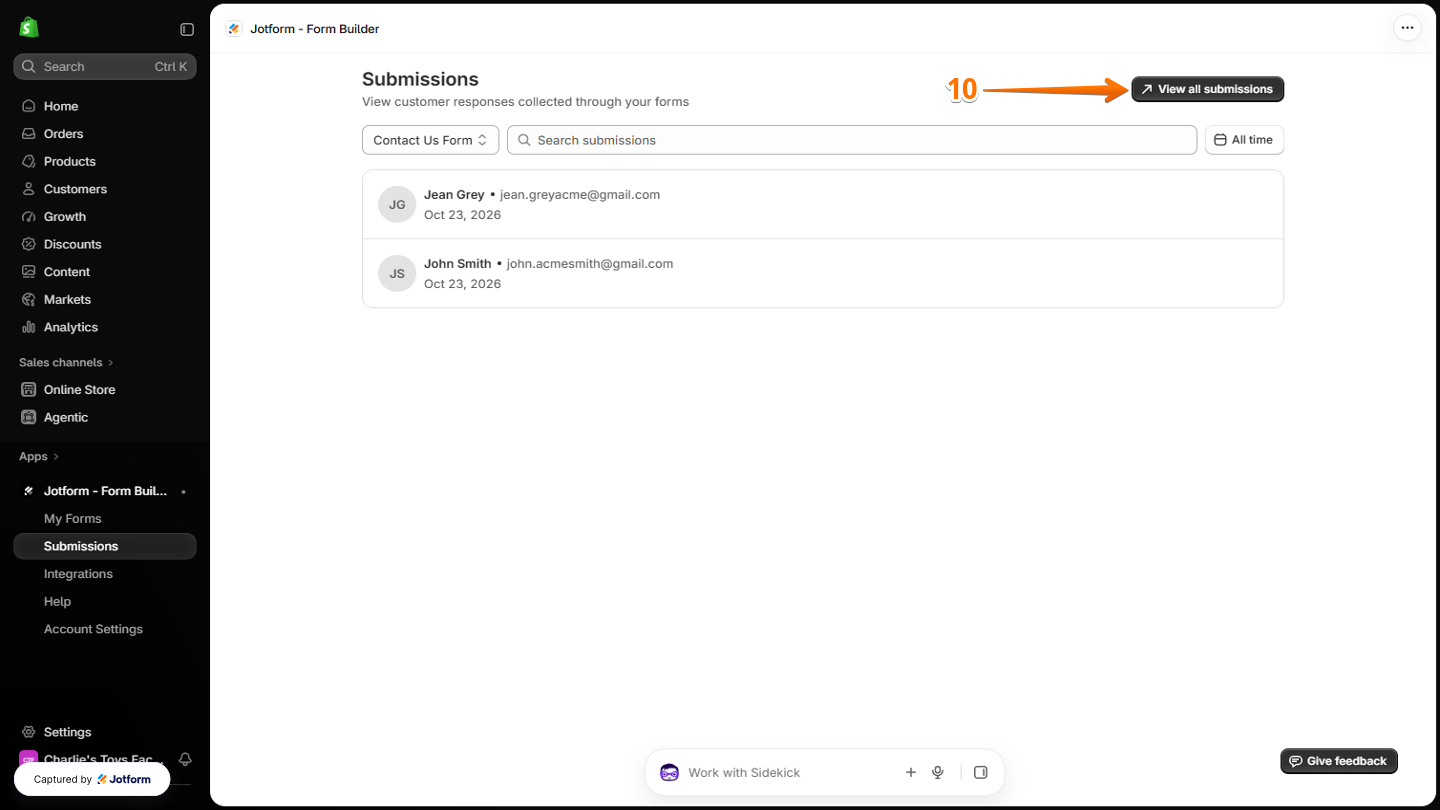
- To show the submission in Jotform Tables, click on View All Submissions at the top-right of the page.
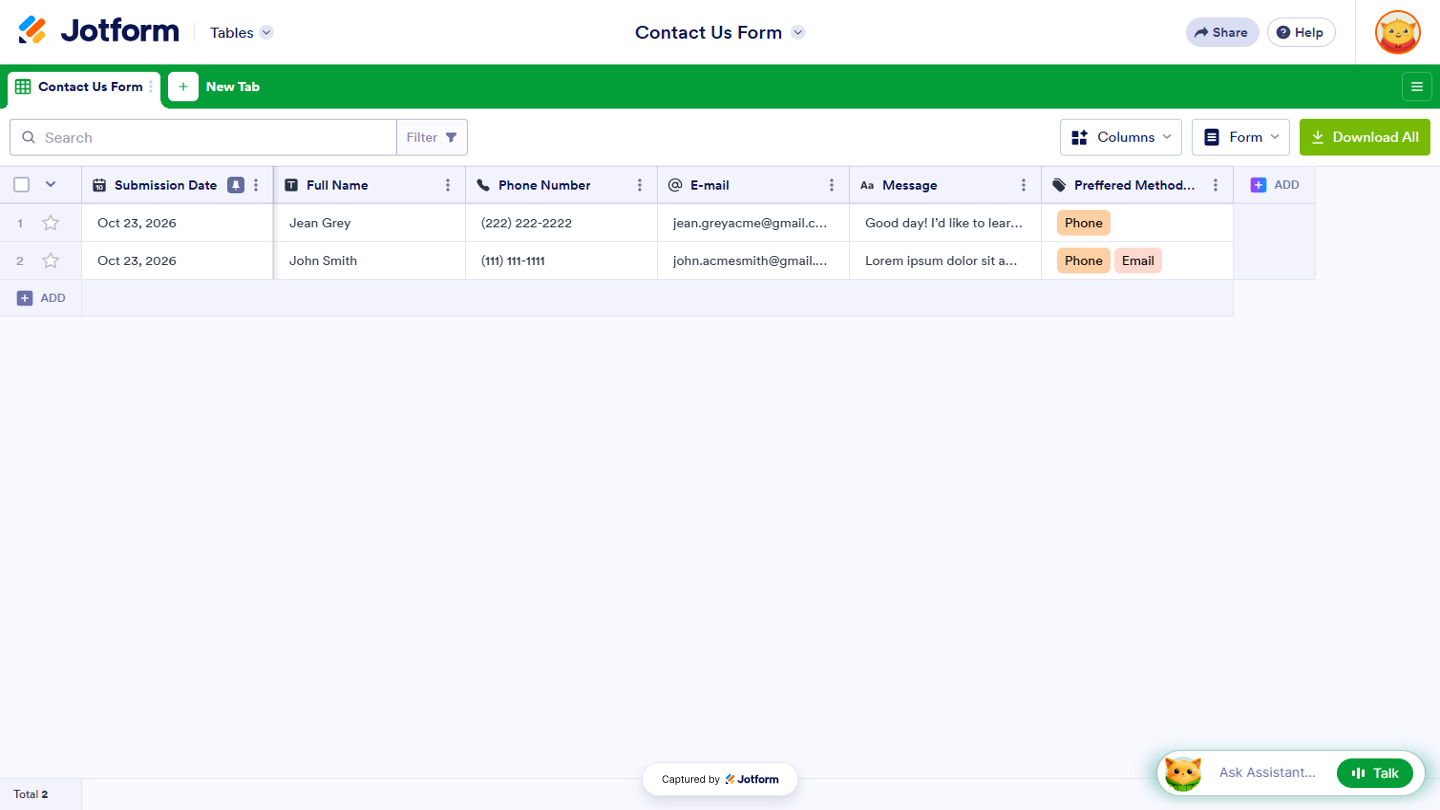
You’re all set! You’ll now be redirected to Jotform Tables, where you can view all submissions to your Shopify forms whenever you need to.

Send Comment: