Turn your Facebook feedback into powerful social proof with the Facebook Reviews Widget. This widget automatically pulls in reviews from your Facebook Page and displays them directly on your website in a clean, professional layout. By showcasing real customer experiences and ratings, you can build trust, strengthen your brand credibility, and help visitors feel more confident about choosing your business. It’s a simple, automated way to let your happy customers do the talking — right where it matters most.
Note
Your Facebook Page must have a vanity URL (custom username) set up in order for the widget to successfully fetch and display your reviews. Check out Facebook’s guide on Create a Username for Your Facebook Page to learn more.
Creating an embed code for your Facebook Reviews only takes a second—here’s what to do:
- Go to the Facebook Reviews widget page, and in the Edit Widget section on the left, enter your Facebook Review URL in the Facebook Reviews URL field.

If you’ve previously created a Facebook Review widget, you’ll see the screen below when you open the widget page. To set up a new one, just click the Create New Widget button to access the configuration screen and start customizing it.

- Then, set up these things:
- Full Width — Toggle this option on to make the widget stretch seamlessly across the entire width of your page. Toggle it off if you prefer to control the size and positioning yourself for a more customized layout.
- Layout Options — Select the display style that matches your design preferences and how you’d like your reviews to be presented to visitors.
- Now, click on Continue.

- Next, customize these things:
- Dark Theme — Enable this option to switch the widget to a darker color scheme, perfect for websites with dark backgrounds or a more modern aesthetic.
- Title — Customize the widget’s header to match your brand or highlight the topic of the reviews.
- Navigation Arrows — Add arrow controls to let visitors easily browse through multiple reviews.
- Pagination — Show page indicators beneath the widget so users can quickly jump between sets of reviews.
- Jotform Branding — Keep the Jotform logo visible within the widget to acknowledge the platform powering your reviews.
- Then, click on Continue.

- Next, adjust the following settings to fine-tune your widget:
- Widget Header — Enable this option to display a header section above the widget.
- Header Title — Enter the title that will appear in the header to introduce your reviews.
- Review Details — Select which information to show, such as the star rating and total number of reviews.
- CTA Button — Add a call-to-action button to encourage visitors to share their feedback as well.
- Button Text — Customize the label displayed on your call-to-action button.
- Button Color — Pick the color that best matches your branding or website design.
- Text Color — Select the color for the widget text to ensure readability and visual harmony.

- Then, scroll down to the bottom and continue to configure this thing:
- Review Fields — Select the fields you want to display, such as Photo or Name.
- Now, click on Try it on your Website for Free.

- Finally, in the Embed window that opens, click on Copy Code, and you’re done.
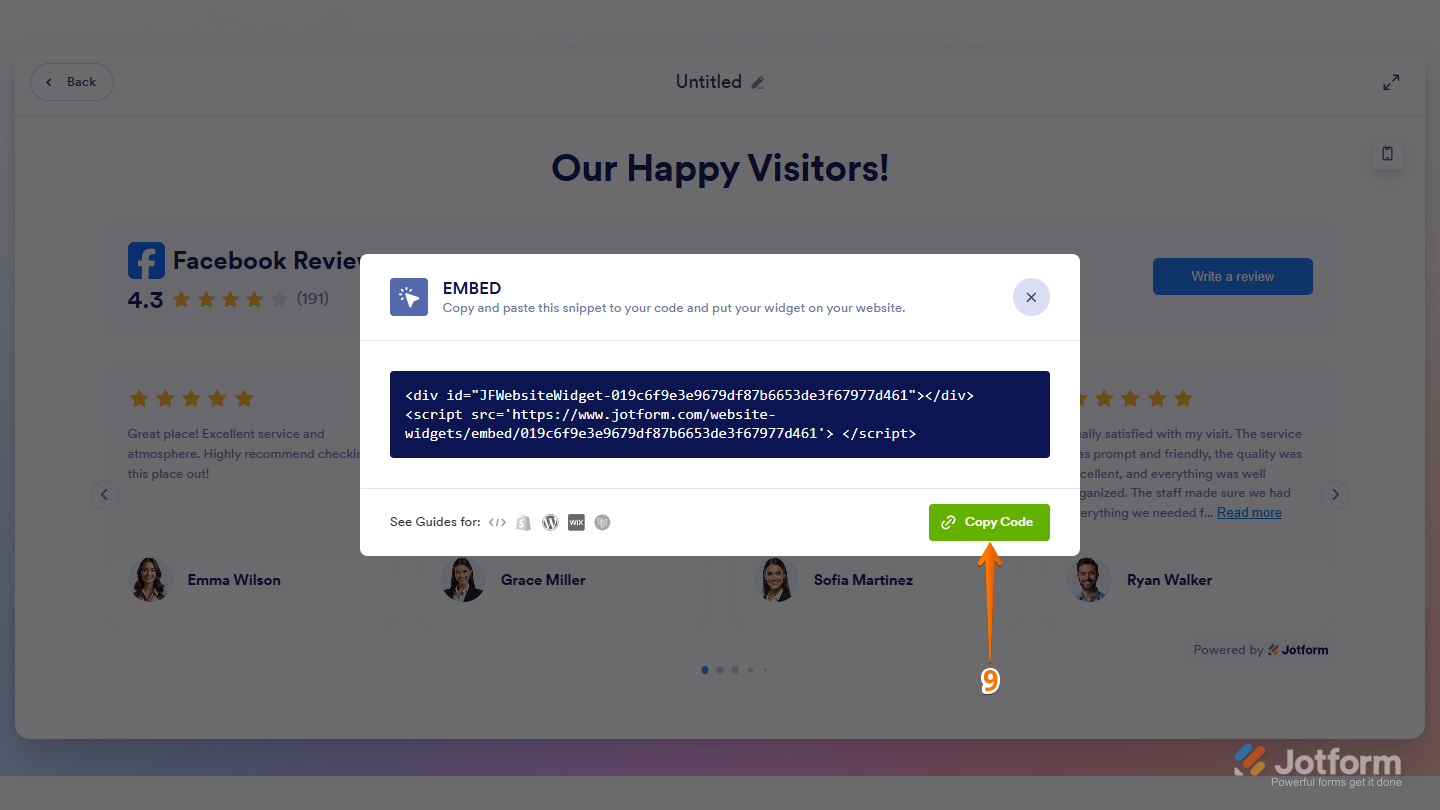
That’s all set! Your Facebook Reviews widget is ready to go. Simply copy and paste the embed code into your website, and your reviews will appear automatically — updating in real time. Take a look at the screenshot below to see how it appears on a demo website.

You can also manage your widget at any time from the My Widgets page. For a full breakdown of how to do it, head over to our guide on How to Manage Website Widgets.

Send Comment: