To be successful on Etsy, you need more than just a great product. You need creative, eye-catching marketing materials that stand out. Canva can help on both fronts.
For digital products, Canva is ideal. You can use this popular graphic design platform to create a wide variety of downloadables — calendars, digital planners, wall art, e-books, and more — as well as ads, banners, and other promotional pieces to support your store. The best part: You can do it all without advanced design skills! Canva is so easy to use that even non-designers can create professional-looking products in no time.
If you’re ready to join the ranks of top Etsy sellers, you’re in the right place. This article covers all the essentials around how to use Canva with Etsy, including step-by-step instructions for creating a digital product on Canva, ways to optimize your Etsy listings for Canva-designed products, promotion ideas, and more.
Setting up Canva for your Etsy business
The first order of business: Sign up for Canva!
Canva’s Free and Pro plans are most relevant for you as a prospective Etsy seller, so you’ll need to choose one. Here are the highlights of each plan to help you decide:
| Canva Free(free of charge) | Canva Pro($120/year for one person) |
|---|---|
| Over 1.6 million templates | Over 3.6 million templates |
| Over 4.5 million photos, videos, graphics, and audio elements | Over 141 million premium photos, videos, graphics, and audio elements |
| One brand kit | Five brand kits |
| Limited AI access | Increased AI access |
| 5 GB of cloud storage (enough for a few videos and lots of graphic designs with lower-quality images) | 100 GB of cloud storage |
| Premium tools to help with creation (resizing, translations, background remover) |
Which plan is right for you?
If it’s your first time creating digital products, Canva Free is a good choice. Its features will be sufficient to validate your product idea and then ramp up your store and sales slowly.
If, on the other hand, you plan to dive in with an array of different products and need multiple brand kits, Canva Pro is a better choice. Its premium tools will make product generation faster; plus, it has the additional storage you’re likely to need in this scenario.
A brief overview of the Canva interface
One of the most appealing aspects of Canva is its clean, simple interface. Your main design is dominant at all times, but all the tools you need for editing, formatting, and sharing are conveniently located along the top and sides of the screen.
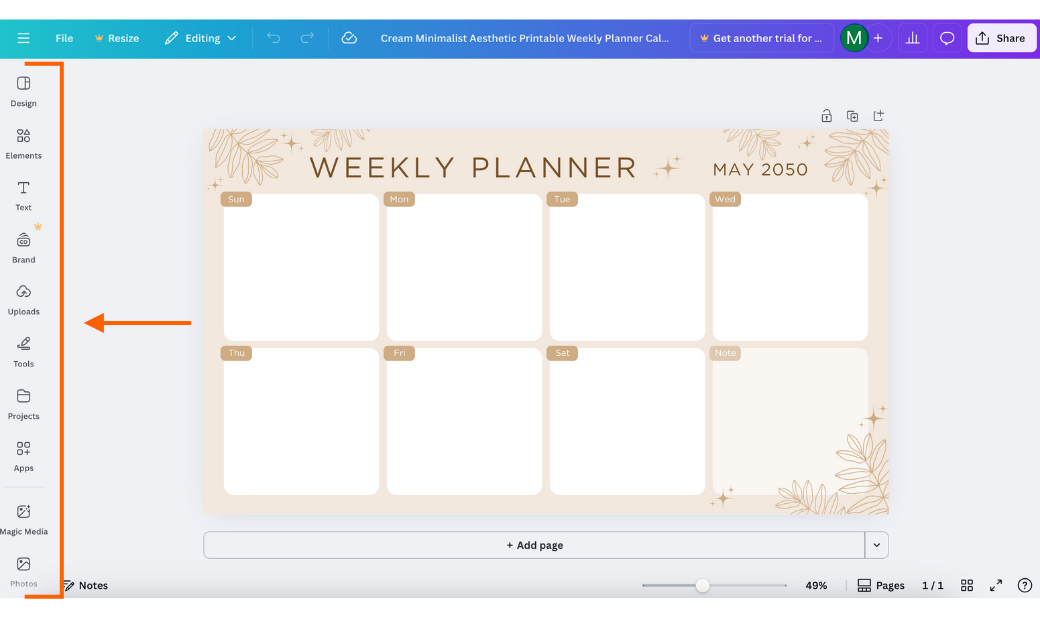
The left side panel has all the controls you need to edit your project. Use these icons to upload photos, add text, apply your brand colors and fonts, see stock photos and graphics, add lines and shapes, and access its AI tool, Magic Media.
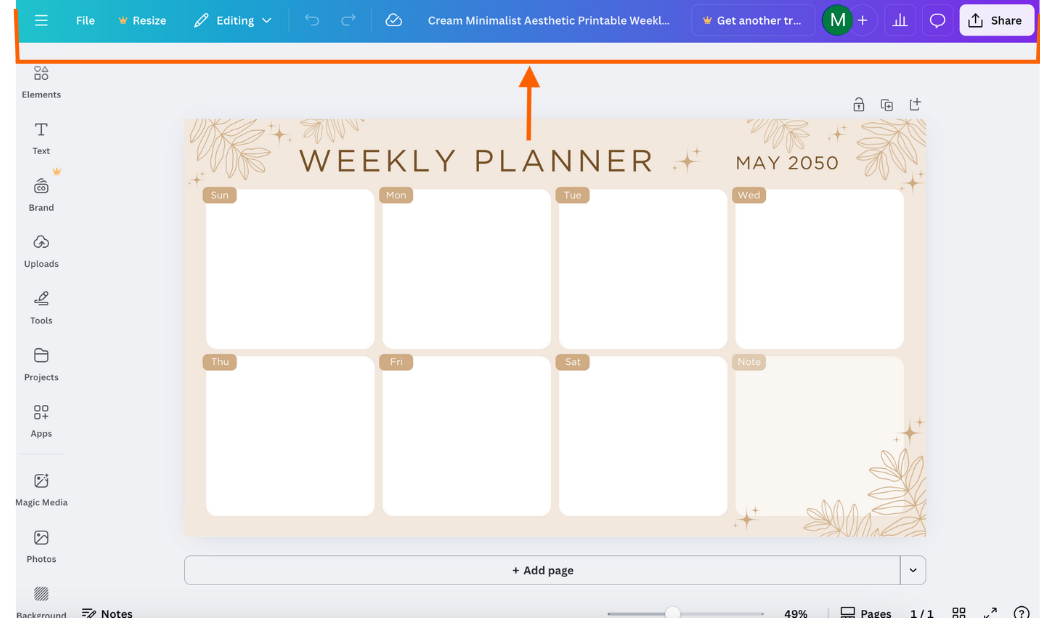
The top bar has a typical File menu, allowing you to save or duplicate a project, move it, and apply helpful design tools like guides and margins. The top bar also includes the file name, the resizing tool, editing/viewing/commenting mode, undo/redo, and sharing settings.
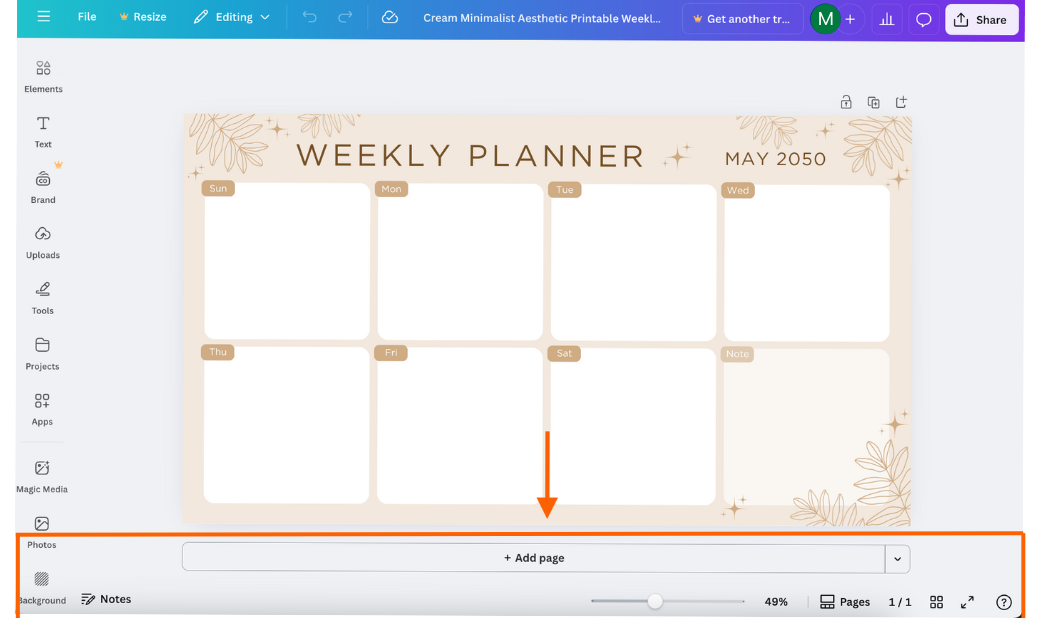
The bottom of the design page shows the page thumbnails, a zoom feature to make it easier to see design details, and a way to change the view of your design on the screen.
How to save and organize designs for Etsy projects
Like any other software tool, Canva has a folder storage system that will help you save and organize your Etsy-related work. Taking advantage of it will make it easier to find current and past projects.
A few tips for organizing your digital files in Canva:
- Create top-level folders that relate to the different aspects of your Etsy store, such as a “Product” folder and a “Marketing” folder.
- Create subfolders within each of these folders pertaining to specific content. For example, within the “Product” folder, create a “Weekly Planner” folder for the digital product itself and subfolders within that for specific elements, versions, years, or another aspect of creation (e.g., “2026” and “2027” or “Images” and “Mockups”).
- Use Canva’s brand kit to store design choices related to your brand, such as color palette, fonts, and logos.
- Create a “Brand Assets” folder for elements that will consistently be used across projects, such as specific images, icons, or backgrounds.
- Use a clear and consistent naming convention for all folders so they are instantly recognizable. For example, “Instagram clipart v2” is better than simply “clipart new.”
Pro Tip
Create a “Master Templates” file for bestselling products in your Etsy shop. Having your best designs easily accessible makes it easy to use them as templates and build off earlier successes.
Before you get started on your product design, I recommend watching some of the numerous Canva tutorials that are available online. The makers of Canva have produced several of them, but there are also lots of videos made by users that address various aspects of design creation. Watching any of them will help you get up and running faster!
Creating a digital product with Canva: A step-by-step guide
The options for digital products are vast, but you’ll have the best chance of success with an Etsy offering that reflects one of your interests. For example, if you’re a detail-oriented, extremely organized person, your version of a weekly or monthly planner will reflect your personality, experience, and know-how — and is likely to perform well as a result.
Whatever you decide to create, use the steps below as a guide to creating your first digital product with Canva and preparing it for sale on Etsy.
1. Select the right Canva template for your product.
Don’t limit yourself to browsing through the predetermined category listings. Instead, input a carefully thought-out keyword or keywords into the search box to get results that more closely fit your product idea. If possible, include words that describe your desired design style, such as “minimalist fitness e-book” or “contemporary newsletter real estate.”
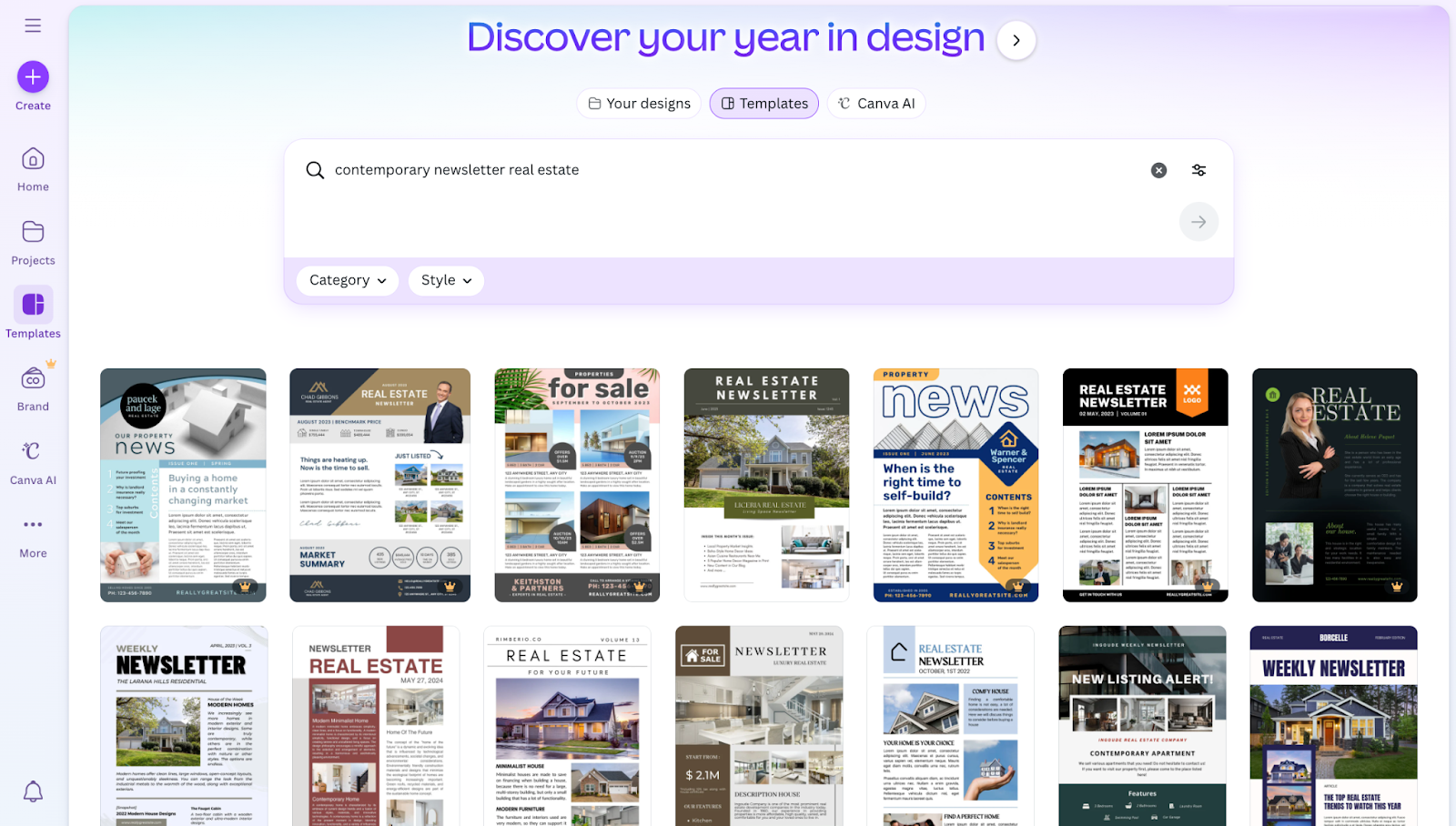
Or, you can use the Style filter inside the search box to choose from a list of style types that most closely match your idea.
2. Customize the design with colors, fonts, graphics, and your own original content.
Make the template your own by applying your own creative vision. Insert the text and images for your imagined product, and alter the design as needed.
Your design will work best if you designate a small set of fonts, colors, and graphic styles to use consistently. Referred to as your brand kit, this ensures that the product stays on brand throughout and reinforces a certain look. Be sure to maintain consistency when it comes to small details like font size and letter spacing, and recolor stock graphics where possible to match your branding.
3. Ensure your design meets Etsy’s file size and format requirements.
Etsy supports a wide range of common file types, including PDFs, PNGs, GIFs, MP3s, JPGs, and more, for instant download by customers. As the creator, you can upload up to five digital files per product listing, with a maximum file size of 20 MB each. Larger products are typically delivered as compressed ZIP folders containing multiple assets.
4. Download and prepare the files for upload on Etsy.
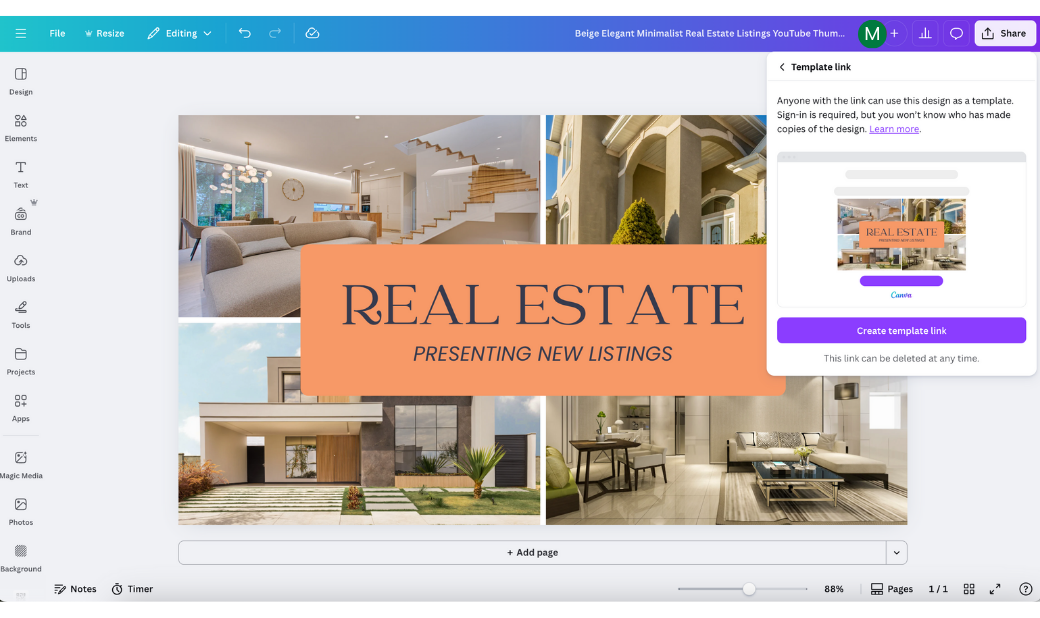
The last step is to package up your item so Etsy buyers can easily access it. If your final product is a template, you’ll need to give customers a link so they can access and edit the design in Canva. You’ll also want to include instructions on how to use the template along with their purchase. For printable products, save the file as a PDF for printing.
Optimizing your Etsy listings for Canva-designed products
Creating a great Canva-designed product is the most fundamental aspect of a successful store, but there’s more to consider than just the product itself.
For one, taking steps to increase your shop’s visibility online will help draw attention to your products, bringing in more potential customers. Secondly, enhancing the presentation of your products to those visitors will make them seem more compelling, helping to boost sales.
Strategies like these are referred to as optimization, and they play a key role in your Etsy shop’s performance.
Optimization encompasses a very wide range of activities — more than what we can cover here. However, following the below Etsy selling tips will set you on the right path to increasing sales:
1. Write compelling titles and descriptions of your products.
A well-written description has the potential to convert visitors into customers. Strive for a combination of informative and persuasive. Focus on conveying the benefits of your product (e.g., for a low-calorie recipe book, “burn fat faster and reveal a leaner, stronger, more radiant you”), and if you have expertise in a related area, be sure to highlight it. Also, research and incorporate a few relevant keywords to increase your listing’s visibility. (See tip number three.)
2. Add attractive thumbnails and preview images.
Etsy allows you to add up to 20 images per listing; for a digital product, you may not need to use all of them. Spend time creating an impressive cover image that shows your product in an attractive light. Beyond that, you could show two or three pages as samples (from an e-book or planner, for example) and potentially also things like instructions for use or promo QR codes. Don’t forget to include your logo on every image you create!
3. Add elements to your title and description that will make your shop easier to find.
Before someone can find your shop, they’ll use one of two (or both!) search engines: Google and Etsy’s own search engine. Search engine optimization (SEO) tactics, like using specific keywords in your titles and descriptions, getting positive reviews, and keeping your content fresh, are all important for Google and Etsy SEO.
Learn about the keywords that are most relevant for your product and use them in your copy, and take advantage of Etsy’s tag, category, and attribute classifications — they can all help match your store with relevant customer searches.
Pricing strategies for Canva-based products
Pricing is one of the most challenging aspects of product sales. A too-high price can drive potential customers away, while a too-low price can lessen your product’s perceived value and cut into your profit margin.
You may not get it right the first time — and that’s OK! Consider your first attempt a test and adjust the price over time.
Think about the following as you set your initial price:
- Time to produce — Assign yourself a realistic hourly rate and track your time, building that into each product’s cost.
- Fixed business expenses — The Canva subscription cost, Etsy fees, and any other recurring costs should be treated as fixed business expenses and can be spread across the products you realistically expect to sell.
- Market demand — Research the competition and their sales to understand the level of demand; also consider whether seasonality is a factor for your product.
- Profit margin — Determine what you would like to earn as profit. Aim for somewhere within the 20–40 percent range.
After your store ramps up and your pricing is more stable, consider using tactics like discounts and bundles. Running discounts at certain times (such as holidays or shop milestones) or for certain customers (like first-time buyers) is a good way to increase sales and make customers feel valued.
Bundling products makes sense if you have a group of themed items that naturally go together. In this case, you can raise the price of the average order without giving a discount on every product individually.
Promoting your Etsy shop with Canva
Canva’s tools make it easy to create cohesive visuals you can use to drive traffic from outside sources to your store. It has templates for nearly every marketing tool you can think of — you simply have to search for them and find one to make your own.
Canva supports a variety of Etsy marketing strategies:
- Pinterest pins, Instagram posts, and ads — Build a small set of templates for platforms where your target audience hangs out. Then you can easily swap out verbiage and product images to promote a variety of items at the ideal time.
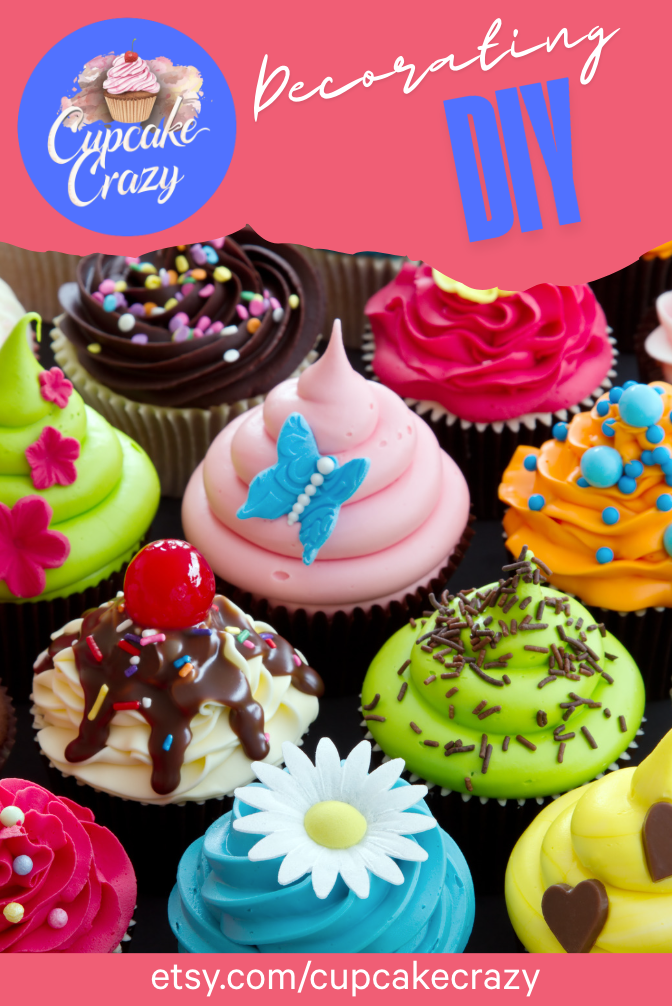
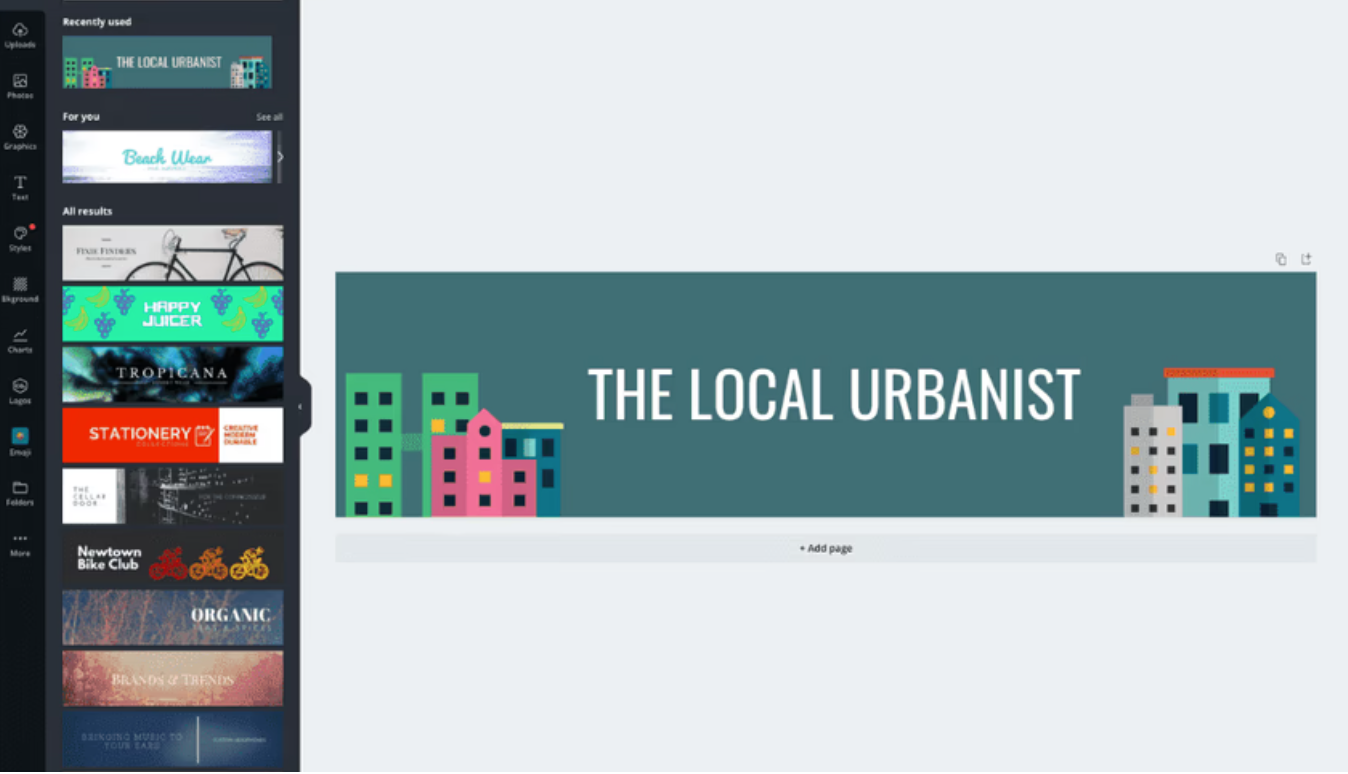
- An Etsy shop banner and logo — Again, Canva has numerous layouts and many images you can choose from to create a unique storefront banner that reflects your brand.
- Free lead magnets — Use Canva to create a free downloadable checklist, template, worksheet, or something else that attracts the attention of your target audience. In return, you’ll collect their contact information (it’s easy to add a form to Canva for this purpose!) and grow your email list.
You can find more information about marketing for e-commerce in our complete guide on how to sell online.
Common mistakes to avoid when using Canva for Etsy
Canva is an excellent tool for launching an Etsy shop, but be aware of these common mistakes people make that sabotage their efforts:
1. Overloading your designs with too many elements
You don’t need to be a design expert to use Canva, but you do need to realize when you’re making mistakes. Too many colors, random font choices, and overcrowded layouts can make your designs look unprofessional and, worse, unreadable.
Two design tips Canva users would be wise to follow: Stick to, at most, three brand colors and two complementary fonts. Also, make sure you use plenty of white space (unmarked space) on a page for attractiveness and readability.
2. Ignoring Canva’s licensing and copyright rules
Canva has a content license agreement that allows both Free and Pro users to design and sell digital products and create designs for clients. However, you cannot simply sell an image from its content library or one of its templates as is. You must make every design your own unique composition by incorporating other elements.
Additionally, if your template design includes Pro content, you can only sell the product as a shareable link that takes users back to Canva — not as an off-platform, downloadable file.
3. Skipping product mockups that give buyers a realistic preview
Product images are an essential part of selling on Etsy — people want to know what they’re buying before they provide payment. Unfortunately, some sellers skip the mockup creation step in their rush to start selling. Without images available, most buyers will pass over your product in favor of one they can preview.
There are numerous Canva templates available that make mockup creation easy. Even if you don’t use a template, you can take advantage of Canva’s design tools to make beautiful images quickly, adding shadows, backgrounds, colors, and more.
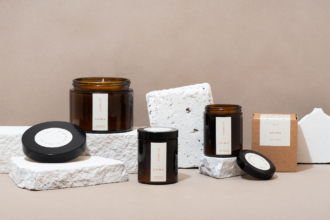
Try to show your product in its natural environment — for instance, a recipe book in a kitchen or a fitness journal alongside workout equipment. Attractive product mockups will draw more attention to your product and increase the probability of sales.
Add payment forms, order forms, and more to your store with Jotform
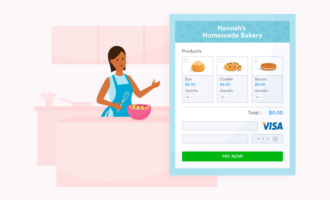
To help you build a repeatable system for creating and selling, you’ll need a variety of forms and other tools that work behind the scenes. Jotform is a leading online form builder that integrates seamlessly with Canva, making it a cinch to add forms wherever you need them.
With Jotform, you can seamlessly create and embed these forms directly into your Canva designs and websites without the need to switch platforms. It has more than 20,000 pre-designed templates to choose from, as well as numerous advanced form features, including
- E-signature collection
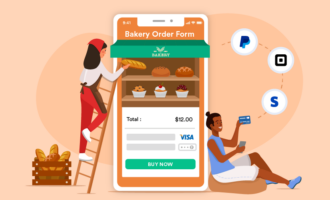
- Secure payment processing through PayPal, Stripe, and Square
- Automated approval workflows
- Conditional logic for dynamic forms
- Centralized data collection for easy management and analysis
But there’s more to Jotform than forms! Jotform also has all the tools necessary to customize and power an online store — no coding experience needed.
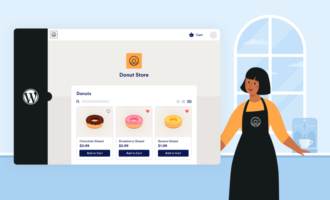
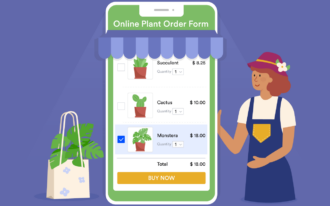
If you’re interested in setting up your own e-commerce website, you can do so with Jotform Store Builder, customizing its look and theme with premade order forms. When you’re ready for your store to go live, use the Jotform Shopping Cart plug-in to add it to your WordPress website, then track your orders in one place.
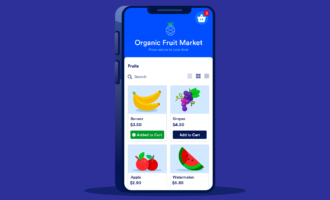
Jotform also has more than 600 app templates that allow you to make a selling app, and customize and share it without coding. You can easily tailor any app template with Jotform’s extensive elements library, such as links, text fields, documents, images, and buttons, as well as a unique splash screen to enhance brand recognition.
Jotform also offers a variety of advanced sharing options, including social media, QR codes, and custom URLs. Paired with granular access settings, you’ll have strict control over how you distribute your app and who can access it.
Start building your own Etsy store now with Canva and Jotform
Now that you’re feeling confident about how to use Canva to sell on Etsy, it’s time to get started creating! Etsy is considered one of the best platforms to sell online thanks to its low barrier to entry and large audience, so don’t hesitate to set up shop if you have a good idea.
Plus, thanks to Canva and Jotform, building a high-performing Etsy store is well within your reach. Start with a few simple templates, several attractive mockups, and a thoughtful pricing strategy. Then create your Etsy storefront and your unique visual identity. Top it all off with the last layer of professionalism — organized store management with the necessary forms, shopping cart, and order tracking.
Before long, you’ll have a streamlined, scalable digital product business you can be proud of!
This guide is for new and growing Etsy sellers, side-hustlers, and small creative businesses who want to launch or level up digital products without formal design training.

















































Send Comment: