Security and privacy are Jotform’s utmost priority in form building and data collection — two reasons why Jotform complies with various industry standards and regulations, including GDPR and HIPAA. Visit our Security page to learn more.
Jotform also has Form Encryption, which you can enable. This further safeguards sensitive information in your forms. It’s a type of end-to-end encryption, a security measure that guarantees privacy by encrypting your form data when your form users fill it out and submit it.


However, utilizing form encryption has some catches, as some features in the Form Builder will become unavailable once you enable it in the form. Here is the list:
Enabling Form Encryption in the Form Builder
If you wish to proceed, follow the steps below to enable Form Encryption.
- In the Form Builder, go to the Settings tab.
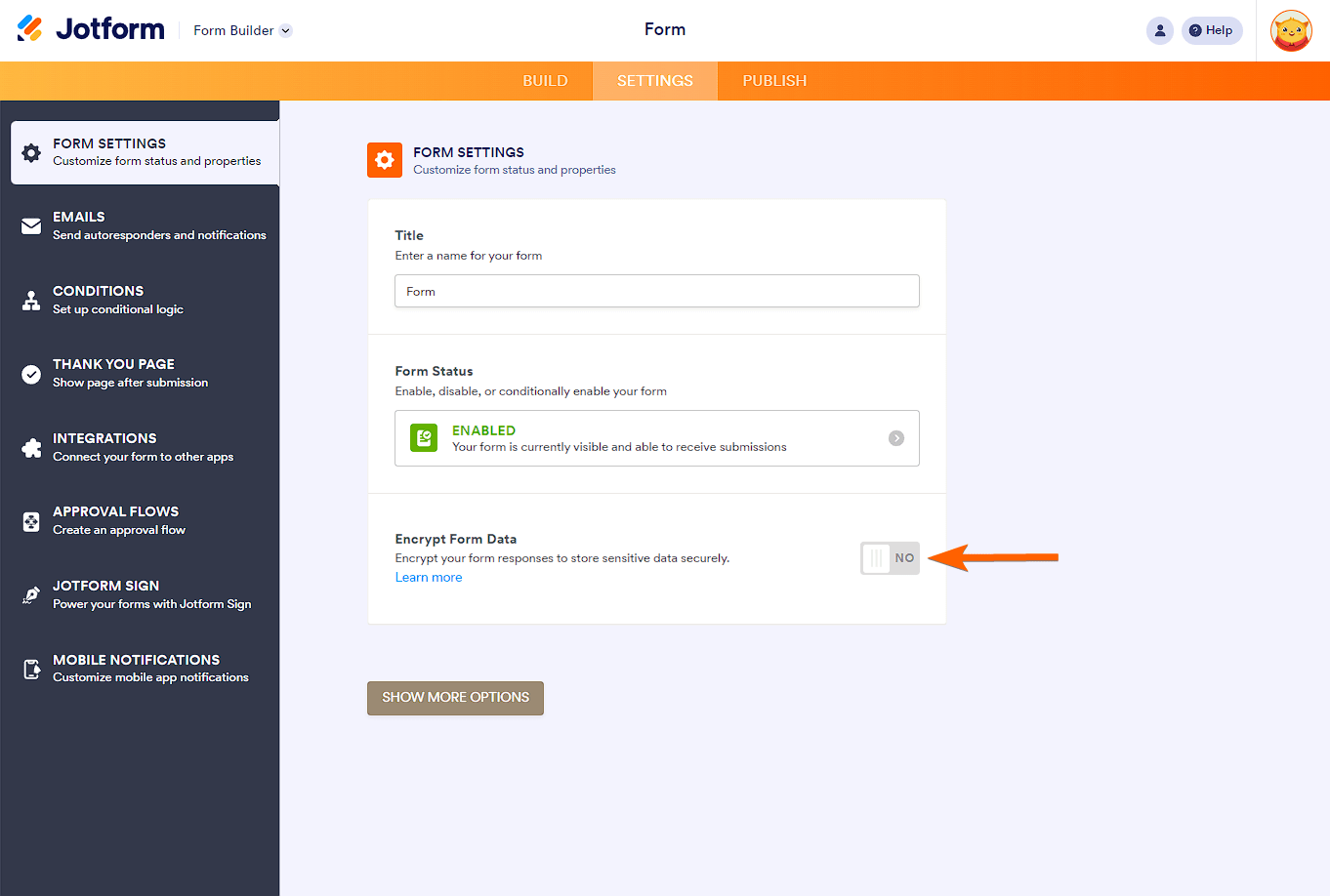
- Look for Encrypt Form Data and toggle it to Yes.
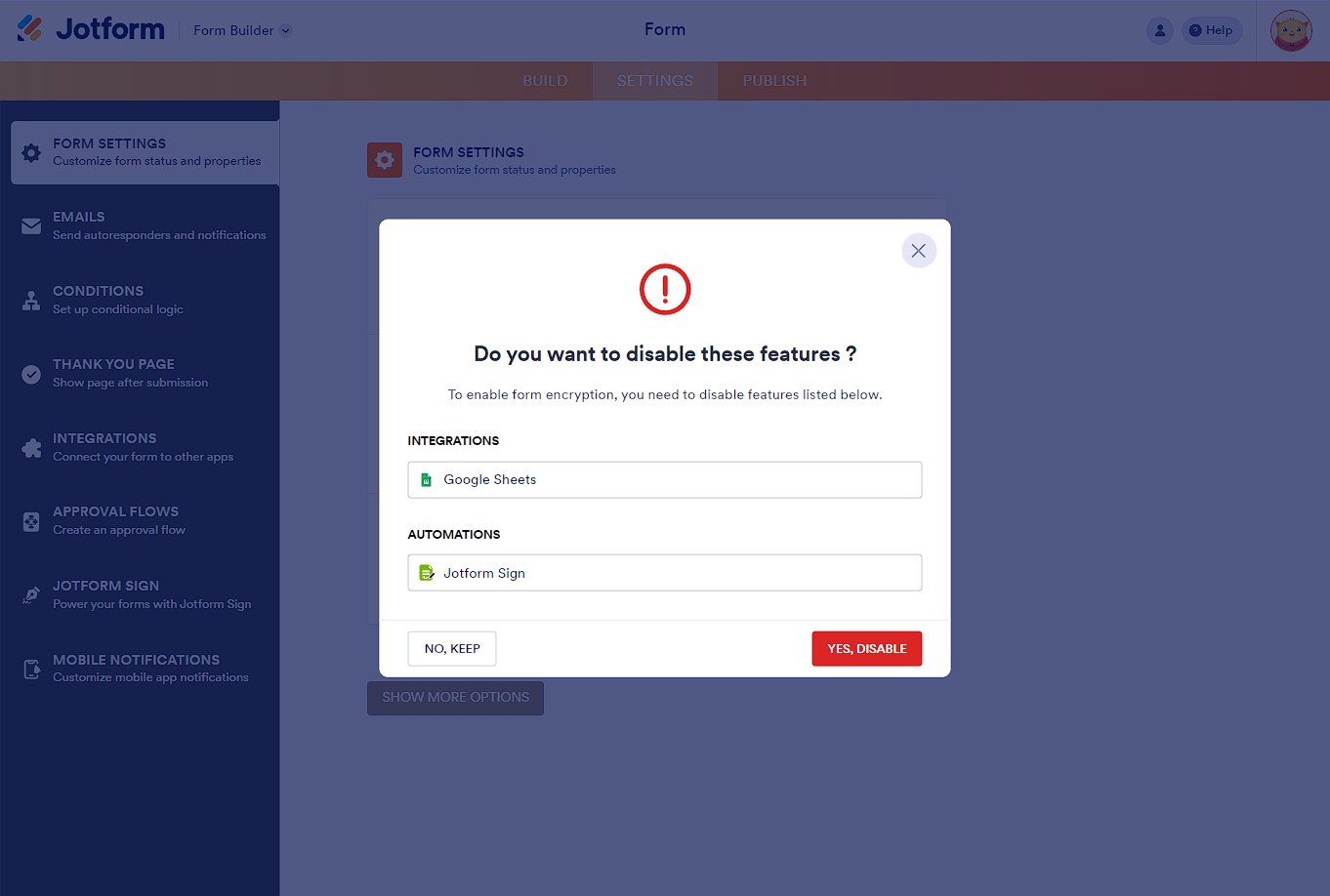
In the background, the form will scan for unsupported features. If it finds one, it will tell you that and ask you to keep or disable it before you can proceed to the verification. To proceed, you must choose to disable the features. Otherwise, you can’t enable Form Encryption.
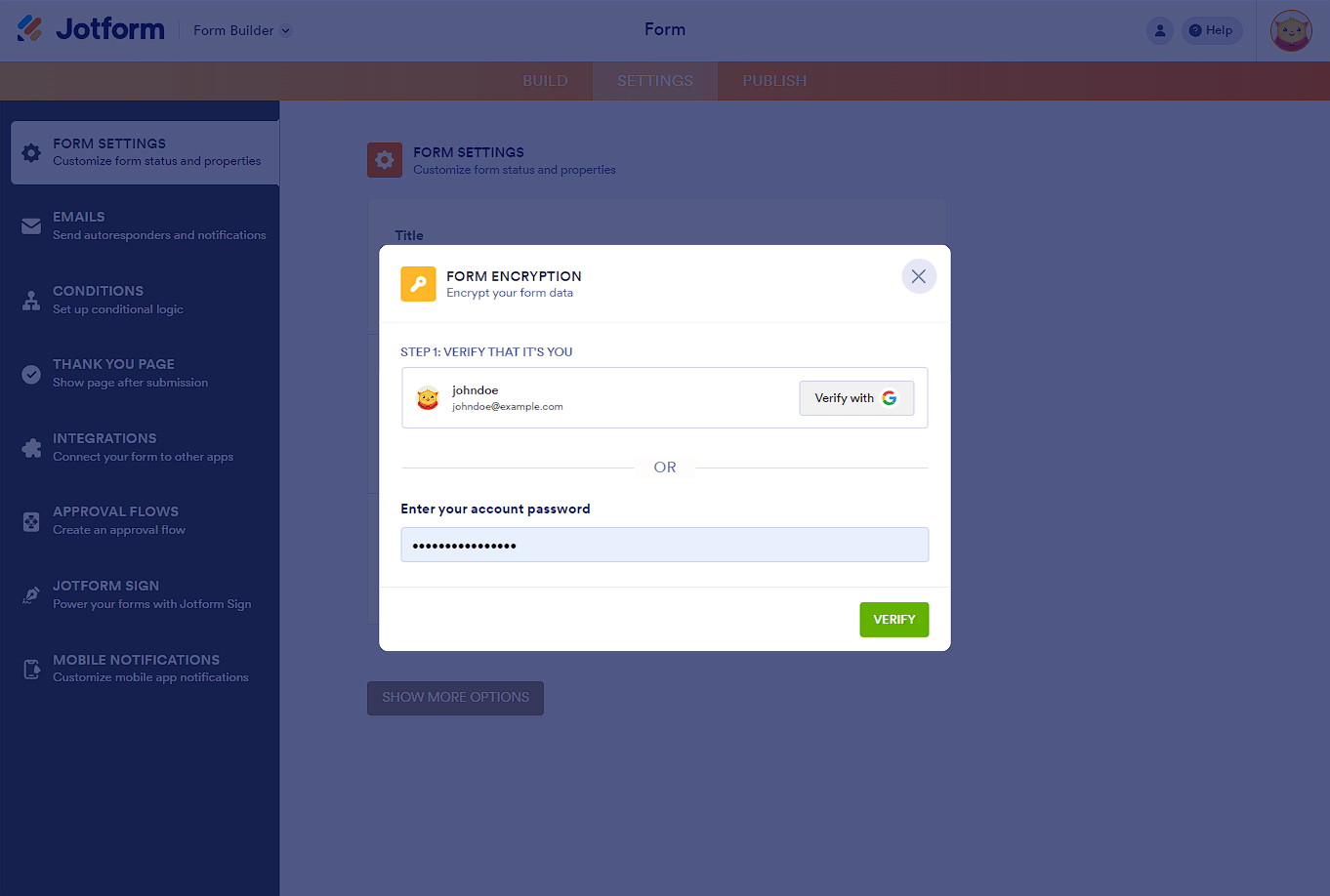
- Verify your account through Gmail or Facebook or enter your Jotform account password.
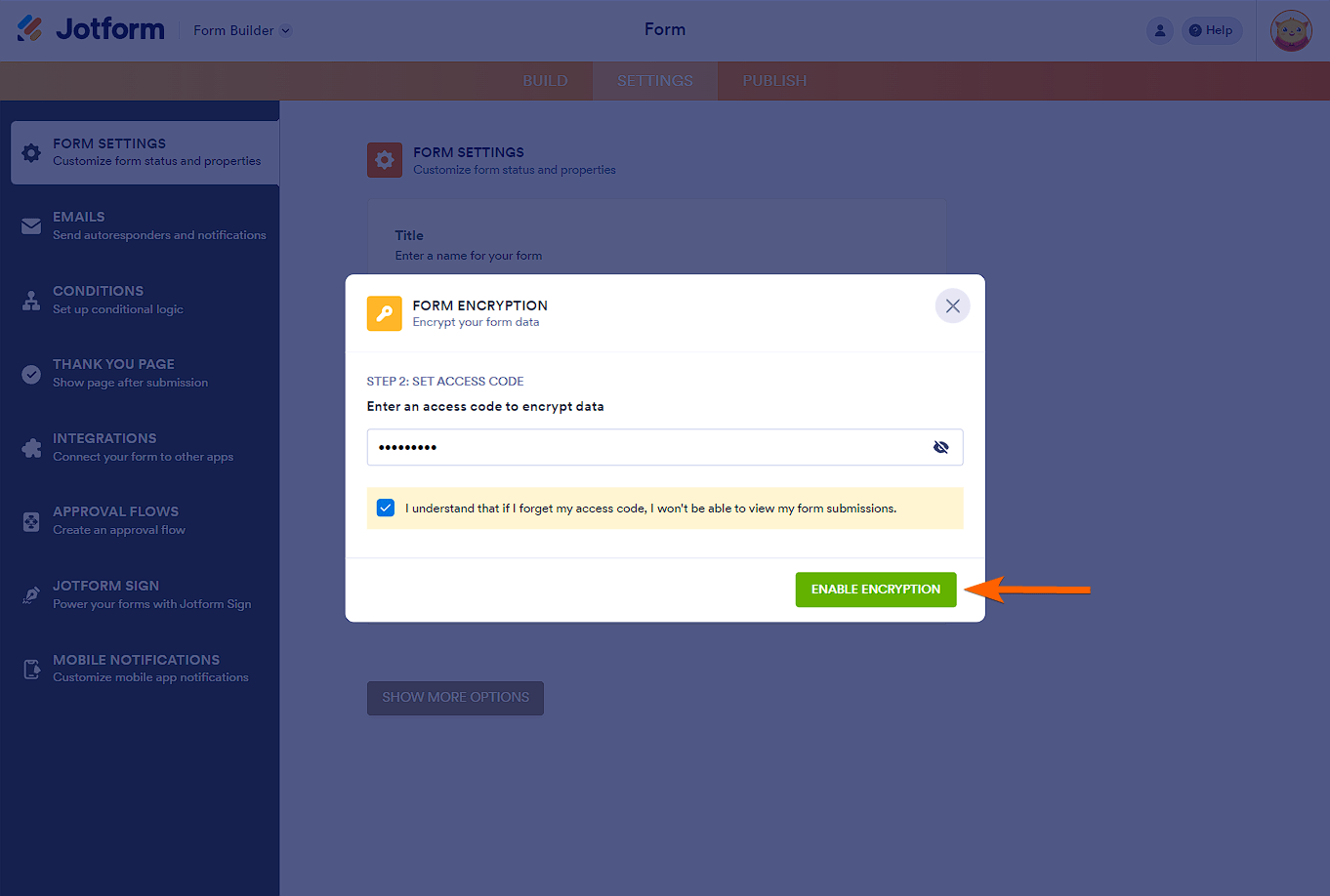
- At this step, you must provide an Access Code for the form. You can input up to 16 characters.
Note
The Access Code you enter is for the current form alone. This means you will be asked for another access code when you enable Form Encryption on other forms.
- Finally, click the Enable Encryption button. You’ll get a confirmation, and it should be done. Your form is now fully encrypted.
Decrypting Form to Access Submissions
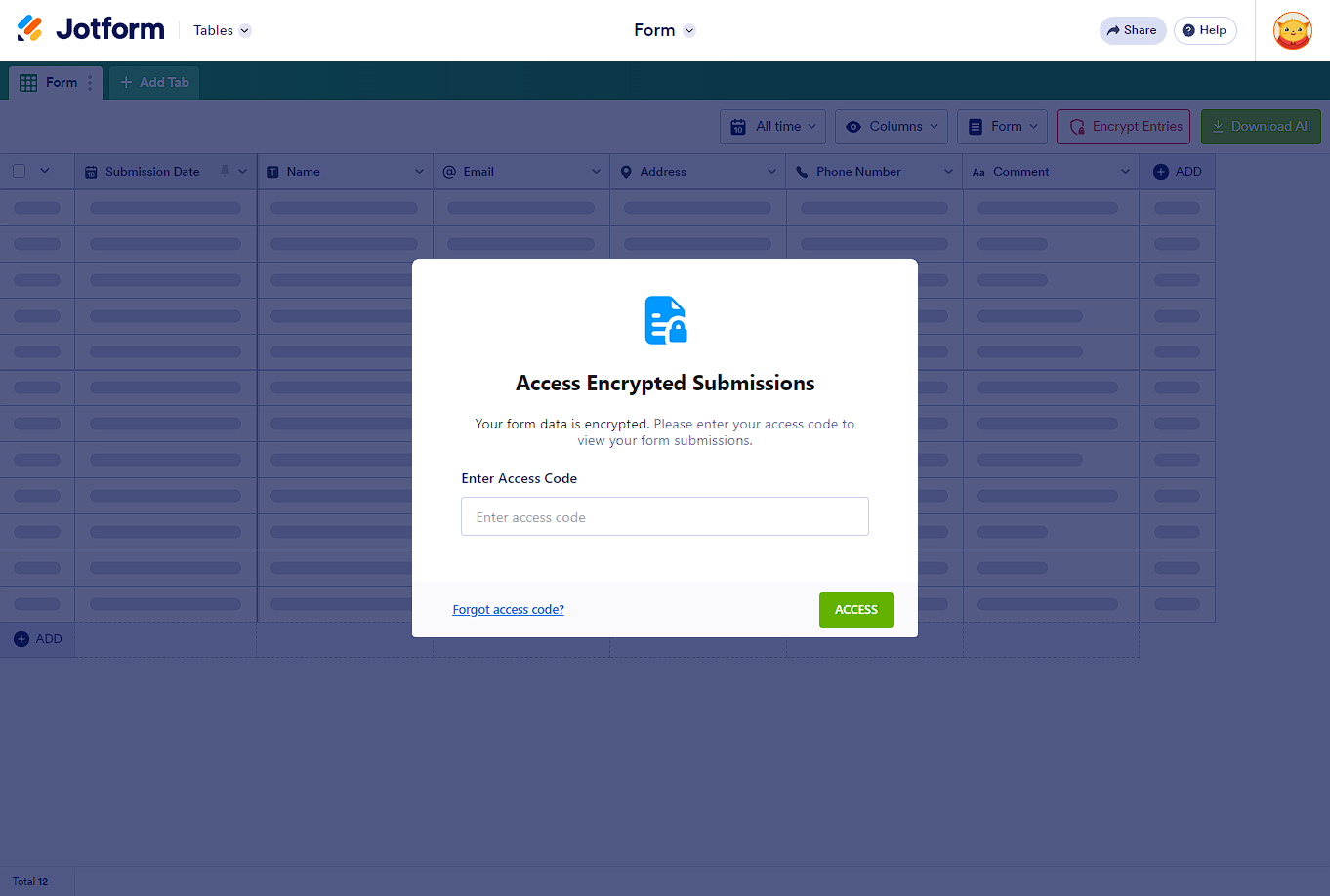
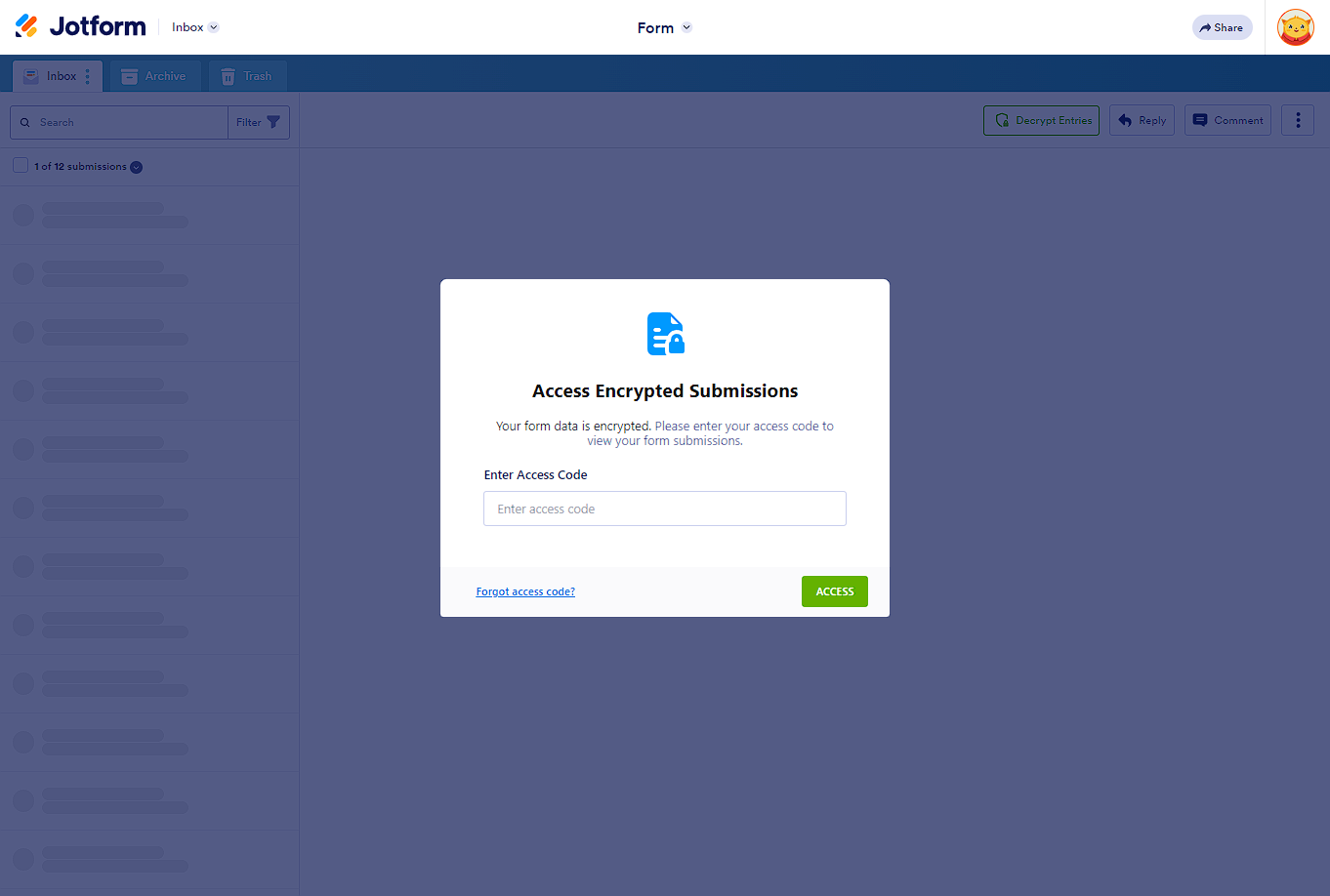
You can decrypt your form through Jotform Tables and Jotform Inbox. You’ll only do this once unless you access your data on a new browser. To decrypt
- Access Jotform Tables or Jotform Inbox.
- Enter your access code.
- Click the Access button, and that’s it. You should now be able to view your form data.
Encrypting Form Submissions
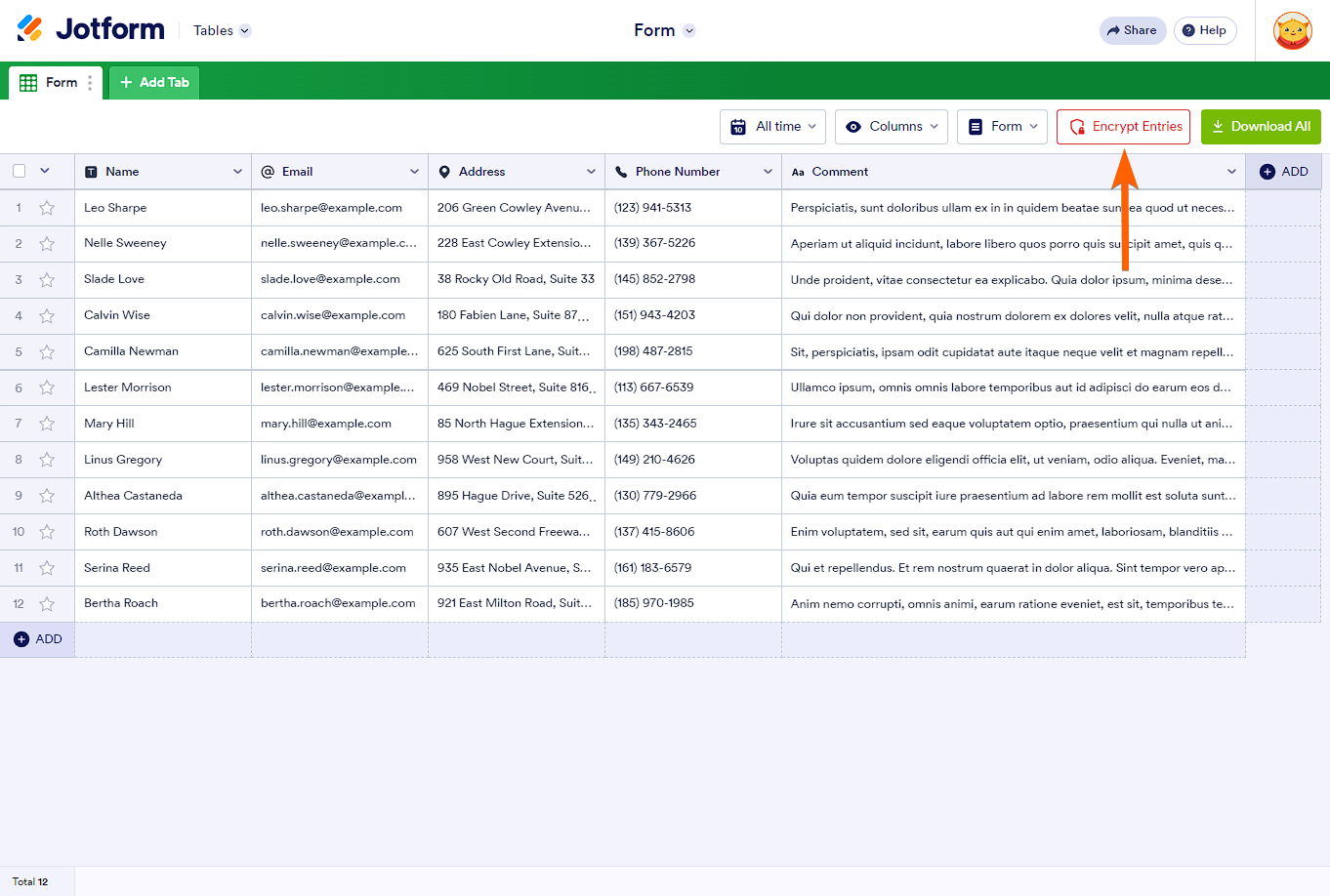
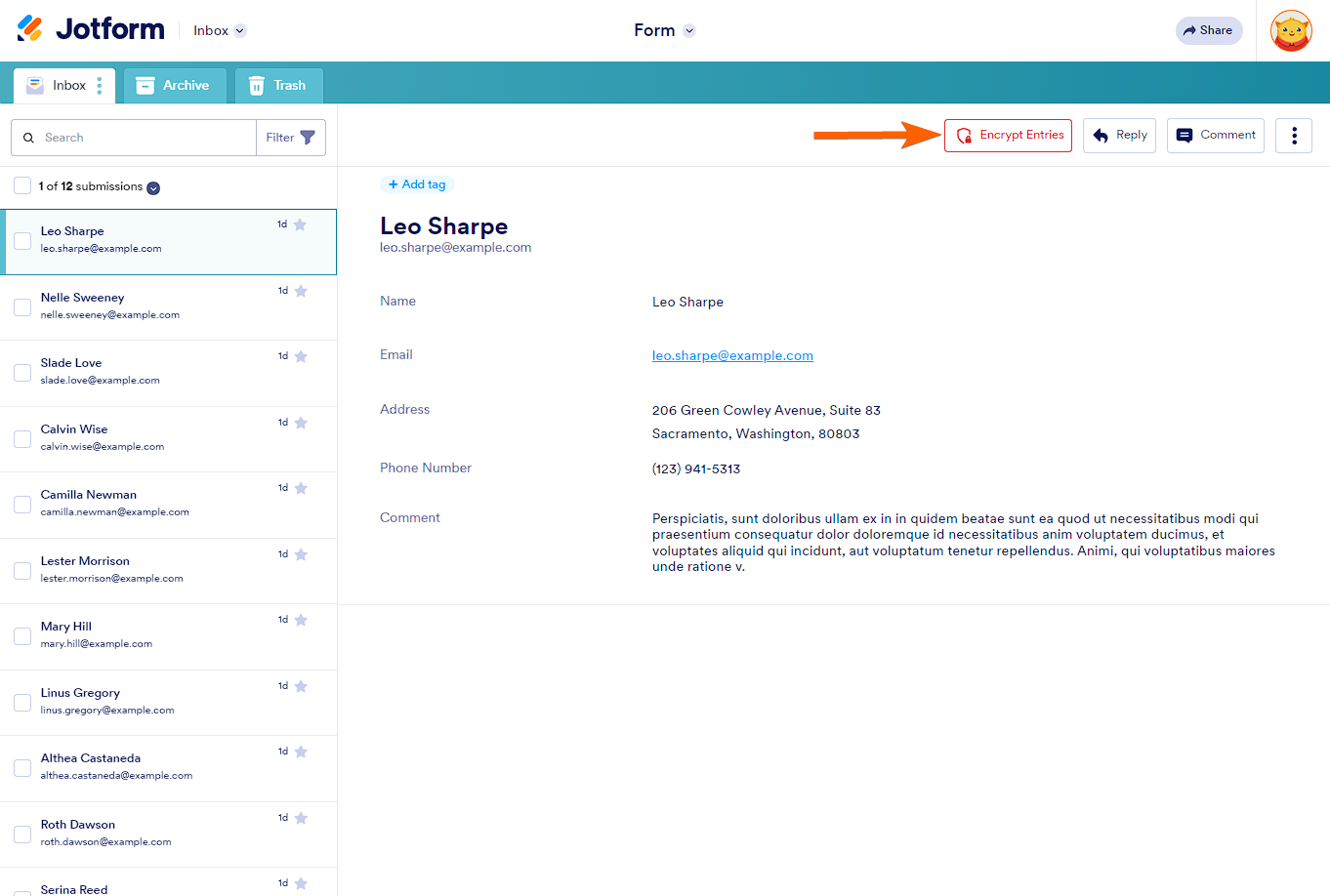
To ensure security, you can encrypt the data before closing the page. To do so, click the Encrypt Entries button on which page you access the submissions; Jotform Tables or Jotform Inbox.
What Happens if You Forget Your Access Code?
Encrypted Forms use end-to-end encryption, which means your access code is encrypted on Jotform’s end. Since it’s encrypted, we won’t be able to access your data, so if you forget your access code, your data is considered lost. We recommend storing your access code in a safe place or creating an access code that’s easy to remember.
Note
Are you looking for the form encryption using a key? Please visit Encrypted Forms with Local Key File guide.



Send Comment:
137 Comments:
March 12, 2026
Hello, what is Jotform doing÷ Why am I being asked to provide an access code when I never set up an access code. You all put the encryption on yourselves and didn't provide the access code. Now you are saying your customers can't access their submissions if we can't provide what we never provided to begin with! You are denying us access to our customers information and we are using your platform! Someone needs to give information on how to remove the encryption. We pay for the use of your platform and we can't access our information!!!!
March 7, 2026
I never made an access code
February 16, 2026
olvide mi contraseña de mi formulario
February 16, 2026
My code is missing
February 13, 2026
Need to reset access code
February 5, 2026
I forgot my Accesscode
January 29, 2026
There should be field level encryption options for sensitive data, encrypting an entire form seems less than useful.
January 22, 2026
how to reset Encryption password
January 21, 2026
I couldn't even access my code, that's bad
January 15, 2026
Have not received a code or any emails about this - how do we remedy this?
January 8, 2026
I have my access code saved and went to enter it and it says invalid. But it is the correct code
January 2, 2026
I never received an access code either! Why would it create something and not allow you to open the form. This is costing me $$!
December 24, 2025
Tidak bisa akses kode enkripsi. Padahal kode sudah benar
December 15, 2025
Never recieved the encryption code. Terrible system
December 2, 2025
Pourquoi le code d'encryptage est refusé toutes les 2 soumissions
December 1, 2025
Esqueci meu código de acesso
November 23, 2025
i forget my access code
November 21, 2025
I didn't receive my access code. I need a new code
November 20, 2025
Didnt receive a code
November 7, 2025
No code how can I access submitted forms?
November 5, 2025
I nee d help to retrieve my Encryption please
October 14, 2025
Comment puis-je faire mon codes d accès ne passe plus
October 13, 2025
U forgot me acsses code
October 10, 2025
I don't remember receiving an Access Code
October 7, 2025
Don’t recall having a code. Only password.