Embedding a Google Spreadsheet or Jotform Table into your form is easy using the Iframe Embed widget. It lets you display live data directly in your form, making it ideal for sharing reference information, tracking progress, or showing submission summaries in real time.
There’s a helpful video at the end of this guide that walks you through the process.
Embedding a Spreadsheet Using the Iframe Embed Widget
Whether you’re creating a new form or updating an existing one, embedding a spreadsheet into your form using the Iframe Embed widget only takes a second—here’s how to get going:
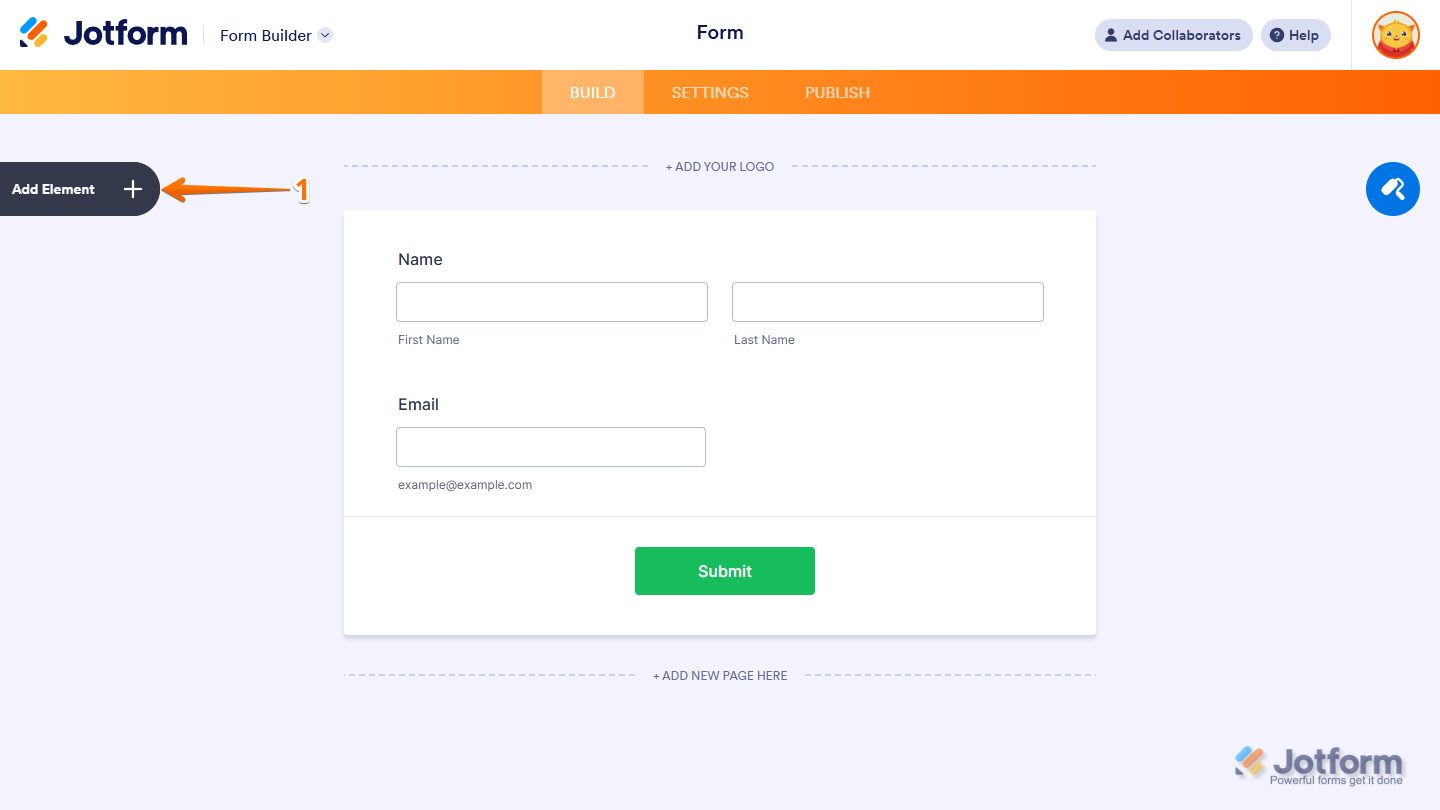
- In Form Builder, click on Add Element on the left side of the page.
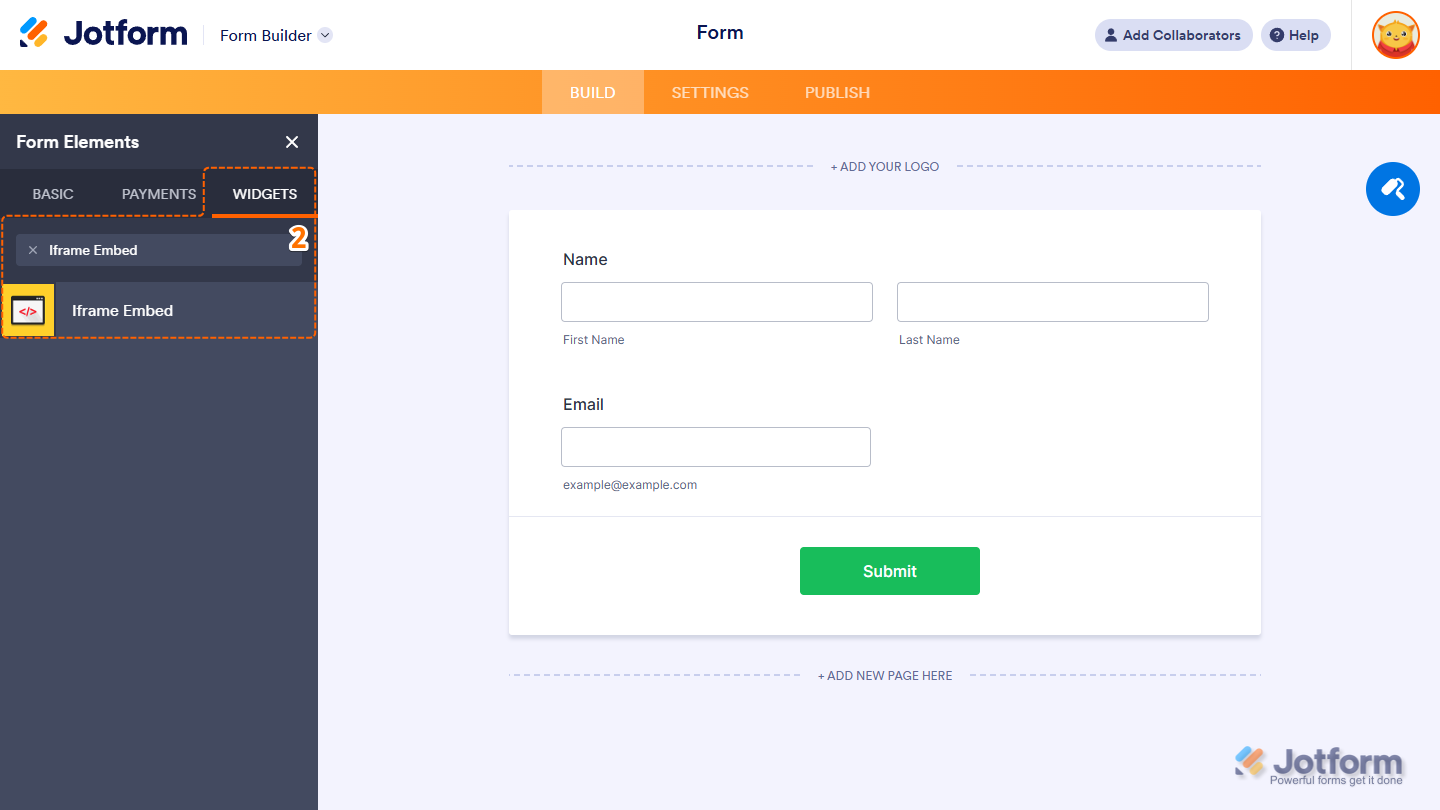
- Now, in the Form Elements menu, under the Widgets tab, search for the Iframe Embed widget and click on it. Or, just drag and then drop it to where you want the spreadsheet displayed on your form.
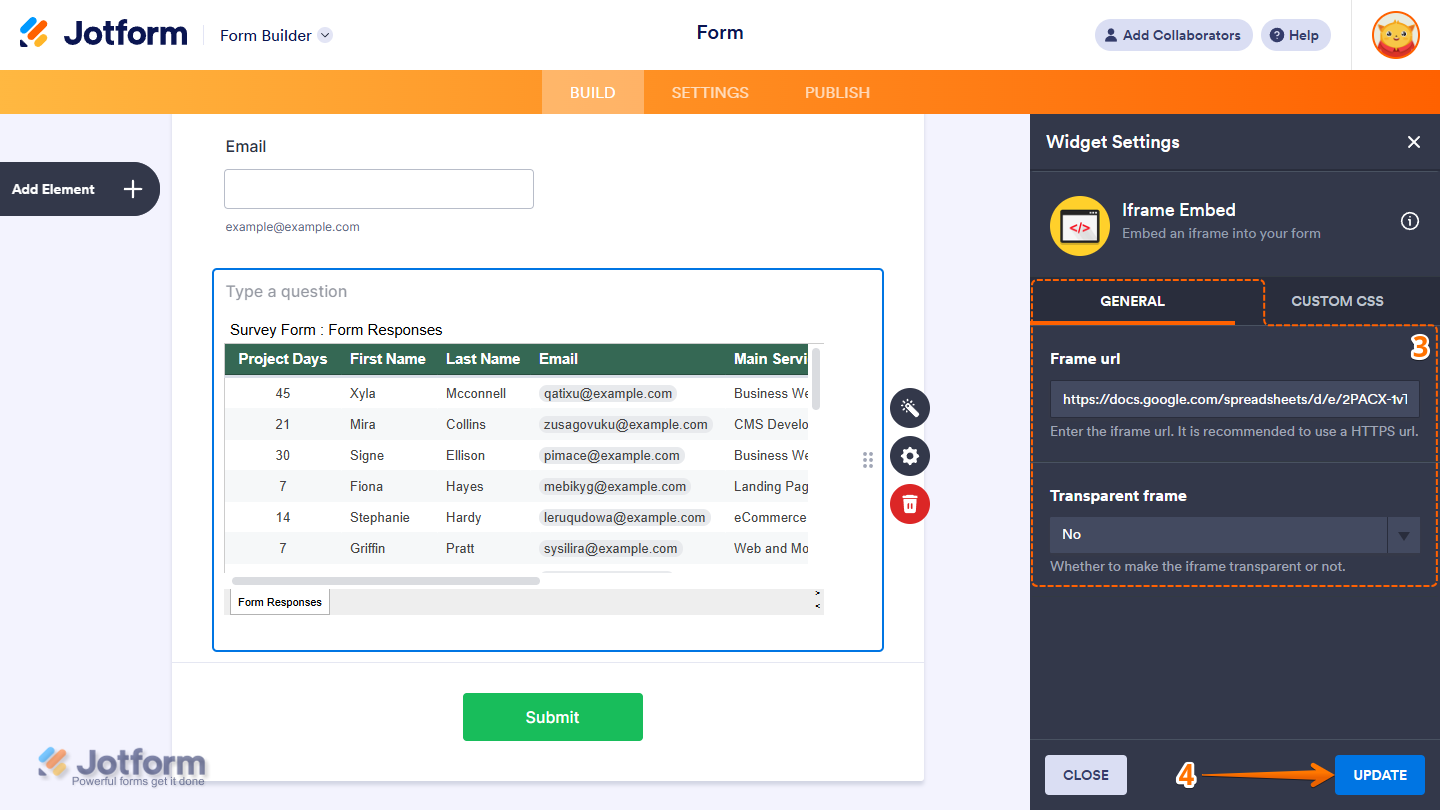
- Next, in the Widget Settings window that opens on the right side of the page, under the General tab, complete these fields:
- Frame URL – Paste your public spreadsheet link here. Scroll down for the steps to get your spreadsheet’s public URL.
- Transparent Frame – Choose whether to keep the frame transparent or stick with the default look.
- Once you’re done, click on Update.
Note
The widget may not display the entire width of your spreadsheet. If you want to view more content, consider adjusting your form’s width to better fit the embedded file. Check out our guide on The Importance of Form Widths to learn more.
Getting the Public URL of the Spreadsheet
To embed your spreadsheet using the Iframe Embed widget, you’ll need to make it public first. Setting it up is quick—here’s how:
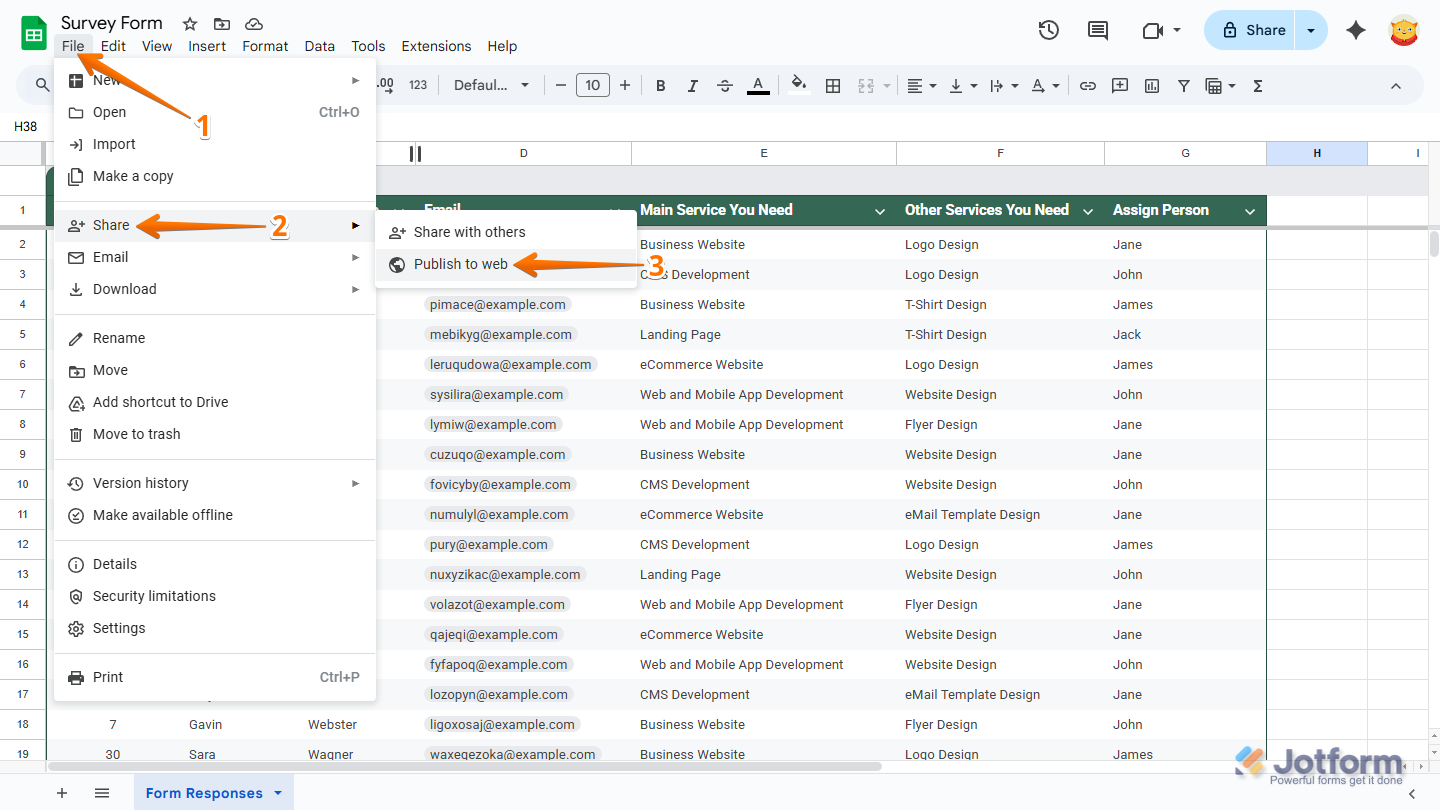
- In your Google Spreadsheet file, at the top left of the page, click on File.
- In the Dropdown menu that opens, click on Share.
- Next, in the Sub-dropdown menu that opens on the left, click on Publish to Web.
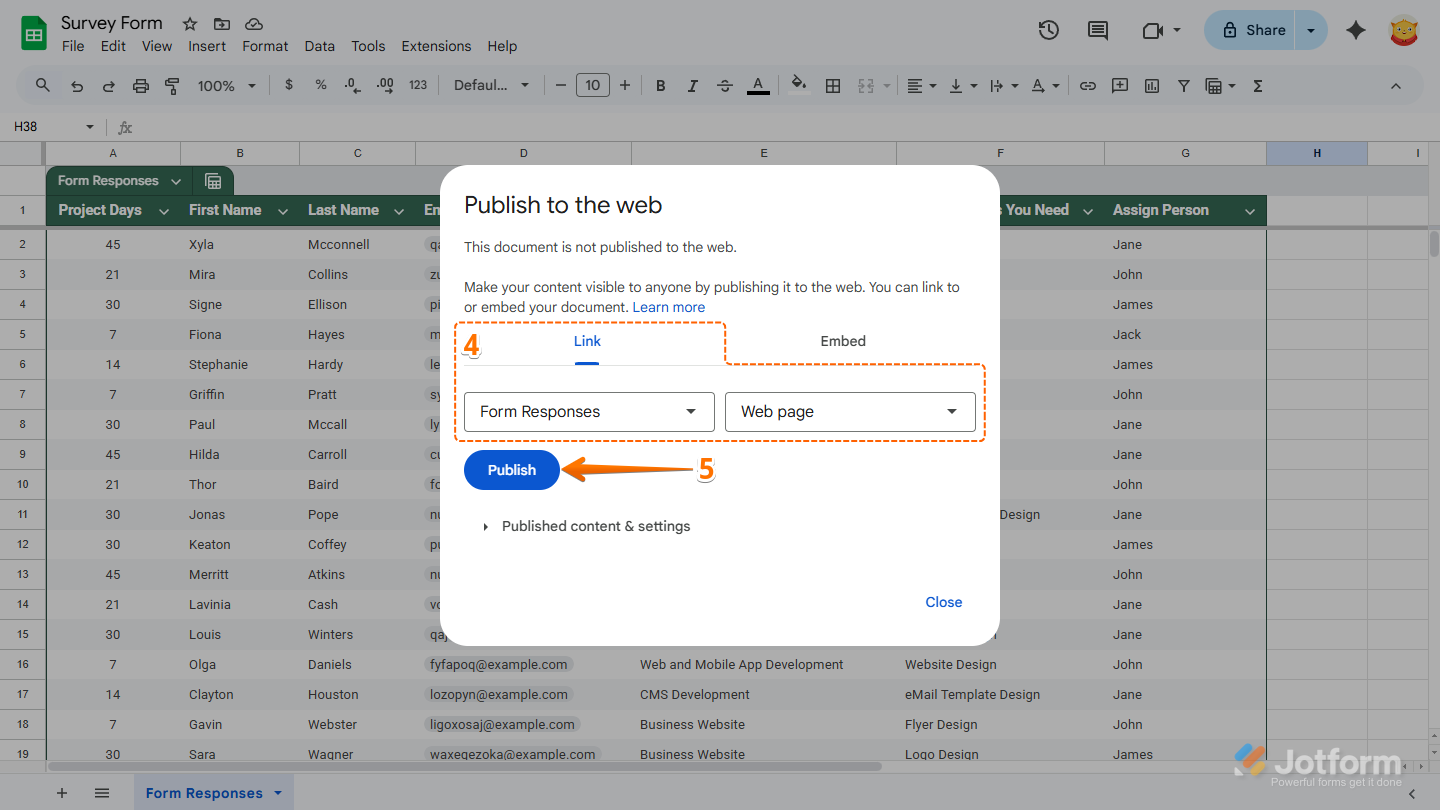
- Then, in the Publish to the Web window that comes up, under the Link tab, set things up like this:
- Document to Share – Select whether to show the entire spreadsheet or just one worksheet.
- Document Type – Select Web Page from the list of options.
- Once you’re done, click on Publish.
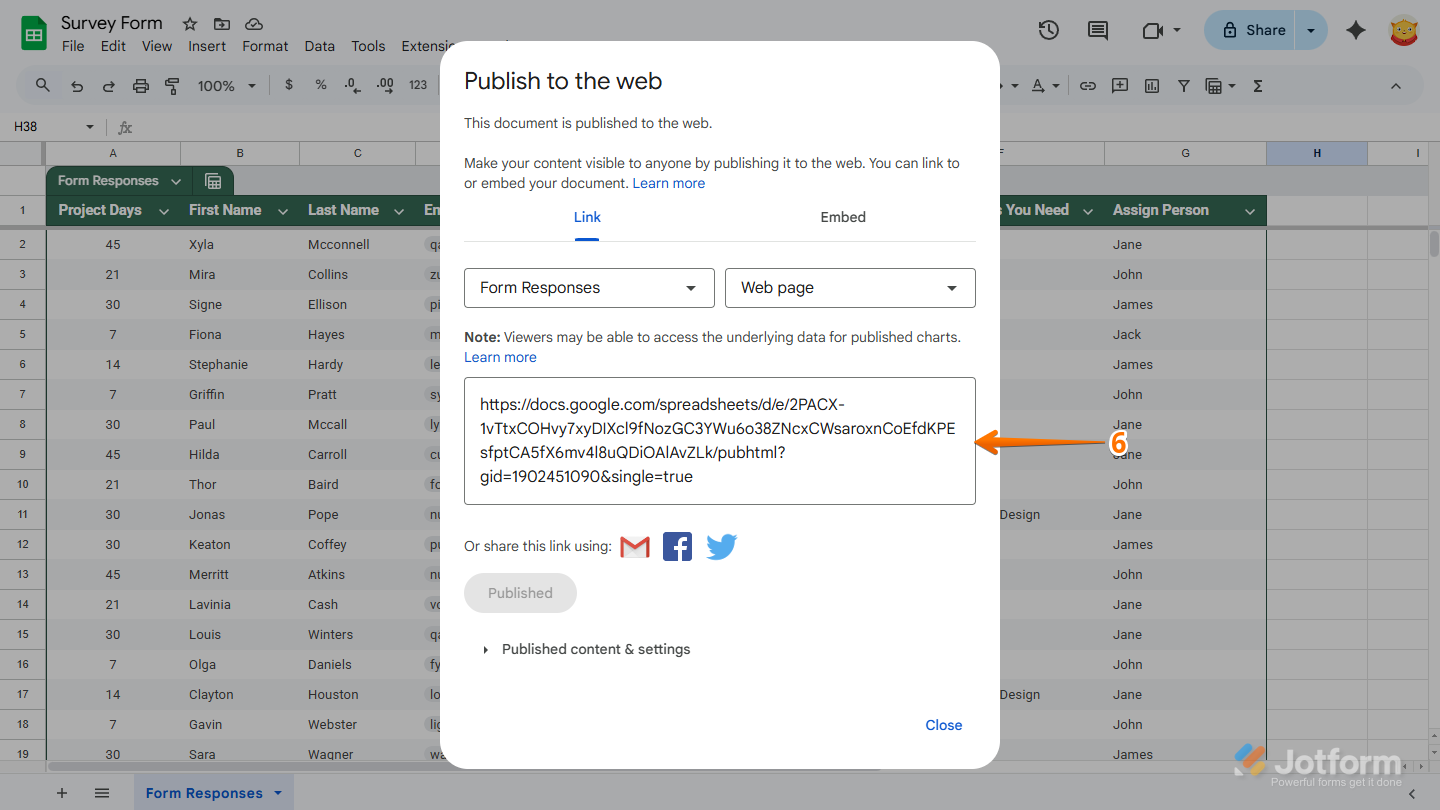
- Finally, in the URL box, copy the given URL and paste it into the Iframe Widget’s settings.
Note
To embed a Jotform Table, you’ll need to set it to Public Table first. Our guide on How to Share Your Submission Tables with Jotform Tables and Collaborate has more details about that.
Want a quick preview? This Demo Form shows how it works.


Send Comment:
2 Comments:
August 8, 2019
Did all those things and I'm not being successful.
Getting a blank page with a frowny face icon.
February 21, 2019
Is there is a way to pull specific data from the spreadsheet based on a dropdown property?