With Jotform Mobile App, you can easily collect audio and video recordings directly from your respondents. Using the Voice Recorder widget and the File Upload field, users can record their voice or capture video while filling out your form, making it simple to share responses in a more natural and engaging way.
This is especially useful for collecting voice memos, speech samples, interviews, testimonials, or creative submissions like singing or storytelling. Educators, teams, event organizers, and businesses can use audio and video responses to gather richer feedback and make forms more interactive for people responding on mobile devices.
Collecting Voice Recordings
You can allow your form to capture voice recordings on your device using the Jotform Mobile App in just a few steps. Follow these quick steps to get started:
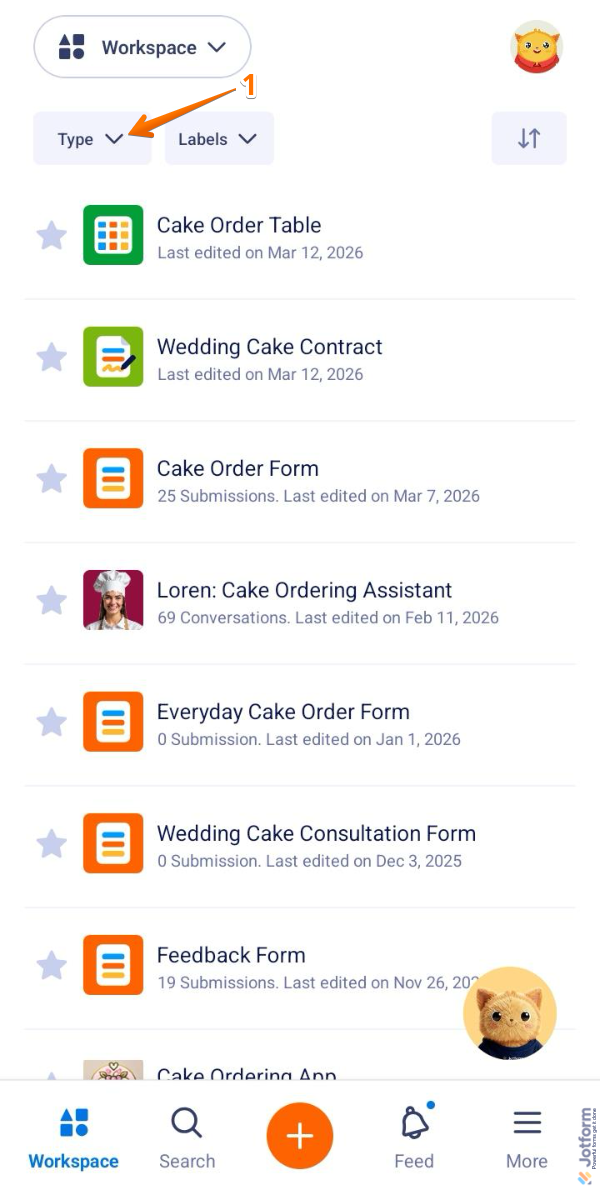
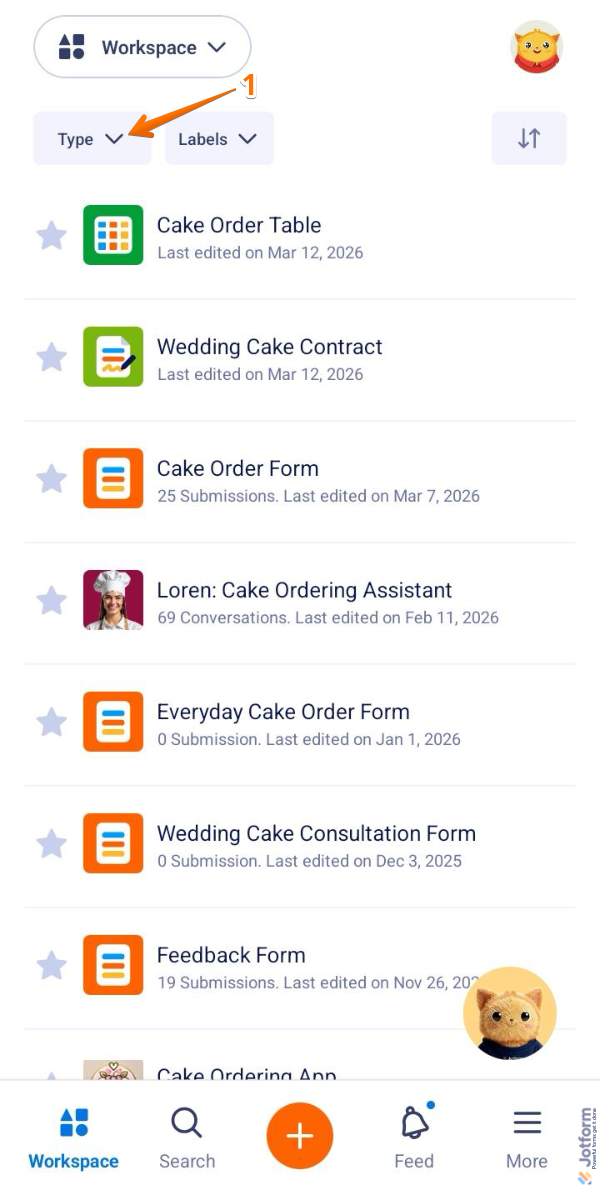
- On the top left side of your Jotform Mobile App, tap on the Type dropdown.
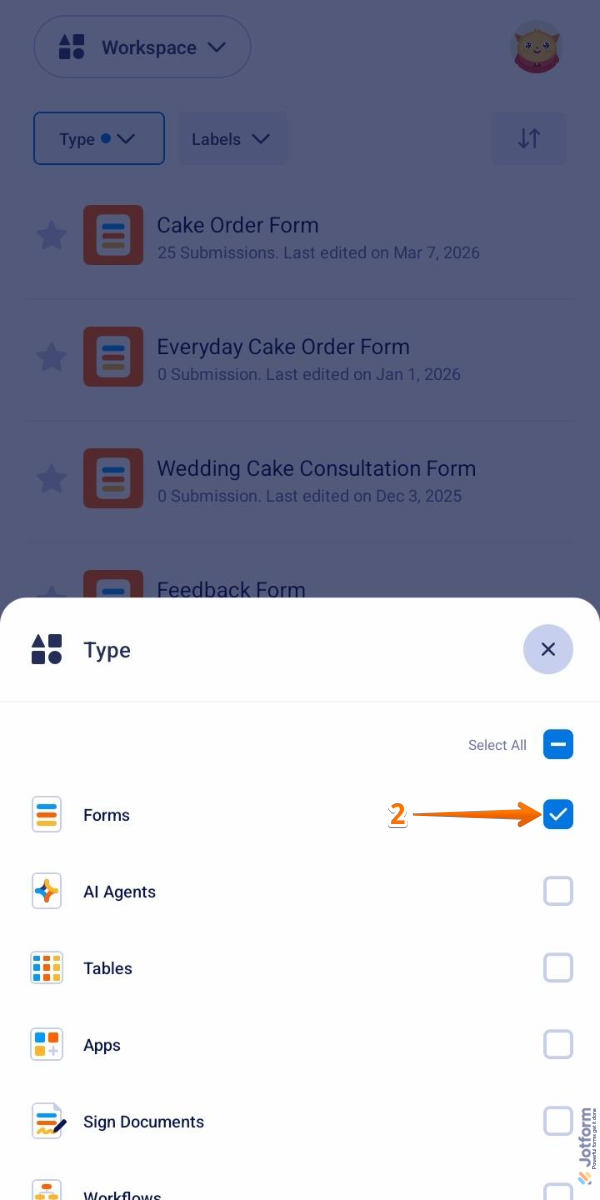
- Now, in the Type menu that opens at the bottom of the screen, uncheck the boxes next to all the assets except Forms, so only they’ll be shown in your Workspace.
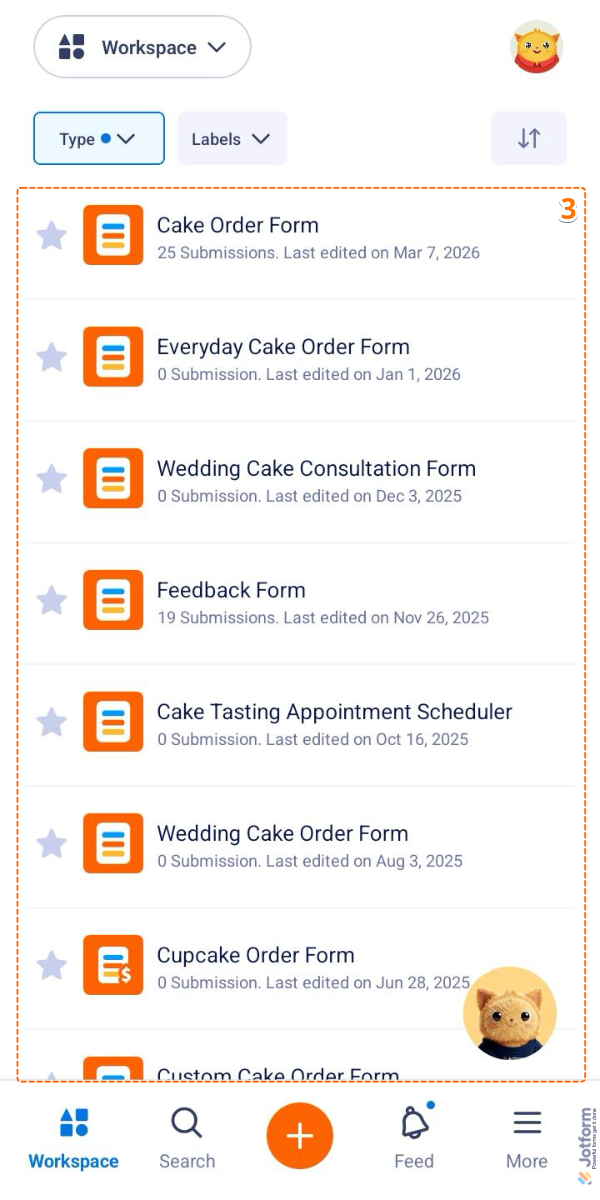
- Then, tap on the form you’d like to collect voice recordings from.
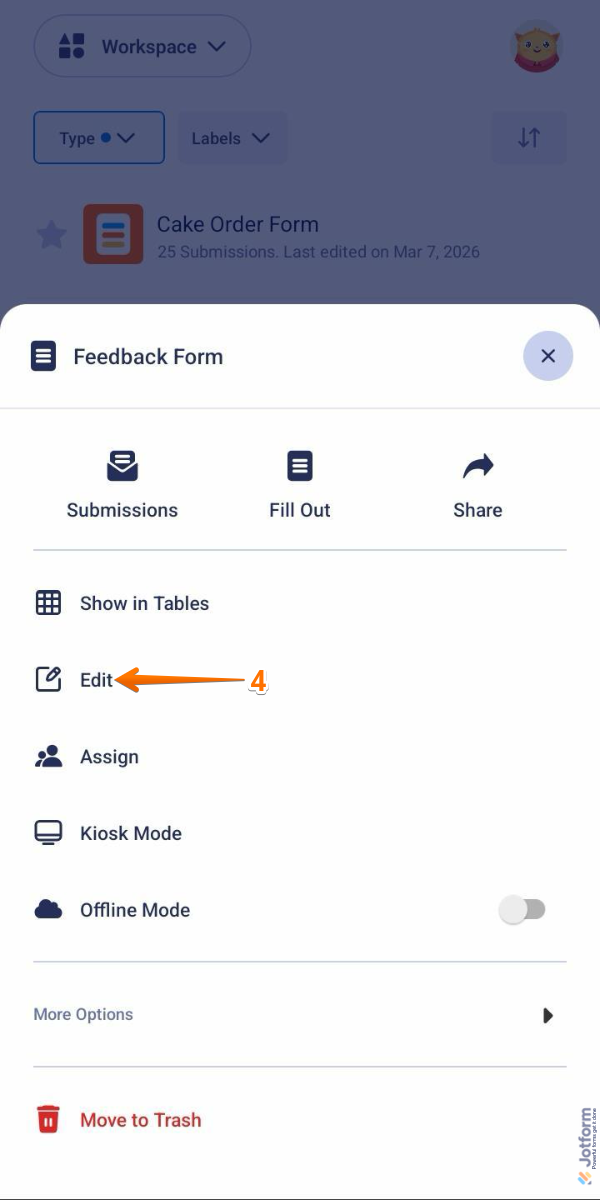
- Next, in the Form menu that opens at the bottom of the screen, tap on Edit.
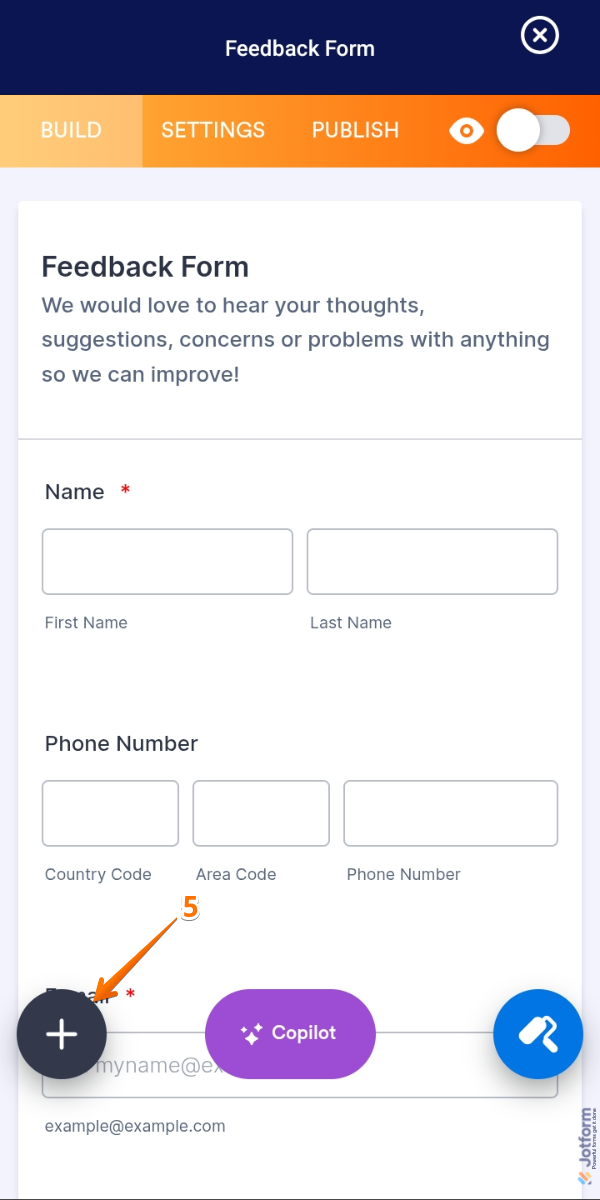
- Now, in the bottom left corner of the Form Builder, tap on the Plus icon.
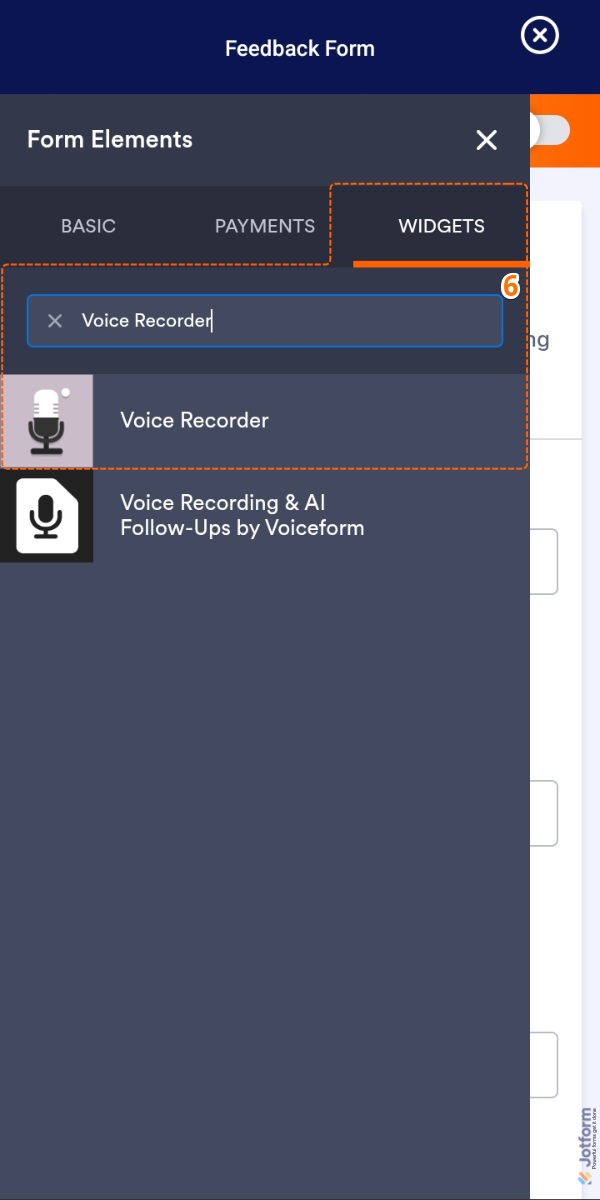
- Then, in the Form Elements menu, under the Widgets tab, search for Voice Recorder and tap on it. Or, just tap and hold it to drag and drop it wherever you want it to be on your form.
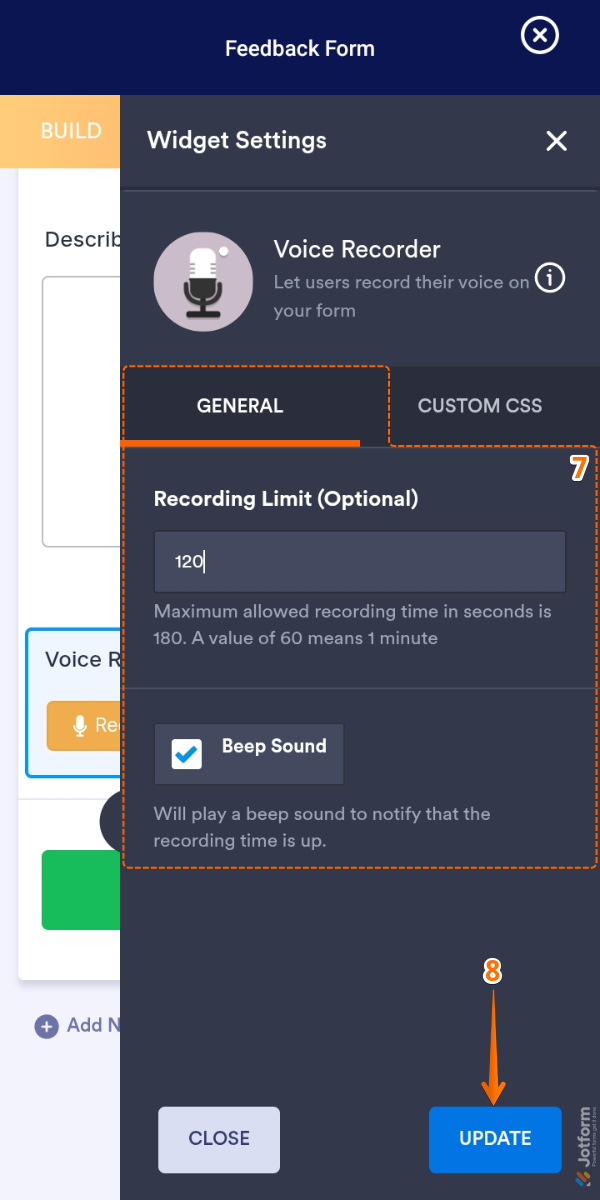
- Next, in the Widget Settings menu that opens on the right side of the screen, under the General tab, you’ll see these settings you can configure:
- Recording Limit (Optional) — Enter a value in seconds if you want to limit how long users can record. You can set it up to a maximum of 3 minutes (180 seconds), or keep it blank to allow the full maximum time.
- Beep Sound — Tap on to remove the check if you want the recording to stop without a notification sound. Or, keep it checked if you want users to hear a beep at the end of the recording.
- Once everything’s set, tap on Update.
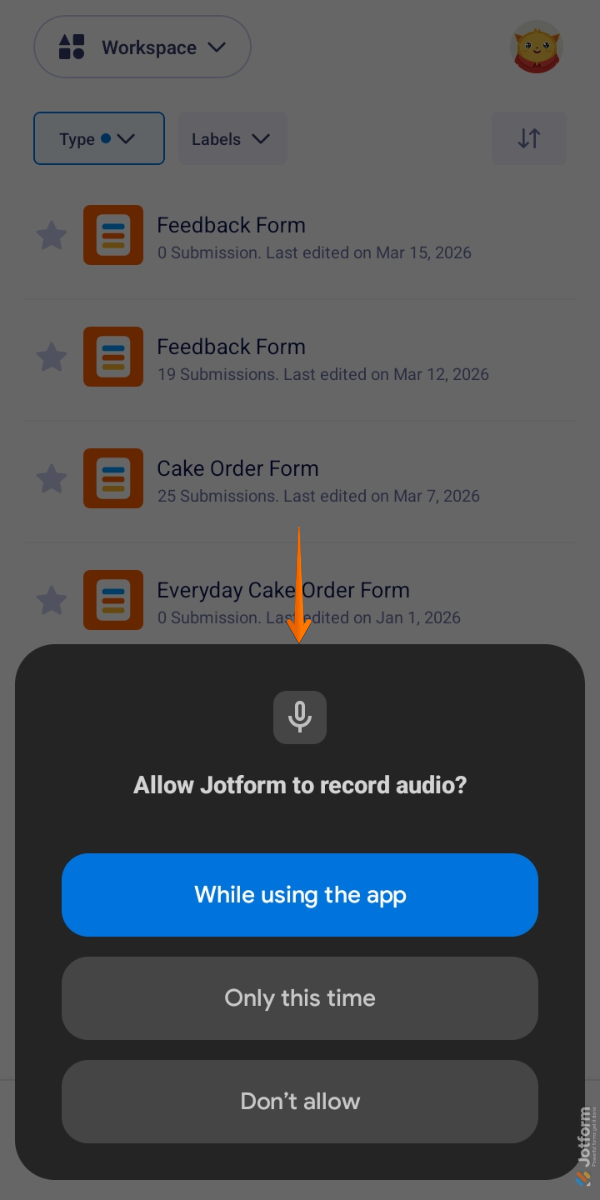
That’s it. When you use the form with the Voice Recorder widget for the first time on your device, it will prompt you to allow microphone access through the Jotform Mobile App. You won’t see the same prompt again if permission has already been granted before.
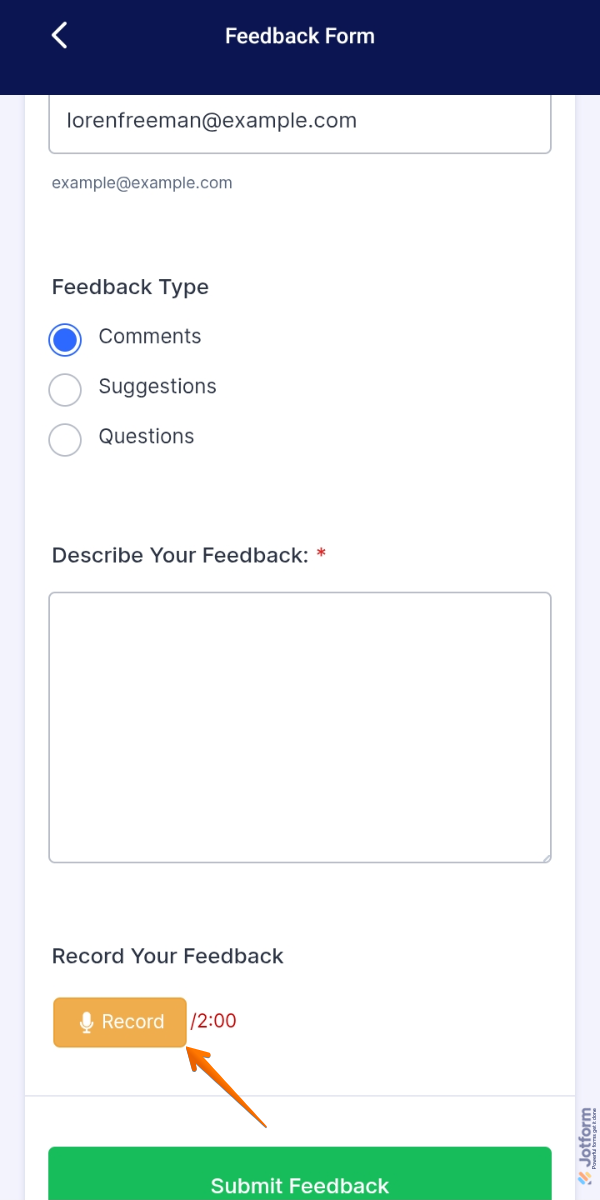
Once that’s done, you or your users can tap on the Record button on your form’s Voice Recorder field to start recording voice responses.
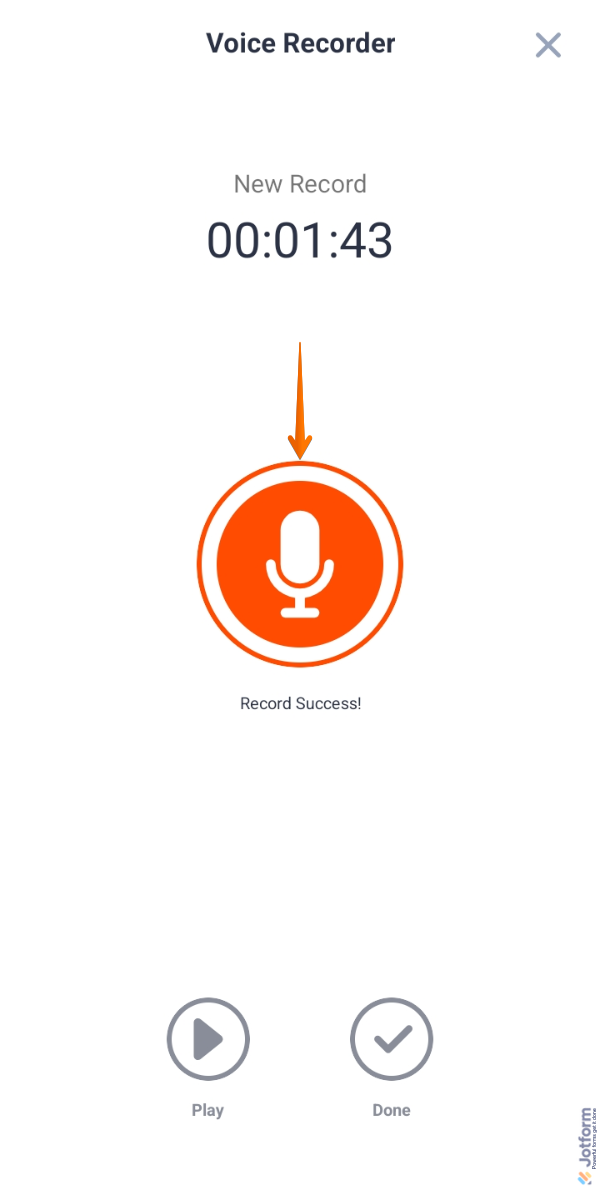
On the Voice Recorder screen, you or your users can tap on the Microphone icon in the middle of the screen to start recording. Once you’re done, tap on the Play button at the bottom to listen to the recording or tap on Done to save it and go back to the form. You can also tap on the Microphone icon again to record a new one.
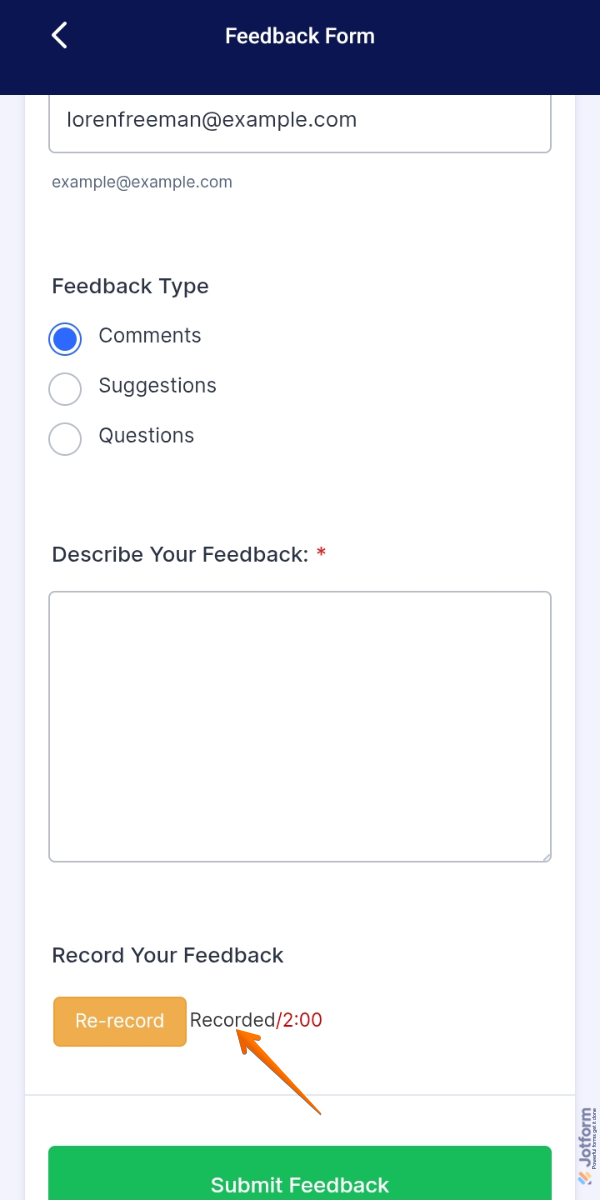
When a voice recording is saved for submission, you’ll see a Recorded message next to the Re-record button on your form. You can tap on the button if you want to replace the recording with a new one.
Collecting Video Recordings
You can make your form receive video recordings on your device using the Jotform Mobile App quickly and easily. You’ll just need to follow these simple steps:
- On the top left side of your Jotform Mobile App, tap on the Type dropdown.
- Now, in the Type menu that opens at the bottom of the screen, uncheck the boxes next to all the assets except Forms, so only they’ll be shown in your Workspace.
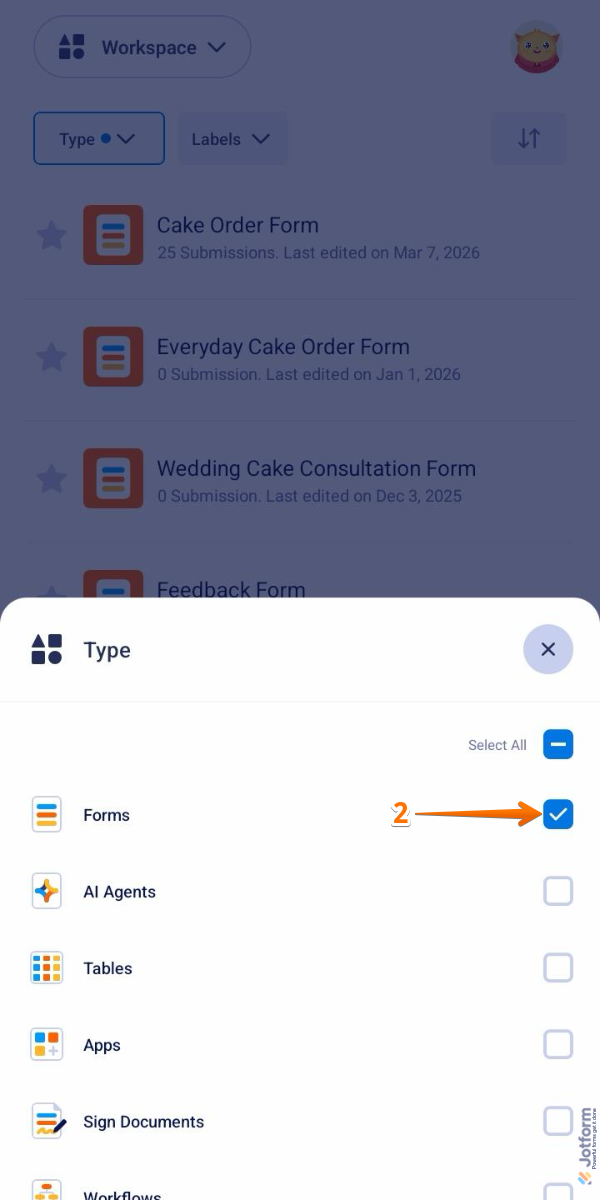
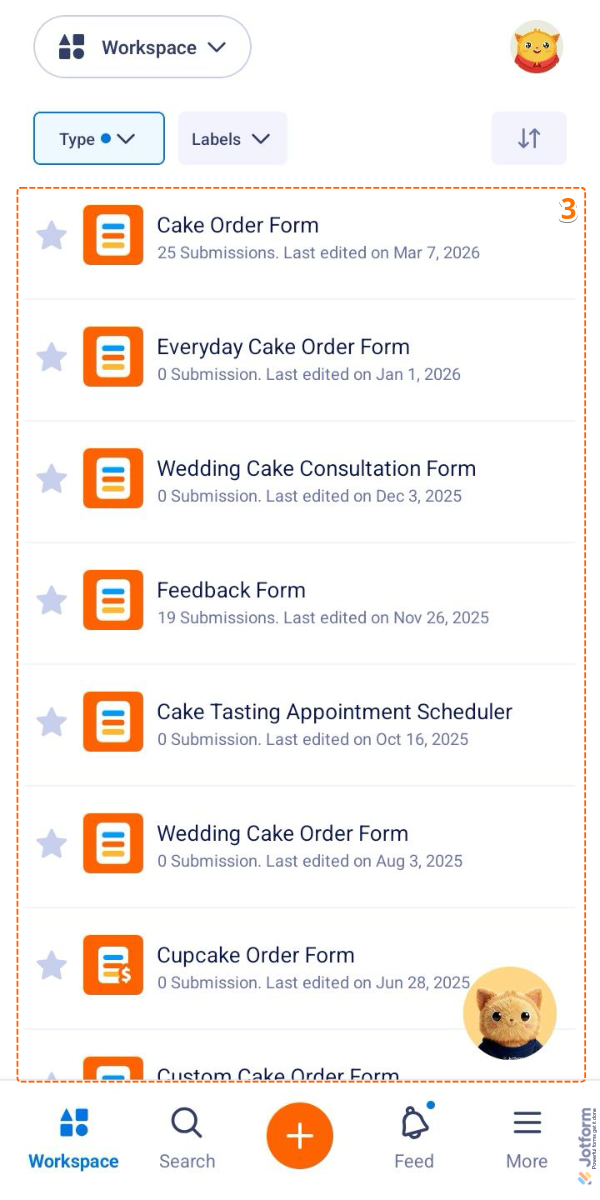
- Then, tap on the form you’d like to collect video recordings from.
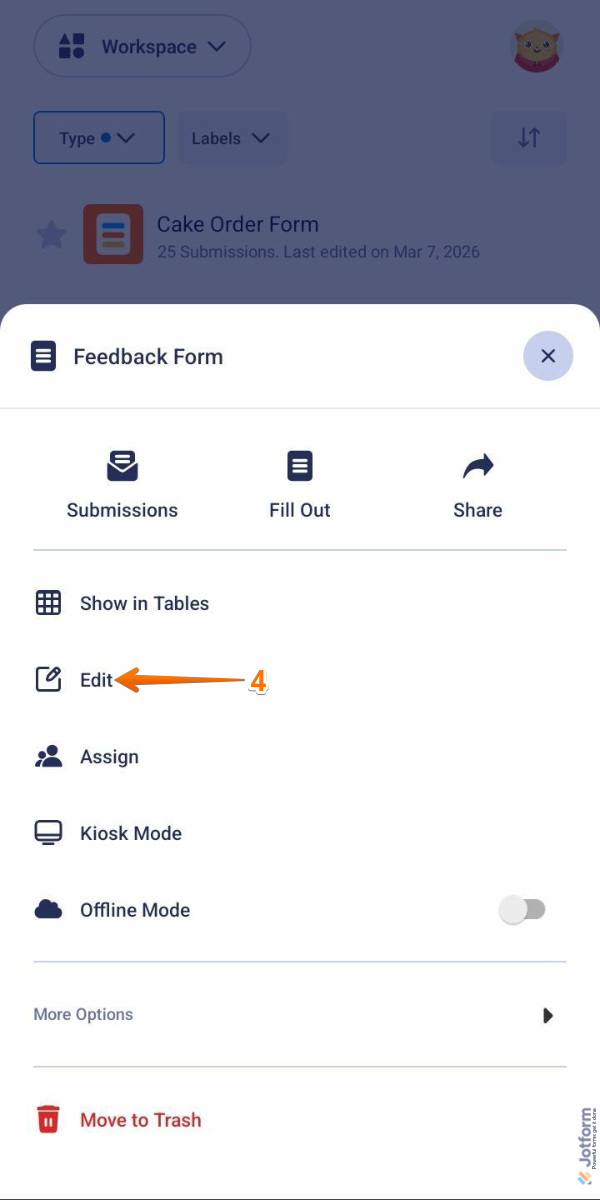
- Next, in the Form menu that opens at the bottom of the screen, tap on Edit.
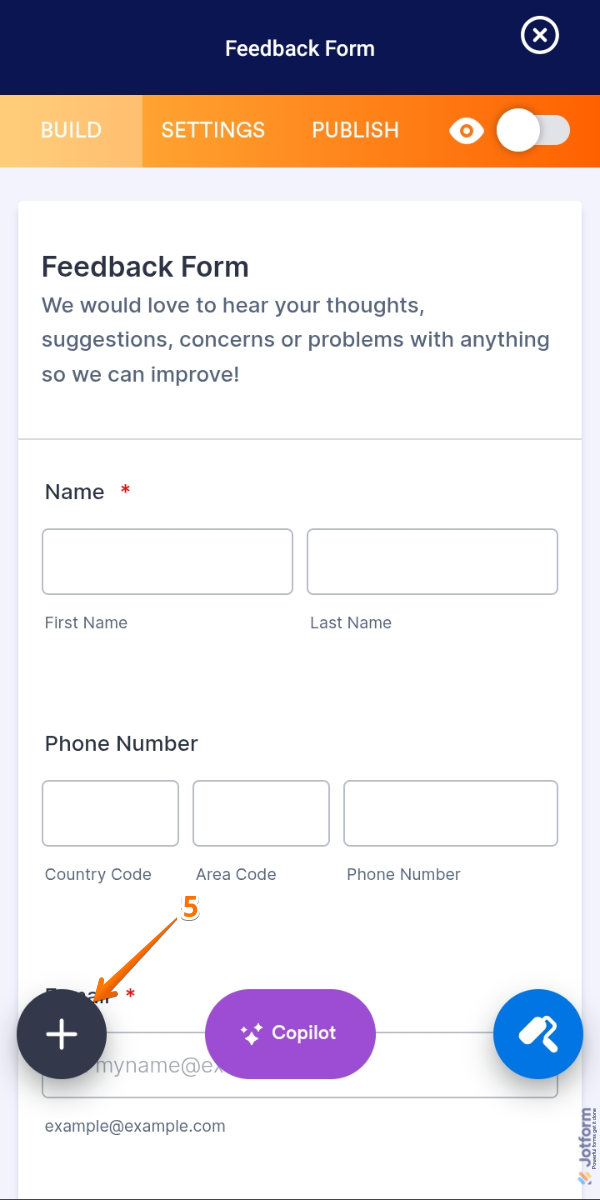
- Now, in the bottom left corner of the Form Builder, tap on the Plus icon.
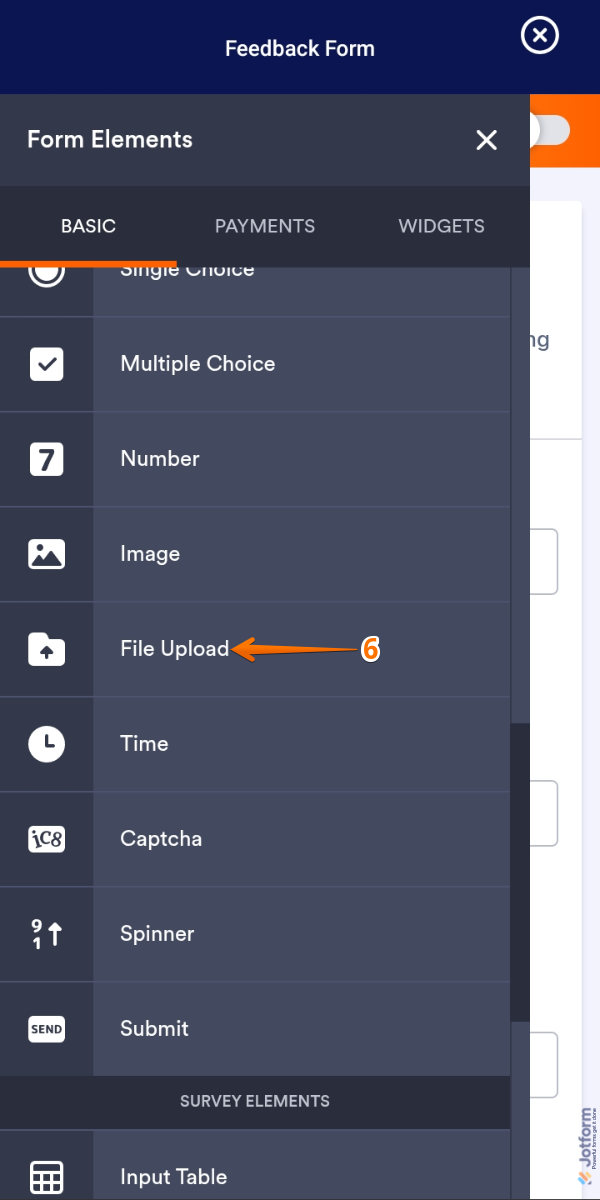
- Then, in the Form Elements menu, under the Basic tab, scroll to the File Upload element and tap on it. Or, just tap and hold it to drag and drop it wherever you want it to be on your form.
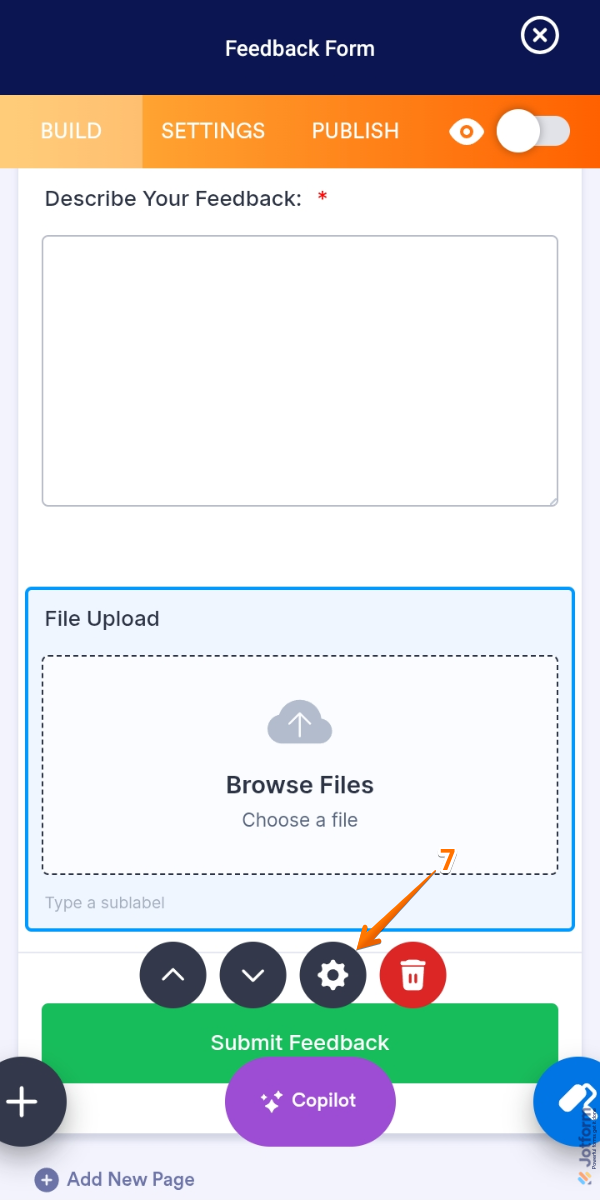
- Next, below the File Upload field, tap on the Gear icon.
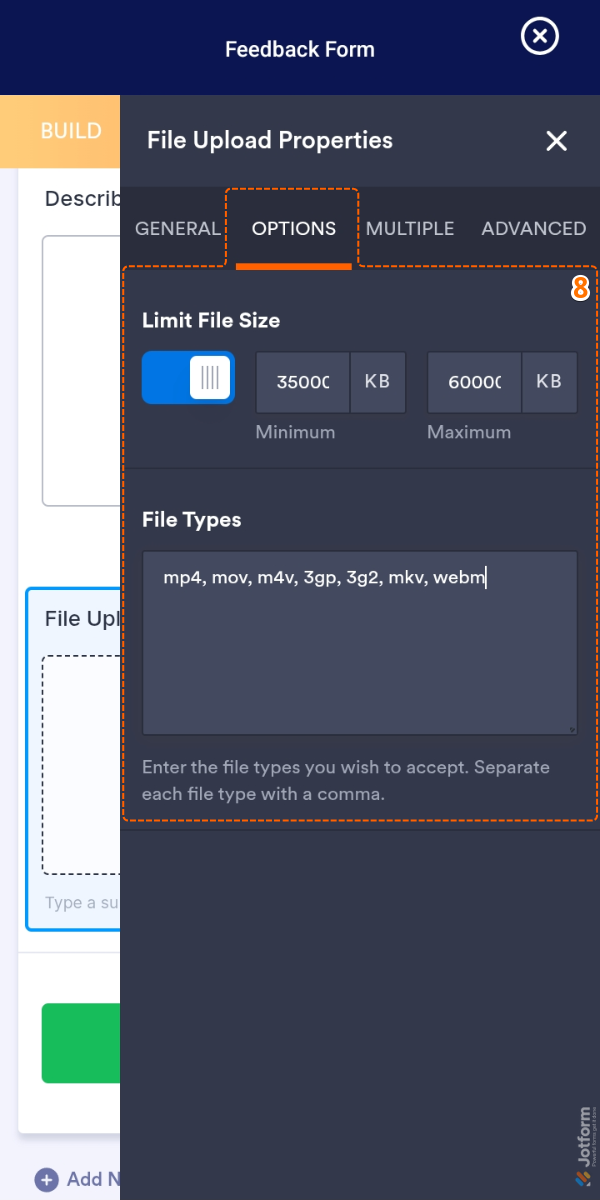
- In the File Upload Properties menu that opens on the right side of the screen, under the Options tab, you’ll see these settings you can configure:
- Limit File Size — Tap on the switch to toggle it off if you want users to upload files of any size up to the maximum allowed. Or, keep it on and enter new file size limits in KB (1024 KB equals 1 MB) in the Minimum and Maximum input boxes.
- File Types — Enter the file types you only want your users to upload, and separate each one with a comma.
Notes
- Any changes made to the Limit File Size and File Types settings are automatically saved.
- The file extension names aren’t case-sensitive (e.g., ‘MP4’ and ‘mp4’ are considered the same).
- Enter the file extensions without the leading dot (e.g., use ‘mp4’ instead of ‘.mp4’).
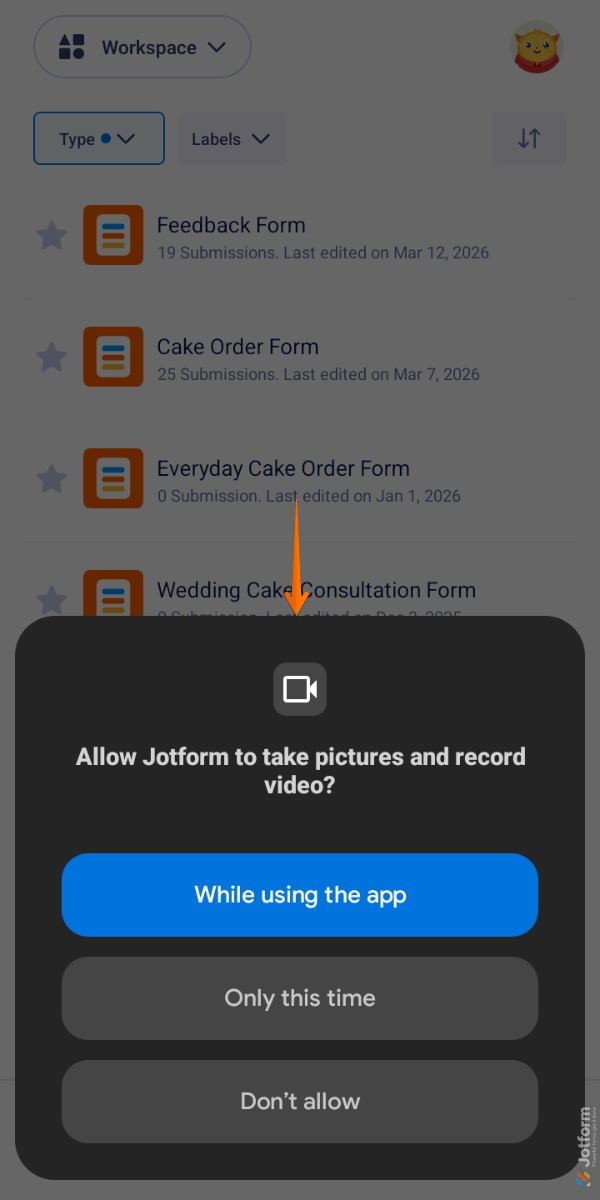
That’s it. When you use the form with the File Upload field for the first time on your device, it will prompt you to allow camera access through the Jotform Mobile App. You won’t see the same prompt again if permission has already been granted before.
Once that’s done, you or your users can tap on Browse File on your form’s File Upload field to start recording video responses.
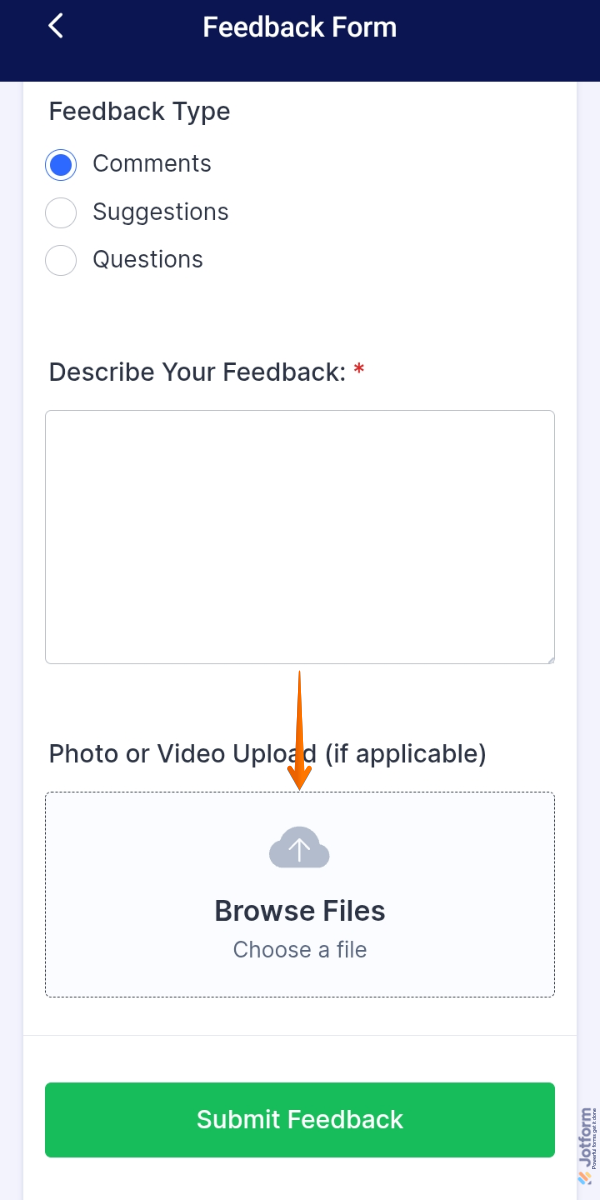
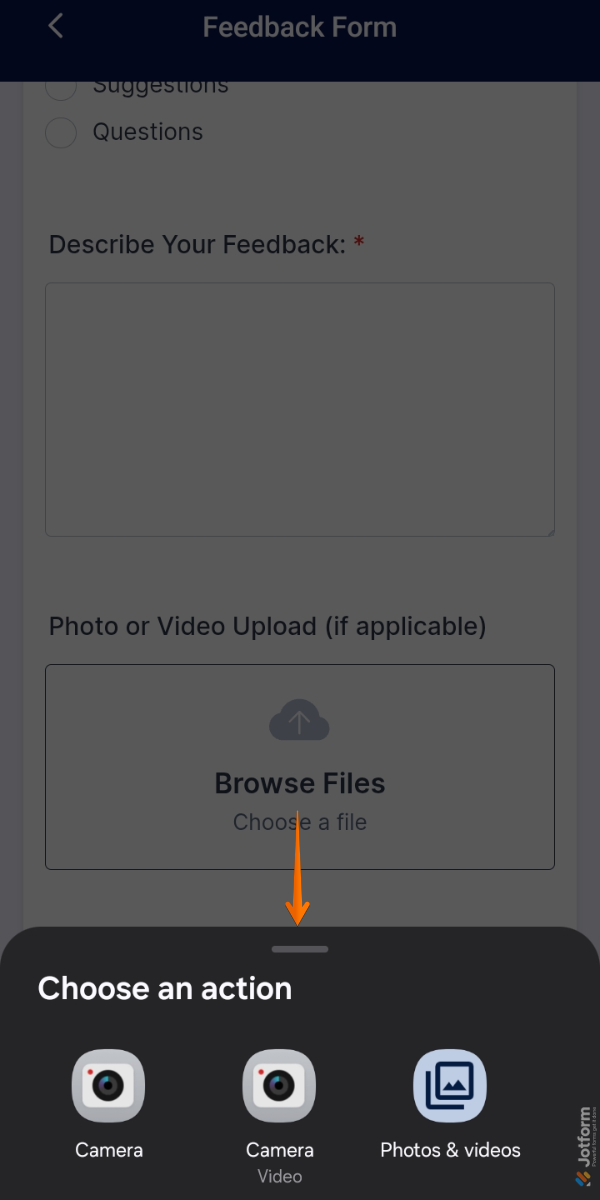
Then, in the Choose an Action menu that opens at the bottom of the screen, tap on the Camera (Video) option.
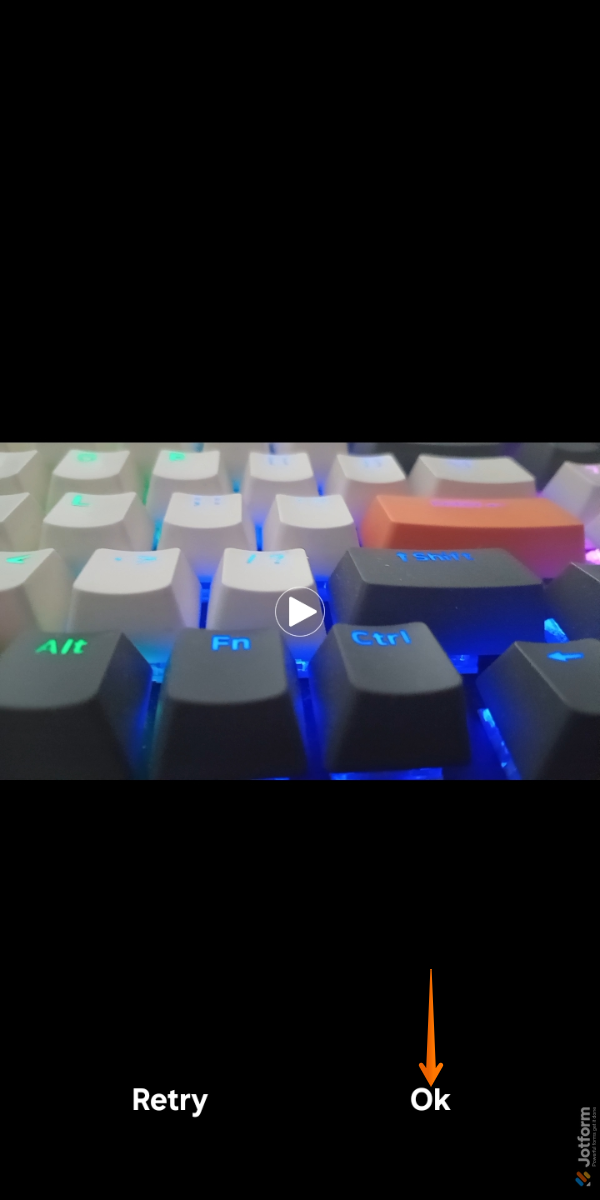
After recording the video, tap on the Ok button to save it and go back to the form. You can also tap on the Retry button to record a new one.
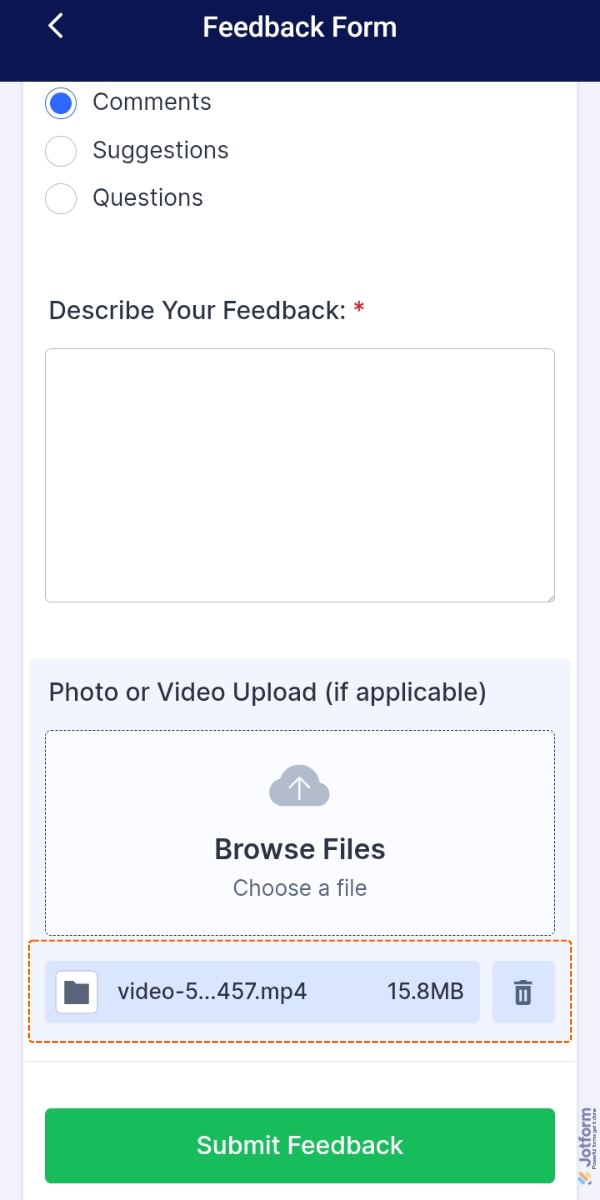
When a video recording is saved for submission, you’ll see its filename and file size at the bottom of your File Upload field. You or your users can tap on Browse File again to record another video, or tap on the Trash icon to replace the recording with a new one.
Notes
- The maximum individual file size allowed is 1 GB (1048576 KB).
- The recommended maximum number of file uploads is 25 per entry.
- Check your plan’s available Upload Space to better manage your File Upload field’s file size limit.
- If your form is connected to a cloud service like Google Drive or Dropbox, uploads larger than the cloud’s available storage space won’t be completed.

Send Comment:
4 Comments:
October 29, 2024
Is there a way the client can view/preview the recording before the final submission?
July 13, 2023
unfortunately there is no option for video recording on mobile phones.
November 25, 2021
Recording video instructions on this page are wrong. There is no choice given to upload video using the phone camera. If I am making a mistake, please correct
October 3, 2021
we please need a widget for addpipe. ziggeo is not working for us, too many unsatisfied customers due to the widget not recording, and also the fact that the video needs to process and is not streamed is preventing the upload of the video for clients who press the submit button before it's finally processes.
thanks