Jotform offers several ways to embed a form, depending on where you plan to publish it and how you want it to behave on the page. Some embed methods work best for specific platforms (like WordPress or Shopify), while others are designed for maximum flexibility or customization.
This guide explains the different embed options available in Jotform, what they’re best used for, and how to choose the right one for your website.


Embedding on Popular Platforms
If you’re embedding your form on a CMS or website builder, start with the Platforms section. It includes supported publish options for many popular platforms, allowing you to embed without worrying about code compatibility. Here’s how you can get the embed code for your platform:
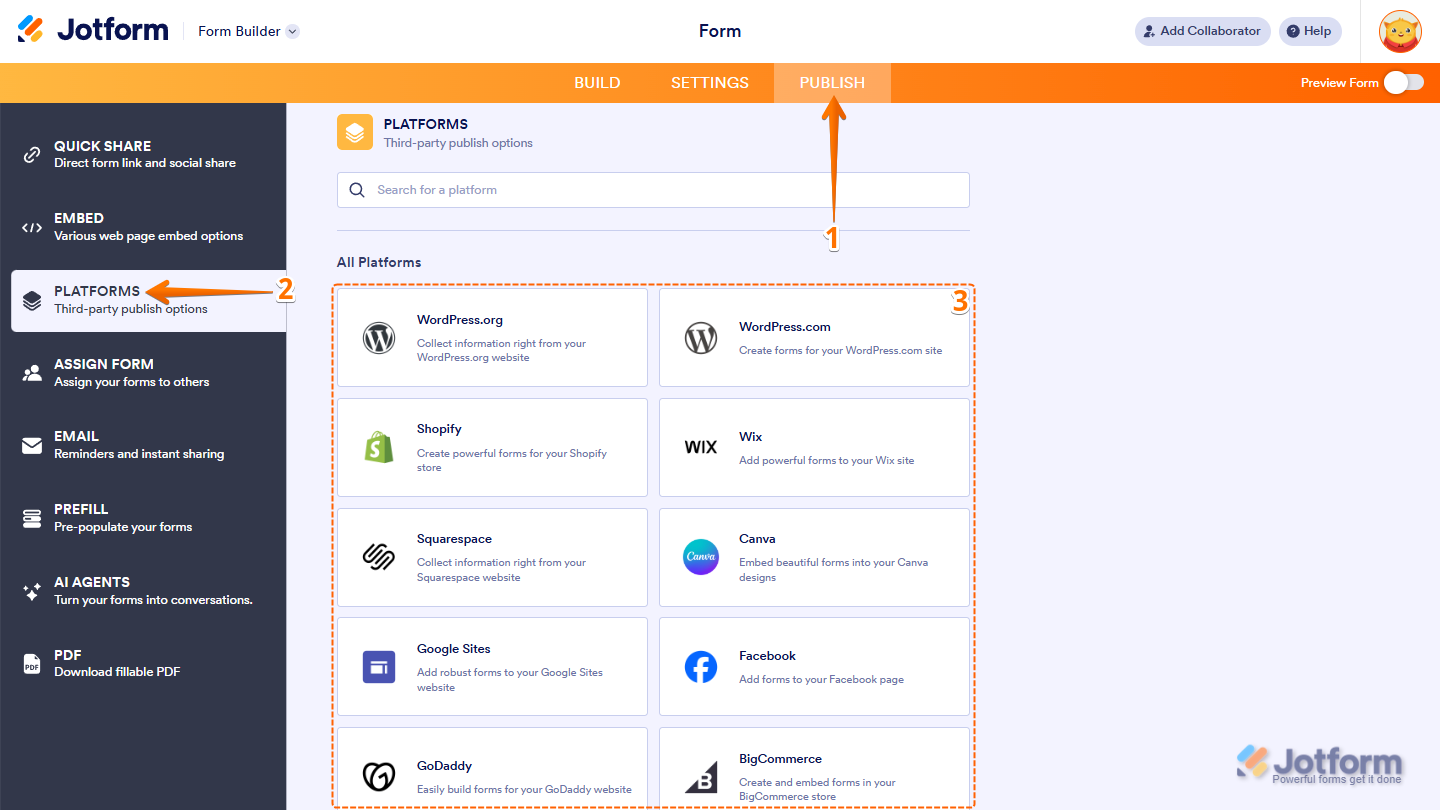
- In Form Builder, in the orange navigation bar at the top, click on Publish.
- Then, in the menu on the left, click on Platforms.
- Next, in the All Platforms section, search for or click on the platform you want to embed your form in.
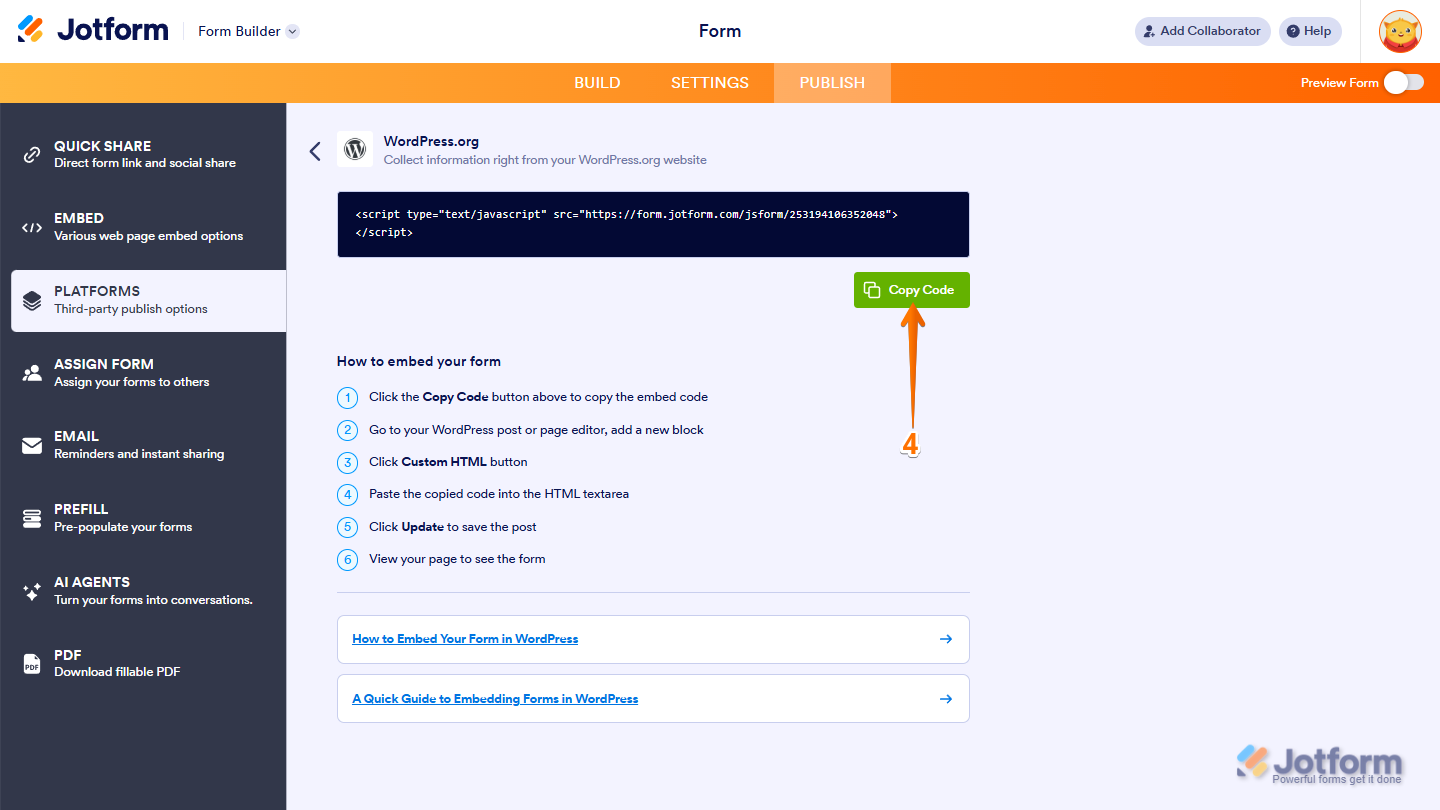
- For example, you selected WordPress.org, click on Copy Embed Code and you’re done.
Here’s the list of supported platforms:
- WordPress.org
- WordPress.com
- Shopify
- Wix
- Squarespace
- Canva
- Google Sites
- GoDaddy
- BigCommerce
- Joomla
- Drupal
- Magento
- Weebly
- Unbounce
- Blogger
- Framer
- Medium
- Ghost
- Tumblr
- PrestaShop
- Jimdo
- Duda
- SharePoint
- Yola
- Cargo
- Zoey
- TypePad
- Zenfolio
- Ning
- Piwigo
- LiveJournal
- Xara
- Dreamweaver
- Jigsy
- IM Creator
Web Embed Options
If you’re embedding a form directly into your website or application, you’ll find several flexible methods under the Embed section of the Form Builder. Here’s how to access the Web Embed options:
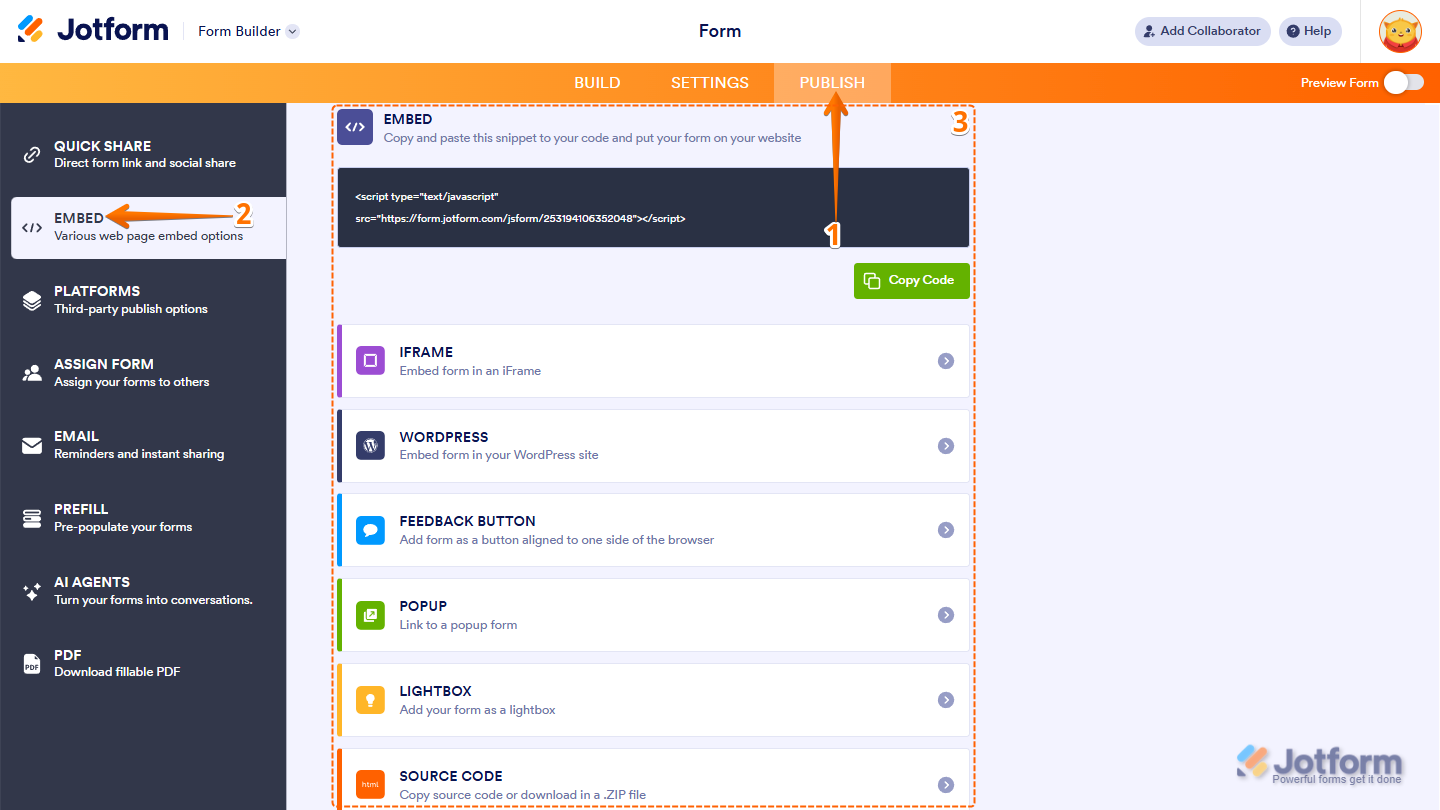
- In Form Builder, in the orange navigation bar at the top, click on Publish.
- Then, in the menu on the left, click on Embed.
- Now, you can choose from several options depending on how you want the form to behave on the page.
JavaScript
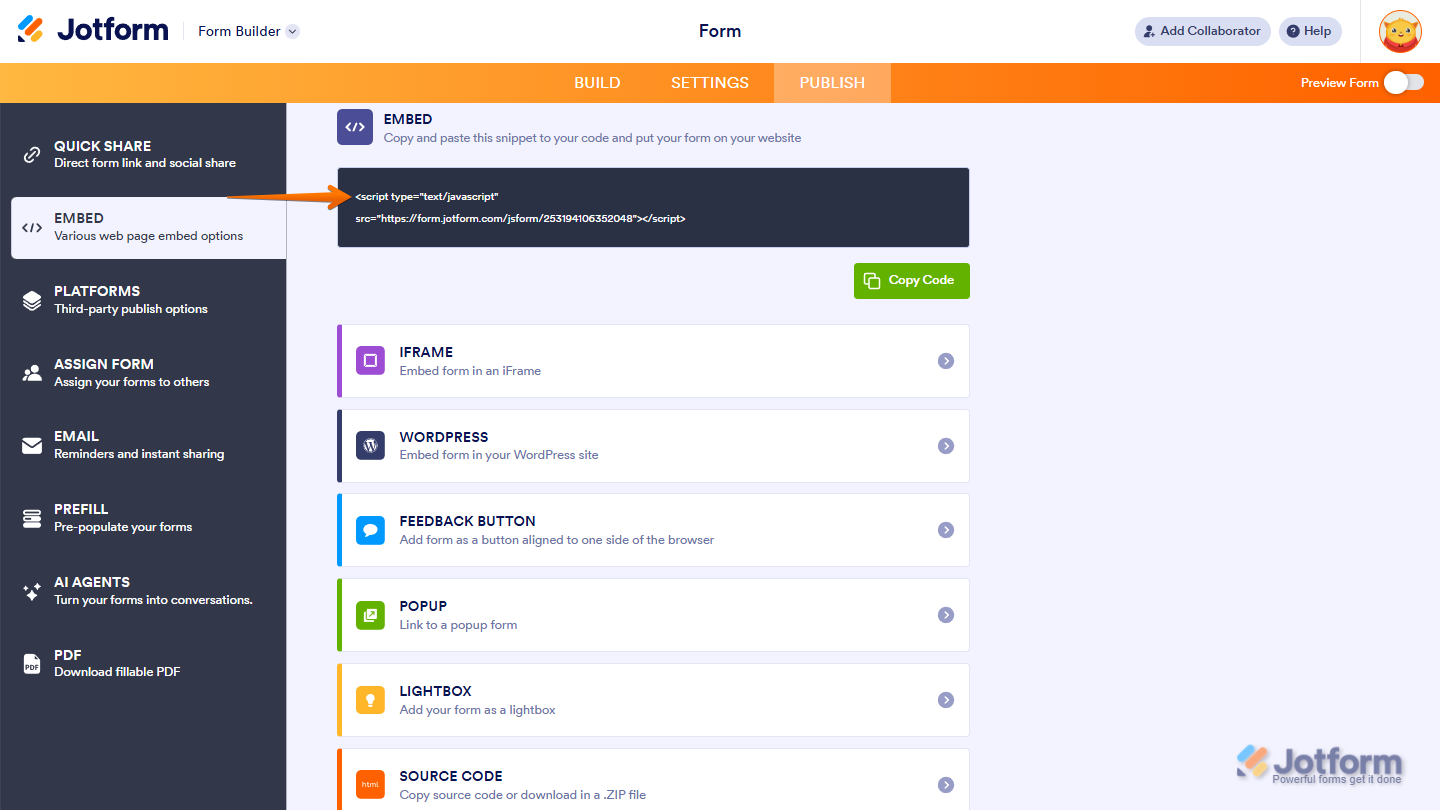
The JavaScript embed method dynamically loads your form inside an iframe and automatically adjusts its height. This means you don’t need to update the embed code every time you make changes in the Form Builder—updates are reflected instantly.
iFrame
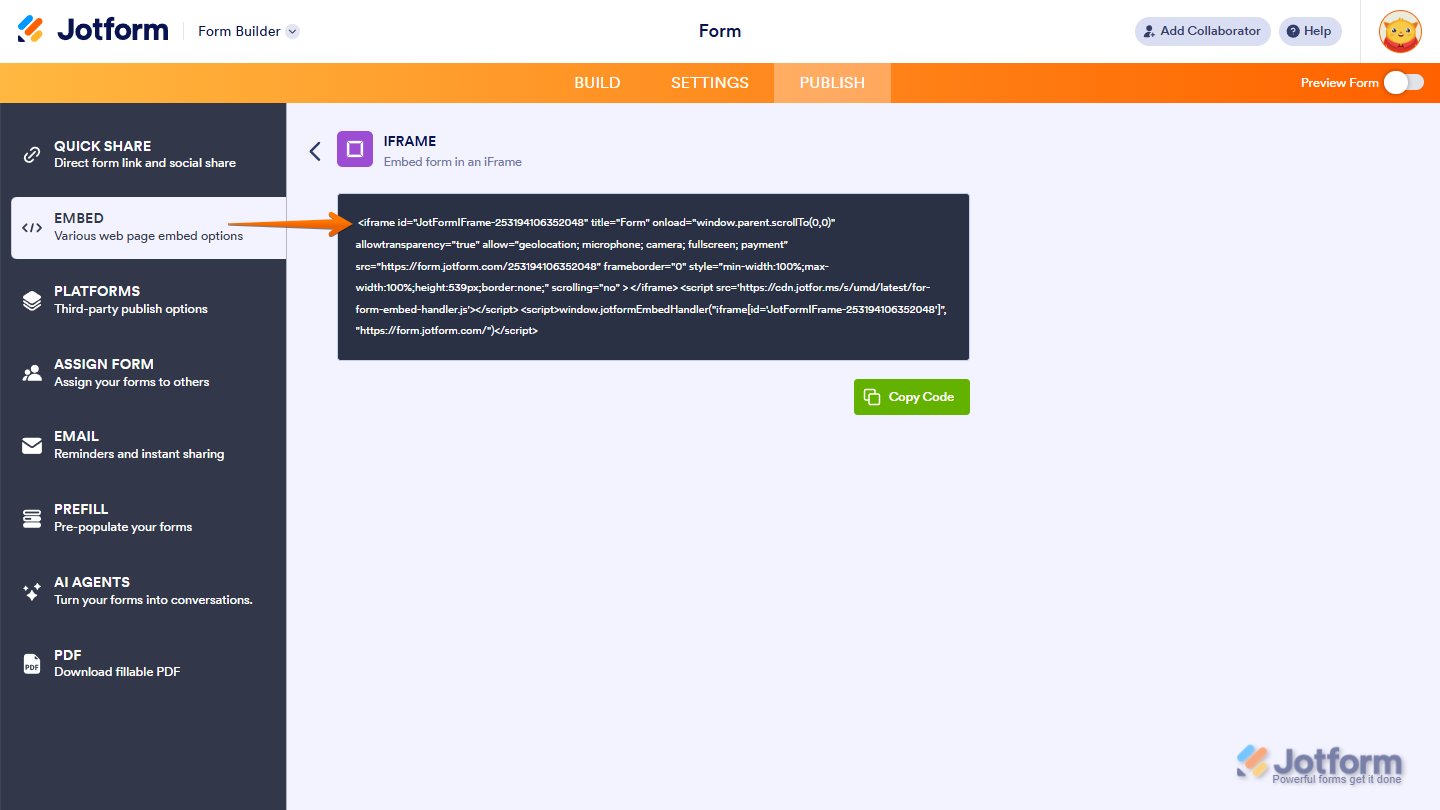
The iFrame embed method displays your form inside a dedicated iframe. Since it doesn’t interact with your site’s scripts, it minimizes layout and JavaScript conflicts. Use this option if other embed methods aren’t rendering correctly or you’re unsure how the form will behave on your site. Take a look at our guide on How to Find Your Form’s iFrame Code for more details.
Source Code
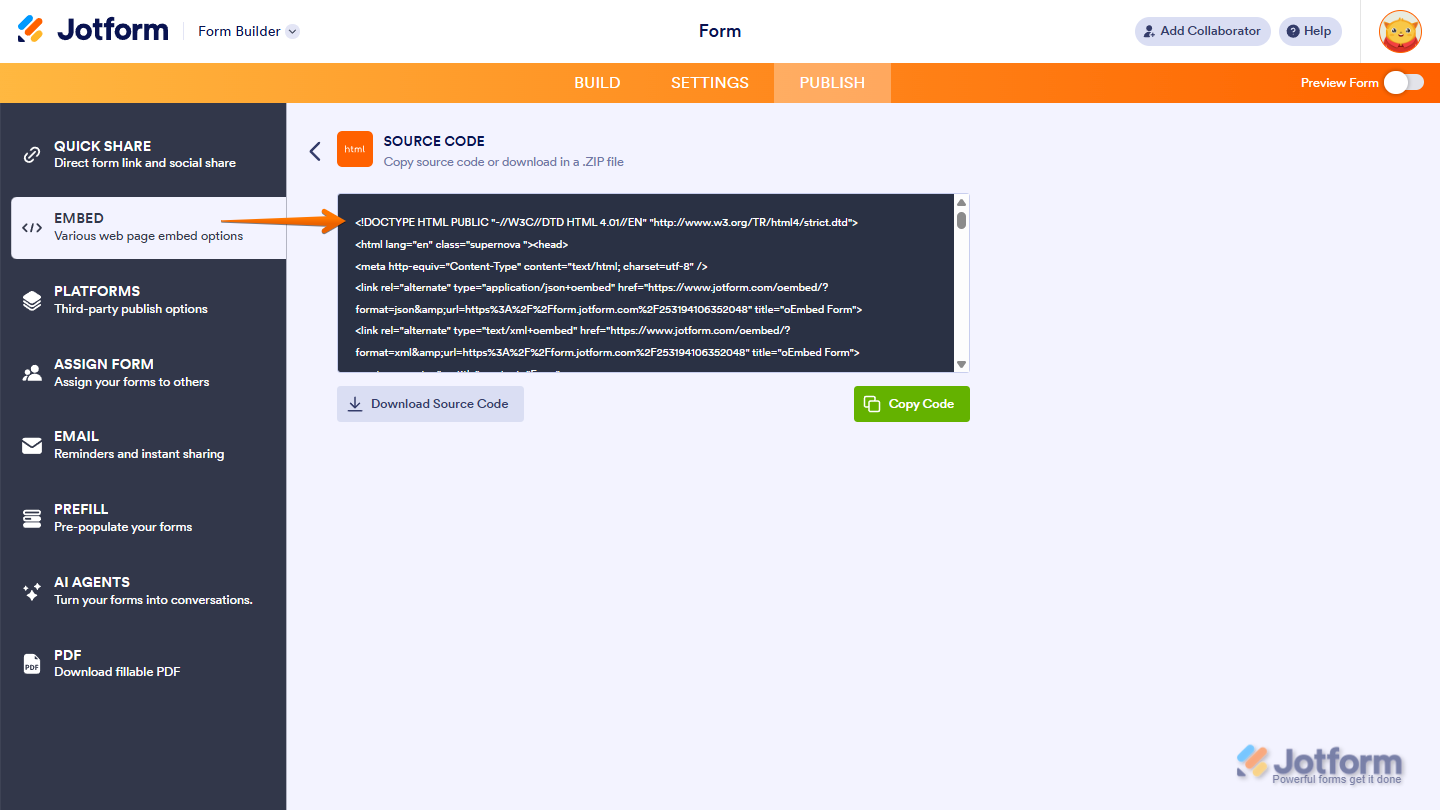
The Source Code option provides full access to your form’s markup and scripts, allowing deep customization beyond what the builder offers. Check out our guide on How to Get the Full Source of Your Form to learn more.
Note
If you use Source Code, you’ll need to manually update the embed code each time you change the form in the Form Builder.
WordPress
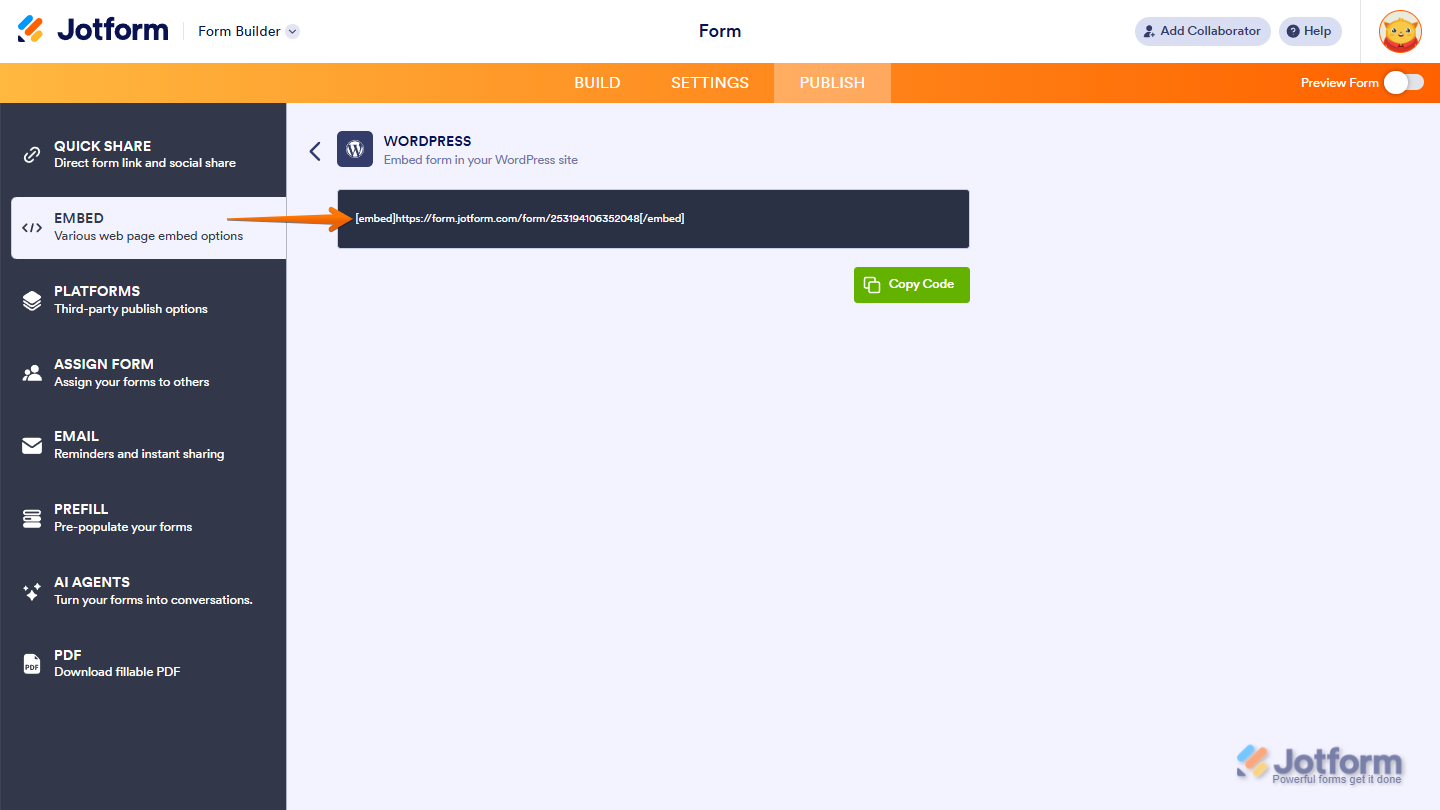
This option doesn’t require a plugin. Simply paste the shortcode into a Shortcode or Custom HTML block in the WordPress editor. Looking for more info? Our guide on How to Embed a Form to WordPress.com has what you need.
Feedback Button
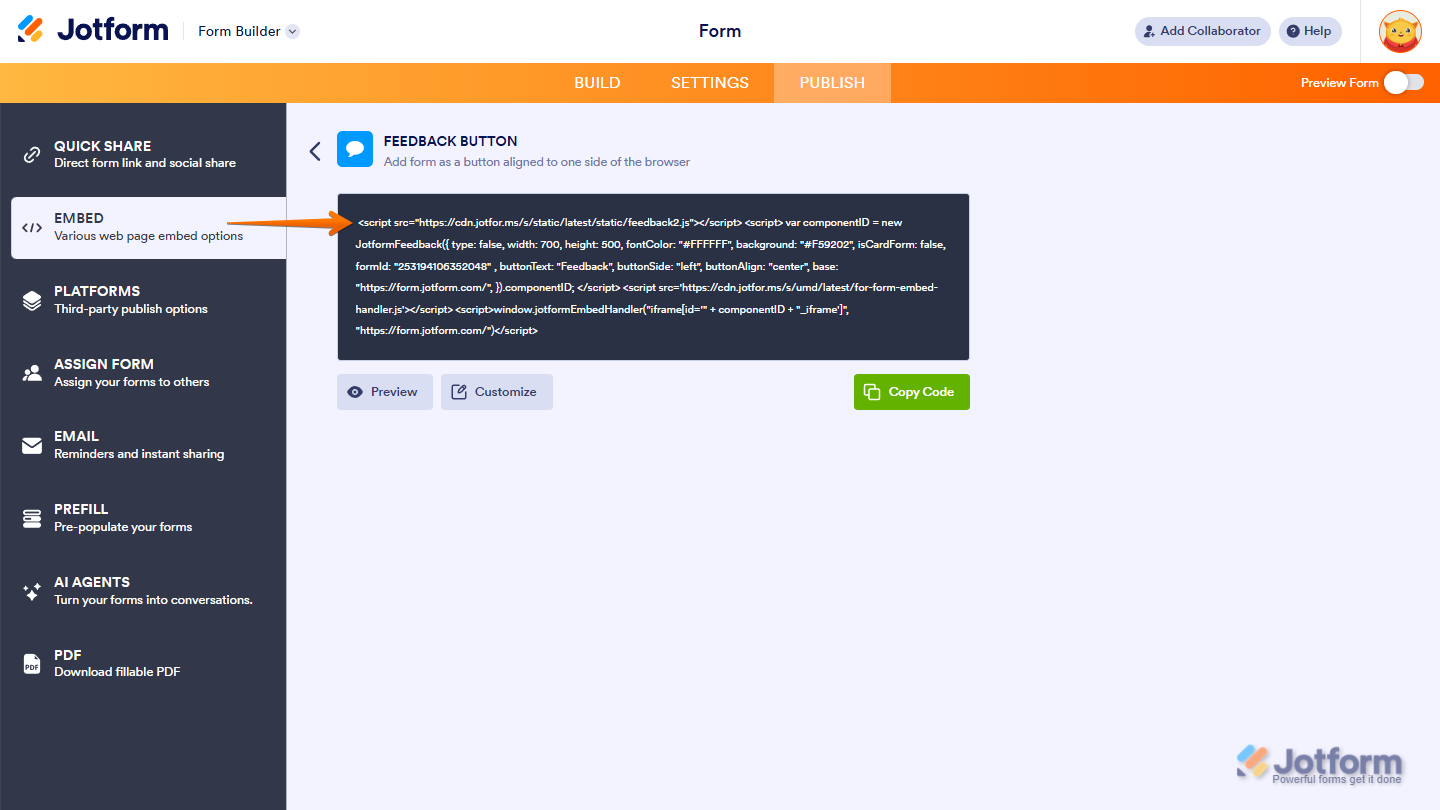
The Feedback Button adds a floating button to your site. When clicked, it opens the form in a modal window. It’s ideal for collecting feedback while users browse your website. Our guide on Adding a Feedback Button to Blogger has more details about that.
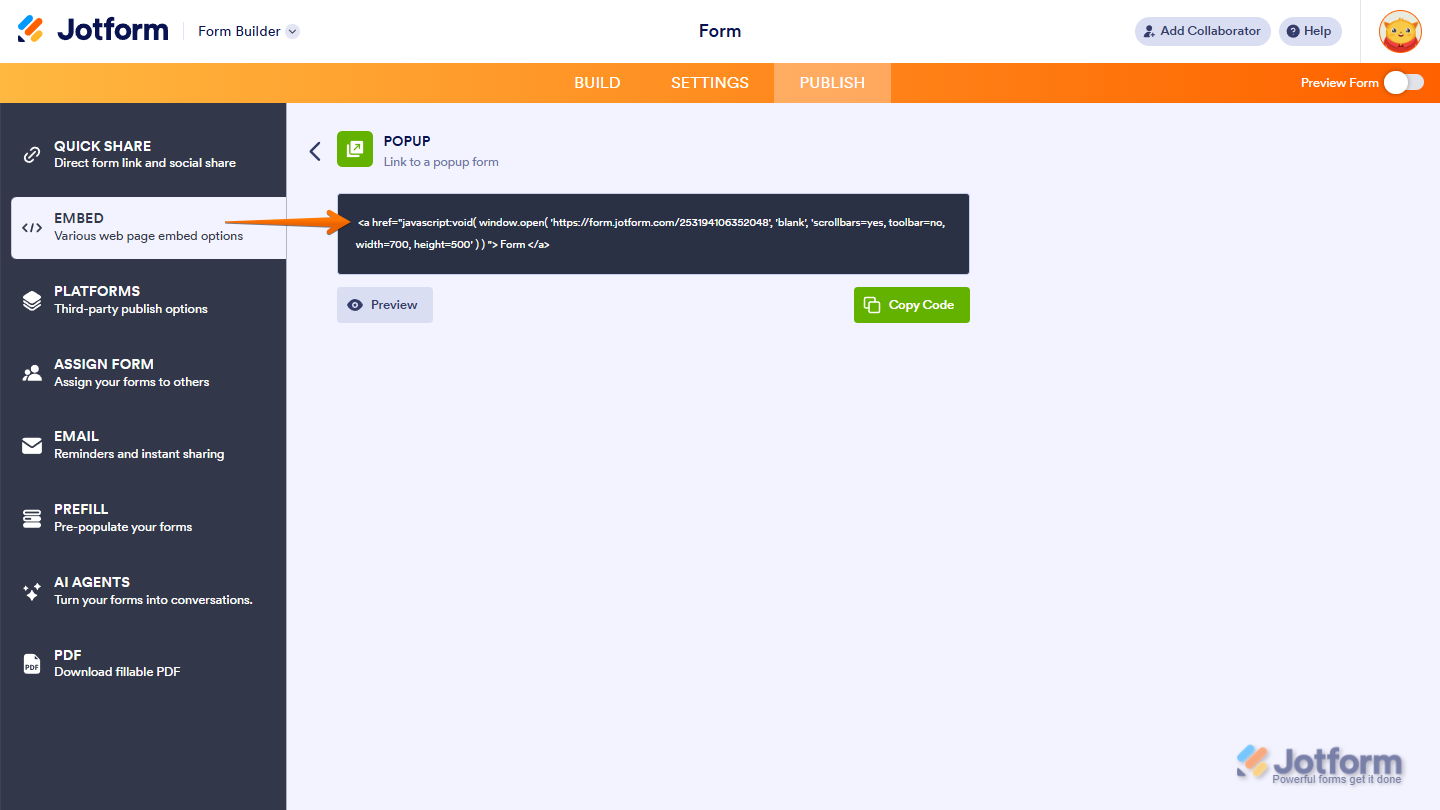
Pop-up
This method displays a link that opens your form in a pop-up window when clicked. Looking for more info? Our guide on How to Create a Pop-up Form with Jotform has more details.
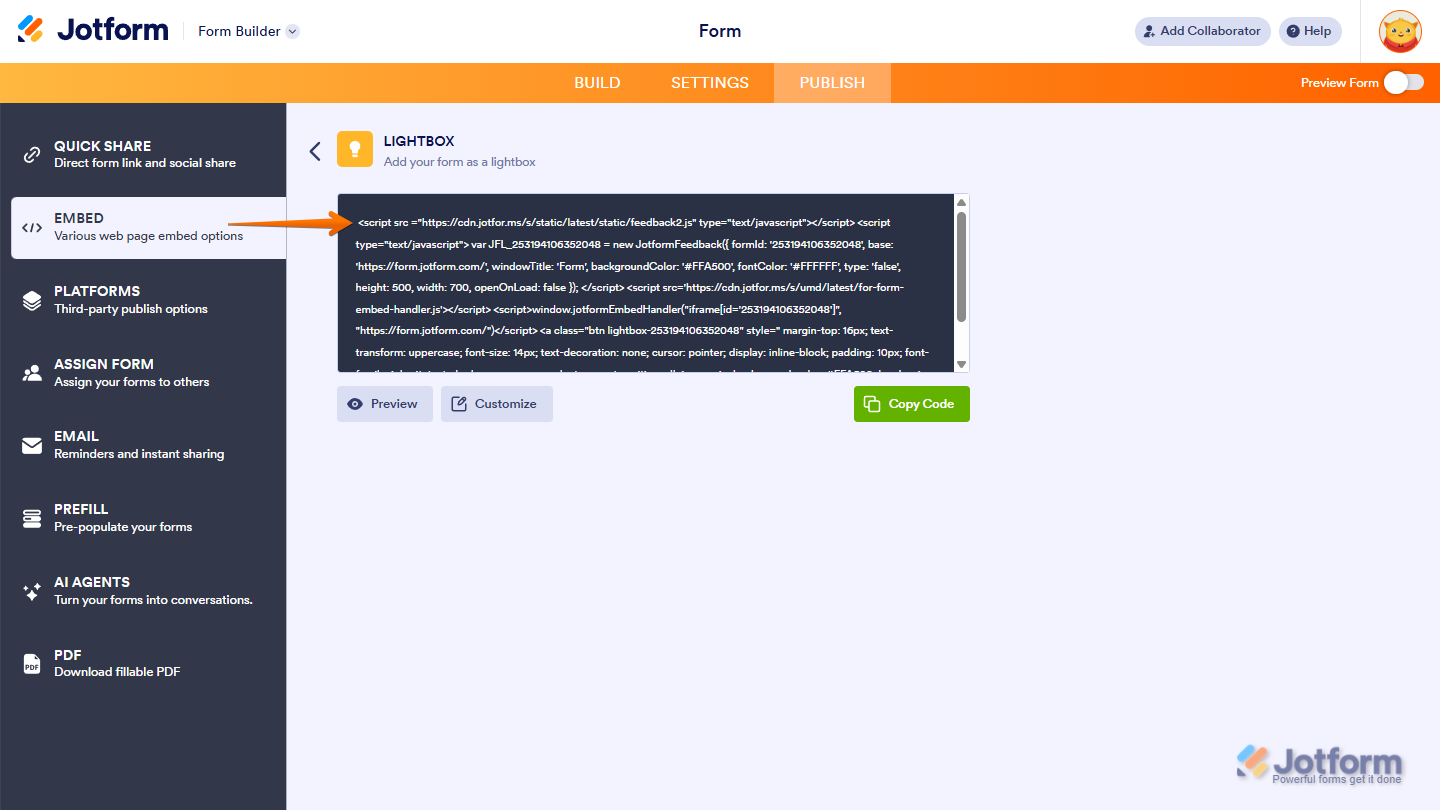
Lightbox
Lightbox embeds open your form in a modal overlay. You can choose to trigger the modal via a button or automatically when the page loads. Need a hand? Our guide on How to Create a Lightbox Form is a great place to start.
Pro Tip
- For most websites, the JavaScript embed is the best starting point.
- If you run into script conflicts, switch to iFrame.
- Use Source Code only if you need full control and don’t mind updating manually.
- If you’re embedding into a CMS or builder, check the Platforms section for the most compatible option.




Send Comment:
108 Comments:
January 5, 2025
Hi, I’m having trouble embedding my form on biosite. I’d be grateful for any help. Thank you.
October 8, 2024
Which is best for mobile compatibility?
January 30, 2024
I'm trying to embed the form I created on my Showit website. I want it to be a link that takes me directly to the form, like it does if you email the form. Is this possible? If so, which embed option do I use? So far the Java Script and the HTML option have not worked. Thank you.
January 25, 2023
HOW DO EMBED JOTFORM ON MY HOSTGATOR WEBSITE BUILDER
December 7, 2022
I get a scroll bar that shows up differently on different screens and some show it and some do not. 123 form dos not do that!!!! I woudl rather use Jotform!!!
March 21, 2022
The full code is displayed on my website I only want the underlined link displayed. What should I do?
March 14, 2022
Please: I am new to WordPress and need help embedding a form in a page
March 6, 2022
I have made a contact form in Jotform and now want to load it onto my contact page in Serif web plus 8 can you help me with this
Kind regards
September 16, 2021
Hi, just started using Jotform, very impressed so far.
I have created a form which is working well. However if i want to teak or make changes to it 'offline' at what point does a form go live after editing it? Im using the direct link option to embed the form in another web.
I see the system autosaves what im doing and the history to roll back. But no specific button to publish any changes i have made.
Is it just when you go to the PUBLISH tab ?
Many thanks
April 10, 2021
TROPPO COMPLICATO CI VUOLE UN INGEGNERE INFORMATICO. RINUNCIO!
March 29, 2021
I would like to embedd the lead form on my url within my website. Can you show me how to do that?
March 12, 2021
can you put the link to the form page on instagram? because it seems like i get payment but i can’t see the customers choices. this is bad business for me and for you. i’m very upset and need HELP
March 4, 2021
Nothing is working..
I'm using unbounce, tried script, tried Iframe, the form keeps poping and disappear like this
It's been 24h i've signed up and had already 10 bugs... it's a shame.
Bye bye !
January 26, 2021
Hello! I am trying to use the contact form that I created, I know the embed code was given to me. But I'm not quite sure where to put it. I use 22slides as my website host, and they do have an area for css.
Mobile
Redirects
I can assume I should put it in body, but I'm looking for some guidance as my understanding of code is little. I just do as I'm told by website prompts or tutorials haha.
January 25, 2021
I also want to know which form embed code should I use.
January 5, 2021
can you teach me how to embed my code into my wix website?
December 9, 2020
Do I have to pay first before I am able to embed a form? I want to know I can embed a form from here to godaddy before I pay for your service.
September 22, 2020
thank you very much for this
July 6, 2020
Your help I already have the form registered on the website, but I need to be able to also see the status of all submissions
July 1, 2020
I want to know how can i make my own online form which has all the features which a jotform form has..i dont want the customer to see the jot form title which beneath the form..I hope you got what I said ..help me please
April 14, 2020
I re embedded the short code.
I didn’t use the iframe - can you tell me how this looks on the website ?
February 28, 2020
HI , how can I provide access to a professional developer , so they can embed code for me ?
November 29, 2019
See my post below. I tried to follow the instructions on the help pages for GoDaddy but all that ended up on GoDaddy was the first page of a multiple page form. What can I do to get the whole form on GoDaddy?
November 29, 2019
I have developed my jotform form and am ready to embed it on our website which is on the GoDaddy platform. I am confused on how to do this as I don't see GoDaddy listed. So I have the form, what do I do next?
November 26, 2019
Hi! Is it possible for users to submit image files through jotform forms?