Card Forms
Guides
How to Create a Jotform Card
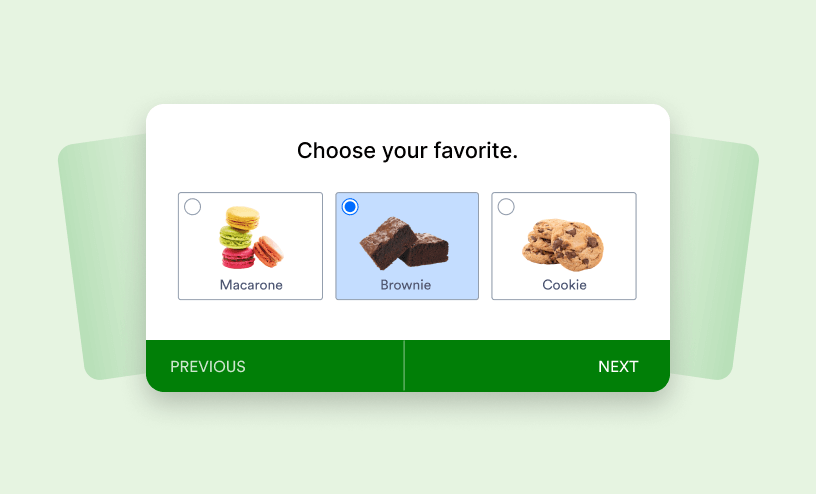
Jotform Cards is a mobile-friendly form layout that you can use to present your form. With some unique features, it improves user experience by asking questions one at a time, which enhances respondent focus....
Jotform Cards: Frequently Asked Questions
With Jotform Cards, you can create forms from scratch with as little effort as possible and reduce the time of building and designing forms manually with its built-in features. Here's a short list of commonly asked questions from users about...
When to Use Card Forms
Jotform Cards is a mobile-friendly form layout designed to enhance the user experience by showing one question at a time. It offers several unique features, along with a few limitations compared to Classic forms. Knowing the strengths of Card...
How to Disable the Submit Button Using Conditional Logic in Card Form
With conditional logic, you can control when the Submit button becomes active on your Card Form. This makes it easy to guide users and prevent incomplete or incorrect submissions. For example, you can keep the Submit button disabled until required...
How to Embed Your Card Form as a Floating Feedback Button
With the Classic form layout, forms were typically embedded within a page, displayed as buttons or links, or served as lightbox. Jotform Cards brings a new feature called the Floating Feedback Button. It occupies only a small section of your...

How to Enable Review Before Submission on Your Card Form
With Jotform’s Review Before Submission feature, users can double-check their answers—helping them catch mistakes and submit with confidence. Whether you’re collecting important details or just want to help users feel confident about their...
How to Enable Geolocation in Jotform Cards
The Address element in Jotform Cards has a built-in geolocation feature that automatically detects the form filler's location and populates the fields with their address. No manual input is required, making it convenient for users....

How to Redirect Users After Submission in Jotform Cards
With Jotform Cards, you can redirect respondents to an external link after they submit their information to keep them engaged. Rather than using the default Thank You page, you can send them to any URL with relevant information or actions, such as...
How to Display Multiple Questions in a Single Card
Jotform Cards is designed to display one question at a time which can help reduce page noise on your form. If you need to present multiple questions in one card, you can use the Multi-line Question element....
How to Implement Email Verification in Jotform Cards
Jotform makes it easy to add email verification to your Card Forms so you can collect real, valid email addresses from your users. With this feature, form fillers receive a quick verification code in their inbox, which they enter to confirm their...
How to Customize or Hyperlink a Sub-Header on the Jotform Card Thank You Page
Your Card Form’s Thank You page is a great opportunity to leave a lasting impression on users after they complete your form. Make the most of it by customizing your message or adding a hyperlink to direct users to a website, download, or next...

How to Change Your Thank You Page in Jotform Cards
Your form's Thank You page appears after a user submits your form. It confirms the successful submission and can be customized to provide a pleasing end to the user's experience. This guide is...
How to Enable Smart Embed in Jotform Cards
The Smart Embed feature in Jotform Cards allows you to embed Card forms into your website while maintaining a consistent look and feel. When you enable Smart Embed, the form automatically adapts to your website's design, making it appear seamless...

Using the Inline Embed Features in Card Forms
With Jotform Cards, you can make additional adjustments when you embed the form into your website. It's an offsite feature called Inline Embed, where you can adjust the overall design of the form and set the visibility of the additional form...

How to Hide the Form Title and Progress Bar in Jotform Cards
In Jotform Cards, the form title appears at the top of the form when you remove the Welcome page. The progress bar on the other hand appears at the bottom when there are at least four visible cards in your form. To hide the form title or...
How to Add a Logo in Jotform Cards
Logos serve as visual representations of your company, service, or product. Adding a logo to your Card form reinforces your brand identity. Respondents who are familiar with your logo will instantly recognize your organization. This recognition...
How to Set Up the Emoji Slider in Card Form
The Emoji Slider is a fun little feature built into Jotform Cards that brings a more playful and engaging touch to your forms. Instead of using plain numbers or standard rating scales, respondents can slide through expressive emojis that visually...
How to Change Your Form Layout
Depending on the type of form you're building, Jotform makes it easy to switch between Classic and Card layouts. Use the Classic layout for flexibility, advanced options, and CSS customization, or choose the Card layout for a more interactive,...

How to Set Up the Continue Forms Later Feature in Card Forms
Jotform makes it easy for people to save their progress on a Card Form and come back later to finish. With Continue Forms Later, users can quickly pause a form, return when it’s convenient, and pick up exactly where they left off—without...