Jotform makes it easy to enhance your documents by adding background patterns in the PDF Editor. With this feature, you can apply patterned designs to your pages to strengthen your brand, improve the overall look, and create more visually structured layouts.
You can use background patterns to highlight headers, separate sections, or style an entire page. It’s a simple way to make your PDFs stand out while keeping your design clean and professional.
Adding a Background Pattern
You can apply a background pattern to your PDF document directly from the PDF Designer settings. Getting started is simple—here’s what to do:
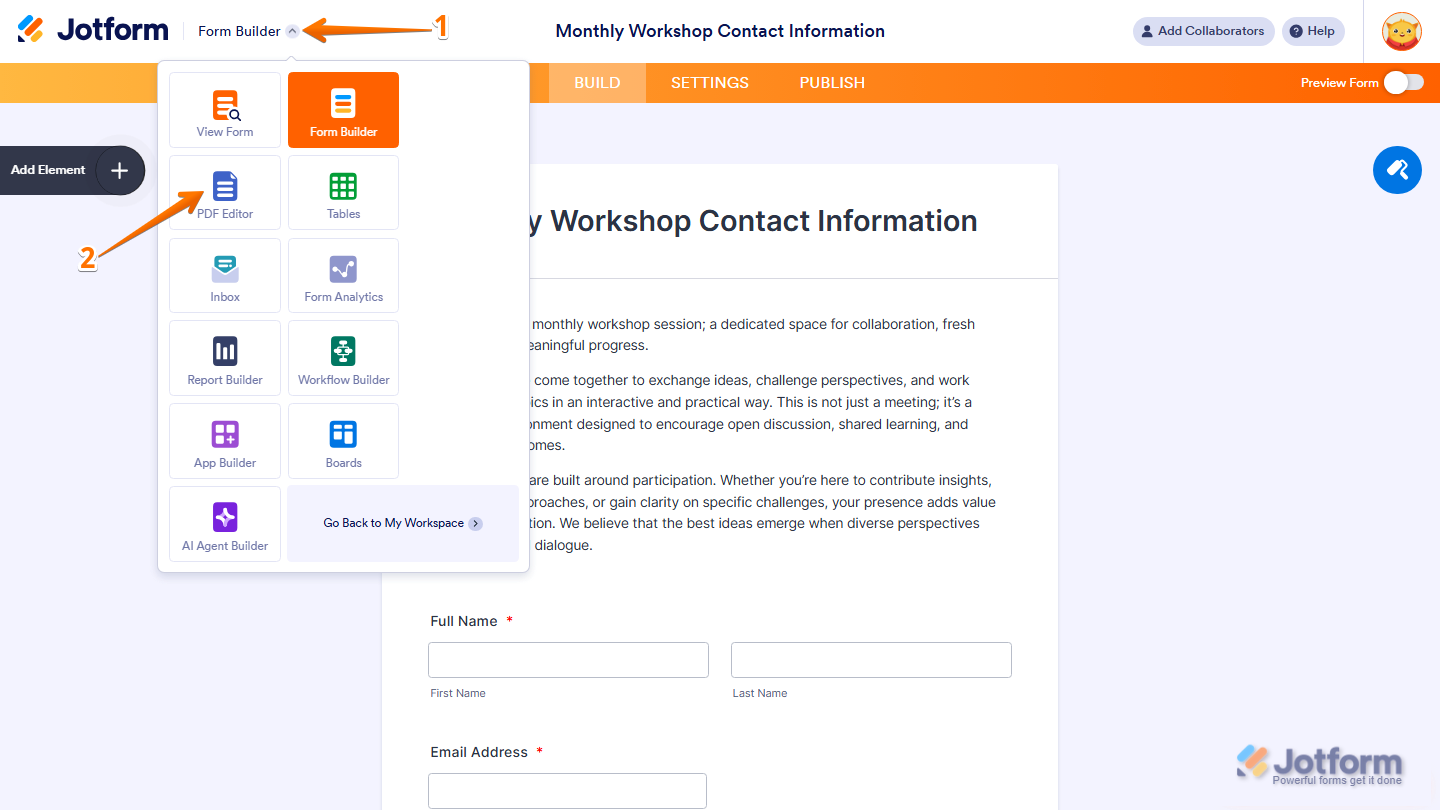
- In Form Builder, in the top-left corner of the page, click on the Downward Arrow icon.
- Then, select the PDF Editor.
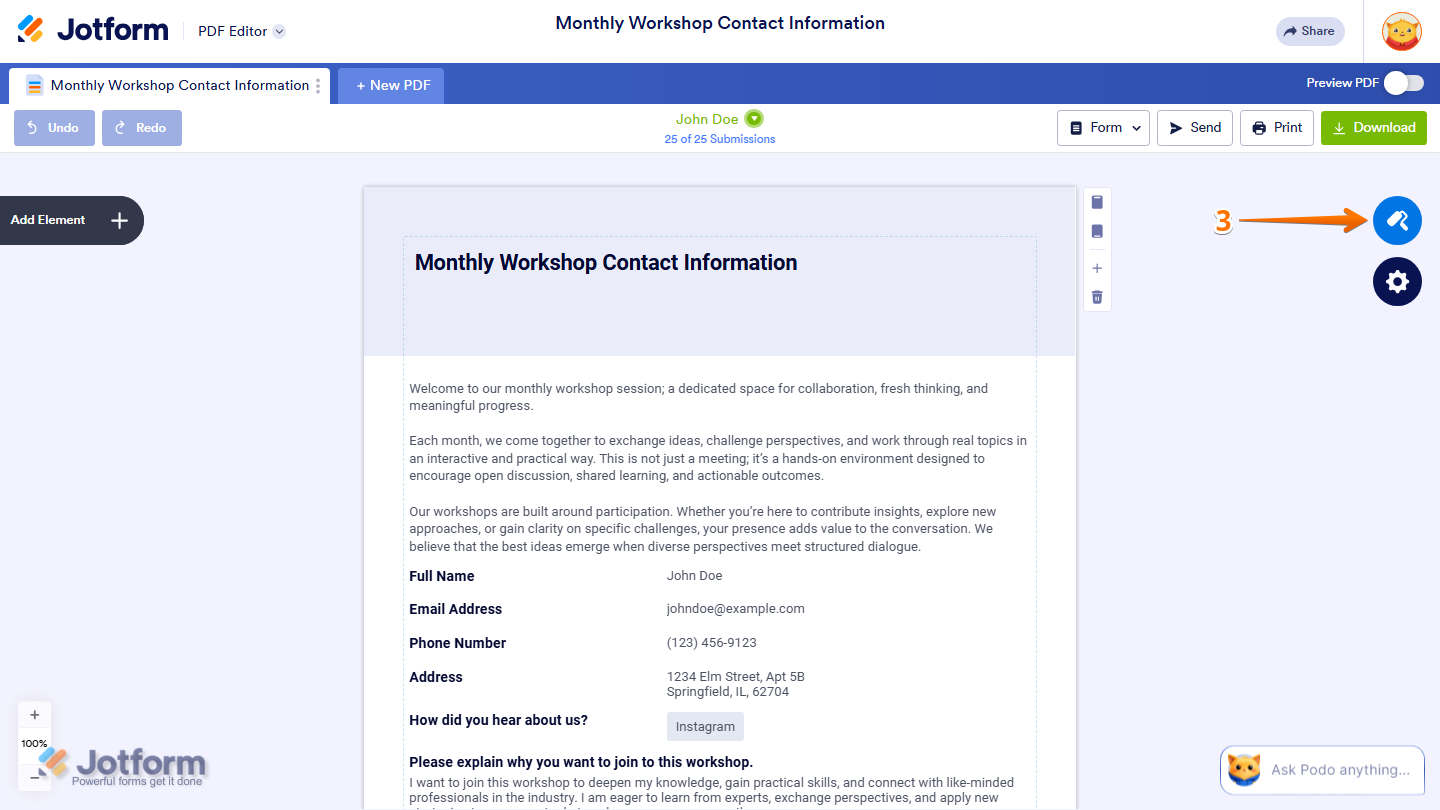
- Next, in the PDF Editor, on the right side of the page, click on the Paint Roller icon.
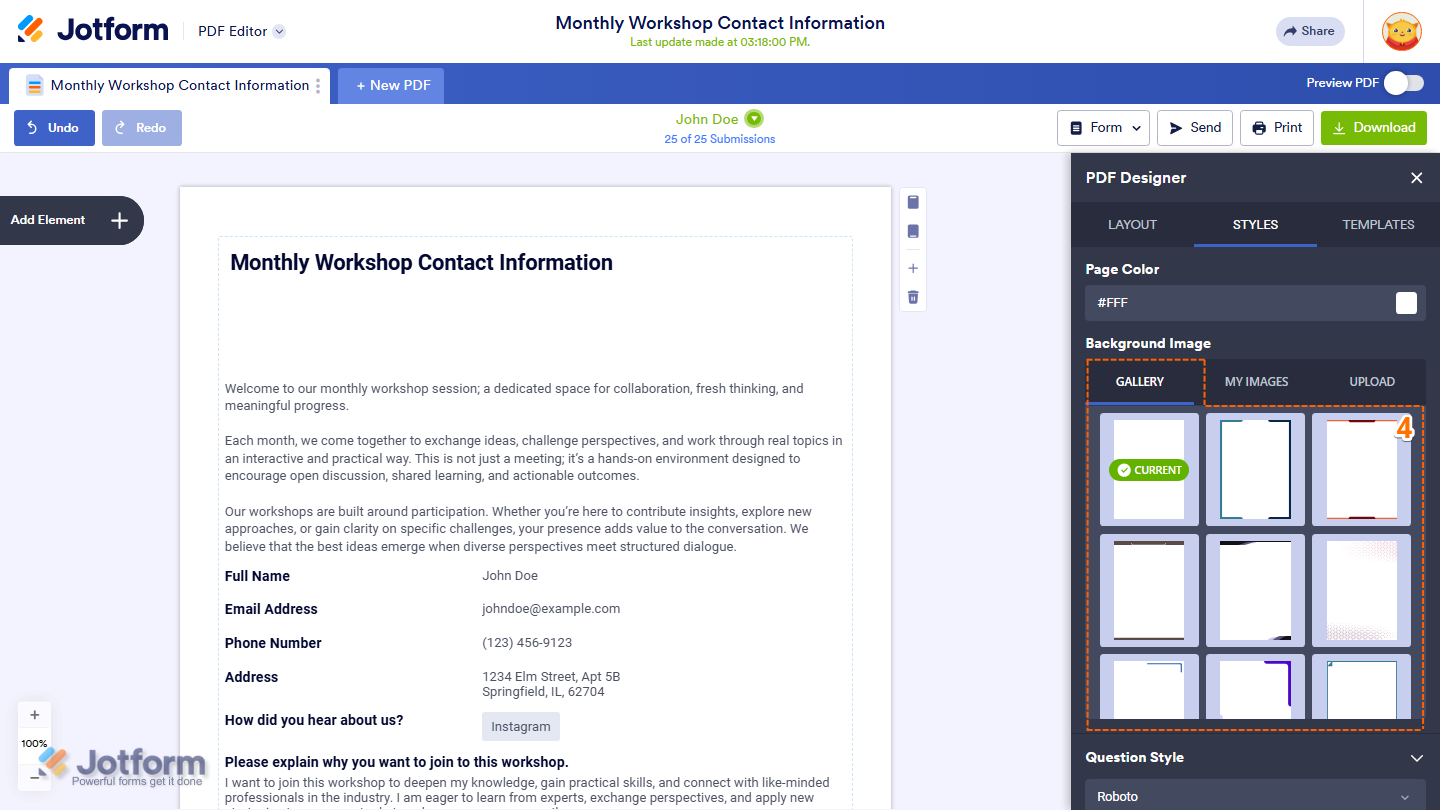
- Now, in the PDF Designer window that opens, under the Style tab, in the Background Image section, and under the Gallery tab, select the pattern you want to apply, and you’re all set.
Customizing the Background Pattern
You can also customize the colors of your background pattern to better match your branding or document style. Want to set it up? Just do this:
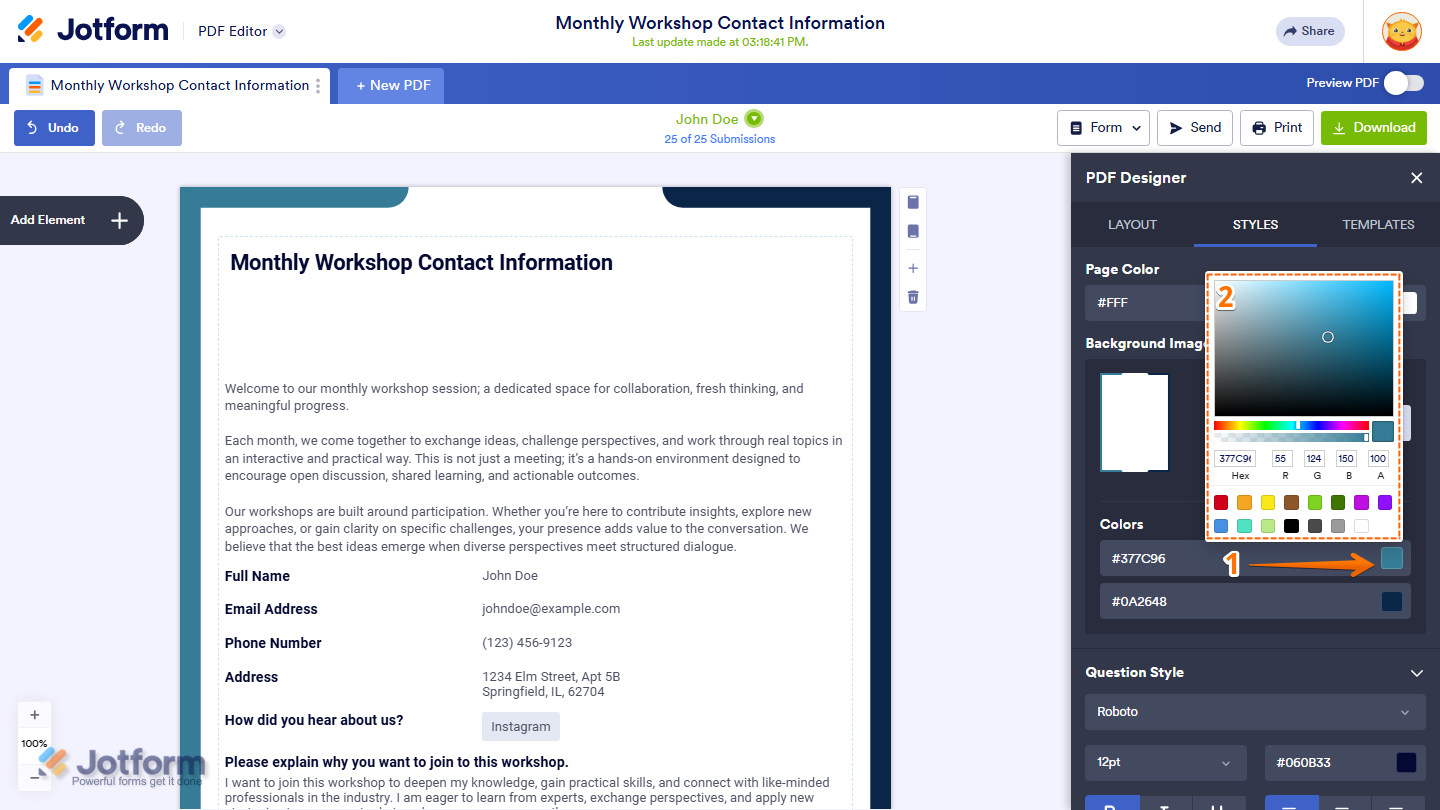
- While you’re still in the PDF Designer window, in the Colors section, click on the Color box you want to modify.
- Then, in the Color Picker window that opens, select or adjust your preferred color for the Background Pattern, and you’re done.
Note
Depending on the selected pattern, you may see one or two editable color options. These control the pattern design and, if available, the background color behind it.
Changing a Background Pattern
If you want to replace your current background pattern with a different one, you can update it anytime from the PDF Designer settings. Here’s how to do it:
- While you’re still in the PDF Designer window, under the Styles tab, in the Background Image section, and under the Gallery tab, click on Change Pattern.
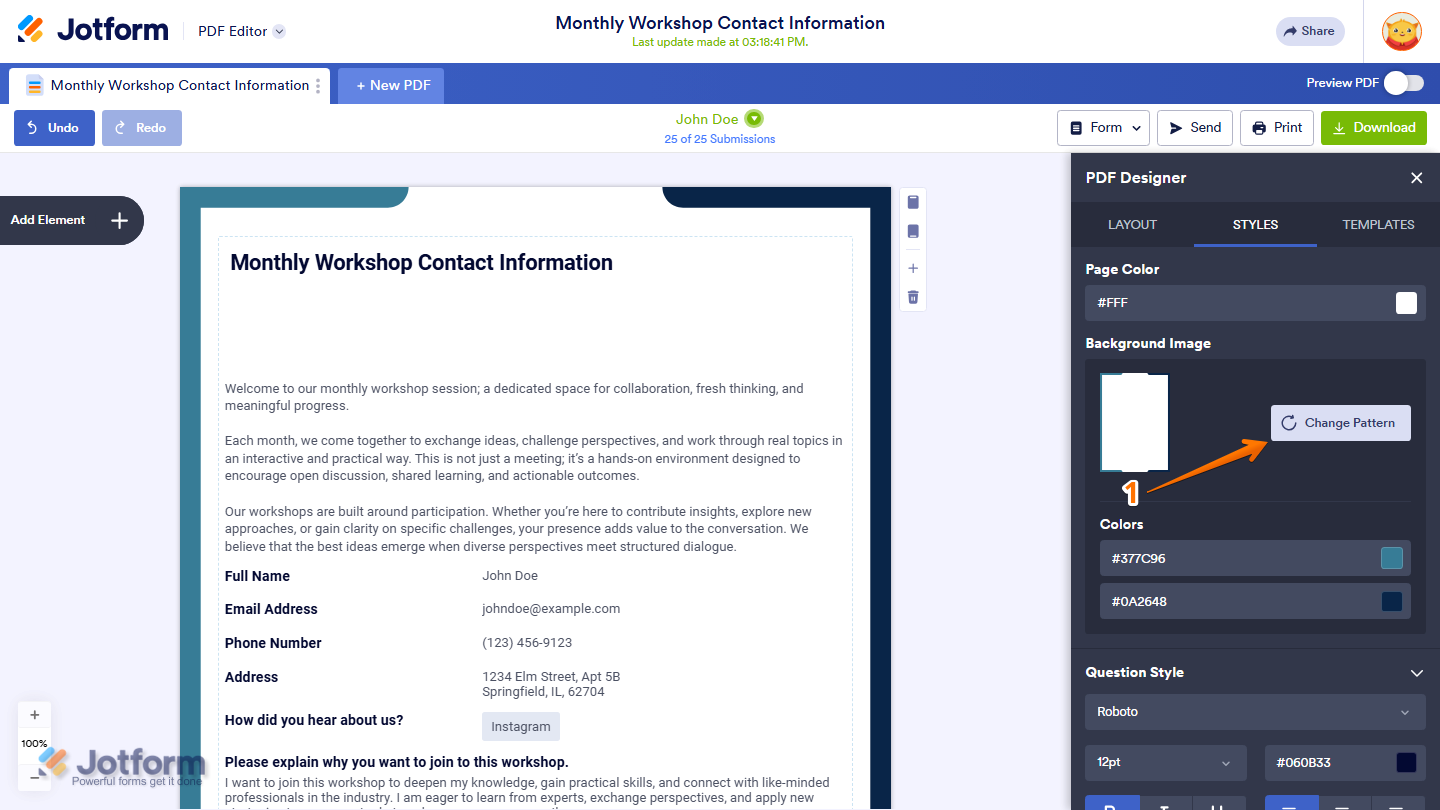
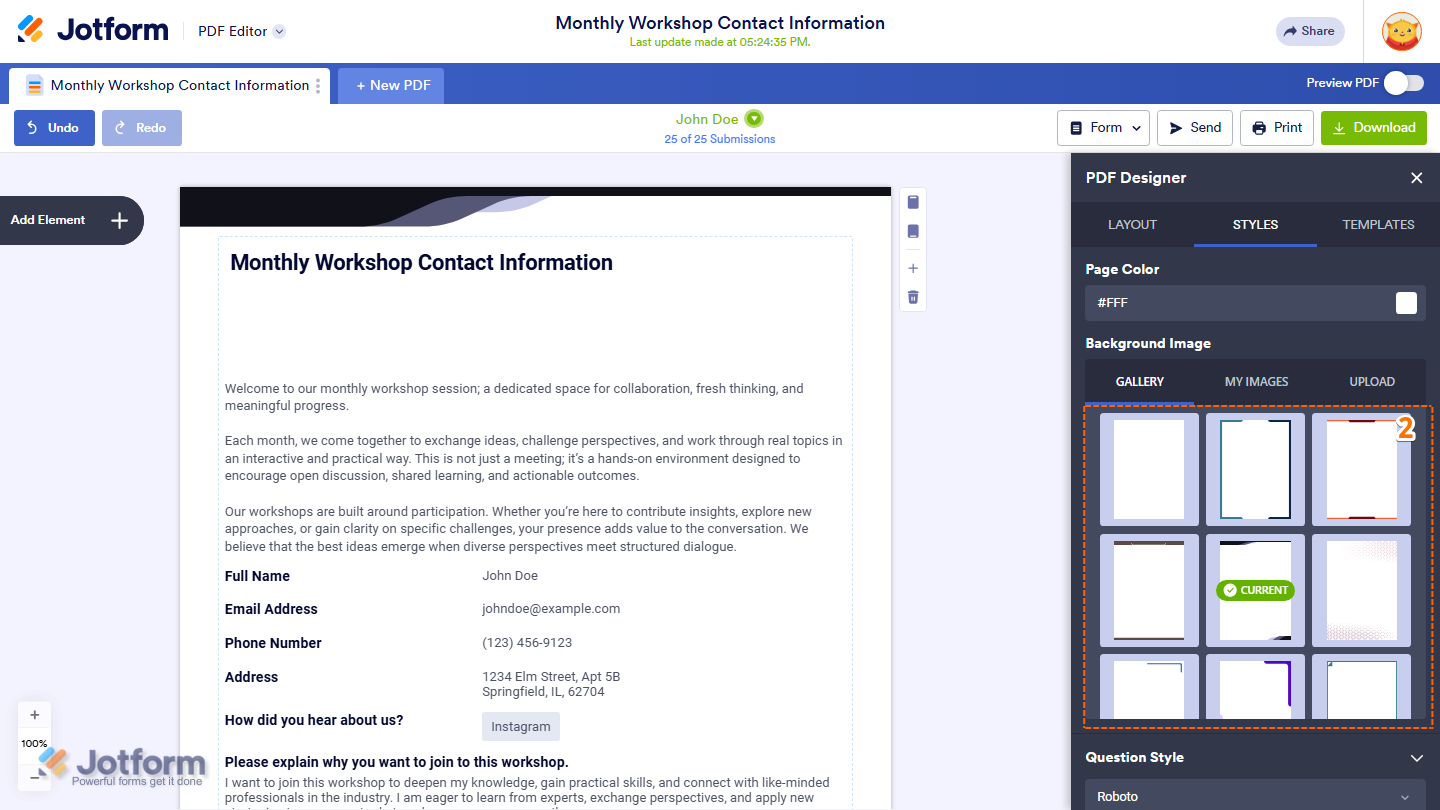
- Now, select the pattern you want to apply, and you’re good to go.
Removing a Background Pattern
If you no longer want to use a background pattern in your PDF document, you can remove it in just a few clicks. Here’s the quick way to do it:
- While you’re still in the PDF Designer window, under the Styles tab, in the Background Image section, and under the Gallery tab, click on Change Pattern.
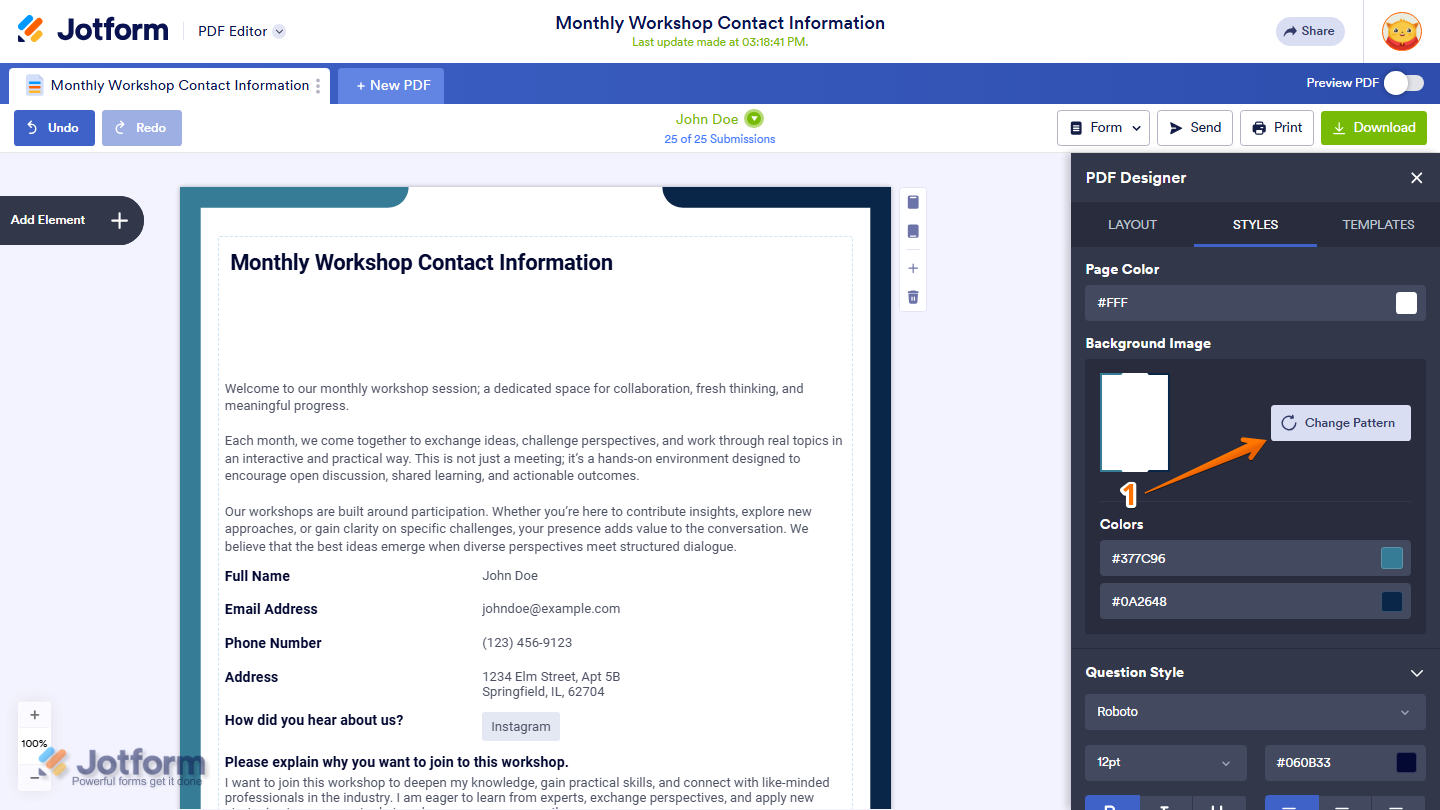
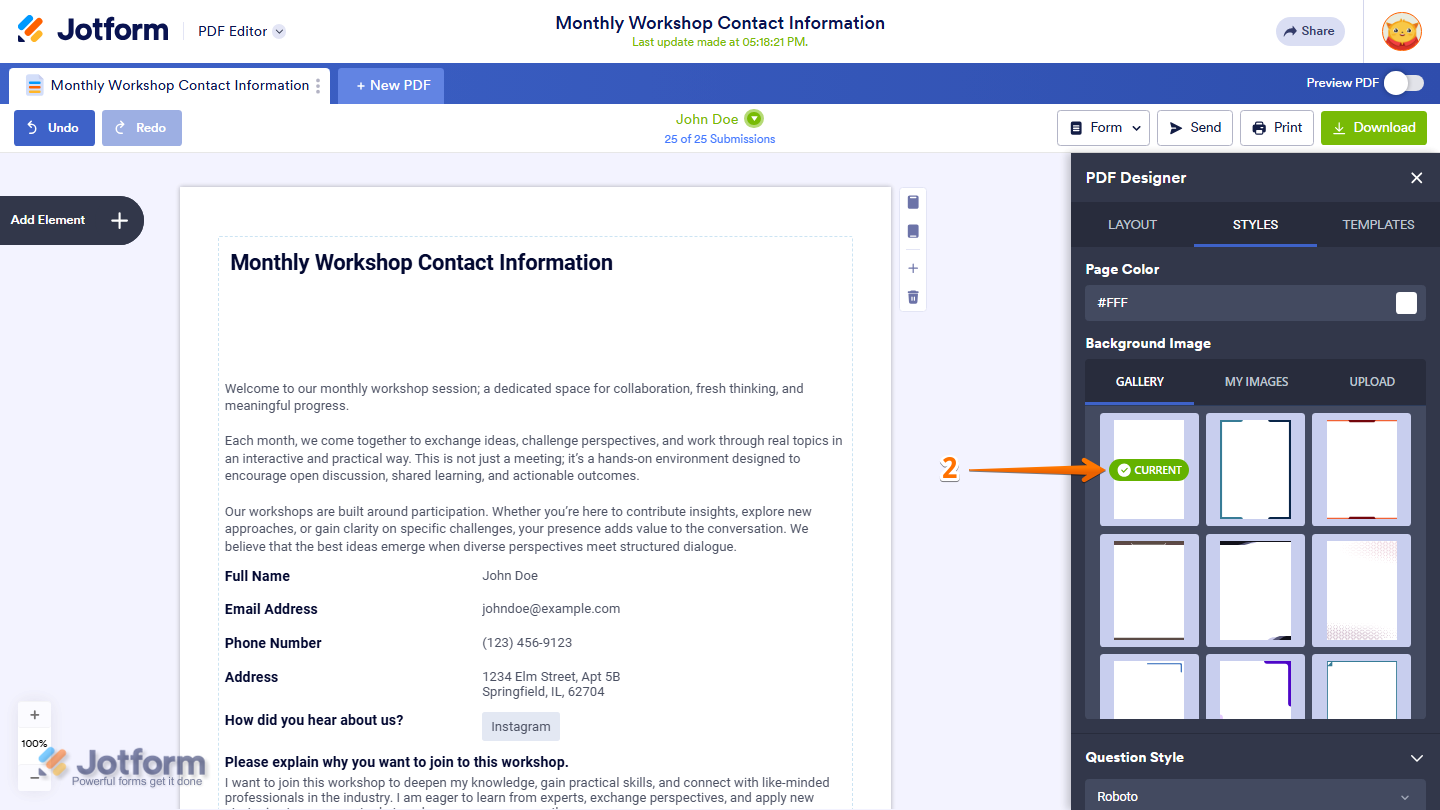
- Then, select the blank or default background option, and you’re all done.
And that’s it. Once applied, your background pattern and color adjustments will appear in all generated PDFs.
Note
Background patterns apply to the entire page and will appear in downloaded PDFs. Be sure that all form fields remain readable after applying a pattern.

Send Comment: