Jotform’s Form Separators Widget lets you easily add a clean line break to your form so you can organize content, reduce visual clutter, and make longer forms feel more approachable. You can also customize the line’s color, thickness, and spacing to match your form’s design and improve overall readability.
Here are a few ways to use it:
- Separate sections of a single-page form.
- Make long or complex forms easier to scan and complete.
- Customize the appearance of your line breaks to match your branding.
- Visually group related questions so users can follow your form more smoothly.
Whether you’re building a new form or editing an existing one, you can add and configure the Form Separators widget in just a few steps. This is how it’s done:
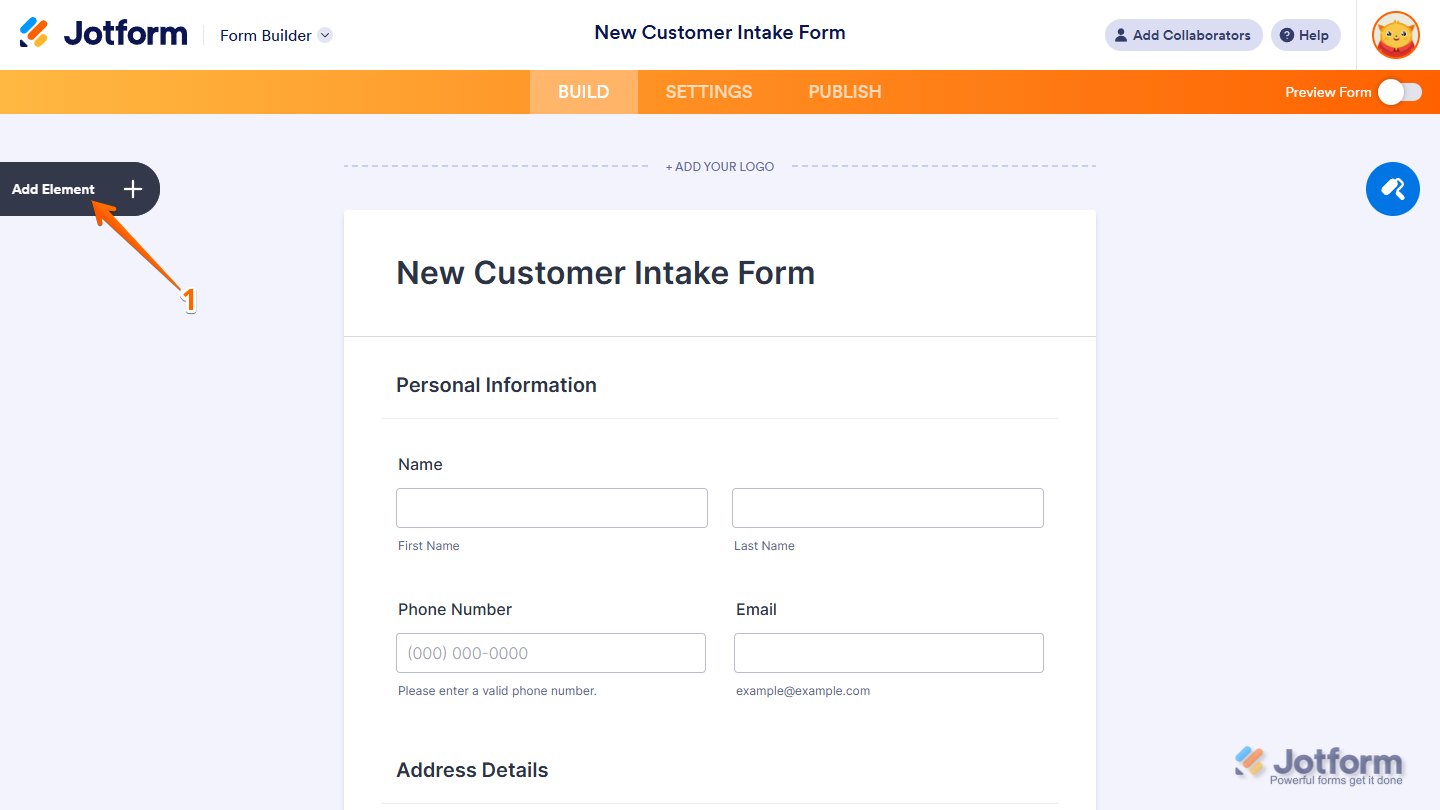
- In Form Builder, click on Add Element on the left side of the page.
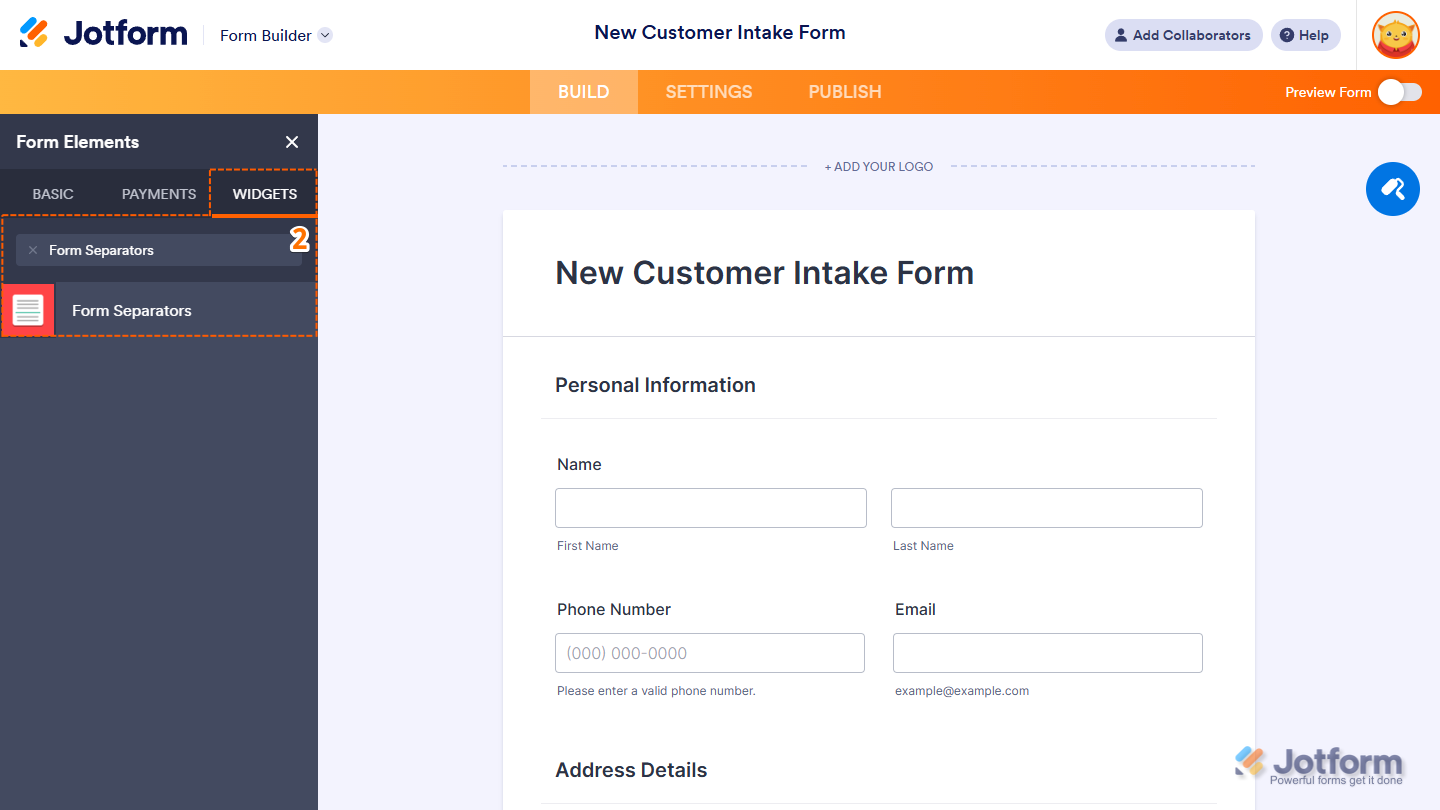
- Now, in the Form Elements menu, under the Widgets tab, search for Form Separators and click on it. Or, just drag and drop it to where you want it to be on your form.
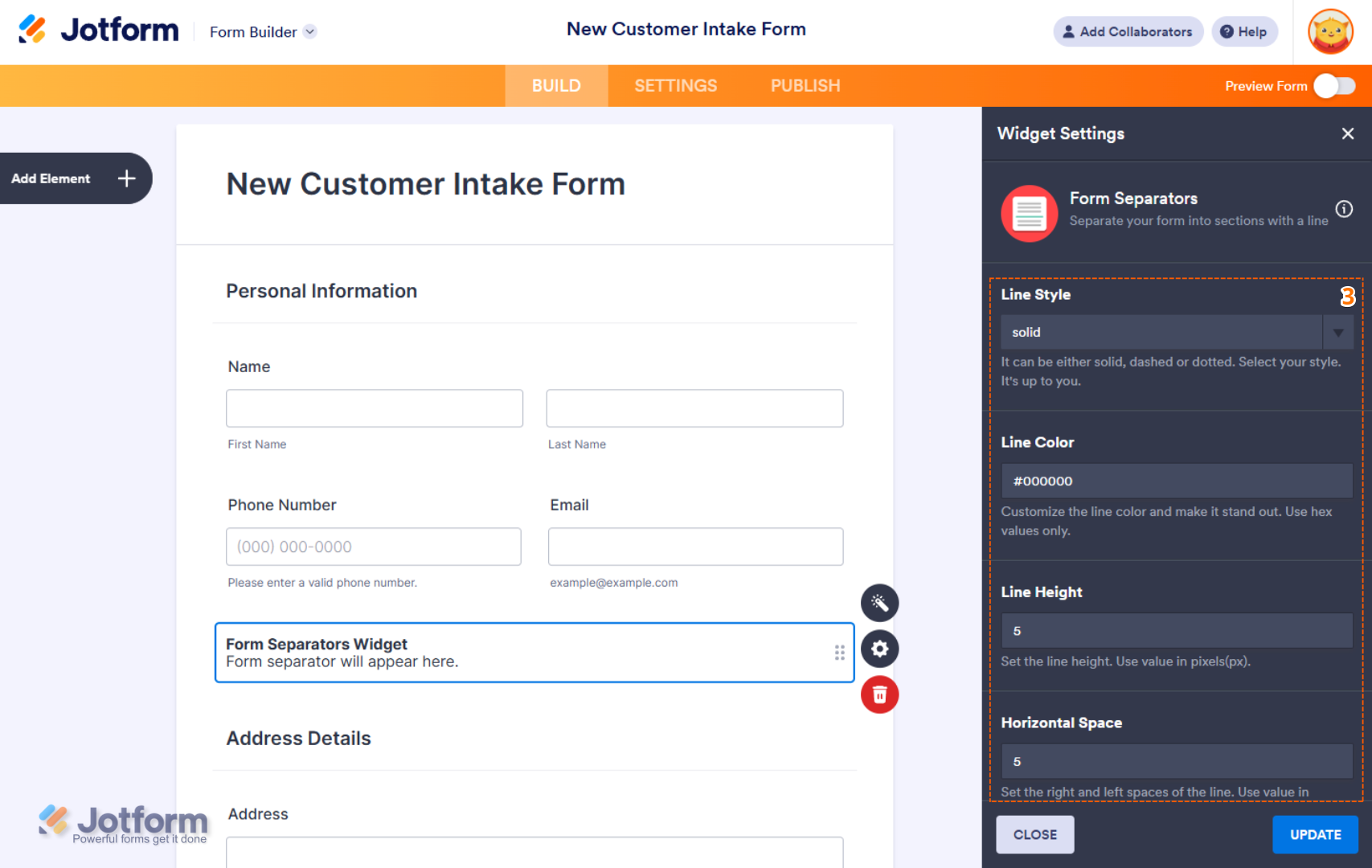
- Next, in the Widget Settings menu that opens on the right side of the page, under the General tab, you’ll see this list of settings you can configure:
- Line Style — Choose between solid, dashed, or dotted lines.
- Line Color — Customize the line color using hex values to make it stand out.
- Line Height — Set the thickness of the line in pixels.
- Horizontal Space — Adjust the left and right spacing of the line in pixels.
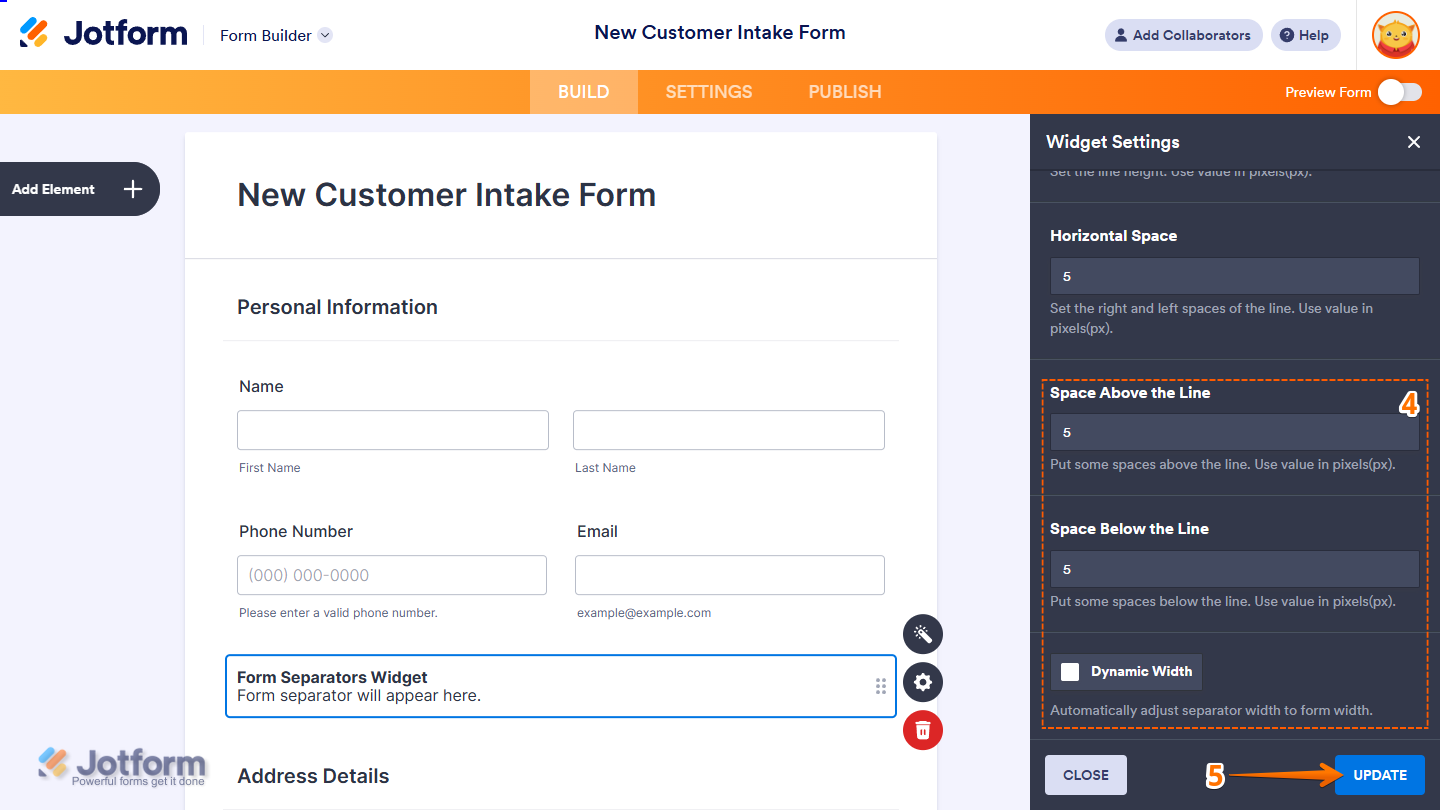
- Then, scroll down to the bottom and continue to set up these settings:
- Space Above the Line — Add spacing above the line in pixels.
- Space Below the Line — Add spacing below the line in pixels.
- Dynamic Width — Enable this to automatically adjust the separator width to match the form width.
- Then, click on Update, and you’re all set.
That’s it. You’ve successfully added and set up the Form Separators widget on your form. You can explore how it looks with this demo form.
Note
- The Form Separator styling won’t be visible in Form Builder. To see how it actually looks, use Preview Form or view the form in Live Mode.
- You can also configure the widget properties, like alignment, labels, size, visibility, and more, to control how it looks and behaves in your form. Check out our guide on How to Access and Configure the Question Properties of a Widget
to learn more.

Send Comment: