Jotform takes the hassle out of improving form accessibility with the Accessibility Enhancer widget. It lets you customize how error messages appear and add ARIA (Accessible Rich Internet Applications) attributes to your form, helping make your forms more accessible and easier to navigate for all users.
Here are a few ways to use it:
- Modify how error messages are displayed on your form.
- Add ARIA attributes to improve accessibility.
- Support users who rely on assistive technologies.
- Create more inclusive and accessible form experiences.
Whether you’re creating a new form or updating an existing one, you can add and set up the Accessibility Enhancer widget in a few easy steps. Here’s how to do it:
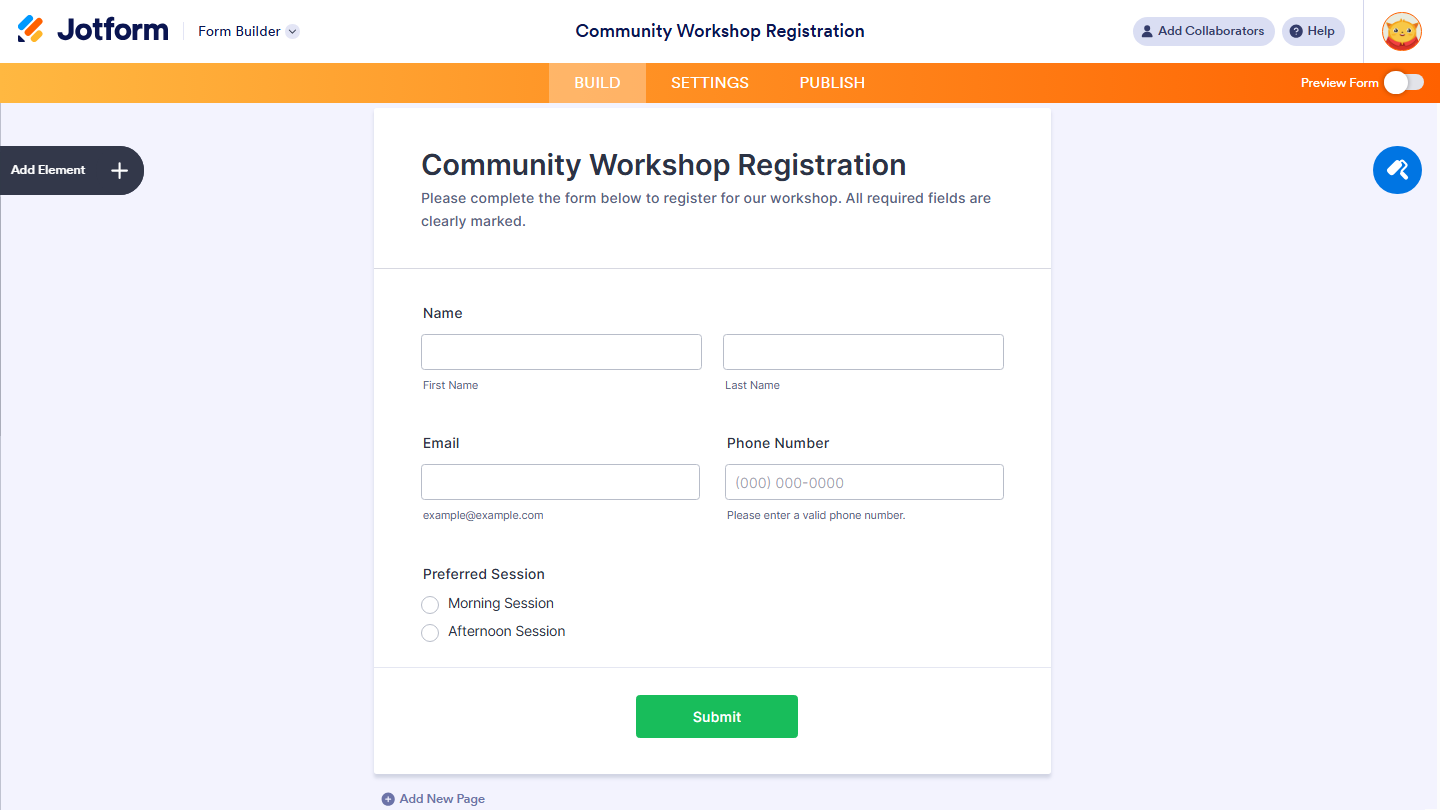
- In Form Builder, click on Add Element on the left side of the page.
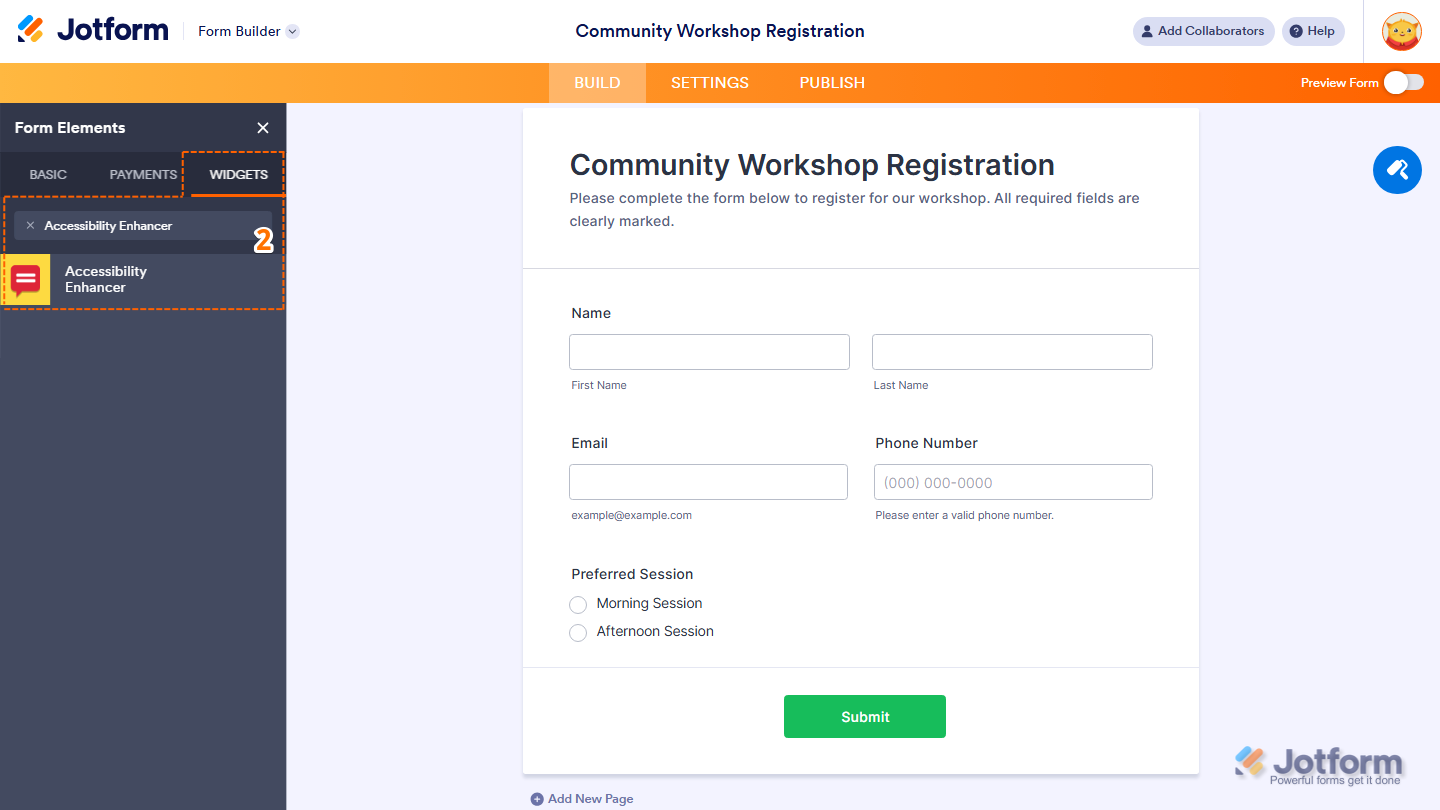
- Now, in the Form Elements menu, under the Widgets tab, search for Accessibility Enhancer and click on it. Or, just drag and drop it to where you want it to be on your form.
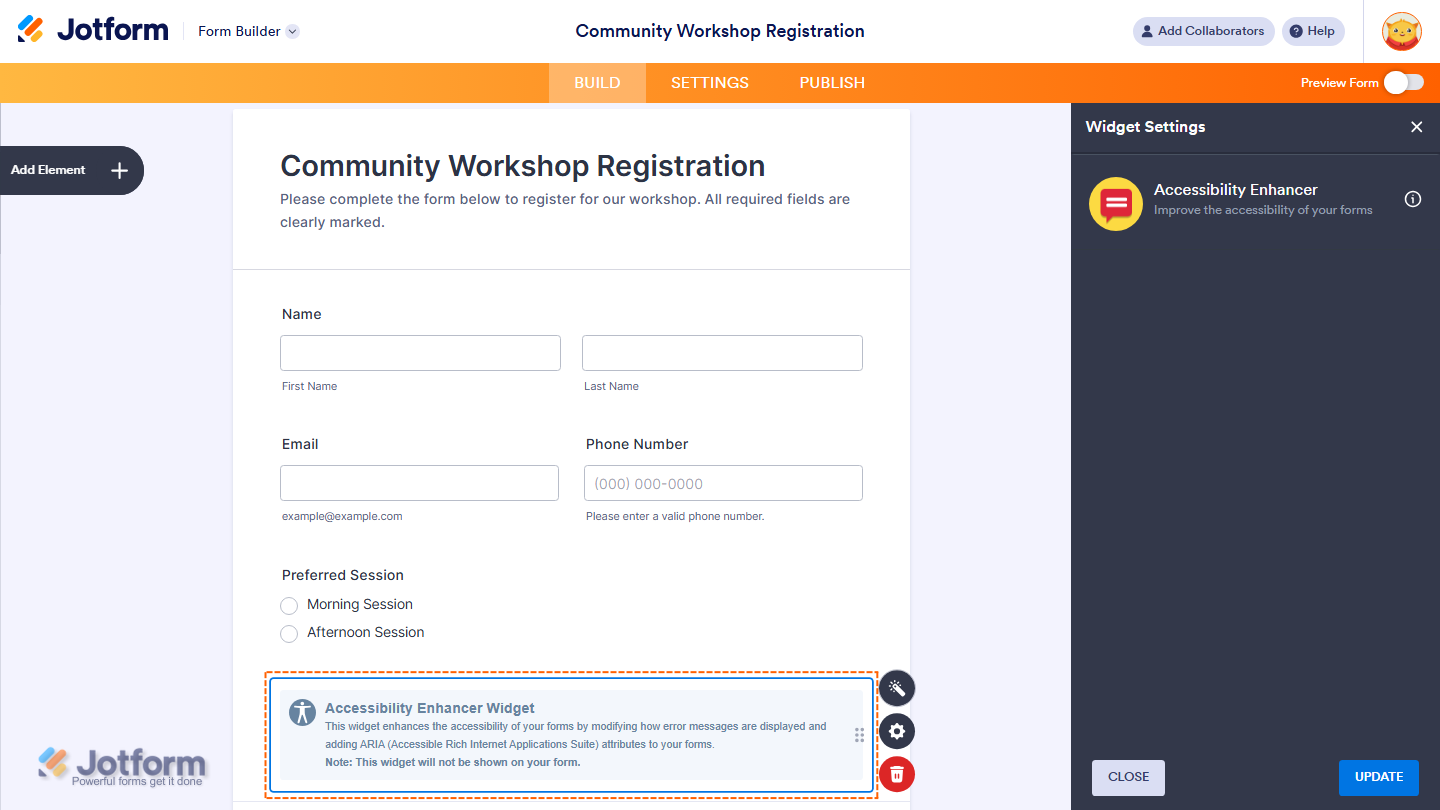
That’s it. You’ve successfully added and set up the Accessibility Enhancer widget on your form.
Wondering how it looks in action? Check out this demo form.
Note
- This widget will not be shown on your form.
- You can also configure the widget properties, like alignment, labels, size, visibility, and more, to control how it looks and behaves in your form. Check out our guide on How to Access and Configure the Question Properties of a Widget to learn more.

Send Comment: