Jotform’s Animated Heading widget is a handy tool that lets you display eye-catching, animated text to draw attention to important sections of your form—whether it’s a welcoming title, a call to action, or a section break. Choose from over 31 animation sequences to find the best one for your needs. Get people excited about your business with a bold, eye-catching headline.
Here are a few ways to use it:
- Highlight Important Sections — Use animated headings to break up your form into sections and make sure users don’t miss the key parts.
- Add Visual Appeal — A touch of animation makes your form feel more modern and engaging, especially if you want to stand out from plain text designs.
- Capture Attention Right Away — Put an animated heading at the top of your form to greet users or introduce what the form is about—it’s like a friendly wave saying, “Hey, look here!”
- Make Promotions or Announcements Pop — If your form is tied to a limited-time offer, event, or special deal, an animated heading can give it extra emphasis.
- Match Your Brand Personality — Choose an animation style that reflects your brand—whether fun and playful, sleek and professional, or bold and eye-catching.
Note
This widget is visual only; it doesn’t collect user input, but it helps guide users and improve form engagement.
Adding and Setting Up the Animated Heading Widget
Create the perfect animated banner for your form with our free Animated Heading widget. Setting it up takes no time—here’s how:
- In Form Builder, click on Add Element on the left side of the page.
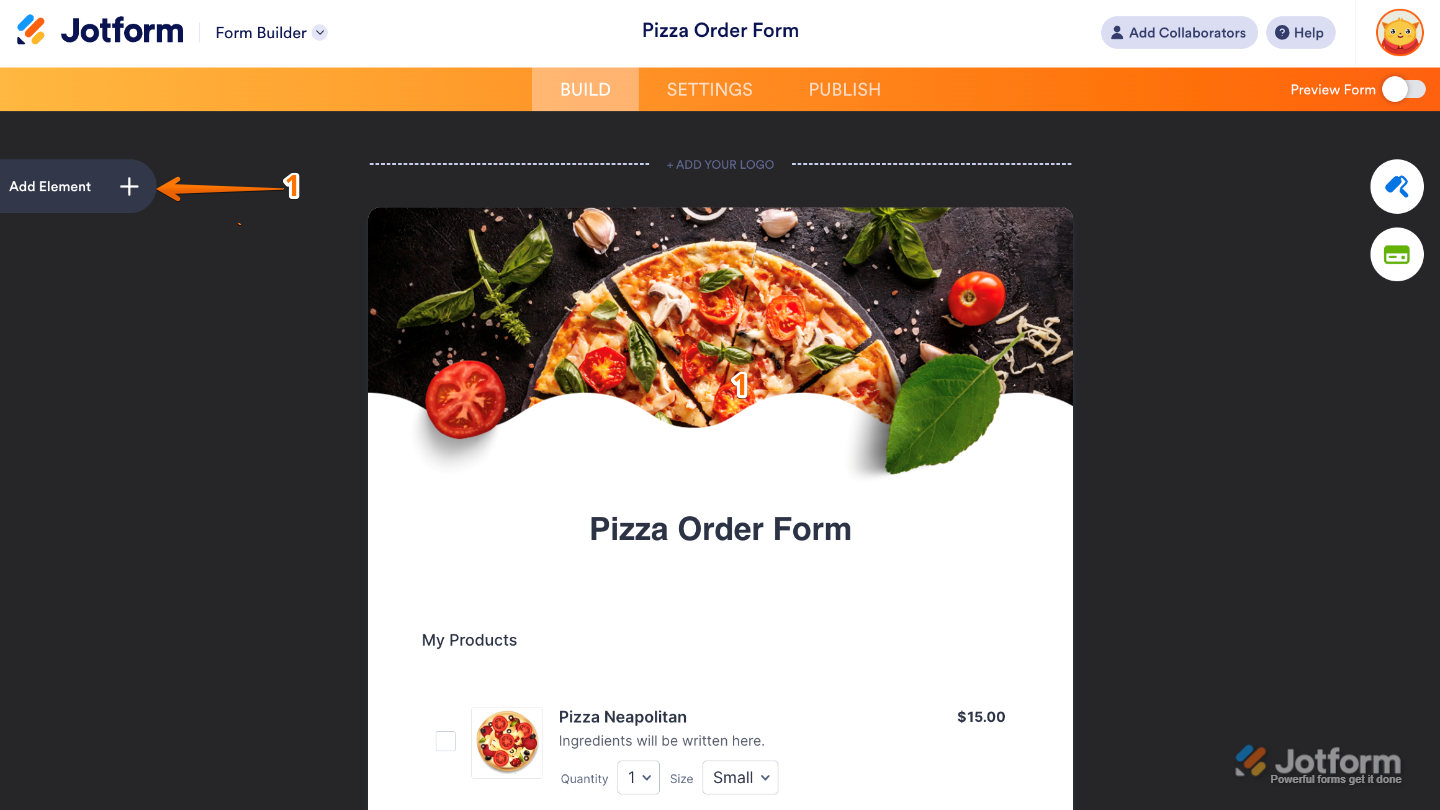
- Now, in the Form Elements menu, under the Widgets tab, search for Animated Heading and then click on it. Or, just drag and drop it to where you want it to be on your form.
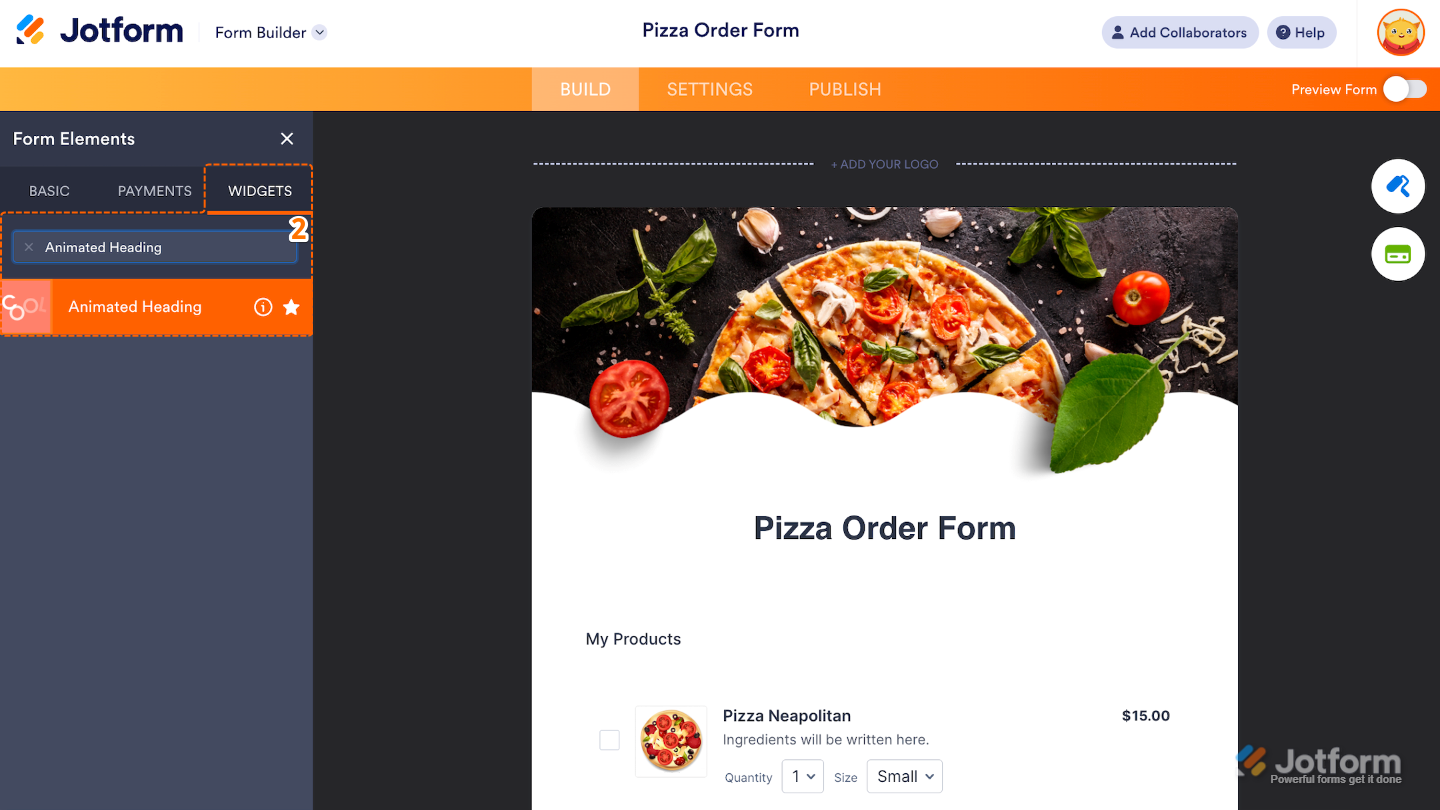
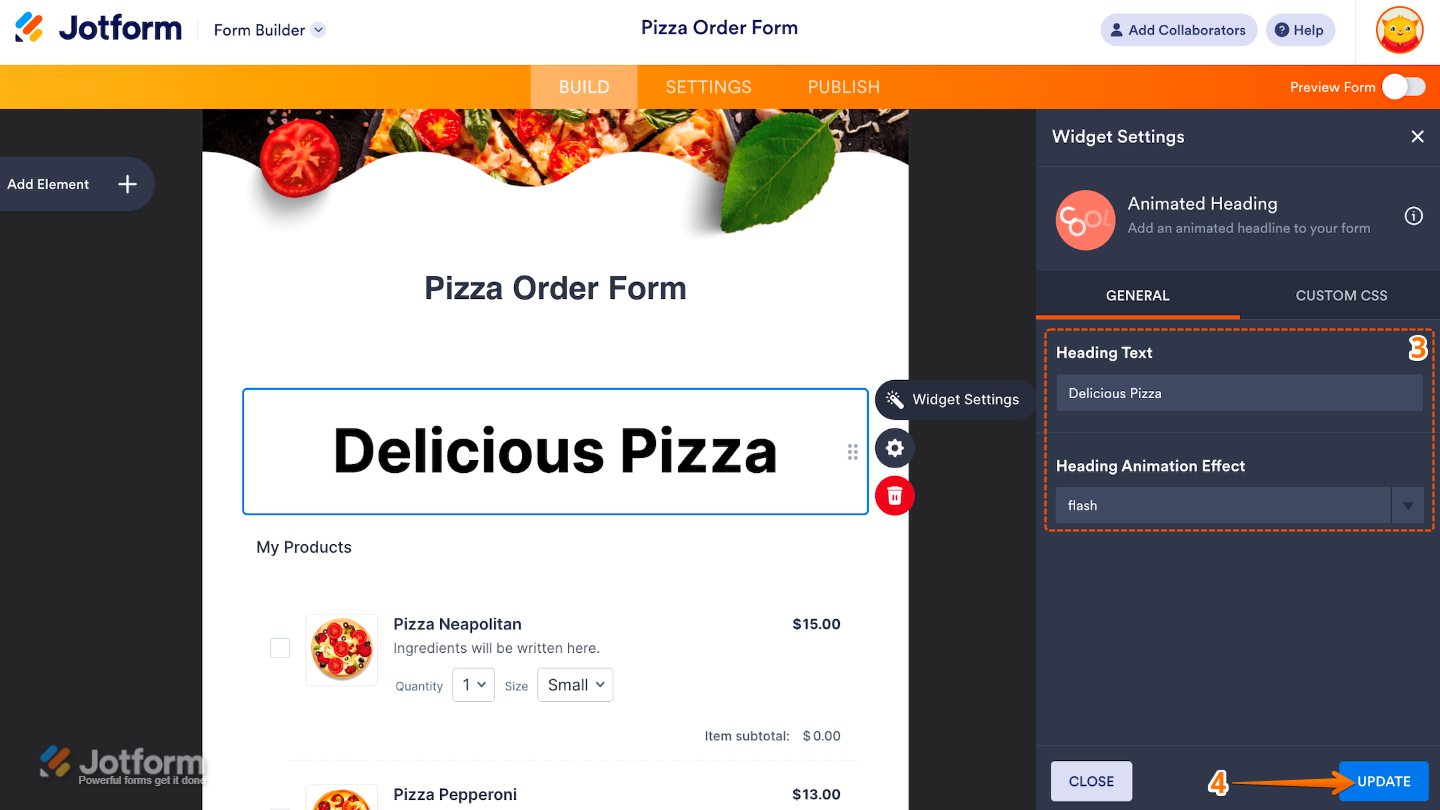
- Next, in the Widget Settings window that opens on the right side of the page, set up the following options:
- Heading Text — Enter here the main message or title you want to display in the animated heading.
- Heading Animation Effect — Choose from 31 fun animation effects to add some motion and make your heading stand out.
- Once you’re done, click on Update.
That’s it. You’ve successfully added and set up the Animated Heading widget to your form. Your form now features lively, animated text that’s great for highlighting a title, message, or section that deserves a little extra attention. Curious how it works on a live form? Check out this Demo Form.
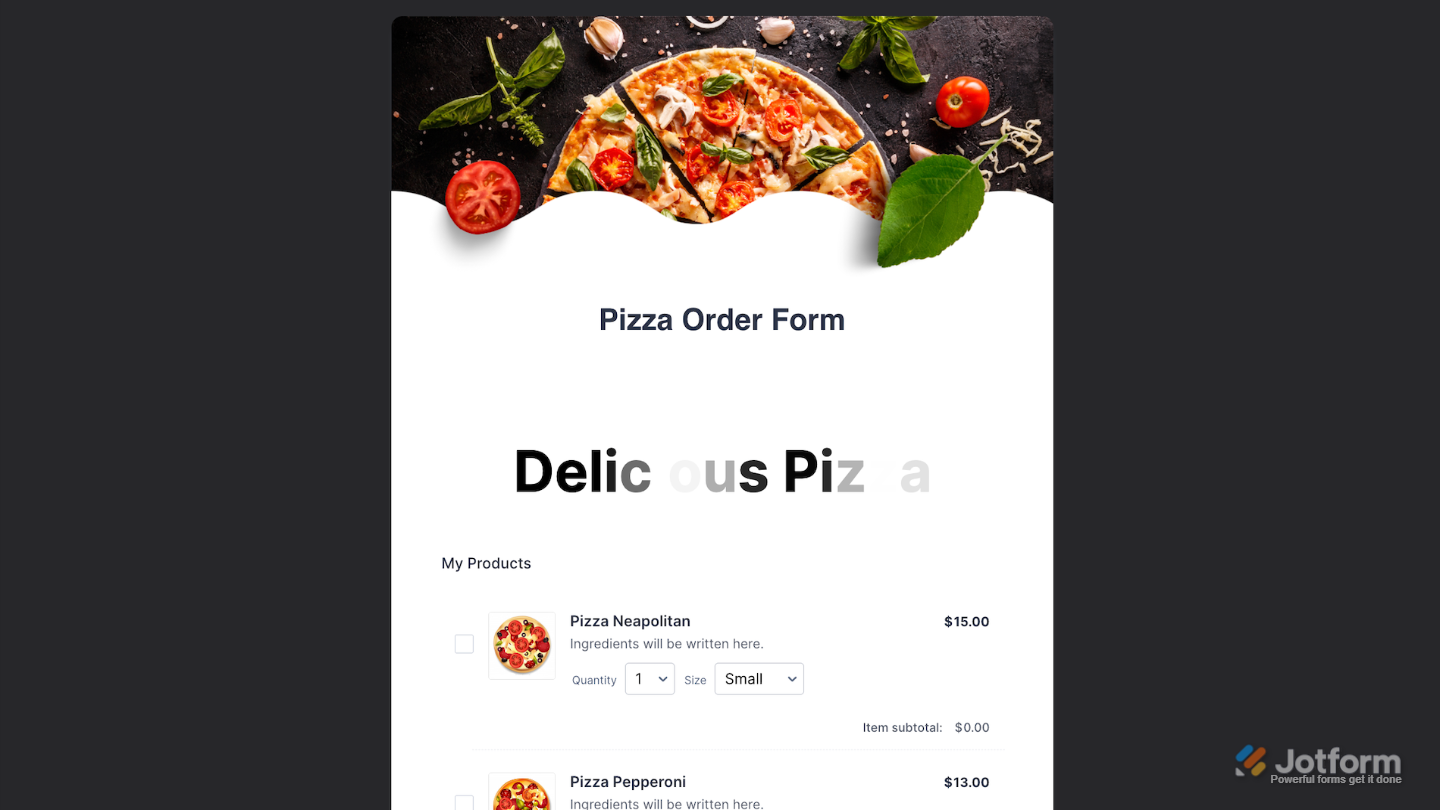
To further customize your Animated Heading field appearance, just click on the Gear icon to open its properties.
Note
For advanced styling, you can add your own custom CSS under the Custom CSS tab in the widget settings and style the Animated Heading field. Our guide on How to Inject CSS Codes to Widgets walks you through everything.
Pro Tips
- Use animated headings strategically; place them at the top of your form, between sections, or above important messages to help users stay focused.
- Preview your form on mobile to ensure the animation looks smooth and doesn’t distract from the content.
- Keep it short and simple; short headings work best for animation and are easier to read quickly.

Send Comment: