The Animoto widget makes it easy to bring your form to life with smooth, eye-catching videos. Whether you want to show a product demo, share a warm welcome message, or add a personal touch, adding an Animoto video helps you connect with your audience in a more memorable, engaging way. No extra plugins and no complicated setup—just simple, stylish video right inside your form.
Here are a few ways to use it:
- Showcase a Promo or Brand Video — If you want users to instantly understand your brand, your product, or your campaign, dropping an Animoto video into your form is a great way to do it. A quick, polished video can set the tone and get people excited before they even start answering questions.
- Add Video Instructions or Tutorials — Forms can sometimes feel overwhelming, especially if the process isn’t super simple. With the Animoto Widget, you can add a short instructional video to walk people through what they need to do.
- Improve Event Registrations — Use an Animoto video to show highlights from past gatherings, introduce speakers, or share a sneak peek of what’s coming up.
- Present Products or Services in Style —If your form is collecting orders, inquiries, or feedback, a video can help showcase what you’re offering. Seeing your product or service in action can inspire trust and boost conversions.
Adding and Setting Up the Animoto Widget
Adding the Animoto widget to your form lets you showcase videos from your Animoto account in a clean, seamless way. Setting it up takes no time at all—here’s how:
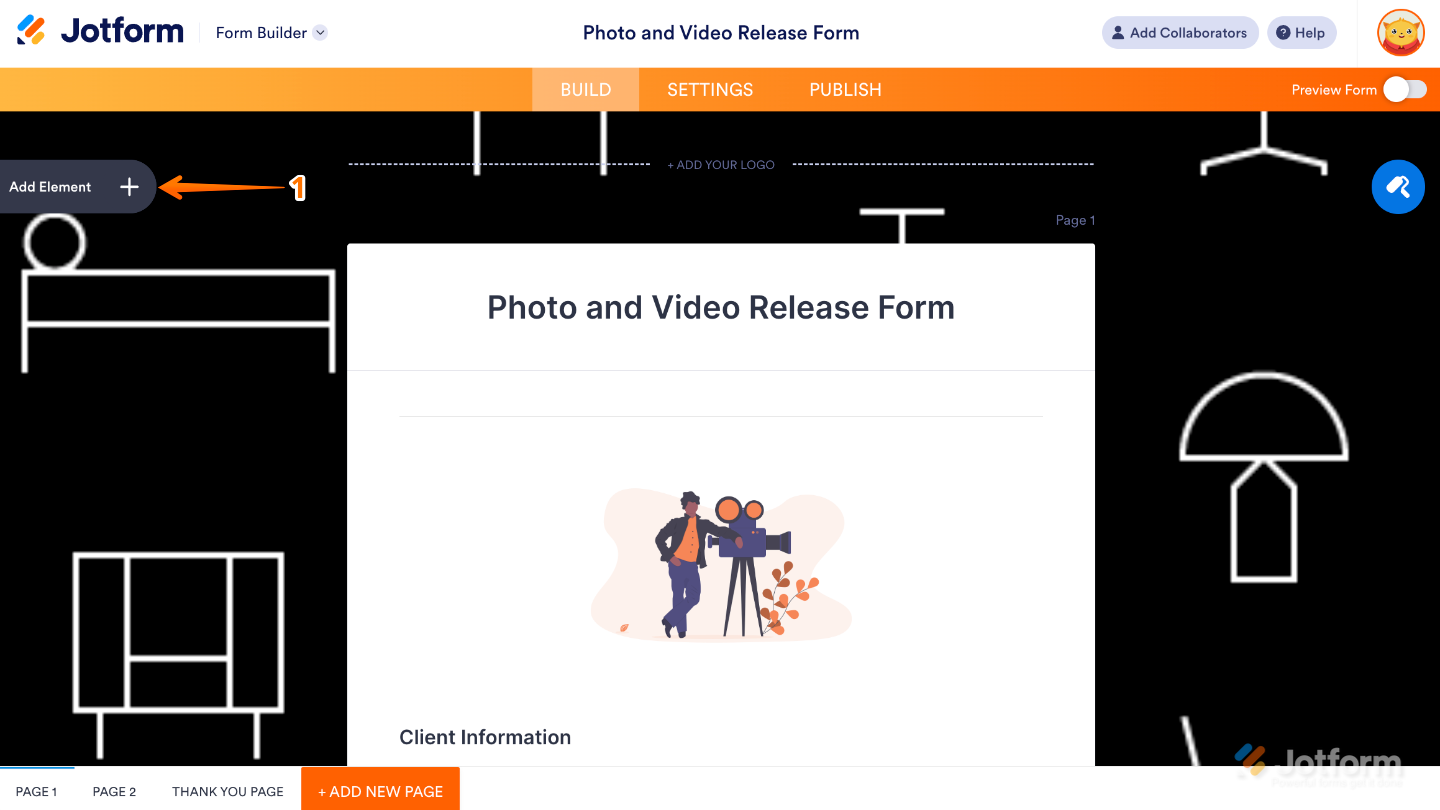
- In Form Builder, click on Add Element on the left side of the page.
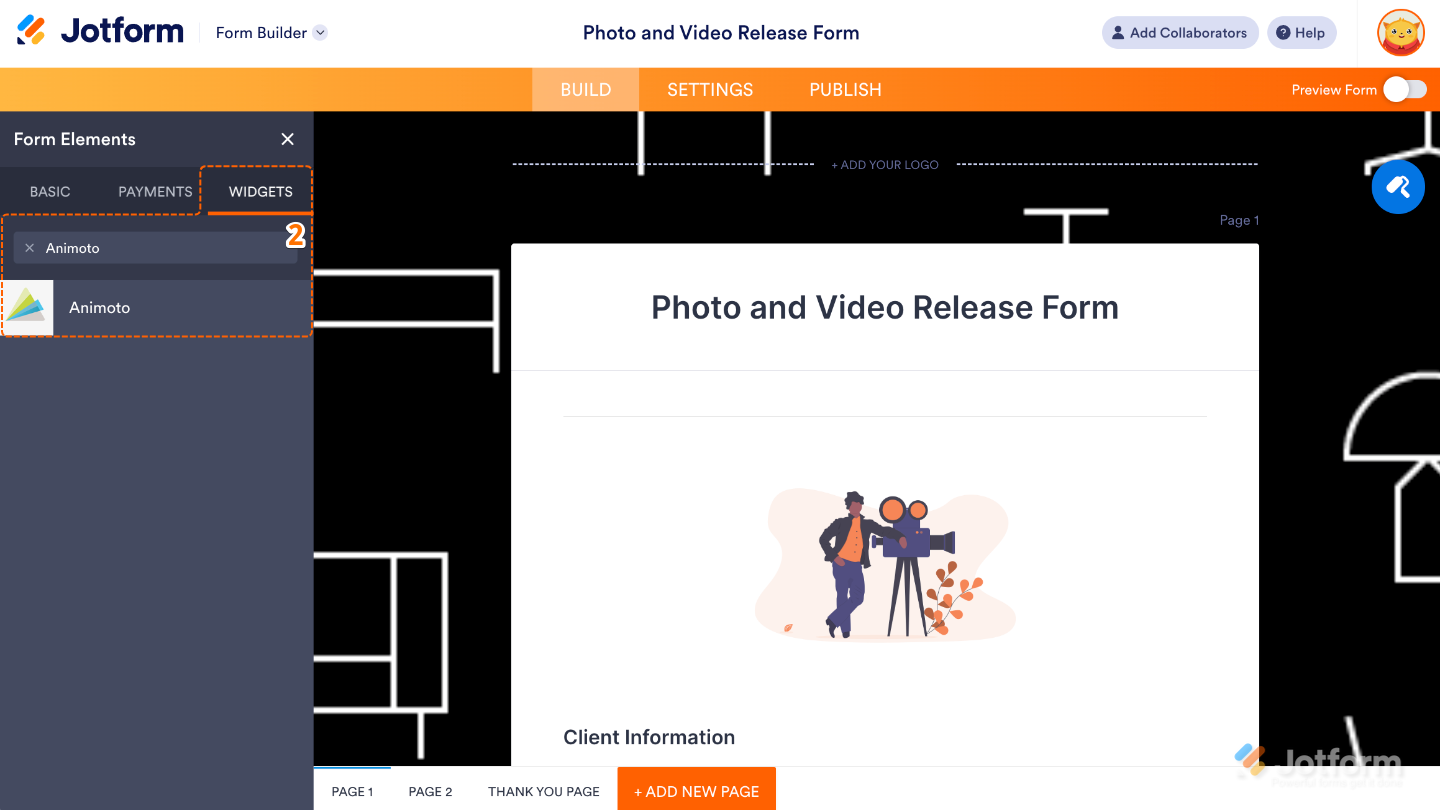
- Now, in the Form Elements menu, under the Widgets tab, search for Animoto and then click on it. Or, just drag and drop it to where you want it to be on your form.
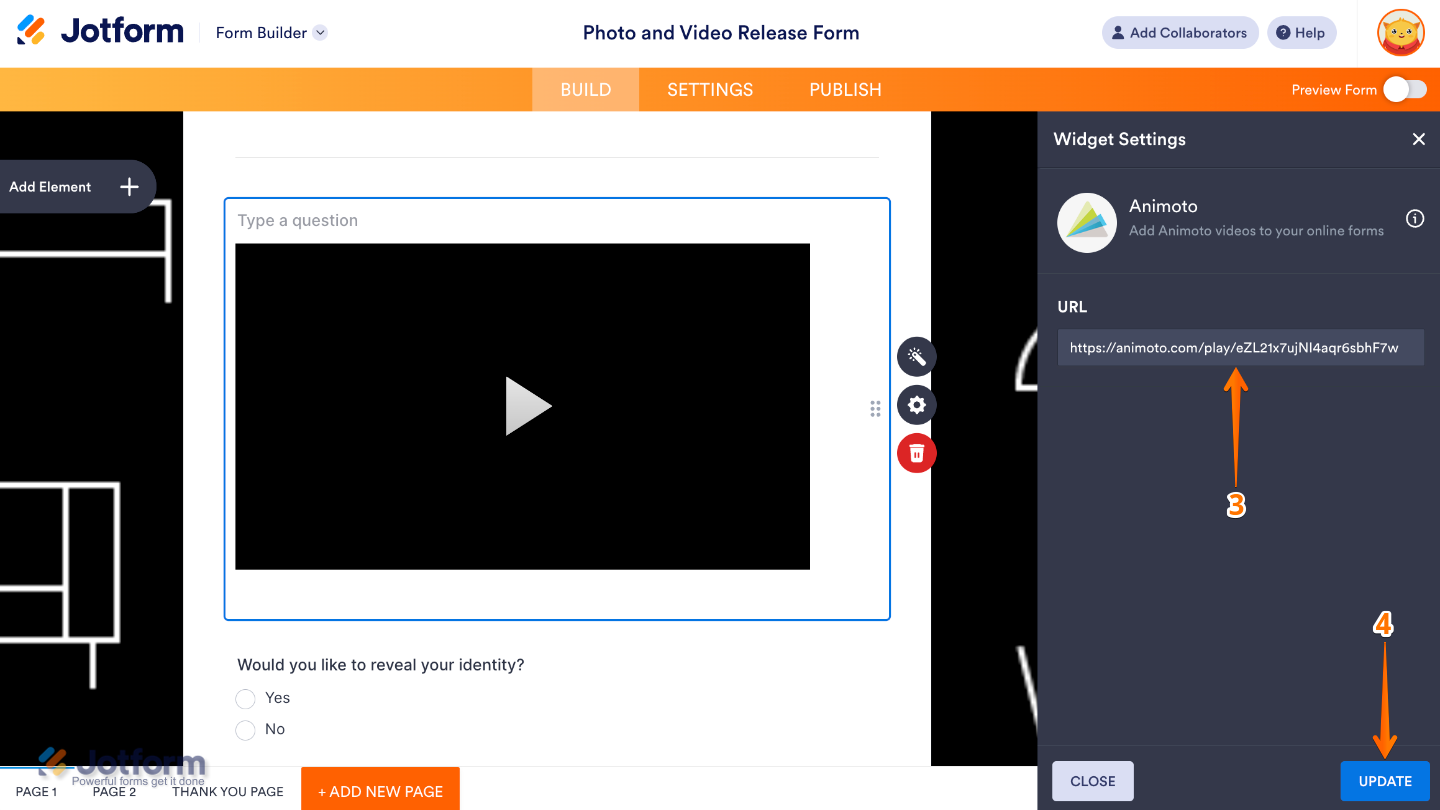
- Next, in the Widget Settings menu that opens on the right side of the page, paste your Animoto video link into the URL option. This tells the widget which video to show inside your form, letting users watch it right there without needing to open a new page.
- Once you’re done, click on Update.
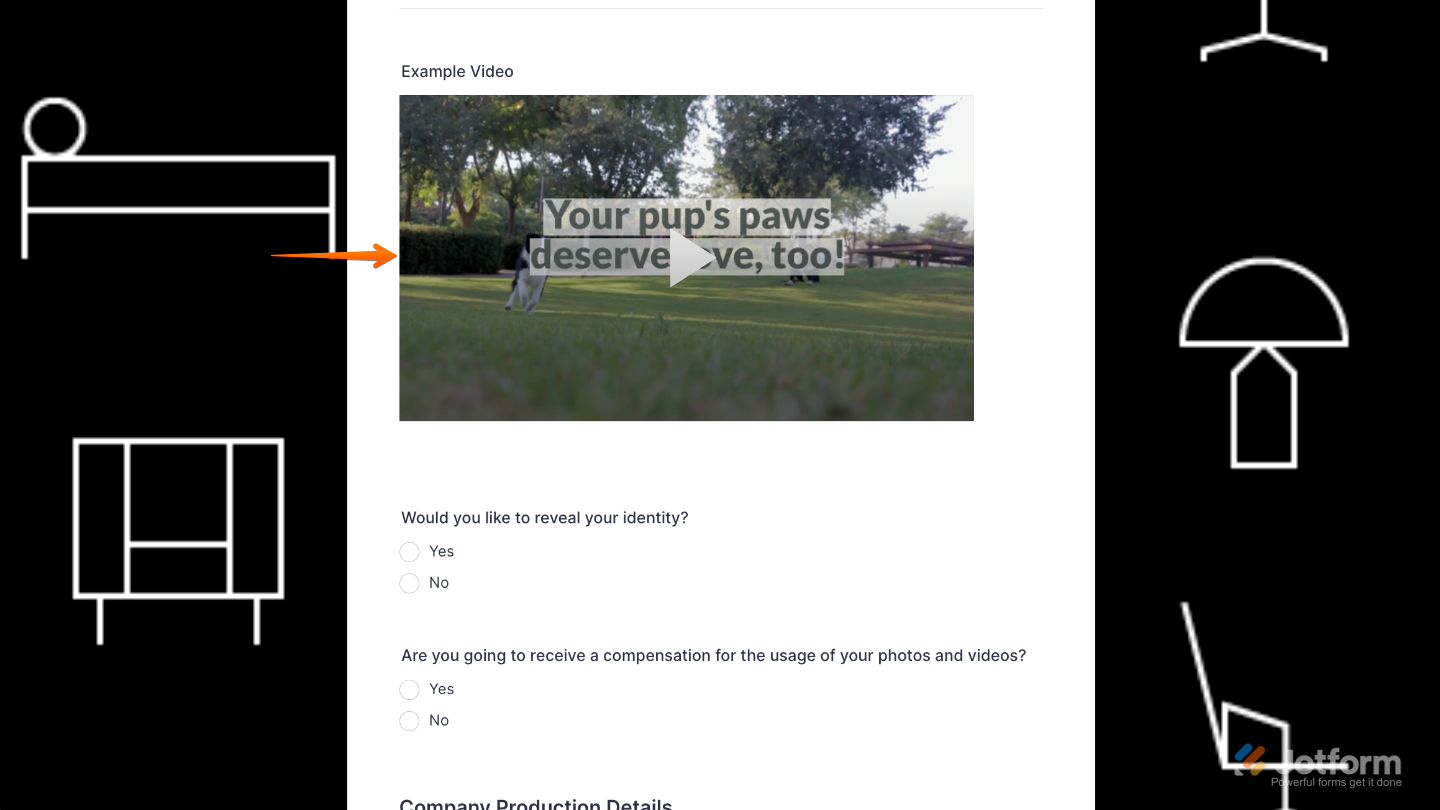
That’s it. You’ve successfully added and set up the Animoto widget on your form. Now your users can watch embedded videos directly within the form, making your content more interactive and visually appealing. Curious how it works on a live form? Check out this Demo Form.
You can also configure the widget properties, like alignment, labels, size, visibility, and more, to control how it looks and behaves on your form. To learn how it’s done, see our guide on How to Access and Configure the Question Properties of a Widget.
Pro Tips
- Pick an Animoto video that matches the purpose of your form—whether it’s inspirational, instructional, or promotional. A well-chosen video instantly elevates user engagement.
- Short videos work best on forms. Aim for 30–60 seconds so users stay engaged without feeling slowed down.
- Most users complete forms on their phones, so preview your form on mobile to ensure the video scales nicely and loads quickly.

Send Comment: