With Jotform’s Barcode Scanner widget, your users can quickly scan barcodes using their phone, tablet, or even a desktop camera—no extra gadgets needed. It’s super handy for things like tracking inventory, checking in guests at events, scanning products, and plenty more. Adding it to your form makes the whole process faster, smarter, and a lot more convenient.
Here are a few ways to use it:
- Track Inventory with Ease — Instead of typing product codes by hand, users can just scan barcodes to log items, check stock, or update inventory records quickly.
- Speed Up Event Check-Ins — For events, conferences, or workshops, you can scan tickets or badges at the door—making the check-in process fast, smooth, and hassle-free.
- Simplify Product Scanning — Perfect for retail, order forms, or service requests. Users can scan product barcodes to instantly add items, reducing mistakes from manual entry.
- Collect Data on the Go — Great for mobile teams—like delivery staff, warehouse workers, or field researchers—who need to capture barcode info while moving around.
Notes
- The Barcode Scanner widget uses the device’s built-in camera to scan barcodes. Make sure your users allow camera access for it to work properly.
- The widget supports standard 1D barcodes (like Code 128 or EAN) and some 2D codes, such as QR codes.
- If scanning doesn’t work right away, try adjusting lighting conditions or the distance between the camera and the barcode.
Adding and Setting Up the Barcode Scanner Widget
The Barcode Scanner widget lets users scan barcodes right through your form, quick and easy. Want to set it up? Just do this:
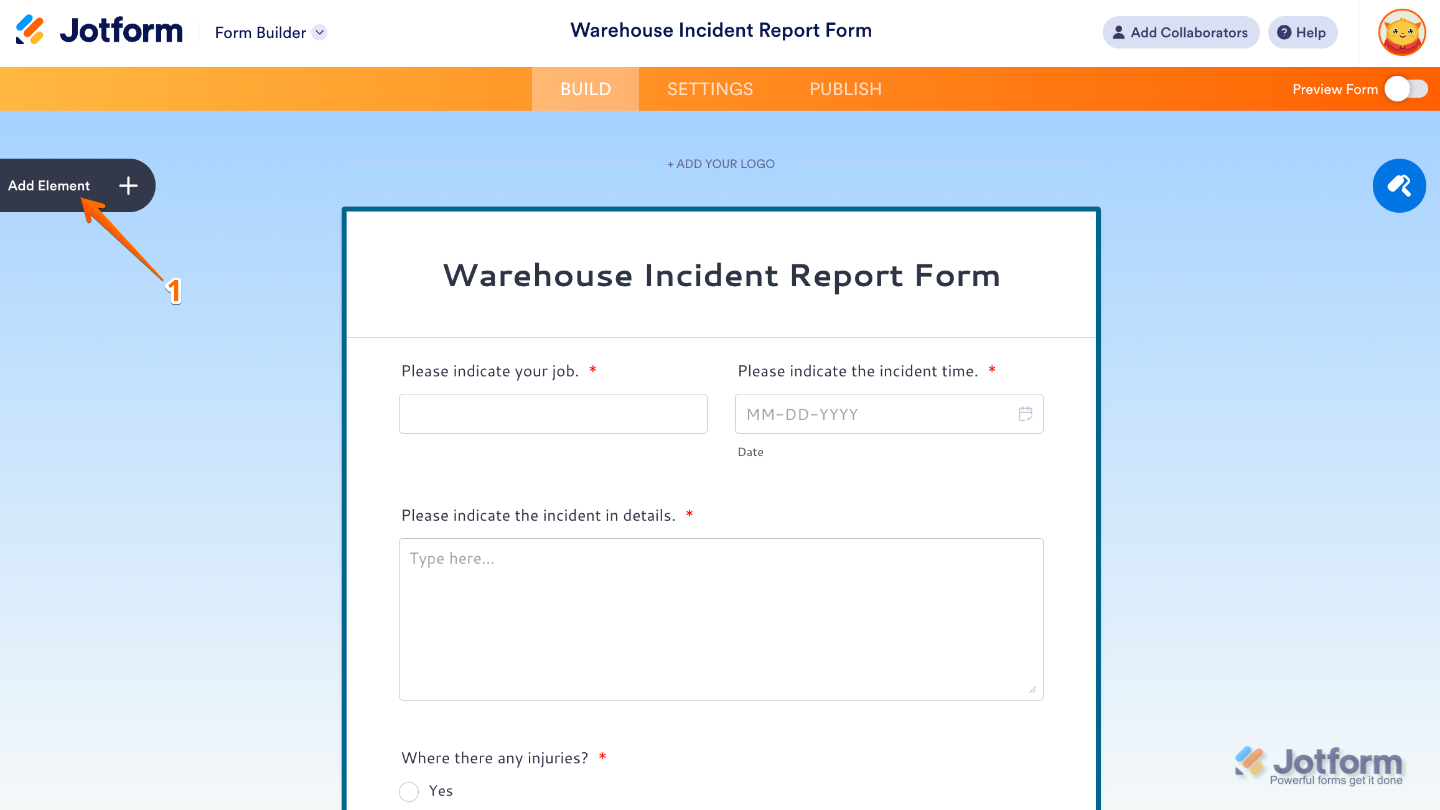
- In Form Builder, click on Add Element on the left side of the page.
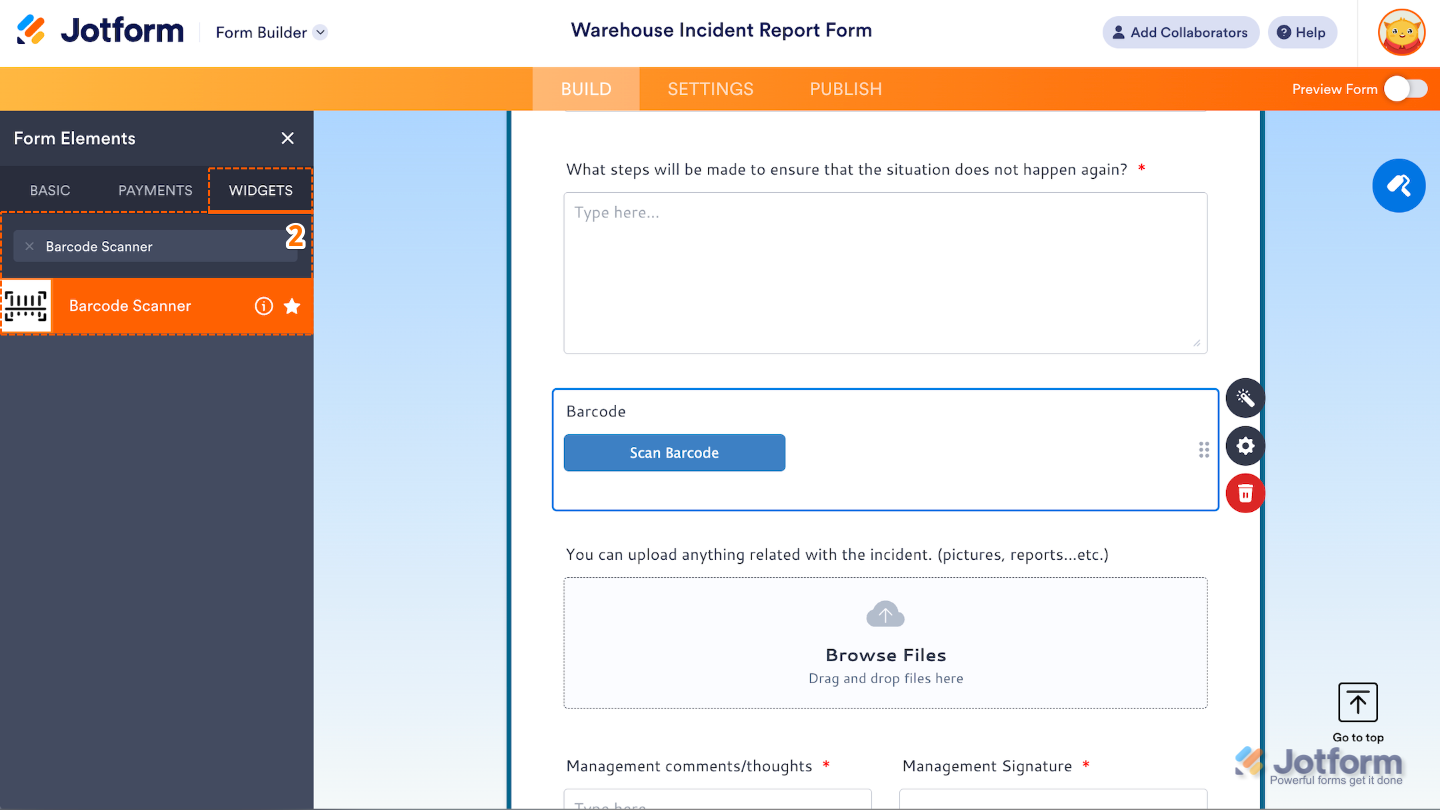
- Now, in the Form Elements menu, under the Widgets tab, search for Barcode Scanner and then click on it. Or, just drag and drop it to where you want it to be on your form.
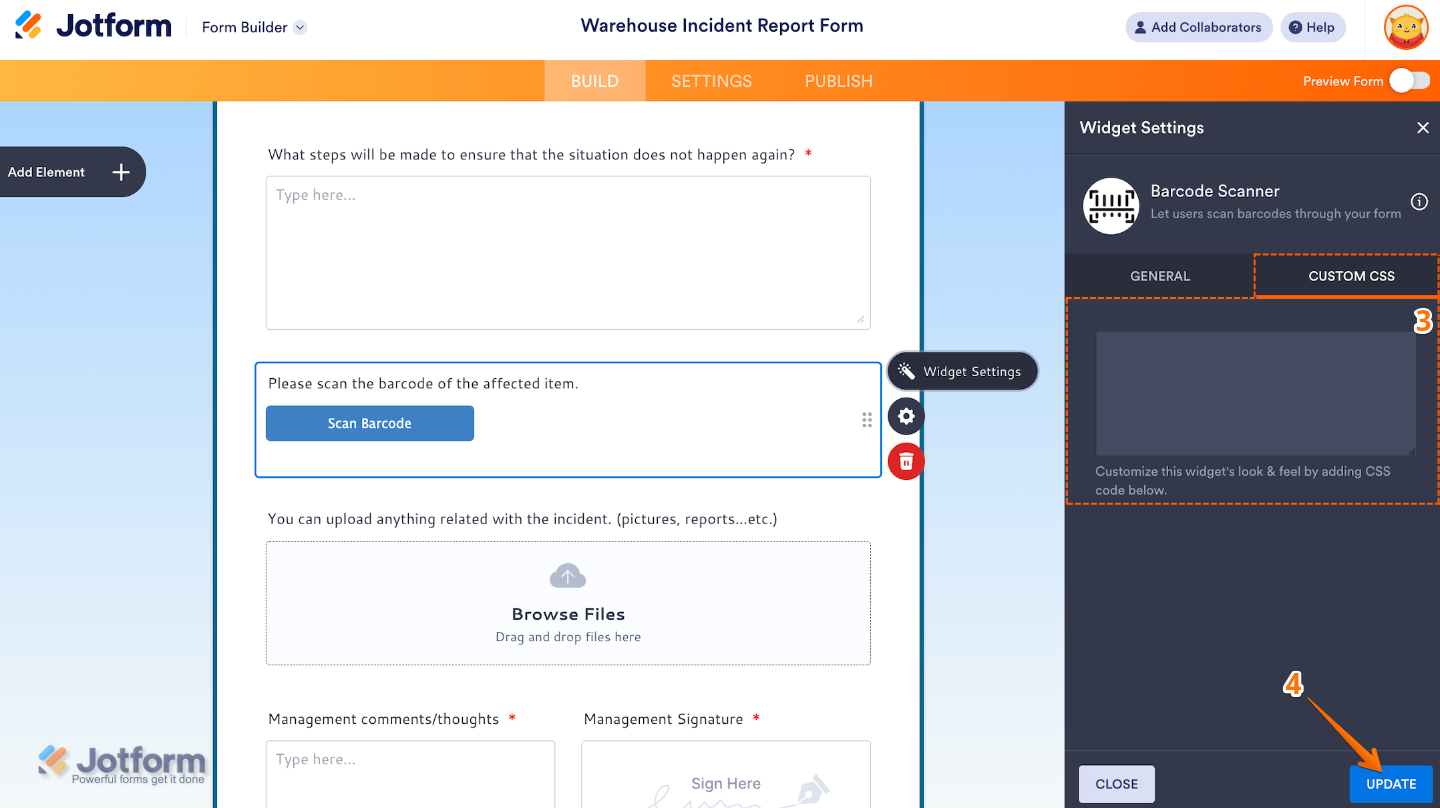
- Next, in the Widget Settings window that opens on the right side of the page, you can apply advanced styling by adding your custom CSS under the Custom CSS tab. Our guide on How to Inject CSS Codes to Widgets walks you through everything.
- Once you’re done, click on Update.
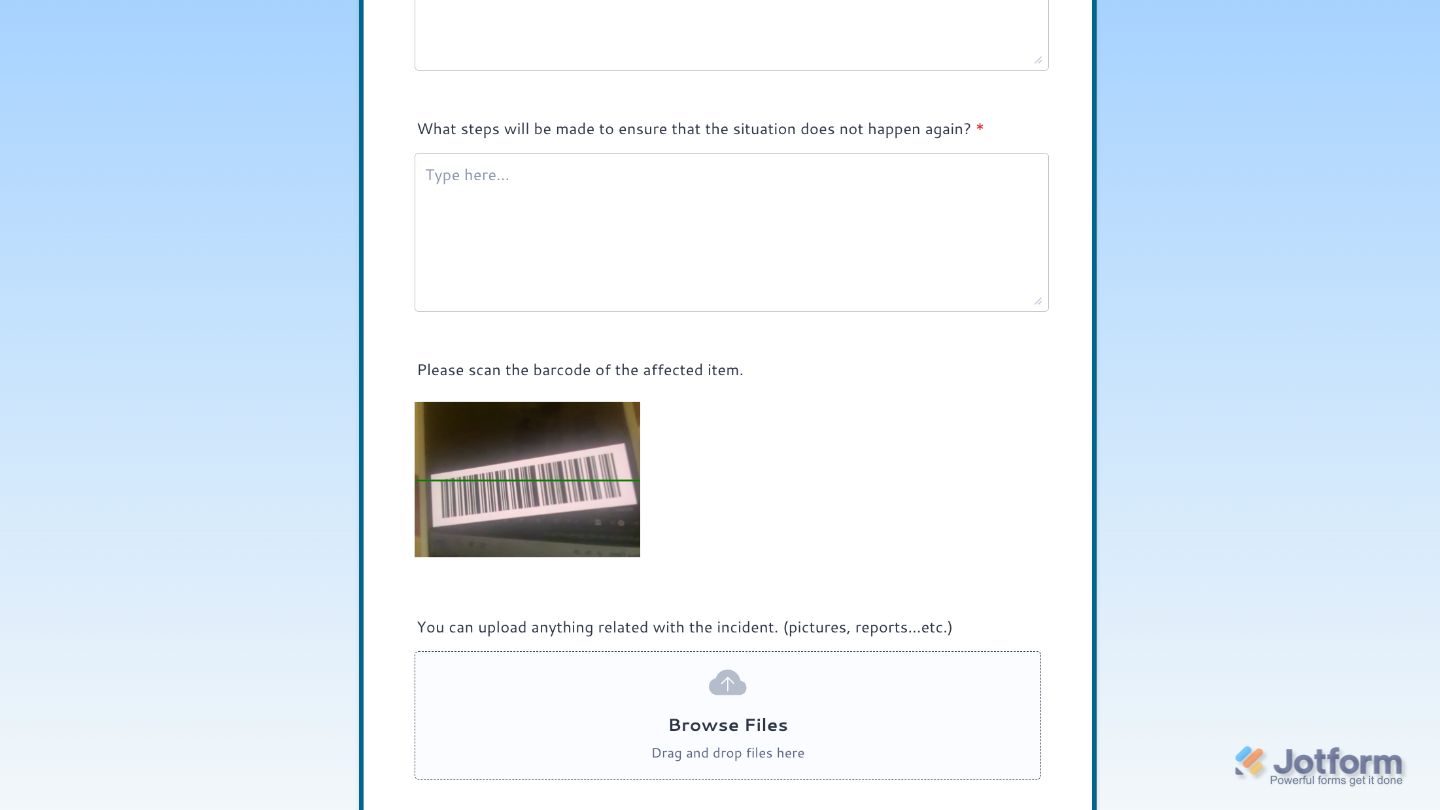
That’s it. You’ve successfully added and set up the Barcode Scanner widget to your form. Now you’ve added a field that makes your form perfect for users who need to scan barcodes on the go. Want a quick preview? This Demo Form shows how it works.
To further customize your Barcode Scanner field appearance, just click on the Gear icon to open its properties.
Pro Tip
Test before publishing: Always preview and test the widget across different devices to ensure compatibility and ease of use.

Send Comment: